Switching from a business to a personal account on Instagram isn’t as clear-cut as it looks. Many users hit a wall when hunting for the right menu, or worry about losing insights and features tied to their business profile. You might want to downgrade because paid promotions aren’t working, you want more privacy, or you simply need to simplify your presence, but the steps aren’t obvious, and the risks aren’t spelled out until you’re halfway through the process.
It’s easy to assume the only impact is losing analytics, but there’s more at stake. If you switch Instagram business account to personal, you’ll lose access to branded content tools, scheduled posts may break, and any active ads or business integrations will stop working immediately. Missing a detail here can lock you out of features you didn’t realize you were using.
What trips up most people is that Instagram’s process changes year to year, and the option to deactivate Instagram business account or remove business profile on Instagram can move or get renamed after app updates. If you don’t check every step, you might end up with a half-converted profile or find yourself unable to undo the change without extra headaches. how to turn off business account on instagram is really about knowing the exact sequence, not just tapping a button.
Here’s the real workflow, step by step, with the latest menu paths for 2026.
What Changes When You Turn Off Your Instagram Business Account?
Switching your Instagram account from business to personal or creator isn’t just a simple toggle, it changes what you can do, what data you see, and how others interact with your profile. If you rely on analytics, ads, or special contact tools, you’ll notice the difference as soon as you switch. Missing one detail can break scheduled posts or disconnect important integrations, so it’s worth knowing the exact tradeoffs.
Business vs. Personal vs. Creator: What Each Account Type Offers
The right Instagram account type depends on what you need day-to-day:
| Feature |
Business |
Creator |
Personal |
| Analytics (Insights) |
Yes |
Yes |
No |
| Contact Buttons |
Yes |
Yes |
No |
| Ads & Promotions |
Yes |
Yes |
No |
| Shopping Integration |
Yes |
No |
No |
| Private Account Option |
No |
No |
Yes |
Checklist
- If you want privacy, only a personal account lets you go private.
- Shopping tools are only on business accounts.
- Analytics and contact tools are gone if you switch to personal.
What Features You Lose When Leaving Business Mode
Moving away from a business account means giving up a few tools you might not realize you use daily. Instagram Insights, which show you who’s viewing your posts, vanish the moment you switch. Contact buttons like “Email” or “Call” disappear, which can confuse followers trying to reach you. If you run ads or use Instagram Shopping, those integrations stop working immediately, unfinished campaigns get paused, and products are removed from your profile. What surprises most people is that once analytics are gone, you can’t get old data back by switching back to business later. Scheduled posts tied to business tools may also fail without warning. The real risk is losing access to data and contacts you can’t recover after the switch, so double-check what you rely on before hitting that button.
This is why most users pause before making the change. The next thing to look at is why people decide to turn off their Instagram business account in the first place.
Why Users Decide to Turn Off Their Instagram Business Account
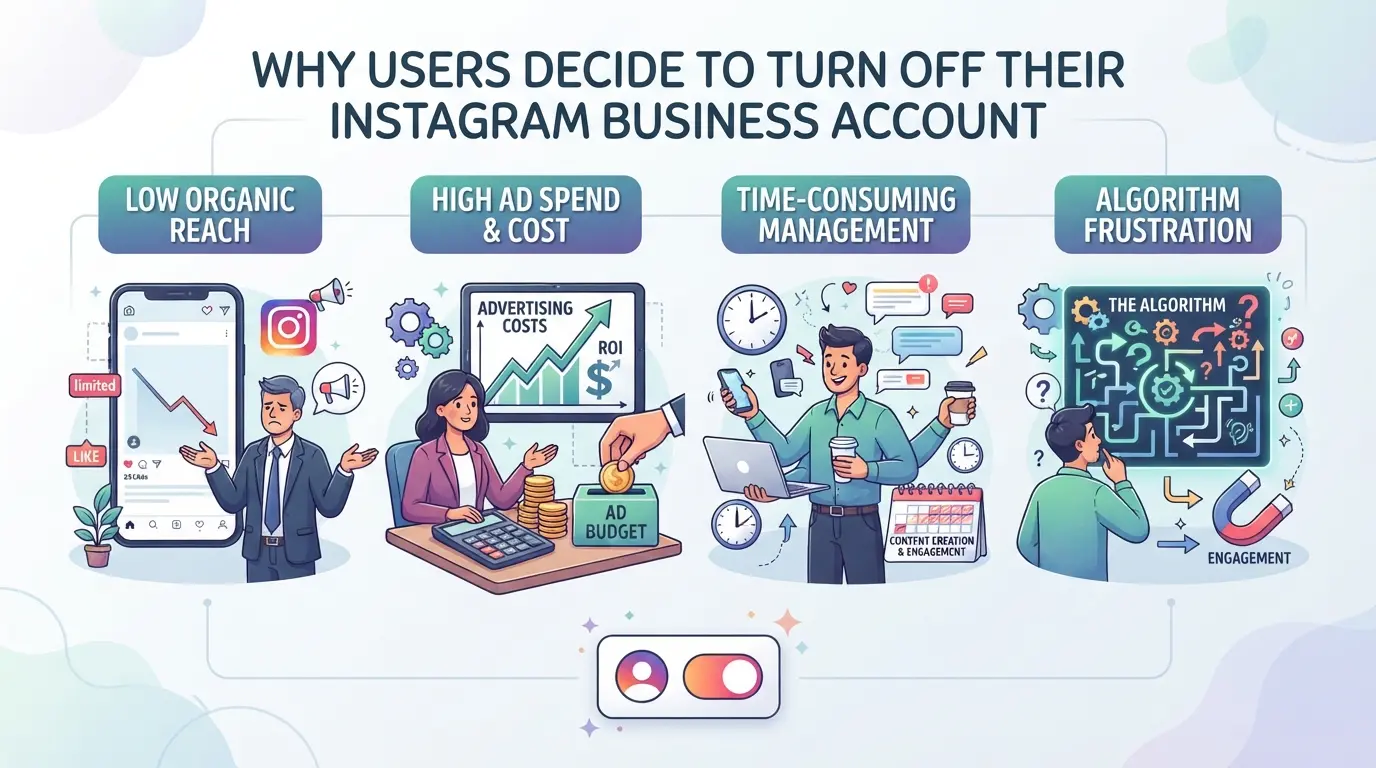
People switch off their Instagram business accounts because the tradeoffs start to outweigh the benefits. The most common triggers are privacy worries, a drop in reach, or too much clutter in daily use.
Privacy and Personal Use Concerns
For many, the main reason is privacy. Business accounts make your profile and contact details more visible by default, and sometimes you just want to go back to a private account for personal sharing. Some users get tired of strangers messaging them about products or services they don’t even offer.
Algorithm, Reach, and Engagement Issues
A lot of people believe business accounts get lower reach or engagement, especially after recent algorithm updates. You might notice your posts hardly show up in followers’ feeds or stories get fewer views. For creators whose engagement rate matters more than analytics, switching to a personal account can feel like the only way to test if the drop is account-related or algorithmic. One common failure: users switch back and forth, hoping to “reset” their reach, but this rarely works, Instagram tracks account type changes and may flag repeated switches as suspicious behavior.
Simplifying Account Management for Individuals and Teams
- Tired of constant prompts for ads or insights you never use? Switching removes these pop-ups.
- Solo users often want a cleaner interface without the extra business tabs and menus.
- For teams, removing the business status can break third-party tools or scheduled posts, so the move is usually about cutting complexity or winding down an old project.
Most people don’t decide to remove business profile on Instagram without a specific pain point, either their workflow got too messy, privacy took a hit, or engagement tanked. Before making the switch, it’s smart to check which features or connections you’ll lose so you don’t get stuck redoing setup later.
What to Check Before You Switch Off Your Instagram Business Account
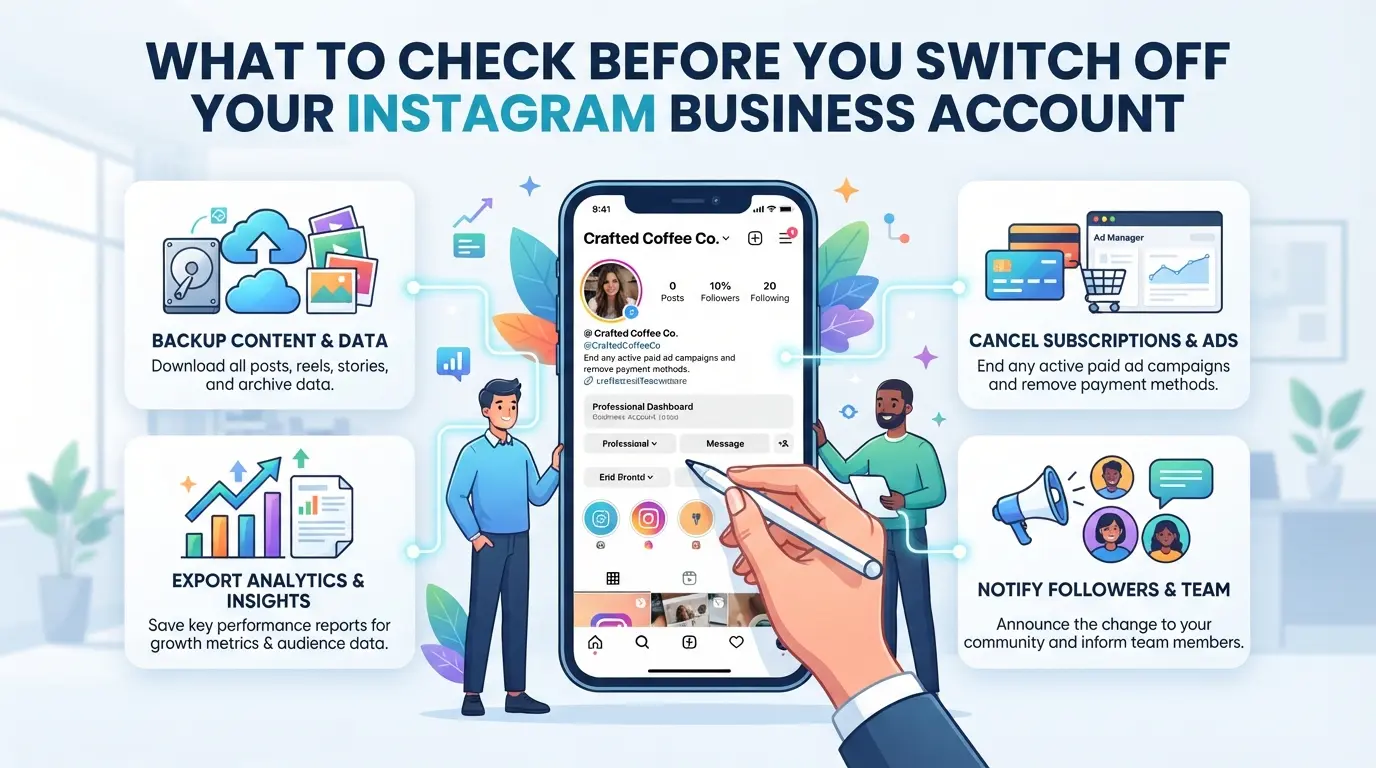
Missing a single detail before an Instagram account type change can break links, wipe business insights, or leave you locked out of features you didn’t realize you used. Here’s what you need to check, right now, so you don’t lose access or data when you switch Instagram business account to personal.
Exporting Insights and Analytics Data
Instagram wipes your business Insights the moment you switch to a personal account. Download your data first, there’s no way to get it back later. Just tap “Your Activity” > “Download Your Information” from your Instagram app menu and follow the prompts for a full export. This includes reach, engagement, and follower details; after switching, you’ll only see basic stats (like followers and likes) with no historical breakdown.
Reviewing Linked Features: Ads, Shopping, and Third-Party Tools
- Disconnect any active Facebook Page or ad account, unlinked assets can break, and it’s often a pain to re-link later.
- Pause or end all running Instagram Shopping features, especially if you manage product tags or catalogs.
- Check for any third-party scheduling, analytics, or automation tools, they may lose access or stop working after the switch.
Access and Admin Rights: Who Can Make the Change?
Only the main account owner or someone with full admin rights can remove business profile on Instagram. If you’re working in a team or through an agency, don’t assume permission, verify who has control before you start.
- Confirm you have primary admin or owner access on Instagram.
- Check if your linked Facebook Page permissions match, mismatches can block account changes.
- If your agency manages your account, get a written handoff or approval before any Instagram business to personal 2026 switch.
If you skip these checks, you risk losing ad data, breaking shopping tags, or getting locked out of admin controls with no easy way back. Once you’re sure everything’s covered, you’re ready for the step-by-step process to deactivate Instagram business account.
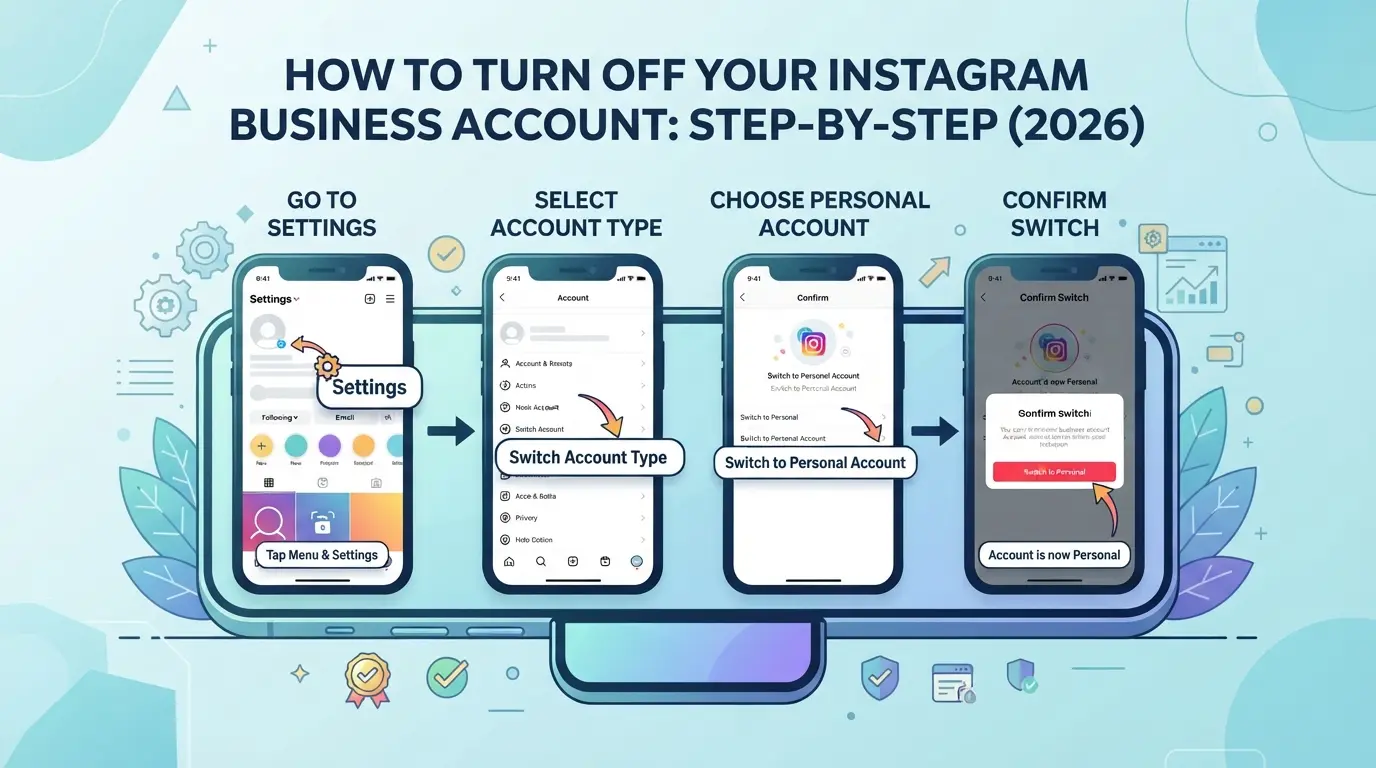
How to Turn Off Your Instagram Business Account: Step-by-Step (2026)
If you need to switch your Instagram business account back to a personal or creator profile in 2026, the process now involves a few extra confirmation screens and a menu path that’s changed since 2025. The key is following each step in the new order, missing a menu or skipping a warning can leave your account stuck in limbo.
Step 1: Open Your Instagram Profile and Go to Settings
- Tap your profile photo in the bottom-right corner to open your profile.
- Tap the three-line menu (≡) in the top-right, then select “Settings & Privacy.”
- Scroll until you see “Account Center,” then tap it, if you don’t see this, force-close and reopen the app to trigger the new layout.
- Choose “Account Settings.” If your menu doesn’t match, update Instagram, older app versions may not support the 2026 account type change.
Step 2: Find and Select 'Switch Account Type'
- Within “Account Settings,” scroll down to find “Switch Account Type.” This option now sits below “Personal Information” and above “Request Verification.”
- Tap “Switch Account Type.” You’ll see two options: “Switch to Personal Account” and “Switch to Creator Account.”
- Pick “Switch to Personal Account” if you want to remove all business tools. If you select “Switch to Creator Account,” some business features (like insights) will stick around, but branded content tools disappear. Choosing the wrong one means you’ll need to repeat this menu path, as Instagram doesn’t allow instant reversal.
Step 3: Confirm the Switch and Review Changes
- After selecting your new account type, Instagram shows a warning about losing business features, analytics, and active ads.
- Tap “Confirm.” If you get an error (like “Action Not Allowed”), check for active ad campaigns, these must be stopped first.
- Wait for the app to reload; you’ll see your profile updated to the new account type. If the switch seems stuck, log out and back in, sometimes changes don’t apply until the next session.
- Double-check your profile for leftover business features. If any remain, repeat the process or contact Instagram support.
Once you’ve finished, your profile will work as a personal or creator account, and all business functions will be turned off. Most problems at this stage show up as missing analytics or broken scheduled posts, watch for these right after switching. The next section covers exactly what you’ll see and lose post-switch.
What Happens After You Turn Off Your Instagram Business Account?
Switching your Instagram business account back to personal changes what you can see and do right away, and some things you lose won’t return even if you switch back.
Immediate Effects: Features, Insights, and Profile Changes
- You lose access to Insights, branded content tools, and scheduled posts.
- Your profile drops the business contact buttons and public category.
- Any active ads or product tags stop working instantly.
Long-Term Impacts: Data, Ads, and Re-Switching
Instagram keeps your old posts, but business-only analytics vanish for good. Past ads and their results become read-only; you can’t edit or restart them. If you change your mind, you can switch back to a business account, but you’ll start fresh, previous insights and settings won’t return. Missing this means some data is gone forever, even if you reverse the Instagram account type change later.
Switching off Instagram business mode doesn’t erase the risk of account cross-linking, especially for teams juggling several profiles on the same device. What matters next is how you set up browser and access isolation so Instagram can’t easily connect your accounts together.
Risks of Managing Multiple Accounts on One Device
- Logging in without browser isolation can link accounts through cookies or browser fingerprints.
- Sharing one IP across accounts often triggers platform review or restriction.
- Overlapping device info (location, OS details) can connect accounts even after a business-to-personal switch.
Best Practices for Account Isolation and Access Control
Teams that need to manage multiple Instagram accounts, especially after an Instagram business to personal switch, should create a separate browser profile for each account. This blocks cookies, device fingerprints, and session data from bleeding between logins. If a team member accidentally uses the same browser for two accounts, Instagram might link them, leading to restrictions or bans. Controlling who gets access to which profile also matters, granting broad access means any team mistake can affect all linked accounts. Assign single sign-on credentials only to staff who need them, and always keep a log of who accessed each account. If you skip these steps, one flagged account can pull down the rest, and undoing that damage is slow and rarely works through standard support channels.
How to Set Up Secure Instagram Account Management for Teams Using DICloak
Switching from a business to a personal profile on Instagram can break old workflows for teams, especially when managing several accounts at once. The main risk is cross-account mix-ups, not just losing features. After you change an account type, the safest way for teams to keep things organized is to separate browser profiles, assign network connections, and lock down who can access each account. Here’s how teams can do this with DICloak’s isolation and permission tools.
Create Isolated Browser Profiles and Configure Fingerprints for Each Instagram Account
Operators can create a new DICloak profile for every Instagram account, storing its browser profile and session data separately. Inside each profile, you can set device-specific signals like operating system, user agent, language, time zone, and screen size. Keeping every account in its own profile helps teams avoid accidental session overlap or browser storage leaks when switching between accounts. The scope here is limited to browser storage and profile configuration, it doesn’t manage Instagram account types or posts.

User-Provided Proxy Configuration for Assigned Profiles
Each DICloak profile supports user-provided proxy settings, so operators can add and test their own HTTP, HTTPS, or SOCKS5 proxy details. This makes it possible to keep each account’s network traffic separate, which is especially useful for agencies handling clients from different regions. Operators are responsible for selecting and configuring proxies and should test the exit IP and location for every profile before a team member logs in.

Control Team Access and Permissions for Account Security
Admins can set up member groups and assign which DICloak profiles and features each team member can use. Only the right people get access to the right accounts, cutting down on permission errors or accidental logins. This control is limited to DICloak’s workspace, platform-side roles and permissions in Instagram are still managed separately.

This setup covers the core workflow. Next, see what mistakes can break multi-account management when switching off Instagram business accounts.
Common Mistakes and Risks When Switching Off Instagram Business Accounts
Missing a step during an Instagram account type change can erase data or break features you rely on, some mistakes are hard to fix after the switch.
Losing Access to Insights and Analytics
If you don’t export your business analytics before switching, all past insights vanish instantly. Instagram does not let you recover this data afterward, so check and save reports first.
Breaking Ad Campaigns or Shopping Integrations
- Stop all active ads before the switch, unpaused campaigns may lose budget or tracking.
- Disconnect shopping features or catalogs to avoid sync errors.
- Confirm any third-party marketing tool no longer depends on business access.
Exposing Multiple Accounts to Platform Risk
Switching account types means your setup may change, sharing devices or logins now creates new risks.
- Avoid logging into multiple accounts on one browser or app without isolation.
- Never share passwords directly with team members after switching.
- Review device and app permissions so no personal account inherits leftover business access.
Frequently Asked Questions About how to turn off business account on instagram
Can I switch back to a business account after turning it off on Instagram?
Yes, you can switch your account back to a business profile anytime using the account settings. However, when you switch from business to personal, you may lose your old analytics and some saved business settings. If you decide to return to business mode, you’ll need to set up some features again.
Will I lose my followers or posts if I turn off my Instagram business account?
No, switching from a business account to a personal account does not remove your posts or unfollow your followers. Your photos, videos, and followers stay the same. However, you will lose access to business tools like Insights and shopping features until you switch back.
How do I export my Instagram Insights before switching account types?
Before you remove your business profile on Instagram, go to your account settings and use the “Download Your Information” option. This lets you request a copy of your Insights and other account data. Instagram will email you a file that includes your analytics and content history.
Is it safe to manage multiple Instagram accounts on one device after switching off business mode?
Managing multiple accounts on one device is safer if you use separate browser profiles or apps, proxies, and team permissions. This helps prevent Instagram from linking your accounts, which is important if you’re running several brands or want to keep accounts separate after an Instagram account type change.
Who can change the account type on an Instagram business account?
Only the account owner or users with admin access can change the account type. If you’re part of a team, make sure you have the right permissions before you try to switch Instagram business account to personal or make other account changes. This helps keep your account secure.
Now that you know how to switch your account type, consider whether a personal or creator profile best suits your needs going forward. Take a moment to review your privacy settings and connected features to ensure your Instagram experience matches your current goals.
Try DICloak For Free
 Web Proxy Tools
 Free Tools
 Cookie Plugin
 UA Generator
 MAC Address Generator
 IP Generator
 IP Address List
 2FA Code Generator
 World Clock
 Anonymous Check
 WebRTC Leak Test
 UUID Generator
 Free Web Proxy Site
 Proxy Checker
 FB Ad Checker
 AI Web Scraping
 Free SMM Tools
 Twitter Shadowban Checker
 Instagram Name Checker
 UTM Generator
 Username Generator
 AI Hashtag Generator
 LinkedIn Headline Generator
 Social Media Image Resizer