Getting past a browser fingerprinting check like BrowserScan isn’t just about running an incognito window or swapping your IP. You’ve probably noticed that even with fresh cookies and a proxy, BrowserScan can still flag your setup during a browser fingerprint test. The real headache comes when you think you’ve masked everything, but subtle details, like WebGL values or your user agent string, keep tripping the detection.
What throws most operators off is that BrowserScan detection doesn’t just rely on basic tracking. It checks for fingerprint consistency, device emulation gaps, and even browser quirks. That means simple tricks, like using a generic proxy or switching user accounts, won’t cut it. If your screen resolution, language setting, or GPU fingerprint doesn’t match the rest, you’re likely to fail the browser fingerprinting check anyway.
The practical angle is this: passing the BrowserScan fingerprint check demands more than one-off tweaks. You need a setup that can reliably simulate a real user environment, control fingerprint parameters, and keep each browser profile separated. If you skip the details, like handling font lists, timezone, and profile isolation, you’ll keep hitting false positives, no matter how many times you reset.
Here’s how operators are structuring their environment to pass BrowserScan reliably.
What Does BrowserScan Actually Check in Your Browser?
BrowserScan collects a wide range of data points to build your browser fingerprint. If even one parameter stands out or doesn’t match what a real user’s setup would show, your session gets flagged. Passing the BrowserScan fingerprint check isn’t about hiding; it’s about blending in across all the details that matter for detection.
Key Fingerprint Parameters Detected by BrowserScan
BrowserScan checks more than just your user agent or IP. The scan collects and analyzes:
- Device and browser basics: User agent string, browser version, screen resolution, and color depth.
- Hardware and software signals: Fonts installed, plugins, extensions, WebGL and WebGPU details, plus canvas fingerprint data.
- Environment and connection data: Timezone, language, geolocation, cookies, local storage, IP address, and proxy information.
How BrowserScan Aggregates and Scores Your Fingerprint
Every one of these parameters feeds into what’s called a “trust score.” This isn’t just a checklist, BrowserScan uses a scoring model that weighs how rare or mismatched your setup looks compared to normal user patterns. For example, if your browser reports a language setting that doesn’t fit your geolocation or your WebGL fingerprint matches a known emulator, the system marks your session as suspicious. Even something small, like a missing font or a profile with a proxy IP that doesn’t match the timezone, can tip the score toward a fail. Some operators try to randomize everything, but that can backfire, too much entropy (randomness) can make a profile even less believable, since real users don’t have wild, changing setups.
The detail that trips up most users is not the obvious stuff, but the subtle inconsistencies, BrowserScan flags profiles where small signals don’t fit together, even if the main fingerprint values look fine.
The risk isn’t just in failing the check outright. Sometimes, passing once with a mismatched setup leads to a silent score drop, meaning future sessions from that profile get flagged even if they look clean later. That’s why understanding exactly what BrowserScan inspects is a must before making any changes.
The next step is to break down why most users get caught during fingerprint checks and which parameters usually trigger a BrowserScan detection.
Why Most Users Fail the BrowserScan Fingerprint Check (and What Triggers Detection)
The main reason people fail the BrowserScan fingerprint check is simple: their browser profile leaves clear traces that trigger detection or link to other sessions. Most of these traces are caused by settings, habits, or shortcuts that seem safe but actually create patterns easy for BrowserScan to spot.
Frequent Fingerprint Patterns That Lead to Detection
- Skipping advanced setup and relying on default browser settings, BrowserScan flags mass-used fingerprints in seconds.
- Overlooking inconsistent details between fingerprints, like timezone versus language, or device memory versus graphics info, any mismatch sticks out.
- Running with weak or leaky proxies, or reusing cookies across profiles, real users don’t share the same IP or cookie history, but a careless multi-account setup often does.
How Multi-Accounting and Automation Get Flagged
Here’s where most teams get caught. Someone grabs a “clean” browser, grabs a proxy, and loads a copied config file or backup from a previous session. Maybe the idea is to work faster, or maybe nobody wants to set up new profiles from scratch every time. This works for a while, until BrowserScan matches the hardware ID, fonts, or WebGL signature to an already-flagged session, and the entire group is linked at once. A classic failure mode is copy-pasting a browser setup across VMs or team accounts. At first, every profile looks isolated. After a few days, BrowserScan picks up repeated values, maybe everyone has the same font list or GPU string, and burns all connected accounts in one sweep. Another edge case: device sharing. Even if team members use different proxies, the fact they open sessions from the same OS or leave hardware fingerprints untouched gives BrowserScan a direct link. Automation tools usually add another layer: telltale scripts, repeated mouse movement patterns, window sizes stuck on 1920×1080. Even with randomized input, these tiny patterns stick out during a browser fingerprinting check. If you just clone a working setup or share shortcuts with teammates, you risk getting every session burned together.
Missing details and reusing settings are not just rookie mistakes, they’re why teams lose accounts during BrowserScan tests, even after passing quick checks on simpler scanners. Before running another BrowserScan fingerprint test, the safest move is reviewing every parameter, making sure each profile’s environment is as unique as a real user’s, even the obscure bits. Skipping this audit is why detection happens, not just technical weakness.
When you do get a flag, it’s usually not a random event. There’s always a technical fingerprint mismatch, cookie reuse, or a tell in your environment. Knowing what triggers these links is the foundation for building a passing environment, and that’s where prep work matters most.
How to Prepare Your Browser Environment Before Running a BrowserScan Check
Passing a browser fingerprint test is less about luck and more about careful setup. If you want to avoid easy detection, you need to address the gaps that usually trip people up, like leftover cookies, mismatched proxies, or a timezone that doesn’t match your claimed location.
Essential Pre-Check Steps for a Cleaner Fingerprint
Most failed checks come from skipping simple but critical prep. Before you run BrowserScan, start with these three actions:
- Clear all cookies, cache, and local storage , Old data can leak your browser history and instantly link your environment to past sessions.
- Disable or remove any browser extensions you don’t absolutely need. Even “safe” ad blockers or password managers can add unique fingerprints.
- Set your user agent and language to match your intended location. Don’t just pick “en-US” by default, use the same language as your proxy country.
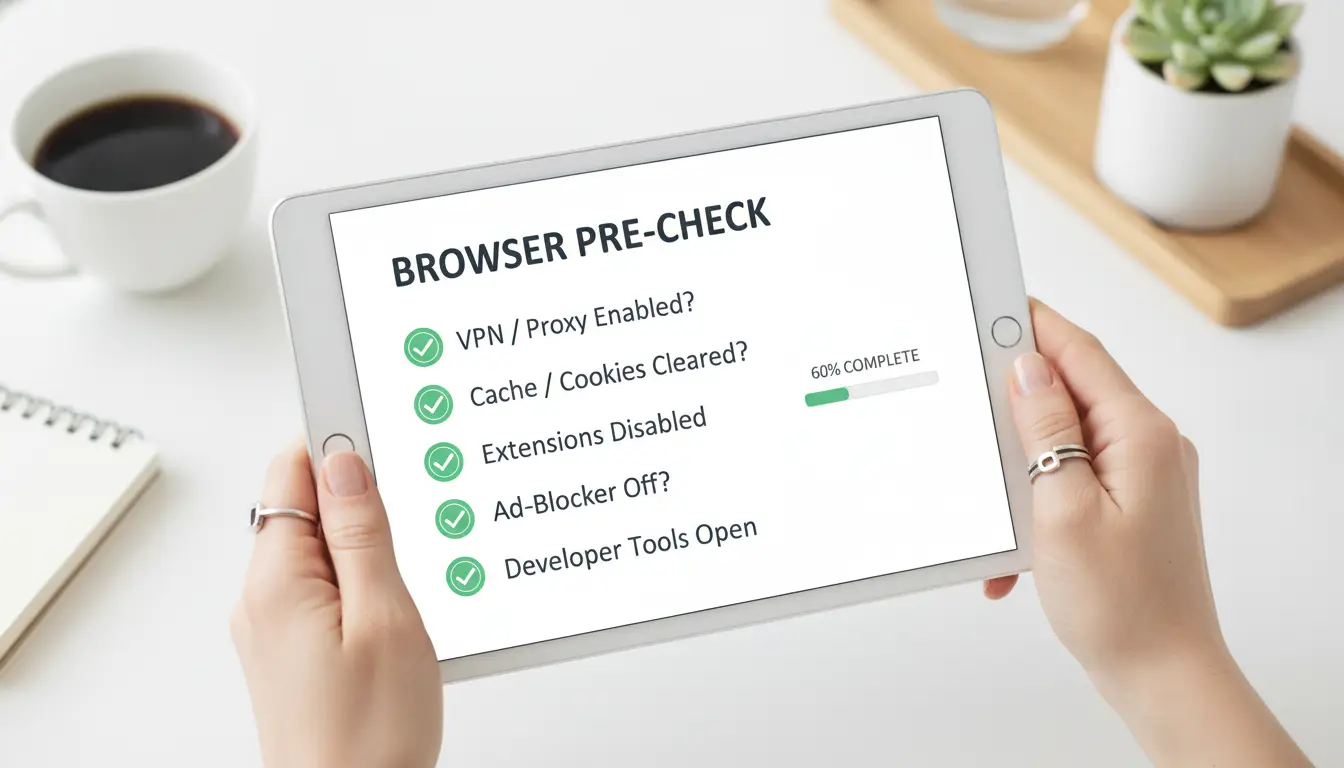
A common mistake is trusting a proxy or IP change alone. If your browser timezone and geolocation don’t line up with your proxy’s country, BrowserScan will flag you. Always check your OS clock and geolocation settings, if they’re off, update them before running the scan.
Operators who pass BrowserScan consistently also keep profiles isolated. That means no sharing cookies, no importing sessions, and no mixing work and test accounts in the same browser profile. Skipping this step often leads to cross-linking, which is hard to undo once BrowserScan connects the dots.
Get your base setup right first. The actual test steps come next, and that’s where you’ll see if your preparation holds up under a real fingerprinting check.
Step-by-Step: How to Test and Pass the BrowserScan Browser Fingerprint Check
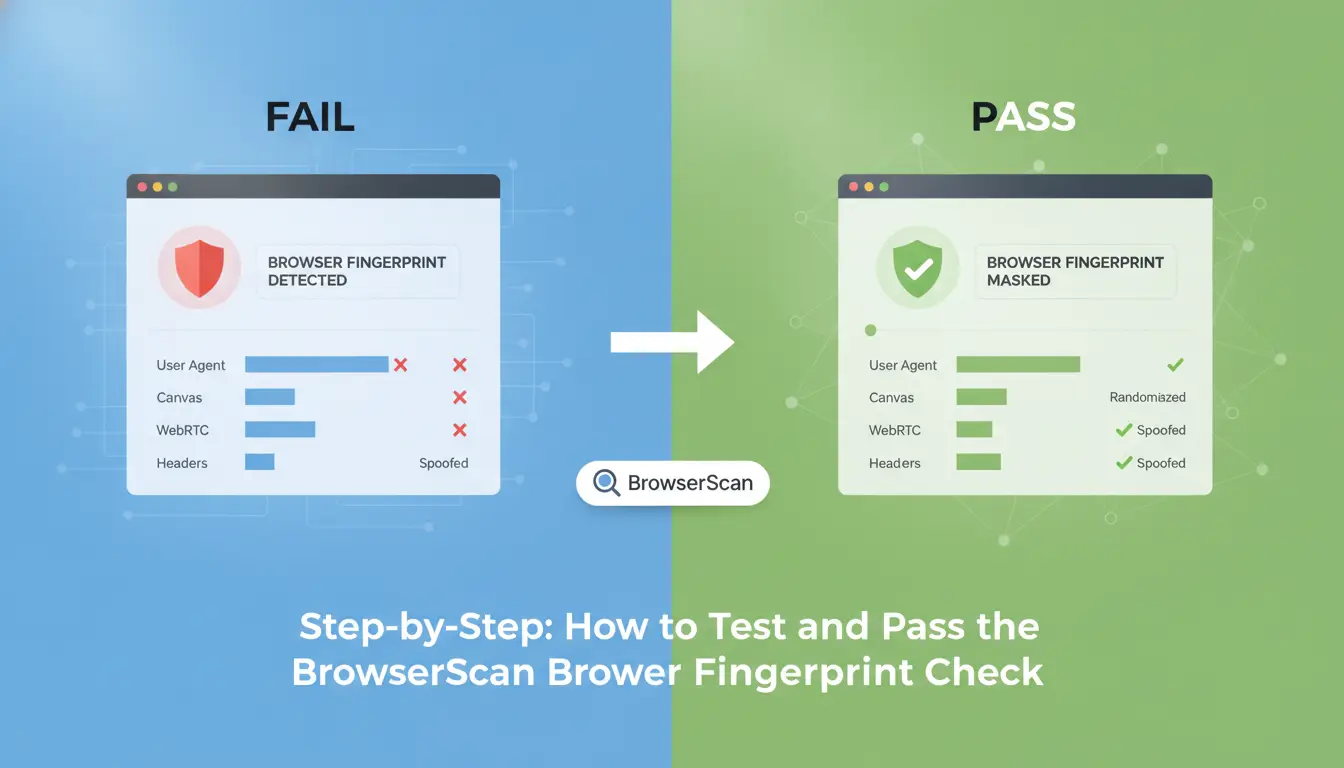
If you want to pass BrowserScan reliably, you need a process that goes beyond quick fixes. Here’s a repeatable workflow real operators use to test, spot weak spots, and adjust browser fingerprints until the check passes.
Running Your First BrowserScan Test
- Open a clean browser profile, no old extensions, history, or logins.
- Visit the BrowserScan site directly. Avoid using links from suspicious sources, which sometimes trigger extra checks.
- Run the browser fingerprinting check and wait for the results page.
- Save the full result or screenshot. This gives you a baseline for tracking what changed after each tweak.
Analyzing Results and Identifying Red Flags
- Look for any “failed” or “suspicious” markers, these are your priority fixes.
- Pay special attention to parameters like WebGL, WebRTC, timezone, and font list. If any are mismatched or “unique,” that’s a red flag.
- Check the IP section. If your proxy leaks your real IP, you’ll see a “non-residential” or “proxy detected” warning.
- If the scan labels your setup as “automation” or “browser emulation,” stop, this means you missed something major in your fingerprint.
Adjusting Your Setup and Re-Testing
- Change only one fingerprint parameter at a time, like user agent, timezone, or screen size. If you adjust too many at once, you won’t know which fix worked.
- Swap to a new proxy if IP-related errors appear. Always recheck for leaks using the built-in IP section, not just “passed”/“failed” at the top.
- Rerun the BrowserScan browser fingerprint test. Save each new result and compare with the previous one to track progress.
- If fixing one parameter breaks another, roll back and try a different sequence. Chasing every warning at once usually leads to more detection, not less.
The real shortcut here, never assume a single “pass” means your setup is safe for daily use. Repeat this cycle for each new profile or proxy batch, since small changes can trigger new flags.
If you’re struggling with the same red flags after several rounds, you’ll need a stronger browser fingerprint management tool or deeper isolation before moving to team or multi-account operations.
How to Use DICloak for Safer Multi-Account Workflows and Passing BrowserScan Checks
Setting Up Isolated Profiles with Custom Fingerprints
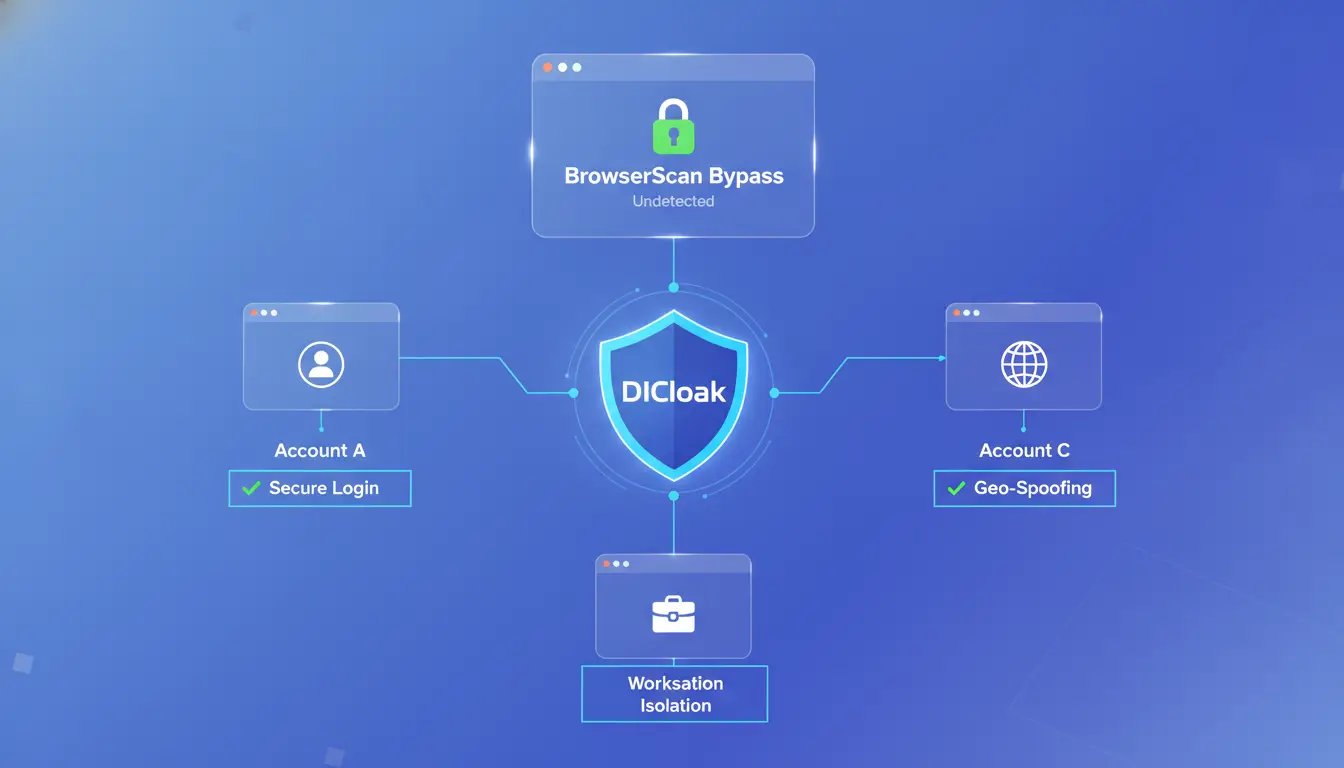
Operators pass BrowserScan by building each account into its own isolated browser profile, then customizing the fingerprint, hardware ID, fonts, timezone, and screen size, to avoid overlaps that automated checks flag.
Integrating Proxies for Each Profile
Assigning a unique proxy per profile stops IP cross-linking and keeps geolocation, timezone, and IP address consistent with the chosen fingerprint. If your proxy location mismatches your system timezone, BrowserScan will often catch the inconsistency right away.
Testing and Iterating Fingerprints with DICloak
- Run BrowserScan after each profile change to spot mismatches early.
- Adjust fingerprint settings, like WebGL or language, if BrowserScan fails you for “inconsistent environment.”
- Clear cookies and storage between tests to avoid carryover artifacts that can trip up the next browser fingerprint test.
Skipping profile isolation or reusing proxies almost always leads to detection, build each profile as if it belongs to a real, separate person.
Why Even Advanced Setups Still Fail BrowserScan
Passing BrowserScan isn’t just about stacking tools, most failures come from overlooked details or relying on “good enough” settings that break under scrutiny.
Fingerprint Inconsistencies and Human Error
Every time a parameter like GPU, timezone, or font list doesn’t match, BrowserScan flags the session. Manual profile setup mistakes, like forgetting to sync screen resolution or language, lead to instant detection, even with advanced browser fingerprint spoofing tools.
Detection of Automation and Non-Human Behavior
Even if your fingerprint looks clean, BrowserScan checks for signs of automation.
- RPA scripts and batch actions leave behind repetitive behavior footprints.
- Real users mix mouse movement, idle times, and unpredictable clicks; bots don’t.
Teams can use DICloak to keep profiles isolated and assign unique proxies, but skipping manual interaction or reusing scripts still exposes you to behavioral detection.
Limits of Fingerprint Spoofing in 2026
Fingerprint spoofing isn’t bulletproof, BrowserScan updates its detection logic constantly. No tool can promise undetectability; operators should treat every setup as temporary and review results after each browser fingerprint test.
When Passing BrowserScan Is Not Enough: Long-Term Account Safety and Workflow Tips
Passing a browser fingerprint test is just the start, long-term safety depends on how you manage profiles, team access, and routine checks after you pass.
Avoiding Cross-Account Contamination
Isolate each account’s browser profile and cookies. Never reuse sessions or share devices, even for quick logins, one slip can link accounts for good.
Team Collaboration Without Sharing Risk
Shared access should never mean shared risk. Set permissions so each user only touches profiles they need. Track actions with operation logs: if a problem surfaces later, you’ll know who accessed what and when. Skip casual profile sharing, use controlled transfer or member notifications so nothing gets mixed up by accident.
Routine Audits and Continuous Testing
- Run a browser fingerprinting check every month.
- Review all profiles for outdated parameters.
- Update profiles when detection methods change.
Passing once isn’t enough, detection evolves. Stay ahead by treating ongoing audits as standard practice, not a one-time fix.
BrowserScan vs Other Browser Fingerprint Check Tools: What Matters in 2026?
Passing a fingerprint check isn’t just about getting a green score, what actually matters is how closely each tool matches what real anti-fraud systems flag. Not all browser fingerprinting checks look for the same red flags, so picking the right one depends on your actual use case.
Feature Comparison Table: BrowserScan vs Alternatives
| Tool |
Data Points Checked |
Trust Score Logic |
Automation/API Support |
| BrowserScan |
WebGL, Canvas, GPU, Fonts, Timezone, Language, Plugins, Screen, Audio, Cookie, LocalStorage |
Weighted, flags rare or mismatched fingerprints, shows pass/fail and risk level |
Yes; scripts, batch checks, custom API |
| AmIUnique |
Canvas, Fonts, Plugins, Screen, Audio |
Shows uniqueness, not risk; no pass/fail |
No automation, manual only |
| CreepJS |
WebGL, Canvas, Audio, Fonts, Screen, Hardware |
Detailed similarity score, no direct pass/fail |
Limited, some modules, but not end-to-end test automation |
Only BrowserScan highlights anti-fraud risk using pass/fail logic and supports automated, repeatable tests, manual-only tools miss subtle mismatch risks that can still get flagged.
Which Tool to Use for Which Scenario
If you’re setting up a single privacy browser, AmIUnique or CreepJS helps spot how unique your setup appears. But for multi-account teams or anyone trying to pass browser fingerprint tests at scale, BrowserScan is the practical choice, its automation and risk scoring match what real-world anti-fraud systems actually care about. Skip tools that don’t flag mismatches; they won’t warn you about setup flaws that trigger bans.
Frequently Asked Questions About Pass BrowserScan Browser Fingerprint Check
Can I really pass BrowserScan fingerprint checks every time?
No method can guarantee you will pass BrowserScan Browser Fingerprint Check every time. Browser fingerprinting tools update often, adding new ways to spot spoofed or unusual profiles. Even with advanced setups, some details may still reveal your real browser or device. Always check your setup because detection methods keep changing.
Does using a proxy alone help pass BrowserScan?
A proxy only hides your real IP address but does not change your browser fingerprint. BrowserScan can still detect your device based on unique fingerprint details like fonts, screen size, or plugins. To avoid detection, you must manage both your IP address and your browser fingerprint together.
Is it safe to use the same fingerprint for multiple accounts?
No, using the same browser fingerprint across several accounts makes it easy for sites to link them. Most anti-fraud systems look for patterns like identical fingerprints. Always create and use unique browser profiles and fingerprints for each account to lower the risk of being connected or flagged.
How often should I re-test my setup with BrowserScan?
You should re-test your setup with BrowserScan regularly, especially after browser updates or changes to your extensions and settings. Even small updates can change your fingerprint. Checking your browser fingerprint test often helps you spot new risks before sites can detect them.
Does DICloak guarantee passing BrowserScan or other fingerprint checks?
No, DICloak does not guarantee you will pass BrowserScan Browser Fingerprint Check or any other fingerprint test. DICloak helps lower your risk of detection, but no tool can offer total protection. Browser fingerprinting checks are always evolving, so staying alert is key.
Evaluating your browser's fingerprint is an essential step in understanding your online privacy risks and preparing a strategy to safeguard your identity. Take proactive measures to protect yourself from tracking by testing your setup and considering tools that can improve your anonymity. Try DICloak For Free
 Web Proxy Tools
 Free Tools
 Cookie Plugin
 UA Generator
 MAC Address Generator
 IP Generator
 IP Address List
 2FA Code Generator
 World Clock
 Anonymous Check
 WebRTC Leak Test
 UUID Generator
 Free Web Proxy Site
 Proxy Checker
 FB Ad Checker
 AI Web Scraping
 Free SMM Tools
 Twitter Shadowban Checker
 Instagram Name Checker
 UTM Generator
 Username Generator
 AI Hashtag Generator
 LinkedIn Headline Generator
 Social Media Image Resizer