Trying to manage multiple Upwork accounts isn’t just about opening extra profiles. The bigger challenge is keeping those accounts from triggering restrictions, especially when Upwork’s systems flag overlapping browser fingerprints, shared IP addresses, or suspicious login patterns. One wrong move can get every connected profile locked at once, taking all your project pipelines offline without warning.
A lot of guides gloss over this, acting like you can just swap browsers or clear cookies and be safe. What actually happens is Upwork links accounts through device metadata, session data, and reused proxies, often weeks before you notice a problem. If you’re running multiple Upwork profiles for agency work, family, or client onboarding, the risk isn’t just a ban. It’s losing access at the exact moment you need to deliver.
The real issue isn’t the number of accounts you run. It’s how you isolate their workflows, separating browser profiles, managing cookies, rotating proxies, and tracking which device or operator is assigned to each login. Small mistakes, like logging two accounts from the same browser window or forgetting to switch proxy servers, leave a trail that can trigger automated reviews or permanent suspension.
Most users don’t get flagged for what they do once inside Upwork, but for how they access their accounts. Here’s what actually works to keep your multi-account workflow safe.
Why Managing Multiple Upwork Accounts Gets Risky Fast
Running even two Upwork profiles on the same machine can get both banned before you realize what flagged them. The risk isn’t just about breaking rules, it’s how fast small technical mistakes can link all your accounts together, making recovery nearly impossible.
How Upwork Detects Multiple Accounts
Upwork’s systems don’t just look for duplicate names. Instead, they flag suspicious patterns long before support steps in. The main triggers:
- IP address reuse: Logging into different accounts from the same public IP, especially within minutes or hours, often links profiles together.
- Device fingerprinting: Upwork collects browser fingerprints, device IDs, and even fonts or plugins, matching activity across accounts.
- Behavioral patterns: Overlapping login times, similar typing or navigation habits, or shared cookies can connect accounts during automated audits.
Trying to manage multiple Upwork accounts without a clear isolation plan almost always leaves at least one of these trails behind.
What Happens If You're Caught
Upwork doesn’t just suspend the accounts it links. In most cases, all related profiles get locked at once, even if only one triggered a review. The platform typically freezes any funds held in those accounts, and disputes rarely get resolved in the user’s favor. For example, a freelancer running profiles for different clients from the same laptop might think rotating proxies is enough, but forgets browser fingerprinting. Days later, all profiles are suspended. The freelancer loses access to payments, and clients see “Account Suspended” on their contracts. Even appealing the ban is an uphill fight because Upwork’s evidence is digital and rarely shared with users.
The hardest part isn’t just the lost income, it’s the lasting damage to your reputation and the trust of your clients. Some users try to start over with new emails or devices, but Upwork’s detection history makes fresh attempts riskier and short-lived. A single mistake, like logging two accounts back-to-back from a shared device, can connect your entire network of profiles, including those you thought were safe.
If you think the rules seem harsh, you’re not alone. But before looking for workarounds, it’s worth knowing what Upwork actually allows, what counts as an exception, and which common beliefs about Upwork multi-account management are just myths.
What Upwork Actually Allows: Policies, Exceptions, and Common Misconceptions
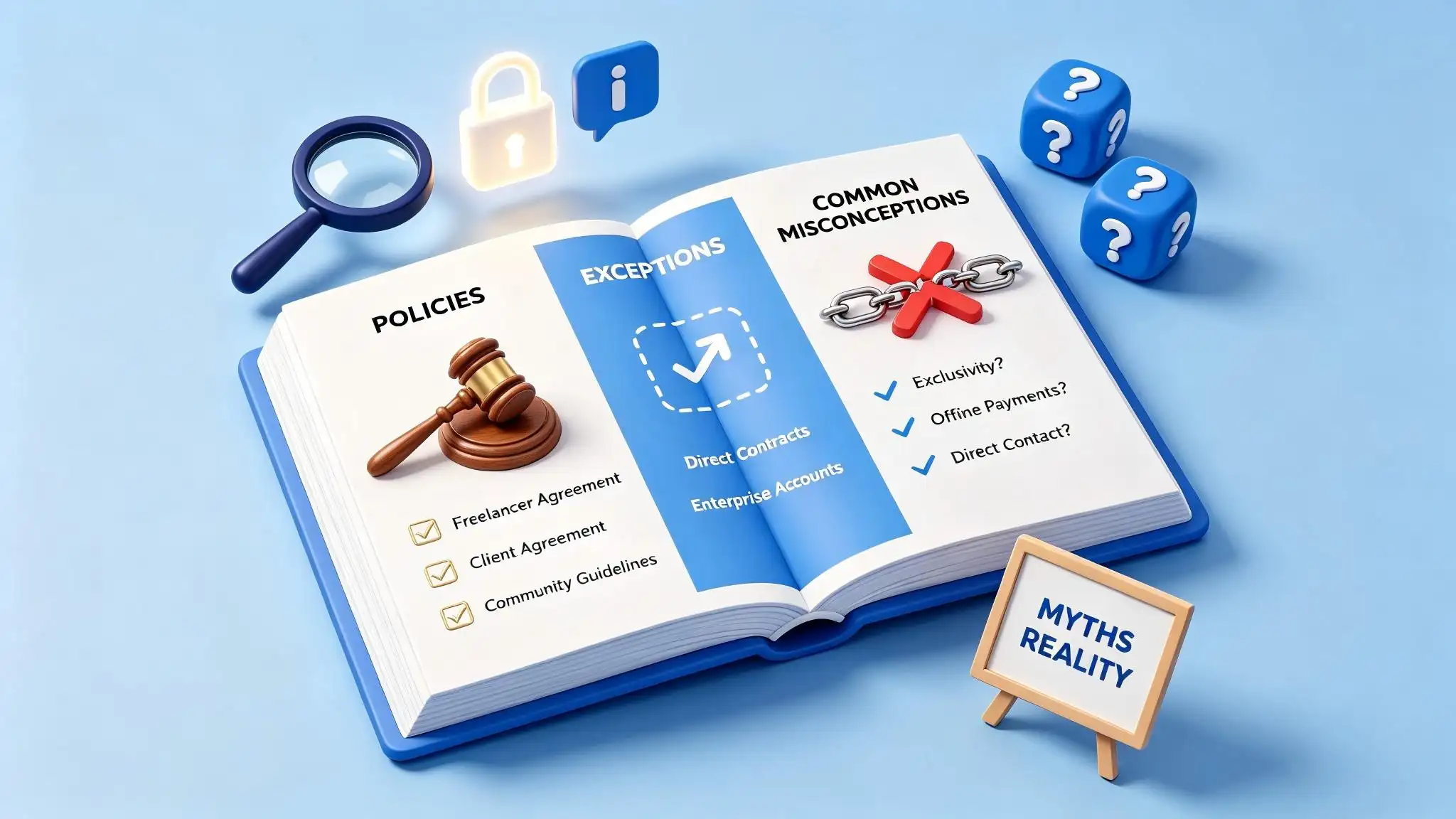
Upwork’s rules don’t leave much room for personal flexibility , each user is meant to have a single account, and breaking that rule can get all profiles banned. Agencies and teams do have a path, but it’s tightly controlled.
Upwork's Official Rules on Multiple Accounts
You can only register one Upwork account per person. The platform blocks duplicate profiles, even if you use different emails or devices. Agencies are allowed, but each agency member must use their own individual account tied to their real identity.
When Multiple Accounts Are Allowed
Upwork lets agencies operate under a shared structure, but each freelancer and client gets just one account. For example, an agency can invite team members to join as freelancers, and everyone keeps their own login. Client accounts work the same way , a company can have an owner and assigned team members, but every person logs in with their own profile. If someone tries to manage multiple Upwork profiles by sharing devices or credentials, the system treats it as a violation. The only safe way to handle multi-account workflows is through official agency or team features , not by making extra personal accounts.
Common Myths That Lead to Bans
- Assuming you can create extra Upwork accounts for family, clients, or agency work if you rotate browsers or proxies
- Believing device sharing is fine as long as you never log in at the same time
- Thinking proxies alone will keep each Upwork account isolated from detection
Upwork’s detection isn’t fooled by surface-level tricks. If accounts overlap through cookies, device fingerprints, or login patterns, they’re linked and flagged. Most bans happen after a single mistake , like logging into two accounts from the same browser profile.
The rules here are strict, and the penalty is permanent suspension. Before you start any Upwork multi-account management, get clear on what’s allowed so you don’t set yourself up for a ban that can’t be reversed.
What to Prepare Before Handling Multiple Upwork Accounts
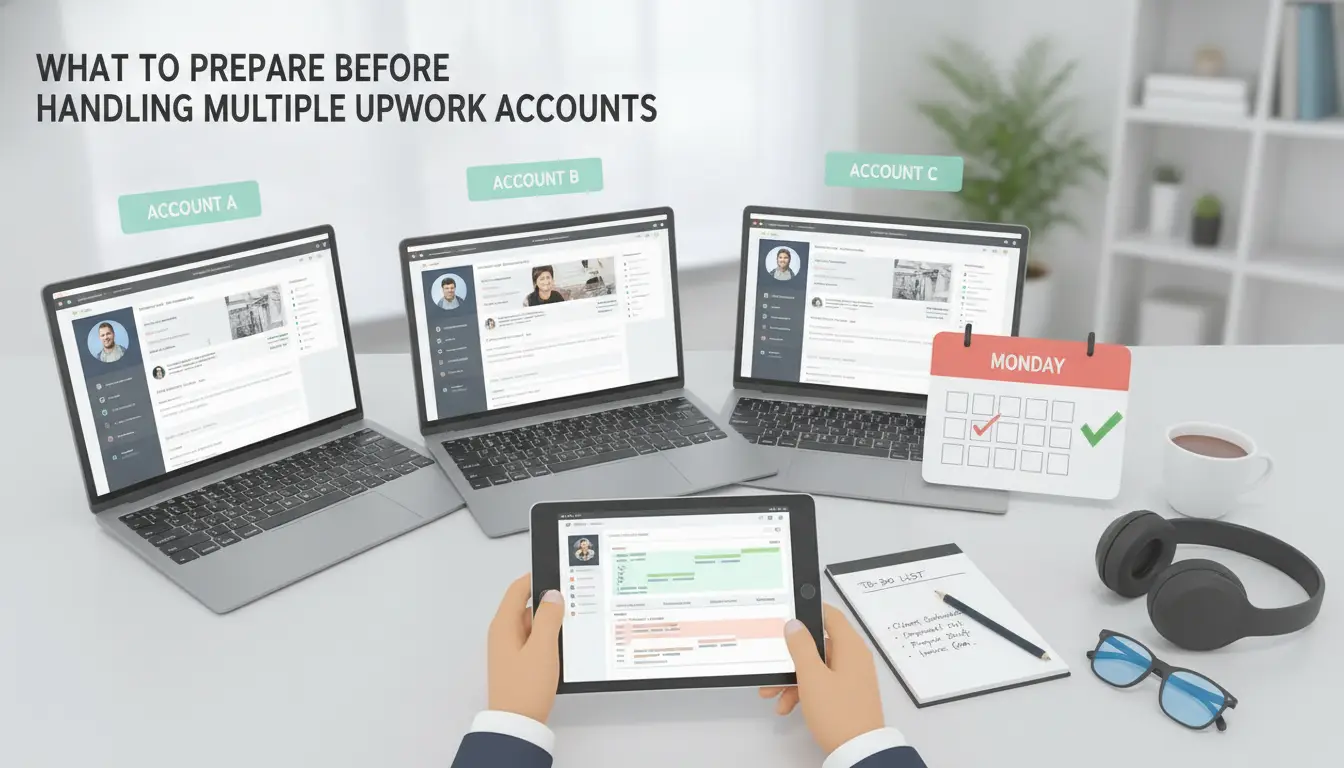
If you want to manage more than one Upwork account without getting flagged, the real preparation starts before you ever log in. Most bans happen because users skip isolation or forget which device or browser they’re using, so the goal is to set up clear, physical and digital separation from day one.
Separating Devices, Browsers, and Networks
Account isolation isn’t just nice to have, it’s what keeps Upwork from linking your profiles. If you log two accounts from the same browser or network, you leave a trail that’s hard to erase. Use dedicated browser profiles and a different proxy server for each account. If you can, keep separate devices for each login. Sharing a laptop or Wi-Fi, even once, can connect your identities in Upwork’s logs.
Checklist:
- Create a unique browser profile (or sandboxed browser) for each account
- Assign a separate proxy or network for every login
- Never switch between accounts in the same session or on the same device
Documenting Account Ownership and Roles
Don’t wait until Upwork asks, have clear proof of who owns each account. This step is easy to skip, but when accounts overlap or merge, you need a record to show roles and connections.
- Save screenshots or contracts proving account ownership
- Keep a spreadsheet mapping users to accounts
- Log dates and times of all device or network changes
Setting Up Secure Access for Teams
When more than one person handles an Upwork account, loose access is the fastest way to get all profiles banned. Limit permissions to what’s really needed and track any shared logins.
- Set clear permission levels for each operator
- Use shared credentials only when absolutely required
- Keep an audit log of who accessed which account, when
If you’ve handled these steps up front, you’re set up for a much safer Upwork multi-account workflow.
Step-by-Step: How to Safely Manage Multiple Upwork Accounts in 2026
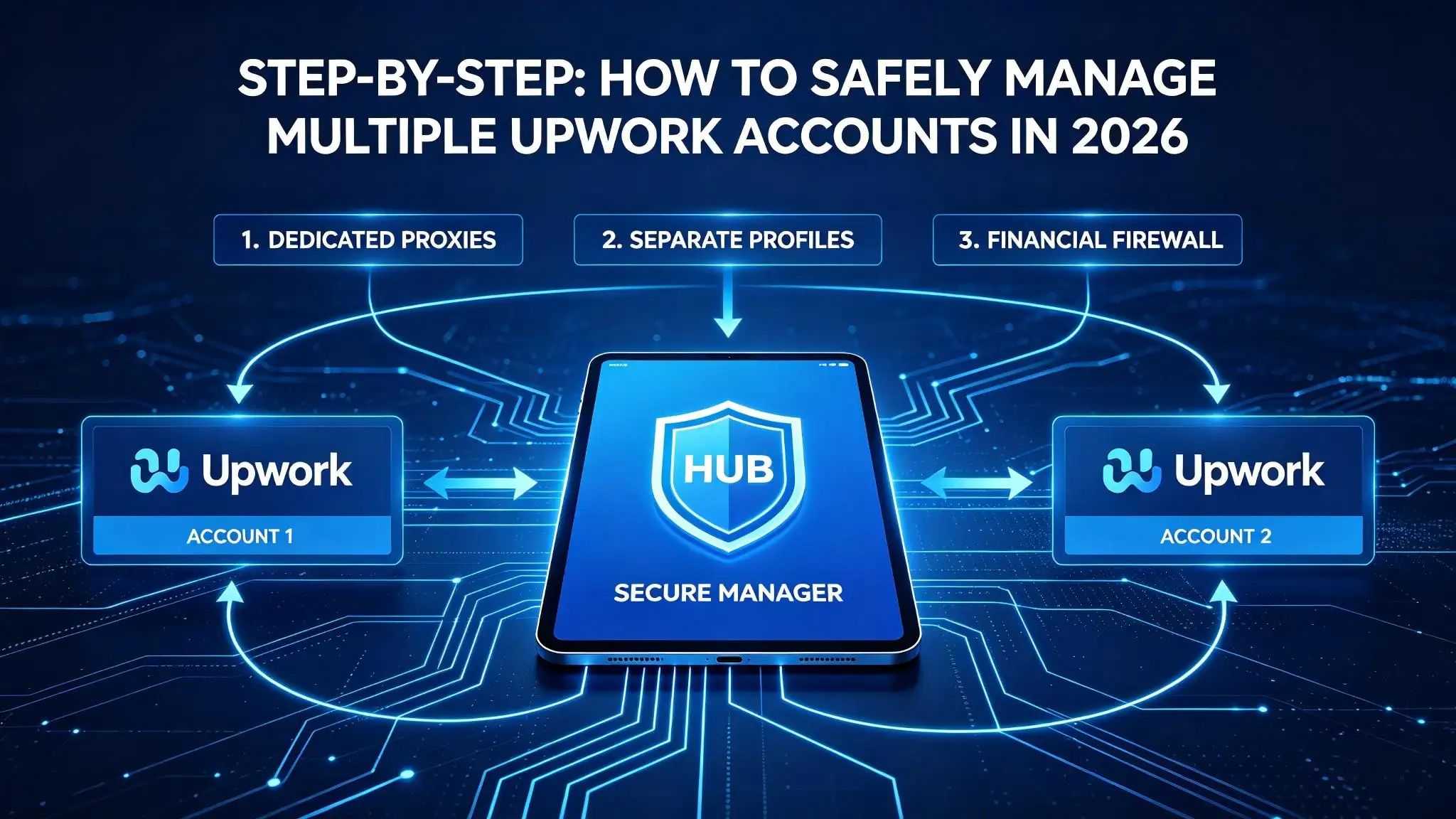
Upwork’s detection system in 2026 doesn’t care how many profiles you operate, it cares about the technical signals you leave behind. If you want to avoid bans, you need to treat each account as a separate digital identity, from browser fingerprints to proxy usage. Here’s the exact workflow that keeps operators from getting flagged.
Creating and Isolating Each Account
- Set up a dedicated device or browser profile for every Upwork account. Sharing browsers, even with different logins, lets cookies and local storage cross-contaminate.
- Use unique identity data for each profile. Avoid recycled photos, bios, or contact info. Upwork’s pattern-matching flags reused elements within days.
- Assign a separate proxy for each account. If two accounts ever share the same IP, even once, their connection history links, this is the fastest way to trigger a review.
- Run a fingerprint test before login. Check your browser’s canvas, timezone, and language settings. If two accounts show the same fingerprint, Upwork treats them as the same user.
Skipping any isolation step, especially device or proxy setup, means Upwork can connect your accounts through hidden technical links. You’ll see warnings or restrictions within hours if you slip up.
Daily Workflow: Logging In, Switching, and Operating Safely
- Always close all browser windows before switching accounts. Leaving one session open risks session bleed, which can merge cookie data and session tokens.
- Switch proxies first, then launch the account-specific profile. If you reverse the order, cached DNS or connection logs may leak the previous IP.
- Never copy-paste login info between accounts. Clipboard managers can retain sensitive data, and Upwork’s security logs can detect repeated input patterns.
- Audit active sessions once a week. If you ever see more than one location or device listed for an account, log out everywhere and reset all passwords.
The biggest reason users get banned isn’t what they do inside Upwork, it’s making one careless switch that ties two accounts together.
Maintaining Separation Over Time
- Run a monthly audit of device assignments, proxy logs, and browser fingerprints. Small changes, like updating your browser or moving to a new device, can break isolation.
- Check for Upwork security emails. If you see “unusual login detected,” act fast, change proxies, clear browser data, and review all session logs.
- Rotate proxies every 60 days. Static IPs eventually get flagged for repeated access patterns, especially if used for more than one account in the past.
- Keep a record of each account’s login history. If you spot overlap, stop all logins and update your workflow before risk turns into a ban.
If you ignore regular audits, you won’t notice detection signals until it’s too late. The only way to keep multi-account access stable is to treat separation as an ongoing process, not a one-time setup.
This workflow lets agency teams build on a solid foundation, so when it’s time to share access, you’re not starting from a risky baseline.
How Teams and Agencies Can Share Upwork Account Access Without Triggering Bans
Teams running agency operations often need several people to access the same Upwork account. The safest way to handle this is by creating workflows that never require sharing passwords or overlapping sessions.
Role-Based Access and Permissions
Assign each operator their own Upwork sub-account or use built-in team features to delegate tasks. This way, you can track who made each change and avoid accidental cross-account actions.
Avoiding Common Team Mistakes
The biggest mistakes happen when multiple team members use the same device or proxy for different Upwork profiles. For example, if two operators log in from one browser window, even just for a quick check, Upwork can spot the shared fingerprint and flag both accounts. Overlapping sessions or failing to document changes (like who updated a profile or sent a proposal) make it hard to trace errors. If you can’t show a clear separation of users and devices, you’re at much higher risk for a ban.
Best Practices for Team Workflows in 2026
- Assign a unique browser profile and proxy to each operator and account pair.
- Only one login per browser session; don’t reuse devices for multiple accounts in the same shift.
- Keep a shared audit log listing who accessed which account, on which device/IP, and when.
By sticking to these practices, agencies avoid the hidden footprint that often gets Upwork accounts flagged during routine sweeps. This structure gives you a clear answer if Upwork ever questions an account’s access history, no scrambling to explain “shared logins” or conflicting session data. The next section covers how to make these workflows easier to manage and less error-prone.
Using DICloak to simplify and Secure Multi-Account Upwork Workflows
Running several Upwork profiles is risky if you skip strict browser isolation and team control, DICloak gives operators real separation at the workflow layer.
Isolated Browser Profiles for Each Upwork Account
Operators set up a unique browser profile, fingerprint, and proxy for every Upwork login, stopping cookie and IP leaks before they start.
Team Collaboration and Permission Controls
Teams use DICloak to share profiles without passing passwords around. Admins set role-based permissions and can review who accessed which Upwork account, even months later. Failing to control access this way is what exposes most agencies.

Automating Repetitive Tasks and Maintaining Audit Trails
- Run RPA scripts for logins or proposals
- Check operation logs for every action
- Export detailed records for compliance reviews
DICloak does not guarantee Upwork account safety, users must still follow platform rules.
Common Mistakes That Get Multiple Upwork Accounts Banned in 2026
The biggest mistakes aren’t technical, they’re usually slips in daily routines. People get banned when workflows blur together, not because of advanced detection but from obvious overlap that’s easy to trace.
Mixing Devices, Browsers, or Networks
Switching between accounts on the same device, browser, or Wi-Fi, even once, leaves digital fingerprints that Upwork tracks for months. Using a second Chrome profile is not enough if cookies or extensions overlap. The smallest shared detail, like a reused user-agent or IP, can link accounts and trigger review.
Ignoring Upwork Policy Updates
- Check the Upwork policy page monthly for new rule changes.
- Review email alerts for updates on login and multi-account detection.
- Adjust your workflows right after policy updates, not weeks later.
Over-Reliance on Tools Without Human Oversight
Automation tools can’t spot every leak, manual review catches what scripts miss. If you only trust tools, you’ll miss new patterns that Upwork starts flagging.
- Audit every account’s login location and device history weekly.
- Manually review proxy and browser assignments before switching accounts.
- Test each profile’s isolation by logging in from a fresh device every quarter.
Even with the right setup, a single careless login can unravel months of careful Upwork multi-account management. If you find yourself repeating mistakes, it’s time to ask if running multiple accounts is worth the risk.
When Managing Multiple Upwork Accounts No Longer Makes Sense
If managing multiple Upwork accounts starts causing more stress than results, it’s time to reconsider. Trying to push through warning signs almost always backfires, especially when workflow mistakes become frequent.
Signs the Risk Is Too High
- You see new detection or warning banners on login
- Team members mix up accounts or devices
- Workflow breakdowns force last-minute manual fixes
Alternative Approaches for Growth
Switching focus to agency or team structures can sidestep most detection risks. Building a reputation under one account usually brings steadier client flow than splitting attention across profiles. If complexity keeps rising, it’s smarter to invest time in a clearer, compliant workflow.
Frequently Asked Questions About manage multiple Upwork accounts
Can I have both a freelancer and a client account on Upwork?
Upwork lets users create a single freelancer and client profile under one account. You can switch between these profiles easily. However, Upwork strictly prohibits having more than one freelancer or client account per person. Creating separate accounts for the same role will violate Upwork’s policy and can lead to suspension.
How does Upwork detect if I am running multiple accounts?
Upwork uses IP tracking, device fingerprinting, and behavioral analysis to spot users managing multiple Upwork accounts. They check login locations, browser types, and account activity for patterns. If you log in from the same device or IP with several accounts, Upwork can flag this as suspicious and investigate further.
Is it legal to use proxies or browser profiles for Upwork?
Using proxies or browser profiles can help separate workflows technically, but Upwork’s terms forbid having more than one account per user. Even if tools hide your activity, you risk violating Upwork’s rules, which can result in account bans. Always follow Upwork’s compliance policies to avoid trouble.
What should I do if one of my Upwork accounts gets restricted?
If your Upwork account is restricted, contact Upwork support right away. Stop logging in to other accounts from the same device or network to prevent further action. Review Upwork’s policies and avoid activities that triggered the restriction. Keeping accounts separate can lower the risk of losing access to all profiles.
How many Upwork accounts can a team safely manage?
A team can manage several Upwork client or agency accounts if each account belongs to a unique person and follows Upwork’s guidelines. Sharing logins or mixing workflows increases risk. Teams should use clear roles, strong account security, and stick to official Upwork account workflow procedures to stay compliant.
If you’re ready to simplify your workflow and avoid account conflicts, consider tools that can securely organize your freelance profiles and activities. Taking proactive steps will help you maintain compliance and increase productivity. Try DICloak For Free
 Web Proxy Tools
 Free Tools
 Cookie Plugin
 UA Generator
 MAC Address Generator
 IP Generator
 IP Address List
 2FA Code Generator
 World Clock
 Anonymous Check
 WebRTC Leak Test
 UUID Generator
 Free Web Proxy Site
 Proxy Checker
 FB Ad Checker
 AI Web Scraping
 Free SMM Tools
 Twitter Shadowban Checker
 Instagram Name Checker
 UTM Generator
 Username Generator
 AI Hashtag Generator
 LinkedIn Headline Generator
 Social Media Image Resizer