A blocked prompt at the wrong moment can stop real work, and the error often shows up right after a long debugging thread: you’ve hit your limit for claude messages. please wait before trying again. If you use Claude daily, this message is easy to misread as a bug, even when the real cause is a usage cap, a burst of requests, or temporary service pressure. You can check platform health on the Anthropic status page, and you can map this behavior to standard HTTP 429 rate-limit responses.
What you need is a quick way to tell which case you are in, then recover without wasting retries. You will learn how to confirm whether the limit is account-level or session-level, reduce repeat lockouts by changing prompt size and timing, and set a simple usage routine that keeps chats moving. The goal is practical: get back to useful output fast, then lower the chance of seeing the same limit again. Start with the exact checks that separate a temporary throttle from a true quota ceiling.
What does “you’ve hit your limit for claude messages. please wait before trying again.” actually mean?

This message usually means Claude has paused new prompts for a short time due to request volume. It maps to a temporary rate limit, similar to HTTP 429, not a broken account.
How this message differs from login, length, and outage errors
If you see “you’ve hit your limit for claude messages. please wait before trying again.”, Claude accepted your account session but blocked new sends for now.
| Error type |
What it means |
What to do now |
| Usage limit message |
Short-term throttle on message sending |
Wait, send smaller prompts, retry later |
| Login/auth error |
Session or account sign-in failed |
Re-authenticate, check credentials |
| Length/context error |
Current chat got too large |
Start a new chat, shorten context |
| Outage/service error |
Platform issue |
Check Anthropic Status |
Why Claude enforces message limits
Limits keep the service stable during demand spikes. They can change by plan and model choice, as shown on Anthropic pricing and model docs. Recent activity also affects short windows: rapid back-to-back sends can trigger a pause even when your daily usage looks normal. Treat this as traffic control, not app failure.
What this message does not mean
It does not always mean your account is restricted. It does not always mean you must upgrade right away. It also does not mean your chat content is invalid. If retries keep failing after a cooldown, check plan limits and current incidents before changing anything else.
What should you do in the next 15 minutes to get back to work?
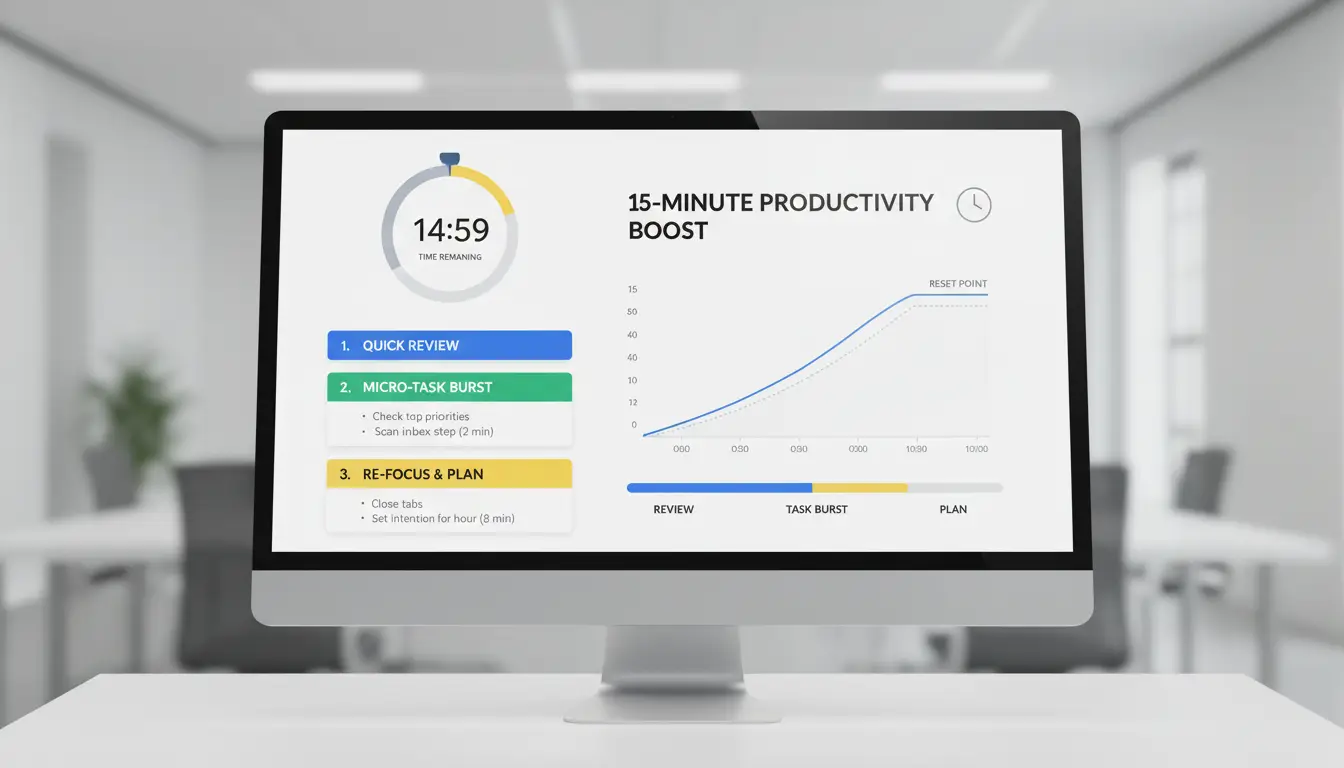
If you see “you’ve hit your limit for claude messages. please wait before trying again.”, treat it as a traffic-control issue, not a signal to keep clicking. Your goal in the next 15 minutes is to test cooldown, reduce token load, and confirm whether the block is local or platform-wide.
Step 1: Pause, retry after a short cooldown, and avoid rapid resubmits
Stop retries for 2–5 minutes, then send one short test prompt like: “Reply with OK.” Rapid resubmits can keep you in a temporary throttle window, similar to HTTP 429 guidance and standard rate limiting basics.
Do this exactly:
- Close extra Claude tabs
- Wait the full cooldown shown in the message (or at least 2 minutes)
- Send one short prompt
- If blocked again, wait 5 more minutes before the next test
Step 2: Start a fresh chat and trim heavy context
Long threads can trigger limits faster because each turn carries prior context. Start a new chat and paste a compact brief:
- Goal (1 line)
- Needed output format (1 line)
- Key facts (3–5 bullets)
If your old thread had long logs or code blocks, keep them out of the next test. This lowers per-message load and often clears session-level slowdowns.
Step 3: Check account state, model selection, and device/session conflicts
Open your account/workspace settings and confirm you are in the right plan and workspace in Anthropic Help Center. Then reduce session conflicts:
- Log out from unused devices
- Keep one active browser session during recovery
- Switch to a lighter model for simple edits, rewrites, or summaries
If the warning repeats only on one device, clear that browser session and sign in again. If it repeats everywhere, the issue is likely account-level.
Step 4: Confirm platform status before deeper troubleshooting
Check the Anthropic status page before deeper local fixes. If there is an active incident, retries and browser cleanup will have limited impact until service recovers.
If status is green and you still see “you’ve hit your limit for claude messages. please wait before trying again.” after cooldown plus fresh chat, pause non-urgent requests for 15–30 minutes and batch your next prompt into one clear message.
Why do users hit the limit faster than expected?
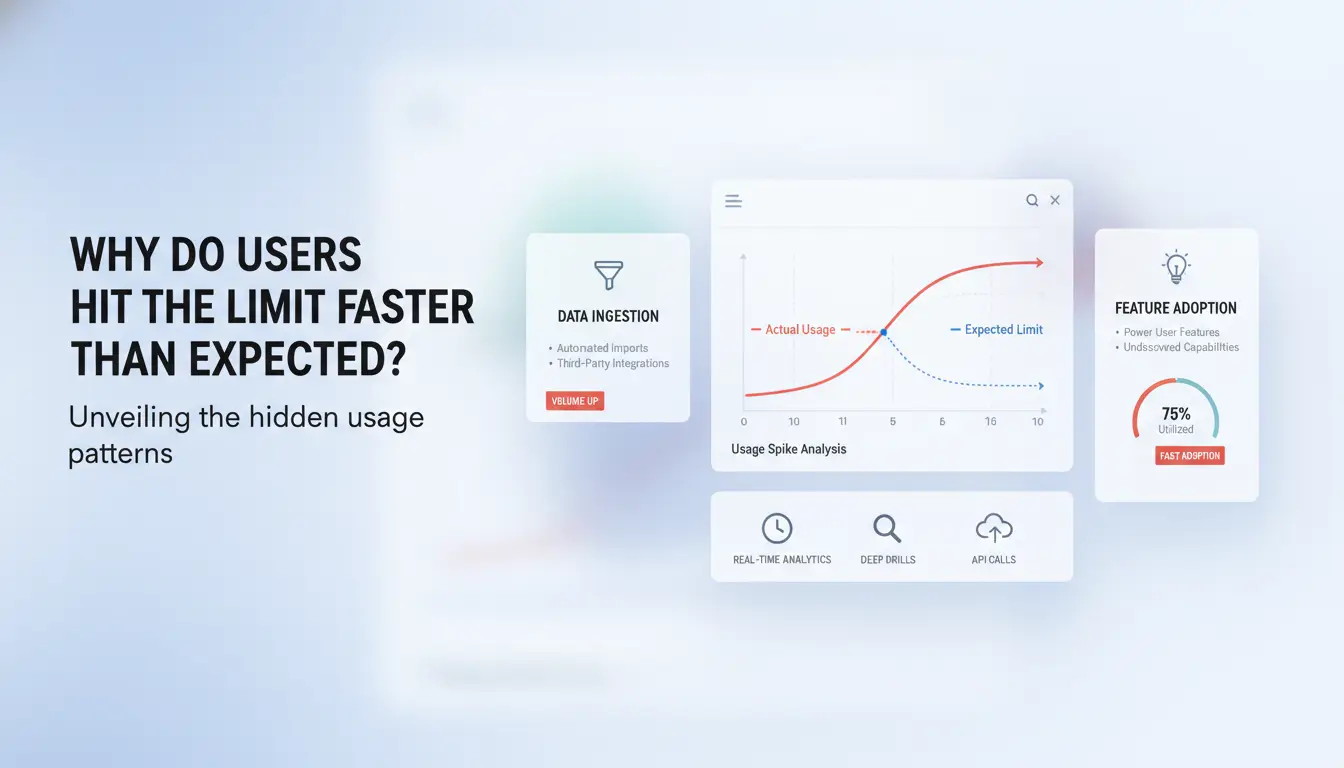
The message "you’ve hit your limit for claude messages. please wait before trying again." can feel random, but usage patterns usually explain it. The biggest driver is not only how often you send messages. It is how heavy each turn is.
Long prompts, long threads, and file-heavy chats consume quota quickly
Large prompts cost more processing per request. Long threads also grow hidden load, since the model reads prior turns to stay consistent. A short new message can still trigger a limit if the conversation history is large.
File uploads push usage even faster. A PDF, screenshot set, or repeated file re-uploads can create a bigger per-turn workload than plain text. Verbose follow-ups add to that load, especially when you ask for full rewrites each time instead of targeted edits.
Model choice changes how far your quota goes
Some models handle harder tasks, but they can reach practical limits sooner during heavy sessions. You can reduce lockouts by matching task type to model size, then moving to a stronger model only when needed. Check current model options in the Claude model docs.
| Task pattern |
Model usage habit |
Limit impact |
| Quick rewrite, short summary |
Use a lighter model |
Usually stretches quota further |
| Long analysis, large files |
Use advanced model every turn |
Limits can appear sooner |
| Mixed workflow |
Start light, switch only for hard steps |
Better control of message budget |
Table: Practical usage pattern based on Anthropic model guidance.
Peak-time demand and shared usage patterns can trigger earlier waits
During busy periods, effective throughput can drop, so waits appear sooner even with normal behavior. Shared logins also drain limits quickly. If two teammates run long chats on one account, both can hit cooldown windows without noticing the other’s activity. If you keep seeing "you’ve hit your limit for claude messages. please wait before trying again.", check account sharing and session timing before changing prompts.
How can you reduce Claude message usage without lowering output quality?
If you keep seeing “you’ve hit your limit for claude messages. please wait before trying again.”, the fix is not random retries. The fix is better prompt packaging and cleaner session flow. You can confirm service health on the Anthropic status page and align prompt design with the Anthropic prompt engineering guide.
Use structured prompts that ask for complete outputs in one turn
Put role, goal, limits, and output format in one request. Example block to paste:
- Role: “Act as a technical editor for API docs.”
- Goal: “Rewrite this draft for 8th grade clarity.”
- Constraints: “Keep code unchanged. Max 180 words.”
- Output: “Return: revised text + 5 change notes + risk check.”
Add acceptance criteria like “If any requirement is missing, fix it before final output.” Ask for a full draft plus a self-check in one reply. This cuts clarification turns.
Batch related questions instead of fragmented back-and-forth
Do not send five small prompts in a row. Send one grouped request with sections:
- diagnose problem
- propose fix options
- pick one with reasons
- produce final version
You can also ask: “Review your answer for gaps, then return one corrected final response.” This reduces message burn while keeping output quality stable.
Reset strategically: summarize and reopen a new thread
Long threads increase drift and extra turns. After a milestone, paste a short carryover note:
- Objective
- Non-negotiable constraints
- Decisions made
- Open items
Then start a new chat with that note plus your next task. This keeps context lean and lowers repeat “you’ve hit your limit for claude messages. please wait before trying again.” events.
How do plan limits, model choice, and context length affect this error?
If you see “you’ve hit your limit for claude messages. please wait before trying again.”, check three levers: plan tier, model weight, and chat length. These three drive how fast you hit caps in normal use.
Free vs paid plans: what changes in practical daily usage
Free plans usually hit message caps sooner during busy periods. Paid tiers allow longer sustained sessions, but they still use dynamic controls during traffic spikes, as shown on Anthropic pricing and the Anthropic status page. Treat paid access as higher headroom, not endless capacity.
| Plan level |
Sustained usage headroom |
Lockout risk during peak hours |
Practical move |
| Free |
Lower |
Higher |
Space requests and shorten prompts |
| Paid (Pro/Team/Enterprise) |
Higher |
Medium |
Batch work and avoid burst sending |
Choosing the right model for the task
Model choice changes limit pressure fast. Heavier models spend more compute per turn. Lighter models often handle drafting, cleanup, and formatting with less chance of throttling. Use high-end models for reasoning-heavy steps only. You can map model options in Claude model docs.
Context-window management rules that prevent avoidable throttling
Long threads raise token load each turn. That increases throttle risk even on paid plans. Split big projects into focused threads. Carry a short running summary instead of full history. Keep reusable instructions in a saved template, then paste only what the current step needs. The prompt engineering guide supports this workflow.
If “you’ve hit your limit for claude messages. please wait before trying again.” appears often, change one lever at a time and watch which change reduces lockouts.
How can teams share one Claude account with fewer lockouts and security risks?
Why shared logins often trigger instability and faster limit exhaustion
If a team signs in to one Claude account from different devices at the same time, usage spikes look like burst traffic. That pattern can trigger rate limits faster, even when each person sends normal prompts. Session overlap also causes token refresh clashes, unexpected logouts, and repeated retries that burn message quota. When people keep retrying after seeing “you’ve hit your limit for claude messages. please wait before trying again.”, lockouts usually last longer. A safer move is to pause retries, check Anthropic system status, and treat the event like a standard HTTP 429 limit response.
Using DICloak to standardize account-sharing operations
You can use DICloak to keep each teammate in an isolated browser profile instead of one mixed session. That cuts cross-session conflicts. You can bind a separate proxy to each profile, keep fingerprint settings stable per profile, and limit who can open or edit specific profiles. Stable profile-to-user mapping is the control that lowers lockouts and misuse risk most.
Team workflow setup: permissions, logs, and repeatable actions
Set clear roles: owner, editor, viewer. Give write access only to people who need it. Keep operation logs on, so login time, profile access, and key actions are traceable.
| Setup area |
Ad-hoc sharing |
Controlled team workflow |
| Logins |
Same session reused |
One profile per person |
| Network path |
Random endpoint changes |
Fixed proxy per profile |
| Access control |
Shared password only |
Role-based permissions |
| Repeated tasks |
Manual copy/paste |
Batch actions or RPA |
Use batch actions or RPA for routine prompts and exports to reduce manual mistakes.
When is the problem not your fault (capacity incidents and service outages)?
How to read Claude status signals correctly
If you see “you’ve hit your limit for claude messages. please wait before trying again.”, check Anthropic Status before changing local settings. Match the behavior to HTTP 429 guidance to separate throttling from outage noise. If status is red or degraded, stop local troubleshooting and wait for incident updates.
| Status signal |
What it means |
What to do |
| Degraded |
Slow or unstable replies |
Retry later, reduce request bursts |
| Partial outage |
Some models or paths fail |
Route work to unaffected tasks |
| Major outage |
Broad service failure |
Pause chat operations |
What to do during an active incident
Pause non-urgent runs and queue only priority prompts. Keep local copies of prompts and drafts so you can resume fast after recovery.
You can use tools like DICloak to keep one shared Claude login inside an isolated browser profile with its own proxy, which lowers session collisions during unstable periods. You can also set team permissions and keep operation logs, so credential misuse is easier to spot.
What evidence to collect before contacting support
Send UTC timestamp, model name, workspace, and a screenshot of the exact error. Add actions already tried, so support does not repeat basic checks.
You can use DICloak logs, plus optional batch actions or RPA records, to show what users ran and when.
When should you upgrade, split workflows, or change your usage pattern?
Upgrade signals: recurring hard stops despite improved usage
If you keep seeing “you’ve hit your limit for claude messages. please wait before trying again.” after you already cut prompt size and added gaps between sends, treat that as a plan limit issue, not a retry issue. Upgrade when waits block core work on 3+ days per week, or when delivery tasks slip even after checking Anthropic system status and pacing requests like a standard 429 rate limit pattern. Repeated lockouts during your main work window are a pricing-tier signal.
Workflow redesign signals: poor prompt hygiene and oversized threads
Redesign your flow when one output needs too many tiny prompts, or one chat thread grows so long that replies slow down and quality drops. Split work into separate threads: planning, draft, and review. Reset threads at each milestone. Batch related asks into one clear prompt instead of 6 to 10 short follow-ups.
A simple 30-day stability plan
Track each limit hit in a small log, then adjust weekly.
| Week |
What to track |
What to change |
| 1 |
time, model, task, lockout count |
reduce micro-prompts, add 2–5 min spacing |
| 2–3 |
repeated peak-hour failures |
move heavy tasks to lower-traffic hours |
| 4 |
missed deadlines tied to lockouts |
upgrade tier or split workload across sessions |
Frequently Asked Questions
Why do I keep seeing “you’ve hit your limit for claude messages. please wait before trying again.” even after waiting?
If you still see “you’ve hit your limit for claude messages. please wait before trying again.” after a pause, your cap may be rolling, not a fixed top-of-hour reset. New requests can keep you near the edge. Peak traffic can tighten limits. Long prompts, long threads, and large uploads can quickly trigger throttling again.
Does starting a new Claude chat actually help with message limit errors?
Yes. Starting a new chat often helps when one thread gets very long. Old turns, big files, and long instructions increase context load on every message. A fresh thread cuts that load, so replies are easier to process. It does not instantly reset account-level quotas, so warnings can still appear during heavy usage windows.
Is Claude API usage separate from the app limit message?
Usually yes. App/web limits and API limits are often tracked separately. You may see “you’ve hit your limit for claude messages. please wait before trying again.” in the app while API requests still run inside API quota. API failures usually show token, rate, or requests-per-minute errors, not the same chat cooldown wording.
How long does the Claude “please wait before trying again” cooldown usually last after “you’ve hit your limit for claude messages. please wait before trying again.”?
Cooldown is often a few minutes, but it can last an hour or more during high demand or after very heavy use. Your plan and current platform load affect timing. If the warning lasts much longer than usual, check Anthropic’s status page, then retry with shorter prompts in a fresh thread.
Hitting the “you’ve hit your limit for Claude messages, please wait before trying again” notice is a temporary usage cap, not a permanent block, and the best response is to pause, prioritize your next prompts, and return once the window resets. By planning message-heavy tasks in batches and using complementary tools when needed, you can keep your workflow steady with fewer interruptions.
Try DICloak For Free
 Web Proxy Tools
 Free Tools
 Cookie Plugin
 UA Generator
 MAC Address Generator
 IP Generator
 IP Address List
 2FA Code Generator
 World Clock
 Anonymous Check
 WebRTC Leak Test
 UUID Generator
 Free Web Proxy Site
 Proxy Checker
 FB Ad Checker
 AI Web Scraping
 Free SMM Tools
 Twitter Shadowban Checker
 Instagram Name Checker
 UTM Generator
 Username Generator
 AI Hashtag Generator
 LinkedIn Headline Generator
 Social Media Image Resizer