You load a video, and instead of playback, a red banner shows: youtube something went wrong. Maybe it’s the classic “try again later” or the app just spins without any error code. For most people, it’s not clear if the problem is on their device, their connection, or YouTube’s side. Restarting, updating, and refreshing don’t always work, sometimes, you’ve already tried the basic youtube troubleshooting steps and still get nowhere.
What trips up a lot of users is that these errors can come from almost anything: a stale cookie, a broken extension, a proxy mismatch, or even a temporary glitch on YouTube’s servers. The usual advice, refresh, clear cache, or reboot, fixes things for some, but leaves others stuck. It’s easy to waste time guessing, repeating the same steps, or searching for generic fixes that don’t match your setup.
The practical fix is to diagnose one source at a time, starting with what’s most likely to break YouTube. That means checking your browser profile, your sign-in state, and any network changes since your last successful play. Skipping straight to uninstalling apps or resetting devices often means losing settings for no reason, when the issue was just a bad cookie or a forgotten proxy setting.
To get YouTube working again, focus on the most common failure points first. Here’s what actually helps.
What Does 'Something Went Wrong' Mean on YouTube in 2026?
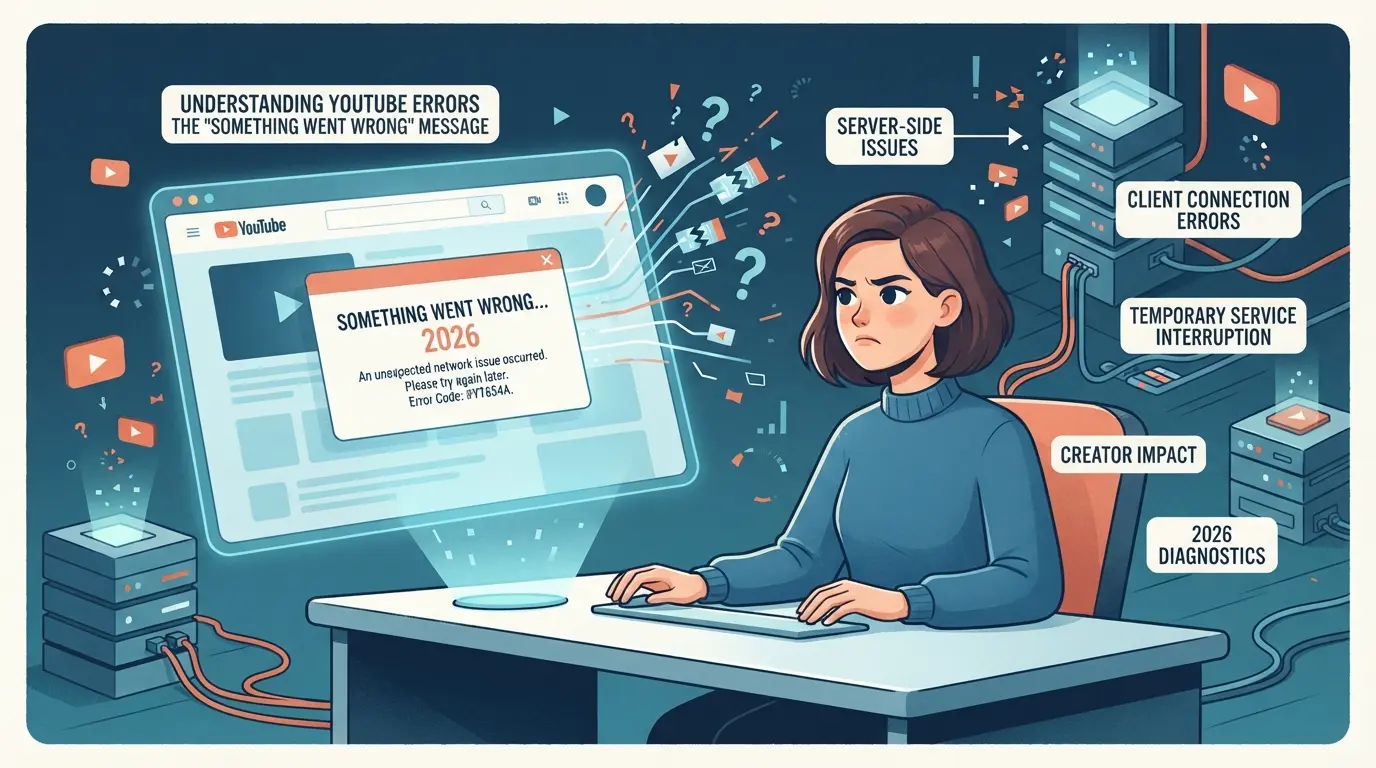
When YouTube flashes the “Something Went Wrong” error, it means the platform hit a snag it couldn’t fix automatically. This isn’t just a generic bug, most of the time, the message points to a broken link between your device, account, or YouTube’s backend. Whether you’re trying to watch a video, post a comment, or upload content, the error signals that something in the chain failed, and YouTube can’t recover or retry in the background.
Common Error Variants and Where They Appear
- On mobile, you might see this error when switching accounts or after a failed video load.
- Desktop browsers trigger it during login, playback interruptions, or while posting comments.
- Uploads and live chats can throw the error if your session times out or the platform backend is unstable.
Underlying Causes: Network, Account, and Platform Factors
The real triggers behind “Something Went Wrong” break down into three main groups. Network issues are the usual suspects, if your Wi-Fi drops or switches, YouTube might lose track of your session, causing the error. Account session problems are next: expired cookies, mismatched sign-in states, or rapid account switching confuse YouTube’s authentication, leading to failures that often look random but repeat if not fixed. Platform-side outages round out the list. When YouTube’s servers are overloaded or updating, even a perfectly configured device can get locked out. For example, if you’ve just updated your browser and notice the error, it could be a cookie conflict or a backend change that hasn’t synced yet, refreshing won’t solve it if the platform itself is unstable. The biggest tradeoff is speed versus stability: rapid switching between accounts or networks makes the platform more likely to throw errors, but waiting too long between actions can expire your session and force you to log in again. Most “Something Went Wrong” cases in 2026 are still tied to old problems, network drops, session mismatches, or platform hiccups, so skipping straight to drastic fixes wastes time and rarely solves anything.
If you keep seeing the error, it’s not just bad luck, something in your setup or routine is making the platform break. Next, you’ll want to know why these errors keep popping up, and what mistakes cause them to stick around longer than they should.
Why Does 'Something Went Wrong' Keep Happening? Key Risks and Mistakes
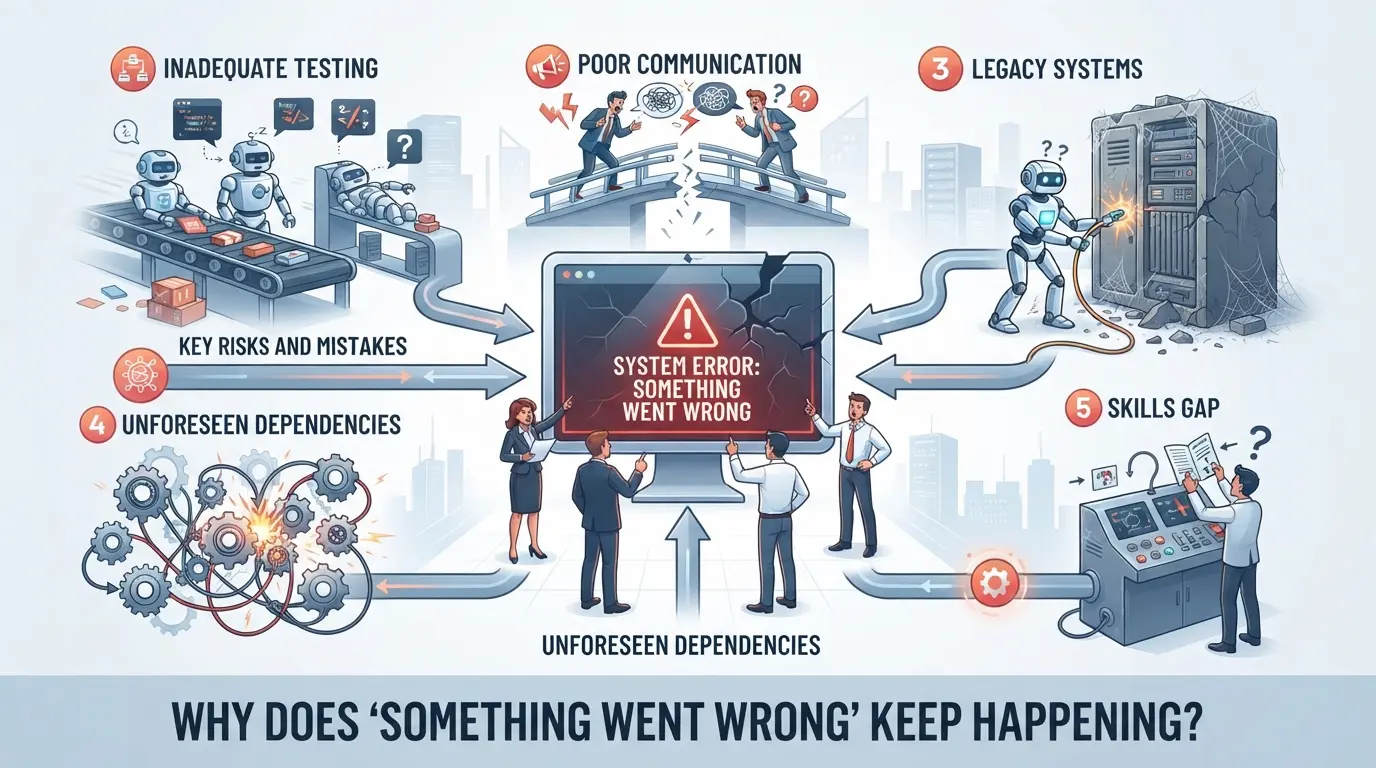
Seeing the same "Something Went Wrong" message on YouTube again and again usually means you’re not fixing the root cause. Most quick fixes miss a deeper issue, either your account session is confused, your network is unstable, or your browser/app is broken. Here’s how those mistakes play out.
Account Session Conflicts and Device Switching
Jumping between devices with the same Google account often breaks your session. YouTube can get stuck if you’re logged in on your phone, tablet, and desktop at once, especially if you change your password or clear cookies on just one device.
Network and Proxy Mistakes That Trigger Errors
Changing networks or using the wrong proxy settings creates common failure points. For example, if you start watching on Wi-Fi but switch to mobile data, YouTube may see your IP jump from one region to another in seconds. That looks suspicious and can drop your session, sometimes without a clear warning. If you’re running a proxy, a mismatch in location or a rotating IP can break playback or even block login. Many users forget that YouTube caches some network info behind the scenes, so swapping proxies without restarting the browser leaves old fingerprint data active. That’s why a new error pops up right after you change your network settings, even if the page loads fine elsewhere. Relying on automatic proxy detection tools can add hidden redirects, which turn a one-click fix into an endless loop of errors.
App and Browser Problems: Outdated Versions and Cache
- Check your app or browser version, YouTube drops support for old versions often.
- Clear cookies and cache only after confirming you’ve saved your logins and sync data.
- Disable extensions one by one; ad blockers and privacy tools are top suspects in blocking parts of YouTube.
Missing an update or skipping a cache cleanup means you’re likely to see the same error again, no matter how many times you reload the page.
Most "youtube something went wrong" loops come from these repeat mistakes. Next, you’ll need to figure out if the problem is on your end or if YouTube itself is having issues.
How to Check If the Problem Is on Your Side or YouTube's Side
Before you waste time with random fixes, separate local issues from platform-wide problems. Most “Something Went Wrong” errors come from one of two places: a glitch on your device or an outage at YouTube. Here’s how to tell which one you’re dealing with.
How to Check YouTube Server Status
Check YouTube’s official status page for outage alerts. If the dashboard is green but you still can’t load videos, try an independent tracker like Downdetector to see if others are reporting the same issue. If thousands of people are posting new complaints in under an hour, it’s a YouTube-side outage, don’t bother with resets or cache clears. When both sites show nothing, focus on your own setup.
Quick Local Checks: Internet, Device, Account
If the outage isn’t widespread, run these three fast checks to rule out problems on your end:
- Open another site (Google, Wikipedia) in the same browser, if these fail, it’s your network, not YouTube.
- Log in to YouTube on a different device using the same account, if only one device breaks, it’s a local device or browser issue.
- Switch to a different YouTube account on the same device, if only one account fails, your account session or cookies are likely the cause.
The fastest way to avoid wasted effort is to rule out a global outage before changing your own settings. That keeps you from chasing fixes that won’t work until YouTube’s side is up again.
Next, you’ll see the exact steps to fix device or account errors, once you know the problem is on your end.
Step-by-Step Fixes for 'Something Went Wrong' on YouTube (Mobile and Desktop)
If you’re stuck on “Something Went Wrong” and already checked YouTube’s status, these steps fix the most common causes, whether you’re on your phone or computer. Skip wild guesses: start here and only move on if each step fails.
Mobile Fixes: Android and iOS
- Restart the device and YouTube app. Most stuck errors clear after a reboot. If the app won’t open at all, power-cycle your phone, then try again.
- Update the YouTube app. Outdated apps break more often after a forced sign-out or a system update. Go to your app store, search YouTube, and tap “Update.” If there’s no update button, your app is current.
- Clear app cache and data. On Android, hold the YouTube app, tap “App info,” then “Storage & cache.” Tap “Clear cache,” then “Clear data.” On iOS, you must delete and reinstall the app, there’s no manual cache control.
- Reconnect to WiFi or cellular. Switch off WiFi and use cellular data, or vice versa. Some errors only show up when your IP changes or your proxy is unstable.
If none of these steps helps, double-check your account login status. YouTube errors often follow a silent sign-out, especially after changing passwords or switching networks.
Desktop Fixes: Windows, Mac, Linux
- Restart your browser and computer. Browser errors stick until you start fresh. Fully close Chrome, Firefox, or Edge, not just the tab, then relaunch.
- Update your browser. Check the menu for “About” or “Help.” Out-of-date browsers can’t load newer YouTube features, triggering error banners.
- Clear browser cache and cookies. Old cache data blocks page loads even after the real issue is fixed. In Chrome, open Settings > Privacy > Clear browsing data. Choose “Cookies and other site data” and “Cached images and files.” Log back in after clearing.
- Test with a different browser. If YouTube works elsewhere, focus on browser extensions or profile settings. Disable extensions one by one to spot the problem.
Review your proxy settings if you use one. A broken proxy gives “Something Went Wrong” errors even if your internet works elsewhere.
If errors keep coming up while managing several YouTube accounts, the next step is to look at how your team handles logins, sessions, and browser profiles.
How Social Media Teams Can Reduce 'Something Went Wrong' Errors When Managing Multiple YouTube Accounts
Teams running many YouTube accounts often trigger "Something Went Wrong" errors by reusing devices, browsers, or networks. The fastest way to cut down these errors is to separate workspaces and keep every account's browser, cookies, and proxy cleanly isolated.
Risks of Shared Devices and Browsers
When teams switch between accounts in the same browser or device, three issues pop up fast:
- Sessions sometimes cross, so logging into one account can force-logout another, causing data loss or error pop-ups.
- Browser fingerprints overlap, YouTube can spot multiple accounts with identical device details, raising flags or blocking actions.
- Cached cookies from one account can corrupt logins or feed the wrong session data during uploads.
Best Practices for Account Isolation and Proxy Use
Keeping each YouTube account in its own browser profile with a dedicated proxy is the single change that solves most team-level error loops. For example, if two team members open three accounts each in Chrome's main profile, YouTube may start asking for verification or throw errors after only a few uploads. Instead, assign a unique browser profile and stable proxy to each account. This means every session has its own cookie storage and device identity, so YouTube is less likely to see suspicious switching.
The main tradeoff: setup takes longer, and you need clear tracking to avoid mixing up profiles. But isolating accounts from the start prevents repeated lockouts and cuts recovery work later. Teams that skip this step usually spend far more time troubleshooting, especially when YouTube errors keep returning for no clear reason.
How to Manage Multiple YouTube Accounts Safely with DICloak: Profile Isolation, Proxy Configuration, and Bulk Operations
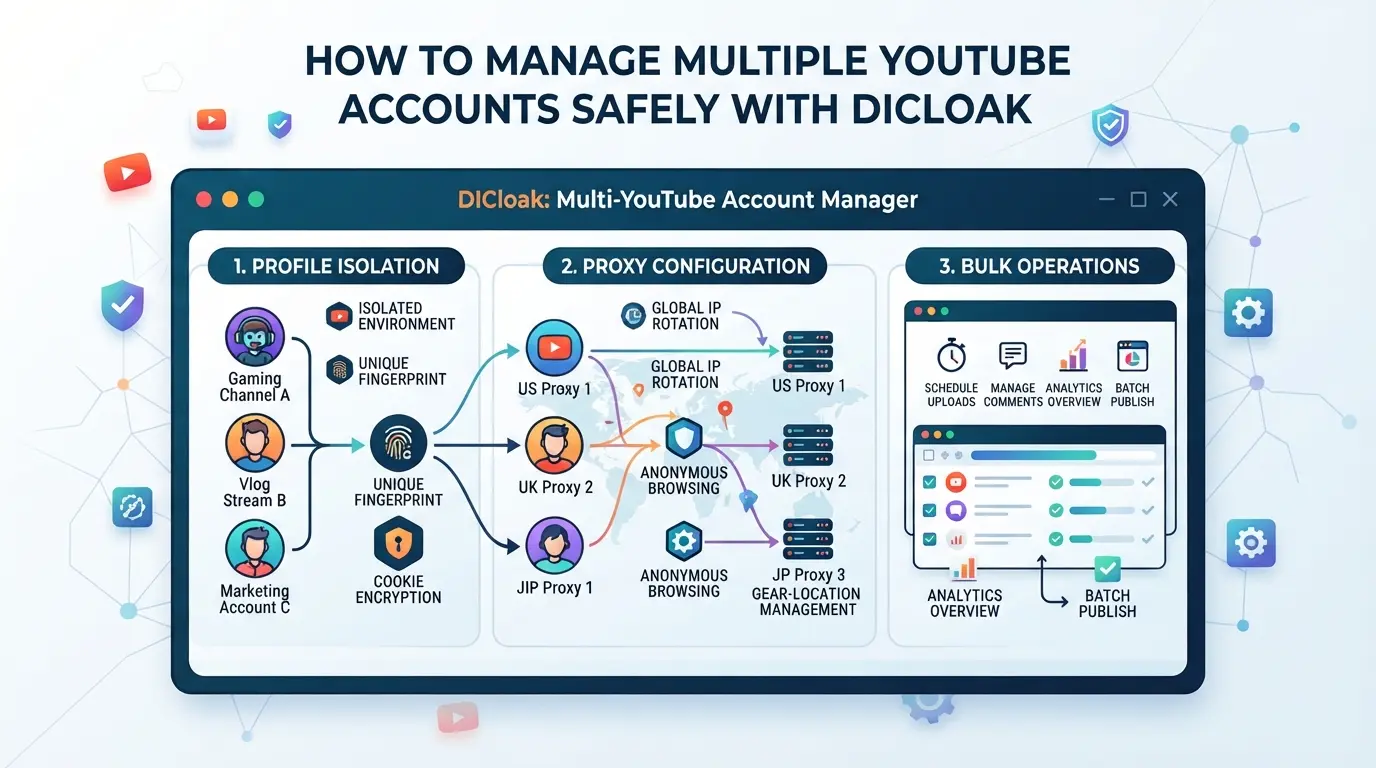
For teams handling several YouTube accounts, the usual browser setup hits a wall, session overlaps, network mismatches, and fingerprint confusion can all trigger youtube something went wrong errors. The earlier section covered practical fixes, but when the job shifts to managing dozens of accounts across browsers, manual troubleshooting isn’t enough. If your workflow depends on keeping each account isolated and stable, DICloak fills the gap at the browser profile, fingerprint, and proxy layer. The scope here is limited to browser-profile access, DICloak does not change YouTube’s platform settings or content.
Setting Up Isolated Browser Profiles and Fingerprint Configuration
Operators can create a separate DICloak browser profile for each YouTube account, so sessions never collide and fingerprint signals stay consistent. In practice, this means setting up profiles that report the right operating system, User Agent, and geolocation, key signals YouTube checks for context. For teams working with accounts tied to different regions, configuring the time zone and language per profile reduces confusion and keeps each session steady. Skipping profile isolation often means shared cookies and mismatched fingerprints, which can lead to recurring platform errors. The real advantage is every account gets its own controlled environment, lowering risk of accidental overlap.

Configuring Proxies for Each Profile
Network mismatch is a common trigger for YouTube errors, especially when accounts cross regions or teams switch devices. Operators can assign their chosen proxy to each DICloak profile and use the built-in connectivity checker to verify exit IP, country, and time zone before logging in. If a proxy fails the test, YouTube may reject the connection or block features, so it’s worth checking every time. DICloak supports HTTP, HTTPS, and SOCKS5 proxies, but picking the proxy source, quality, and compliance is up to the user. Avoiding reuse or picking proxies at random without checking can leave teams stuck in troubleshooting loops that cost hours.

Using Bulk Operations to Manage Profiles Efficiently
Once the basics are set, scaling up means dealing with repetitive setup. Teams on supported DICloak plans can use Bulk Operations to create, edit, or assign proxies and fingerprint settings across many profiles at once. This batch process saves time, especially when onboarding new accounts or updating profile fields. But be careful, a mistaken bulk edit can change settings for every selected profile, not just one. The main benefit is speed: instead of opening each profile and adjusting settings one by one, teams handle them in groups and focus on what matters.

Teams who build out workflows with DICloak profile isolation and proxy setup can keep YouTube account sessions separate and scalable. The next step is to lock in habits that prevent errors before they start.
How to Prevent 'Something Went Wrong' Errors in Future: Long-Term Tips
Routine Maintenance: Updates, Cache, and Account Hygiene
To cut down on repeat errors, focus on the basics: keep your YouTube app and browser up to date, clear cache and cookies every few weeks, and watch for any strange activity on your account. Skipping these steps means you risk old bugs or corrupted data hanging around, issues that often trigger “youtube something went wrong” messages even after a one-time fix.
Workflow Practices for Teams
Teams run into more errors when they mix profiles, proxies, or permissions. Consistency is the fix.
- Use the same profile and proxy for each account
- Set clear team access rights, not shared logins
- Log account changes, so you can spot patterns and fix repeat triggers faster
When to Seek Help: Contacting YouTube Support and Using Community Resources
Sometimes, no amount of basic troubleshooting clears the "youtube something went wrong" message. If you’ve retried the usual fixes and the problem sticks around, it’s time to escalate.
How to Contact YouTube Support
- Use the in-app “Help” button or YouTube’s official support page.
- Gather details: account email, device type, error screenshot.
- Explain what steps you’ve already tried, skip generic replies.
Using Community Forums and Troubleshooting Groups
YouTube’s official forums and Reddit threads collect real-world fixes and error patterns. Describe your exact error, browser, and what you’ve already done, this often gets you a faster, more specific answer than waiting for support.
Frequently Asked Questions About youtube something went wrong
Why does YouTube keep showing 'Something Went Wrong' even after restarting?
YouTube may keep showing the "something went wrong" error after restarting because of lingering session conflicts, account issues, or network problems. For example, if you recently switched accounts or changed your network settings, YouTube can get stuck with old data. Clearing your browser cache and logging out of all accounts often helps fix this problem.
Can using a proxy cause 'Something Went Wrong' errors on YouTube?
Yes, using a proxy can cause YouTube errors like "something went wrong." If the proxy is set up incorrectly or is located in a blocked region, YouTube may block your connection. Always double-check your proxy settings and try connecting directly to see if the issue is with the proxy.
How do I fix 'Something Went Wrong' if I manage multiple YouTube accounts?
Managing several YouTube accounts can lead to session mix-ups and the "something went wrong" error. To fix this, use separate browser profiles or containers for each account. Also, use the same proxy for each profile if you use proxies. This keeps sessions isolated and prevents conflicts.
Is the error caused by YouTube itself or my device?
To find out if the error is from YouTube or your device, check YouTube’s official status page or social media for outage reports. Try using YouTube on another device or app. If only your device has trouble, the issue is local. If others also report problems, it’s likely on YouTube’s end.
What steps prevent 'Something Went Wrong' errors from coming back?
To stop these errors from returning, regularly update your browser or YouTube app, clear your cache, and log out of accounts you don’t use. Keeping your device software and apps up to date and using dedicated profiles for each account helps avoid recurring issues. This makes YouTube run smoother.
If you're still facing persistent issues, consider using a secure tool to protect your connection and minimize disruptions while streaming or browsing. Taking proactive steps can help you avoid common errors and enjoy uninterrupted access to your favorite content. Try DICloak For Free
 Web Proxy Tools
 Free Tools
 Cookie Plugin
 UA Generator
 MAC Address Generator
 IP Generator
 IP Address List
 2FA Code Generator
 World Clock
 Anonymous Check
 WebRTC Leak Test
 UUID Generator
 Free Web Proxy Site
 Proxy Checker
 FB Ad Checker
 AI Web Scraping
 Free SMM Tools
 Twitter Shadowban Checker
 Instagram Name Checker
 UTM Generator
 Username Generator
 AI Hashtag Generator
 LinkedIn Headline Generator
 Social Media Image Resizer