Many people decide to leave X (Twitter) for different reasons. Some want more privacy. Some want a break from social media. Others just want to close an old account they no longer use. Whatever the reason, it is important to understand that deleting an X account is not instant. In this guide, you will learn what happens before deletion, how to back up your data, how to remove connected apps, and how to delete your account safely on desktop or mobile.
What to Know Before Deleting Your X Account
Before you delete x account access for good, it helps to know what really happens next. Many people think one tap removes everything right away. It does not work that way. X uses a waiting period first, and that can affect your username, old posts, and account data. Knowing these steps early can save stress later.
What is the difference between deactivation and deletion?
When people say they want to delete x account access, the first real step is deactivation. Deactivation hides your profile and starts the countdown to permanent removal. During that window, your account is not gone forever yet. If you sign back in, the account can come back. Permanent deletion only happens after the full waiting period passes without logging in again.
How long does it take to permanently delete an account?
The normal timeline is 30 days. That means if you deactivate and do not log back in during those 30 days, the account is permanently deleted after that period. Your old username can also become available again once the 30 days pass, which matters if you think you may want to reclaim it later.
What happens to your data after account deletion?
After the 30-day period ends, the account is no longer available in X’s production systems, and you cannot reactivate it or access old posts through that account anymore. But that does not mean every trace disappears from the internet at the same moment. Search engines may still show cached results for a while, and mentions of your username in other people’s posts can still remain, even though the profile link no longer works.
Step-by-Step Guide to Delete Your X Account on Desktop
Log in to your X account on desktop. On the left-side menu, click More, then choose Settings and privacy. From there, stay on the Your account section. This is the main path X uses for account deactivation on desktop.
Step 2: Click Deactivate your account
Inside Your account, click Deactivate your account. You will see a page that explains what deactivation means, including the 30-day reactivation period. Read this part carefully before moving on, especially if you are still unsure or may want the account back later.
A common real-life example is someone deleting an old personal account after moving to a new brand account. If they reactivate the old one by accident during that 30-day period, the deletion process stops. That is why this screen matters more than many people think. This example is an inference based on X’s reactivation rule.
Step 3: Confirm your password and deactivate
Click Deactivate, then enter your password when prompted. After that, confirm again by selecting Yes, deactivate. Once you do this, your profile enters the deactivation period. Your account is not permanently erased on that same day. The final deletion happens only if you do not log in again within 30 days.
Step 4: Do not log back in during the waiting period
This is the step many users miss. If you log in again on x.com or through the X app within 30 days, your account can be restored. That means the delete x account process is interrupted, even if you only came back for a minute to check notifications or old messages.
Step 5: Save your data before you leave
If you may need your old posts, messages, or account details later, request your archive before deactivating. On desktop, go to More → Settings and privacy → Your account → Download an archive of your data, confirm your password, and request the archive. X sends an email and an in-app notification when it is ready.
How to Delete Your X Account Using the Mobile App
If you want to delete x account access on your phone, the steps are close to the desktop version, but the menu path is a little different.
Step 1: Open the menu and go to Settings and privacy
Open the X app on your phone. In the top menu, tap the navigation menu icon or your profile icon, depending on how your app layout looks. Then tap Settings and privacy. This is the first step for both iPhone and Android.
Step 2: Go to Your account
Inside Settings and privacy, tap Your account. Then tap Deactivate your account. On some app versions, the label may look slightly shorter in the menu flow, but the destination is the same. Once you open it, you will see the deactivation page and the key account details you need to know first.
Step 3: Read the warning, then tap Deactivate
Before you continue, read the deactivation page carefully. This is where X explains that deactivation is the first step to permanently delete x account access. Your profile and username stop being publicly viewable, but the account is not fully erased on that day. The 30-day countdown starts only after you confirm deactivation.
Step 4: Enter your password and confirm
Tap Deactivate, enter your password when prompted, and then tap Yes, deactivate to confirm. Once you finish this step, the account enters the deactivation period. If you stay away for the full 30 days, the account is permanently deleted.
Step 5: Do not log in again if you want permanent deletion
This is the part many people miss on mobile. It is easy to tap the X app out of habit, especially if it is still on your home screen. But even one login during the 30-day period restores the account and stops the delete x account process. Third-party apps connected to X can also reactivate the account if they log in on your behalf, so it is smart to revoke that access too.
Step 6: Download your data before you leave
If you may need your posts, account history, or other records later, request your archive before you deactivate. X makes that part clear because once the account is fully deleted, access to old posts is gone. This step matters for people who may later need proof of past messages, work history, or account details.
Risks and Considerations When Deleting Your X Account
Deleting an account sounds simple, but a few things can still catch people off guard. Before you delete X account access for good, it helps to think about recovery, connected apps, and the data you may still want to save. These details are easy to miss when you just want to leave fast, but they can matter later.
Can you recover your account after deletion?
You can recover the account only during the 30-day deactivation window. After that, the account is permanently deleted, you cannot reactivate it, and you lose access to old posts through that account. That is why the timing matters so much. If you are unsure, think of the 30 days as your last chance to change your mind.
What happens to linked third-party apps?
Connected apps are one of the biggest things people forget. If a third-party app still has access to your X account, it may log in on your behalf and reactivate the account during the 30-day period. That is why it is smart to remove app access before or right after you start the delete x account process. You can review connected apps in the Apps and sessions area and revoke access there.
How to ensure your personal data is protected
The best step is to save what you need before you leave. You can request an archive of your X data from the Your account section in Settings and privacy. That archive may include account details, connected apps, device history, and other account information you may want later. Once the account is permanently deleted, that information is no longer available in X production tools.
How to Backup Your Data Before Deleting Your X Account
Before you delete x account access for good, it is smart to save your data first. That one step can prevent a lot of regret later. Once the 30-day deactivation period ends, the account is no longer available in X’s systems, and you cannot go back to pull old posts, messages, or account records. That is why backing up your data should come before the final delete x account step.
Steps to download your account data
Before you delete X account access, back up your data first. The steps are simple.
On desktop:
- Log in to X
- Click More
- Go to Settings and privacy
- Click Your account
- Select Download an archive of your data
- Enter your password
- Submit the request
On the mobile app:
- Open the X app
- Tap your profile icon
- Go to Settings and privacy
- Tap Your account
- Tap Download an archive of your data
- Enter your password
- Submit the request
What types of data can be backed up?
The backup can include much more than just posts. X’s archive can contain your profile information, posts, direct messages, media such as images and videos, followers, following lists, address book data, Lists, connected apps, login history, device information, inferred interests and demographic data, and records related to ads you have seen or engaged with. That wide range is why the archive is worth downloading even if you think you only care about your posts.
How to verify your backup is complete
After you download the archive, do not stop there. Open the file and make sure it actually works before you move ahead. X includes a file called “Your archive” that lets you view your data in a desktop web browser. Check that the main sections open correctly and that the data you care about is there, such as posts, media, messages, or account details. If something looks missing, review the archive before you continue with the delete x account process.
How to Unlink Third-Party Apps from Your X Account
Before you delete x account access, it is smart to remove third-party apps first. This step is quick, but it can help you avoid problems during the 30-day deactivation period. Some connected apps may still have permission to use your account, post for you, or access parts of your data. X lets you review and revoke that access from the Apps and sessions section.
Why unlinking apps is important before deletion
If a third-party app is still connected, it may keep access to your X account during the deactivation window. That can create confusion and may even reactivate the account if the app logs in on your behalf. Unlinking apps also helps protect your data, since some apps can read posts, access profile details, or take actions for you.
Steps to revoke app permissions
The steps are simple:
- Sign in to your X account
- Open Settings and privacy
- Go to Apps and sessions
- Review the list of connected apps
- Click Revoke access next to each app you want to remove
How to check if all apps are successfully unlinked
After you revoke access, refresh the Apps and sessions page and check the list again. If an app no longer appears there, it has been removed from your account. If you gave your X password directly to any app in the past, revoke access and change your password too. That adds one more layer of protection before you delete x account access for good.
Common Issues and How to Solve Them When Deleting Your X Account
Sometimes the delete x account process is simple. Sometimes it is not. A missing menu, a login problem, or a password error can stop you before you even start. The good news is that most of these issues have a clear fix if you check the right step first.
Why the delete option might not appear
If you do not see the deactivation option, the most common reason is that you are in the wrong menu or using an older app layout. On desktop, the path is More → Settings and privacy → Your account → Deactivate your account. On mobile, it is under Settings and privacy and then Your account. If the option still does not show, update the app or try x.com in a browser instead. If the account is locked or suspended, the normal self-service delete path may not appear at all.
What to do if you can’t log in to delete your account
If you cannot log in, start with a password reset. X’s help flow supports recovery by username, email address, and in some cases phone number. If you still cannot access the account because it is locked or suspended, you may need to submit a request instead of using the normal delete x account steps inside settings. If two-factor authentication is blocking login, backup codes or the recovery flow may be needed before you can move forward.
How to handle errors during the deletion process
If X says your password is wrong during deactivation, reset it first and then try again. If you are temporarily locked out after too many login attempts, stop trying for a while and wait before signing in again. If a connected third-party app is still using your account, revoke that access so it does not create extra login problems. And if the account is locked or suspended, use the request or appeal path instead of repeating the same failed steps.
If a person uses only one X account, deletion is usually simple. But when someone manages a personal account, a work account, and one or two backup accounts at the same time, things can get confusing fast. The real risk is often not the delete step itself. It is clicking into the wrong session, keeping old logins active, or bringing an account back by mistake during the 30-day deactivation period.

Many people log several X accounts into the same browser. When they do that, cookies and saved sessions can overlap. But with DICloak, users can place each X account in a different browser profile and keep cookies, cache, and session data apart. That makes it easier for someone to check the account name, review connected apps, download the correct archive, and remove the right profile without mixing it up with another one.
Preventing account recovery issues with unique digital fingerprints
A person may deactivate an X account and think the job is done. Later, that same person may open the wrong session out of habit and restore the account without meaning to. This problem becomes more likely when one browser holds several active accounts that look almost the same during daily use.
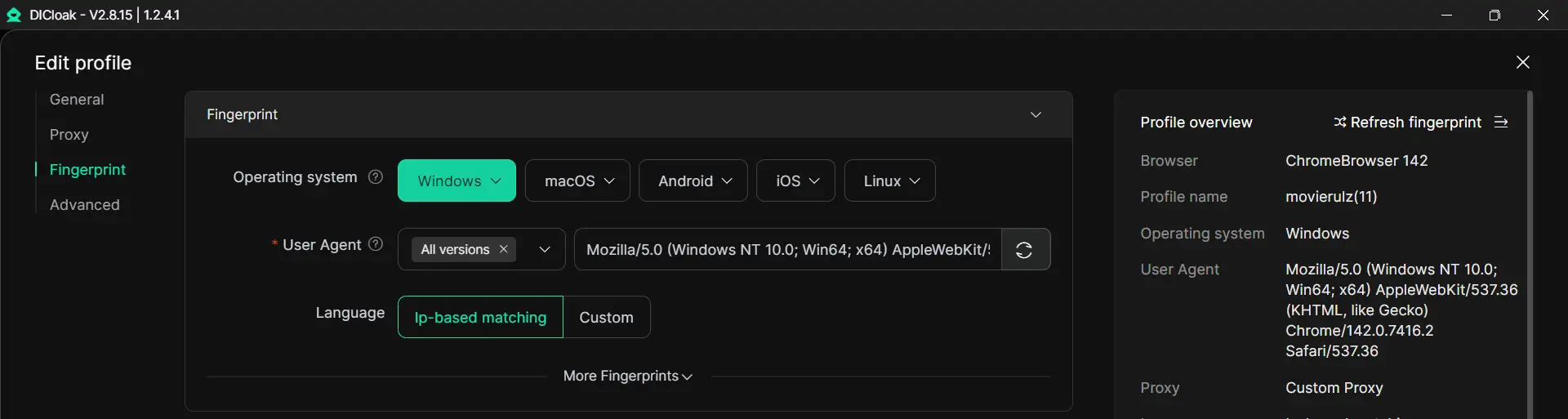
A user can make that setup easier to manage by keeping each account in its own clear browser space. With DICloak, a person can manage separate browser fingerprints and profile settings for different accounts. That separation helps a user tell accounts apart more easily and lowers the chance of accidental re-entry during the 30-day window.
Using custom proxies for safer account transitions
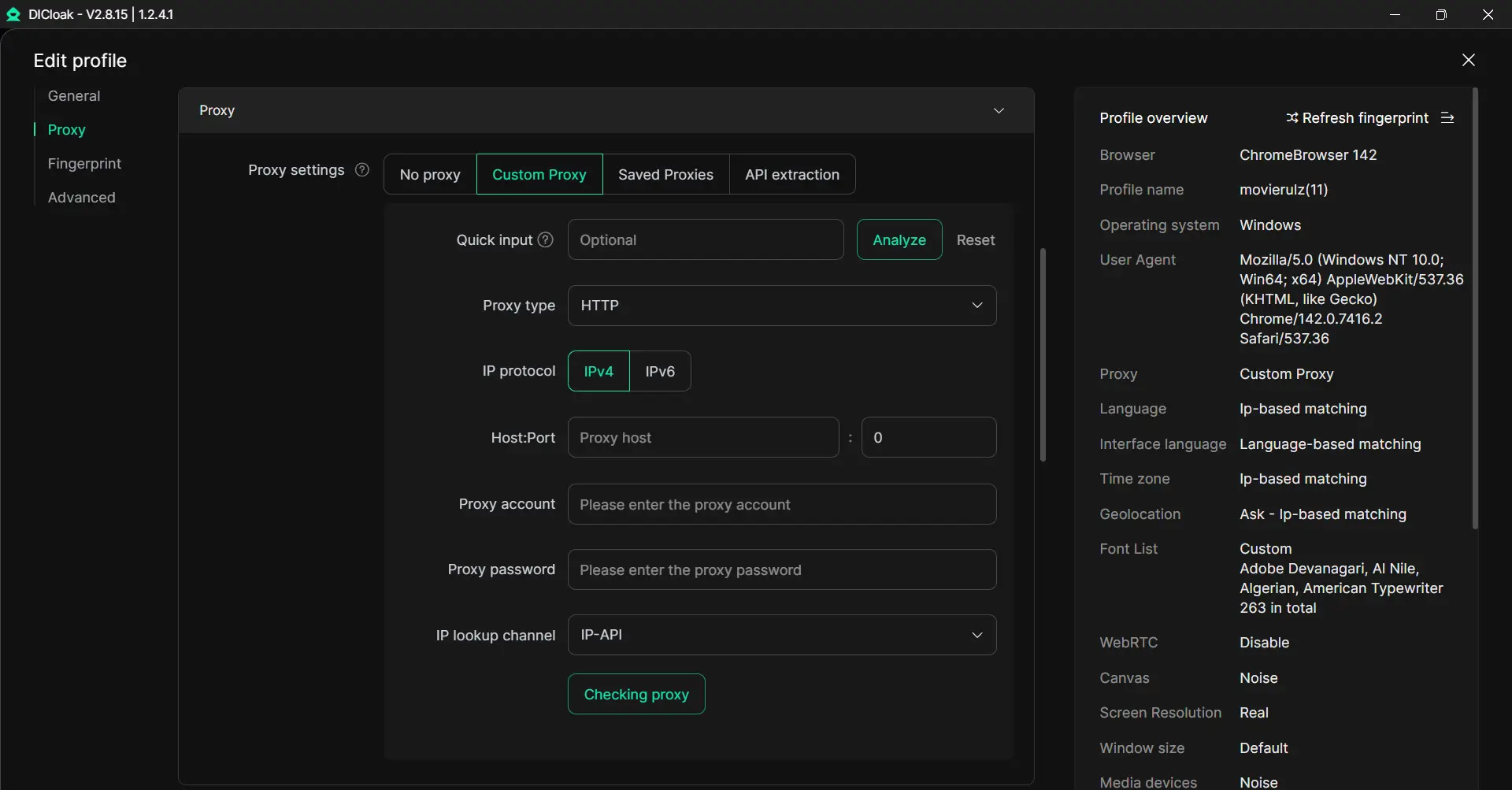
Some people also handle different X accounts with different network settings. When one person switches accounts and proxy settings by hand in the same browser, small mistakes become easier to make. That usually happens when the person is already trying to back up data, remove app access, and finish account cleanup at the same time.
FAQs About Deleting Your X Account
Can you use the same email to create a new account after deletion?
Yes, but usually not right away. After you deactivate your account, the email stays tied to that account for 30 days. After that window, it can be used again.
Do your tweets disappear immediately after deactivation?
Your public profile and posts stop being viewable on X after deactivation, but that does not mean every trace disappears everywhere at once. Search engines may still show cached results for a while.
How long do you have to reactivate a deactivated account?
You have 30 days. If you log back in during that period, the account is restored. After the 30 days pass, you cannot reactivate it.
What happens to your username after account deletion?
Your username stays unavailable during the 30-day deactivation period. After permanent deletion, it becomes available for another account to register.
Is there a way to delete your account faster?
No normal shortcut is offered. The standard process still uses the 30-day deactivation window before permanent deletion.
Conclusion
To delete your X account permanently in 2026, the most important step is to prepare before you deactivate it. Back up your data, remove third-party app access, and make sure you do not log in again during the 30-day period. If you manage more than one X account, staying organized matters even more. Once you understand these steps, the whole process becomes much easier, safer, and less stressful.
 Web Proxy Tools
 Free Tools
 Cookie Plugin
 UA Generator
 MAC Address Generator
 IP Generator
 IP Address List
 2FA Code Generator
 World Clock
 Anonymous Check
 WebRTC Leak Test
 UUID Generator
 Free Web Proxy Site
 Proxy Checker
 FB Ad Checker
 AI Web Scraping
 Free SMM Tools
 Twitter Shadowban Checker
 Instagram Name Checker
 UTM Generator
 Username Generator
 AI Hashtag Generator
 LinkedIn Headline Generator
 Social Media Image Resizer