Bluesky videos can be useful, funny, timely, or worth saving for later. But when you open a video post, you may notice one problem: there is no clear download button. You can share the post link, but saving the actual video file is not always direct. That is why many users look for a Bluesky video downloader in 2026. The right tool can help you download public Bluesky videos for personal viewing, content research, or your own backup. But safety still matters. Some tools are helpful, while others may ask for too much access or lower the video quality. This guide explains how to save Bluesky videos safely, avoid risky tools, and respect creator rights.
Why Can’t You Download Videos Directly from Bluesky?
Bluesky supports video posts, but it does not offer a clear built-in download button for normal users. You can watch, share, repost, and copy a post link, but you usually cannot tap one button to save the video file. That is why many users look for a Bluesky video downloader when they want to download Bluesky videos from public posts.
Bluesky added native video support in 2024. Posts can include one video, and supported formats include MP4, MPEG, WebM, and MOV. This makes videos easy to watch in the feed, but saving them still needs another method.
Does Bluesky Offer a Built-In Video Download Button?
No. Bluesky does not currently show a simple “Download” button for videos in the normal app or web version. A user can copy the post link, but that is different from saving the video file. For example, a creator may want to keep a backup of a clip they posted last month. They can open the post and copy the link, but they may still need a Bluesky video download tool to save the actual video.
Why Do Some Bluesky Videos Have No Easy Save Option?
Some videos are hard to save because Bluesky is built for posting and sharing, not direct video downloading. Public videos are usually easier for tools to read. Private, deleted, restricted, or broken posts may fail.
Video processing can also cause delays. Bluesky’s developer documents explain that video uploads are handled differently from images because videos are larger and take more time to process. If a video was just posted, a downloader may not detect it right away.
What Should You Know Before Using a Downloader?
A safe Bluesky video downloader should work with a public post link. It should not ask for your Bluesky password or account access. If a tool asks you to log in, avoid it.
Also think about copyright. Saving your own video or keeping a public clip for personal reference is usually lower risk. Reposting, editing, or using another creator’s video for business needs permission. Bluesky’s copyright policy also reminds users to respect other people’s rights.
Before you save Bluesky videos, check whether the post is public, whether you have permission, and whether the tool works without login details. This makes the process safer and more respectful.
How to Download Bluesky Videos with Online Tools
Since Bluesky does not give users a direct download button, online tools are often the easiest choice. These tools usually work with public post links. You copy the video post URL, paste it into a Bluesky video downloader, and save the file to your device.
Bluesky video uploads go through processing before they are stored and shown correctly, so a new video may not be ready right away. This can explain why some tools fail on fresh posts.
How to Choose a Safe Bluesky Video Downloader
A safe Bluesky video downloader should only need the public post link. It should not ask for your Bluesky username, password, email code, or account access. If a tool asks you to log in, close the page.
It is also better to avoid pages with too many pop-ups, fake “Download” buttons, or forced browser notifications. For example, if you only want to save Bluesky videos for a content folder, the tool should let you paste the link and download the file without extra steps.
Before using any Bluesky video download tool, check these points:
- The video post is public.
- The tool does not ask for login details.
- The page does not force an app or extension install.
- The download file looks like a normal video file, such as MP4.
Step-by-Step Guide to Saving a Bluesky Video
Open the Bluesky post that has the video you want to save. Copy the post link from the share option. Then open your chosen Bluesky video downloader in a browser.
Paste the link into the search or download box. Wait for the tool to read the post. If the video appears, choose the available quality and save it to your device. After downloading, open the file once to make sure the video and audio both work.
For instance, a creator may want to keep a copy of a product demo they posted last week. They can copy the public post link, paste it into an online downloader, and store the MP4 file in their campaign folder. This is a clean way to download Bluesky videos that belong to them or that they have permission to keep.
What to Do When a Downloader Stops Working
Sometimes an online downloader cannot read the post. This does not always mean the video is gone. The post may be private, deleted, restricted, or still processing. The tool may also be outdated.
Try opening the post in Bluesky first. If the video plays there, copy the link again and retry. You can also wait a few minutes if the post is new. Bluesky uses a video service for upload and transcoding, so fresh videos may need time before other tools can detect them.
If the same tool still fails, try another trusted online tool or use screen recording as a backup. Avoid downloading unknown APK files or installing random extensions just because one website promises a quick fix. A broken downloader is annoying, but losing your account details is much worse.
Can You Download Bluesky Videos on iPhone and Android?
Yes, you can download Bluesky videos on mobile devices, but the steps are not always the same as desktop. Mobile browsers have fewer tools, and many browser extensions do not work well on phones. For most users, the easiest method is still an online Bluesky video downloader that works with a public post link.
Bluesky videos are short by design. Native video posts can contain one video, with supported formats such as MP4, MPEG, WebM, and MOV. This makes mobile saving easier when the downloader can detect the file correctly.
How to Save Bluesky Videos on Android
On Android, open the Bluesky app or website and find the public video post. Tap the share option and copy the post link. Then open a trusted Bluesky video download tool in Chrome or another mobile browser. Paste the link, wait for the tool to read it, and save the file.
After the download finishes, check the file in your Downloads folder or gallery app. If the video does not appear right away, open the file manager and search for recent MP4 files. For example, a small business owner may find a public customer review video on Bluesky. If they have permission to keep it, they can copy the link, use a downloader, and save it in a campaign folder for later review.
How to Save Bluesky Videos on iPhone
On iPhone, the steps are close to Android. Open the Bluesky post, copy the public post link, and paste it into a web-based Bluesky video downloader in Safari or another browser. When the video file appears, choose the download option and save it to Files or Photos.
If the file goes to the Files app, open it once to make sure the video and audio work. Some iPhone users may need to tap the share button after downloading and choose “Save Video” to move it into Photos.
Avoid random apps that ask for your Bluesky login. A normal tool should only need the post link. If it asks for your password, it is not worth the risk.
When Screen Recording Is the Better Backup Option
Screen recording can help when a downloader fails, when the post is new, or when a tool cannot detect the video file. It is not the best choice for perfect quality, but it is useful for quick personal reference.
On iPhone, Apple’s screen recording feature is available from Control Center. Users can tap the record button and wait for the countdown before recording the screen. On Android, many phones also include a built-in screen recorder from the quick settings panel, though the exact name may change by device brand.
Screen recording is best for saving a short clip for notes, research, or personal viewing. It is not ideal if you need the clean original file. If you plan to repost the video or use it for business, get permission from the creator first. This keeps your use of any Bluesky video downloader or recording method safer and more respectful.
How to Keep Video Quality Clear After Downloading
After you download Bluesky videos, quality can change for a few reasons. The downloader is only one part of the result. The original video, Bluesky’s processing, and your device player all matter. A good Bluesky video downloader can help, but it cannot create quality that was not in the original post.
Bluesky videos go through upload and transcoding before they are stored and shown. This processing helps videos play across devices, but it may also affect the final file a downloader can access.
Why the Original Upload Quality Matters
The clearest download usually starts with a clear upload. If the creator posted a low-resolution clip, a Bluesky video download tool cannot turn it into a sharp HD video. It can only save the version that is available from the post.
For example, if a creator uploads a screen recording with small text and heavy compression, the saved file may still look soft. In this case, the problem is not always the downloader. The source video may already have lost detail before it appeared on Bluesky.
Bluesky’s early video support allowed one video per post, with formats such as MP4, MPEG, WebM, and MOV. These formats can look very different depending on how the file was exported before upload.
Why Downloaded Videos May Look Blurry or Smaller
A downloaded video may look blurry if the tool saves a lower-quality version. Some online tools choose a smaller file because it downloads faster. Others may not show every available quality option.
The video may also look smaller if you play it on a large screen. A clip that looks fine on a phone can look soft on a laptop or TV. This is common with short social videos.
When possible, choose the highest available quality before you save Bluesky videos. Also check the file size. A very small MP4 file may load fast, but it may not keep much detail.
How to Avoid Audio or Playback Problems
After downloading, open the file before you close the downloader page. Check both the video and the sound. If the file has no audio, try downloading it again or choose another available format.
MP4 is usually the safest choice for most phones, computers, and editing tools. If the video does not play, test it in another player, such as VLC, or download the file again from another trusted Bluesky video downloader.
For instance, a marketer may save a public Bluesky clip for an internal report. If the file opens on their phone but not on a work laptop, the issue may be the media player, not the video itself. Checking the file right away helps avoid problems later.
Is It Safe and Legal to Use a Bluesky Video Downloader?
A Bluesky video downloader can be useful, but safety and permission matter just as much as the download itself. Before you save Bluesky videos, check the tool, the post, and your reason for keeping the file. This is especially important if the video belongs to another creator.
Bluesky’s Terms of Service work together with its Community Guidelines, Privacy Policy, and Copyright Policy. These rules cover how users should handle content on the platform.
Why You Should Avoid Tools That Ask for Login Details
A safe Bluesky video download tool should only need a public post link. It should not ask for your Bluesky password, email code, or account access. If a downloader asks you to log in, leave the page.
This matters because fake download pages can collect private data. Some may also push unknown apps, browser notifications, or unsafe files. For example, if you only want to download a public cooking clip, there is no good reason for a tool to ask for your account password.
A cleaner choice is a web tool that lets you paste a public URL and download a normal video file, such as MP4. That keeps the task simple and lowers the risk.
When Personal Saving Is Usually Lower Risk
Personal saving is usually lower risk when the video is public and you keep it for private use. For instance, you may want to save your own post, keep a tutorial for offline viewing, or store a public clip for research notes.
Still, “public” does not mean “free to reuse.” The creator may still own the video. Bluesky’s copyright policy explains that users can report content that infringes copyright, trademark, or other IP rights.
So, if you use a Bluesky video downloader to keep a clip, do not remove the creator’s context. Keep the post link, creator name, and date with your saved file when possible. This is helpful for personal records and shows respect for the source.
Why Reposting or Commercial Use Needs Extra Care
Reposting is different from saving. If you download Bluesky videos and upload them again to another account, website, or ad campaign, you may need permission from the original creator. This is even more important for brand use, paid ads, product pages, or edited clips. For example, a brand may like a customer’s public review video on Bluesky. Saving it for an internal report is one thing. Using it in a paid Instagram ad is another. In that case, the safer move is to ask for written permission before using the video.
A good rule is to treat every saved video as someone’s work. Use a Bluesky video download tool for backup, research, or allowed use, not for taking content without credit or consent. That makes the process safer for both the viewer and the creator.
A More Controlled Way to Manage Bluesky Content and Multiple Accounts
For casual users, a Bluesky video downloader may be enough to save one public video. But social media teams often handle more than one Bluesky account. They may collect public video links, check brand mentions, save campaign materials, and review creator posts across different accounts. At that point, the bigger issue is not only how to download Bluesky videos. It is how to keep each account environment clean and separate.
For this kind of work, users can use DICloak to manage Bluesky accounts in a more controlled way.
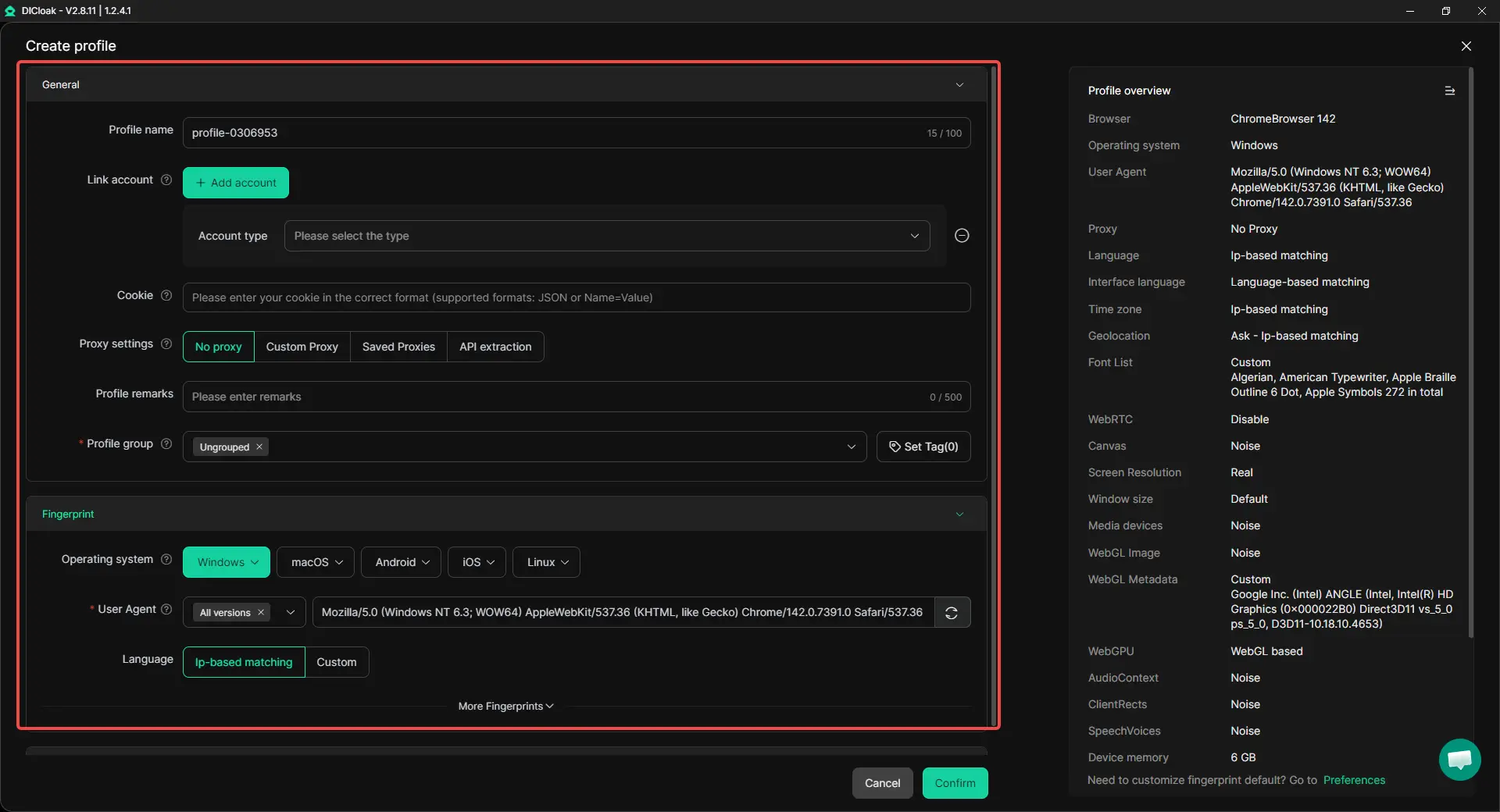
- Profile isolation for each account: Users can create a separate browser profile for each Bluesky account. Cookies, sessions, cache, and browser fingerprints stay apart. This helps reduce account mix-ups when switching between brand accounts, client accounts, and research accounts.
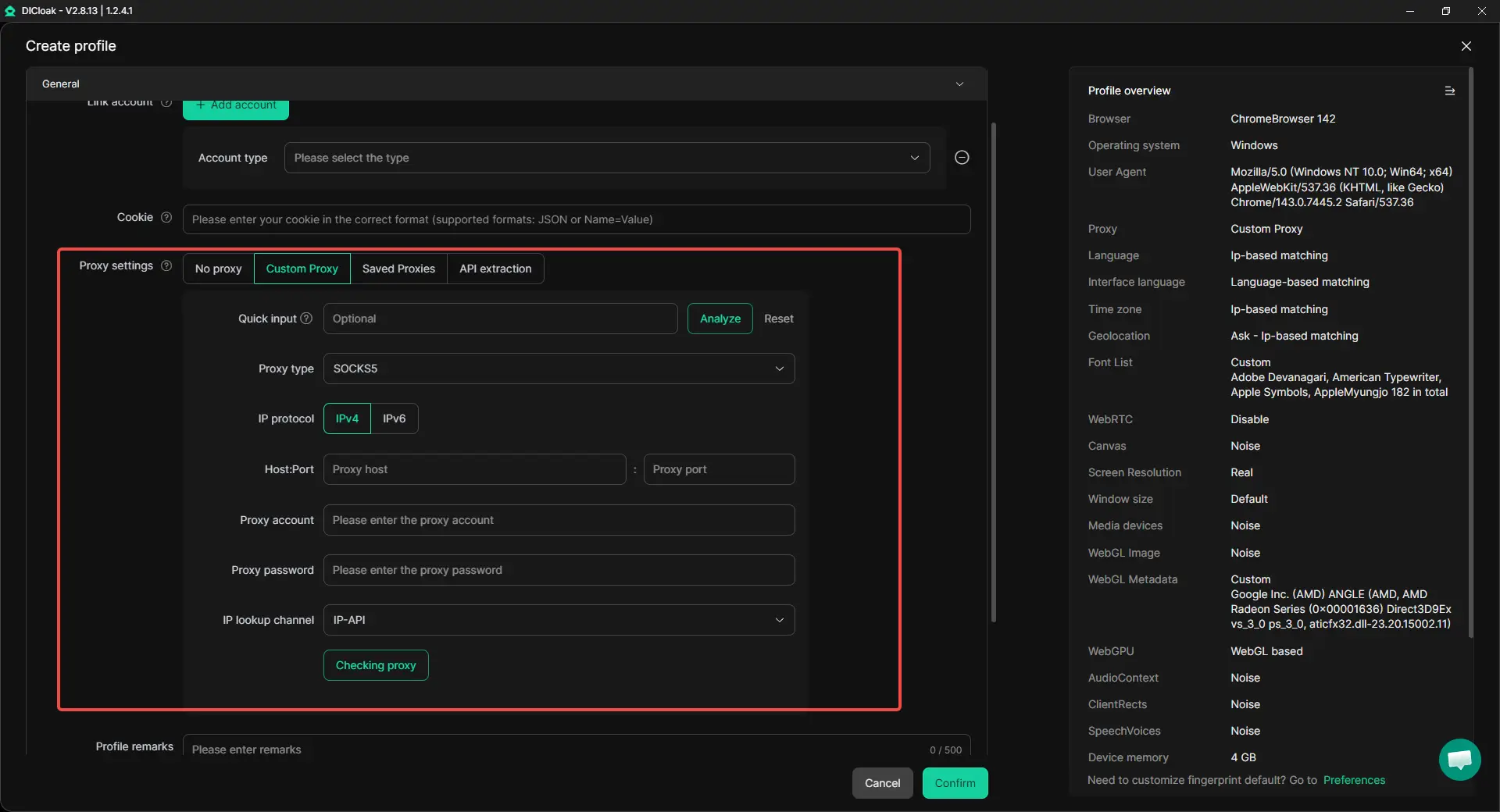
- Custom proxy configuration for each profile: Users can assign a different proxy to each browser profile. This is useful when different Bluesky accounts need stable regions or separate network settings. It also makes it easier to check which proxy belongs to which account.
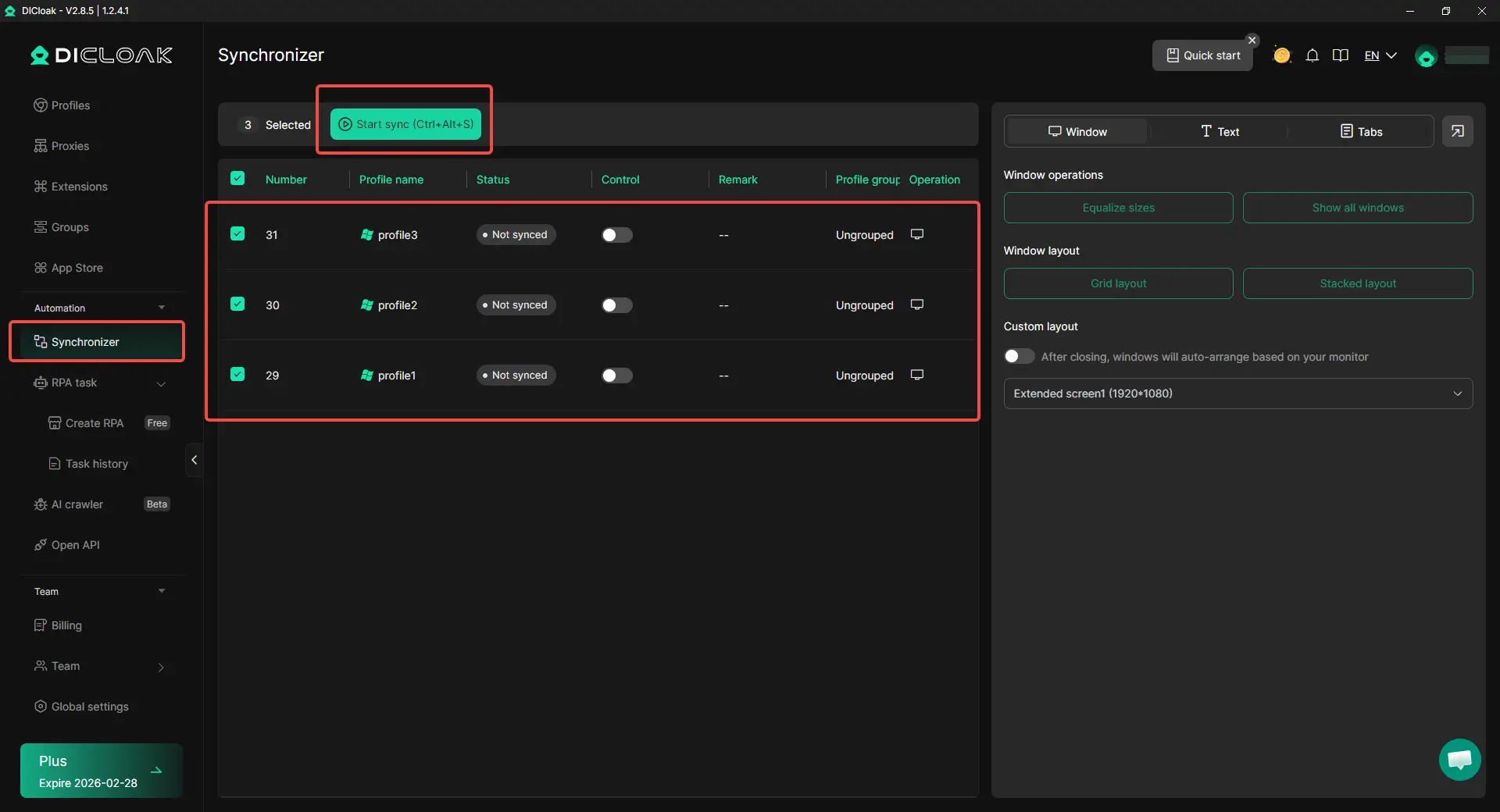
- Synchronizer for repeated multi-account actions: When users need to perform similar actions across several profiles, the Synchronizer can keep multi-window actions more organized. For example, a team can open several Bluesky profiles and check content, links, or video posts more efficiently without merging sessions.
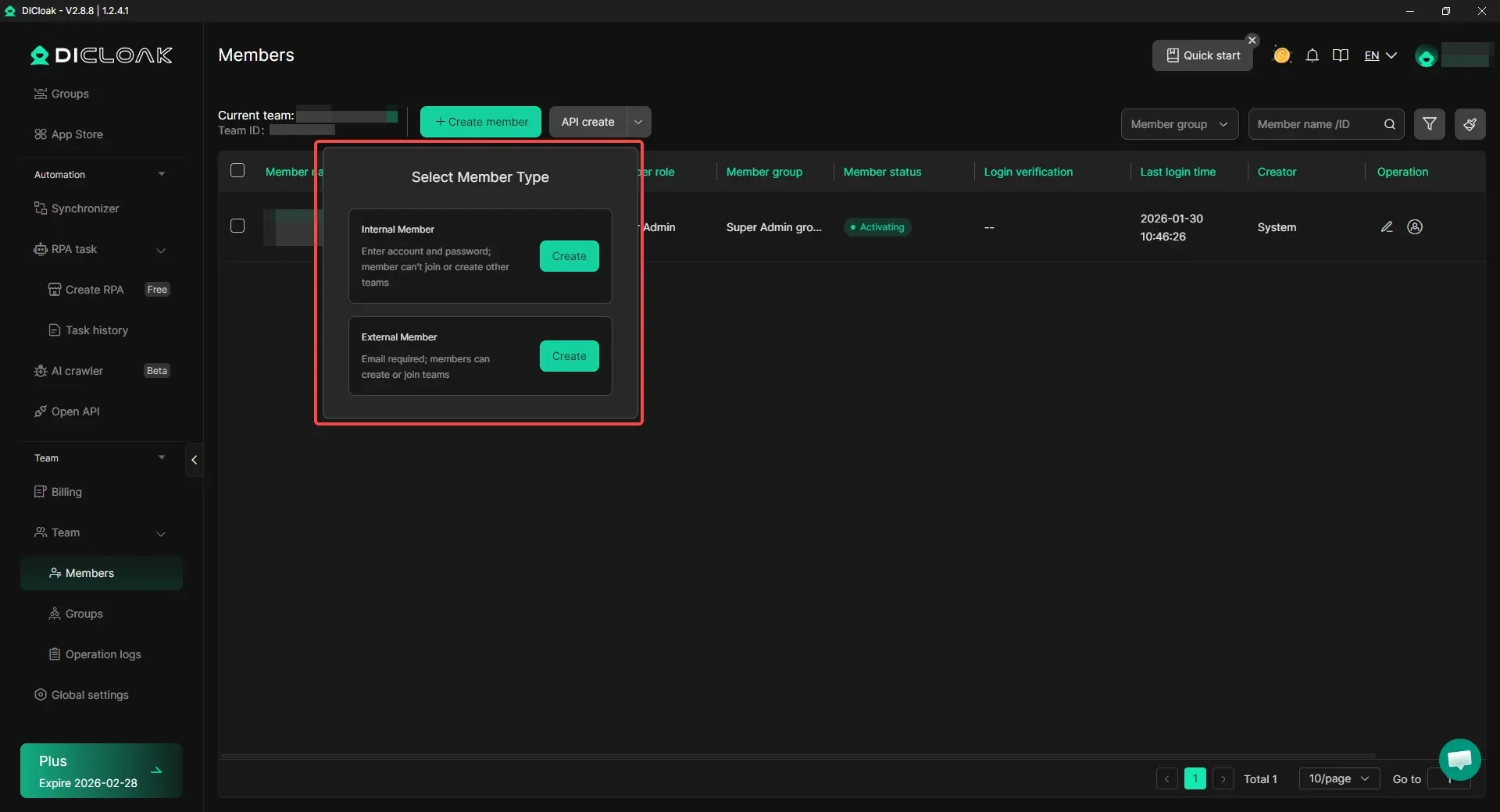
- Team collaboration and management: Users can share profiles with team members, set permissions, and review operation logs. This is helpful when several people need to manage Bluesky content, save public video links, or handle account work without sharing raw passwords.
This setup does not replace safe downloading habits. Users should still use a trusted Bluesky video downloader, avoid tools that ask for login details, and respect creator rights before saving or reposting videos. But for teams that manage many Bluesky accounts, DICloak can make daily content work cleaner and easier to control.
Frequently Asked Questions about Bluesky Video Downloader
1. What is a Bluesky video downloader?
A Bluesky video downloader is a tool that helps users save videos from public Bluesky posts. Most tools work by reading the post link. You copy the Bluesky video URL, paste it into the downloader, and save the video file to your device.
2. Is it safe to use a Bluesky video downloader?
A Bluesky video downloader is safer when it only asks for a public post link. It should not ask for your Bluesky password, email code, or account access. Avoid tools with too many pop-ups, fake download buttons, or forced app installs.
3. Can I use a Bluesky video downloader on iPhone or Android?
Yes. You can use a web-based Bluesky video downloader in Safari, Chrome, or another mobile browser. Copy the public Bluesky post link, paste it into the tool, and save the file. If the tool does not work, screen recording can be a backup for personal use.
4. Why is my Bluesky video downloader not working?
A Bluesky video downloader may fail if the post is private, deleted, restricted, or still processing. The tool may also be outdated. Try opening the post in Bluesky first, copy the link again, wait a few minutes, or test another trusted downloader.
5. Is it legal to download videos with a Bluesky video downloader?
Using a Bluesky video downloader to save your own video or keep a public clip for personal reference is usually lower risk. Reposting, editing, or using another creator’s video for business needs extra care. Get permission before using someone else’s video in ads, brand content, or public reposts.
Conclusion
A Bluesky video downloader helps users save public Bluesky videos when there is no direct download button. The safest way is to copy the public post link, use a trusted tool, and avoid any site that asks for login details. Video quality depends on the original upload and the available download file. If a tool fails, the post may be private, deleted, restricted, or still processing. Always respect creator rights before reposting or using downloaded videos for business.
 Web Proxy Tools
 Free Tools
 Cookie Plugin
 UA Generator
 MAC Address Generator
 IP Generator
 IP Address List
 2FA Code Generator
 World Clock
 Anonymous Check
 WebRTC Leak Test
 UUID Generator
 Free Web Proxy Site
 Proxy Checker
 FB Ad Checker
 AI Web Scraping
 Free SMM Tools
 Twitter Shadowban Checker
 Instagram Name Checker
 UTM Generator
 Username Generator
 AI Hashtag Generator
 LinkedIn Headline Generator
 Social Media Image Resizer