Bluesky is growing fast, and more users now want to save videos they find on the platform. Some want to keep useful clips for offline viewing. Others want to save tutorials, short highlights, or creative posts for later. But downloading Bluesky videos is not always simple. There is no clear built-in download option for most users, so many people turn to web tools, browser extensions, or screen recording instead. In this guide, you will learn how to download Bluesky videos, which tools to try, what problems to watch for, and how to do it more safely.
Why Bluesky Videos Can’t Be Downloaded Directly
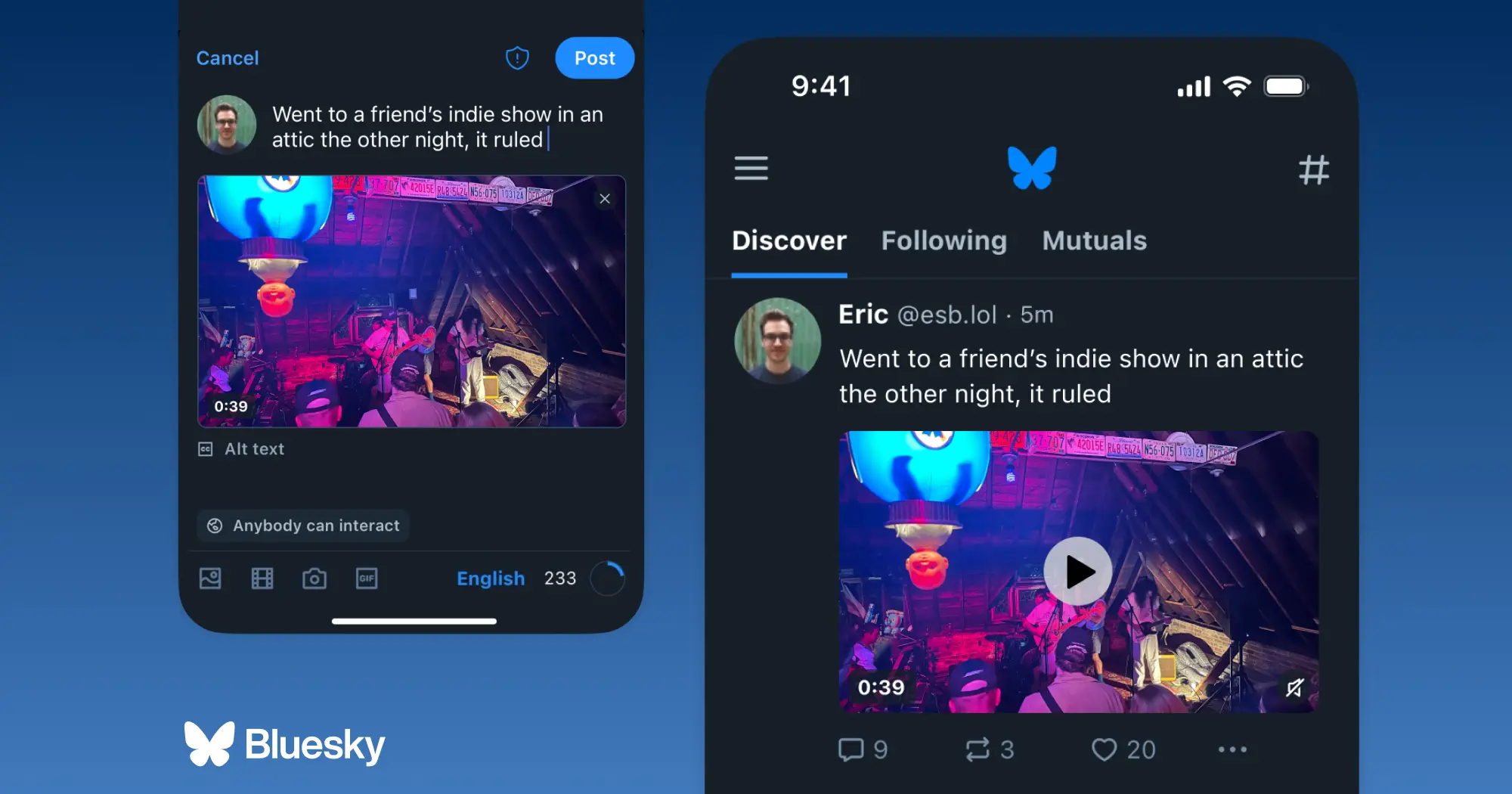
Many users want to download Bluesky video posts for offline viewing, saving tutorials, or keeping short clips they may want to watch later. But Bluesky is built more for posting, sharing, and watching than for direct file saving. Video support is available on the platform, and the video limit was later expanded to 3 minutes, but there is no clear built-in download button for regular public posts in the normal user flow. That is why people who want to download Bluesky video content often start looking for other methods.
Does Bluesky Have a Built-In Download Option?
In most cases, no. You can watch a video, share the post, and copy the link, but saving the actual video file is not a standard built-in action. For example, if you find a useful product demo or a funny clip on Bluesky, you can usually copy the post URL, but not directly save the video to your device with one tap. That missing step is the main reason users search for ways to download Bluesky video posts outside the app.
Common Restrictions on Video Downloads Across Platforms
This is common across many social platforms. Platforms make viewing easy, but downloading is often limited. Once a file is saved, it can be reposted, edited, or shared far away from the original post. Public access also does not mean the content is free to reuse in any way. On Bluesky’s developer side, public media can be technically accessed through open web endpoints, but reuse still depends on context, permissions, and the original creator’s rights. That is why direct download features are often limited even when a video is public.
Risks of Using Unverified Download Methods
This is where users need to be careful. When people try to download Bluesky video files quickly, they often click random converter sites, low-quality tools, or unknown browser add-ons. That can create real security problems. In 2025, the FBI warned that fake file converter and downloader tools were being used to spread malware and steal personal data such as passwords, banking details, and crypto wallet information. Safety guidance from the FTC also warns users to be careful with unfamiliar download sites, browser extensions, and unnecessary app permissions. So if a tool asks you to install extra software, turn off browser protections, or grant broad access, it is safer to leave right away.
Best Tools to Download Bluesky Videos in 2026
If you want to download Bluesky video posts, there are now two main options: browser extensions and online downloader websites. Extensions are often faster because they add a download button inside the Bluesky page. Online tools are simpler for users who do not want to install anything. A good comparison section at the end can help readers choose the right option for their device, workflow, and safety needs.
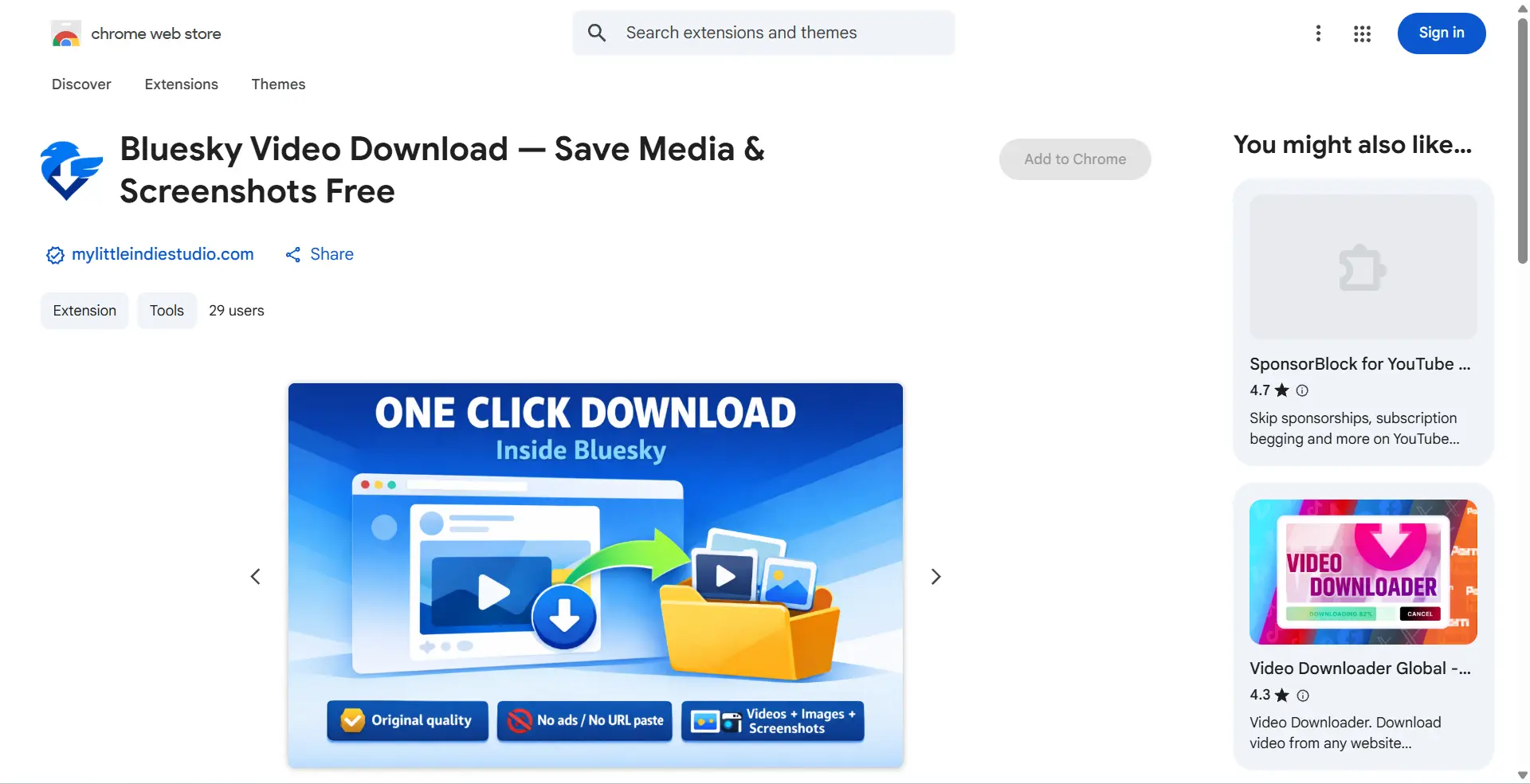
This tool works as a Chrome extension. Its main advantage is convenience. It adds download support directly inside the Bluesky experience, so users do not need to copy and paste links into a separate site each time. It also promotes extra features like saving images and bulk media, which may appeal to users who save content often. This kind of tool fits desktop users who want a faster way to download Bluesky video files while browsing.
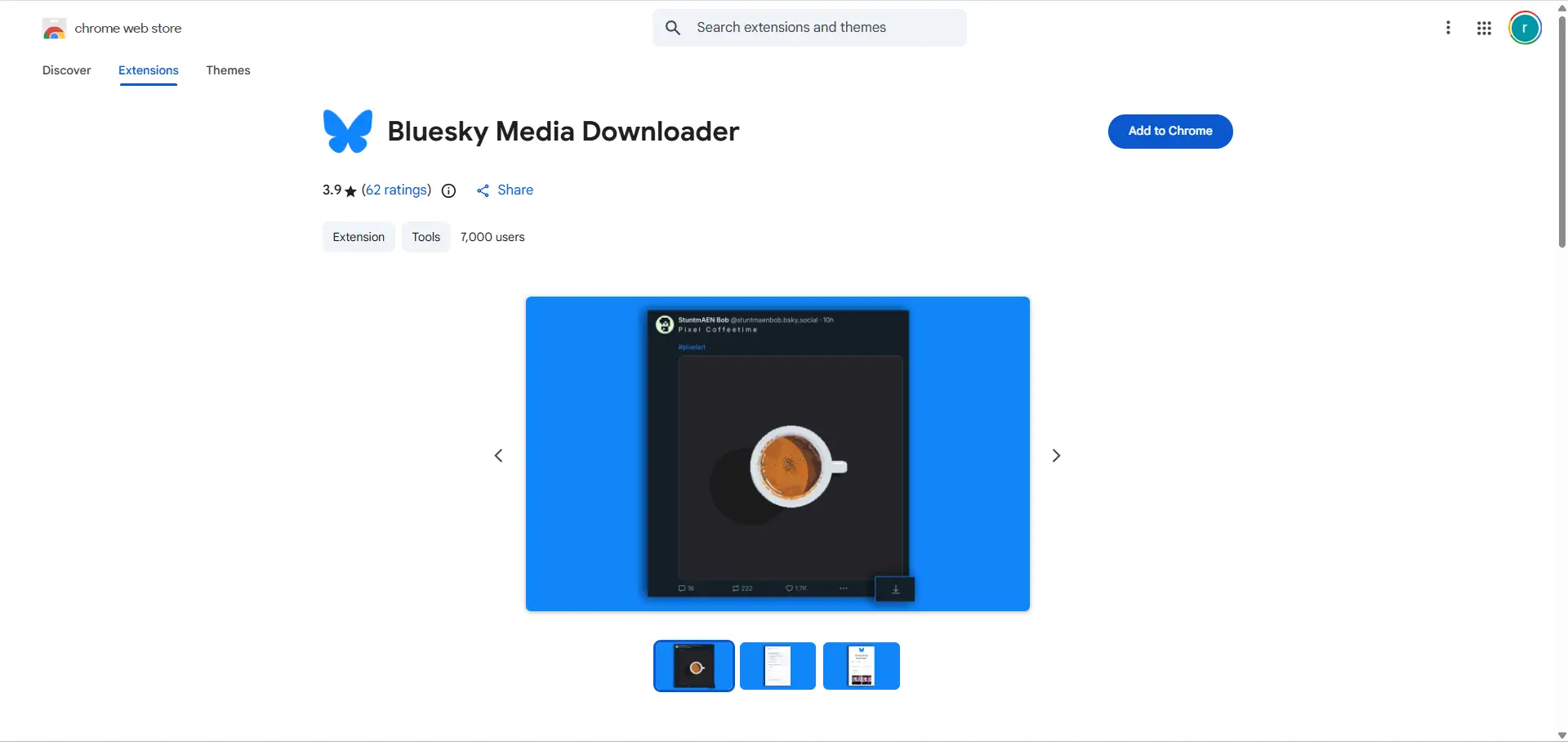
This is another Chrome extension, but its positioning is a little different. It focuses on one-click downloads for both images and videos and highlights support for multiple files from Bluesky posts. That makes it easier to present as a choice for people who want a simple built-in downloader without extra steps. In the article, this tool can represent the “easy browser extension” option.
This is a web-based downloader, so users only need to paste a Bluesky post URL into the page. It presents itself as a free tool for downloading high-quality MP4 videos and also offers a TS format option. For SEO writing, this tool is useful as an example of the “no installation needed” method. It is easier for casual users, especially those on shared devices or users who do not want to add a browser extension.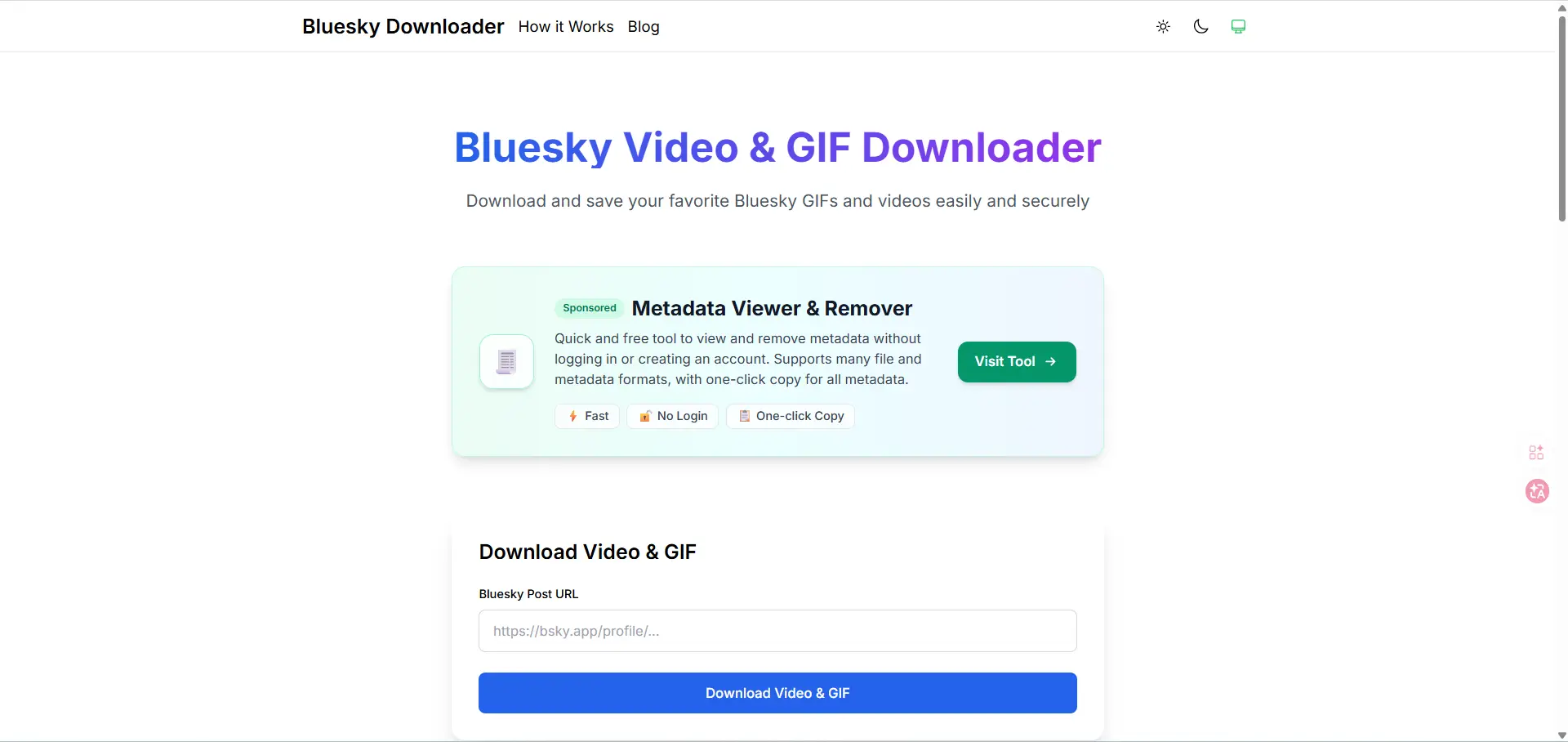
Publer Bluesky Video Downloader
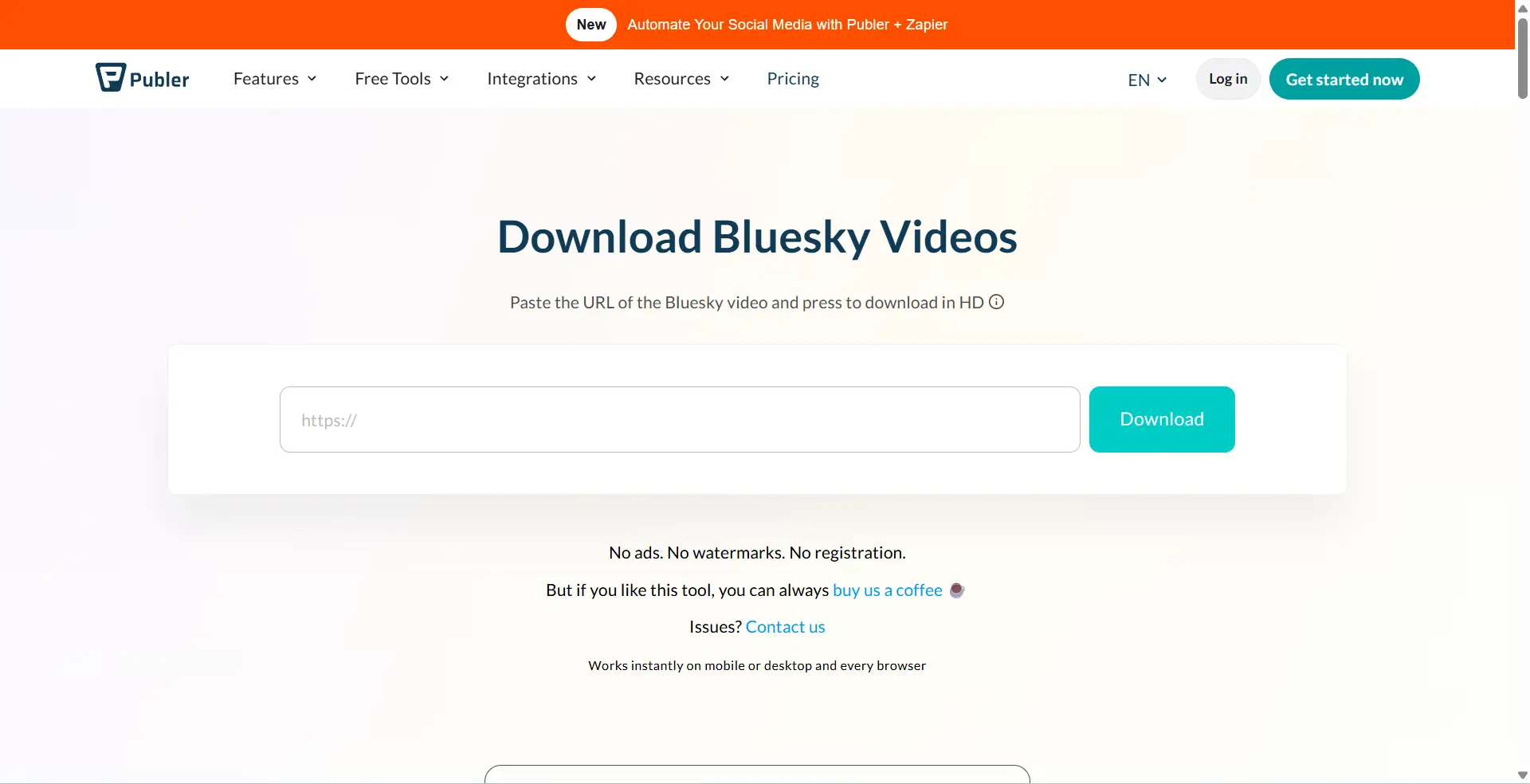
Publer offers a free online Bluesky video downloader as part of its broader social media tool set. Its main appeal is ease of use: no registration, no watermark, and direct downloading from a public Bluesky link. In the article, this tool can be framed as a more polished web option for users who prefer a cleaner interface and do not want to install software.
Which Bluesky Video Downloader Is Best?
If the reader wants speed and uses Chrome often, an extension is usually the easiest choice because it works inside the Bluesky page itself. If the reader wants a quick one-time download on mobile or does not want to install anything, an online downloader is usually more practical. Tools like Bluesky Video Download and Bluesky Media Downloader fit frequent desktop use, while bskydownloader, Publer, and bskydownloads are better examples of paste-the-link web tools. If you want, you can also add one short note here reminding readers to choose tools that do not require login, do not ask for broad permissions, and do not push extra software downloads.
Troubleshooting Common Bluesky Video Download Issues
Even when a Bluesky downloader works, small problems can still happen. A video may save without sound. The quality may look worse than the original post. Or the tool may fail before the file finishes downloading. In most cases, the cause is not Bluesky alone. The problem is usually the download tool, the browser, the file format, or the network connection. Chrome’s own support pages also note that unstable connections, extension conflicts, and browser-side playback issues can break downloads or media playback.
Why Does the Video Have No Sound After Downloading?
A video with no sound usually means the downloader did not save the full media stream correctly, or the file is being played in an app that does not handle the audio track well. Sometimes the video file downloads, but the audio part is missing or not decoded correctly by the player. This can also happen when browser or device audio settings are acting up. A simple first step is to test the file in another player or browser. If the sound works there, the problem is often with playback, not the download itself. Sound troubleshooting guides from Microsoft also suggest checking app-level sound settings first before assuming the file is broken.
What to Do If the Downloaded Video Quality Is Poor
Poor quality usually happens for one of three reasons. First, the tool may only grab a compressed version of the video. Second, your browser or player may be showing the file badly. Third, the original uploaded video may not have been high quality to begin with. A good test is to compare the downloaded file with the version that plays inside the Bluesky post. If both look soft, the source is likely the issue. If the post looks sharp but the saved file looks blurry, the downloader probably reduced the quality.
In that case, try a different tool, especially one that lets you save the original MP4 instead of a more limited format. Also avoid tools that force extra conversion steps, because each new conversion can lower quality again. If playback looks blurry only in one app, try another player before downloading the file again. That can save time and help you tell the difference between a bad file and a bad playback result.
How to Fix Errors When Using Download Tools
If a Bluesky download tool shows an error, start with the simple checks first. Make sure the post is public, the link is complete, and your internet connection is stable. Chrome’s help pages note that interrupted connections can pause or break downloads, and extension conflicts can also stop media tools from working correctly. If the tool is a browser extension, reload the page, disable other extensions for a moment, and try again. If it is a web downloader, paste the link again carefully and test it in a private window or another browser.
If the error still stays, switch tools instead of forcing the same one over and over. That is often the fastest fix. Some tools fail because of temporary site changes, while another downloader still works. Also be careful with any site that asks you to install extra software just to finish one download. When a simple video tool suddenly asks for broad permissions or added programs, that is usually a bad sign, not a normal step.
Using Screen Recording as a Backup Option
When a download tool fails, screen recording is a simple backup. Most phones already have it built in, so you do not need to install another app. It is not as clean as a direct download, but it can still help you save a Bluesky video for personal offline viewing.
How to Set Up Screen Recording for Bluesky Videos
On iPhone, open Control Center and tap Screen Recording. On Android, open Quick Settings and tap Screen record. Then play the Bluesky video in full screen and start recording. For a better result, turn on internal audio if your phone supports it, and close notifications before you begin.
Pros and Cons of Screen Recording vs. Direct Downloads
The biggest benefit is convenience. Screen recording works even when a downloader stops working. It is also safer than using random websites. The downside is that the file may lose some quality, include screen clutter, or need trimming after recording. Direct downloads are usually better when they work, but screen recording is a practical backup.
Legal Considerations When Using Screen Recording
Screen recording does not give you the right to repost someone else’s video. A public post can still be protected by copyright. Bluesky also makes clear that public media does not automatically come with reuse rights. The safest use is personal viewing or private reference. If you want to repost or reuse the video, get permission first.
How to Download Multiple Bluesky Videos at Once
If you need to save more than one clip, doing it one by one can take too long. In that case, batch tools can help. They are better for archiving public posts, saving a creator’s media, or collecting several videos from the same account. But bulk downloading should still be done carefully, because speed, file size, and repeated requests can all cause problems.
Tools That Support Batch Downloading of Bluesky Videos
Some Bluesky tools now support bulk saving, not just single-video downloads. For example, the Chrome extension Bluesky Video Download — Save Media & Screenshots Free says it can download every video and image from a public profile as a ZIP file. Bluesky Media Downloader also supports multiple file downloads from Bluesky posts. These tools are more useful than single-link sites when you want to save several videos in one session.
Tips for Managing Large Video Downloads Efficiently
Keep the job small and organized. Download in batches instead of trying to save everything at once. Use clear folders by creator name, topic, or date. If a tool offers ZIP export, that can save time. It also helps to keep a stable connection and enough storage space before you start, especially when downloading many videos from the same profile.
Avoiding Account Restrictions When Downloading in Bulk
Go slowly. Do not refresh, retry, or send too many requests in a short time. Bluesky uses rate limits to protect its systems, and its community rules also prohibit abusing or bypassing rate limits or platform infrastructure. A safer approach is to download only public content, avoid login-required tools when possible, and split large jobs into smaller rounds instead of forcing everything at once.
Legal and Ethical Considerations for Bluesky Video Downloads
Downloading a Bluesky video is not always illegal, but it is not automatically risk-free either. Saving a public video for personal offline viewing is different from reposting it, using it in marketing, or uploading it to another platform. The main point is simple: public access does not mean free reuse. On Bluesky, public media can be accessed, but reuse rights do not come with the file unless the creator clearly allows that.
Is It Legal to Download Videos from Bluesky?
In many cases, downloading for private viewing is lower risk than public reuse. But legality depends on how you use the file after saving it. If you download a clip just to watch later, that is very different from reposting the same video as your own content. U.S. copyright law protects original works fixed in a tangible form, and online videos can fall under that protection.
How to Respect Copyright Laws While Downloading Content
The safest rule is to treat downloaded videos as someone else’s work unless you made the video yourself or got permission. Keep the file for personal use, leave credit in place, and ask before reusing it in public posts, ads, edits, or compilations. Fair use does exist, but it is limited and depends on the full context, not on a simple rule like “I only used a short part.”
What Are the Risks of Reposting Downloaded Videos?
Reposting creates the biggest risk. The creator may report the post, ask for removal, or claim copyright infringement. Platforms may also take content down after complaints. If you remove credit, edit the clip, or use it for commercial gain, the risk gets higher. So if your goal is more than personal viewing, the safer move is to get permission first.
Managing Multiple Bluesky Accounts With DICloak
For social media managers and agencies running multiple Bluesky accounts for different clients or brands, account isolation matters here just as it does on any other platform. DICloak is one option for that kind of setup because it lets users manage accounts through separate browser profiles.
Keeping Each Bluesky Account in a Separate Browser Profile
A separate browser profile helps keep one account from affecting another. Cookies, login sessions, and local browser data stay in their own space instead of getting mixed together. That makes switching between Bluesky accounts more orderly, especially for users who do not want to keep logging in and out all day.
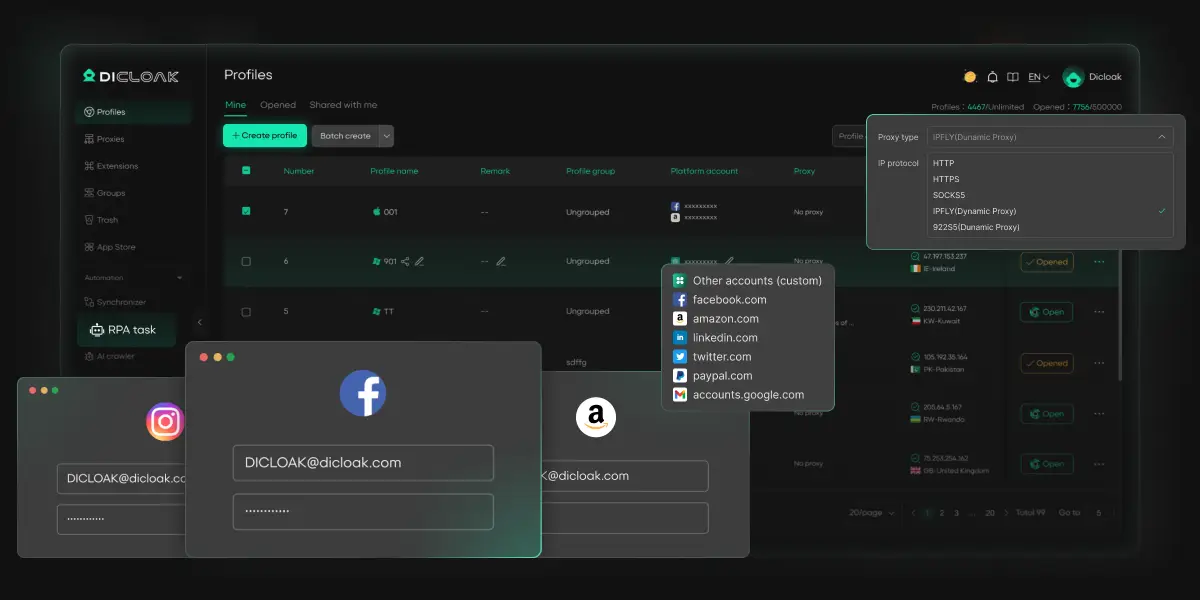
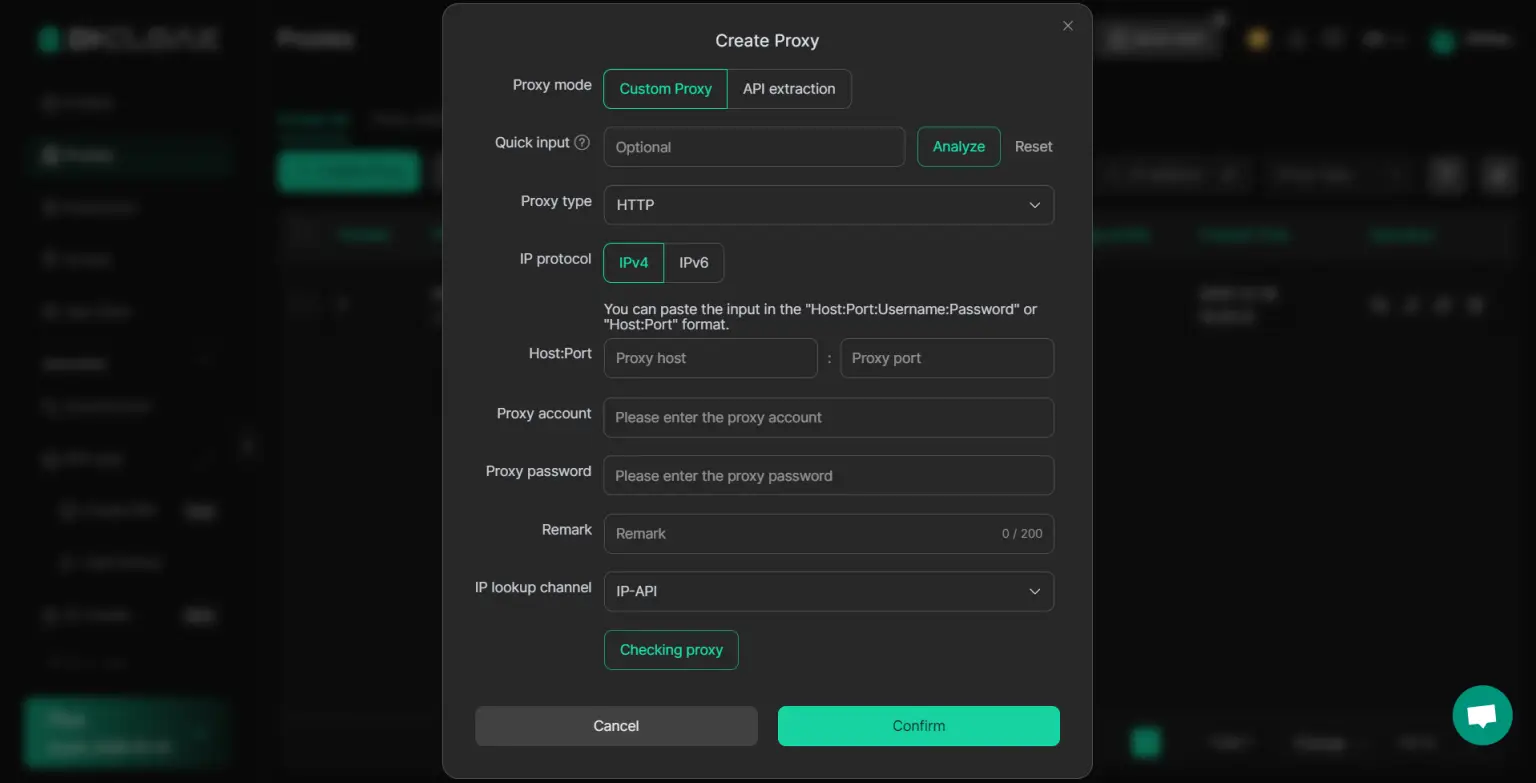
Some users also want each account to have its own proxy setup. DICloak supports adding proxies to browser profiles, so different accounts can be matched with different configurations if needed. This part matters more for users who want a more controlled setup over time. DICloak supports proxy configuration, but it does not provide built-in proxies, so users still need to prepare their own.
Managing Multiple Bluesky Accounts More Efficiently
As the number of accounts grows, simple tasks start taking longer. Opening profiles one by one, checking the right account, and keeping everything organized can become repetitive. DICloak also supports bulk actions for browser profiles, which can make routine account management easier for users handling several Bluesky accounts at once.
FAQs About Downloading Bluesky Videos
Can I Download Bluesky Videos Without Third-Party Tools?
Usually, no. For most users, Bluesky does not offer a normal built-in button to save public videos directly to a device. That is why most people use a downloader site, a browser extension, or screen recording as a backup.
Why Are Some Bluesky Videos Not Downloadable?
There are a few common reasons. The post link may be broken, the tool may not support that video format, or the downloader may stop working after a site change. Some tools also only work with public posts, not restricted or unavailable content. Bluesky’s system is built around public data access, but that does not mean every third-party tool will process every post correctly.
Are Paid Download Tools Better Than Free Ones?
Not always. Some free tools already offer simple link-based downloading with no signup, while some paid desktop tools add extra features like batch jobs, format options, or download history. The better choice depends on what you need. If you only want to download Bluesky video posts once in a while, a free web tool may be enough. If you save media often, a paid tool may feel more convenient.
How Can I Download Private Bluesky Videos?
In practice, you usually cannot. Tools that work with Bluesky video downloads are generally built for public post links. Claims about downloading private Bluesky videos should be treated carefully. Bluesky’s protocol has also long been described as public by design, and full private-account support is not a normal part of the current system.
What File Formats Are Supported for Bluesky Video Downloads?
MP4 is the most common format. Some tools also offer TS, and a few GIF-related tools convert moving content into MP4, WEBP, or GIF-style outputs depending on the tool. So if you want better compatibility across phones, browsers, and media players, MP4 is usually the safest option.
Conclusion
Downloading Bluesky videos can be simple once you know which method fits your needs. Some users may prefer a quick web downloader, while others may find browser extensions or screen recording more practical. The key is to choose safe tools, check video quality, and avoid risky download methods. If you plan to save many videos or manage multiple Bluesky accounts, it also helps to keep your workflow organized. With the right approach, you can download Bluesky videos more easily and with fewer problems.
 Web Proxy Tools
 Free Tools
 Cookie Plugin
 UA Generator
 MAC Address Generator
 IP Generator
 IP Address List
 2FA Code Generator
 World Clock
 Anonymous Check
 WebRTC Leak Test
 UUID Generator
 Free Web Proxy Site
 Proxy Checker
 FB Ad Checker
 AI Web Scraping
 Free SMM Tools
 Twitter Shadowban Checker
 Instagram Name Checker
 UTM Generator
 Username Generator
 AI Hashtag Generator
 LinkedIn Headline Generator
 Social Media Image Resizer