Setting up a new online account sounds easy, until you hit the real roadblocks. If you try to create microsoft account for work, gaming, or device login, you’ll run into choices that aren’t as simple as clicking “Sign Up.” Picking the right email, handling phone verification, and deciding what recovery info to use can trip up even people who’ve registered dozens of accounts before.
Most guides gloss over the details, but the pain usually comes later. Use the wrong recovery option, and you might get locked out after a password reset. Skip phone verification on a business device, and you’re likely to hit restrictions when connecting Office or Teams. Even small mistakes, like choosing a weak password or reusing an old email, can put your new Microsoft account at risk for unwanted security alerts or failed logins.
That’s why the real question isn’t just “how to set up a Microsoft account,” but how to do it without getting stuck on verification, blocked access, or security checks. The process looks straightforward, but the traps are subtle. You need to know which steps can’t be undone, what each verification actually changes, and how to fix problems if your first attempt doesn’t go through.
Start by understanding what Microsoft actually requires for account creation, then see where most users get it wrong.
What Should You Prepare Before Creating a Microsoft Account?

You need more than just a working email to start, missing one step can lock you out, trigger extra security checks, or make account recovery impossible later. The smartest move is to check your identity, device, and information before you start the actual sign-up. If you skip this prep, you risk getting flagged or stuck on verification screens that won’t budge.
Choosing the Right Email Address: Personal vs. Work
Picking the right email is the single biggest decision, get it wrong and you’re stuck with a mess later. Use your main personal email if you want easy access, password resets, and full control. But if your device is owned by your company, or you plan to use Office or Teams for work, create a new Outlook email tied to your work domain. Microsoft treats work emails differently, especially when linking devices for business use. Reusing an old email with baggage (like past login errors or previous bans) is a common mistake that can trigger security alerts or even block your account creation.
Required Information and Verification Methods
Before you start, have these ready:
- Use a phone number that you can access immediately, Microsoft will send a code for verification, and delays can force you to restart.
- Prepare an alternate email that isn’t linked to other Microsoft accounts, so you can recover your credentials if you lose access.
- Keep your device close, identity checks sometimes require you to verify from the same phone or computer you’re signing up on.
Understanding Microsoft’s Terms and Privacy Policy
Microsoft’s terms aren’t just legal filler, they outline how your data is shared and stored, and which rules you must follow. If you don’t read them, you could miss restrictions on account ownership, data sharing, or device linking that affect how you use Office, OneDrive, or Teams.
- Review the Microsoft Services Agreement for rules on account use, recovery, and ownership.
- Check the Microsoft privacy policy to see what personal information is collected at sign-up.
- Look for restrictions on business or school accounts, some features are limited if you register with a managed domain.
Mistakes in these prep steps usually lead to failed sign-ups or locked accounts. That’s why the next section focuses on which errors actually cause Microsoft account creation to fail or get flagged.
Why Do Some Microsoft Account Creations Fail or Get Flagged?
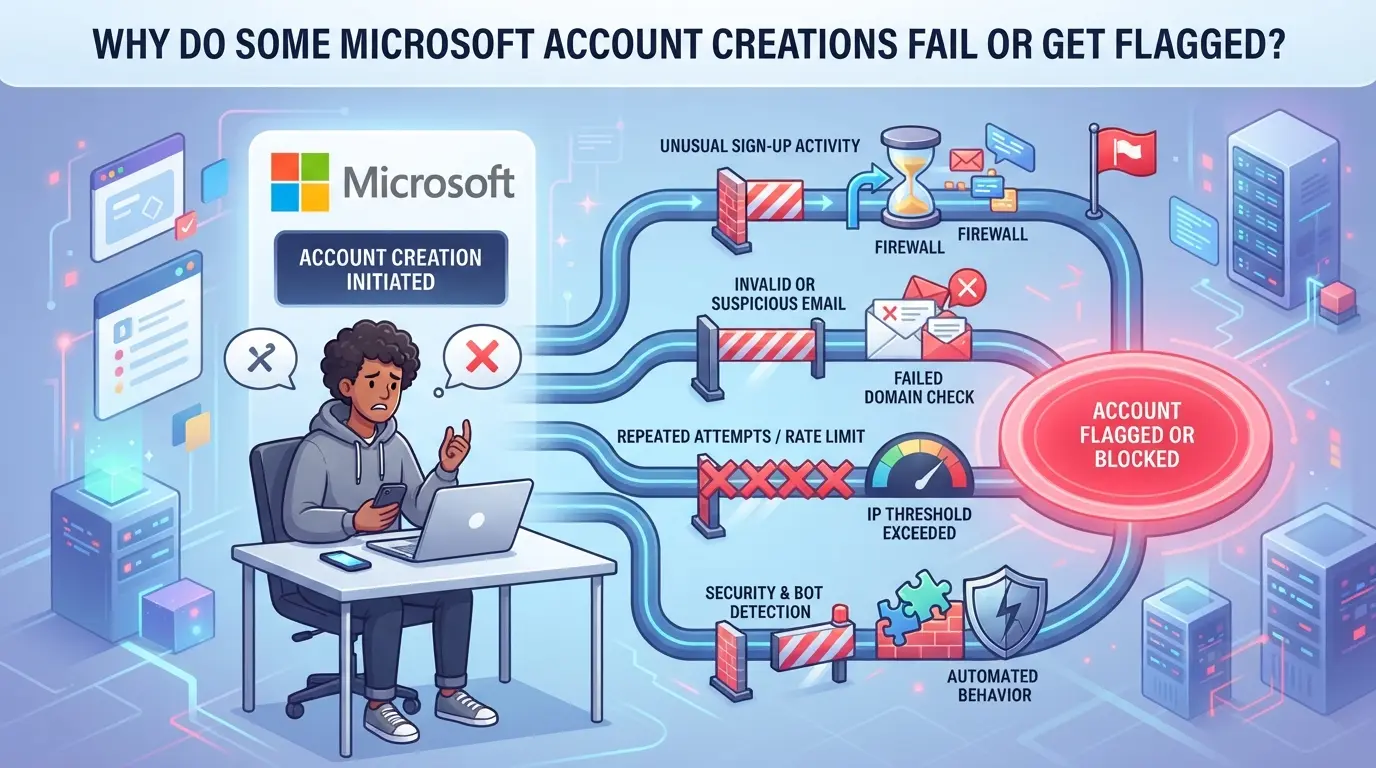
Even if you follow all the steps to set up a Microsoft account, you can still get blocked or flagged during sign-up. The main reason is that Microsoft checks much more than just your email and password, device history, connection type, and sign-up behavior all play a role. Skipping the warning signs means you risk wasting time on an account that never gets past the first login.
Frequent Triggers for Account Creation Blocks
Most failed attempts come down to two things: your device or connection looks suspicious, or you’re trying to make too many accounts at once. Microsoft scans for sign-ups from unknown browsers, reused hardware IDs, or IP addresses linked to bulk automation.
How Microsoft Detects and Flags Risky Behavior
Microsoft’s system does not just check your email, it builds a profile from the way you connect. If you use an IP address that has been flagged for spam, or sign up from a browser fingerprint that has already been used for other failed accounts, the system tightens checks right away. Even a normal home connection can trigger problems if you switch countries between sign-ups, or if you use public Wi-Fi with a history of flagged activity. For example, you might fill out the whole registration form, only to hit a “We’re unable to verify your information” warning at the end. In that situation, retrying on the same browser usually won’t help. The system may block you for hours, or even longer, if it sees a pattern that matches known automation or proxy abuse.
What to Do If Your Account Creation Is Blocked
- Change to a different device or network, avoid public Wi-Fi and IPs shared with unknown users.
- Clear browser cookies and use a new browser profile, old sessions can trigger instant blocks.
- If you still can’t sign up, wait 24 hours. If the problem keeps happening, contact Microsoft support for a manual review.
If you know why Microsoft flagged your attempt, you can adjust before you try again. This way, you won’t get stuck in endless verification loops or lose access before the account is even active. Next, see the exact steps that actually get an account created in 2026, without hitting the usual blocks.
How to Create a Microsoft Account: Step-by-Step in 2026
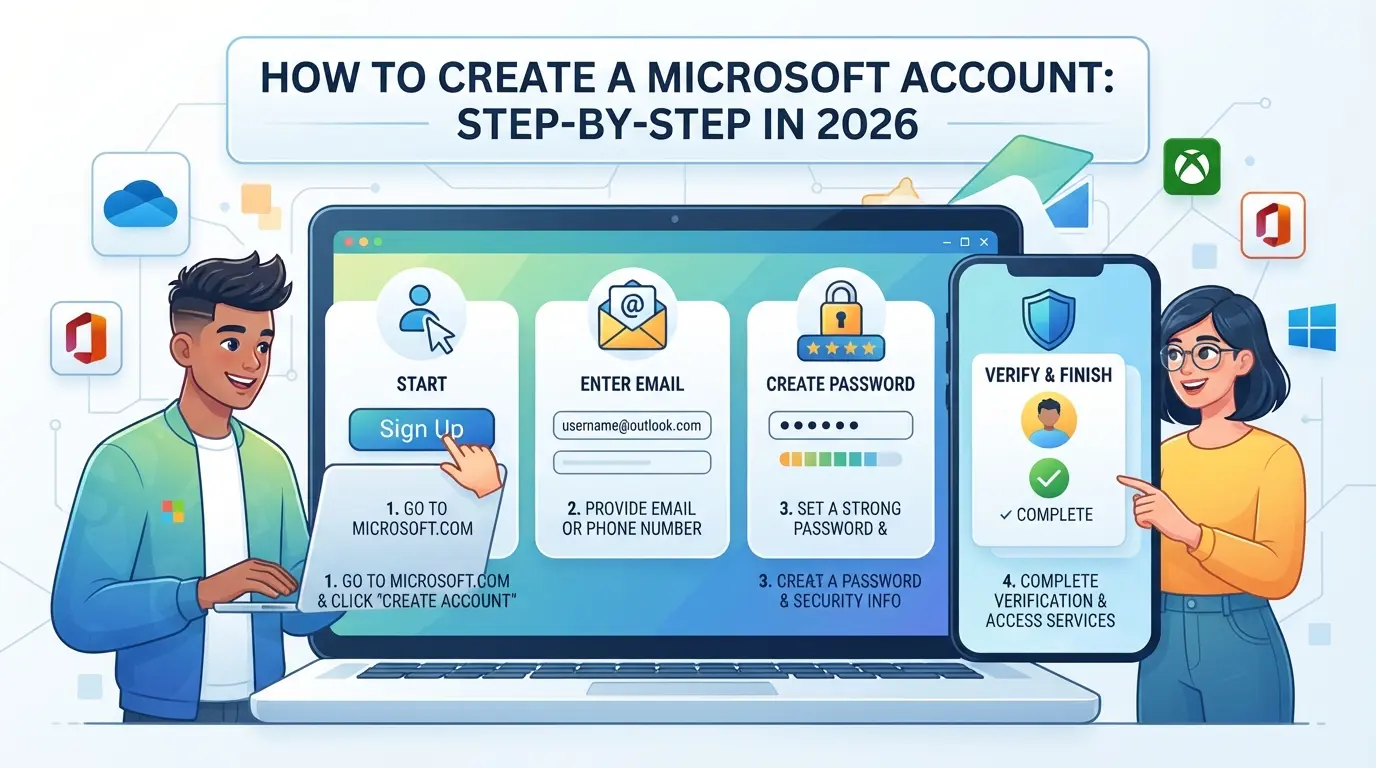
Getting a Microsoft account up and running in 2026 is mostly about avoiding the same small mistakes that trip up new users every year, missed verification steps, weak passwords, or using the wrong sign-up link. Here’s the full process, including where the traps usually show up.
Step 1: Go to the Official Microsoft Account Sign-Up Page
- Open your browser and type https://signup.live.com directly into the address bar.
- Avoid search engine ads, these sometimes lead to lookalike sites that can steal your info or force extra verification.
- Check for the Microsoft logo and a lock icon in your browser. If either is missing, close the page and type the URL again.
Step 2: Enter Your Email or Create a New Outlook Address
- You can use any active email to sign up. Enter it in the form, then click “Next.”
- If you want a new Outlook address, select “Get a new email address.” This is best if you want a fresh start or don’t want your main inbox tied to Microsoft services.
- If you see an “email already in use” error, your address is linked to an existing account. Try “forgot password” or pick a different email.
Step 3: Set a Strong Password and Fill in Personal Details
- Create a password at least 12 characters long. Microsoft now blocks passwords from recent breaches and will refuse anything too simple or previously leaked.
- Fill in your name, country, and birthdate. These details matter, wrong data can lock you out during recovery.
- Add a backup email or phone number if prompted. This is your only way back in if you lose access.
Step 4: Complete Verification (Phone/Email/Captcha)
- Microsoft will ask for a phone number or alternate email to verify you’re real. Enter one you control, not a burner; reused numbers often fail or trigger cooldowns.
- Watch for the verification code, if it doesn’t arrive in a minute, check spam or try a different number.
- Complete the captcha carefully. Too many failed tries will freeze your sign-up for several hours.
Step 5: Review Terms and Privacy, Finalize Account
- Read the terms and privacy settings, don’t just click through. Uncheck promo emails if you want less clutter.
- Press “Create account.” If you see an error about “unusual activity,” you may need to try later from a different browser or IP.
- Once you land on your new account dashboard, your setup is complete.
Most people get stuck on verification or password choice. Next, see which mistakes are easiest to make, so you don’t have to learn the hard way.
What Are the Most Common Mistakes When Creating a Microsoft Account?
The biggest traps in Microsoft account creation are subtle, most users trip up by picking the wrong email, weak password, or skipping recovery setup. These mistakes can lock you out or trigger security checks before you even finish registration.
Using Disposable or Banned Emails
Microsoft flags temporary email domains and blocks registrations linked to known disposable addresses. If you use a throwaway email, the system often rejects it outright, or your account gets restricted the first time you log in. Even popular free mail providers can be banned after spam waves, so always check the allowed domain list before signing up.
Weak or Reused Passwords
- Set a password with at least 12 characters and a mix of letters, numbers, and symbols.
- Never reuse passwords from other accounts, Microsoft checks for known leaks.
- Avoid patterns or common phrases; even “Password2026.” is likely to trigger a security warning.
Skipping Recovery Setup
Skipping backup email or phone setup means you’ll have no easy way to reset your password or unlock your account if it’s flagged. Even if you’re in a hurry, add at least one recovery method.
- Enter a backup email you control, not another disposable or business email.
- Add your phone number for SMS recovery; skip if on a business device but know the risk.
- Test your recovery info before finishing the setup, send a test code and check it arrives.
How to Manage Multiple Microsoft Accounts Safely for Personal or Business Use
Trying to manage several Microsoft accounts on one device often leads to security checks, account locks, or mixed-up sessions. The fastest way to avoid problems is to keep each account’s environment fully separate, otherwise, you’ll get flagged for suspicious activity sooner or later.
Risks of Using the Same Browser or Device
Storing multiple logins in one browser can mix cookies, leak device fingerprints, and let Microsoft connect your accounts behind the scenes. Even using private mode isn’t enough if you don’t clear session data between logins.
Tips for Separating Work, Personal, and Project Accounts
Make a separate browser profile for each account, rather than just signing out and back in. This keeps cookies, extensions, and settings isolated. Always close all windows for one profile before opening another to avoid cross-session leaks.
When to Use Proxies for Account Management
- Use a proxy if accounts must show different locations
- Double-check proxy legitimacy, bad sources trigger more blocks
- Skip proxies unless you truly need them for compliance or geo-testing
If you need to handle social media accounts too, the next section shows a workflow that avoids these traps.
How Social Media Marketers Use DICloak to Manage Multiple Platform Accounts Safely
For marketers and teams juggling multiple platform accounts, whether for campaigns, client work, or internal projects, the main challenge is keeping logins separated and workflows clear. Setting up a Microsoft account for each project is only the starting point. The real risk comes later, when browser sessions, storage, and network details bleed across accounts, causing confusion or worse. DICloak fits at the browser-profile layer, giving teams a way to separate, configure, and automate their account workflows without interfering with the platform itself.
Isolate Each Account with Separate Browser Profiles and Fingerprint Settings
Operators can create a dedicated browser profile in DICloak for each platform account. Each profile stores its own browser settings, session data, and fingerprint details, such as User Agent, time zone, language, and screen resolution, so that login and usage environments stay separated. Treating every platform account as its own isolated browser profile lowers the chance of accidental session overlap when teams rotate work. The scope is limited to browser-profile access; it does not change the connected SaaS tool. 
Configure User-Owned Proxies for Each Profile
Where network separation matters, such as when different accounts must appear from distinct internet locations, operators can assign their own proxy to each DICloak profile. After entering proxy credentials, users can run a built-in check to confirm the proxy works and see its detected country and IP. Proxy quality, source, and rotation all remain under the user’s control, and DICloak stores the configuration per profile; it never sells or provides proxies. 
Automate and Integrate Account Workflows with DICloak Open API
Scaling up, admins can use DICloak’s Open API (where available) to automate opening and closing browser profiles, or connect profile management with tools like Playwright or Puppeteer. The Local API works through a signed-in desktop client, while the HTTP API supports remote requests. Always check official API docs for supported operations and requirements per plan. 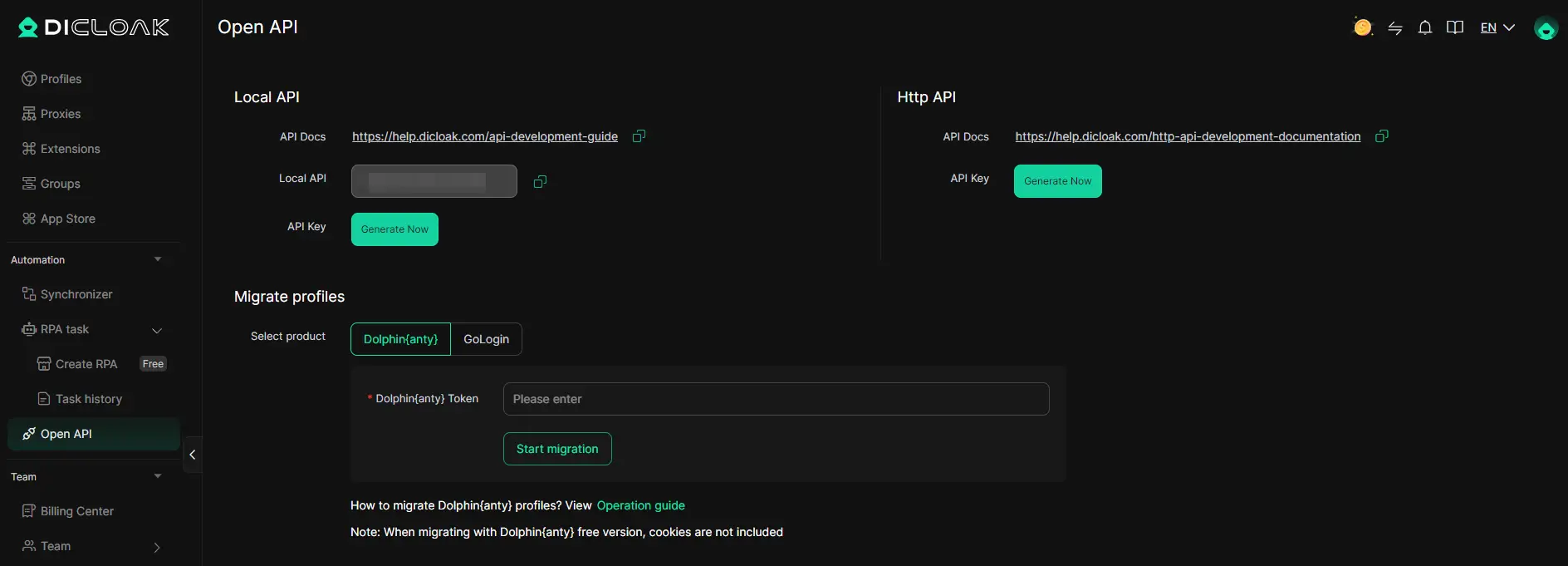
If you run into access or creation problems, the next section covers what steps to take and which issues to check first.
What to Do If You Can’t Create or Access Your Microsoft Account
If you hit errors setting up or logging into your Microsoft account, don’t keep retrying the same failed action. Here’s how to clear blocks and get back in fast.
Check for Common Errors and Retry
- Read the exact error message, “account already exists” means your email is used somewhere, while “unusual activity” points to a flagged device or IP.
- Switch to a different browser or device if the page won’t load or the form won’t submit. Browser cache or cookies sometimes block creation.
- Try a new email if your sign-up gets stuck at verification. Some domains get flagged faster than others.
- Wait 30 minutes before retrying if you see repeated “too many attempts” warnings.
Use Microsoft’s Account Recovery Tools
- Go to the account recovery page and follow the steps, accurate info works best.
- If recovery fails, double-check security questions and backup emails.
- Reset forgotten passwords from the Microsoft password reset page.
Contact Microsoft Support for Escalation
- If automated tools fail, visit the Microsoft support page.
- Collect details: error message, email address, and steps you took.
- Submit a support ticket, response can take up to 48 hours.
How to Keep Your Microsoft Account Secure After Creation
Locking down your new Microsoft account isn’t just about strong passwords. Enabling two-factor authentication (2FA) right after account creation cuts off most takeover attempts.
Enable Two-Factor Authentication (2FA)
Go to your Microsoft account security page, add your main phone or an authenticator app, and follow the setup prompts. Without 2FA, even a strong password can get stolen through phishing or reused leaks. This single step blocks almost all automated hacking scripts.
Monitor Account Activity and Sign-In Alerts
- Review “Recent activity” for strange logins every month.
- Set up email or phone alerts for new sign-ins.
- If you spot unknown devices, remove access and change your password right away.
Update Recovery Options Regularly
Stale recovery info can lock you out after a lost password or device change.
- Add a backup email and phone you check.
- Update recovery contacts if you switch numbers.
- Test recovery links work before you need them.
Frequently Asked Questions About create microsoft account
Can I create a Microsoft account without a phone number in 2026?
Currently, Microsoft asks for a phone number to verify new accounts. You may be able to skip this step if you sign up with an email and choose “I don’t have a phone.” Sometimes, using a recovery email is enough. However, some regions may require a phone number for security. Always check the latest signup page for options.
Is it safe to use the same device for multiple Microsoft accounts?
Using the same device for several accounts can mix sessions and cause login errors. Browsers may track your activity, leading to account fingerprinting. For safer use, sign in with separate browser profiles or use private browsing mode. This keeps your accounts separated and reduces the risk of confusion or security issues.
What should I do if I never receive the verification code?
First, check your spam folder or message app for the code. Make sure your email or phone is entered correctly. Wait a few minutes, then request a new code. If you still don’t get it, try using another device or browser. If none of these work, contact Microsoft support for help.
How many Microsoft accounts can I create with one email or phone?
Microsoft only lets you link one account to each email address or phone number. You can’t use the same email or phone for multiple accounts. If you want to create more accounts, use different emails or phone numbers for each. This keeps your accounts separate and avoids linking issues.
Can I delete or merge Microsoft accounts after creating them?
You can delete a Microsoft account by going to the account settings and following the closure steps. Merging two accounts is not allowed. You may link services like Outlook or Xbox, but the accounts themselves stay separate. Always back up important info before deleting an account.
Once your account setup is complete, consider how you can use it to simplify access to Microsoft services or improve collaboration across your devices. If privacy and secure communication are important to you, exploring additional tools to protect your online activity may be worthwhile. Try DICloak For Free
 Web Proxy Tools
 Free Tools
 Cookie Plugin
 UA Generator
 MAC Address Generator
 IP Generator
 IP Address List
 2FA Code Generator
 World Clock
 Anonymous Check
 WebRTC Leak Test
 UUID Generator
 Free Web Proxy Site
 Proxy Checker
 FB Ad Checker
 AI Web Scraping
 Free SMM Tools
 Twitter Shadowban Checker
 Instagram Name Checker
 UTM Generator
 Username Generator
 AI Hashtag Generator
 LinkedIn Headline Generator
 Social Media Image Resizer