Is Your Instagram App Glitching or Eating Up Too Much Storage?
If your feed is stuttering, Reels are failing to loop smoothly, or your device is flagging "Storage Almost Full" warnings, you are likely dealing with database fragmentation and a bloated cache. As a high-bitrate media delivery app, Instagram’s local database expands exponentially during 4K Reel sessions. Every asset—from high-resolution thumbnails to pre-loaded video segments—is cached to your hardware. In 2026, this temporary storage can quickly become corrupted or oversized, leading to the "unable to refresh feed" errors and general app instability that frustrate power users.
Will I Lose My Photos or DMs if I Clear My Instagram Cache?
A common misconception among users is that clearing the cache deletes personal content. It does not. Your account data is stored on Instagram’s cloud servers, not exclusively on your phone. Clearing the cache only purges the temporary local files used for high-speed retrieval.
The following data remains completely safe:
- Published Content: Every Reel, photo, and Story you have already shared.
- Direct Messages (DMs): Your full chat history and media shared in threads.
- Profile Integrity: Your follower lists, saved posts, and account settings.
The only immediate side effect is that the app may take an extra second to load high-res assets the first time you reopen it, as it must re-download fresh data from the server.

Why Should You Clear the Cache Regularly in 2026?
Digital hygiene is no longer optional for maintaining a high-performance mobile experience.
Solving Performance Glitches and App Crashes
Corrupted cache files often cause session token conflicts. By clearing the cache, you force the app to re-index the local database. This process is the most effective fix for "black screen" stories, feed refresh failures, and sudden app crashes.
Reclaiming Gigabytes of Ghost Storage
In 2026, with the prevalence of ultra-high-definition video content, Instagram can easily consume 1GB+ of "ghost storage." This hidden bloat prevents system updates and slows down other applications. Periodic clearing is the only way to reclaim this space.
Privacy and Account Security
Cache clearing removes local footprints of your activity and temporary session data. This is a critical practice for anyone managing multiple accounts, as it reduces the risk of local data leakage or "ghost sessions" where an account remains partially active after logging out.
How to Clear Instagram Cache on iPhone (2026 Methods)
iOS does not offer a native "Clear Cache" button within the app settings. You must use the following system-level workflows.
CRITICAL SAFETY WARNING: Before using Method 2, manually save any "Drafts" to your camera roll. Deleting the app will permanently wipe all unsaved Reels or Story drafts.
Method 1: Offloading the App (The "Soft" Reset)
This is the specialist’s choice. It purges the cache but retains your login credentials and core settings.
- Open Settings > General.
- Select iPhone Storage.
- Find and tap Instagram.
- Tap Offload App. This removes the bloated binary but keeps your "Documents & Data" (login info) safe.
- Tap Reinstall App.
Method 2: Deleting and Reinstalling (The "Full" Clean)
Use this if the app is suffering from severe glitches or "System Data" bloat that offloading won't fix.
- Long-press the Instagram icon on your Home Screen.
- Select Remove App > Delete App.
- Download a fresh copy from the App Store. Note: You will need to re-enter your password.
Method 3: Clearing Safari Data for Web Users
If you use the Instagram web interface:
- Navigate to Settings > Safari.
- Tap Clear History and Website Data.
The Simple Way to Clear Instagram Cache on Android
Android provides granular control over app-level storage, making the process much faster than on iOS.
Diagnostic Workflow:
- Open Device Settings.
- Navigate to Apps (on Samsung, this may be App Info; on Xiaomi, look for Manage Apps).
- Select Instagram.
- Tap Storage.
- Tap Clear Cache.
Warning: Don't Tap "Clear Data" by Accident
"Clear Data" is a destructive action. It resets the app to factory defaults, logs you out, and deletes all local drafts/unsaved Reels. Only use this if you are prepared for a total app reset.
Managing Instagram Cache on PC and Web Browsers
The desktop version of Instagram relies on your browser’s cache, which can store corrupted session tokens that prevent login or feed updates.
For Chrome, Edge, and Firefox:
- Navigate to Settings > Privacy and Security.
- Select Clear browsing data.
- Check only "Cached images and files."
- Important: Set the time range to "All time." Selecting "Last hour" often fails to remove the deeply cached corrupted tokens causing the lag.
- Click Clear Data.
For occasional use, browse in an Incognito or Private window. This ensures no permanent local cache is built, keeping your browser lean.
How to Clear Your Instagram Search History and Recent Activity
Media cache is hardware-based; search history is account-based. Clearing this helps re-calibrate the AI-driven "Suggested Content" algorithm.
Steps for the Mobile App
- Navigate to your Profile.
- Tap the Menu (three lines) > Your Activity.
- Select Recent Searches.
- Tap Clear All.
Steps for the Web Version
- Click the Search Icon on the sidebar.
- Select Clear All at the top of the recent list.
Advanced Workflow: Managing Multiple Instagram Accounts Without Cache Bloat
For agencies and marketers managing 100+ accounts, manual cache clearing is a recipe for disaster. Professional workflows require an antidetect browsers like DICloak to prevent account linking and "fingerprint" detection.
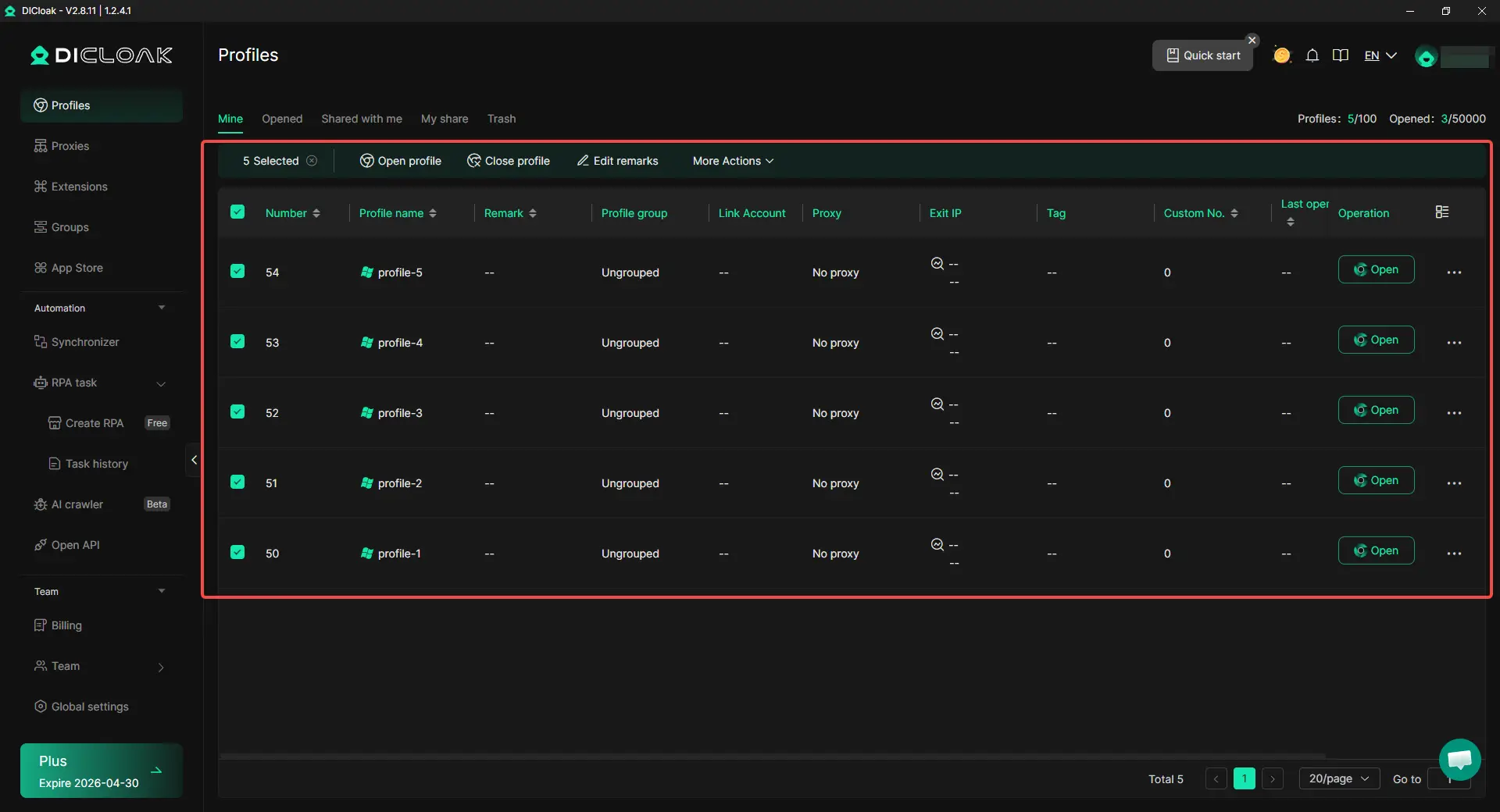
- Isolated Browser Profiles: Users can create a separate browser profile for each account through DICloak. Profile data such as cache, cookies, and local storage can be kept apart across accounts, which helps reduce account overlap and lower the risk of linked-account issues.
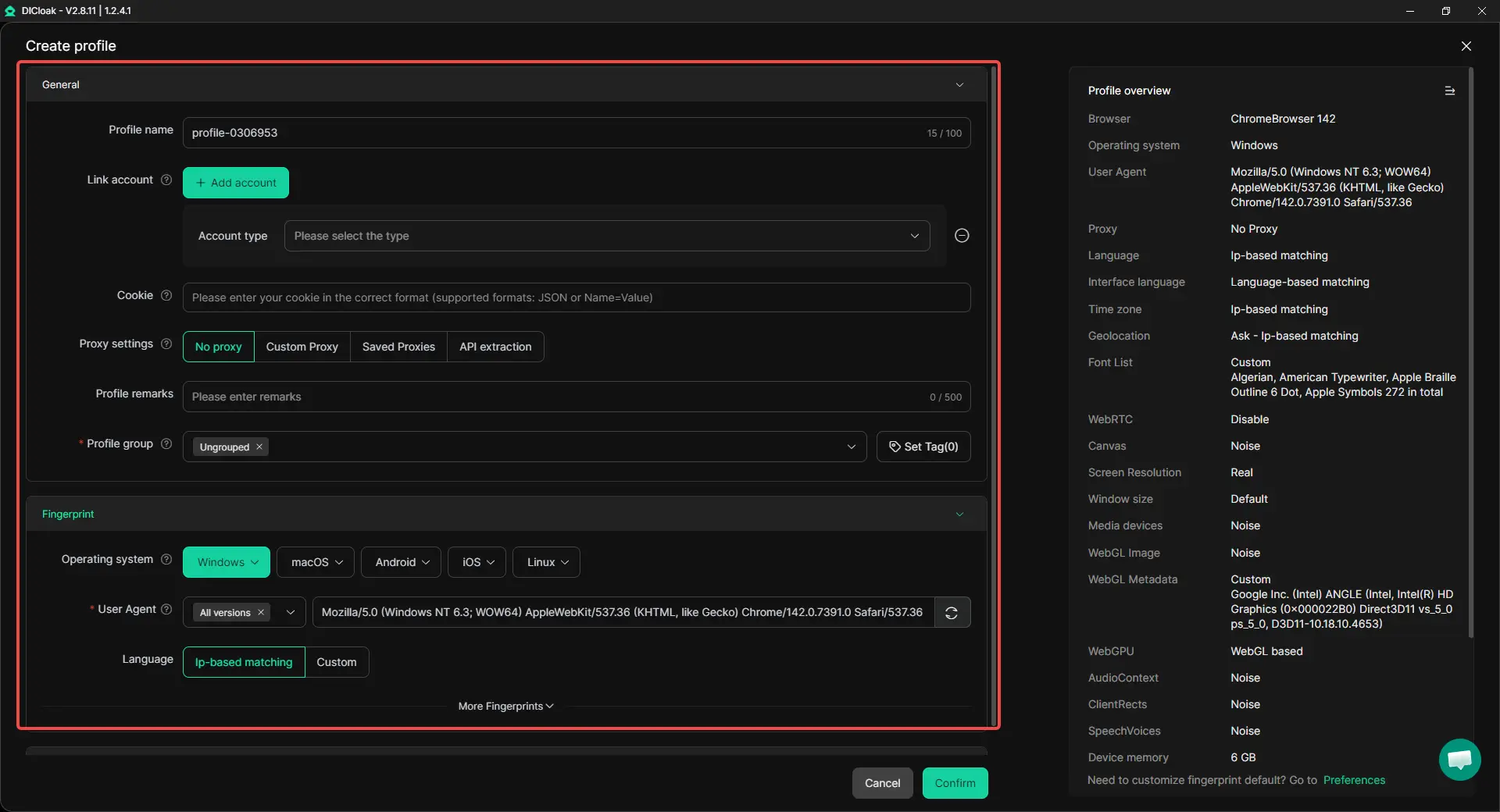
- Custom Fingerprints: Mask parameters like WebGL, geolocation, and device ID so every account appears to be on a unique, natural device.
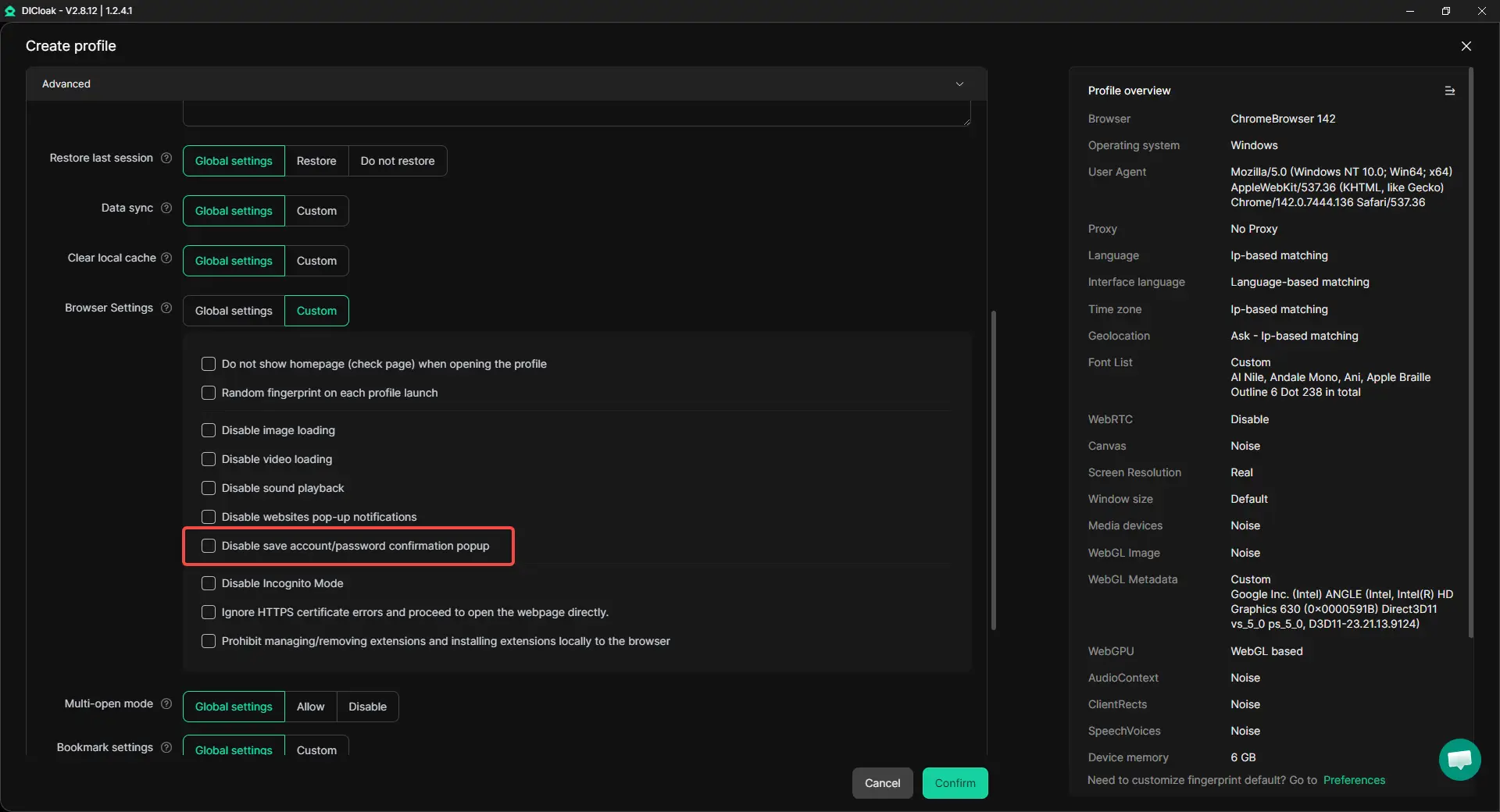
- Encrypted Storage of Cookies: Through DICloak, users can keep cookie and session data in a more secure storage environment rather than relying only on standard local browser cache. This helps reduce the risk of unnecessary data exposure.
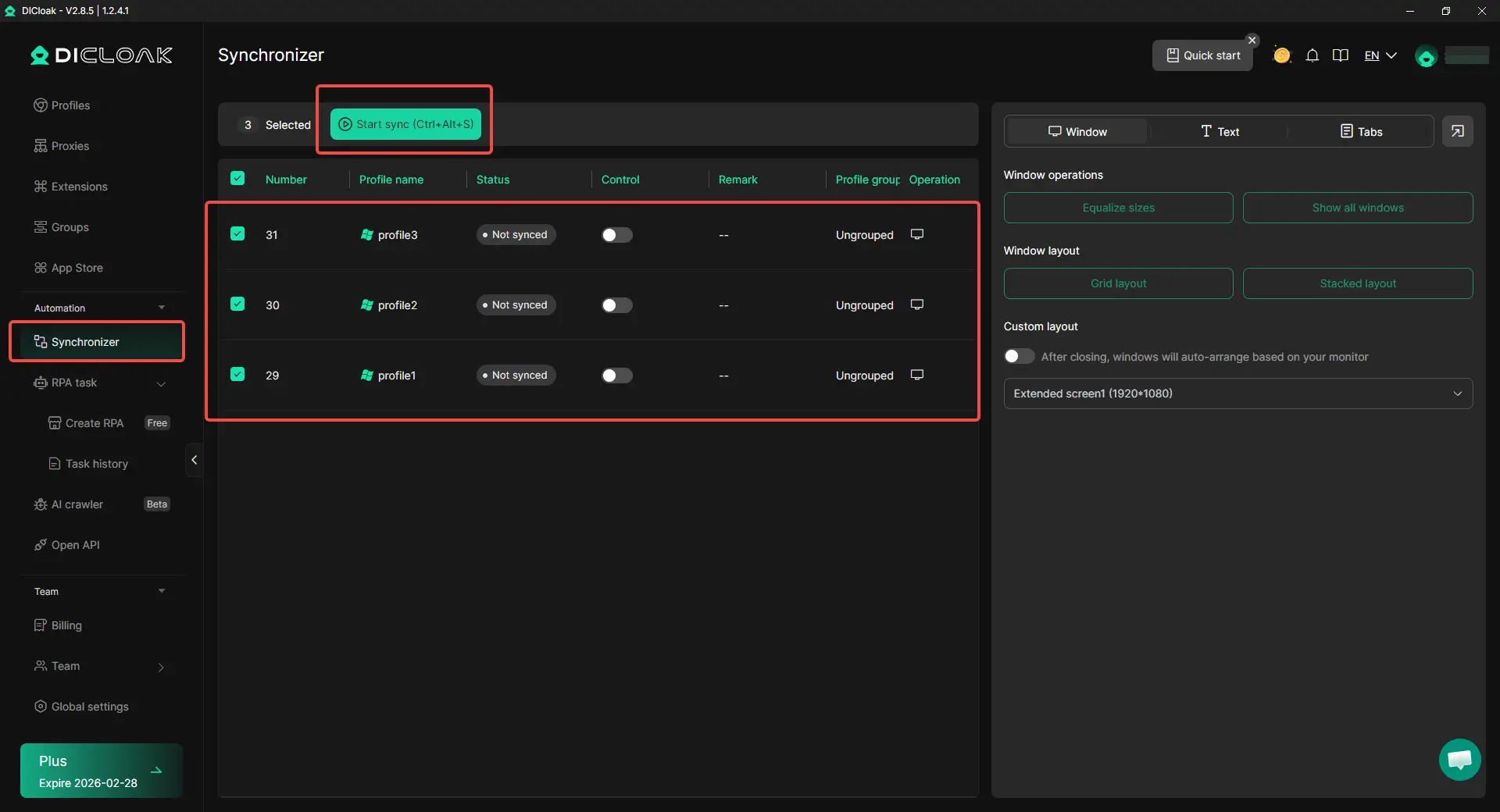
- Synchronizer: Execute actions (like clearing sessions or updating profiles) across dozens of accounts simultaneously, mirroring real user behavior.
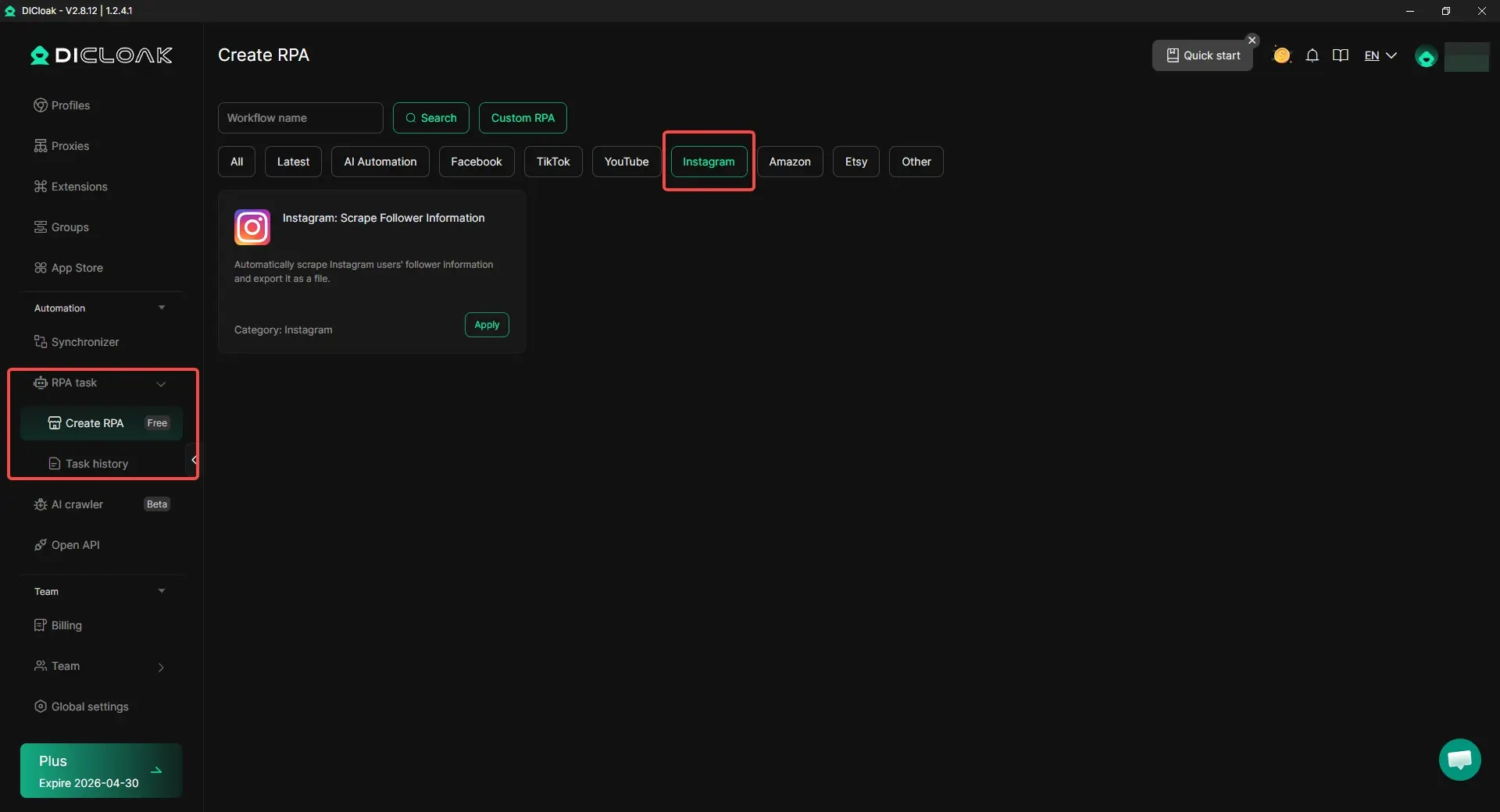
- Automated RPA Maintenance: Schedule Robotic Process Automation to handle repetitive engagement and maintenance tasks without manual intervention.
How Often is Too Often? Finding Your Maintenance Schedule
For power users consuming high volumes of Reels, a 2–3 week cycle is the "sweet spot" for performance.
Red Flags: Signs You Need to Clear Cache Right Now
- Thermal Throttling: Your phone overheats specifically when scrolling through the Instagram feed.
- Input Lag: There is a noticeable delay between a tap and the app responding.
- Resource Hanging: High-res photos or 4K Reels stay on a loading spinner despite a fast 5G/Wi-Fi connection.
When to Use Third-Party Cleaning Tools
Tools like CCleaner are useful for broad system sweeps, but for targeted app performance, the manual methods described above are safer and more effective for privacy.
Maintaining a Fast Instagram Experience
The most important expert tip for 2026 is to monitor the "System Data" (formerly "Other") category in your iPhone storage settings. This is where iOS often hides the remnants of app-offloading and temporary database files. If "System Data" exceeds 5–10GB, a full "Delete and Reinstall" of Instagram is usually the most efficient way to purge those persistent ghost files. Stay proactive with your maintenance, and your hardware will handle even the heaviest social media workloads without breaking a sweat.
Answers to Common Instagram Cache Questions (FAQ)
Does clearing cache delete my drafted Reels?
On Android "Clear Cache" and iOS "Offload," no. However, "Clear Data" (Android) and "Delete App" (iOS) WILL delete your drafts. Always save to your gallery first.
Will I stay logged in after clearing the cache?
Yes, if you use "Clear Cache" (Android) or "Offload" (iOS). You will be logged out if you choose the "Delete/Reinstall" or "Clear Data" routes.
Why does the cache grow back so quickly?
Instagram is a high-bitrate media delivery platform. In 2026, the app aggressively pre-loads content it thinks you will watch next to ensure "zero-latency" scrolling. This creates rapid data accumulation.
Can clearing cache fix the "Feedback Required" error?
Yes. This error often stems from a corrupted session token or an IP/fingerprint flag. Clearing the cache and restarting the app often resets the connection status.
Does clearing cache speed up my internet?
No. It improves your device’s processing speed, allowing the app to render content faster, but it has no impact on your raw bandwidth.
Is there a way to limit how much cache Instagram uses?
There is no "cap" setting. To minimize bloat, enable "Data Saver" mode in Instagram’s "Media Quality" settings to prevent the app from pre-loading high-resolution video.
 Web Proxy Tools
 Free Tools
 Cookie Plugin
 UA Generator
 MAC Address Generator
 IP Generator
 IP Address List
 2FA Code Generator
 World Clock
 Anonymous Check
 WebRTC Leak Test
 UUID Generator
 Free Web Proxy Site
 Proxy Checker
 FB Ad Checker
 AI Web Scraping
 Free SMM Tools
 Twitter Shadowban Checker
 Instagram Name Checker
 UTM Generator
 Username Generator
 AI Hashtag Generator
 LinkedIn Headline Generator
 Social Media Image Resizer