Waking up to see Google Account suspended is more than just a warning, suddenly, your email, backups, and linked services are locked. For anyone running business workflows, losing access like this can stall projects, freeze payments, or even break automated systems tied to Google’s ecosystem. The first urge is to click every recovery link in sight, but that often leads to dead ends or even permanent bans if you guess wrong.
Some accounts come back in hours, but others stay in limbo for weeks. The difference usually isn’t luck, it’s whether you know what Google actually checks during a suspension review. Miss one hidden risk flag, or resubmit with the wrong details, and you can lock yourself out for good. Many users try the same appeal steps over and over, not knowing that each failed attempt can lower your recovery chances.
What actually works is a step-by-step check of everything Google tracks: device fingerprints, login locations, payment mismatches, and policy violations that don’t always match the message you see. If you skip the deep checks, like whether your account triggered automated bans for repeated API calls or suspicious profile edits, you’ll keep getting the same rejection, no matter how you explain yourself.
Start by confirming which suspension type you’re facing and what triggered it. Here’s what you need to look for first.
What Usually Triggers a Google Account Suspension in 2026?
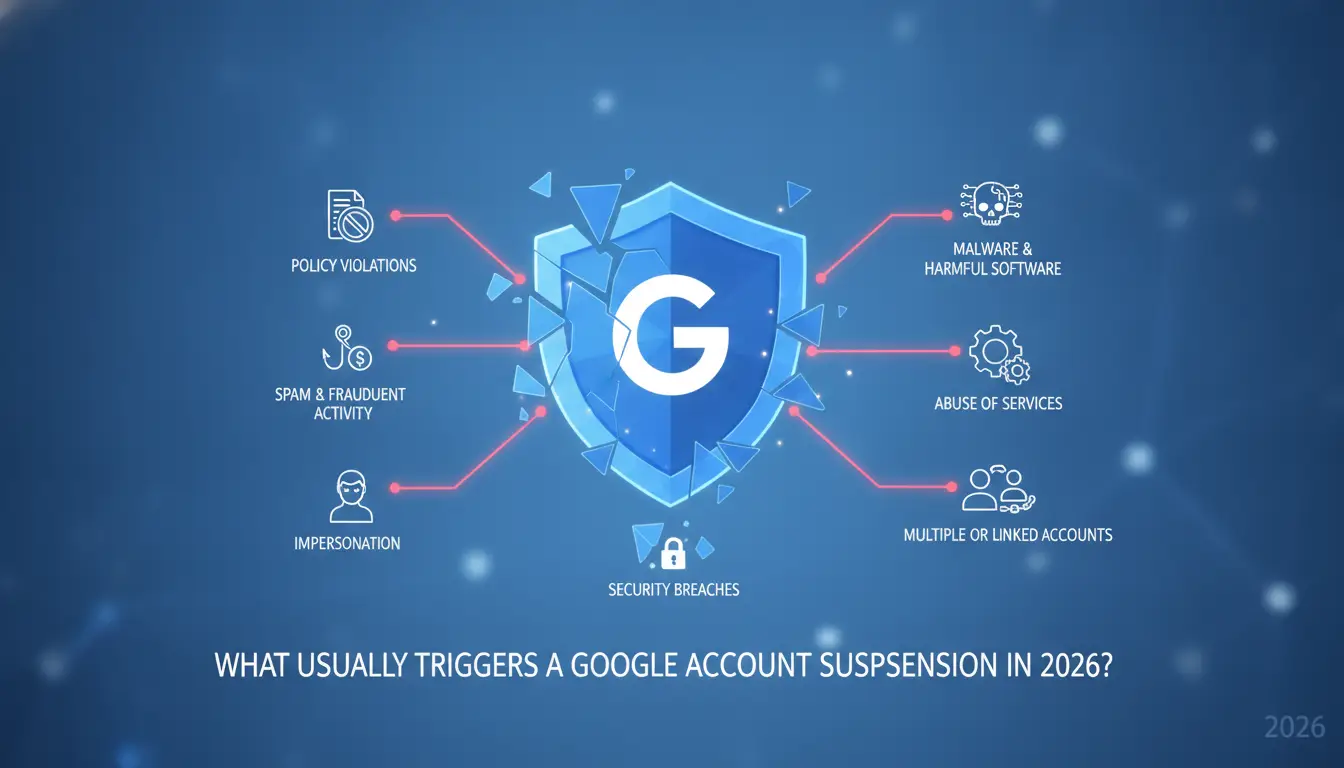
When your Google Account gets suspended, the real cause is almost never random. Google’s system is now tuned to spot repeat patterns and new risk signals that didn’t matter a year ago. If your account just got banned, focus on the exact action or login that happened right before the suspension. That one clue often explains more than the generic alert Google sends.
Policy Violations Google Is Strict About Now
Mass messaging, bulk friend requests, or setting up multiple accounts from the same device all raise red flags. Trying to fake your name, birthday, or contact info for a “clean” profile is also a fast way to get banned.
Security Issues: Hacking, Phishing, and Compromised Accounts
The biggest spike this year is in bans for “unusual sign-in activity.” If you sign in from a location Google doesn’t recognize, like a new city, country, or a proxy, especially right after a password reset, the system can freeze your account instantly. This is even more likely if you access sensitive products like Google Ads or Google Pay. Many users get caught by accident: they might travel, use a work device, or connect from a hotel. Google’s new backend links these events to suspicious activity, so even if you’re legit, one bad login can get you flagged. If your account sends messages with phishing links or hosts malware, even by mistake, you’ll see an immediate suspension and may lose recovery options. The classic sign is a sudden lockout with a message about “suspicious activity,” but you often won’t see a clear reason unless you dig into your recent sessions. Fixing the real source matters, because appealing without clearing every risky login often just gets you rejected again.
Payment, Billing, and Workspace-Related Suspensions
- Missed or failed payments for Google Workspace or Ads trigger almost instant bans, often before you get a warning.
- Adding a payment card that doesn’t match your location or account name can flag your account, especially if it’s prepaid or shared.
- Workspace accounts that break company or Google policies, like mass account creation or sharing paid content, often get suspended at the admin level, not just the user.
If your account was banned and you’re unsure which of these fits, start by checking the suspension notice details and recent activity. The next section explains how to find out the exact reason behind your suspension, so you know what to fix before you appeal.
How to Find Out Exactly Why Your Google Account Was Suspended
Most people only see a generic “account suspended” banner and never find out what really triggered their lockout. The fastest way to get the real reason is to check the clues Google leaves in notices, recovery flows, and alerts tied to your account. If you skip these, you’re guessing blind, and appeals almost always fail when you don’t address the real trigger.
Check Google’s Official Suspension Notice and Emails
- Open the email Google sent you at the moment of suspension. This is usually sent to your recovery address, not just the account itself. Look for subject lines like “Your Google Account has been suspended” or “Action required: Account disabled.”
- Read every line of the notice, not just the summary. Key words like “policy violation,” “suspicious activity,” or “payment problem” point to different root causes. If the message is vague, copy the exact wording and search it in Google’s Help Center.
- Check for links in the email or banner. Sometimes Google includes a direct link to their account troubleshooting page or a policy explainer. Following the right link is often the only way to see which violation code or specific product triggered the suspension.
- If you see a code (like “Section 4.4” or “AUP”), search it in the official Google Terms of Service or product policies. This can reveal a billing, content, or security issue that’s not spelled out in plain language.
Use the Google Account Recovery Tools
- Go to the Google Account Recovery page and enter the suspended email. This tool checks if your account is eligible for self-service recovery or if you need to submit an appeal.
- If prompted for extra info (phone, last password, device), provide it exactly as you last used it on that account. A mismatch here can block you from seeing the next step, some users get stuck at this stage because they guess or enter a new device.
- For Workspace accounts (business or school), contact your admin directly. Only Workspace admins see the full suspension reason and can lift some types of bans. If you are the admin, log into the Admin Console and check “Users > Suspended Users” for the most detailed error codes.
Look for Policy or Billing Alerts in Connected Services
- Log into Gmail, Drive, YouTube, and Ads (if you can). Many suspensions start in one service and spread to the main account. Check for banners or warning messages at the top of each product’s page.
- In Gmail, search for emails from “Google Payments,” “Google Ads,” or “Abuse.” Payment declines or policy warnings here often lead to a full suspension days later.
- On YouTube, open the channel dashboard and look for a “Community Guidelines strike” or copyright complaint. These are some of the fastest ways to get accounts banned.
- In Google Ads and Workspace, check the Billing and Policy Center for red-flag alerts. If you see a “suspicious payment” or “unusual activity” notice, resolve it before appealing, the main account can remain suspended until sub-account problems are fixed.
Spotting the exact trigger now means you can fix the real issue, before you waste an appeal on the wrong explanation. The next step is sorting out what to change so your recovery request doesn’t get rejected for missing the key detail.
What to Fix Before You Appeal a Google Account Suspension
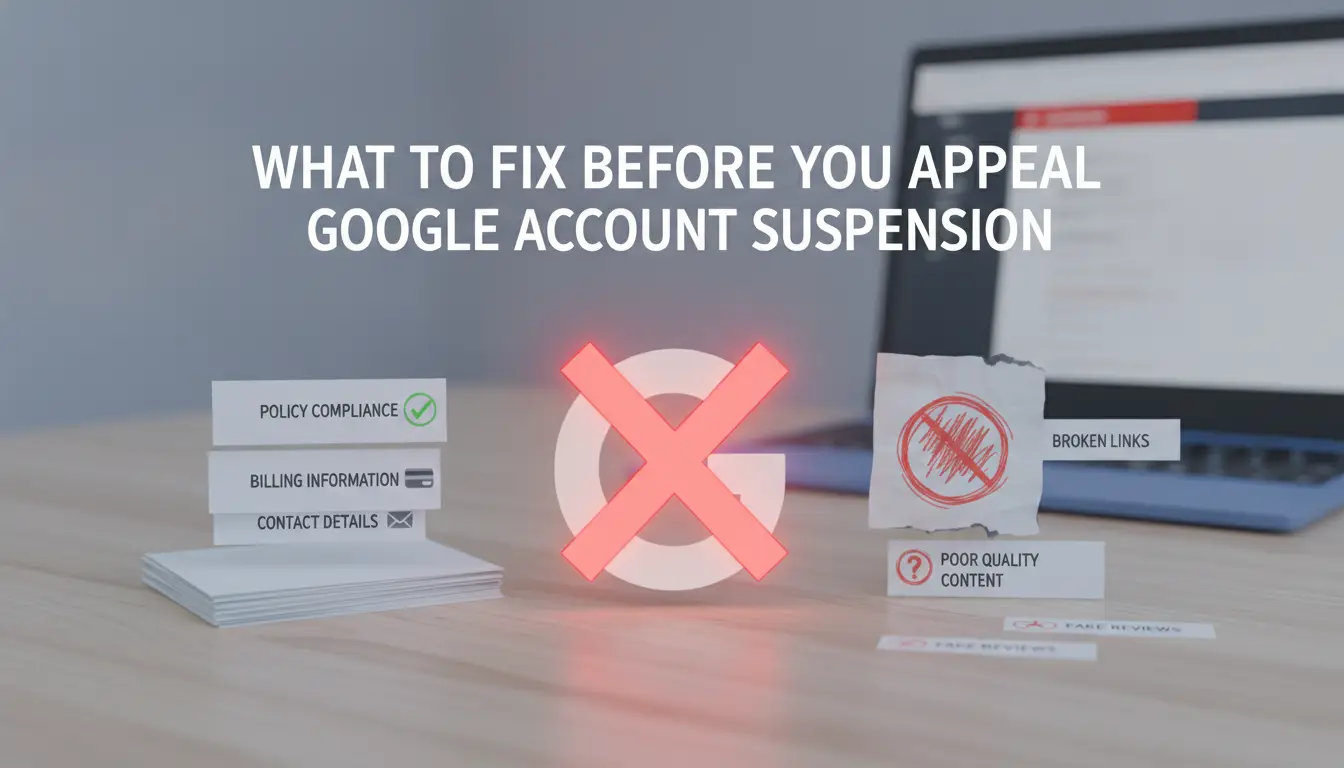
Skipping a review of problem areas before you appeal almost always leads to a rejected request. You need to clean up all visible risk signals, not just respond to Google’s message, one missed issue can block your account for good.
Remove or Correct Suspicious Content and Links
Leaving spammy emails or posts in your account history is the fastest way to get an instant denial. Google’s review scripts scan for phishing attempts, links to malware, mass unsolicited messages, and even repeated template replies. Delete or edit any content that even hints at spam, don’t just focus on your most recent activity. If your Drive, Gmail, or shared docs have suspicious links, take them down. This also applies to old posts and comments, automated systems often flag these before a human ever reviews your case.
Update Account Information and Security Settings
- Check that your recovery email and phone number are real and accessible.
- Change your password (use a unique one you’ve never set before).
- Turn on two-factor authentication (2FA) to show you’re in full control.
Resolve Any Payment or Billing Issues
Unresolved billing problems can trigger or extend a suspension, especially with Google Workspace, Ads, or Play. Make sure no payments are overdue and update your card or bank details if they’ve expired. If there’s a failed charge or chargeback, settle it before appealing. Appeals almost always fail if Google sees ongoing payment problems, fix the billing side first, then try to recover the suspended Google account.
Audit Third-Party Apps and Device Access
Don’t assume only your login was at fault, risky integrations or old device logins are common triggers. Cut access to anything you don’t recognize before you appeal.
- Remove third-party apps you no longer use or don’t trust.
- Review all devices with account access; sign out everywhere you don’t recognize.
- Check for old browser sessions, especially if you used public or shared computers.
The practical difference between success and another rejection is catching every red flag Google checks, if you miss even one, you’ll just keep getting the same denial response.
Next, you’re ready to follow the appeal steps that actually work.
Step-by-Step: How to Appeal and Recover a Suspended Google Account
If your Google Account suspended notice appeared after you fixed every risk flag, the appeal process is the only route left to recover access. You need to act quickly and avoid repeating mistakes, each failed appeal makes future reviews less likely to succeed.
Filling Out the Google Account Appeal Form
- Find the official appeal form at Google’s Account Recovery page. Do not use third-party sites.
- Enter your account email and describe exactly what you fixed. Vague answers get ignored, mention specific actions (like updating payment info or removing risky devices).
- Attach evidence if allowed (screenshots, receipts). If the form doesn’t support attachments, list what you can provide if asked later.
- Double-check before submitting. If your login session expired, reload the page, submitting with an expired session triggers a blank response and delays your review.
What Happens After You Submit the Appeal
- Google usually sends an initial email within 24 hours, if you don’t get a response, check your spam folder and retry after confirming your account details.
- The review can take 1-3 days, but weekend submissions often wait until Monday. No status update means your case is still in queue.
- If denied, Google will send a short rejection message. If approved, you’ll see a restore link and guidance for next steps. Multiple denials lower future appeal chances.
Tips for a Successful Appeal in 2026
- Avoid blaming Google or writing emotional statements, appeals that focus on “unfair treatment” almost always fail.
- Be specific: name every fix, attach clear evidence, and mention any security changes (like two-factor authentication).
- If you changed devices or locations, explain why, missing this step is the top reason appeals get rejected for “suspicious activity.”
- Double-check your supporting info, typos or mismatched dates can trigger instant denial and block further reviews.
If you manage multiple accounts, the next section covers how to reduce repeat suspensions using safer login setups.
How to Reduce Suspension Risk When Managing Multiple Google Accounts (with DICloak)
Operating several Google accounts for work or marketing means you risk mass bans from just one slip. To avoid losing all your accounts at once, you need to separate sessions and keep your activity clean.
Why Google Flags Multiple Accounts and Linked Activity
Google tracks device fingerprints, IP addresses, and usage patterns. If you log in to different accounts from the same browser or IP, Google may treat them as linked, triggering mass suspensions that can wipe out every profile tied to that session.
Safer Multi-Account Workflows: Profiles, Proxies, and Team Controls
One mistake, logging into two accounts from the same browser or IP, can get both banned.
- Using isolated browser profiles prevents cross-session tracking.
- Assigning a separate proxy to each account stops Google from connecting accounts by IP. Isolating each session with its own profile and proxy is the single strongest way to reduce cross-ban risk.
How DICloak Helps Teams Manage Google Accounts More Safely
Teams can set up isolated browser profiles per account and connect user-provided proxies for each session. Operation logs let admins spot risky actions and fix mistakes before they lead to a ban. This makes team workflows less likely to trigger Google’s bulk suspension filters.
Mistakes like reusing devices or mixing logins can turn a single error into a permanent loss. Next, you need to know which actions make a suspension irreversible.
Mistakes That Make a Google Account Suspension Permanent
One misstep can turn a temporary Google account suspension into a lifetime ban. Some actions not only block recovery but also risk getting all your linked accounts banned for good.
Appealing Too Many Times or With False Information
Submitting repeated or fake appeals does more harm than good. Google tracks your appeal history, if you flood support or give inconsistent answers, your case can get flagged as abuse, making any recovery nearly impossible.
Trying to Circumvent with Linked or New Accounts
Trying to make new accounts on the same device or IP after a ban rarely works.
- Your device fingerprint and network history can link new accounts to the suspended one, leading to instant bans.
- Instead, wait for a final decision or use a fully isolated setup if you must start over.
Ignoring Linked Service Violations (YouTube, Ads, Workspace)
A violation on YouTube or Google Ads can quickly spread, ignoring warnings means you risk losing access to all services under that identity. Once Google marks your profile as high risk, restoring any part becomes unlikely.
What to Do If Google Won’t Restore Your Account
If Google rejects every appeal, your options shrink fast. You can recover some data, start fresh, and avoid repeating the same mistakes, but you won’t get your old account back.
How to Export or Recover Data (If Possible)
Use Google Takeout before your account is fully closed. After a suspension, downloads are blocked. If you missed the window, there’s no official workaround.
Creating a New Account Safely
When making a new Google account after a suspension, avoid logging in from the same device, IP address, or browser fingerprint. Most ban waves hit people who reuse old hardware or copy settings. Start with a clean device, unique profile, and never sync old cookies.
How to Prevent Repeat Suspensions on New Accounts
- Separate each account with a new browser profile.
- Use a proxy for every fresh Google login.
- Limit risky actions, don’t mass import contacts or payment methods.
If you skip these steps, new accounts often get banned within days. This is where careful hygiene beats trying to outsmart Google’s checks.
How to Prevent Google Account Suspensions in the Future
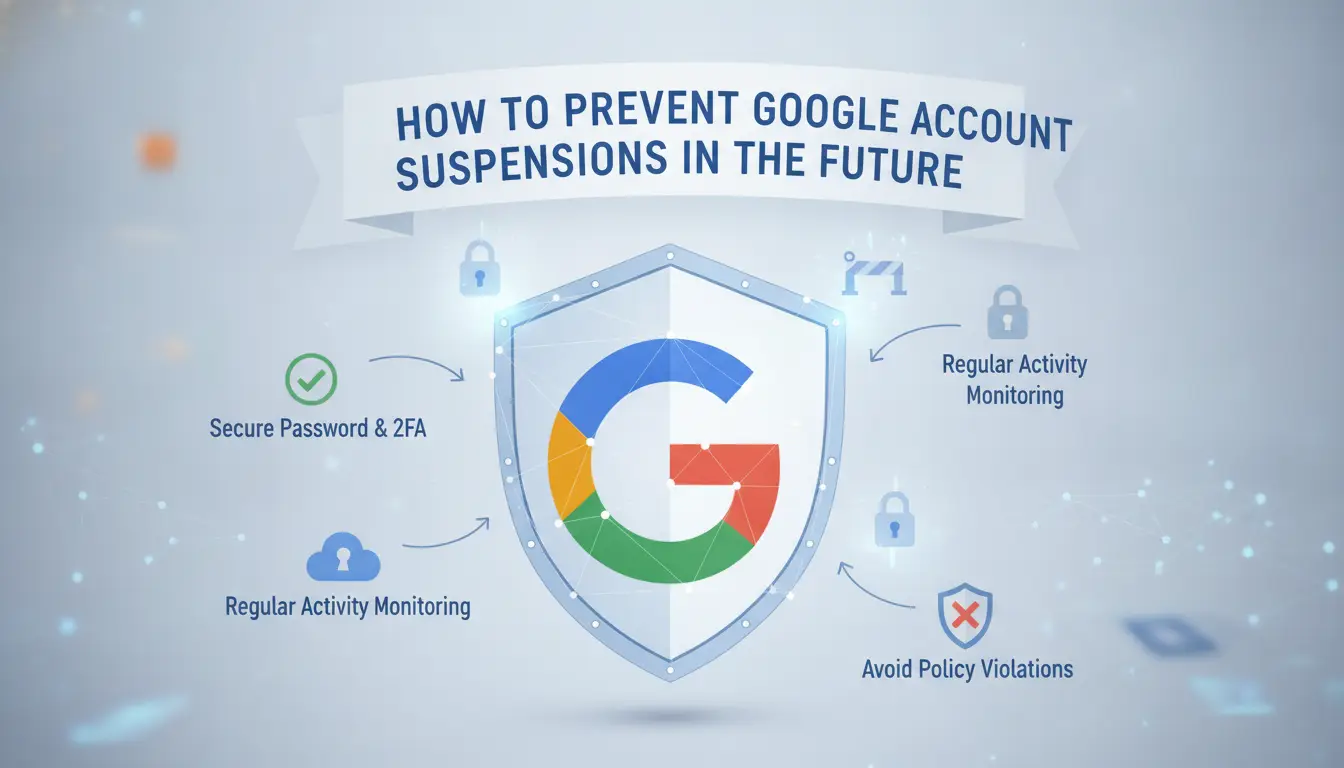
Once you’ve faced a suspension, keeping your next Google account safe means changing how you manage logins, activity, and security from day one.
Follow Google’s Updated Policies Closely
Check Google’s policy center monthly for any rule changes. Read the latest enforcement posts, Google often updates what counts as “suspicious” behavior before you see an alert.
Keep Account Activity Natural and Consistent
- Avoid sudden bursts of logins or mass changes
- Use devices and IPs you’ve used before
- Don’t automate actions that mimic bot-like behavior
Regularly Review Apps, Devices, and Security Settings
Remove access from old third-party apps you stopped using. Check your device login list for any that you don’t recognize and remove them.
Use Isolated Profiles and Proxies for Multi-Account Work
Keep each account in a separate browser profile.
- Use a different proxy for each account
- Never mix cookies or sessions
- Log out fully before switching accounts
Frequently Asked Questions About Google Account suspended
How long does a Google Account suspension usually last in 2026?
Most Google Account suspended cases are reviewed within 2 to 7 business days. Sometimes, it can take longer if Google needs extra information or if your appeal is incomplete. Providing clear details and responding quickly to requests can help speed up reinstatement. Delays often happen if there are multiple policy violations or if your identity is unclear.
Can I recover my Google Account if I lost access to my recovery email or phone?
If you can't use your recovery email or phone, try Google's account recovery page. You may need to answer security questions or verify your identity using devices you’ve signed in with before. If your recovery info is outdated, update it once you regain account access to avoid future problems.
Will my other Google services (YouTube, Ads, Drive) be affected by a suspension?
A Google account suspension usually blocks access to all connected services, like YouTube, Gmail, and Drive. Check if you can sign in to these platforms. If your account is banned, linked services stop working until you fix the suspension. Business and personal accounts can be affected differently.
Is it safe to use proxies or browser profiles to manage multiple Google accounts?
Proxies and browser profiles can help separate accounts, but improper setup risks triggering Google’s security checks. Google may suspend accounts if it detects unusual activity, like mismatched locations. Always use trusted tools and avoid frequent switching between accounts to lower the risk of Google account suspension.
What are the signs my Google Account is at risk of being suspended?
Early warning signs include password reset emails you didn’t request, security alerts about suspicious activity, and sudden login failures. If you notice these, review your account security and check Google’s policy violations dashboard. Acting fast can help you avoid a full Google account suspension.
If your account access has been restricted, carefully review the suspension notice and follow the steps to appeal or recover your data as soon as possible. Consider exploring alternative tools to ensure continued access to essential services for your work or personal needs. Try DICloak For Free
 Web Proxy Tools
 Free Tools
 Cookie Plugin
 UA Generator
 MAC Address Generator
 IP Generator
 IP Address List
 2FA Code Generator
 World Clock
 Anonymous Check
 WebRTC Leak Test
 UUID Generator
 Free Web Proxy Site
 Proxy Checker
 FB Ad Checker
 AI Web Scraping
 Free SMM Tools
 Twitter Shadowban Checker
 Instagram Name Checker
 UTM Generator
 Username Generator
 AI Hashtag Generator
 LinkedIn Headline Generator
 Social Media Image Resizer











-5.png?x-oss-process=image/interlace,1/format,webp/quality,q_75)