You log in to your X account from what you thought was a safe new browser profile, seconds later, you’re staring at a restriction notice, or worse, the account is locked for “unusual activity.” This isn’t just bad luck. Seeing X account restricted after login from a new browser profile is so common now that even careful operators trip over it. Switching browsers or using a fresh profile can look suspicious to X, especially if your device fingerprint, IP, or session details change too much at once.
But here’s what most guides miss: X doesn’t just check your IP. The platform tracks browser fingerprints, time zones, and device details. If you log in from a profile that doesn’t match your usual environment, or worse, from a setup that looks artificially clean, automated systems can flag it as a takeover attempt or bot activity. That’s why even following old “safe” advice about using a new browser profile is now risky.
The real problem isn’t just bad luck or a broken workflow. Most restrictions happen because the new profile leaks enough differences, user agent, language, screen size, or WebGL data, for X to decide something’s off. If you skip matching these details, you’re much more likely to hit a restriction. And once the account is flagged, getting it back can mean days of appeals or even a permanent lock.
The next section breaks down what X actually checks, and why these restrictions trigger so fast.
Why X Accounts Get Restricted After Logging In From a New Browser Profile
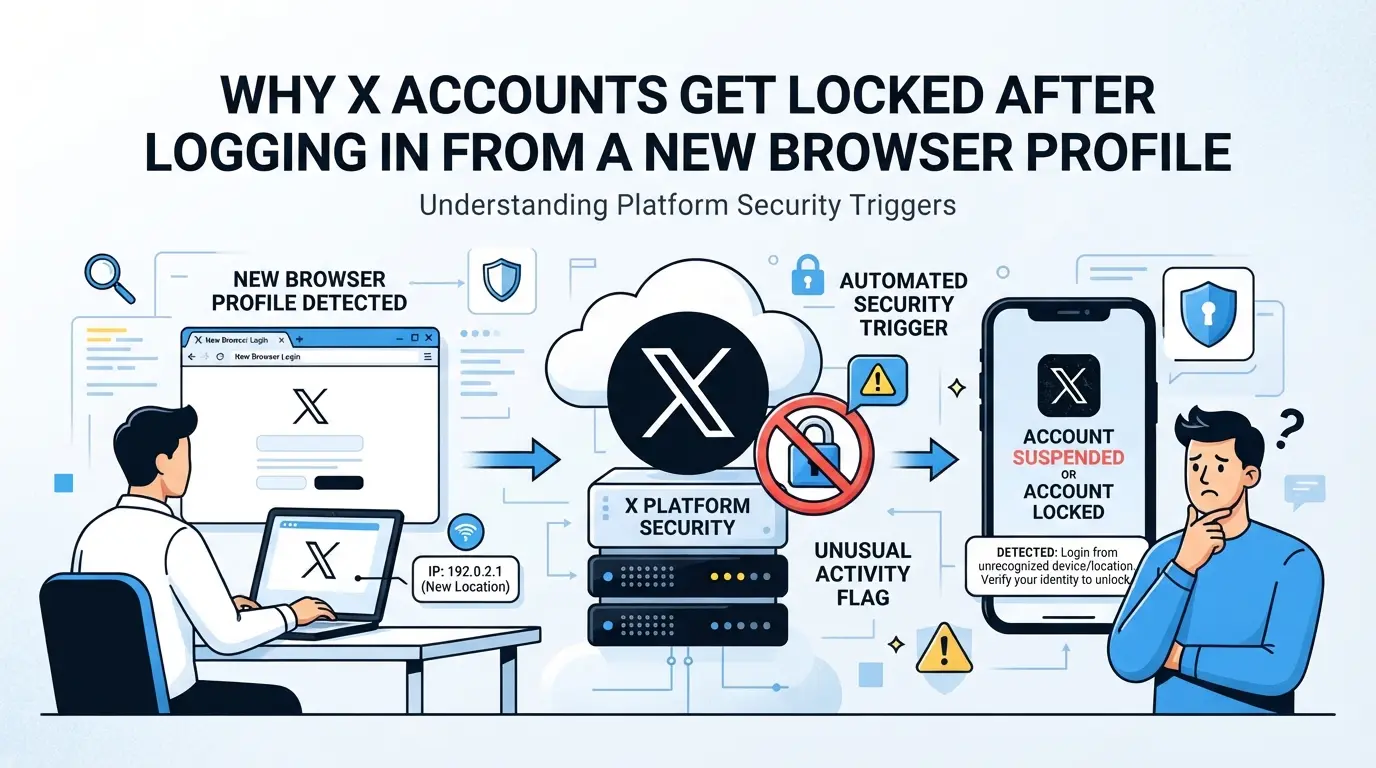
Restrictions kick in fast because logging in from a new browser profile looks like a takeover or automation attempt, especially when the fingerprint, device details, or IP don’t match what X expects. Most people notice the problem only after the lock hits, not when the risk was introduced.
How X Detects Unusual Login Environments
- Browser fingerprinting: X checks your user agent, screen size, fonts, WebGL data, and even hardware specs. If these signals shift too much, the system flags your session.
- IP address and geolocation: A new city, country, or even a different ISP can trigger suspicion, especially if the pattern doesn’t match your usual logins.
- Device and OS details: Changing from Windows to Mac, or desktop to mobile, without clear history often counts as a red flag.
Common Triggers for Account Restriction
A sudden switch in browser profile or device is the fastest way to get flagged. Say you always log in from Chrome on a Windows laptop, but this time you open X on a new profile simulating a Mac in a different time zone. Even if your password is correct, the system sees a “fresh” device, a different browser version, and a location 1,500 kilometers away. That’s enough for an automated review or soft lock.
Mismatch in login patterns hurts, too. If your account usually logs in once a week, always from the same city, and suddenly there are two logins in an hour from different continents, X’s risk engine sees that as a likely breach or bot. The system isn’t just looking at the current session. It weighs the whole history and how sharply things changed.
The real pitfall is thinking a new profile is safer, when it’s actually noisier. If the fingerprint doesn’t match your past sessions, or if you use a “clean” profile with default settings, you stand out even more. Most platforms don’t need the actual device to match perfectly, but they watch for combinations that don’t make sense based on your account’s history.
Failures here don’t always give clear feedback. Sometimes you get a warning prompt, but often you’re just hit with a restriction, login challenge, forced password reset, or outright lock. Recovery can take hours or days, and in some cases, you lose access for good.
Before you log in from a new environment, spend more time on the details, not just the password, but every signal the site can see. The next section covers what to check so you spot these mismatches before they turn into restrictions.
What to Check Before Logging Into X From a New Browser Profile
If you want to avoid fast restrictions, you need to match your browser profile and IP address to what X already expects. Jumping in without checking these details can trigger a lock within minutes, especially if the new profile exposes a big mismatch.
Browser Environment Consistency
The main thing X checks is whether your device signals look close enough to your past logins. That means matching the operating system, user agent string, language, time zone, screen resolution, and fingerprint signals like canvas or WebGL. If your account was always on Windows 10 with English (US) language, but your new setup shows macOS, Russian language, and a different time zone, X’s risk engine will spot it instantly. The same goes for details like hardware concurrency or font lists, these are all part of the fingerprint. Any big jump in device profile increases the risk of a restriction, even if your IP matches.
IP Address and Proxy Setup
Changing your IP is one of the fastest triggers for “suspicious login” warnings. If your account always logged in from a certain city or network, a sudden switch to a random proxy or datacenter IP can look like theft. Some platforms tolerate mobile IP changes, but rarely accept a jump from a local home connection to a commercial proxy pool.
- Check your new IP against the account’s login history, avoid sudden country or region changes.
- Use a stable, high-quality proxy if needed, never a cheap or free proxy, since those are often flagged.
- Test your IP reputation before login; tools like IPhey or BrowserLeaks can help you spot issues.
If you skip these steps, the usual outcome is a red banner or warning email within the hour. Sometimes you get a forced password reset, but more often the platform just blocks further actions until you verify ownership. On accounts with stricter rules, this can mean days of waiting or a permanent lock, especially if you can’t pass the extra verification.
Matching device and IP details isn’t just about avoiding hassle, it’s the frontline defense against X’s restriction triggers. If you get flagged, the next step is figuring out how to get your account back and prevent future issues.
How to Fix an X Account Restricted After Login From a New Browser Profile
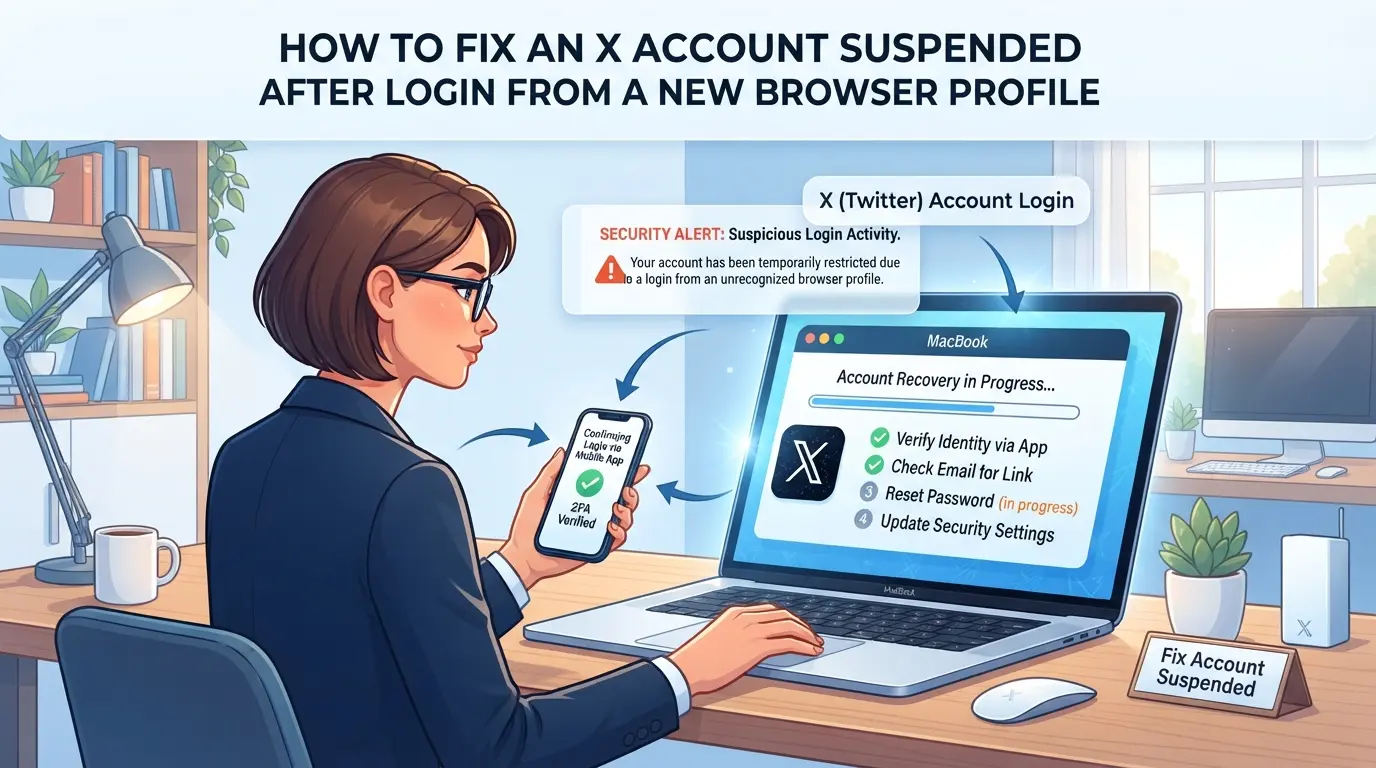
If you see a restriction notice after logging into X from a new browser profile, move fast, delay reduces your odds of recovery. The first step isn’t to panic or try random fixes. Go through X’s built-in recovery flow and double-check your browser profile before you try again.
Immediate Actions for Account Recovery
- Read X’s restriction message, don’t skip; the prompt usually explains if you need to verify your identity, reset your password, or confirm recent activity.
- Complete every verification request in the order shown. If you miss a step or skip a security check, the restriction won’t lift.
- Use the same device and network you normally use for X. If you’ve already switched devices, sign in from your old device for this step.
- If you’re asked for a phone or email code, enter it within the time limit. A failed code entry can trigger a longer lock.
Review and Adjust Browser Profile Settings
- Compare your current browser profile’s signals against what X expects, check the user agent, language, time zone, and screen size. Any big mismatch can keep you locked out.
- If you changed your proxy or IP, switch back to the one you used last time the account worked. X tracks IP history closely, using a new IP during recovery often makes things worse.
- Reset the fingerprint settings to the last known good state. This means matching the Canvas, WebGL, and hardware details if you tweaked them for this login.
- Test the profile in an incognito window first, if the login page looks different or the layout breaks, your profile settings are likely off.
Preventing Repeat Restrictions
- Stick to one browser profile per X account. Frequent switching between devices or profiles almost always triggers extra checks.
- Log in from the same region and network each time. If you travel or change IP addresses, expect more restrictions.
- Before logging in, review your profile’s signals. Don’t rely on memory, mistakes like mismatched language or time zone can flag your account again.
- Give it at least 24 hours after a restriction before trying again with a new profile. Too many failed attempts in a row can lead to permanent suspension.
Most repeat lockouts come from skipping these checks or moving too fast after a restriction. Restoring your last-known-good profile and not rushing re-logins is the single most practical way to avoid a permanent ban.
The next section breaks down common mistakes users make that lead to account restrictions, so you know exactly what to avoid after you recover.
Common Mistakes That Trigger X Account Restrictions
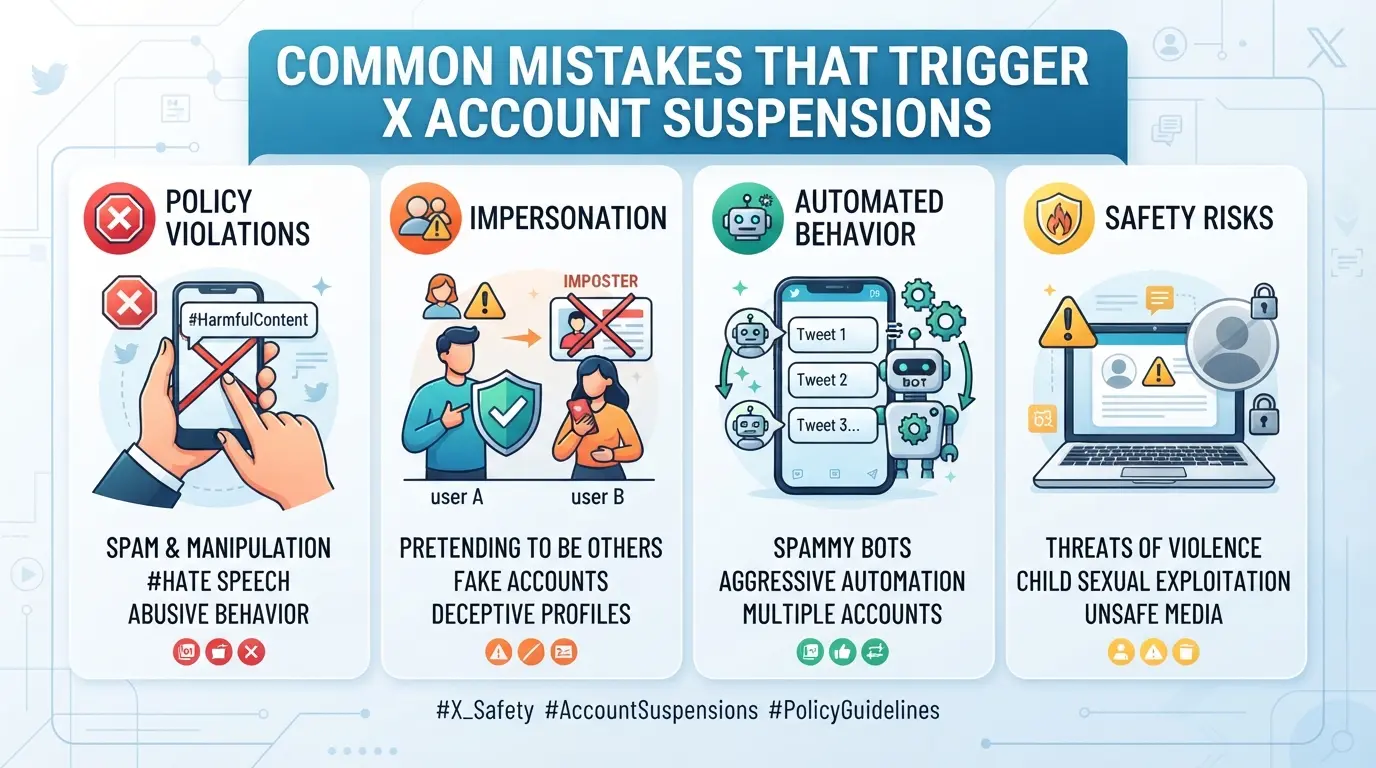
Most X account restrictions after logging in from a new browser profile come from small mistakes that look like automation or takeover. Here’s what usually sets them off, and how to avoid those triggers.
Frequent Browser Profile Changes
Switching between different browser profiles or devices too often sends strong risk signals. If you change fingerprint settings, like user agent, screen resolution, or language, without a clear reason, the platform can treat your login as suspicious or automated. Consistent profile settings matter more than making things "look clean."
Improper Proxy Use
- Use residential proxies, not data center or cheap shared IPs.
- Stick with one IP per account; don’t rotate unless forced.
- Check your IP against public blacklists before each login.
Ignoring Platform Security Prompts
Skipping verification or ignoring alerts is a fast way to get locked. If you miss a prompt, even a safe profile can get flagged.
- Complete all phone, email, or 2FA verifications right away.
- Update recovery info if prompted by X.
- Don’t click away from “Was this you?” or device review popups.
Getting flagged on X often comes down to a handful of careless steps. Catch these issues early, and you can avoid most instant restrictions.
How Teams Use DICloak to Separate X Account Workflows With Profile and Proxy Controls
Social media teams running multiple X accounts see restrictions when login environments don’t line up with account history. After covering which mistakes trigger blocks, it’s clear that manual setups break down quickly, especially when several people share devices or rotate logins. For teams that need safer, scalable management, DICloak shifts the focus to building clean separation between accounts. The goal isn’t to trick X’s systems, but to make every profile and network connection predictable and consistent from the start.
Setting Up Isolated Browser Profiles and Fingerprint Configuration in DICloak
Operators can assign each X account to a dedicated browser profile in DICloak, storing its environment settings separately. This means the team sets the reported operating system, User Agent, language, time zone, and other browser signals at the profile layer, not at the device or user level. If an account was always accessed from Windows 10 in English with a Paris time zone, that’s what gets configured. Teams can tune fingerprint signals like WebGL, Canvas, or even geolocation to match what’s already on record for each account. The key is to treat every browser profile as its own isolated environment, so switching between accounts doesn’t leak data or mix signals across sessions. The scope stays with browser profiles and fingerprint controls; it does not reach into X’s platform or guarantee any outcome after login. 
Configuring Proxies for Each Profile in DICloak
To avoid network-level mismatches, operators can set up a user-provided proxy for each DICloak profile, matching the exit IP, location, and even time zone to what the account expects. This is done by entering proxy details (host, port, username, password), then using DICloak’s built-in test to confirm the connection and see the exit IP before starting a session. If a Paris-based X account suddenly logs in from a US IP, it’s often flagged. Testing proxies up front means the team won’t open a session unless the network matches the account’s history. Teams control their own proxies and decide when to rotate or reuse them. The proxy setup is limited to configuring and testing the network for each browser profile; it does not guarantee platform acceptance or manage the proxy source. 
When teams move account management into DICloak, the risk of accidental cross-linking or environment mismatch drops. What matters is not just using “new” profiles, but keeping each one as close as possible to the account’s past signals, a point that becomes even more critical as operations grow. The next section explains when it makes sense to move away from manual logins and start building a profile-based workflow from the ground up.
When to Move From Manual Account Management to a Profile-Based Workflow
If you keep running into account restrictions or can’t track which browser or device you used, it’s time to switch from manual handling to a profile-based workflow.
Signs Manual Management Is Too Risky
| Manual Management Problem |
Result |
Profile-Based Workflow Advantage |
| Frequent X account restricted after login from a new browser profile |
Lost access, appeals, downtime |
Profiles keep environments consistent |
| Confusing browser/device history |
Unclear audit trail |
Each profile logs its own environment |
| Proxy mistakes or mismatched fingerprints |
Fast account lockouts |
Settings can be matched and reused |
If you’re spending hours fixing restrictions or guessing which setup triggered a lock, manual management is too risky, profiles cut the guesswork and the downtime.
Benefits of Profile-Based Workflows
Moving to profiles means you can isolate each account, match browser signals, and handle proxies with less stress. That way, restrictions become rare, and tracking setups is simple.
Switching before you hit repeated lockouts saves more time than waiting for another account to get flagged. This keeps your workflow stable and makes environment audits easier for every account.
How to Audit and Maintain Consistent Account Environments Over Time
Switching to profile-based workflows cuts most manual errors, but even then, you have to keep environments aligned, otherwise, restrictions keep popping up. Here’s how to stay ahead:
Regular Environment Audits
- Compare fingerprint settings for each account. If one profile reports a different OS, screen resolution, or language, fix it before logging in.
- Check proxy and IP consistency. Sudden IP shifts, like jumping from Paris to Seoul, raise flags.
- Review login logs weekly. Look for failed logins or odd device entries. If you spot an unexpected browser or location, update that profile.
Updating Profiles and Proxies Safely
- Update fingerprint settings only after logging out and closing all sessions. Changing values mid-session often triggers security checks.
- Rotate proxies during off-peak hours. If the account sees a new IP while active, restrictions are common.
- Document every change. If an account is locked after a new browser login, you can pinpoint the exact adjustment that triggered it.
Frequently Asked Questions About X account restricted after login from a new browser profile
Can logging into X from a new browser profile trigger account restrictions?
Yes, logging into X from a new browser profile can trigger restrictions. X uses your browser’s fingerprint, cookies, and IP address to check for unusual activity. If you suddenly change browsers or devices, X’s security system may flag this as suspicious and restrict your account to keep it safe.
How can I avoid X account restrictions when using multiple browser profiles?
To avoid restrictions, keep your browser profiles as consistent as possible. Use the same fingerprint settings and proxy for each profile. Try not to switch devices or profiles too often. Sudden changes or frequent logins from different browsers can cause X to limit your account’s access.
What should I do if my X account is restricted after logging in from a new device?
If your X account is restricted after logging in from a new device, follow the recovery steps shown on your account. X may ask you to verify your email, phone, or identity. After recovery, switch back to your usual browser and settings to help prevent future restrictions.
Is using a proxy for each browser profile safer for X account management?
Assigning a unique, high-quality proxy to each browser profile can reduce the risk of X detecting unusual activity. This makes each profile appear to come from a different location or user, which helps avoid account restrictions caused by shared IP addresses or suspicious login patterns.
Does DICloak guarantee my X account won’t be restricted?
No, DICloak cannot guarantee your X account will never be restricted. While DICloak helps you manage browser profiles and proxies, X’s platform rules and security checks still apply. Always follow X’s guidelines to lower the risk of account limitations or restrictions.
If your social media access is restricted after logging in from a new browser profile, consider using privacy tools that help mask your identity and reduce the risk of account flags. Taking proactive steps to protect your online presence can make future logins smoother and more secure.
Try DICloak For Free
 Web Proxy Tools
 Free Tools
 Cookie Plugin
 UA Generator
 MAC Address Generator
 IP Generator
 IP Address List
 2FA Code Generator
 World Clock
 Anonymous Check
 WebRTC Leak Test
 UUID Generator
 Free Web Proxy Site
 Proxy Checker
 FB Ad Checker
 AI Web Scraping
 Free SMM Tools
 Twitter Shadowban Checker
 Instagram Name Checker
 UTM Generator
 Username Generator
 AI Hashtag Generator
 LinkedIn Headline Generator
 Social Media Image Resizer