You log into LinkedIn using a new browser profile, thinking this will keep your accounts separated or reset any platform tracking, but almost instantly, you get hit with a restriction warning, or your account is blocked. For many operators, the pattern is clear: switching browser profiles triggers extra checks, and the result is a linkedin account restricted after login from a new browser profile. This isn’t just random. LinkedIn flags changes in device signals, session cookies, and browser fingerprints, so moving between profiles often sets off red flags even if your login credentials are correct.
What catches people off guard is how fast restrictions land after switching browser profiles. It feels unfair, your password is strong, your proxy is stable, but the platform still blocks you. The mistake most people make is assuming that separating accounts at the browser level is enough. In reality, LinkedIn tracks a mix of browser signals, device parameters, and session history. If even a few signals change (like user agent, font list, or WebGL fingerprint), LinkedIn’s risk engine treats it as a possible account takeover, not just a new login.
The real problem isn’t just switching browsers, it’s the inconsistency in environment signals. LinkedIn expects device and session continuity. When you jump to a fresh profile or try to mask your fingerprint, you risk mismatches that trigger security checks. If your new profile reports a different operating system, screen resolution, or time zone, you’re likely to see restriction alerts or forced ID verification. This is why simply using a new browser profile can end up making your LinkedIn account look suspicious, even when you do everything else right.
Here’s where most operators miss the mark, understanding exactly which fingerprints and settings matter before switching profiles.
What Actually Happens When LinkedIn Restricts Your Account After Logging in from a New Browser Profile
When LinkedIn flags a login from a new browser profile, the system moves fast. You’ll get a restriction notice, lose access to key features, and may need to verify your identity before you can use the account again. This isn’t just a mild warning, most users see limits on messaging, profile edits, and even searches within minutes.
How LinkedIn Detects a New Browser Profile
LinkedIn’s risk engine looks for sudden changes in your environment. It tracks:
- Browser fingerprint signals, like operating system, screen resolution, and available fonts.
- IP address and proxy patterns, especially if your location shifts or proxy use is detected.
- Device and session history, matching against your usual login habits.
If anything in these signals stands out, LinkedIn treats it as a potential threat.
What Restriction Looks Like: Messages, Limits, and Account Status
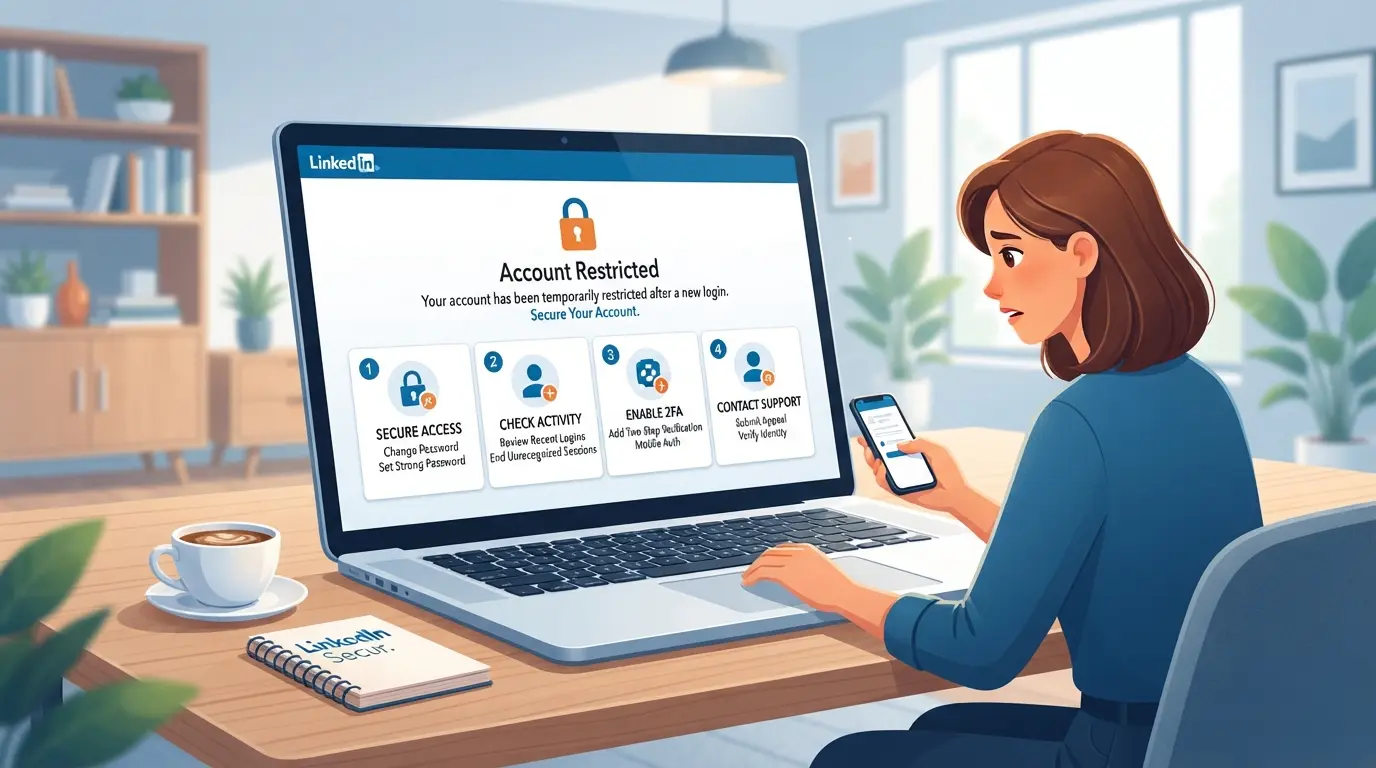
Once the system restricts your account, the alerts are clear. You’ll see pop-up banners or email notices with phrases like “Your account has been temporarily restricted” or “Unusual activity detected.” What happens next depends on how severe the mismatch is. Sometimes, you’re locked out completely, unable to send messages or connect with others. Other times, you can log in but every action triggers extra security checks.
The most common restriction is forced identity verification: LinkedIn will ask you to confirm your email, phone, or even upload an ID photo. If you fail this, the account stays blocked. In rare cases, restriction leads to a permanent ban, especially if LinkedIn believes you’re trying to impersonate or farm accounts. The strongest signal LinkedIn uses is environmental inconsistency, if your device, browser, or IP history don’t match, you’ll face restriction almost every time.
What catches people off guard is how fast it happens. You can log in, start browsing, and within 60 seconds get locked out if LinkedIn sees a new fingerprint or proxy. The only way out is to pass their verification steps, and even then, some features may stay limited for days.
The next step is understanding why LinkedIn reacts so aggressively to new browser profiles, especially in 2026, as detection rules have tightened.
Why Logging in from a New Browser Profile Triggers LinkedIn Restrictions in 2026
LinkedIn doesn’t care just about your password. The platform checks device fingerprints, environment signals, and login patterns. When you log in from a new browser profile, LinkedIn sees a mismatch, this triggers extra scrutiny and often restriction alerts.
LinkedIn’s Security Checks: What Changes Raise Red Flags
LinkedIn flags logins when the IP address or proxy changes, or when the device fingerprint looks new. If the browser profile reports a different operating system, screen resolution, or time zone, LinkedIn’s system treats it as a possible session hijack.
Common User Actions That Trigger Restrictions
Switching browsers or logging in from a fresh profile sounds harmless, but LinkedIn’s risk engine treats it as a sign of account takeover. For example, logging in from a device in New York, then suddenly from a new browser profile with a Miami IP and a different screen resolution, is a classic trigger. Clearing cookies or using automation tools can also trip the detection logic. LinkedIn expects session continuity, if you break it, you’re flagged. Most users ignore this and focus only on password security, but the real fingerprint signals are what matter. A mismatch in device environment after a profile change is the single biggest reason for LinkedIn restriction after login. Even small shifts, like an unexpected interface language or font list, can force LinkedIn to lock your account or demand verification. If you automate bulk actions or use multiple locations at once, LinkedIn often sees this as bot activity, not human use.
LinkedIn’s Anti-Abuse Algorithms in 2026: What’s Changed
- LinkedIn now cross-checks browser fingerprint details with account history, new mismatches get flagged faster.
- The platform expanded proxy and automation detection, so bulk actions raise restriction risks even if your password is strong.
- Session continuity is enforced: if your environment changes too quickly, LinkedIn locks down the account until you verify your identity.
If you’re already facing restriction, the next step is to respond quickly, waiting or guessing only makes recovery harder.
What to Do Immediately If Your LinkedIn Account Is Restricted After a New Browser Login
If LinkedIn restricts your account right after you switch to a new browser profile, stop and follow these steps, acting quickly and calmly increases your chances of recovery.
Stop All Activity and Review LinkedIn’s Notification
- Log out on all devices. Repeated login attempts make things worse and can trigger a permanent block.
- Read LinkedIn’s restriction message closely. The wording tells you if this is a temporary hold, an identity check, or a more serious restriction.
- Do not start automation or use any tools. Any unrecognized actions after restriction often lead to a permanent ban.
- If you see an appeal link, note the deadline, missing it usually means no second chance.
Verify Your Identity and Follow LinkedIn’s Instructions
- Click any “Verify” or “Start” button LinkedIn shows in the alert.
- Submit the requested government ID or phone verification, upload clear, uncropped images.
- If you get an error, clear your cache and try again on the same device.
Appeal the Restriction (If Eligible)
- Use the official appeal form linked in the restriction notice.
- Explain the profile change clearly, avoid blaming LinkedIn or using canned excuses.
- Attach supporting documents if prompted.
Wait Patiently and Monitor Email for Updates
- Most restrictions resolve in 1-5 business days, weekends slow responses.
- Check your inbox and spam folder daily.
- No reply after 7 days? Prepare to escalate through LinkedIn Help.
Avoid Creating a New Account Prematurely
- Do not register a new profile while restricted, LinkedIn detects duplicate accounts and may block both.
- Creating a second account before your main is reviewed can get you blacklisted.
- Wait for a final resolution before taking further action.
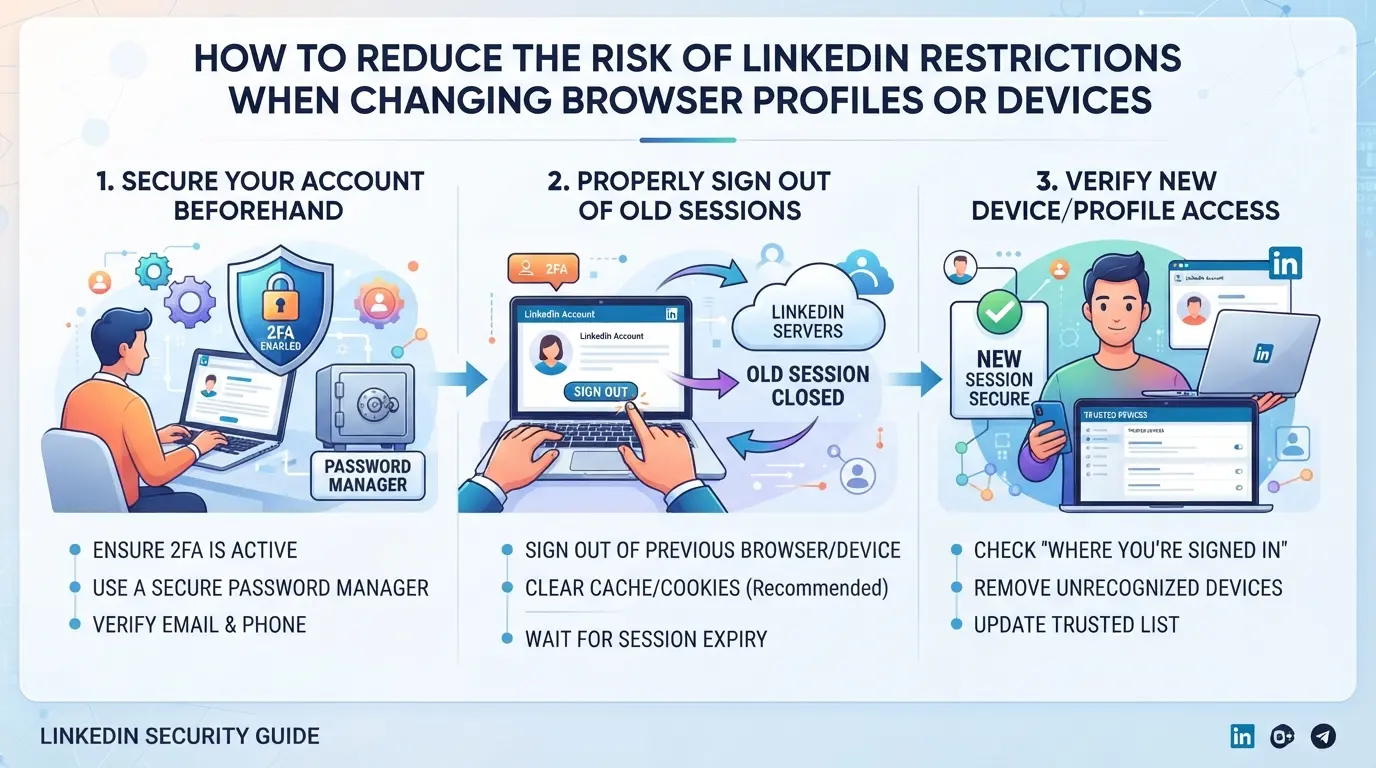
How to Reduce the Risk of LinkedIn Restrictions When Changing Browser Profiles or Devices
Switching browser profiles or devices too quickly can get your LinkedIn account flagged, even if your login is legitimate. To avoid another "linkedin account restricted after login from a new browser profile" warning, match your new environment as closely as possible to your old one, right down to small device details.
Keep Browser Fingerprints and Device Details Consistent
- Match the operating system, browser version, and user agent to your previous setup. LinkedIn expects these to stay stable; sudden changes look risky.
- Set the same time zone, interface language, and screen resolution in your browser profile. If these don't match past logins, LinkedIn may trigger a restriction.
- Test your fingerprint with free tools (such as browserleaks.com) before use. If you spot any mismatch, fix it first, one wrong detail can lead to an account lock.
Use the Same IP or a Stable Proxy for Each Login
- Always log in from the same IP address or a consistent proxy. IP changes between sessions often flag LinkedIn’s security checks.
- If you need to use a proxy, pick one with fixed exit nodes, not rotating IPs. Rotating IPs create a pattern of rapid device switching, which LinkedIn treats as suspicious.
- Avoid mobile data or public Wi-Fi for account logins. These networks can change your IP mid-session, raising more red flags.
Maintain Cookie and Session Data When Possible
- Keep cookies and session data intact when moving to a new browser profile. These files help LinkedIn link your new session to past trusted logins.
- Don’t use incognito or clear cookies before logging in. Starting with a blank cookie jar makes LinkedIn treat your session as a stranger, not a returning user.
- If you must migrate, export cookies from your old browser and import them into the new environment. Skipping this step often leads to forced verifications.
Avoid Sudden or Repeated Profile Changes
- Change only one setting at a time, don’t swap device, IP, and browser in a single jump. Gradual changes let LinkedIn’s system adjust without raising alarms.
- Warm up a new profile by browsing LinkedIn without logging in, then signing in and performing low-risk actions (like viewing your own profile) for a few days.
- Avoid frequent switches between profiles or devices. Too many changes in a week increase your risk of getting blocked.
Sticking to these steps makes your environment look stable and familiar, helping you avoid LinkedIn’s automated restrictions. Next, you’ll see how to apply these same risk-reduction tactics when managing several LinkedIn accounts at once.
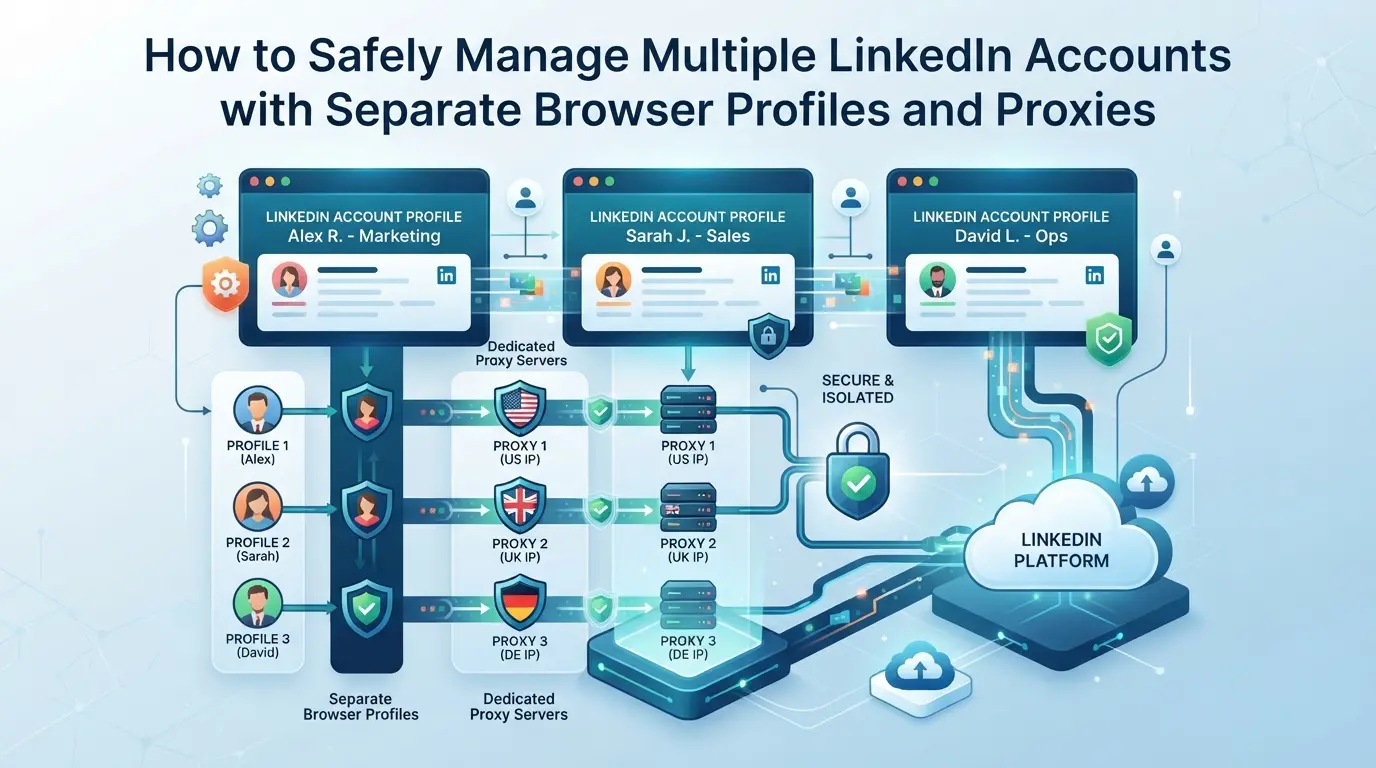
LinkedIn restrictions nearly always trace back to reused environments or mismatched signals, not just to using a new browser. To avoid “linkedin account restricted after login from a new browser profile” issues, you need a workflow that treats each account as its own digital identity, never mixing signals, cookies, or IPs.
Assign a Unique Browser Profile to Each LinkedIn Account
- Create a separate browser profile for every LinkedIn account. Never use the same profile to log into more than one account, or LinkedIn may spot cookies or login fingerprints crossing over.
- Label each profile with the specific account’s details (user/email, notes, etc.) so you never accidentally mix them up.
- Store each profile’s session data and settings apart from the others. If you ever see a login page that’s already filled with another account’s email, stop and check, this means your isolation has failed.
- Assign a unique proxy to each browser profile. Using the same IP for multiple accounts is a red flag for LinkedIn’s risk checks.
- Choose proxies with stable uptime and a location that matches your account’s expected country or city. If LinkedIn sees you jump from Paris to Singapore in one minute, you’re likely to trigger extra verification.
- Before each login, verify your IP with an external service to confirm it hasn’t rotated to a flagged or mismatched region.
Keep Profile Fingerprints and Activity Patterns Natural
- Match the operating system, browser version, and screen size in your profile to what the real user would use. Logging in with a “new” device running different specs usually triggers LinkedIn restriction after a browser profile change.
- Avoid obvious automation or batch logins. Human activity is spaced out and unpredictable, logging ten accounts within the same minute on the same device is an easy way to get flagged.
- If you must switch devices, keep all environmental signals consistent, timezone, language, and hardware details included.
Document and Monitor All Profile Changes
- Keep a simple log (spreadsheet or notes app) of every change you make, profile edits, proxy swaps, or device moves.
- Review your logs weekly to spot mistakes, like two accounts sharing an IP or a profile running in the wrong timezone.
- If you see a sudden spike in verification prompts, audit your recent changes. Most restrictions are caused by a single overlooked mismatch, not a sophisticated platform update.
Sticking to this workflow sets up the next step: moving from manual tracking to real multi-account management with specialized tools.
How Social Media Teams Use DICloak to Manage LinkedIn Accounts with Isolated Profiles and Proxies
For teams juggling multiple LinkedIn accounts, profile isolation and stable network signals are non-negotiable. If you’ve ever seen “linkedin account restricted after login from a new browser profile,” you already know LinkedIn’s risk checks flag sudden changes fast. Operators in agencies or social teams often need to keep each account’s session fully separated, not just for privacy, but to keep platform signals consistent across devices and logins.
Creating Separate Browser Profiles and Configuring Fingerprints in DICloak
Operators can create a dedicated DICloak browser profile for each LinkedIn account, storing separate session data and browser settings. In the profile’s fingerprint settings, they define reported OS, User Agent, time zone, geolocation, and other signals to match the expected environment. This keeps each LinkedIn session isolated, so activity from one account never leaks into another’s storage or browser fingerprint. The scope is limited to browser-profile access; it does not control LinkedIn account content or prevent platform restrictions.

Setting Up User-Owned Proxies for Each Profile in DICloak
Teams can assign their own proxies to each browser profile, using DICloak’s proxy configuration panel to enter proxy details and test the connection. Before logging into LinkedIn, operators check the exit IP and location, making sure the network matches the intended region for that account. This gives each session its own network footprint, without DICloak supplying or guaranteeing any proxy. Proxy setup and quality remain the team’s responsibility.

Next, it’s worth seeing which mistakes often trip up even experienced operators handling multiple profiles.
Common Mistakes That Lead to LinkedIn Restrictions When Using Multiple Profiles or Devices
Most restrictions happen because operators overlook how LinkedIn checks for device and environment consistency. Even one mismatch can trigger account review , especially after logging in from a new browser profile.
Mixing Accounts in the Same Browser Profile
Cross-account contamination is a top cause. If you run two LinkedIn accounts in the same browser profile, LinkedIn can link them by shared cookies, storage, device signals, or session history. The result? Both accounts may get restricted or flagged for unusual activity.
Reusing the Same Proxy or IP Across Accounts
- Check each account uses a unique proxy , do not share IPs.
- Avoid logging in from the same network exit for multiple LinkedIn accounts.
- Rotate proxy credentials; stale settings often trigger network overlap.
Changing Fingerprints or Devices Too Often
Frequent swaps in device, fingerprint, or location look suspicious. If LinkedIn sees your account jump from New York to Singapore, then to Berlin in a day, you’re asking for a restriction alert.
Ignoring LinkedIn’s Security Warnings
LinkedIn rarely auto-blocks on the first risky login, but ignoring warnings is a fast track to permanent restriction.
- Read and act on any warning banners , don’t keep logging in blindly.
- Respond to LinkedIn’s verification prompts within 24 hours.
- Pause activity if you see ID or email confirmation requests; don’t force login retries.
When to Seek Help: What to Do If Your LinkedIn Account Remains Restricted or Gets Permanently Blocked
If your LinkedIn account stays restricted after login from a new browser profile, or you get a permanent block, you need to escalate. At this stage, simple retries won’t unlock the account.
Contacting LinkedIn Support and Escalating Your Case
- Visit the LinkedIn Help Center and start a support request.
- Include your account email, a clear timeline of the restriction, and screenshots showing alerts.
- Explain exactly when you switched profiles and which environment details changed.
Understanding When Permanent Bans Cannot Be Reversed
Permanent bans usually show a final “account closed” message, no appeal link. If you see this, the account is lost. Save any lessons from this case: mismatched device fingerprints can trigger unrecoverable blocks, so review your workflow before starting new accounts.
Frequently Asked Questions About linkedin account restricted after login from a new browser profile
How long does a LinkedIn restriction last after logging in from a new browser profile?
LinkedIn restrictions can last from several days up to a permanent ban. Most temporary blocks are lifted within 48 to 72 hours if you follow LinkedIn’s instructions, like verifying your identity. Permanent bans usually happen for serious violations or repeated issues. Always check your email for LinkedIn’s updates about your case.
Can I recover my LinkedIn account if it was restricted due to a new device or profile?
Yes, you can often recover your LinkedIn account if it was restricted after using a new device or browser profile. LinkedIn will ask you to verify your identity, such as confirming your email or phone. Follow all instructions carefully. If you complete the verification steps, your account will likely be restored within a few days.
Does using a proxy or different IP always trigger LinkedIn restrictions?
No, using a proxy or different IP does not always trigger LinkedIn restrictions. Problems usually happen if you use low-quality proxies or switch IPs too often. LinkedIn flags accounts with sudden location changes or suspicious network activity. Use stable, dedicated proxies and avoid frequent changes to help keep your account safe.
Is it safe to manage multiple LinkedIn accounts for social media marketing?
Managing multiple LinkedIn accounts can be safe if you use unique browser profiles and dedicated proxies for each account. Avoid sharing devices or IP addresses between accounts. This lowers the risk of LinkedIn restriction after browser profile change. Staying organized and following LinkedIn’s guidelines helps prevent account blocks.
What should I do if LinkedIn rejects my appeal and the restriction remains?
If LinkedIn rejects your appeal and the restriction is still active, contact LinkedIn support directly for further help. Provide any requested documents or information. If your account is permanently banned, recovery is unlikely. Make sure you understand LinkedIn’s rules to avoid future restrictions.
If your access has been limited after signing in from a new browser profile, carefully review LinkedIn’s instructions and consider submitting an appeal to restore your account. To reduce the risk of future restrictions, explore tools and strategies that can help mask browser fingerprints or provide a safer login experience. Try DICloak For Free
 Web Proxy Tools
 Free Tools
 Cookie Plugin
 UA Generator
 MAC Address Generator
 IP Generator
 IP Address List
 2FA Code Generator
 World Clock
 Anonymous Check
 WebRTC Leak Test
 UUID Generator
 Free Web Proxy Site
 Proxy Checker
 FB Ad Checker
 AI Web Scraping
 Free SMM Tools
 Twitter Shadowban Checker
 Instagram Name Checker
 UTM Generator
 Username Generator
 AI Hashtag Generator
 LinkedIn Headline Generator
 Social Media Image Resizer