Need a quick way to save audio or video from YouTube in 2026? The hard part is not finding a YouTube converter. It is finding one that is safe, works well, and gives you the format and quality you actually need. Some tools look simple but fail halfway. Some are fast but lower the file quality. Others may raise safety or legal concerns that many users do not think about at first.
That is why choosing the right YouTube converter takes more than one click. If you want to convert YouTube videos to MP3 or MP4, it helps to understand which tools are worth trying, what problems to watch for, and how to get better results on different devices. This guide walks through the most important things to know, from common converter issues to safety, speed, quality, and smarter ways to manage larger YouTube workflows.
Why Your YouTube Converter Isn't Working as Expected
A YouTube converter can stop working for simple reasons. The link may be wrong, the browser may be outdated, or the internet may be unstable. Sometimes a YouTube to MP3 converter stops halfway, or a YouTube to MP4 converter finishes with no sound. In many cases, the problem is not the tool itself. It is the source video, the format choice, or the device.
Common Mistakes When Using YouTube Converters
One common mistake is choosing the wrong format. If you only need audio, a YouTube mp3 converter tool is usually the better choice. If the visual part matters, a YouTube mp4 converter tool makes more sense. For example, someone may use a free YouTube to MP3 converter for a cooking video, then realize they also needed the on-screen steps.
Another problem is trying to convert videos that are restricted, unstable, or poorly loaded. A broken link, buffering page, or unsupported browser can all lead to failed output. Legal use matters too. Many people want to know how to convert YouTube videos to MP3 legally, but that depends on whether they own the content, have permission, or are using content allowed by law.
How Internet Speed Affects Conversion Quality
Internet speed can affect conversion more than many people expect. If the source video does not load well, the converter may freeze, lose sync, or export a lower-quality file. A YouTube mp4 converter may struggle with long high-resolution videos, while a YouTube mp3 converter may return incomplete audio if the connection is weak.
Troubleshooting Failed Conversions
When a conversion fails, first check the source video. If it buffers or shows errors on YouTube, the converter may not be the real problem. Then restart the browser or app, clear cache, and update your software.
It also helps to test a smaller job. Try a short video you are allowed to use. If you only need audio, use a YouTube to mp3 converter. If you need visuals, use a YouTube to mp4 converter. A good YouTube converter should work well on a short test before you trust it with larger files.
How to Choose a Safe YouTube Converter
After checking format, connection, and source quality, the next step is safety. A YouTube converter should not only work well. It should also protect your device. This matters whether you use a YouTube to MP3 converter for audio or a YouTube to MP4 converter for video. Some free online converter sites have been linked to harmful downloads and deceptive redirects, so safety matters as much as convenience.
What Security Features to Look For
A safe YouTube converter should be simple and clean. The site should use HTTPS and should not flood you with pop-ups, fake download buttons, or requests to install extra software. If a free YouTube to MP3 converter asks for browser notifications, extra apps, or unrelated permissions, that is a bad sign.
How to Verify the Legitimacy of a Converter
A quick check can save a lot of trouble. Look at the browser warning area and see whether the site is flagged in Google's Safe Browsing Transparency Report. It also helps to test with a short video you are allowed to use. A trustworthy YouTube mp3 converter tool or YouTube mp4 converter tool usually behaves in a direct and predictable way.
Risks of Using Unverified Converters
The biggest risk is malware. Another risk is deceptive design, such as fake start buttons, fake alerts, or download files that are not what they claim to be. If a YouTube converter feels pushy, messy, or invasive, do not trust it. A safe YouTube converter should feel clear and controlled from start to finish.
Steps to Convert YouTube Videos to MP3 or MP4
Once you have checked safety, the next step is using a YouTube converter the right way. The process should be simple. Copy the correct link, choose the right format, and check the file before keeping it. Small mistakes can lead to broken downloads, weak audio, or low video quality.
How to Copy and Paste YouTube URLs Correctly
Start with the exact video URL. If you copy the wrong page, such as a channel or playlist link, a YouTube converter may fail or pull the wrong content. For example, someone may try to convert YouTube videos to MP3 and then think the YouTube mp3 converter is broken, when the real problem is the wrong link.
Selecting the Right Output Format for Your Needs
Choose the format based on what you actually need. If you only want sound, a YouTube to MP3 converter or free YouTube to MP3 converter is usually the better fit. If you need visuals, a YouTube to MP4 converter or YouTube mp4 converter tool makes more sense. A podcast clip may work well as MP3, while a cooking guide or software tutorial usually needs MP4.
How to Ensure High-Quality Conversions
Good results start with the source. A cleaner source file usually leads to better output in a YouTube mp3 converter tool or YouTube mp4 converter tool. In practice, quality often comes from three simple habits. Use the exact video URL, choose the right format, and test a short file first. A reliable YouTube converter should make that process feel clear and predictable.
Comparing Online vs. Offline YouTube Converters
After learning how to use a YouTube converter step by step, the next question is which type of tool fits better in real use. Some people want a fast browser tool. Others want a desktop option with more control. This difference becomes clearer once you compare actual tools, output limits, and daily use experience. If you only need a quick YouTube to MP3 converter for one short file, an online option may feel easier. If you often convert long lessons, music files, or visual tutorials, reliability starts to matter more.
Popular Online YouTube Converters
1. Y2Mate
Y2Mate is a browser-based YouTube converter that supports both MP3 and MP4. It is easy to use and does not ask users to install software before starting. That makes it a simple choice for people who want fast access in the browser. However, its MP4 output is limited. In many cases, MP4 downloads only reach 640 x 360, so it is better for quick use than for high-quality video needs.
Best for: Fast and basic browser conversion
Pros:
- Supports both MP3 and MP4
- Easy for beginners
- No software installation needed
- Good for quick low-resolution downloads
Cons:
- MP4 quality is limited to 640 x 360
- Not ideal for HD video
- Better for convenience than video quality

2. YTMP3
YTMP3 is a simple YouTube mp3 converter tool with a clean layout. It also supports MP4, so it works for users who want quick audio or video conversion without extra setup. After conversion, the download process is direct. Still, the MP4 output remains limited to 640 x 360, so it is not a strong fit for users who care about clear video quality.
Best for: Very simple MP3 or MP4 downloads
Pros:
- Clean and beginner-friendly
- Supports MP3 and MP4
- Quick to use
- No complex steps
Cons:
- MP4 downloads are limited to 640 x 360
- Weak choice for better video quality
- More useful for casual users than frequent users
3. FLV2MP3
FLV2MP3 offers more format options than some basic tools. Along with MP3, it also supports MP4, AVI, and other formats. That makes it more flexible for users who do not want one fixed output type. However, the video quality still has limits. Standard MP4 downloads are only 640 x 360, and even MP4HD reaches only 720p.
Best for: Users who want more output format choices
Pros:
- Supports multiple formats
- More flexible than basic MP3-only tools
- Useful for different file needs
- Browser-based and simple to access
Cons:
- Standard MP4 quality is only 640 x 360
- MP4HD reaches only 720p
- Not the best option for Full HD use
4. YT1s
YT1s is a more feature-rich YouTube converter than many basic online tools. It supports both MP3 and MP4 and gives users more control over output quality. For audio, users can choose 128 kbps, 256 kbps, or 320 kbps. For video, it can go up to 1080p. That makes it more useful for people who want better sound or clearer video from a YouTube to MP3 converter or YouTube to MP4 converter.
Best for: Users who want more control over quality
Pros:
- Supports MP3 and MP4
- Offers multiple audio bitrate options
- MP4 can reach 1080p
- Better for users who care about sound quality
- More control than many basic online tools
Cons:
- Still depends on site stability
- May feel less simple for first-time users
- Output options can vary by video

5. Savefrom
Savefrom works as a wider downloader, not only a YouTube converter. It also supports platforms like Facebook and Instagram. That makes it more flexible for users who download from different sites. Still, it has some important limits. Higher-resolution videos may have no sound. Also, 2K and 4K downloads are only offered in WEBM format. For audio, it supports M4A and OPUS, but not MP3.
Best for: Users who want one downloader for multiple platforms
Pros:
- Supports more than YouTube
- Can handle higher-resolution video downloads
- Useful for all-in-one downloading
- Good for users who need broad platform support
Cons:
- Higher-resolution videos may have no sound
- 2K and 4K are only available in WEBM
- Does not support MP3 audio
- Less suitable as a classic YouTube to MP3 converter
6. YT1D
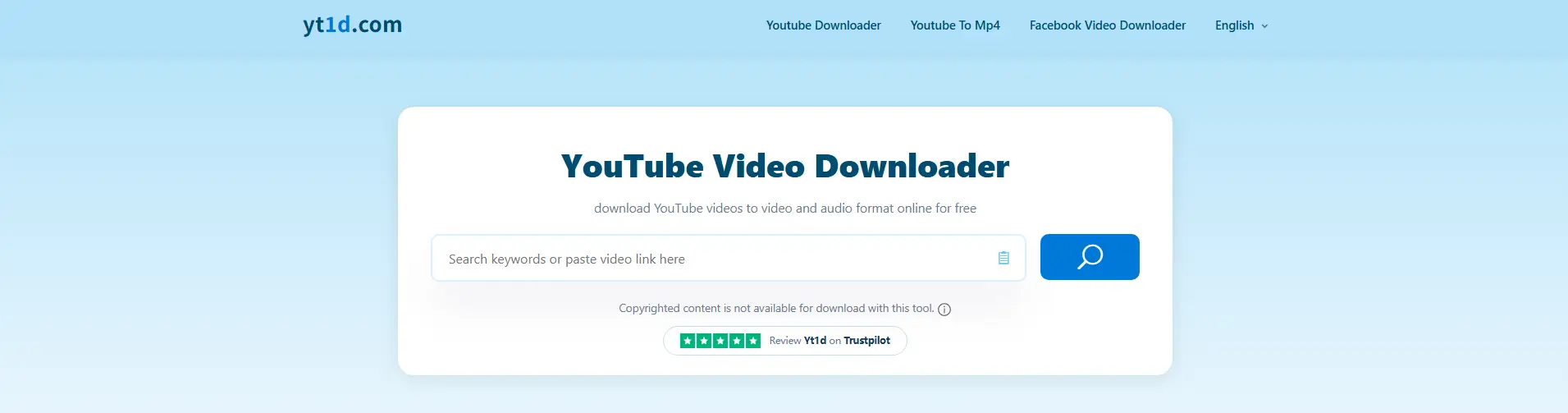
YT1D is a free YouTube to MP3 converter and MP4 downloader that supports video resolutions of 720p and above. On paper, that sounds useful for regular users. In practice, though, it requires extra software installation, which makes it less convenient than most browser-based tools. It also has a major weakness because downloaded videos may have no sound and may come in WEBM format.
Best for: Users willing to install extra software for access to higher-resolution downloads
Pros:
- Free to use
- Supports video resolutions of 720p and above
- Works for both MP3 and MP4 needs
Cons:
- Requires extra software installation
- Less convenient than browser tools
- Downloaded videos may have no sound
- Files may come in WEBM instead of MP4
7. 4kdownload.to
4kdownload.to is a more advanced YouTube converter for users who want higher-quality downloads. It supports video up to 4K. Videos in 2K are available in MP4, while 4K files are offered in WEBM. On the audio side, it supports MP3, FLAC, WAV, and more. It also does not require extra software or a browser extension, which makes it easier to use than some high-quality tools.
Best for: Users who want better quality and more format options
Pros:
- Supports downloads up to 4K
- 2K video is available in MP4
- Supports MP3, FLAC, WAV, and other audio formats
- No extra software or extension required
- Strong option for users who want more control
Cons:
- 4K videos are only available in WEBM
- May feel more complex than needed for casual use
- Format differences may confuse beginners
8. Y2DOWN
Y2DOWN is an all-in-one YouTube mp3 converter and MP4 downloader. It supports MP4 downloads for videos below 2K resolution, while 4K videos are available in WEBM format. On the audio side, it supports MP3, M4A, AAC, and FLAC. This gives users more flexibility if they switch between audio and video tasks often. The main drawback is that high-resolution downloads do not always come in the most convenient format for everyday use.
Best for: Users who want flexible audio and video format choices
Pros:
- Supports MP3 and MP4
- Offers multiple audio formats
- MP4 is available for lower-resolution downloads
- Flexible for users with different file needs
Cons:
- 4K video is only available in WEBM
- High-resolution output is less convenient
- Not the simplest choice for users who only want standard MP4

To make the differences easier to scan, the table below gives a quick side-by-side view of the main strengths and limits of each YouTube converter.
| Tool |
Best for |
Main strengths |
Main limits |
| Y2Mate |
Fast basic browser use |
MP3 and MP4 support, easy to use, no install |
MP4 limited to 640 x 360 |
| YTMP3 |
Simple quick downloads |
Clean layout, beginner-friendly, direct process |
MP4 limited to 640 x 360 |
| FLV2MP3 |
More format choices |
Supports MP3, MP4, AVI, and more |
Standard MP4 is 640 x 360, HD only up to 720p |
| YT1s |
Better control over quality |
128 kbps to 320 kbps audio, MP4 up to 1080p |
Depends on site stability |
| Savefrom |
Multi-platform downloads |
Supports YouTube, Facebook, Instagram, and more |
No MP3 support, high-res video may have no sound |
| YT1D |
Higher resolution with extra setup |
720p and above, free to use |
Needs software install, videos may have no sound |
| 4kdownload.to |
Higher quality and more formats |
Up to 4K, supports MP3, FLAC, WAV, 2K in MP4 |
4K only in WEBM |
| Y2DOWN |
Flexible audio and video format use |
MP3, M4A, AAC, FLAC, MP4 support for lower resolutions |
4K only in WEBM |
Which Option Is More Reliable for Frequent Use
When you compare these tools together, the pattern is clear. Online tools are easier to start with, but they often come with limits in resolution, format, sound support, or site stability. That is fine for light use. It is less ideal for repeat work.
For frequent use, the more reliable option is usually the one that gives you a steadier process and fewer compromises. If you often convert YouTube videos to MP3, a YouTube mp3 converter tool with better bitrate choices may save time and give better results. If you often need video, a YouTube mp4 converter tool that supports clearer output will matter more than a tool that is simply fast. In practice, tools like YT1s, 4kdownload.to, or Y2DOWN make more sense for regular use than simpler tools that stop at 640 x 360.
So the real choice is not just online versus offline. It is convenience versus consistency. A casual user may be happy with a basic free YouTube to MP3 converter. A frequent user usually needs a YouTube converter that offers better output, more control, and fewer limits over time.
Legal Considerations When Using YouTube Converters
A YouTube converter may be fast and easy to use, but that does not make every download legal. Many users search how to convert YouTube videos to MP3 legally before choosing a YouTube to MP3 converter or YouTube to MP4 converter. The key question is whether you have the right to use the content.
Understanding YouTube's Terms of Service
YouTube's Terms make it clear that users cannot download content unless the service allows it, the rights holder gives permission, or the law allows it. In simple terms, a YouTube converter does not give you automatic permission to save a video.
What Content Is Safe to Download
The safest content includes your own uploads, licensed content, public domain material, and some Creative Commons content. For example, using a YouTube to MP3 converter on your own lecture video is very different from downloading someone else's music video.
How to Stay Within Legal Boundaries
Before using any YouTube converter, ask three questions. Do you own the content, do you have permission, and is the use allowed where you live. The safest choice is to use a YouTube converter only for content you clearly have the right to download.
How Device Compatibility Affects YouTube Conversion
After looking at legal use, it also helps to look at the device side. A YouTube converter may work well on one device and poorly on another, even when the same link and format are used. This is because conversion depends on browser support, operating system version, screen size, memory, and connection stability. That matters whether you use a YouTube to MP3 converter for audio, a YouTube to MP4 converter for video lessons, or a YouTube mp3 converter tool for short clips you are allowed to use. YouTube's own support pages show that device and browser requirements still matter for smooth playback and app access, and those same limits often affect conversion tasks too.
Which Devices Support YouTube Converters
In general, a YouTube converter works best on devices that can run a modern browser well. YouTube says its supported browser list includes the newest versions of Chrome, Firefox, and Safari, with operating systems such as Windows 7+, Mac OS X 10.7+, and Ubuntu 10+ for supported viewing conditions. That does not mean every converter will work on every device, but it does show the basic pattern. Newer laptops, desktops, Android phones, iPhones, and tablets usually handle browser-based tools more smoothly than older hardware.
For example, someone using a recent laptop with updated Chrome will usually have an easier time with a YouTube mp4 converter tool than someone on an older device with an outdated browser. The same goes for audio tools. A free YouTube to MP3 converter may open quickly on a newer phone, while an older phone may lag, freeze, or fail to finish the job.
How to Convert Videos on Mobile Devices
Mobile devices can handle many browser-based tools, but the experience depends on the phone and software version. YouTube's help center says the official YouTube app now requires Android 9.0 or later for download on Android devices. YouTube also explains that users can copy a video link through the Share option on mobile, which is the basic first step before using a YouTube converter.
In practice, the mobile process is usually simple.
- Open the video in the YouTube app.
- Tap Share and copy the link.
- Open your chosen YouTube to MP3 converter or YouTube to MP4 converter in a mobile browser.
- Paste the link and choose the format.
For instance, if you want to convert YouTube videos to MP3 for your own lecture audio, a YouTube mp3 converter tool may work fine on a newer phone. But if you are trying to download a larger lesson in video form, a YouTube mp4 converter often feels easier to manage on a desktop because the screen is larger and the browser is usually more stable. That is not a rule for every case, but it is a common pattern.
Compatibility Issues with Older Devices
Older devices often struggle for simple reasons. The browser may be out of date. The operating system may no longer support the newest app or browser version. The device may also have weaker memory or slower processing power. YouTube says older versions of the YouTube app do not work on certain device models, and the current app also has minimum device requirements.
This can affect conversion in small but frustrating ways. A user may think a YouTube converter is broken when the real issue is the device. For example, an older Android phone may open a free YouTube to MP3 converter page but struggle with pop-ups, playback loading, or file handling. An older laptop may open a YouTube to MP4 converter, but the browser may be too outdated to handle the page smoothly. That is one reason updating Chrome and keeping the device software current can help. Google's Chrome help pages recommend updating the browser regularly and checking system support when updates fail.
So if you are wondering how to convert YouTube videos to MP3 legally and smoothly, device choice matters more than many people expect. A modern device with an updated browser usually gives a cleaner and more reliable YouTube converter experience.
How to Optimize Conversion Speed and Quality
After checking device compatibility, the next step is improving performance. A YouTube converter can feel slow or give weak results even when the link is correct. In many cases, the biggest factors are internet speed, browser condition, and source quality. YouTube notes that video quality is affected by connection speed, screen size, browser support, and the quality of the original upload. That helps explain why a YouTube to MP3 converter or YouTube to MP4 converter may perform very differently from one setup to another.
Tips for Faster Conversion Times
If speed is the problem, start with the basics. Use a stable connection, keep your browser updated, and clear old browsing data if the browser feels heavy. These simple steps often make a YouTube converter run more smoothly, especially when pages freeze or take too long to load.
It also helps to match the job to the format. If you only need audio, a YouTube to MP3 converter is usually faster than a full YouTube to MP4 converter because the final file is smaller. For example, if you want to convert YouTube videos to MP3 from your own lecture or interview, a YouTube mp3 converter tool will usually feel lighter than downloading the full video. If you need visuals, then MP4 makes sense, but shorter clips and lower resolutions are often easier to process. This is a reasonable inference from the fact that higher-quality video needs more bandwidth and device support.
How to Maintain Video and Audio Quality
Quality starts with the source. If the original upload is weak, a YouTube converter cannot truly fix that. YouTube explains that if a video was recorded in standard definition, it will not be available in high definition later. That is why a free YouTube to MP3 converter or YouTube mp4 converter should be judged by how well it preserves the source, not by unrealistic promises.
For instance, if the original clip has soft audio or blurry visuals, even a good YouTube mp3 converter tool or YouTube mp4 converter tool can only work with what is already there. The goal is to keep the original quality as much as possible, not expect the tool to create detail that was never in the file.
Tools to Enhance Conversion Efficiency
The most helpful tools are often simple ones. A current browser, a cleaner browser state, and the right format choice can improve results more than people expect. If a browser keeps crashing or freezing, restarting it or adjusting hardware acceleration settings may help stabilize the page before you try the conversion again.
It also helps to choose tools that fit the real job. If you only need audio, use a YouTube mp3 converter or YouTube to MP3 converter instead of a video-heavy workflow. If you need on-screen steps, use a YouTube to MP4 converter or YouTube mp4 converter. In practice, the fastest setup is usually not the one with the most features. It is the one that matches your goal from the start.
A Better Setup for Managing Multiple YouTube Accounts
A YouTube converter is enough for simple one-off tasks. But when the work involves many YouTube channels, repeated uploads, team access, and daily account switching, the bigger challenge is no longer just converting files. It is keeping every account separate, stable, and easy to manage.
Keep YouTube Accounts Separate and Easier to Control
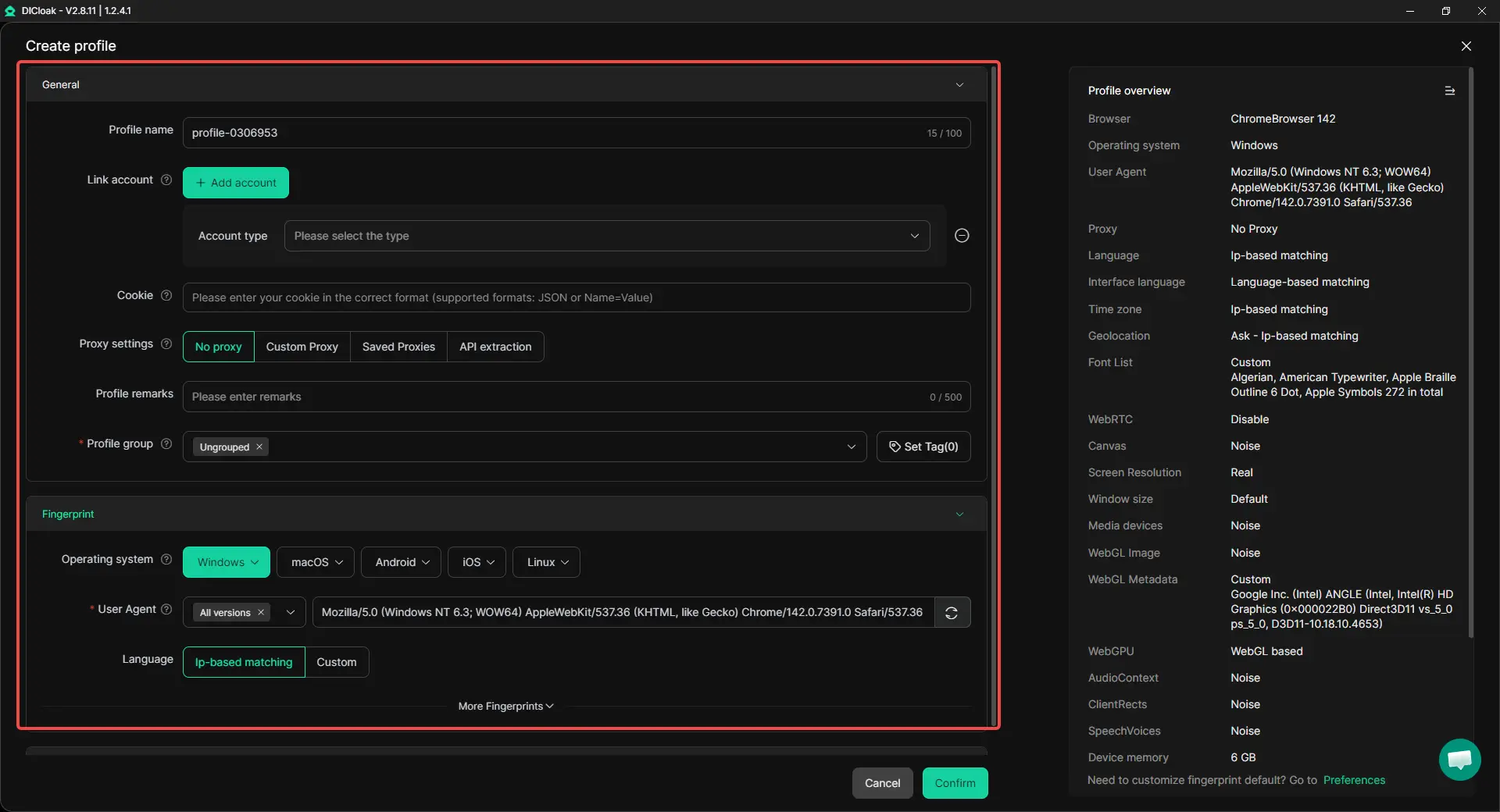
When many channels are handled on one device, using separate browser profiles with different fingerprints and proxy settings makes the workflow much cleaner. Each account can run in its own isolated profile instead of sharing the same browser state. This helps reduce account overlap, keeps activity more consistent, and makes multi-account work easier to organize.
That setup is useful for:
- agencies managing client channels
- teams running several Shorts or video accounts
- marketers handling YouTube together with other social platforms
Make Teamwork and Repeated Tasks Much Easier
For larger YouTube operations, the real time drain is repeated work. Uploading videos, checking comments, collecting transcripts, opening the same pages, and switching between accounts can take hours. A more structured setup can combine team permissions, profile sharing, RPA automation, and Synchronizer in one workflow.
This is especially useful for tasks like:
- publishing videos across different accounts
- scraping comments or transcripts
- opening and managing several channel profiles at once
- repeating the same setup steps across multiple windows
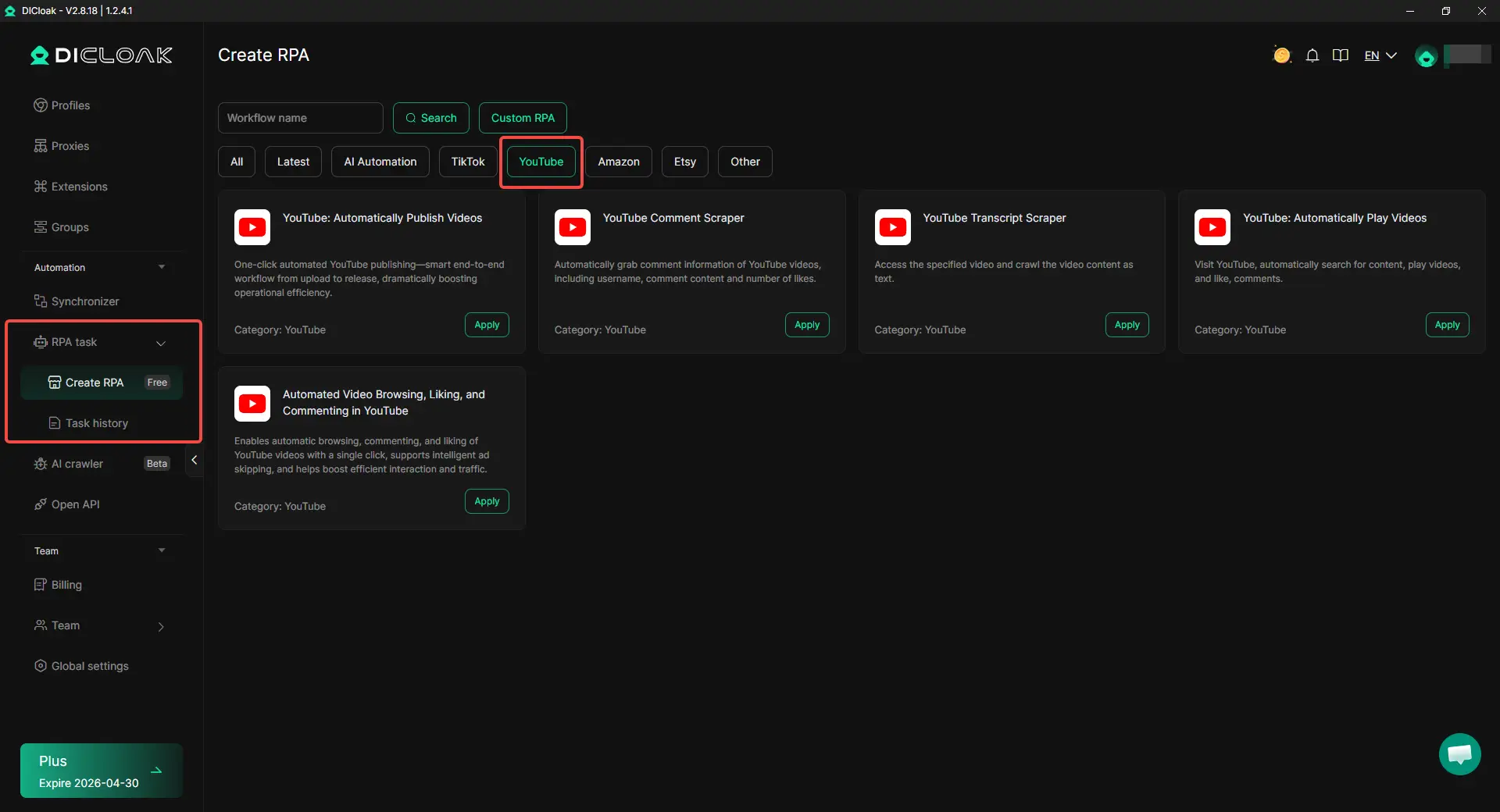
If the goal is only to use a YouTube to MP3 converter or YouTube to MP4 converter once in a while, a simple tool may be enough. But for people managing many channels, a setup built around profile isolation, custom proxies, team collaboration, RPA, and window synchronizer features makes YouTube work much more scalable.
Frequently Asked Questions about YouTube Converter
Is a YouTube converter legal to use?
A YouTube converter can be legal or illegal depending on the content, your permission, and local law. Using it for your own or licensed content is safer.
Why is my YouTube converter not working?
A YouTube converter may fail because of a bad link, slow internet, browser issues, or source video problems.
What is the best YouTube converter for MP3 and MP4?
The best YouTube converter depends on whether you want better audio, better video quality, or a simpler workflow.
Is an online YouTube converter better than an offline one?
An online YouTube converter is easier for quick use. An offline one is often better for frequent use and more stable performance.
How can I use a YouTube converter safely?
Use a YouTube converter with a clean site layout, avoid fake buttons or extra downloads, and only convert content you are allowed to use.
Conclusion
A good YouTube converter in 2026 should do more than just convert files. It should be safe, easy to use, and fit your real needs. Some users only need MP3 audio, while others need MP4 video with better quality. The right choice also depends on your device, internet speed, and whether the tool works reliably over time.
A YouTube converter is best judged by safety, output quality, legal use, and daily usability. Online tools may feel faster for simple tasks, but not all of them offer the same stability or quality. It also matters to use converters only for content you are allowed to download. For users managing many YouTube accounts, a more organized setup with profile separation, proxy control, team access, and automation can make the workflow much easier.
 Web Proxy Tools
 Free Tools
 Cookie Plugin
 UA Generator
 MAC Address Generator
 IP Generator
 IP Address List
 2FA Code Generator
 World Clock
 Anonymous Check
 WebRTC Leak Test
 UUID Generator
 Free Web Proxy Site
 Proxy Checker
 FB Ad Checker
 AI Web Scraping
 Free SMM Tools
 Twitter Shadowban Checker
 Instagram Name Checker
 UTM Generator
 Username Generator
 AI Hashtag Generator
 LinkedIn Headline Generator
 Social Media Image Resizer