WhatsApp has over 2 billion users across 180+ countries, based on WhatsApp’s official overview, yet one expired QR code can block desktop access right before a deadline. If your whatsapp web login keeps failing, the root cause is usually one of three things: stale browser data, weak phone connection, or a broken linked session. You can fix these lockouts fast when you check them in the right order.
You’ll get a practical path to pair devices, recover from QR and sync errors, and remove old sessions so no one keeps silent access after you log out. You’ll also see where limits apply in WhatsApp Web and multi-device support, plus how message protection still works under WhatsApp’s security design.
By the end, keep one rule in mind: a stable phone session plus a clean browser state prevents repeat login trouble more than any quick browser trick. Start with the setup sequence that works on an initial try.
What do you need before a WhatsApp Web login works smoothly?
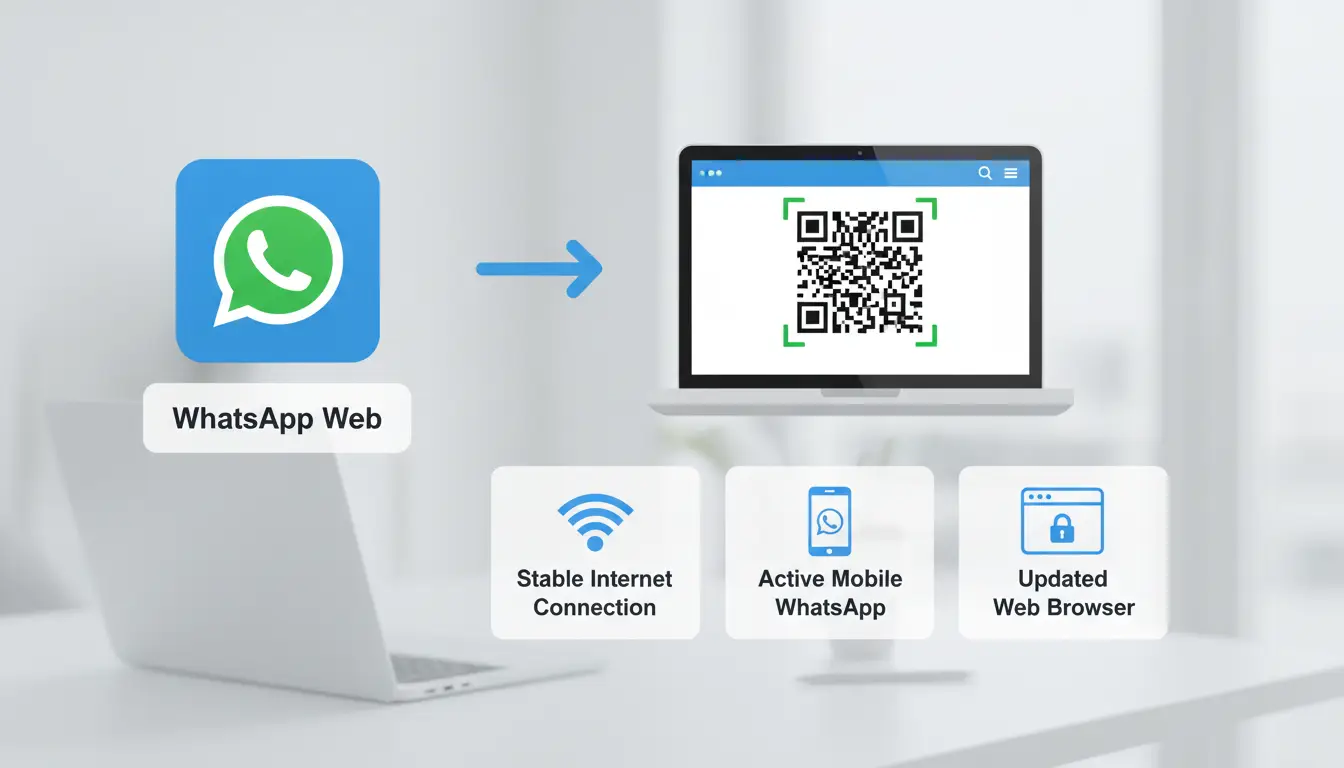
Before you scan the QR code, set up three basics: a supported browser, a stable internet path on both devices, and a phone app that can link devices. This prep prevents most whatsapp web login errors.
Check device, browser, and internet requirements first
Use a current browser version. If your browser is old, QR loading or message sync can fail on WhatsApp Web.
| Browser |
Minimum update level for reliable use |
| Chrome |
Current stable version |
| Edge |
Current stable version |
| Firefox |
Current stable version |
| Safari |
Current stable version on macOS |
A weak or switching connection breaks login handshakes. Keep both phone and computer on steady internet until pairing finishes and chats load.
Confirm your phone app is ready for Linked Devices
Open WhatsApp on your phone, then go to Linked Devices (Android: menu > Linked Devices; iPhone: Settings > Linked Devices). If this menu is missing, update the app from your store before trying again.
Also check account status. If the app is outdated, logged out, or under temporary review, device linking can stop before QR confirmation. Multi-device behavior is explained in WhatsApp’s linked device update.
Prepare a safe login environment before scanning QR
Avoid public computers for account linking. Shared machines can keep browser sessions alive after you leave.
Use a private browser profile for each account. This keeps cookies and cached sessions separate, so old data does not block whatsapp web login on your next attempt. If you finish on a shared device, remove that session from Linked Devices right away.
How do you complete WhatsApp Web login on PC or Mac step by step?
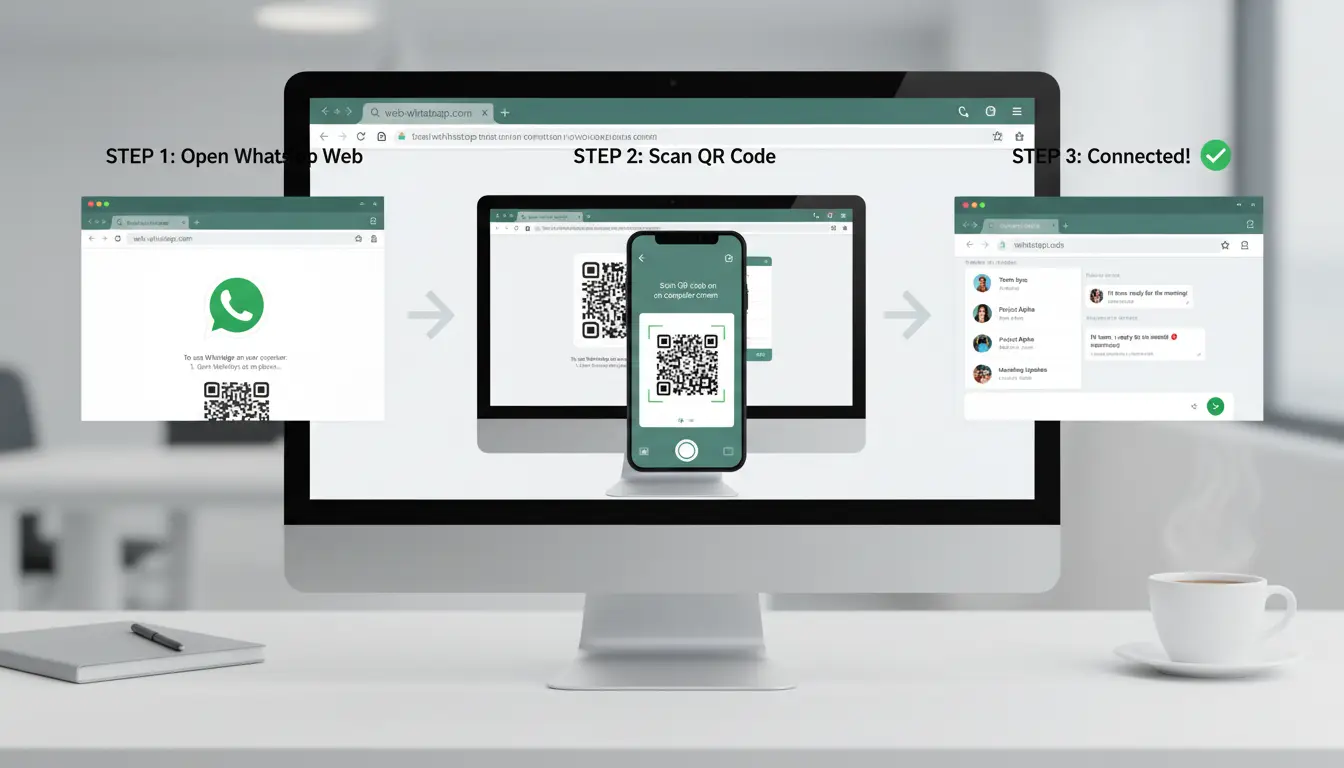
A clean setup prevents most login failures. For a smooth whatsapp web login, keep your phone online, update WhatsApp, and close old frozen tabs before you scan.
Open WhatsApp Web and load the QR code correctly
Go to the official WhatsApp Web login page. Check the lock icon in the browser address bar and confirm the domain is web.whatsapp.com.
If the QR code does not load:
- Refresh the tab once.
- Turn off ad/script blockers for this page.
- Open a private window to rule out stale cookies.
- Try one more browser if the page stays blank.
If you see a loading loop, your browser cache may block session scripts. Clear site data for web.whatsapp.com, reopen the page, and wait until the QR code is stable and sharp.
Link your phone to the browser from the Linked Devices menu
On iPhone: WhatsApp → Settings → Linked Devices → Link a Device. On Android: WhatsApp → menu (three dots) → Linked devices → Link a device.
Point your phone camera at the QR code and hold still for 1–2 seconds. If scanning fails in low light, raise screen brightness on both devices and move the phone back slightly so the QR code stays in focus.
Use the same phone that still has an active WhatsApp session. If your phone logged out, re-login on phone before linking web.
For official pairing steps, you can check WhatsApp linked devices help.
Verify chat sync, media access, and notification permissions
After pairing, watch the sidebar:
- Chat list should appear quickly.
- Recent messages should update when you send a test message to yourself.
- Click one chat and open an image to verify media access.
If chats do not sync after about 2 minutes, keep phone connected to the internet, reload the web tab, and retry once.
Allow browser notification prompts if you want desktop alerts. If you blocked them by mistake, re-enable notifications in browser site settings. You can confirm expected behavior under WhatsApp multi-device support.
Set basic post-login preferences for daily use
Open settings in WhatsApp Web and set:
- Notification sound on/off
- Desktop alerts on/off
- Chat wallpaper and language preference
- Media auto-download behavior
Turn off auto-download on limited storage devices. Keep it on only if you need instant media access. If you share a computer, log out after each session and review active sessions in Linked Devices. This keeps your whatsapp web login session clean and reduces silent access risk under WhatsApp security design.
Why is your WhatsApp Web login not working, and how can you fix it fast?
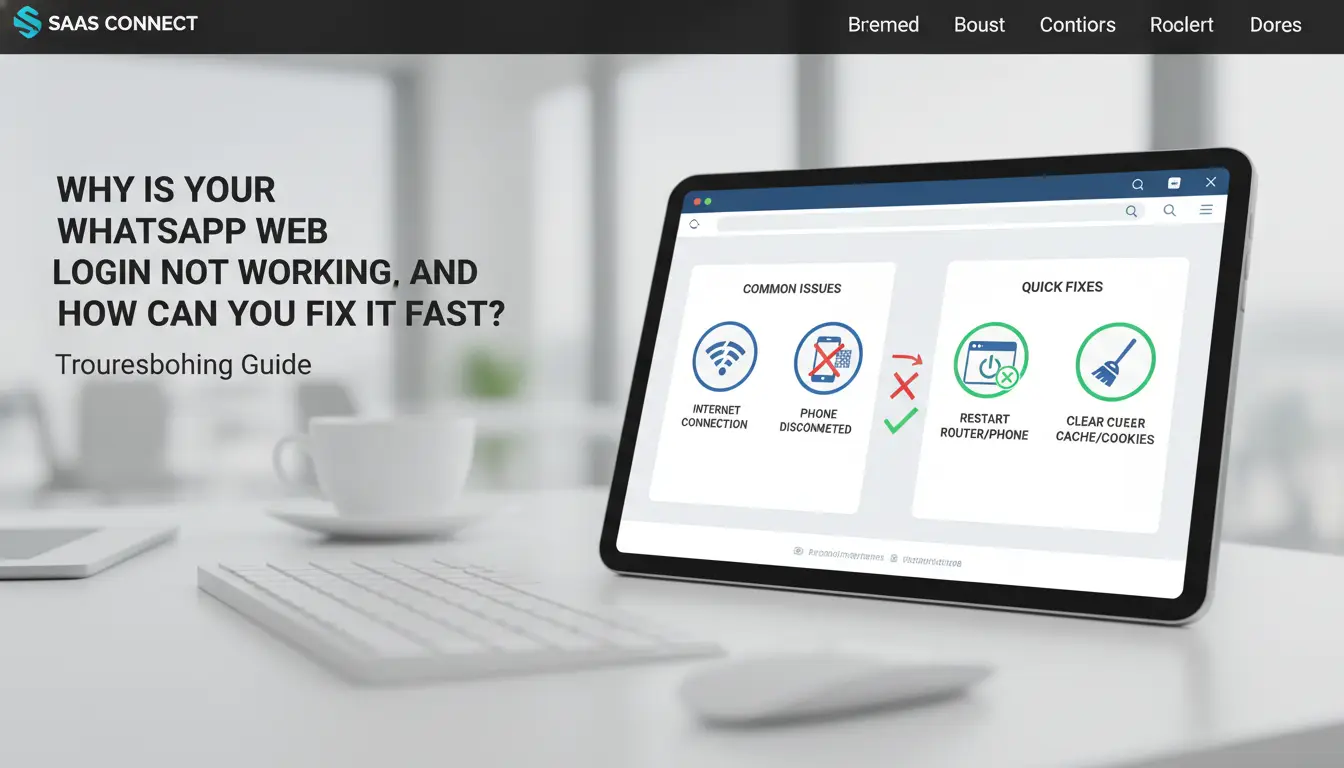
Most login failures come from four places: QR scan problems, browser state issues, phone sync limits, or unstable sessions. If you check them in order, you avoid random retries and fix the root cause faster. Use this quick map for your whatsapp web login checks:
| Symptom |
Likely cause |
Fast fix |
| QR code will not scan |
Zoom/scaling, camera permission, dirty lens |
Reset zoom to 100%, allow camera, clean lens, rescan |
| Web page keeps loading |
Corrupt cache, extension conflict, old browser build |
Clear site data, disable extensions, test clean profile |
| Chats do not update |
Phone offline, background data blocked, battery sleep |
Keep phone online, remove data/battery limits |
| Logged out again and again |
Incognito mode, cookie auto-delete |
Use normal window, keep cookies for web.whatsapp.com |
Reference: WhatsApp Web, multi-device behavior, Chrome cache controls.
If QR code fails: reload, zoom reset, and camera checks
Set browser zoom to 100%. High zoom or OS display scaling can blur the QR blocks. Refresh the page after the reset. On your phone, confirm camera permission for WhatsApp is enabled. Wipe the lens, hold 15–25 cm away, and keep the code fully inside the scanner frame. A clear lens plus 100% zoom fixes scan failures in most real cases.
If page is stuck loading: browser compatibility and cache fixes
Open WhatsApp Web in a current Chrome, Edge, Firefox, or Safari build. Old versions can stall before session handoff. Clear cached images/cookies for that site, then reload. If it still loops, disable ad blockers, script blockers, and privacy extensions for one test. Use a clean browser profile to confirm whether extension rules cause the block.
If chats do not sync: phone connectivity and power settings
Your phone still anchors sync in multi-device mode. Keep WhatsApp open once, with stable mobile data or Wi-Fi, until recent chats appear on web. Check background data settings for WhatsApp on Android or iOS. Remove battery saver limits that pause app activity when the screen is off. If delay continues, unlink the session, restart phone and browser, then pair again.
If logout keeps happening: session, cookies, and privacy mode causes
Incognito/private windows drop session data by design, so logouts happen often. Use a normal browser window for persistent access. Check cookie settings. Auto-delete on close will break session memory for web.whatsapp.com. Allow cookies for that domain only if you want tighter privacy elsewhere. If you suspect session corruption, log out from all linked devices in WhatsApp, then create one fresh whatsapp web login session.
How can you stay logged in without increasing account risk?
A safer whatsapp web login is about device trust, not shortcuts. Keep sessions active only on devices you control daily. If a browser is shared, treat every login as temporary.
Use persistent sessions carefully on personal devices
Use “keep me signed in” only on your own laptop or desktop with a private user account. Skip it on school, office hot-desk, or family devices where others can open your browser profile.
Turn on full-device protection, not just browser protection:
- Require OS password or biometric unlock after sleep
- Set auto-lock to a short window (for example, 1–5 minutes)
- Enable full-disk encryption (BitLocker on Windows, FileVault on macOS)
This keeps an active session from turning into open chat access when you step away.
Log out remotely when you forget a browser session
If you left a session open, remove it from your phone right away:
- WhatsApp on phone → Linked Devices
- Review active browsers
- Tap unknown or old sessions and log them out
Warning signs of an unsafe linked device include a new browser or city you do not recognize, or a login time that does not match your activity. WhatsApp’s Linked Devices model and security design support remote session control without disabling message encryption.
Avoid common public-computer mistakes that expose chats
On shared machines, do not save browser passwords, do not allow autofill, and do not download chat files to default folders. Before leaving, log out from WhatsApp Web, close all tabs, clear recent downloads, and clear site data for web.whatsapp.com. This reduces silent access after you walk away.
WhatsApp Web vs WhatsApp Desktop: which one fits your workflow better?
If your goal is fast messaging, both options work. The better choice depends on call needs, device age, and how long each session stays open after whatsapp web login.
Feature differences that affect real-world usage
| Need |
Web browser |
Desktop app |
| Start speed |
Opens fast in an existing tab |
Opens as a separate app |
| Notifications |
Can fail if browser notifications are blocked |
More consistent system alerts |
| File handling |
Good for quick drag and drop |
Better for repeat file sends |
| Voice/video calls |
Limited for most users |
Supported on desktop installs |
| Session control |
Easy to leave old tabs open |
Easier to track one active app |
Desktop also handles calls more reliably on supported builds from WhatsApp download. For security behavior, both follow end-to-end encryption rules. If you need calling plus steady alerts, desktop is usually the safer daily pick.
Performance and reliability on older computers
Older laptops often struggle with heavy browser tabs. WhatsApp Web shares memory with every open tab, so sync lag appears faster. The desktop app runs in its own process, which can keep chats smoother during long work blocks.
Best choice by scenario: casual user, support team, or marketer
For one personal account, web is fine when you need quick access. For support or sales replies all day, desktop stays steadier and reduces missed alerts. If you switch devices often, use multi-device linking and review linked sessions weekly after each whatsapp web login.
How do teams handle multiple WhatsApp Web logins with lower security and access risk?
A team-safe workflow starts with one rule: one account, one browser profile, one owner. That cuts overlap during each whatsapp web login and makes handoffs traceable.
Why shared browser sessions create avoidable team risks
When teammates use the same browser session, cookies and linked-device tokens get mixed. One person can reply from the wrong account, or log out a session another person still needs. A bigger issue is ownership. If five people touched one account in one browser, you cannot prove who changed settings, exported chats, or removed a linked device. This goes against the device control model in WhatsApp Web and multi-device support.
| Team setup |
Session isolation |
Access control |
Audit trail |
Cross-account mistake risk |
| Shared browser login |
None |
Weak |
None |
High |
| Dedicated profile per account |
Clear |
Role-based |
Action logs |
Lower |
References: WhatsApp security design, DICloak.
How DICloak reduces login risk in multi-account operations
You can use DICloak to assign each WhatsApp account its own browser fingerprint and profile. Add separate proxies per profile, then restrict team actions with role permissions. This removes silent account overlap that causes wrong-account replies and hidden session takeovers. Operation logs also help during handoff: you can check who logged in, who edited settings, and when.
Practical setup: profile templates, role permissions, and repeatable tasks
Create a profile template with fixed timezone, language, proxy, and login steps. Clone it per account. Set role limits: support can reply only, admins can link or remove devices. Use profile sharing for shift changes, bulk actions for routine checks, and RPA for repeat tasks like status checks and session cleanup. This keeps each whatsapp web login repeatable, with fewer access errors.
What WhatsApp Web login mistakes cause the most problems for beginners?
Using unofficial links or phishing pages
For whatsapp web login, open only WhatsApp Web and verify the exact domain before scanning. Fake pages copy the QR screen and steal session cookies. If the URL is wrong, stop before scanning. You can use DICloak to map one WhatsApp account to one isolated fingerprint with a per-profile proxy, so session data does not cross into other accounts.
Ignoring browser updates and permission prompts
Old browsers often break QR sync and cause login loops. Blocked notification prompts can hide session warnings. Tools like DICloak let you keep separate profiles clean, then run bulk profile actions and RPA for repeat checks, which cuts manual errors in high-volume whatsapp web login work.
Leaving active sessions on shared devices
Shared computers keep silent sessions open when tabs stay signed in. Review linked devices weekly and remove unknown entries. You can use DICloak team permissions plus operation logs to control access and track who opened each account profile.
What should you set up right after login to work faster every day?
Right after whatsapp web login, spend two minutes on setup. Small defaults cut repeat clicks all day.
Enable keyboard shortcuts and faster chat navigation
Use Ctrl/Cmd+K to jump to search, Ctrl/Cmd+N for a new chat, and Ctrl/Cmd+Shift+M to mute noisy threads. Keep one hand on the keyboard and move through search results instead of opening each chat by mouse.
Organize chats with pinning, labels, and search habits
Pin priority contacts at the top, then archive low-priority threads so your chat list stays short. Use a repeatable search pattern like “name + keyword” (example: “Alex invoice”) to pull old messages fast.
Tune media download and notification settings for focus
In WhatsApp Web, mute non-urgent chats and keep desktop alerts only for urgent threads. On your phone, disable auto-download for media to avoid duplicate file clutter after whatsapp web login sync.
Frequently Asked Questions
Can I use whatsapp web login on a tablet browser the same way as on a laptop?
Yes. On many tablets, whatsapp web login works in Chrome, Safari, or Edge when you switch to Desktop Site. Without desktop mode, the QR code may not load or may refresh too fast to scan. Keep the browser updated and avoid private mode, which can clear cookies and break session stability.
Does whatsapp web login work if my phone battery dies after linking?
After whatsapp web login is linked, chats can keep working on your computer even if your phone turns off. This is part of multi-device support. But if the phone stays off for a long time, you may lose some account actions, like changing security settings, until the phone reconnects.
Is whatsapp web login safe on office or school computers?
It can be safe, but shared computers raise real risks. For whatsapp web login at work or school, never allow browser sign-in saving, always log out from WhatsApp and from Linked Devices on your phone, and clear browser history, cache, and autofill data before you leave the machine.
How many devices can I keep linked to whatsapp web login at the same time?
WhatsApp sets the linked-device limit in its current policy, and that limit can change over time. To manage whatsapp web login access, open Linked Devices on your phone to see active sessions, last activity, and device names. Remove old browsers right away, especially after repairs, upgrades, or using a public computer.
What is the difference between regular WhatsApp Web login and WhatsApp Business Web usage?
The sign-in step is almost the same: scan a QR code to start. The difference is daily use. Regular accounts focus on personal chats, while Business Web is built for customer replies, quick-reply templates, labels, and higher message volume. Teams often use shared workflows, so session control and handoff rules matter more.
Using WhatsApp Web login effectively comes down to a simple QR-code pairing process, a stable phone connection, and consistent security habits like logging out of shared computers. When you combine convenience with account protection, you can manage messages faster on desktop without losing control of your privacy.
Try DICloak For Free
 Web Proxy Tools
 Free Tools
 Cookie Plugin
 UA Generator
 MAC Address Generator
 IP Generator
 IP Address List
 2FA Code Generator
 World Clock
 Anonymous Check
 WebRTC Leak Test
 UUID Generator
 Free Web Proxy Site
 Proxy Checker
 FB Ad Checker
 AI Web Scraping
 Free SMM Tools
 Twitter Shadowban Checker
 Instagram Name Checker
 UTM Generator
 Username Generator
 AI Hashtag Generator
 LinkedIn Headline Generator
 Social Media Image Resizer