WhatsApp has more than 2 billion users in more than 180 countries, and that scale makes account takeover a constant target for opportunistic attackers. The problem doesn't usually start with an "advanced hack": it almost always comes with a registration code shared by mistake, a session opened on someone else's computer, or poorly adjusted privacy settings.
If you are looking for WhatsApp security settings, the real goal is not to "touch options", but to close the most used routes to lose control of your account. This guide will leave you with a clear order to review what does reduce risk: two-step verification, passkeys, screen lock, control of linked devices and end-to-end encryption, and visibility limits for photo, status and groups.
You'll also see what signs to check each week for rare activity before you're kicked out of your own account. Keep this idea: security on WhatsApp is not a one-time feature, it's a short sequence of well-made adjustments. Let's start with the setting that saves the most accounts when someone tries to register your number.
What real risks do WhatsApp's security settings reduce?
Applying the whatsapp security settings well does not prevent annoying messages; Avoid losing your account and exposing personal data. The most common risk is not technical: it is that you are tricked into delivering a code, or that a third party receives your SMS for line fraud. If you enable two-step verification, review linked devices, and limit privacy, you shut down the most repeated attacks.
Most frequent frauds: phishing, SIM swapping and session hijacking
Phishing usually comes by chat or call: "I sent you a code by mistake, pass it to me". This code allows you to register your number on another mobile. In SIM swapping, someone convinces the operator to move your line to another SIM. The FCC explains this portability fraud. If they achieve that, they receive your verification SMS.
There is also session hijacking on shared computers: you leave WhatsApp Web open and someone else reads or sends messages.
If you only change your privacy photo but don't turn on two-step PIN and session control, your account is still exposed.
Early signs that are often ignored:
- SMS with codes you didn't ask for.
- "Your number is being registered on another device" notice.
- Unexpected logout on mobile or web.
- "Support" calls asking for codes.
What data is exposed if you don't configure your privacy well
By leaving photo, name, status, and "last seen" visible to everyone, you facilitate impersonation. An attacker copies your photo and name, creates a fake profile, and asks your contacts for money.
Metadata also helps to deceive: connection time, common groups and frequency of use allow for more credible messages. WhatsApp maintains end-to-end encryption, but that encryption doesn't hide all the social context.
With WhatsApp security settings done right, you reduce three direct damages: account theft, impersonation of your contacts and leakage of useful information for social engineering.
Which WhatsApp security settings should you activate first?
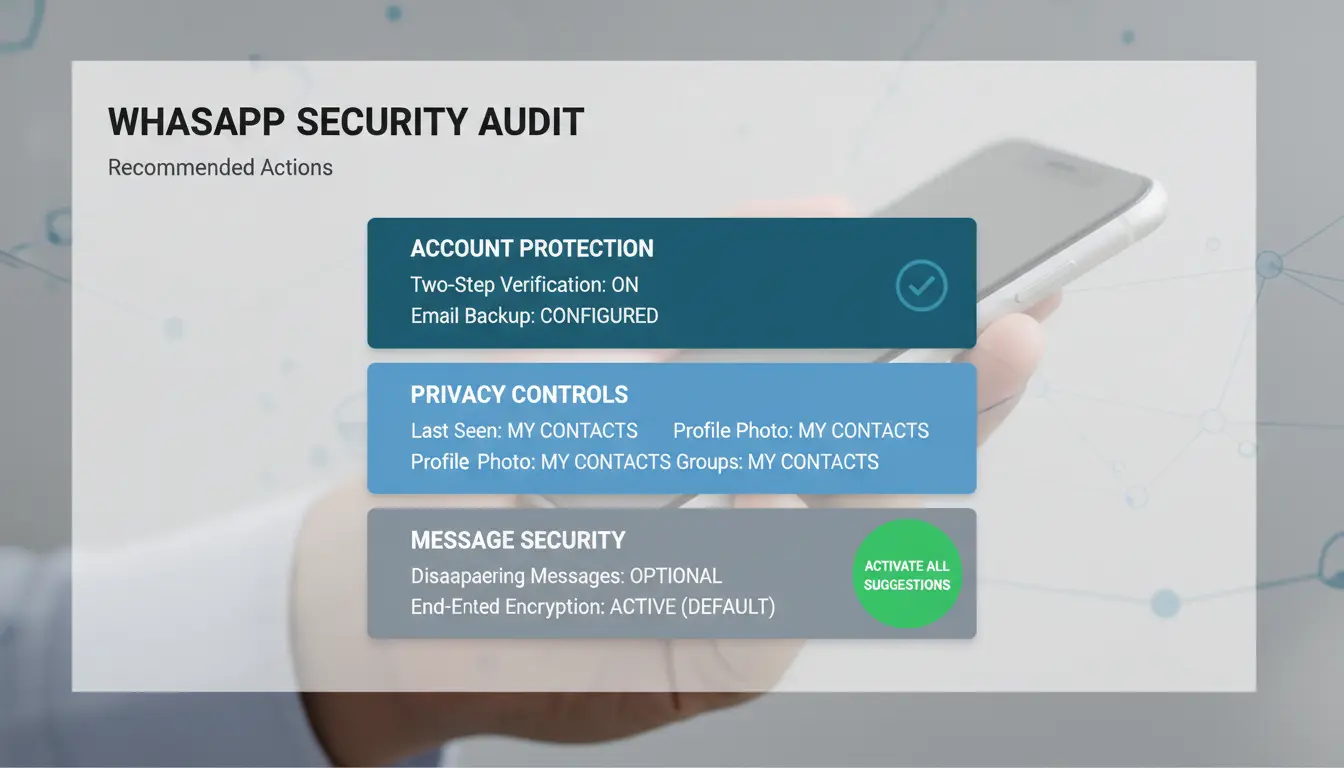
If you're looking for a quick sequence of WhatsApp security settings, apply these changes today and review them every week. The most urgent point is to prevent someone else from registering your number with a stolen code.
Two-step verification: PIN, recovery email, and best practices
Turn on two-step verification and create a 6-digit PIN that doesn't use dates, 000000, or simple patterns. A practical trick: take a short phrase that you remember and turn letters into numbers just for you.
Add recovery email at the same time. If you forget your PIN, that email avoids losing your account for days. Without mail, regaining access becomes slower and riskier.
Also check passkeys if your mobile phone allows them. They reduce the risk of phishing because you don't write codes manually.
Profile privacy: who sees your photo, info, status, and last login
Here it is not convenient to leave "Todos". Adjust photo, info, status, and "last. Time/Online" based on your account usage.
| Fit |
My contacts |
No one |
| Photo and info |
Useful for customers or acquaintances |
Better if you are harassed or scraped |
| Status |
Maintains broadcasting to nearby network |
Avoid unnecessary exposure |
| Last Login |
Less friction at work |
Maximum reserve |
For personal use, "My Contacts" usually works. For public or support accounts, combine "My Contacts" with exclusions and limit groups to contacts. You have more detail in the official security and privacy settings.
Mute calls from strangers and block suspicious contacts
Turn on "Mute calls from strangers." This way spam goes down without losing important messages, because chats keep coming in and you can filter them calmly.
If a number asks for codes, links or urgent payment, block and report. This pattern appears a lot in targeted scams: a brief call to build trust and then an attempted account hijacking. These whatsapp security settings take minutes and save you real trouble.
How to configure WhatsApp security settings step by step on Android and iPhone?
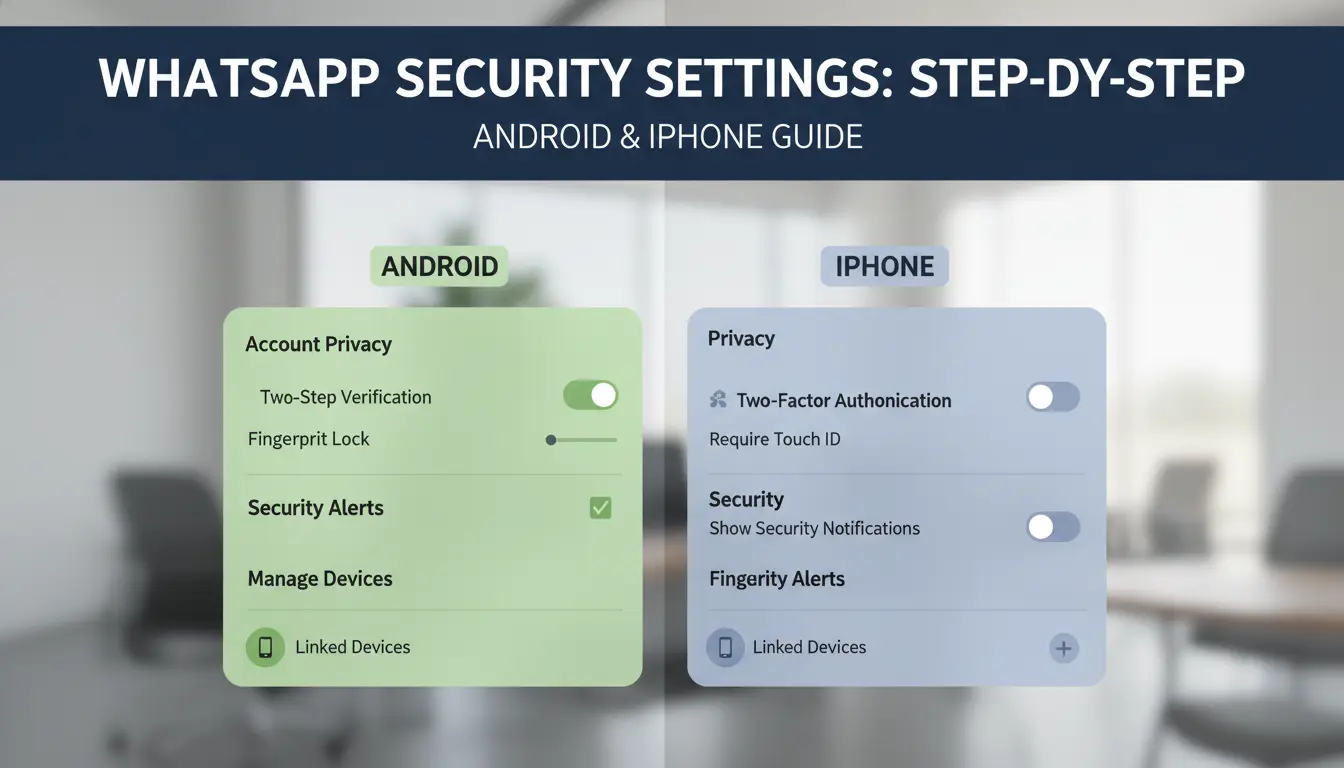
If you want to complete the whatsapp security settings without skipping anything, follow this exact sequence: account, privacy and device review. The goal is to close unauthorized access and get account recovery ready in less than 10 minutes.
Quick menu path on Android and iOS so you don't get lost
In both systems, key settings are under Account, Privacy, and Linked Devices, but they switch places.
| Key Setting |
Android |
iPhone |
| Two-step verification |
Menu ⋮ > Account Settings > > Two-Step Verification |
Account Setup > > Two-Step Verification |
| Passkeys |
Account Settings > > Passkeys (if available) |
Account > Settings > Access Keys (depending on version) |
| Privacy (photo, status, groups) |
Privacy > Settings |
Privacy > Settings |
| Linked devices |
Menu ⋮ > Linked Devices |
Configuration > Linked Devices |
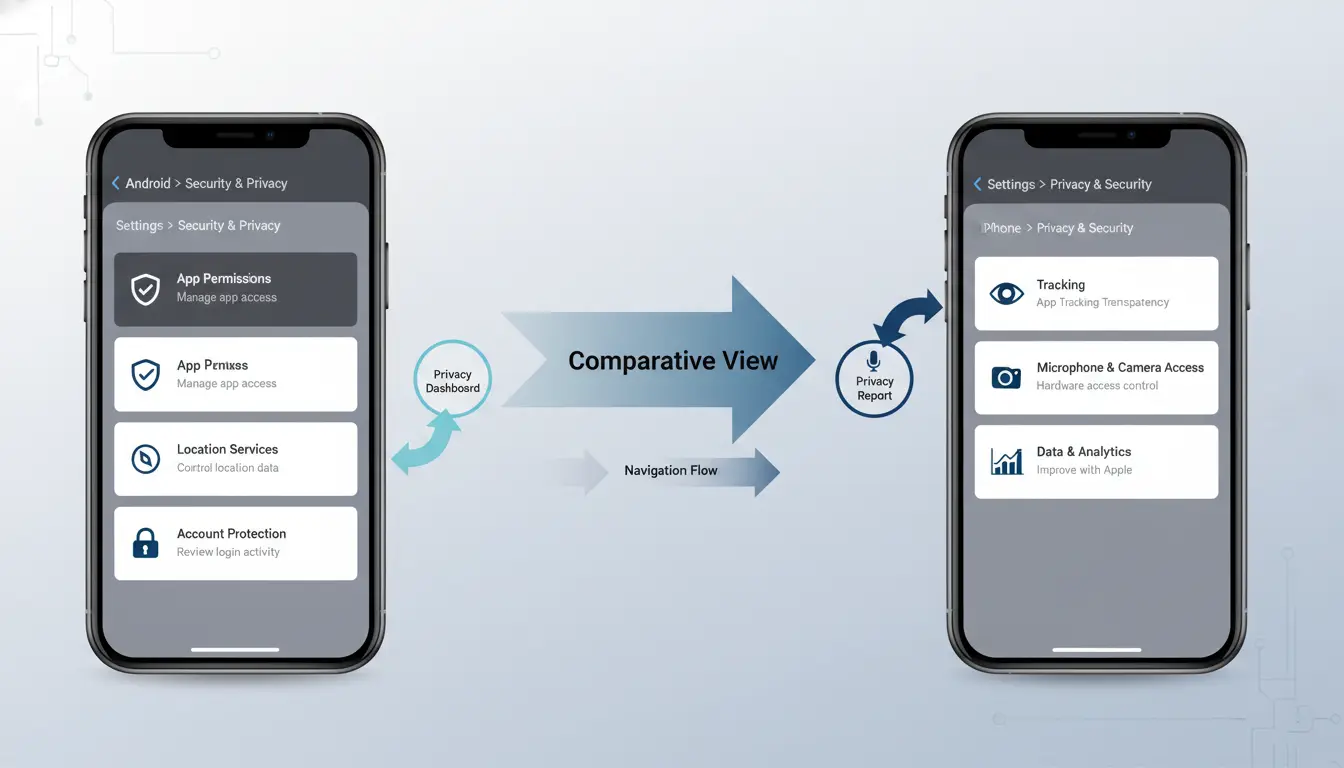
If you don't see an option, update WhatsApp from Google Play or the App Store.
Recommended trigger order for maximum protection in 10 minutes
Turn on two-step verification and save a PIN that you don't use in other services. Then activate access codes if your mobile phone offers them.
Under Privacy, limit photo, info, and status to "My Contacts." In Groups, use "My Contacts" or "My Contacts, Except..." Under Linked devices, sign out that you don't recognize.
The part that prevents account hijacking the most is combining two-step PIN + passkey + active session cleanup.
Final check: Simple tests to confirm that your account was protected
Take three rapid tests:
- Reopen Two-Step Verification and confirm that it's still active.
- Under Linked devices, verify that only your team is there.
- Send a test message and check for rare session alerts.
Repeat this weekly review of whatsapp security settings and after changing mobile.
How to strengthen privacy in chats, groups, files and calls?
If you have already activated the basics, this section of WhatsApp security settings lowers your daily exposure in content and contacts. The idea is simple: fewer unwanted entries, fewer risky files, and less sensitive history saved.
Group control: who can add you and how to avoid at-risk communities
In WhatsApp, go to Settings > Privacy > Groups and leave "My contacts" or "My contacts, except...". This way you prevent unknown numbers from getting you into betting groups, fraud or spam. If you've already been added to a suspicious group, leave immediately, report the group, and block the person who added you. Then check to see if you shared anything there (number, photos, documents) and delete it when possible. You can review more measures in official WhatsApp security.
Automatic file downloads: how to prevent malware and leaks
Turn off automatic download on mobile data and Wi-Fi. Do this in Settings > Storage & Data. This way you avoid saving APKs, cheat PDFs, or images with private data without you opening them. If you handle sensitive documents, keep copies only in encrypted storage on your phone.
Temporary messages and blocking sensitive chats
Activate temporary messages in chats where codes, private photos or customer data are shared. It also blocks chats with fingerprint or PIN. This reduces exposure, but does not prevent screenshots or manual forwarding. For more at-risk accounts, combine this with two-step verification within your WhatsApp security settings.
What to check in backups and linked devices to prevent unauthorized access?
If you have already applied other whatsapp security settings, this block closes three typical doors: remote sessions open, backup exposed, and lost phone.
Linked devices: detect strange sessions and close remote access
Under Linked devices, review your computer's name, time of last activity, and operating system. If you see a browser or PC that you don't recognize, close it in the moment. Don't wait. Red flags: "read" messages without opening them, changes to archived chats or activity at odd times. Do this check once a week and always after using WhatsApp Web on shared computers.
Backups: Encryption, Cloud Account, and Secure Recovery
Turn on end-to-end encrypted backup. Without that encryption, your cloud history is more exposed than your chats in transit. Confirm that your Google or Apple account has a strong password and two-step verification. When you change your phone: restore only from your account, check the date of the last backup and delete old copies of the previous device before selling or giving it away.
Phone lock and biometric layer on WhatsApp
Combine system PIN with fingerprint or face within WhatsApp. This double barrier stops quick access if your phone is taken unlocked. If you lose it, lock SIM with your operator, deactivate the account on WhatsApp and close web sessions. Repeat these whatsapp security settings when recovering new line or device.
What mistakes weaken your WhatsApp security settings and how to fix them?
If you have already checked your WhatsApp security settings, the next risk is in daily habits. A well-made setting falls apart when you share a code, repeat the PIN, or react with fear to urgent messages. Short rule: no 6-digit code is shared, neither with "support" nor with "a family member". WhatsApp clarifies this in its two-step verification guide.
Critical errors: sharing codes, reusing PINs and relying on urgent messages
The most common attacks are in a hurry: "I sent you a code by mistake", "if you don't respond, you lose count", "I'm from the technical team". If you give the registration SMS or your PIN, you hand over control.
How to respond without exposing yourself:
- Cut off the conversation and don't send screenshots.
- Enter WhatsApp and check "Linked devices".
- Change your verification PIN in two steps.
- Activate passkeys if your team allows it.
- Alert your contacts to ignore strange messages from your number.
Signs of possible hacking or attempted takeover
Don't ignore notices like "your number is being registered on another device" or unexpected logouts. It also alerts if your photo, name, "last seen" privacy, or group visibility change without you doing so.
Quick Review:
- Open sessions that you don't recognize.
- Security code changed with key contacts.
- Sent messages that you didn't write.
You can contrast these points with the official WhatsApp security page.
15-minute action plan if you suspect compromise
Act in this short sequence:
- Re-register your number on your phone.
- Activate or change two-step verification PIN.
- Close all linked sessions.
- Check voicemail and SIM lock with your mobile operator.
- Report the case on WhatsApp support.
If you apply this every week, your WhatsApp security settings do hold account control.
How to work with multiple WhatsApp accounts in marketing without increasing risk? (with DICloak)
If your team manages multiple accounts, the risk isn't in opening more chats, but in losing operational control. In practice, the key point is to separate technical identity, human access, and action logging within a single flow of WhatsApp security settings.
Computer risks: IP changes, mixed sessions, and uncontrolled access
When three people log into the same account from different environments, WhatsApp detects strange patterns: IP that changes without logic, sessions that step on each other, and unexpected closures. That's when temporary blocks or revisions begin. Internal control also fails: passwords in shared sheets, 2FA codes by chat and "borrowed" access. That habit leaves the account exposed even without external attack.
Recommended flow with DICloak: isolated profiles, proxies by profile, and permissions by role
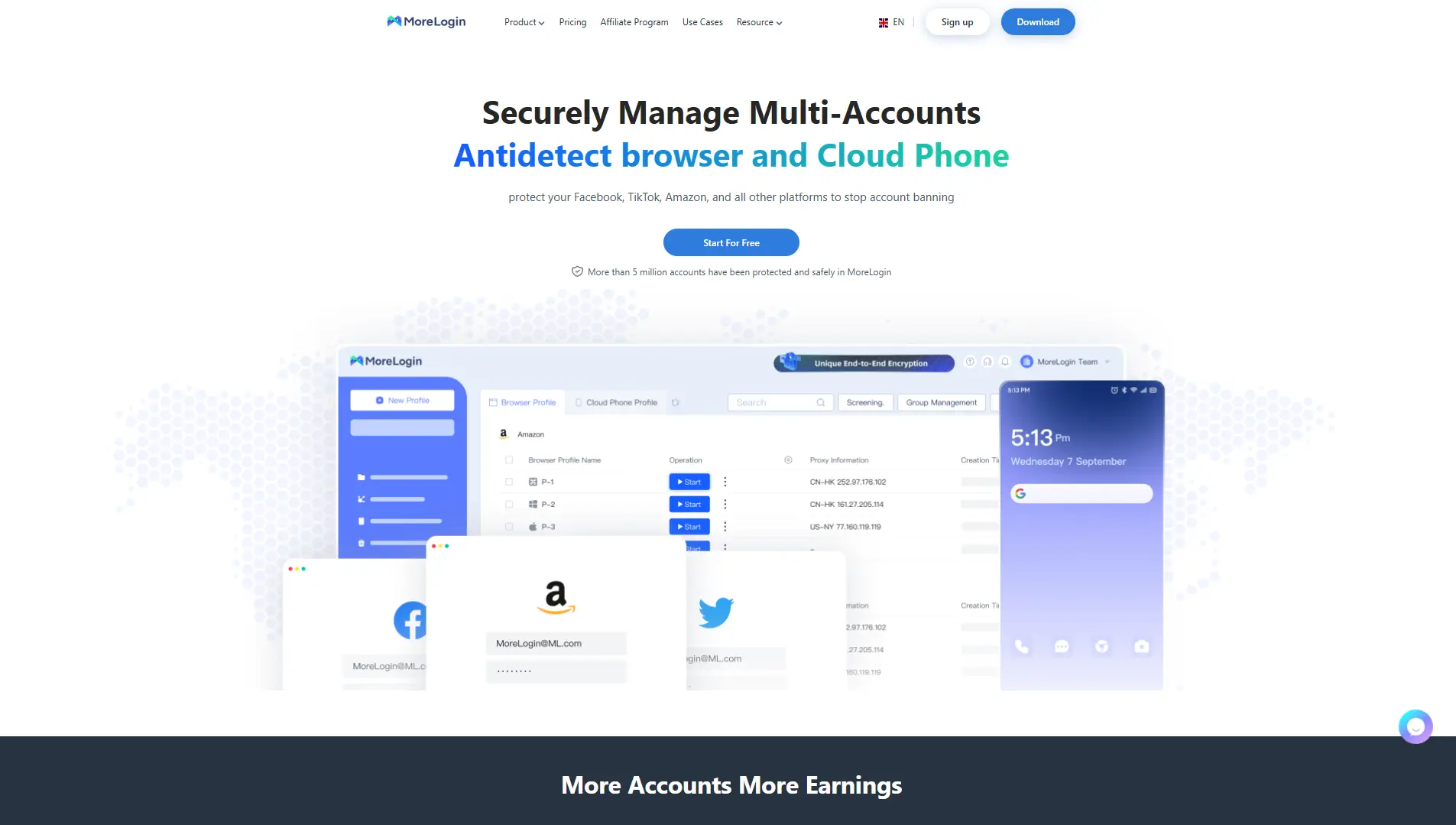
You can use DICloak to create an isolated profile per work account, with your own proxy and permissions per role. This way each member enters only what they need, without touching other people's sessions. Fingerprint isolation avoids mixing signals between accounts, and the dedicated proxy maintains operational stability per profile.
Secure scaling: activity logs, batch actions, and RPA for repetitive tasks
Enable activity logs to know who changed what and when. That trail speeds up audits and reduces internal discussions. For repeated tasks (session review, health checks), use batches or RPA with simple rules. You maintain consistency and reinforce your whatsapp security settings without relying on human memory.
Monthly checklist: how to keep your WhatsApp security settings up to date?
If your WhatsApp security settings remain "as they were", the risk rises without you noticing. This monthly routine helps you spot rare changes before you lose access.
5-minute review: privacy, sessions, locks, and copies
Every month review: two-step verification, passkey, screen lock, linked devices, and backup. Also confirm who sees photo, status, and groups. If you see a session you don't recognize, close immediately and change your PIN. If you see language changes, registration alerts, or codes you didn't ask for, take action that same day.
When you manage multiple accounts, human failures are repeated. Tools like DICloak let you create an isolated profile per WhatsApp account, with distinct proxies per profile and per member. This way you maintain a stable environment and reduce alerts for sudden changes in access. You can also assign permissions by role, share profiles without exposing credentials, and review logs for auditing.
When to update settings for device, number, or device changes
Strengthen security when changing mobile, SIM, number, team member or agency. For personal accounts: Review sessions, PIN, and passkey. In business: add permission control, access rotation and action logging. With batch operations and RPA in DICloak, you repeat tasks without skipping key steps. To validate policies, use WhatsApp's official security guide.
Frequently Asked Questions
Do WhatsApp security settings change depending on Android or iPhone?
Yes. On Android and iPhone the menu paths and some names change, but the main protection is the same. In both you can activate two-step verification, lock with fingerprint or Face ID, review linked devices and control who sees your photo, status and connection time in WhatsApp security settings.
How often should I check WhatsApp's security settings?
Do a monthly review of your whatsapp security settings. Also, check immediately if you change your mobile, number, or carrier. Also do this if you notice unsolicited SMS codes, open sessions that you don't recognize, or messages sent without your permission. Such frequent control helps to cut off unauthorized access in time.
If I activate all whatsapp security settings can I no longer be hacked?
Activating everything reduces the risk a lot, but it does not eliminate social engineering attacks. An attacker can still trick you with fake links, verification codes, or support spoofing. WhatsApp security settings work best when you add clear habits: do not share codes, check contacts, and avoid unprotected public Wi-Fi.
Does backup affect security in WhatsApp security settings?
Yes, it affects directly. If your copy to Google Drive or iCloud is poorly secured, your chats may be exposed even if you use lock in the app. In WhatsApp security settings, prioritize end-to-end encrypted copy, strong cloud account password, and two-step authentication.
Can I apply WhatsApp security settings to accounts used by marketing teams?
Yes. In marketing teams, apply whatsapp security settings with access rules by role, separate profiles and minimum permissions. Use one account per carrier, avoid sharing the same login, and control linked devices every week. If you manage multiple accounts, use per-account proxies to reduce session crossovers and lockouts.
Properly configuring WhatsApp's security settings, such as two-step verification, privacy control, and login alerts, reduces risks and protects both your account and your personal information. Reviewing these options regularly helps you stay in control of who can contact you, what information you share, and how you react to suspicious activity. Try DICloak for free
 Web Proxy Tools
 Free Tools
 Cookie Plugin
 UA Generator
 MAC Address Generator
 IP Generator
 IP Address List
 2FA Code Generator
 World Clock
 Anonymous Check
 WebRTC Leak Test
 UUID Generator
 Free Web Proxy Site
 Proxy Checker
 FB Ad Checker
 AI Web Scraping
 Free SMM Tools
 Twitter Shadowban Checker
 Instagram Name Checker
 UTM Generator
 Username Generator
 AI Hashtag Generator
 LinkedIn Headline Generator
 Social Media Image Resizer