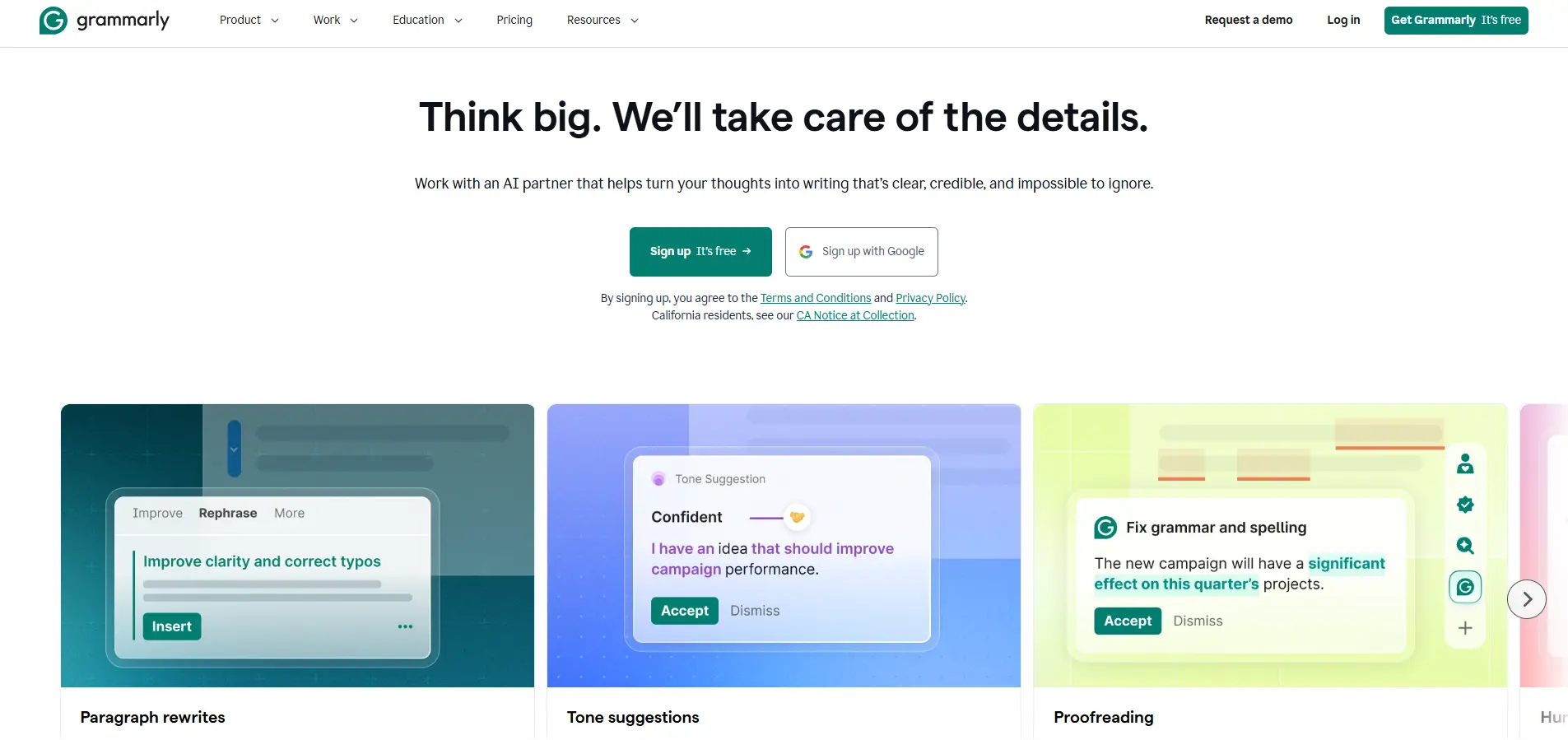
Grammarly is already widely used in team settings. Its business site says 70,000 teams use the product, while Grammarly Pro supports teams of up to 149 seats. But Pro is still priced per member at $144 per year on annual billing or $30 per month, so cost and access can become real questions once several writers, editors, or marketers need it.
That is why using Grammarly with a team is not just about adding more users. Some teams need individual Pro seats, larger organizations may need Enterprise controls, and teams handling several authorized accounts may also need a clearer way to organize browser profiles. This guide compares these options so you can choose a setup that fits your team size, budget, and daily workflow.
Why Do Teams Want to Share Grammarly?
Teams usually want to share Grammarly to control costs, simplify access, and keep daily work organized. The real goal is often not to put everyone on one login, but to find a practical way for the right people to use Grammarly.
- Lower team costs. Paying for several writers, editors, or marketers can add up, especially for small agencies, startups, and remote teams.
- Simpler access. Teams may want to reduce password sharing and make it easier to manage access when someone joins, leaves, or changes roles.
- A more consistent workflow. Teams often use Grammarly alongside email, Google Docs, CMS platforms, and client tools, so keeping the right account and work environment organized matters.
There is no single Grammarly sharing setup that fits every team. The best option depends on team size, usage frequency, and how much access control the team needs.
How Much Does Grammarly Cost for a Team in 2026?
For most teams, Grammarly Pro is the main paid option. It costs $144 per member per year, which works out to $12 per member per month, or $30 per member when billed monthly. Pro supports up to 149 seats, while Enterprise uses custom pricing.
The important detail is that the $12 price shown on Grammarly’s pricing page is the average monthly cost of an annual subscription, not the price for a single month. Grammarly also offers a quarterly option at $60 per member for three months. Additional team members require additional paid seats.
| Team size |
Annual Pro cost |
Monthly Pro cost |
| 3 members |
$432/year |
$90/month |
| 5 members |
$720/year |
$150/month |
| 10 members |
$1,440/year |
$300/month |
For example, a five-person content team using annual Pro would pay $720 per year if all five people need paid access. But if only two writers use Grammarly every day while the other three employees write only occasionally, paying for five seats may not be the best starting point.
Grammarly Pro is designed for both individuals and teams and includes team features such as style guides, brand tones, snippets, and usage analytics. Grammarly Premium still exists through mobile app stores, but it is designed for individual users and does not include the same team or admin features.
Team size alone should not decide your Grammarly cost. The more useful question is how many people actually need regular paid access. Once you know that number, you can compare the different ways to use Grammarly with your team.
What Are the Ways to Use Grammarly With a Team?
There are three practical ways to use Grammarly with a team: give regular users their own Grammarly Pro seats, move to Enterprise when stronger company controls are needed, or use separate browser Profiles when several authorized Grammarly accounts need to stay organized. The right choice depends on how often people use Grammarly and how much control the team needs over access.
Add Team Members to Grammarly Pro
For regular Grammarly users, individual Pro seats are usually the cleanest option. Each person uses their own account, while the company can manage paid access under the same team plan. This works well for content, marketing, sales, or support teams where several people use Grammarly every day. It also gives the team access to shared features such as style guides, brand tones, snippets, and usage analytics. If five employees all rely on Grammarly for daily work, giving each person a seat is usually the most straightforward setup.
Use Grammarly Enterprise for Larger or More Controlled Teams
Enterprise makes more sense when access control becomes an IT issue, not simply because more people want Grammarly. Teams should consider it when they need SSO, centralized identity management, user provisioning, stronger admin controls, or company-level security policies.
For example, a 20-person marketing agency may still be fine with Pro if each user only needs normal team access. A larger company that already manages employee accounts through an identity provider may need Enterprise even if only part of the company uses Grammarly. The deciding factor is usually governance, not headcount alone.
Use an Antidetect Browser When Accounts Need to Stay Organized
Some teams manage several authorized Grammarly accounts and need to keep each one separate. This is common for agencies, remote teams, or companies working across different client accounts. Using an antidetect browser like DICloak, each Grammarly account can stay in its own browser Profile with separate cookies and login sessions. Team permissions can control which members can access each Profile, while operation logs can help managers review team activity.
Why Use DICloak When Managing Grammarly With a Team?
When a team manages several authorized Grammarly accounts, the daily challenge is often keeping each login, session, and team member organized. Using an antidetect browser like DICloak can make that workflow clearer by separating accounts into browser Profiles and controlling who can access them.
- Keep each Grammarly account in a separate browser Profile. Each Profile stores its own cookies, login session, and browser data. For an agency handling several client accounts, this makes it easier to open the right Grammarly account without repeatedly switching logins or mixing sessions.
- Control access by team member. With DICloak, teams can use team permissions and profile sharing to give selected members access to the Profiles they need. One writer can work with one client Profile, while another teammate handles a different account.
- Review how shared profiles are used. Operation logs can help managers track activity across shared Profiles, which is useful when several employees or remote team members work with different accounts.
For teams handling several Grammarly accounts, separate browser Profiles can simplify daily access and account management without changing Grammarly’s own team or seat structure.
How to Use DICloak for a Grammarly Team Workflow
If your team needs to reuse the same Grammarly browser Profile, you can keep the signed-in session in one Profile and share access with selected teammates. This makes handoffs easier without rebuilding the browser setup each time.
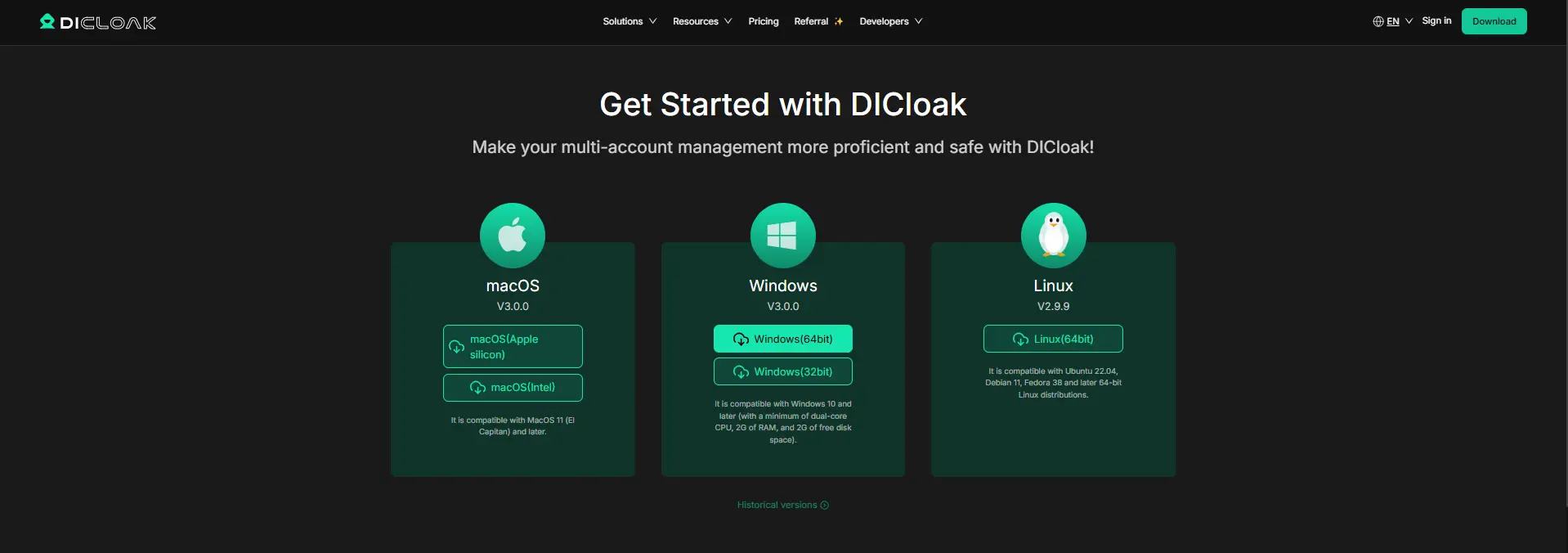
Step 1: Install DICloak and Choose a Team Plan
Download DICloak, create an account, and choose a plan based on your team size and number of browser Profiles.
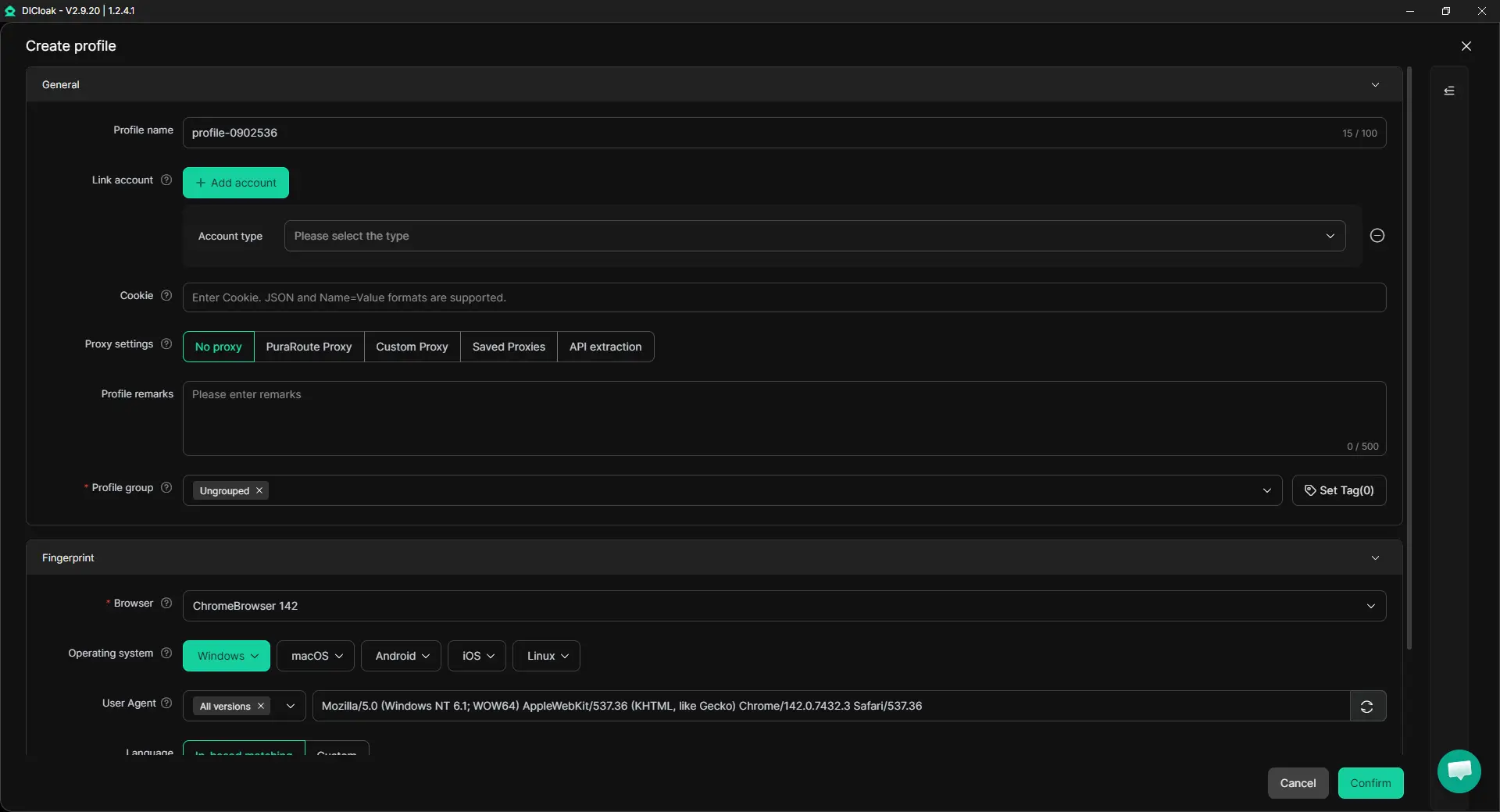
Step 2: Create a Browser Profile for Grammarly
Create a dedicated Profile for the Grammarly workflow. The Profile keeps its cookies, login session, and browser settings together. Multiple Sessions can support authorized team access, while Hide Password can reduce the need to expose saved credentials. If the account already uses a specific proxy as part of its normal setup, that proxy can also be configured for the Profile.
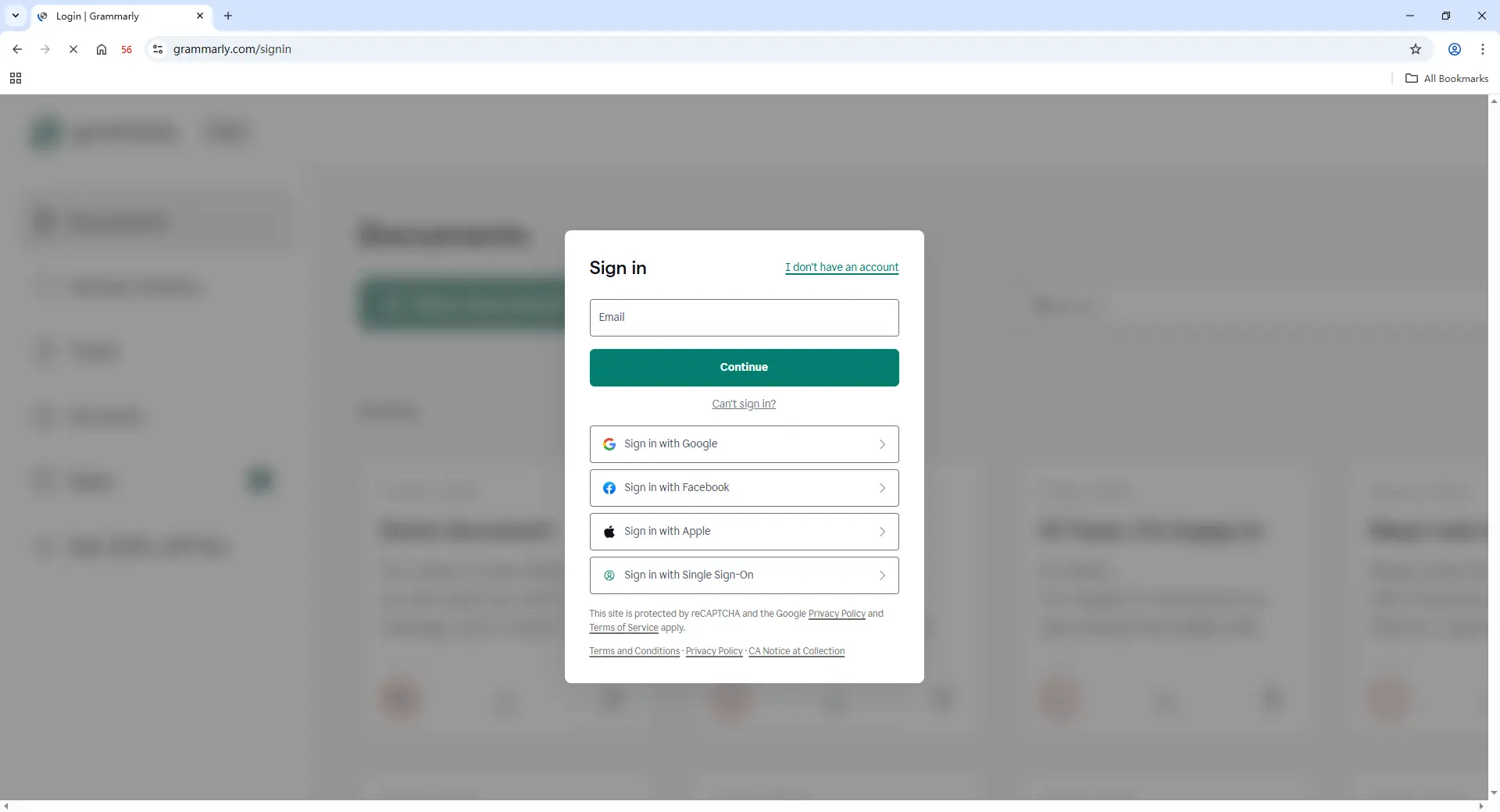
Step 3: Sign In to Grammarly
Open the Profile and sign in to the Grammarly account or seat used for that workflow. Once the session is saved, the Profile can be reopened later without setting everything up again.
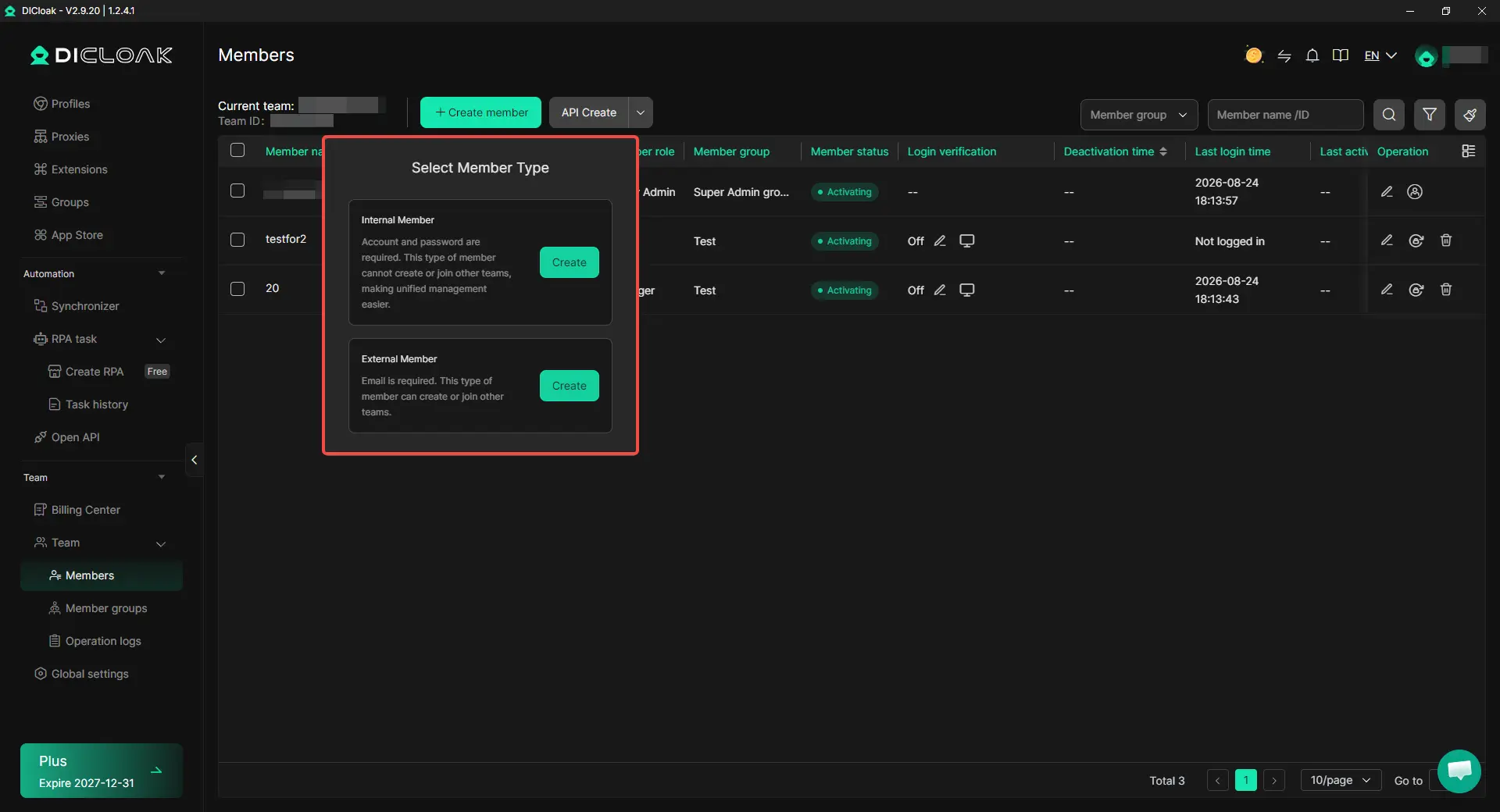
Step 4: Add Team Members and Share the Profile
Invite the teammates who need access, then assign the Profile using profile sharing and team permissions. Access can be changed or removed when someone leaves the project or changes roles.
Step 5: Open the Profile and Continue Working
Teammates with permission can open the shared Profile from their own DICloak account and continue from the existing Grammarly session. This keeps the workflow in one reusable browser Profile while making team access easier to manage.

Frequently Asked Questions About Using Grammarly with a Team
1. Can multiple people use Grammarly with a team?
Yes. Teams can add members so regular users have their own Grammarly access instead of relying on one shared login. For teams using Grammarly every day, separate member access is usually easier to manage and keeps each person's work tied to the right account.
2. Does every team member need Grammarly Pro?
Not always. Teams should look at who actually uses Grammarly for daily writing, editing, sales, support, or content work before paying for more seats. Someone who only writes occasionally may not need the same paid access as a full-time writer or editor.
3. What happens if a team member leaves or changes projects?
The team should review that person's access and reassign or remove it when their role changes. This matters even more in agencies and remote teams, where freelancers and editors may move between projects often and should only keep access to the Grammarly accounts or browser Profiles they still need.
4. Can a team keep different Grammarly accounts separate on the same computer?
Yes. Separate browser Profiles can help keep cookies, login sessions, and browser data apart when a team manages several authorized Grammarly accounts. Using an antidetect browser like DICloak can make this easier by keeping each account in its own Profile and letting teams control which members can access each one.
5. Can DICloak replace Grammarly team seats?
No. An antidetect browser like DICloak can help teams organize separate browser Profiles, manage Profile access, and reduce repeated login setup. It is most useful when the problem is browser Profile management rather than the need for licensed Grammarly access.
Conclusion
Using Grammarly with a team works best when you first match the setup to the team’s real needs. Regular users may need their own Grammarly Pro seats, larger organizations may need Enterprise controls, and teams managing several authorized accounts can use separate browser Profiles to keep sessions and access organized.
For teams with more complex workflows, using an antidetect browser like DICloak can help keep Grammarly accounts in separate browser Profiles, share selected Profiles with the right teammates, and manage access without rebuilding the same setup each time. The best approach depends on how many people use Grammarly regularly, how the team manages access, and whether several accounts or client workflows need to stay separate.
 Web Proxy Tools
 Free Tools
 Cookie Plugin
 UA Generator
 MAC Address Generator
 IP Generator
 IP Address List
 2FA Code Generator
 World Clock
 Anonymous Check
 WebRTC Leak Test
 UUID Generator
 Free Web Proxy Site
 Proxy Checker
 FB Ad Checker
 AI Web Scraping
 Free SMM Tools
 Twitter Shadowban Checker
 Instagram Name Checker
 UTM Generator
 Username Generator
 AI Hashtag Generator
 LinkedIn Headline Generator
 Social Media Image Resizer