If you encounter an error in Threads, try again later. The screen gets stuck with an error message, and no matter how much you reorganize or switch networks, content still won't load properly. This situation is very frustrating. Sometimes it's just a single post not loading; other times, the entire Threads shows an error message, making it impossible to pinpoint exactly where the problem is.
Many people think that just waiting or switching devices will fix it, but in reality, if this kind of Threads error keeps happening, it's usually not just network latency but a problem with your account, browser profile, or third-party service settings. Blindly trying again can easily miss the key issues that can truly fix the problem.
The real problem to solve isn't just about restoring the page in the moment, but also clarifying which layer went wrong: is it the Threads server itself, account triggering restrictions, or local cookies, proxy settings, or fingerprint issues? If these details aren't clarified, even if you briefly recover, you might still encounter login failure or frequent errors the next day.
Below is a set of the latest, practical, and effective troubleshooting and prevention steps for 2026, specifically addressing issues like Threads failing to load and recurring error messages. It clearly explains how to check each layer and avoid repeated pitfalls.
What are the most common reasons for the "Please try again later" message on Threads?

When Threads pops up a "Error occurred, please try later" message, the problem often isn't caused by a single reason. What really matters is whether it's stuck on your local device, the account itself, or the platform server. Restarting or switching networks alone often doesn't solve the problem. Below, we'll break down the most common causes of this error message to help you pinpoint where the problem is.
Unstable or interrupted network connections
Fluctuating network signal, or sudden disconnections in Wi-Fi or mobile data, can prevent Threads from connecting to the server. Incorrect DNS settings or router malfunctions can also cause content loading to freeze and keep sending error messages.
Threads server is exceptionally or under maintenance
If Threads' servers experience large-scale failures or official maintenance, users worldwide or in specific regions may not receive data at the same time. At such times, even if you change devices, restart the app, or switch networks, the screen still gets stuck with the same error message. For example, during the official maintenance at the end of February 2026, some people reported being unable to log in for half an hour straight, and others encountered overloaded servers in a single region—even though friends were working, they kept disconnecting. In these cases, the problem isn't on your side; blindly trying only wastes time
App cache or data corruption
Over time, the app accumulates cache or database data writes errors, which can cause Threads to crash or display error messages when opening. Some users have reported that after not clearing cache for a long time, errors keep popping up after login, and only after clearing cache and reopening does it return to normal. If the app is interrupted during updates, local data can easily become corrupted, causing content to never load.
Account abnormality or invalid login status
If your account is temporarily restricted by the system, your password is abnormal, or you have to switch logins on multiple devices at the same time, you may trigger the 'Please try again later' warning. For example, if the same account frequently logs out and logs in on different phones within a short period, the system may detect abnormalities, force you out, and then be unable to re-enter. If these issues are not addressed, your account's subsequent functions will also be limited.
Device system or Threads version is outdated
- If your phone or tablet system hasn't been upgraded for over a year, it's easy to be incompatible with the new version of Threads
- If the Threads app hasn't been updated for a long time, changes to the official API may cause you to lose normal connection
- On some older models, insufficient memory may cause abnormal app launches or crashes directly
When encountering such error messages, prioritize checking the above levels to truly identify which stage is the problem. If you just blindly retry, the problem will likely recur and cannot be resolved in the long term. Next, I will explain in detail how to check and fix each step step by step.
How should you step by step to troubleshoot and fix Threads error messages?
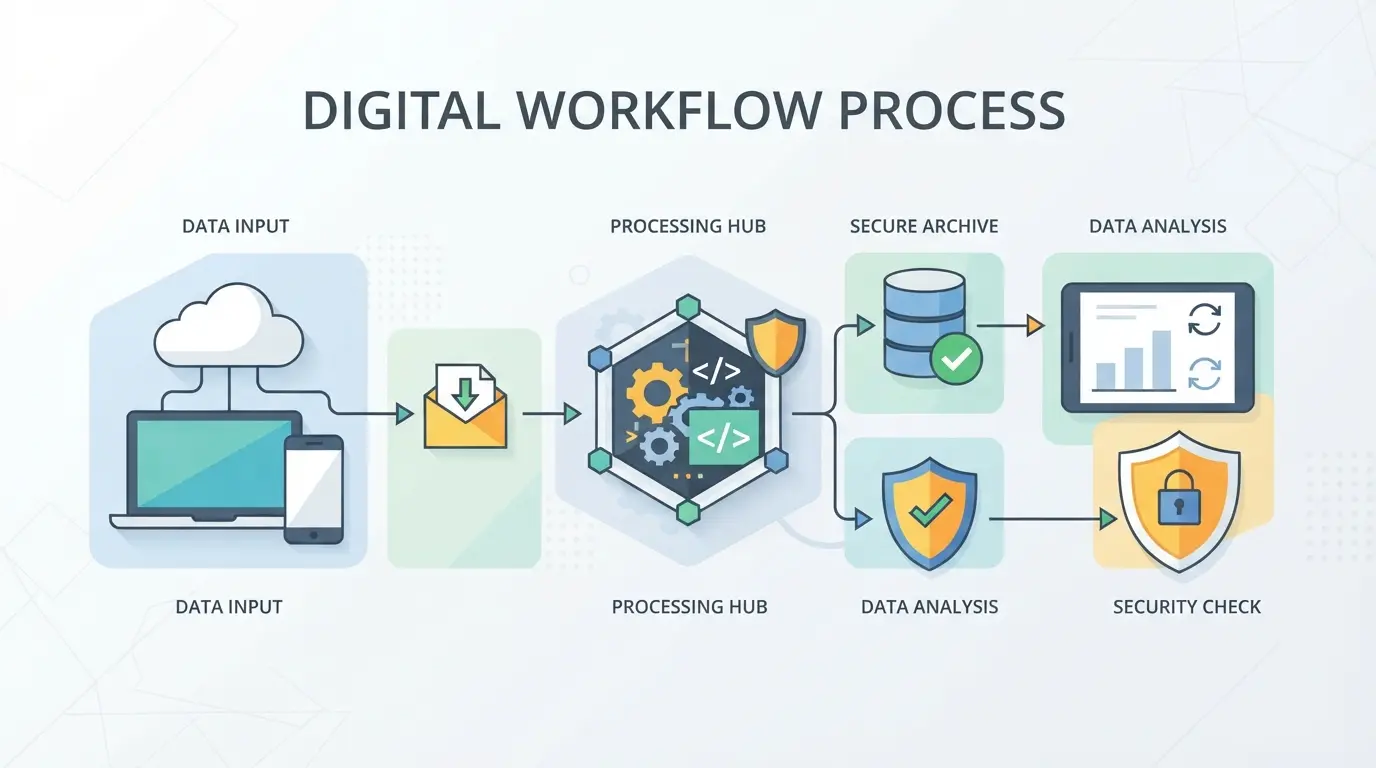
If you encounter Threads error messages and freeze, don't just wait or keep reorganizing. Follow the steps below, and you'll likely be able to identify the problem yourself and avoid repeating the same issue next time.
Check network connections and switch between different networks
- Turn it off and then turn on your phone's network, switch to Wi-Fi or mobile data, and observe if the error disappears.
- Restart your router once to rule out the possibility of a broken home network or a temporary IP block.
- If you test on a different phone or the same account under different network environments, if it loads smoothly, it means there is a problem with the original network.
Force shutdown and restart the Threads application
- iOS: Swipe up to open the multitasking interface, slide Threads up, wait 10 seconds before opening.
- Android: Go to the app list, tap Threads, select 'Force Stop', then reopen it.
- If you still get stuck on the error screen after restarting, the problem may not be with the app itself.
Clear Threads cache and application data
- Android: Go to Settings > app > Threads > Storage, tap "Clear Cache" and "Clear Data."
- iOS: Delete the Threads App and reinstall it, which is equivalent to clearing cache data.
- Note: Please confirm your account and password before clearing your data to avoid being unable to log in after logging out.
- Clearing cache before logging in usually resolves the lingering errors on the app.
Update Threads and device systems to the latest version
- Go to the App Store or Google Play and search for Threads to see if there's an update button—update immediately.
- Check your device's system as well. For iOS, go to 'Settings > General > Software Updates.' For Android, search for 'System Updates' in Settings.
- Sometimes the old Threads version is incompatible with the new server, so you need to upgrade simultaneously to avoid continuous errors.
Re-log in or switch accounts to test
- First, log out of your current account, end all active sessions, and then log in again.
- Try switching to another Threads account. If the new account works fine, the original account may be restricted or have abnormalities.
- If both accounts have errors, the problem is more like a device or network layer, not the account.
Check official communities or announcements for server anomalies
- Check Threads' official X (Twitter) or Instagram for sudden large-scale outage announcements.
- Searching for 'Threads Down' combined with sites like DownDetector and IsItDownRightNow can quickly determine if it's a cross-platform issue.
- Once you've confirmed the official report of a large-scale anomaly, there's no need to rush to try everything—wait for the fix announcement before trying again.
Most Threads failing to load errors can be identified by these steps. The key is not to skip steps whenever you encounter errors, or you might miss hidden issues in your account or network environment. Next, I'll discuss the situations where these Threads error messages are most likely to repeatedly appear, and how to identify whether it's a personal operation or the platform's own instability.
Under what circumstances are Threads error messages prone to recurring?
Once Threads error messages start to recur, the problem is usually stuck in the environment or the account itself. It's not always caused by a single reason. Common high-risk scenarios include the following. Avoiding these can truly reduce Threads failing to load or repeatedly saying "please try again when errors occur."
Frequently switching between multiple accounts or devices
Logging into different Threads accounts on the same phone or computer repeatedly, or operating the same account on two devices at the same time, can easily trigger authentication anomalies. Threads records session status. If there is a large number of switches within a short period, even without obvious abnormal operations, error messages may keep popping up.
Use unstable or remote IP networks
If you usually register in City A, suddenly switch to Country B, or use a random proxy, it will often be considered suspicious activity. For example, if you're in Taiwan today and switch to a US IP the next day, Threads' risk control system will suspect your account has been hacked or operated automatically. At this point, the error message appears more than once, and sometimes even switching back to your original network is still locked.
Third-party tools or automated operations interfere with it
If you use an emulator, automatic scripts, or install unofficial Threads plugins, the platform will detect abnormal interaction behavior. Real-life example: If an account automatically posts, recruits people in bulk, or refreshes automatically within a short period, Threads will quickly pop up with a "Please try later" message and temporarily block some features. Usually, manual operation is fine, but as soon as the script starts, the error pops up again.
The account itself has a security anomaly record
- Recently, there have been violations deleted or complaints recorded
- You often receive "abnormal login" or "security notification" alerts
- There have been warnings such as brief suspension of play and interaction restrictions
Even if these accounts change environments or clear cache, they are still prone to persistent error messages on Threads. It is recommended to first check the account notification center or security settings to rule out account-level restrictions.
These scenarios not only cause repeated Threads error messages but may also lead to subsequent functional malfunctions. The most easily overlooked are simultaneous cross-device operations and remote network switching; when these two overlap, the risk control trigger greatly increases. To truly avoid repeated errors, it is important to minimize high-risk operations first for meaningful future prevention.
How can you prevent the Threads 'error occurs, please try again later' event again?

If you encounter threads not loading, simply rebooting or switching networks is only a temporary relief. The most effective approach is to maintain your environment, account, and device regularly to reduce the chances of threads errors and try again later.
Regularly update Threads and system versions
Older versions of apps and systems often get bugs, so directly updating Threads and the OS from the store can help avoid many incompatibility errors.
Regularly clear cache and free up storage space
- Clear Threads or browser cache
- Check the remaining storage space on your phone/computer
- Remove rarely used cached files
Avoid frequent logins from different locations or abnormal IPs
If the same account keeps changing regions and IPs, the system can easily detect it as abnormal. Fixing the network and reducing switching between accounts greatly reduces risk.
Reduce simultaneous multi-account operations or automated operations
Frequent account switching or using automated tools on a device increases the likelihood of being considered abnormal, while normal operation is actually more stable.
Regularly check account security and login records
- Regularly replace strong passwords
- Check if there are unfamiliar devices logging in
- Enable two-factor authentication
If you need to manage multiple Threads accounts, how can you reduce errors and risks?
When operating with multiple accounts, poor environmental separation between accounts is the most likely cause of Threads errors. Please try again later or risk account liability. The following details are even more worth checking first:
Create a separate browser profile for each account
Mixing accounts on the same device can easily cause cookies and fingerprints to interfere with each other. Using a dedicated browser folder or clone tool can completely separate the data of each account.
Reasonably allocate network exports and proxy settings
If your account uses the same IP or proxy, Threads can quickly detect anomalies. It's recommended to use a dedicated proxy for each account and choose a line with stable service and moderate speed, to avoid being judged by the platform as automated due to duplicate IPs.
Plan the account operation time and frequency
When the same batch of accounts posts intensively, switches, or synchronizes operations in a short period, it is easy to be judged as machine behavior. Simulating the rhythm of real user usage and operating only once per hour can greatly reduce risk.
Clear permissions during team collaboration to prevent accidental operations
- Operator division of labor to prevent account mixing
- Regularly check operation logs and handle any abnormalities promptly
- Only authorized permissions are granted, reducing the risk of accidental deletion or posting
Advanced Multi-Account Management with DICloak: Practical Applications of Isolation Environments and Proxy Configuration
If you are a social marketing professional and need to manage multiple Threads accounts simultaneously, simply switching devices and manually clearing cookies is far from enough. Mixing environments can easily cause the platform to mistakenly detect account links, directly causing Threads errors. Please try again later or show error messages. At this point, DICloak's isolation profile and proxy configuration features allow teams or advanced users to separate account operations layer by layer, effectively reducing the chance of repeated errors.
Create a standalone browser profile and customize fingerprint parameters
When operating with multiple accounts, the biggest concern is that accounts overlap within the same browser profile. Users can create an independent profile for each Threads account in DICloak and set fingerprint parameters such as operating system, language, and time zone, making each account appear logged in on a "different computer." This isolation method minimizes the risk of environmental confusion and data overlap, eliminating concerns about abnormal messages caused by fingerprint similarity on the platform. These profiles are stored completely independently; DICloak itself does not interfere with Threads account content but only helps isolate the local environment. 
Assign dedicated proxies for different accounts to ensure network exit separation
Relying solely on profile isolation is not enough; IP overlap can also serve as a basis for platform anomalies. Users can customize HTTP, HTTPS, or SOCKS5 proxies for each profile on DICloak, manually enter proxy information, and test export IPs and regions in real time to ensure each account has a dedicated network gateway. All proxy settings and testing are handled by the user themselves; DICloak only assists with storage and application and does not sell or provide proxy sources. 
This practical isolation + proxy process gives multi-account operators a greater sense of control and reduces repeated issues like Threads failing to load. If all checks have been done but still no solution is found, then it is recommended to consider contacting official customer service.
When should you contact Threads' official customer service?
If you encounter Threads failing to load or repeatedly seeing 'Error, please try again later,' and self-help troubleshooting doesn't work, don't force it. Continuous operation only increases the risk of your account being locked or experiencing data anomalies.
Multiple attempts still couldn't resolve the error message
As long as you've followed official steps to check your connection, cookies, device environment, or even switching the network or rebooting to no avail, and the error message persists for more than 24 hours, you should stop. If you keep messing things up yourself, your account may be misjudged as abnormal or miss the appeal deadline.
Accounts that have been restricted, suspended, or suspected of being stolen
- Receive exception, suspension, or security notifications from Threads
- The account was suddenly logged out and could no longer log in
- Found that the main control email and phone number had been changed
Unusual error messages or security warnings appear
If you encounter special security-related prompts, immediately disable your account and contact customer service:
- Required to verify mandatory identity (such as multi-factor authentication or identity documents)
- The error message clearly indicates a security anomaly
- Account activity records show unfamiliar devices or locations
Common Threads error message checklist and troubleshooting points
When Threads error messages appear, quickly identifying the cause by comparing them to the message content is more efficient than trying to do it one by one. The table below summarizes the most common Threads error messages in 2026 along with corresponding troubleshooting recommendations.
Threads error message dashboard
| Error message |
Common reasons |
Quickly identify key points |
| If an error occurs, please try again later |
Account abnormalities, session expires, environment conflicts |
Clear browser cookies, check the proxy, and try again on a different device |
| Unable to load content |
Unstable lines, blocked resources |
Switch to a stable network, check for ad blockers, and reorganize pages |
| Login failed |
Password error, authentication failure |
Confirm your password, enable two-factor authentication, and reset your password |
| Account restricted |
Violations and abnormal logins |
Check your inbox notifications, appeal, or wait for unblocking |
| Network connection abnormality |
Brokered connection failure, poor connection quality |
Switch local nodes, switch to 4G/5G, close proxies, and try again |
Directly compare error messages and process them by table, saving a lot of time spent searching blindly. Some cases that look like Threads errors should be tried later. It's actually just a minor environment issue. Checking according to the table usually identifies the root cause within 3 minutes.
Frequently Asked Questions About Threads Errors Please Try Again Later
If Threads encounters an error and please try again later, will it mean you are blocked?
Usually, this message is not because your account has been blocked. In most cases, it means server pressure or abnormal network connections. If you encounter Threads errors multiple times, try again later. It is recommended to check account notifications to ensure no violation or restriction warnings have been received.
Will clearing Threads cache delete my posts or data?
Clearing the Threads cache will only remove temporary files and will not affect your posts, replies, or private messages. However, after clearing, you may need to log in again; some settings may be reset to default, but all primary data will be retained.
Does multi-account operation on Threads increase the chance of errors?
Yes, frequently switching between multiple Threads accounts on the same device or logging into multiple accounts at the same time does make it easier to encounter Threads error messages. The system may misidentify abnormal behavior, so it is recommended to reduce frequent switching to lower the chance of errors.
Will using a proxy to connect to Threads affect normal usage?
Poor proxy server quality or abnormal IP location can indeed cause Threads to fail to load or display error messages. Some proxies may also be temporarily blocked by the Threads system, so it is recommended to use a stable network connection to avoid problems.
What should I do if the Threads error message persists for more than a day?
If the Threads error message 'Please try again later' persists for more than a day without resolution, it is recommended to contact Threads' official customer service directly. Please provide the specific operation process, error screenshots, and device information to facilitate quick assistance from customer service in troubleshooting.
You can now experience the convenience and security this service offers according to your needs. Just click the link below to start your free trial. Try DICloak for free
 Web Proxy Tools
 Free Tools
 Cookie Plugin
 UA Generator
 MAC Address Generator
 IP Generator
 IP Address List
 2FA Code Generator
 World Clock
 Anonymous Check
 WebRTC Leak Test
 UUID Generator
 Free Web Proxy Site
 Proxy Checker
 FB Ad Checker
 AI Web Scraping
 Free SMM Tools
 Twitter Shadowban Checker
 Instagram Name Checker
 UTM Generator
 Username Generator
 AI Hashtag Generator
 LinkedIn Headline Generator
 Social Media Image Resizer