You load Discord, but half your channels show blank screens and every time you scroll, the discord messages failed to load error pops up. Sometimes the app just spins, other times you get “discord messages not loading” for DMs you just checked an hour ago. Even refreshing or switching networks doesn’t always help. If you rely on Discord for group work, gaming, or server management, these glitches aren’t just annoying, they can block key conversations or kill momentum.
It feels like a quick restart or phone switch should fix things, but the real problem usually sticks around. Cache build-up, expired sessions, or Discord’s own server hiccups can all trigger the “discord failed to load messages” issue. But here’s the catch: what works once might not work tomorrow, especially with Discord’s updates and stricter anti-spam checks in 2026. Relying on random fixes can leave you locked out when you need chat history most.
You need a step-by-step way to zero in on what’s actually blocking your messages, whether it’s your device, your account, or Discord itself. The right sequence lets you fix the problem fast, avoid making it worse, and stop it from coming back. Miss the order, and you could waste hours chasing dead ends or even get flagged for suspicious logins.
Start by checking Discord’s server status and your own connection, here’s what to look for first.
Why Do Discord Messages Fail to Load? Main Causes in 2026
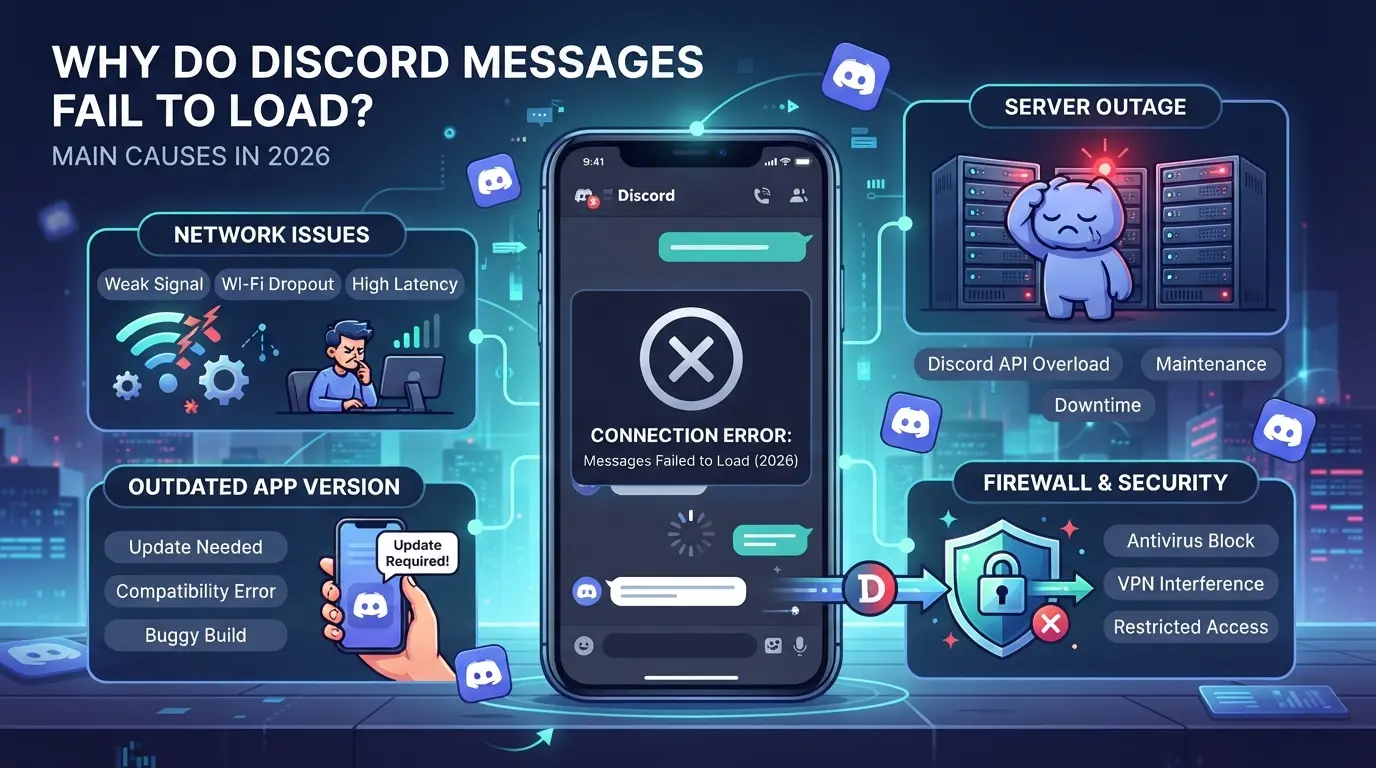
When Discord messages fail to load, the root cause is almost always one of five: server trouble, network issues, account restrictions, local app problems, or version mismatches. In 2026, stricter anti-spam filters and new browser compatibility checks mean users see these errors even when nothing seems wrong on their end. Knowing which cause fits your situation lets you fix it fast, or decide if you need to wait.
Temporary Discord Server Outages
If Discord’s servers are down, messages won’t load for anyone, nothing local will fix it. The quickest way to check is the Discord status page or a trusted outage tracker. When the official site shows an outage, wait for the all-clear before retrying. Trying random fixes during a server outage just wastes time.
Network or Connectivity Problems
Local network issues often look like message loading errors but aren’t always obvious. Switching from Wi-Fi to mobile data can reveal if your router is blocking Discord traffic. If one device loads fine but another fails, check your firewall rules or DNS settings. Sometimes, hotel or office networks throttle Discord, leaving you stuck on “failed to load” even though everything else works. If your network blocks Discord, logging in repeatedly can trigger account flags, so avoid random reconnects. The edge case: weird ISP routing, especially after a big update, can break message sync for days. Running a speed test and pinging Discord’s server is the fastest way to confirm it’s your connection.
Account or Permission Restrictions
Certain channels use role permissions to limit who sees messages. If your account was changed, banned, or hit by Discord’s anti-spam system, you’ll see empty chats or “failed to load” errors even though others can view them. For example, after a mass spam sweep in 2026, some users found their account login worked but their message history was invisible in key channels.
Corrupted Cache or App Data
App cache builds up fast, especially on devices used for social media or gaming. If Discord messages stop loading right after a crash or update, clearing cache can reset the error. In real cases, stale cache kept users stuck on old errors for weeks until they wiped app data, then messages popped back.
Browser or App Version Issues
Scan for these three before chasing deeper fixes:
- Outdated Discord app or browser, update before troubleshooting.
- OS update last week, new versions can break Discord until patched.
- Browser extensions, disable any that mess with scripts or cookies.
Stuck on loading errors after checking these? The next step is matching your symptom to the right fix. The sequence matters, skip ahead, and you risk locking yourself out or making the error worse. Here's what to check first when Discord messages won't load.
What Should You Check First When Discord Messages Won’t Load?
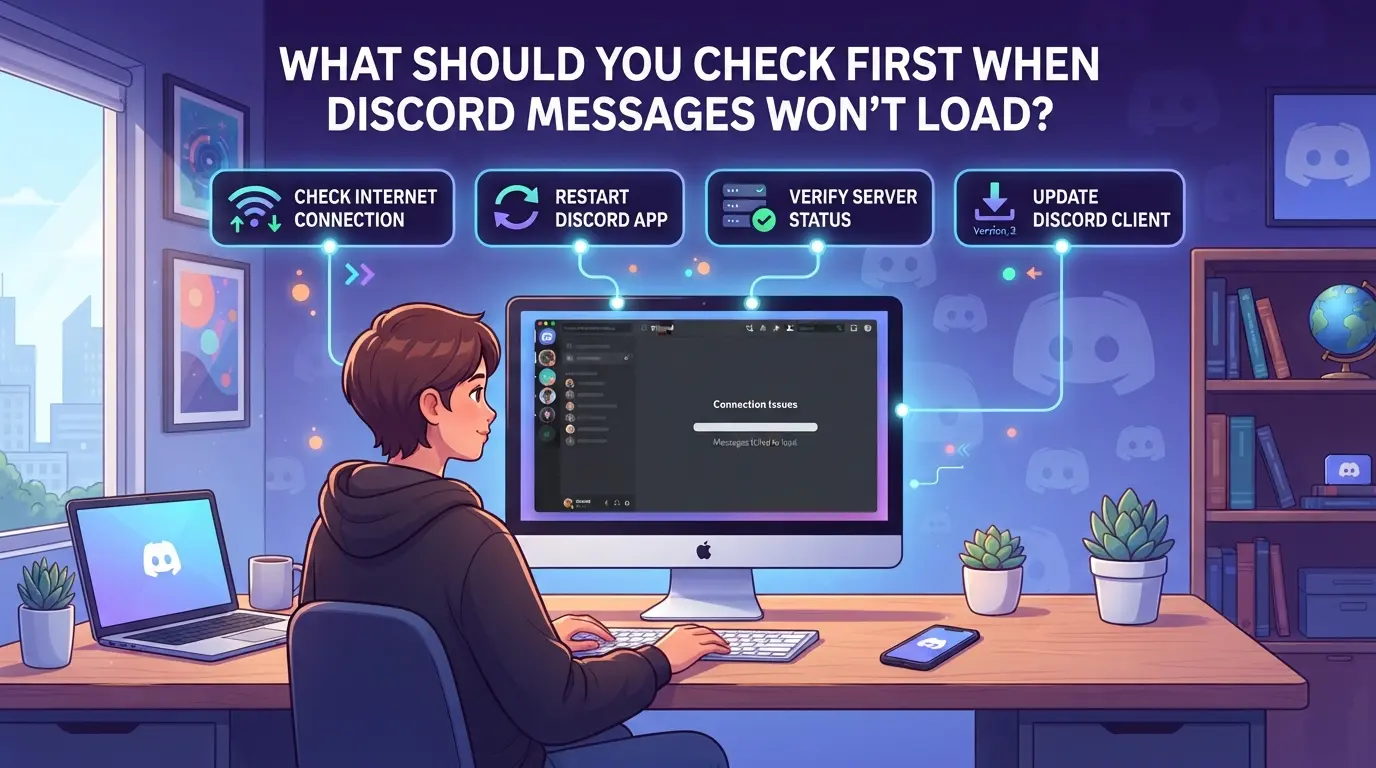
If your Discord messages aren’t loading, skip random fixes. The fastest way to solve it is to check four things in order: Discord’s server status, your own network, permissions, and your app version. Missing one can turn a simple glitch into hours of wasted troubleshooting.
Is Discord Down for Everyone or Just You?
Start at status.discord.com. If Discord is flagged as “Partial Outage” or “Major Outage,” the problem isn’t on your end, wait it out. If the status shows “Operational,” ask friends if they’re seeing the same issue or try logging in from another device. If others are fine, your setup is likely the culprit.
Are You Connected to a Stable Network?
- Open another app or website to check if your internet is actually working.
- Switch from Wi-Fi to mobile data (or vice versa) and try Discord again.
- Restart your router if pages load slowly or disconnect often.
Glitchy connections cause Discord messages to hang, especially during peak hours. If switching networks solves it, you can skip deeper fixes.
Do You Have the Right Permissions?
If you’re blocked from seeing messages in a server or channel, check your role and permissions. Sometimes admins change settings and you lose access. Reach out to the server admin if you can’t view channels you used to see, Discord won’t show messages you’re not allowed to read. Don’t waste time on app updates or cache clears if it’s just a permissions change.
Is Your App or Browser Up to Date?
Running an outdated app is one of the fastest ways to trigger Discord failed to load messages. Updates fix bugs and patch changes in Discord’s backend, missing one can break message loading.
- Check for Discord app updates in the App Store or Google Play.
- If you use Discord in a browser, update Chrome, Firefox, or Edge.
- Restart the app or browser after updating to make sure changes take effect.
Always check these basics first, most “discord messages not loading” problems come from one of these four areas. If none of these steps fix your issue, you’re ready for the next troubleshooting stage.
How to Fix 'Discord Messages Failed to Load': Step-by-Step Solutions
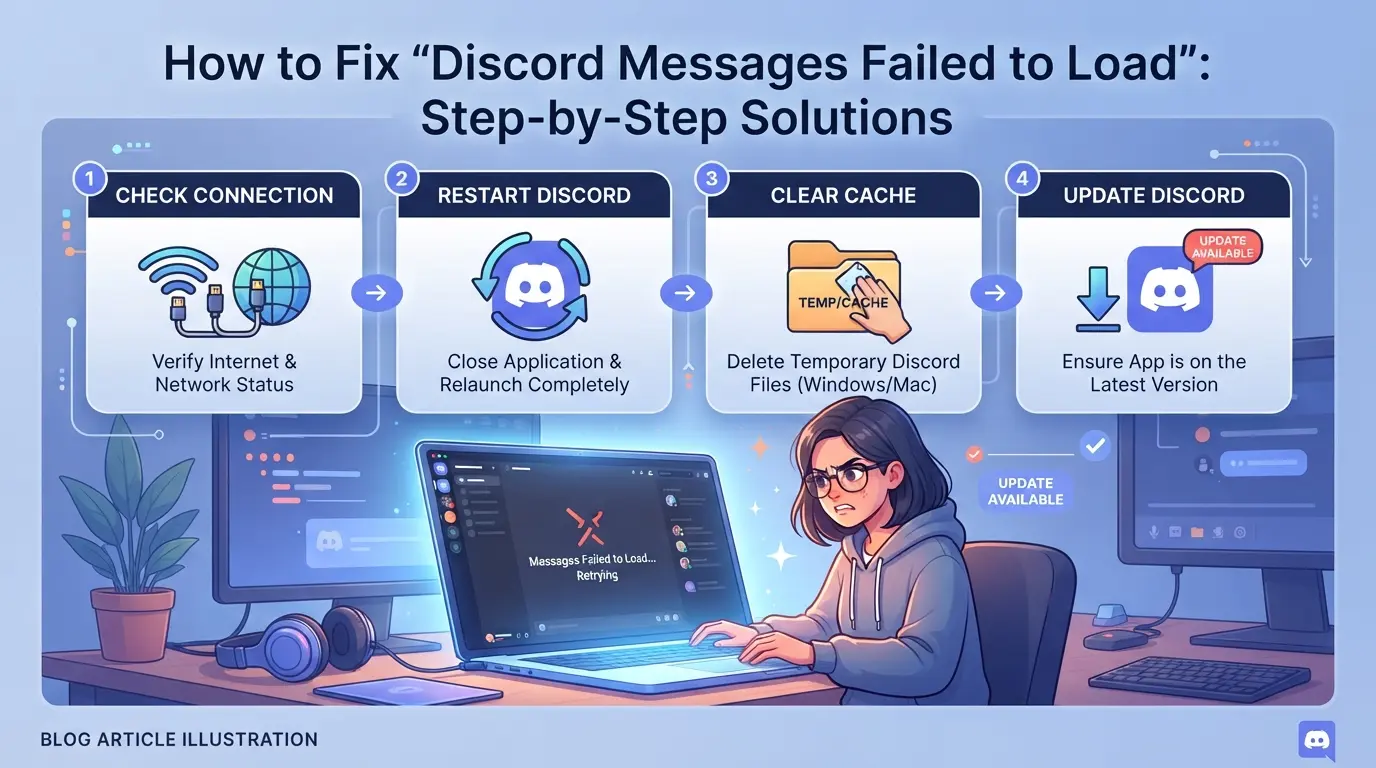
You’ve checked the basics, now it’s time to run through targeted fixes. Each step below tackles a specific cause. Work down the list in order to avoid wasted effort and spot the real blocker fast.
Restart Discord and Your Device
- Fully close Discord: On desktop, right-click the Discord icon in your system tray and hit "Quit Discord." On mobile, swipe Discord away in your app switcher.
- Reopen Discord and check messages.
- If nothing loads, restart your device, sometimes a stuck process or lingering background connection is the real culprit.
Clear Discord Cache and Data
- On Windows, type
%appdata%/Discord/Cache in File Explorer and delete all files inside.
- On Mac, open Finder and go to
~/Library/Application Support/discord/Cache to clear files.
- For iOS/Android, log out, then delete and reinstall the app for a full reset.
- After clearing, log back in. Expect a short delay as Discord rebuilds your chat list and history.
Check and Adjust Permissions
- If you can’t see messages in one channel but others work, right-click the channel and select "View Channel Permissions."
- Look for missing "Read Message History" or denied access, sometimes roles changed without notice.
- If permissions are missing, ask a server admin to review your role or channel access.
- If you recently left and rejoined, you may need to wait up to 10 minutes for permissions to sync.
Update or Reinstall Discord
- On desktop, hit Ctrl+R to force a Discord update. If prompted, let the app restart.
- On mobile, check for updates in the App Store or Google Play.
- If you’re running Discord in a web browser, clear browser cache or switch to another browser.
- Still broken? Uninstall Discord fully, reboot your device, then reinstall the app, corrupt installs can silently block message loads.
Test with a Different Network or Device
- Switch from Wi-Fi to mobile data, or vice versa.
- Try logging in on another device (phone, tablet, second PC) to rule out local device issues.
- If Discord loads normally elsewhere, your main device or home network has the problem, check for firewall or parental control settings blocking Discord domains.
- If the issue happens everywhere, the problem likely isn’t local.
Check for Account Restrictions or Bans
- If every channel fails to load, log out and back in, look for banners or pop-ups about account restrictions.
- Check your email for Discord warnings or ban notifications.
- If you see a message about "suspicious activity" or a disabled account, follow Discord’s appeal or verification process, don’t keep retrying logins, or you risk a longer lock.
- If your account is fine but only some servers are blocked, you may have been kicked or restricted by a server admin.
If none of these steps work, Discord’s own backend may be down or rate-limiting your account. Move to the next section for how to handle platform-side problems.
When Is the Problem on Discord’s Side, and What Can You Do?
If you’ve tried every fix and discord messages still failed to load, the issue may be upstream, nothing on your device or account is broken. When Discord has a server outage or deploys a buggy update, even perfect setups can’t load messages.
How to Identify a Discord Outage or Widespread Bug
- Check Discord’s official status page for active incidents.
- Scan Twitter or Reddit for sudden spikes in “discord messages not loading” reports.
- Compare with friends, if others can’t load messages either, it’s not just you.
What to Do While Waiting for Discord to Fix It
Stay logged in and avoid toggling account or device settings. Flooding Discord with repeated login attempts or switching devices too often during an outage can trigger extra security checks, sometimes locking you out longer than the outage itself. If you need chat history, use another device only if you’re sure it’s already logged in and stable. If you keep seeing “failed to load” after Discord reports all-clear, that’s when account-specific or security issues may be the real cause.
Why Repeated 'Failed to Load' Errors Could Signal a Bigger Account or Security Issue
If you keep seeing “failed to load” even after device resets, browser changes, and Discord’s own status checks, the problem often goes deeper than a technical glitch. This pattern can mean your account is flagged, under restriction, or linked to risky behavior, not just a network hiccup.
Signs of Account Restrictions, Shadowbans, or Suspicious Activity
Discord uses automated checks to spot mass logins, rapid switching, or odd locations. When an account trips these triggers, you might lose message visibility or get locked out, sometimes without a clear warning. If a new device, new IP, or automation tool lines up with the start of these errors, stop and secure your account before trying to force more access.
Risks of Multi-Account Use and Shared Devices
Running several Discord accounts or using shared hardware can put all your logins at risk, especially if fingerprints or cookies overlap.
- If Discord links your profiles through browser or device data, a ban or shadowban can hit every linked account at once.
- Safer move: Separate browsers or clean profiles for each account lower your exposure to mass restriction or loss of access.
If you’ve ruled out Discord outages and local device issues, repeated message loading errors are a red flag, don’t just keep refreshing. This is the point where you need to review your account safety setup or rethink how you manage multiple Discord identities.
How Social Media Teams Use DICloak to Safely Handle Multiple Discord Accounts
If you manage more than one Discord account for campaigns or moderation, running all sessions in the same browser or device can trigger message loading errors, or even get accounts flagged for suspicious activity. The real problem is session overlap: Discord checks for shared browser storage, device fingerprints, and network patterns. Keeping each account in its own isolated browser profile and network is the single best way to reduce accidental links and avoid “discord messages failed to load” headaches during team work. The scope here covers browser profiles and proxy configuration only; it does not affect Discord itself.
Separate Browser Profiles and Configurable Fingerprint Settings
Teams can create a new browser profile in DICloak for each Discord account, storing separate login sessions and customizing signals like operating system, screen size, interface language, and time zone. Operators can also set browser fingerprint details, such as canvas, WebGL, and device memory, so every profile reports its own combination. This setup keeps Discord from mixing account sessions or linking logins through shared browser data. The isolation is at the browser-profile layer; it does not guarantee platform actions or manage Discord messages directly.

How to Configure Proxies for Each Discord Account Profile
Operators can assign a user-provided proxy to every DICloak profile, testing connection details before opening the Discord session. Supported proxy types include HTTP, HTTPS, and SOCKS5, each profile can use its own host, port, username, and password. The built-in proxy test shows the detected exit IP and region, helping teams confirm that sessions are truly separated. Teams decide which proxies to use and how to rotate them; DICloak only stores and applies the settings.

A well-planned profile and proxy setup makes it easier to spot, and prevent, the kind of session crossover that leads to Discord message errors in future workflows.
How to Prevent Discord Message Loading Errors in the Future
If you’re tired of running into “discord messages failed to load” again, a few habits can cut your risk for repeat errors. The main thing: don’t wait for another outage, fix the weak spots before they lock you out.
Keep Discord and Your OS Updated
Outdated Discord apps or system software often break message sync. Updates patch bugs and keep up with Discord’s anti-spam rules. Turn on auto-update for both your device OS and the Discord app, so you don’t have to remember.
Use Reliable Networks and Avoid Suspicious Proxies
- Stick to home or trusted work Wi-Fi, not public hotspots.
- Check that your proxy provider isn’t using blacklisted IPs.
- Switch proxies if you notice frequent disconnects or captchas.
Regularly Clear Cache and Review Account Security
Clearing cache monthly stops glitchy data from blocking message loads. Two-factor authentication cuts the chance of account issues that disrupt chat.
- Clear Discord cache every 3–4 weeks.
- Change your password if you get unexpected logouts.
- Turn on 2FA in Discord’s security settings.
Common Mistakes That Make Discord Message Errors Worse
Jumping to quick fixes can turn a minor loading problem into a longer outage or even get your account flagged for review. Before you try another workaround, watch for these common traps that make “discord messages failed to load” harder to resolve.
Switching Accounts Too Quickly or Repeatedly
Rapid account switching, especially across browsers or devices, often triggers Discord’s anti-abuse systems. If you jump between accounts too fast, Discord can lock you out, force a captcha, or even block all message loading in your current session. Stop switching for at least 10 minutes after an error, this gives Discord’s backend time to reset your rate limits.
Using Untrusted Third-Party Tools or Scripts
- Never enter your Discord credentials on unofficial extensions or scripts.
- Disable browser plugins that auto-refresh or scrape chats.
- Shut down automation tools when troubleshooting loading issues.
Ignoring Account Security Warnings
Missing or dismissing security alerts can leave your account stuck with loading errors.
- Check for password reset or suspicious login emails right away.
- Respond to Discord’s in-app security prompts.
- Log out and sign back in if Discord requests identity verification.
Frequently Asked Questions About discord messages failed to load
Why do I keep seeing 'Discord messages failed to load' even after restarting?
If you keep getting the "discord messages failed to load" error, it might mean your account has restrictions. Sometimes, bans or flagged activity can block message loading. Check your account status and try logging in from another device or network. Persistent issues can also be caused by poor internet or app glitches.
Can using multiple Discord accounts cause message loading errors?
Using several Discord accounts on the same device can trigger message loading errors. Discord may see this as unusual activity, especially if accounts aren't separated by different browsers or devices. This can result in restricted access or temporary blocks, so keep accounts isolated to avoid problems.
Does clearing cache delete my Discord messages?
No, clearing cache will not delete your Discord messages. It only removes temporary files stored on your device to speed up the app. Your chats and history are safe because all messages are kept on Discord’s servers, not locally. Clearing cache is useful for fixing minor app issues.
How do I know if Discord is down for everyone or just me?
To check if Discord is down for everyone, visit Discord’s official status page or look at their social media updates. You can also try logging in from another device or network. If others report the same issue, it's likely a widespread outage. If not, the problem might be with your account or connection.
Is it safe to use proxies with Discord?
Using proxies can be safe if you use trusted providers and assign a unique proxy to each account. Never use free or unknown proxies, as they may cause security risks or lead to Discord blocking your access. Reliable proxies help keep your connection secure and reduce the chance of errors.
If persistent issues disrupt your access to conversations, exploring alternative solutions can provide a more stable experience. Consider tools that offer improved privacy and reliability for group chats. Try DICloak For Free
 Web Proxy Tools
 Free Tools
 Cookie Plugin
 UA Generator
 MAC Address Generator
 IP Generator
 IP Address List
 2FA Code Generator
 World Clock
 Anonymous Check
 WebRTC Leak Test
 UUID Generator
 Free Web Proxy Site
 Proxy Checker
 FB Ad Checker
 AI Web Scraping
 Free SMM Tools
 Twitter Shadowban Checker
 Instagram Name Checker
 UTM Generator
 Username Generator
 AI Hashtag Generator
 LinkedIn Headline Generator
 Social Media Image Resizer