You open Discord, try to log in or switch accounts, and get session unavailability discord instead of your normal session. That usually means Discord cannot validate the current login state, load the session token, or complete a server check, so the app stalls before it fully opens.
A lot of users assume this is only a Discord outage. Sometimes it is. But just as often, the problem sits on your side: a broken cached session, expired login data, a blocked network request, or an app build that did not refresh cleanly after an update.
The useful part is that Discord session unavailability usually leaves clues. If Discord works in one browser but not the desktop app, the app cache is a better place to start than your password. If Discord not loading session unavailable shows up on every device on the same connection, check network filtering or Discord status before you reinstall anything. That order saves time and avoids wiping settings you did not need to touch. You will also see how to fix session unavailability on Discord without guessing through random forum fixes.
Start with what the error actually means, because that tells you which fix is worth trying first.
What does session unavailability mean on Discord?
It usually means Discord failed at one of three jobs during sign-in or app startup: creating a new session, checking an existing one, or restoring one saved earlier. Read it as a session-state error, not a password error by default. That points you toward cache, token, app, browser, or network checks instead of random account recovery steps.
What a Discord session is during sign-in and app loading
A Discord session is the login state that proves the app or browser already knows who you are. Discord checks that state before it loads servers, chats, and account data, so if the check fails, the app can stop before the main screen appears.
Why the message appears in the app, browser, or web client
The message can show up even when your username and password are correct. A saved token may have expired, the app may be holding broken cached session data after an update, or a network request that validates your login may not reach Discord cleanly. That is why the same account can work in one place and fail in another. For example, if Discord opens in Chrome but the desktop app shows Discord session unavailability, the problem usually sits in the desktop app cache or local app files, not the account itself. If it fails on every browser and device on the same connection, the session check may be getting blocked before Discord can confirm it. The hard part is that the message looks the same across different failure points, so the useful clue is where it fails, not just what the banner says.
What this error usually does not mean
Before you assume the worst, rule out these common misreads:
- It does not automatically mean your account was hacked. A broken local session can trigger the same message.
- It does not automatically mean a permanent ban. Bans and disabled accounts usually show different login or account notices.
- It does not automatically mean your password is wrong. If the app never reaches full login validation, you can see this error before password issues become the main problem.
That leads to the next check: is Discord failing for everyone right now, or only failing in your setup?
Is Discord down or is the problem only on your side?
Start here before you clear cache or reinstall anything. If Discord fails on one app or one device, the fault is usually local. If the same login problem shows up across devices and other users report it too, wait and verify the outage.
Check Discord status and recent incident reports first
Open Discord Status and look at the components tied to login, API, and media proxy, not just the big green banner. A partial incident can leave servers online while session checks fail, which is why one person sees Discord not loading session unavailable even though messages still load for someone else. Check the incident start time and compare it with when your error began. If reports and your failure window match, stop changing settings for 15 to 30 minutes and watch for updates instead of breaking a working install.
Compare the app, browser, and another device
- Sign in on the desktop app, then in a browser on the same connection. If only one fails, focus on that app or browser.
- Try a second device on the same Wi-Fi. If both fail there, your network or Discord's backend is a stronger suspect.
- Switch from Wi-Fi to mobile data on one phone. If the error clears, your home or office connection is the problem, not the account.
Use timing and symptoms to spot a server-side issue
Server-side trouble usually looks messy, not clean. You may see login loops, a blank loading screen, or random success after several retries.
- Refresh Discord Status and check Downdetector Discord for a sudden spike in fresh reports.
- If the app and browser both fail within the same 5 to 10 minutes, pause before reinstalling. Local cache problems rarely hit every client at once.
- If one retry works and the next fails with no setting changes, that pattern often points to unstable backend session checks.
If these checks point away from an outage, the next step is to narrow down the local causes behind Discord session unavailability.
What usually causes session unavailability on Discord?
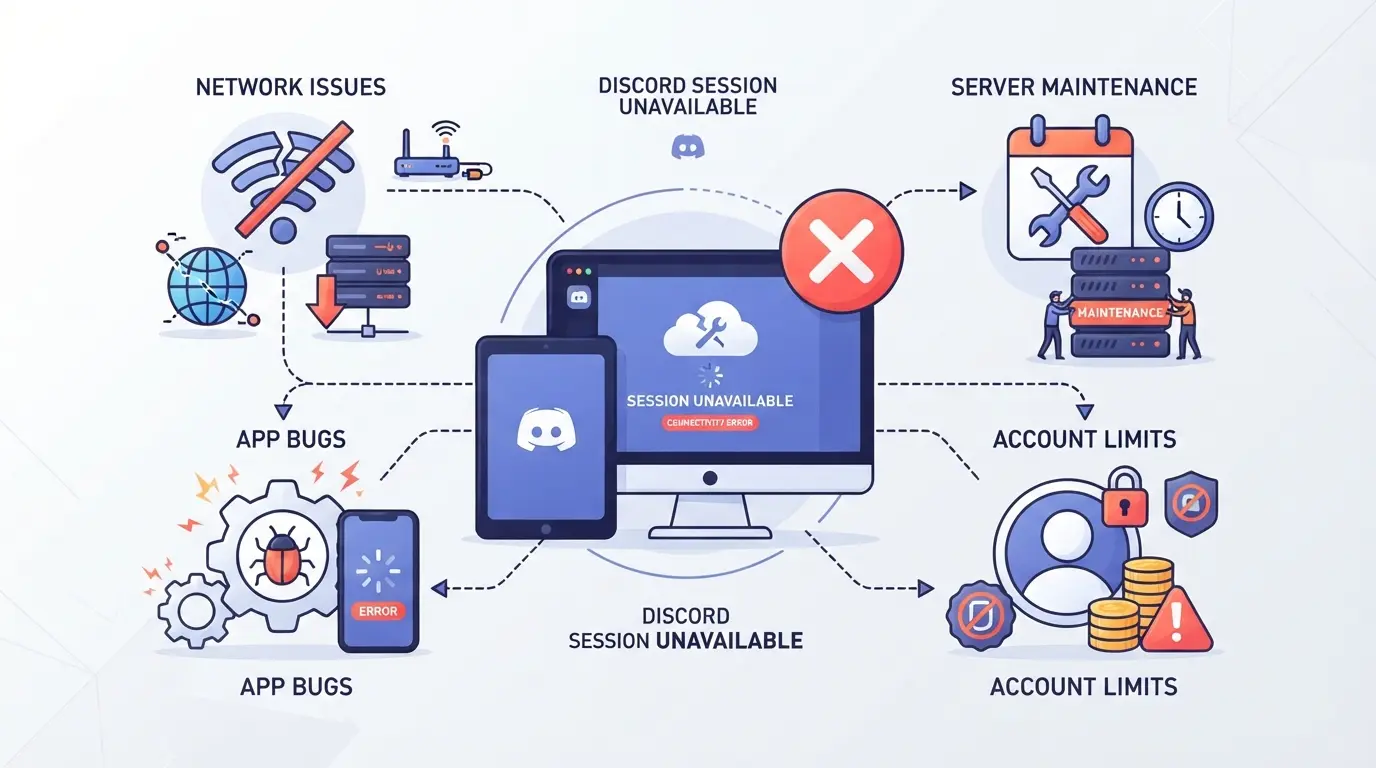
If the last section helped you rule out a broad outage, the error usually comes from one of four buckets: login service trouble, broken local session data, network interruption, or a client-side conflict. The fastest fix starts with putting the problem in the right bucket, not reinstalling everything.
Server outages, maintenance, and overloaded authentication systems
Discord can look half-alive during an incident. Messages may load in one tab while login checks fail, because session validation and chat delivery do not always break at the same time.
| What you see |
More likely cause |
What that usually means |
| You get kicked out, QR login fails, and multiple devices show the same error |
Authentication service issue or maintenance |
Wait and recheck Discord Status before clearing local data |
| Existing chats still open, but refresh or new login fails |
Session refresh service is lagging |
Your old token still works, but Discord cannot issue or confirm a new one |
| Error appears for 5-20 minutes, then clears on its own |
Short incident or overloaded login queue |
Repeated sign-in attempts can make it harder to tell when the service is back |
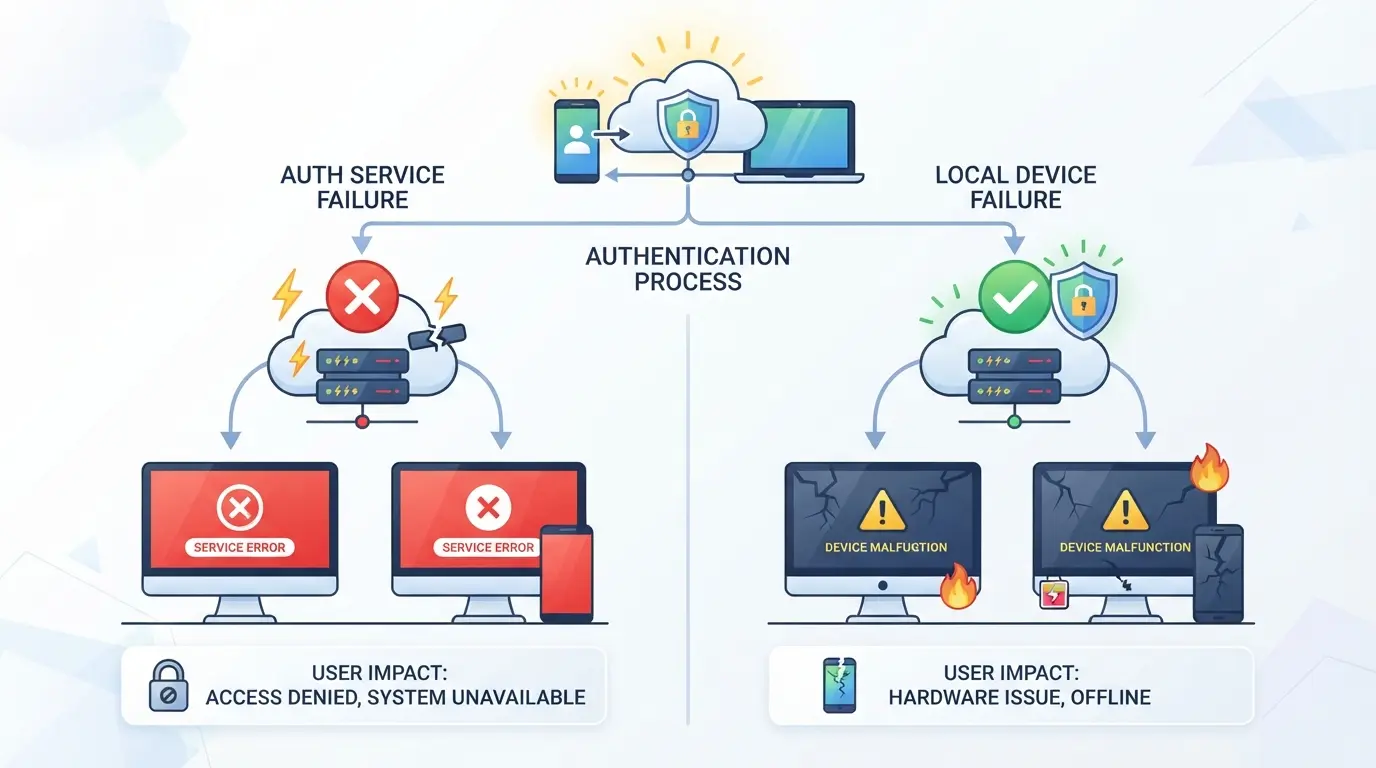
Takeaway: if several devices fail the same way at the same time, stop changing settings and wait for the login side to recover.
Corrupted cache, cookies, or stale login data
This is one of the common local causes. A bad cookie, damaged app cache, or stale local storage entry can keep sending Discord an invalid session reference even after your password is fine. If one browser works and another does not, local data is the better suspect than your account.
Network, DNS, firewall, or proxy-related interruptions
If Discord not loading session unavailable shows up on one connection but clears on mobile data or another network, look at routing, DNS resolution, firewall rules, or proxy stability. School and office networks often block or inspect requests in ways that break session checks without fully blocking the site.
App version bugs, extensions, or device-level conflicts
An outdated desktop build, a broken update, or a browser extension that blocks scripts, cookies, or storage can break login handshakes. Ad blockers and privacy extensions are common here. If Discord works in a clean browser profile but fails in your usual setup, the conflict is usually on the device, not the account.
That gives you the cause categories. The next step is matching each one to the right fix in the right order.
How do you fix session unavailability on Discord step by step?
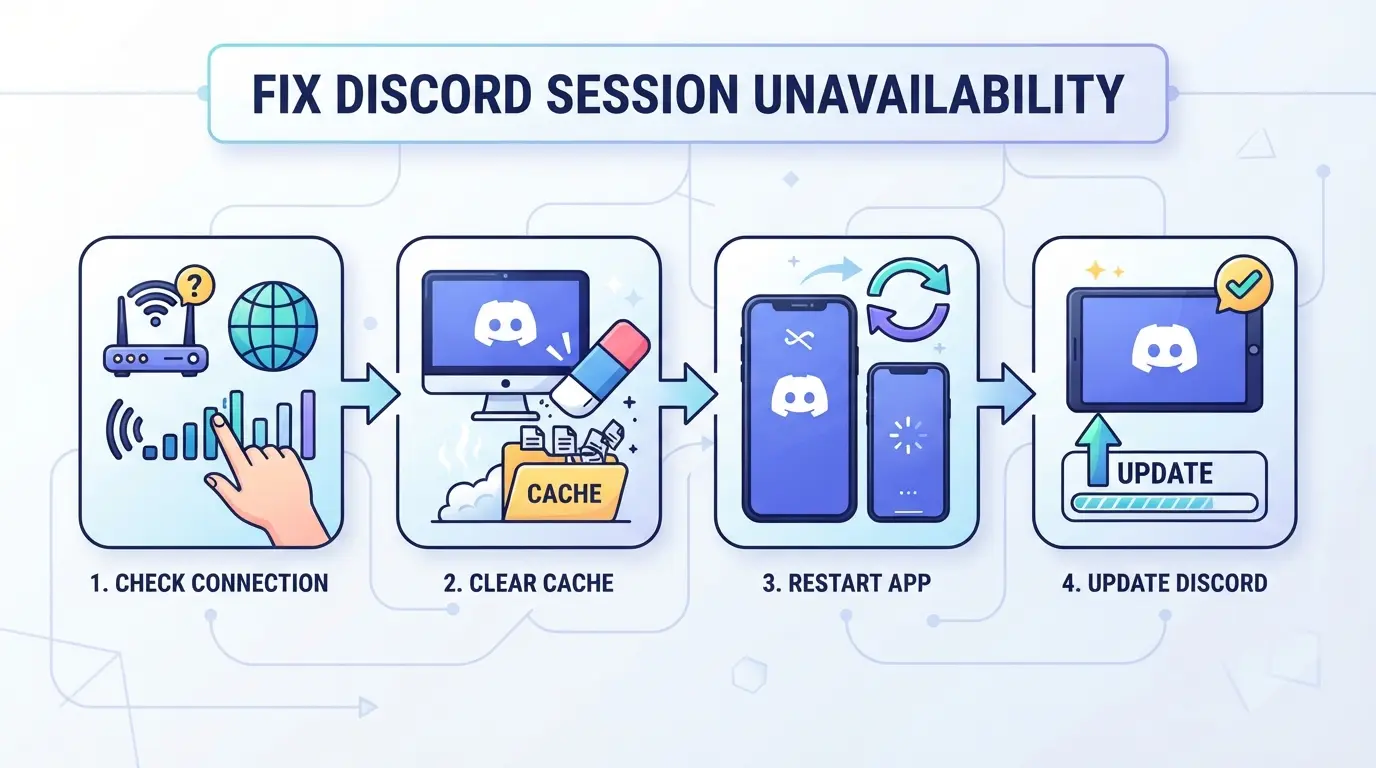
If the earlier causes point to a local problem, fix it in order: quick restart, isolate app vs browser, clear stored session data, then test the network path. Do not reinstall at the start. That often wastes time when the real problem is a bad cookie or blocked request.
Start with the fastest checks
- Fully quit Discord, reopen it, and try again. On desktop, close it from the system tray too. If the error clears, the app likely held a stale session in memory.
- Sign out, then sign back in. If you get the same message before the login screen finishes loading, your stored session is probably broken, not your password.
- Open Discord in a different path: browser if the app fails, or the desktop app if the browser fails. If one works and the other does not, you just narrowed the problem to that app's local data.
Clear cache, cookies, and stored session data
- In a browser, clear Discord cookies and site data only for discord.com, then reload. If you stay stuck on a loading loop, an old cookie is still being reused somewhere.
- On the desktop app, close Discord, then remove its cache folders from the local app data location before reopening. This targets corrupted session files without changing your whole system.
- If you use multiple browser profiles, clean the one that actually shows the error. Clearing the wrong profile is a common miss.
Check your network, DNS, firewall, and proxy settings
- Switch to another connection, like mobile hotspot, for one login test. If Discord opens there, the issue sits on your usual network path.
- Restart your router, then retry after it comes back fully. A short disconnect can clear stale DNS or routing issues that keep session requests from finishing.
- Temporarily pause firewall rules, web filters, or proxy rules that inspect HTTPS traffic. If Discord starts working, re-enable them one by one so you can find the block instead of guessing.
Update, reinstall, or test without browser extensions
- Disable browser extensions for one test window, especially ad blockers, privacy tools, and script blockers. If Discord loads, turn extensions back on one at a time.
- Update the app or browser before reinstalling. Reinstall helps only when files are damaged or an update failed halfway.
- If the error still returns after a clean reinstall, stop resetting the same device. That usually points to an account-side or recurring environment issue, which is the next thing to check.
What should you do if the error keeps coming back?
If the fix works once and then fails again, treat it as a deeper account, device, or environment problem, not a random glitch. Repeated Discord session unavailability usually points to the same trigger firing again.
Look for repeated triggers after updates, network changes, or account switching
Check what changed right before the error returned. If it shows up after every app update, after moving to a different connection, or after logging in and out of several accounts on one device, the problem is likely local. Frequent account switching can leave stale session data behind, especially if one account opens in the app and another in a browser.
Test a clean browser profile or a different device
- Sign in once from a clean browser profile with no old Discord cookies.
- Try a different device on the same account and note whether the error follows the account or stays on one machine.
- Write down the exact time, app version, and what you did right before the failure.
Know when to contact Discord support
If the error follows the account across clean devices, local fixes are probably done.
- Include screenshots of the error and the login path you used.
- State which devices worked, which failed, and whether web and app behaved differently.
- Wait for a backend fix if support confirms an account-side issue. This also sets up the next question: how to keep sessions separate when more than one person or account is involved.
If recurring Discord session issues come from account switching, where does DICloak fit?
If the error keeps coming back only in shared or multi-account work, the problem may be your local browser state, not Discord itself. For teams that handle more than one Discord account, operators can use DICloak to keep each account in a separate browser profile and, where needed, attach a user-provided proxy to that profile. The scope is limited to browser-profile access; it does not change Discord outages or backend login issues.
Use separate browser profiles with fingerprint settings for different Discord accounts
A community manager can keep a brand Discord account in one profile and a personal moderator account in another, instead of switching both inside one browser. In DICloak, operators can set profile-level signals like language, time zone, screen size, and WebRTC behavior, so each workflow opens in its own stored environment rather than sharing the same cookies and local session data. That separation is often the cleanest fix for session mix-ups caused by repeated account switching. 
Add a user-provided proxy to each profile and test the exit details before use
If one workflow needs its own connection settings, an operator can edit that Discord profile in DICloak, choose No Proxy, Custom Proxy, or Saved Proxies, enter host and port from a separate provider, and run the built-in check to review exit IP, region, and time zone before saving. 
Where this workflow helps and where it does not
This setup helps when sessions get crossed in shared browsers or across team handoffs. It does not fix Discord server incidents, account support decisions, or platform-side authentication failures. That distinction matters, because the next mistakes usually come from treating every session error like the same problem.
Which common mistakes make Discord session errors harder to fix?
If you already separate accounts and still get this error, stop doing random fixes. The habits below waste time, hide the real cause, or create a new login problem.
Reinstalling too early before checking status and cache
Reinstalling is usually too early. Check Discord status, then test the web app in a clean browser window, then clear the app or browser cache for Discord only. If the web app works but the desktop app fails, reinstalling before that check just burns time and wipes local settings without touching the broken session data.
Changing too many variables at once
Random changes make the cause harder to spot.
- Change one layer only: app, browser, extension, or network
- After each change, retry the same login path once
- If it starts working, undo nothing until you know what fixed it
Ignoring browser extensions, local filters, or network rules
Ad blockers, privacy extensions, antivirus web filters, and office or campus network rules can block the request that refreshes your session. If Discord fails on one network but loads on mobile data, check filtering before you reset anything else.
Assuming every session error means account punishment
Most cases are technical, not account action.
- Check if Discord Status shows active issues
- Try another device on the same account
- Wait a bit if errors appear across devices, then move to prevention steps
How can you prevent session unavailability on Discord in the future?
Most repeat errors come from stale app data, mixed login states, or unstable connections. Keep the setup boring and consistent.
Keep Discord and your browser updated
Run the stable Discord app and a current browser version. If session errors start right after a beta build or browser update, roll back or switch clients before changing passwords.
Clear stale data when login behavior starts acting strangely
- Sign out if Discord loops on loading.
- Clear Discord or browser site data after repeated redirects.
- If one client breaks twice in a week, reset its stored session data.
Use a stable network setup and document recurring patterns
Track where it fails. Patterns cut future guesswork.
- Note app, browser, device, and connection.
- Test one known-good network before deeper fixes.
- Record the exact time the error appears.
Frequently Asked Questions About session unavailability discord
Can session unavailability Discord mean my account was banned?
Usually, no. This message is most often tied to login failures, expired tokens, server trouble, or app data problems. A ban or account restriction usually comes with other signs, like disabled login, email notices, or action limits. If you see those too, check your email and contact Discord Support.
Does clearing cache fix session unavailability on Discord?
Often, yes. Clearing cache, cookies, and local storage can remove stale login data that blocks a new session. This is especially helpful in browsers after updates or repeated sign-in attempts. It will not fix a live outage, though. If Discord’s status page shows incidents, wait for service recovery.
Why does session unavailability Discord happen in the browser but not the app?
The browser version relies on cookies, saved site data, and scripts running correctly. If an extension blocks scripts, third-party cookies are limited, or local storage is corrupted, Discord may fail to create or verify a session. The desktop app uses a different environment, so it can keep working.
Can a school or office network cause Discord session unavailability?
Yes. School and office networks often use firewalls, DNS filters, proxy rules, or deep packet inspection. Those controls can block login endpoints, WebSocket connections, or token checks. That can break session creation even when the site opens. Testing on mobile data or another Wi-Fi network can confirm the cause.
How long does session unavailability Discord usually last during an outage?
During an outage, session unavailability discord can last a few minutes or several hours, based on what failed and how fast Discord restores it. Watch the official status page for updates. Avoid repeated logouts, reinstalls, or password resets while service is unstable, since those steps rarely help during recovery.
If Discord keeps showing a session issue, start by checking your network, logging out of all devices, and clearing cached app data before moving on to account or server-side checks. If the problem continues, update the app, review Discord’s status page, and consider using a more stable browser or device setup to prevent repeat disruptions. Try DICloak For Free
 Web Proxy Tools
 Free Tools
 Cookie Plugin
 UA Generator
 MAC Address Generator
 IP Generator
 IP Address List
 2FA Code Generator
 World Clock
 Anonymous Check
 WebRTC Leak Test
 UUID Generator
 Free Web Proxy Site
 Proxy Checker
 FB Ad Checker
 AI Web Scraping
 Free SMM Tools
 Twitter Shadowban Checker
 Instagram Name Checker
 UTM Generator
 Username Generator
 AI Hashtag Generator
 LinkedIn Headline Generator
 Social Media Image Resizer