Last month, several ad buyers woke up to see their Meta campaign costs spike by 25% overnight, no warning, no clear cause. They weren’t alone. Meta’s official newsroom confirmed a series of algorithm and targeting changes rolled out to both Facebook and Instagram, shaking up everything from ad delivery to reporting metrics. The problem? Many advertisers found their best-performing lookalike audiences shrinking, while automated placements started spending budgets on formats that had never worked for them before. If you rely on stable costs or predictable campaign results, these meta ads updates have likely forced you back to the drawing board.
The bigger issue isn’t just higher spend, it’s the silent changes under the hood. Privacy tweaks now limit what events you can track, and some older optimization goals disappeared overnight. Even seasoned marketers are finding their old workflows broken, with Meta Business Help Center flooded with threads on lost campaign performance and vanishing attribution windows. If you still use third-party tools for bulk ad management, you may have noticed missing columns or broken rules as Meta’s API documentation quietly shifted.
Every update creates new risks, and new blind spots. Skipping the details can cost you more than just wasted budget. Here’s what you actually need to check in the latest round of changes.
What Changed in the Latest Meta Ads Updates?
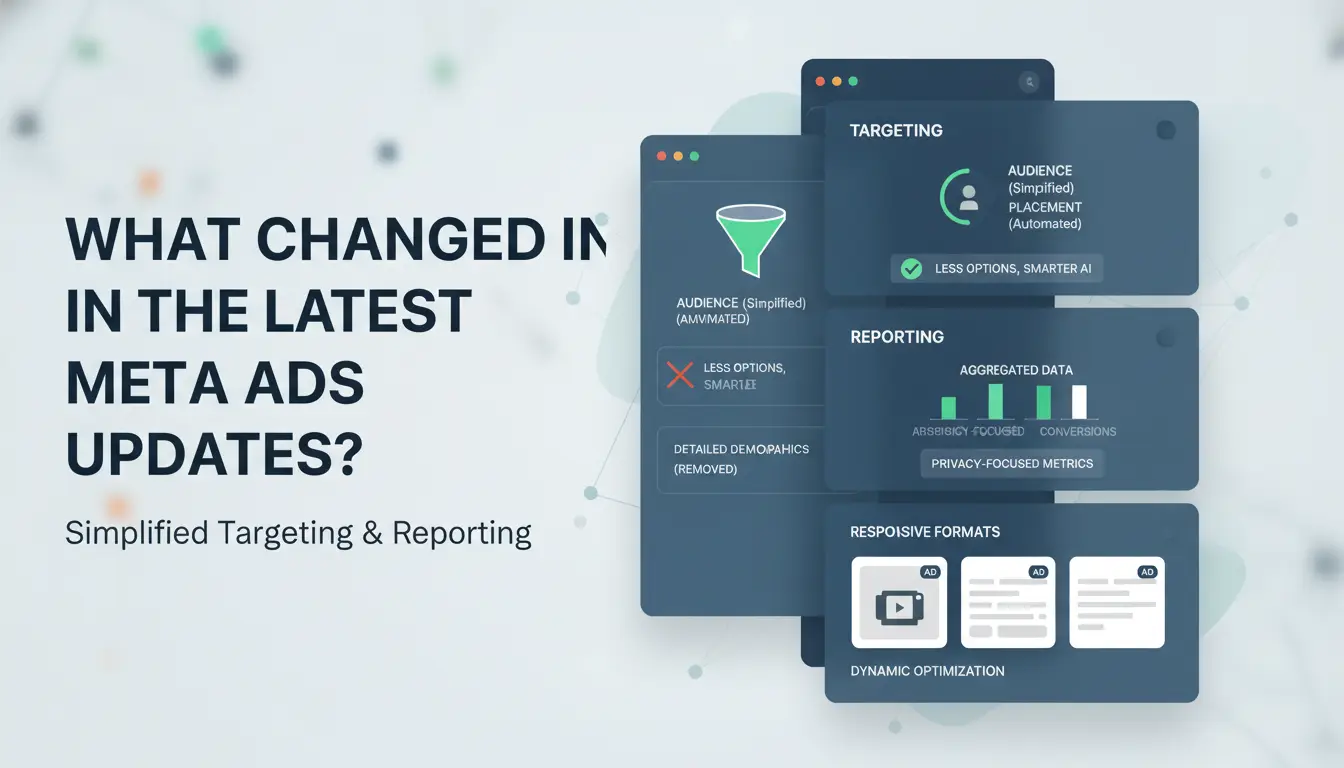
Staying on top of Meta ads updates is not just about reading the release notes. The real problems show up in small details, like a lost targeting option or a new compliance pop-up that blocks your ad. Here’s what advertisers actually need to pay attention to this quarter.
Major Features Added or Removed
Meta quietly retired some interest targeting groups, “Crypto,” “Adult Products,” and certain health-related interests now trigger warnings or simply don’t appear. Some placements, like Audience Network for mobile web, no longer show in campaign setup for new accounts. Dynamic Creative reporting columns also disappeared from bulk edit tools, based on recent Meta API changes.
The most direct impact: you’ll need to rebuild saved audiences, and expect old lookalike audiences to shrink. Many advertisers now see fewer optimization events when running conversions campaigns, especially if they still rely on pixel-based setups.
| Feature Changed |
Before Update |
After Update |
| Interest Targeting |
50+ sensitive categories |
30% fewer options |
| Audience Network |
Mobile web supported |
Mobile web removed |
| Dynamic Creative Data |
Column edit available |
Columns missing in bulk actions |
Source: Meta Business Help Center
Policy and Compliance Adjustments
New requirements now block ads for credit, employment, or housing if demographic filters are used too narrowly. Advertisers must confirm campaign objectives fit Meta’s updated ad policies, or risk instant rejection, no warning, just a hard stop. Location targeting for some regions is locked, and age-gating rules got much stricter.
Missing these compliance details can get your account restricted with no easy appeal. Always check the Meta Ads Policy page before launching new campaigns, and re-verify ad copy for policy triggers after each update.
Why Meta Ads Updates Can Disrupt Your Campaigns (and What to Watch Out For)
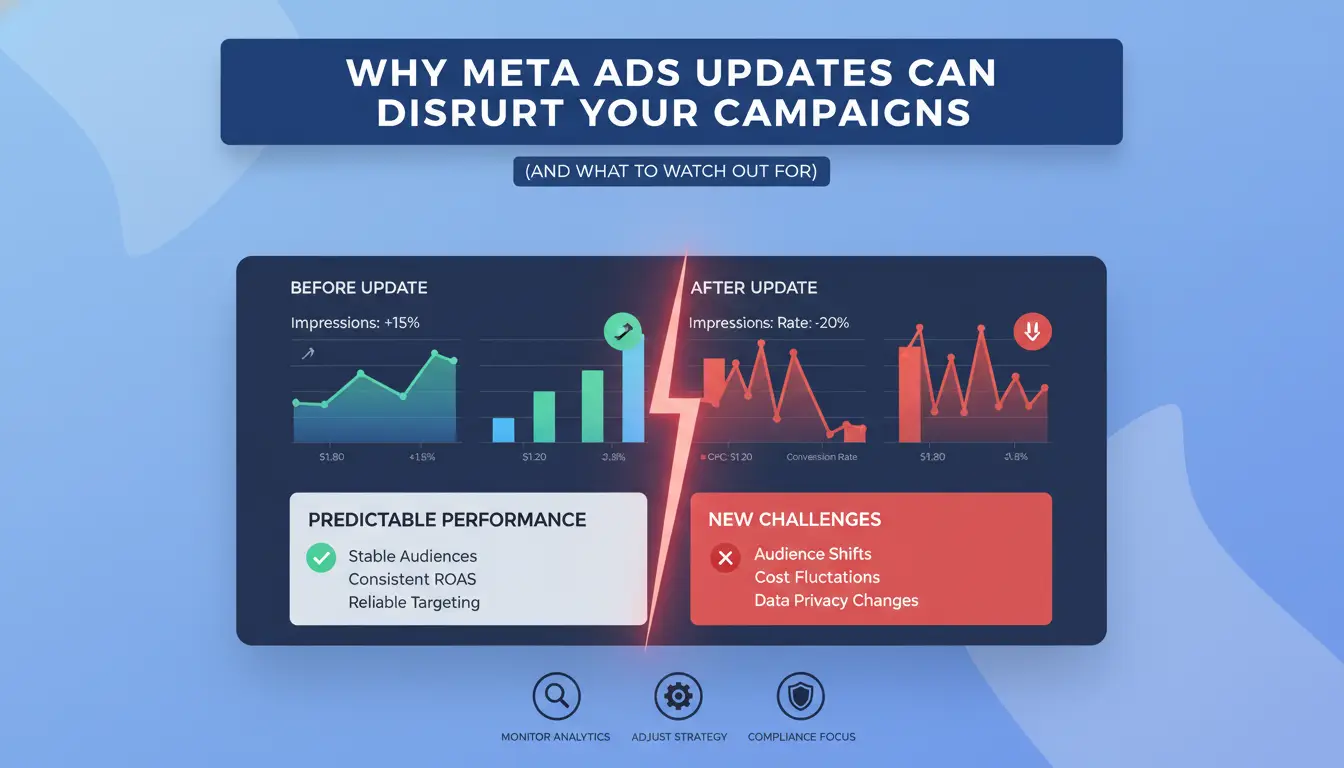
Meta ads updates often land without warning, and the fallout rarely matches the official patch notes. The real trouble starts when you see solid campaigns start to drift or break, even though you didn’t touch a thing. Many advertisers miss the early warning signs, only spotting problems after wasted spend or lost tracking.
How Attribution and Reporting Changes Affect Results
Sudden drops or spikes in conversions usually point to a reporting shift, not a real change in your sales. When Meta changes its attribution windows or event handling, some purchases may stop showing up in your dashboard. For example, a shorter attribution window means fewer conversions get credited to your ads, even if sales stay steady.
After any meta ads update, check your analytics for missing events, mismatched totals, or unexplained jumps. Compare your Meta dashboard with Google Analytics or your store backend. If you see a gap, look for notice of attribution changes in the Meta Business Help Center. Sometimes, delayed data or a hidden toggle causes the whole spike.
The most common mistake is assuming every conversion drop is a creative problem, often, the rules changed behind the scenes.
Common Campaign Issues After an Update
After a major update, ad rejections and delivery stalls rise fast. New policy checks or stricter creative filters can quietly pause ads that ran fine last week. Campaigns using older objectives or API-based automations may break overnight as Meta removes “legacy” options.
Watch for sudden budget swings, like a campaign spending double, or not spending at all. These usually signal a setting reset or a rule that stopped working. Bulk-edit tools and rules engines are especially sensitive; check for missing fields or errors in Meta’s API documentation.
If something feels off, pause before scaling. Take the time to check each campaign step by step, or you risk burning budget on a silent bug.
What to Check First in Your Meta Ads Manager After an Update
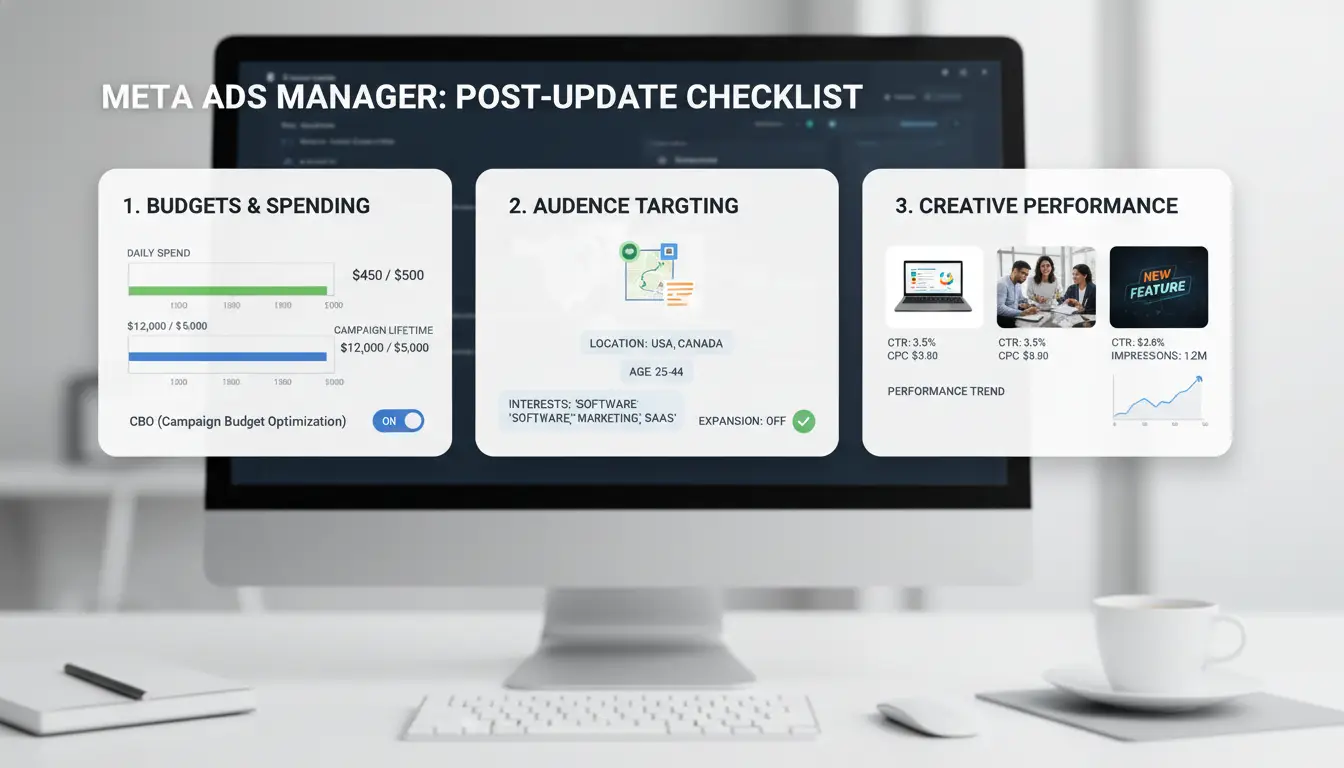
Missing one small setting after a round of meta ads updates can throw off your whole campaign. Before you launch or let things run, walk through this checklist to catch the most common risks.
Account and Campaign Settings to Review
Meta often changes default settings without warning. Go straight to your account-level permissions, sometimes updates reset roles or disconnect assets, which can block scheduled posts or break automated rules. Check if pixel and event tracking still connect; new privacy rules can silently pause them.
Next, look at campaign objectives and optimization goals. If you see “unavailable” or “deprecated” tags, don’t just ignore them. Meta sometimes removes old goals in favor of new ones, forcing old campaigns onto settings that no longer fit. Review all active campaigns for unexpected status changes or strange delivery patterns.
To spot hidden changes, compare your current setup to screenshots or exports from last week. Even a missing checkbox can mess up reporting or billing. The Meta Business Help Center has up-to-date guides on each setting if you get stuck.
Budget, Bidding, and Targeting Adjustments
Budget caps and bid rules can reset or shift after updates. Always check daily and lifetime budgets for sudden jumps or drops. If you use automated rules, test them with a small campaign to make sure “increase budget” or “pause if spend over X” still work as expected.
Targeting options, like location, age, or interest, sometimes disappear or get replaced. If an audience shrank overnight, edit the ad set and review each filter. Don’t trust that “same as before” means nothing changed.
A single unchecked budget or targeting rule can burn through your ad spend in hours. After big meta ads updates, manual review beats guessing. For API-heavy workflows, cross-check with Meta’s API documentation to spot code-breaking changes.
How to Adapt Your Meta Ad Strategy to Platform Changes
Meta ads updates don’t just tweak the interface, they can break what worked yesterday. To keep your results steady, you need to adjust quickly. That means testing new features, updating creative, and watching for silent rule changes in your ad account. Here’s how to keep your campaigns moving instead of guessing why performance tanked.
Testing and Iterating After Updates
Meta’s changes often shift how existing campaigns behave. Start by cloning current ad sets instead of editing live ones. This gives you a clean slate for A/B tests and keeps past results for comparison. After big updates, run small-budget split tests, $20 per ad set can spot issues without burning your whole budget.
Watch for early signs your old winners are losing steam. If cost-per-result jumps or delivery slows, pause those ad sets for 2–3 days. Don’t rush to scale anything new until you see stable results over a week. Updates sometimes skew reporting for a few days, so keep an eye on both Ads Manager and Meta Business Help Center for known bugs.
Creative and Audience Targeting Tips
Every update can change which ad formats and placements get priority. If you see new creative requirements or auto-cropping, rebuild your top ads with fresh versions sized for the latest specs. Rotate in at least two new creatives per ad set to avoid repetition penalties.
Targeting rules can shift overnight. If you notice your best audience segments shrinking or options missing, check Meta’s documentation for changes. When detailed interests get cut, test broader segments with stacked filters, age, location, and device type.
If you run accounts with a team, tools like DICloak help keep each user’s setup safe as you adapt. Each profile stays separate, making it easier to test new settings without cross-account risk.
How to Manage Multiple Meta Ad Accounts Safely After Updates
Handling more than one Meta ad account got trickier after recent meta ads updates. What used to be a routine login can now trigger warnings, blocks, or even a wave of bans. Here’s what actually changes, and how to avoid the most common traps.
Risks of Handling Multiple Accounts Post-Update
Meta’s system now cross-checks logins, payment info, and even browser fingerprints. If you use the same device, IP address, or recovery email across accounts, you’re much more likely to see restriction warnings or sudden “Confirm your identity” requests. People managing multiple accounts for clients or projects often get accounts linked together, even if each one seems clean. One ban can now pull others down with it.
The problem isn’t just bans. When proxies or browser setups don’t match, Meta’s automated systems can flag sessions as “unusual,” freezing campaigns or asking for more documents. A mismatch between profile info and login location draws attention fast. You’ll see more threads about this in the Meta Business Help Center, as the update rolled out.
Best Practices for Account Isolation and Security
You can cut these risks by building strict “isolation.” Each account should get its own browser profile and dedicated proxy. Don’t let team members share the same login environment, even for a moment. Keep a log of every device, IP, and team member that touches each account. Set strict permissions in Meta Business Manager, so nobody has full control unless needed.
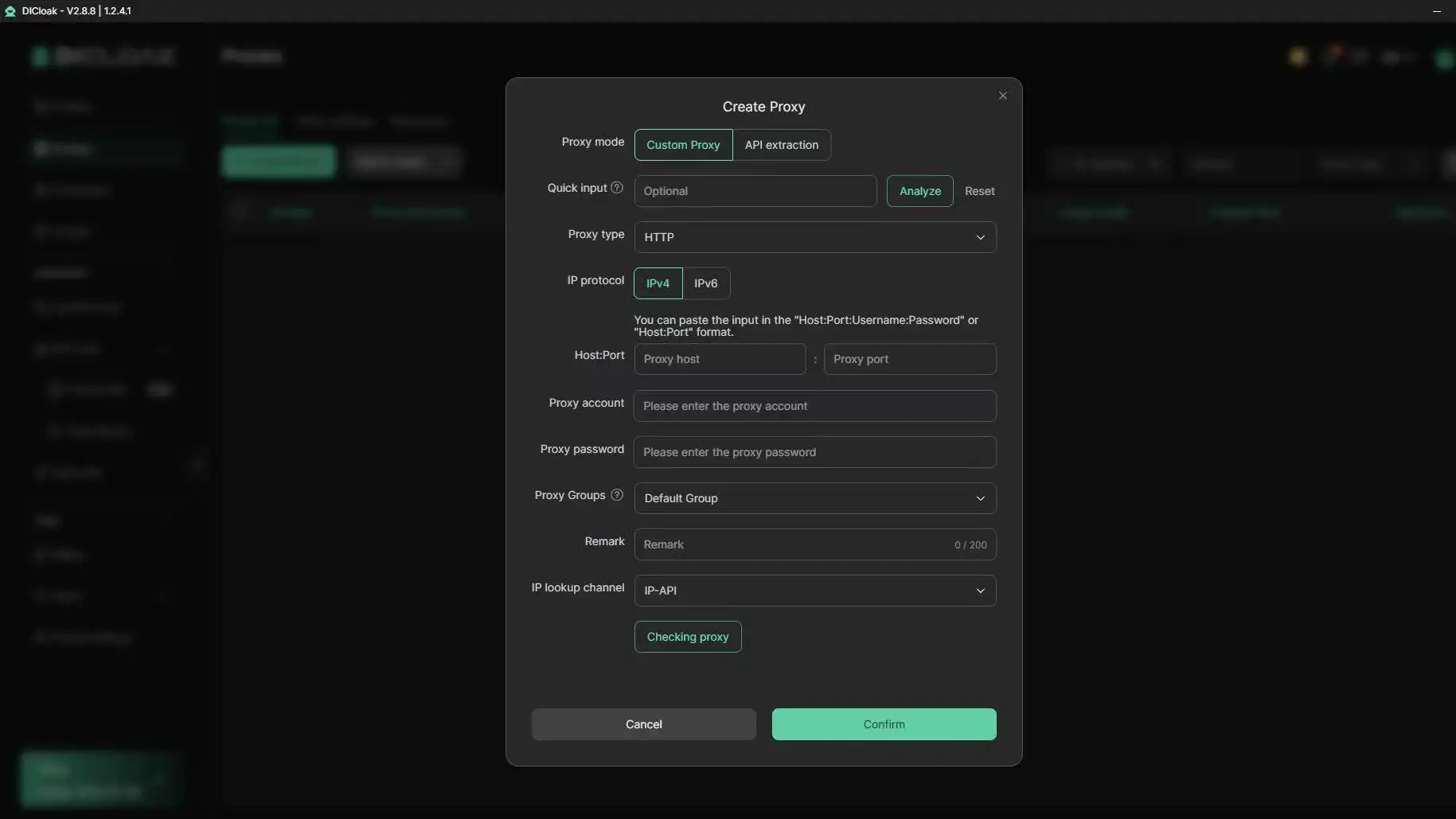
For teams, tools like DICloak make this easier. You can use DICloak to create separate browser profiles, tie each to its own proxy, and assign access by role. Audit logs show who did what and when, which makes tracking changes after meta ads updates much simpler.
How DICloak Makes Multi-Account Meta Ads Management Safer and More Efficient
Meta ads updates don’t just break rules, they break old workflows. Teams running multiple ad accounts often get hit by restriction spikes, failed logins, or accounts linked together and banned after changes. You need tools that keep up with policy shifts, not just manual fixes.
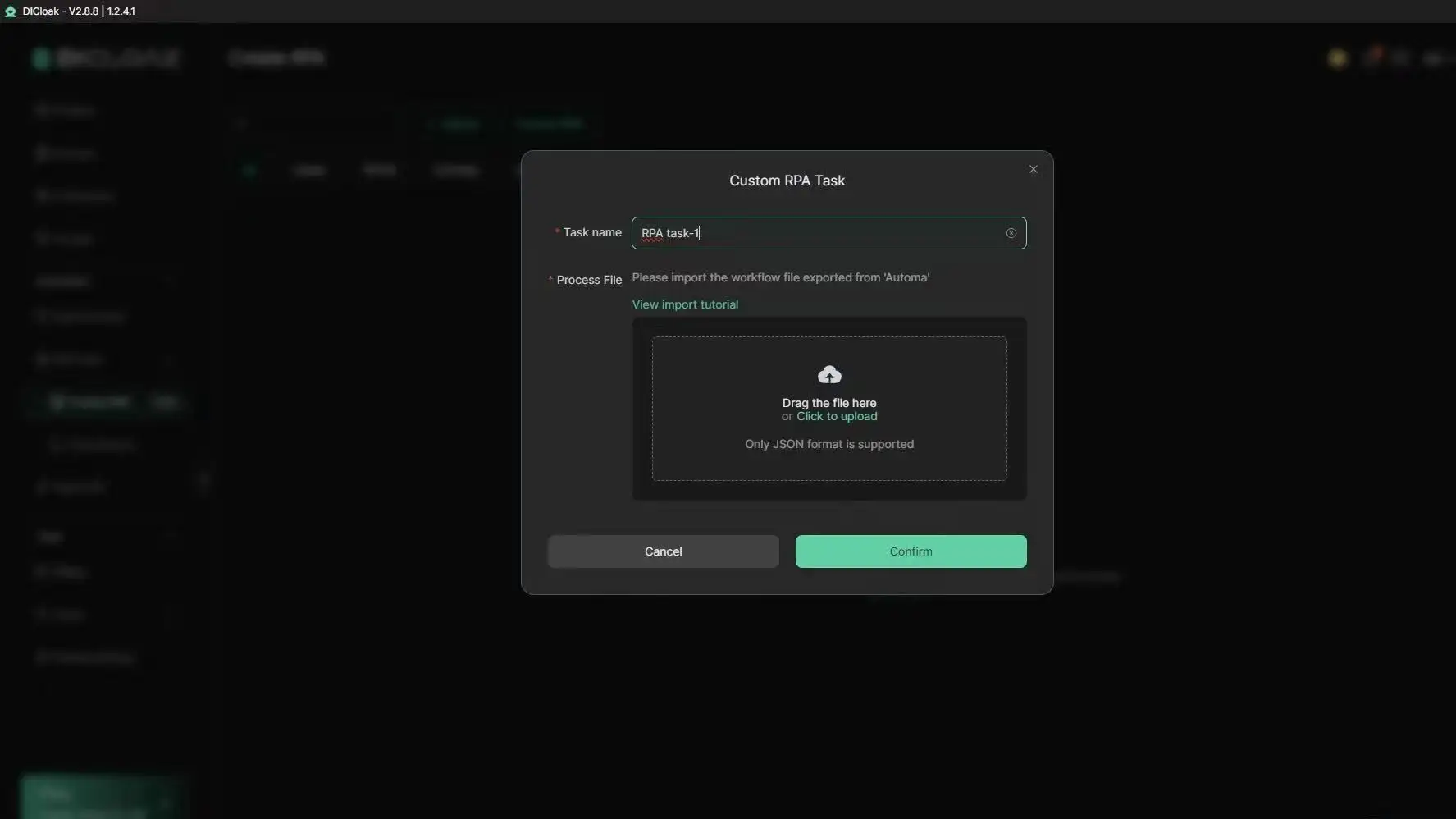
You can use DICloak’s unique browser profiles to keep each Meta ad account isolated. Every account gets its own fingerprint and proxy, which helps avoid bans from sudden links after a platform update. When “one device, many logins” setups get flagged, DICloak keeps each login looking like a real user in a different location. Bulk tasks, like switching tracking settings for a round of meta ads updates, run faster with DICloak’s RPA automation. This means teams spend less time on repetitive changes and more on new campaigns.
Team Collaboration and Workflow Automation
DICloak’s permission controls let you pick who can access which accounts, which cuts down on risky mistakes. Every team action is tracked in logs, so you can spot errors quickly. Profile sharing makes remote teamwork smoother, no more passing passwords around or re-logging after every update.
What to Do When Meta Announces a Major Update: Step-by-Step Action Plan
Staying ahead of meta ads updates means you need a clear routine, not just a quick reaction. Every change can break your ad setup or tracking without warning. Here’s a workflow you can reuse every time Meta shakes things up.
Immediate Steps to Take
When you hear about a new update, go straight to the Meta Business Help Center or check the Meta for Developers changelog. Social media threads often miss details or spread rumors. For agency teams, summarize the update’s possible impact in a short message, don’t wait for confusion to build. Use a shared doc or Slack channel to post immediate changes, like disappearing targeting options or new account security checks. If you rely on automation tools, check their status pages for known compatibility issues right away. Missing an official notice can leave your whole team using broken workflows for days.
Ongoing Monitoring and Optimization
After the first rush, shift to watching key metrics. CTR drops, cost spikes, or missing conversions are early signals something broke after meta ads updates. Keep a weekly log, note what changed, the date, and what you observed. For each update, add a “what broke, what fixed it” entry. Over time, this helps you spot patterns, like certain campaign types always needing tweaks after big releases. Save links to any official documentation that explained the fix. Share your notes with your team so the next update is less painful. You can use DICloak profiles to test new ad setups in a safe environment without risking your main assets.
Common Mistakes Marketers Make After Meta Ads Updates (and How to Avoid Them)
Overlooking Small Policy Changes
Meta ads updates rarely shout about every tweak. Last quarter, a single-word change in audience targeting rules caused hundreds of rejected ads. One missing checkbox or a new creative limit can quietly break your best-performing campaigns. Many marketers only spot these shifts after their approval rates drop or delivery slows. The real problem? Meta’s Business Help Center often updates guidance after the policy is already live, so waiting for an email isn’t enough. Missing even a minor update can get your whole account flagged, not just a single ad.
To avoid surprises, set up a habit of checking Meta’s policy page every two weeks. Use a shared team doc or group chat to flag small changes fast, don’t rely on memory or old templates. Even experienced teams miss details that cost days of lost spend.
Failing to Test and Document Changes
Assuming old setups still work is a shortcut to wasted budget. Each update can shift how rules, objectives, or tracking events behave, sometimes without warning. For example, a new meta ads update might disable a column you use for reporting. If you only notice after launching, you’re left guessing what changed.
Run quick tests after each platform update. This means sending a small spend through every major campaign type and logging what breaks. Build a shared change log, just a simple sheet listing what was checked, what failed, and what you fixed. Documenting even “nothing changed” keeps the whole team aligned and avoids repeat errors. If you need to test at scale or manage dozens of profiles, you can use DICloak browser profiles to isolate test environments and avoid cross-account issues.
Frequently Asked Questions
How often does Meta release major ads updates?
Meta typically releases major ads updates every 1 to 3 months. These updates can include changes to targeting, ad formats, or reporting tools. Smaller tweaks, like bug fixes or minor feature shifts, may happen weekly. Staying aware of all meta ads updates is important because even small changes can impact ad delivery and performance.
What should I do if my ads stop delivering after a meta ads update?
If your ads stop delivering right after a meta ads update, first check for new policy violations or targeting changes. Review the latest update notes from Meta for new requirements. Also, look for account issues or budget limits. Adjust your ad settings to match the new rules, then restart or resubmit your campaigns.
Can Meta ads updates affect my historical campaign data?
Yes, meta ads updates can change how your past campaign data appears. For example, if Meta changes how it tracks conversions, your old results may look different in Ads Manager. Reporting and attribution changes can impact how you see clicks, impressions, and conversions. Always review update notes to understand what data may be affected.
How do I stay informed about future meta ads updates?
To keep up with meta ads updates, subscribe to Meta’s official Newsroom, Ads Manager announcements, or the Meta for Business blog. Sign up for trusted industry newsletters and set alerts for major changes. Staying informed helps you quickly adjust your ads and avoid sudden drops in performance after updates.
Is it safe to automate Meta ad management after updates?
Automating Meta ad management is safe if you use tools that update quickly with each meta ads update. Make sure your automation software follows Meta’s latest policies and adapts to new features or rules. Always monitor your campaigns after major changes to catch issues early and keep your ads running smoothly.
Conclusion
The latest Meta ads updates provide advertisers with more powerful targeting tools and improved analytics, enabling deeper insights and more effective campaign optimization. Staying informed about these changes is crucial for marketers aiming to increase their ROI in an evolving digital landscape.
Try DICloak For Free
 Web Proxy Tools
 Free Tools
 Cookie Plugin
 UA Generator
 MAC Address Generator
 IP Generator
 IP Address List
 2FA Code Generator
 World Clock
 Anonymous Check
 WebRTC Leak Test
 UUID Generator
 Free Web Proxy Site
 Proxy Checker
 FB Ad Checker
 AI Web Scraping
 Free SMM Tools
 Twitter Shadowban Checker
 Instagram Name Checker
 UTM Generator
 Username Generator
 AI Hashtag Generator
 LinkedIn Headline Generator
 Social Media Image Resizer