If you want to learn how to use CapCut in 2026, this guide will help you start the right way. CapCut is a popular video editing app for beginners because it makes it easy to cut clips, add text, use effects, and export videos for TikTok, Reels, Shorts, and YouTube. But many new users still make simple mistakes with settings, exports, and editing flow. In this guide, you will learn how to use CapCut on mobile and PC, avoid common problems, and create better videos with less stress.
CapCut is a free video editing app developed by ByteDance, the company behind TikTok. It allows users to create and edit videos with various tools, such as trimming, merging, adding music, text, filters, and effects. CapCut is popular for its user-friendly interface and is widely used by both beginners and content creators for making social media videos.

What Are the Common Mistakes When Starting with CapCut?
When people first learn how to use CapCut, they often think the app will do everything for them in one tap. That is where many problems begin. CapCut is beginner-friendly, but it still has a learning curve. A few small mistakes can make editing feel slow, confusing, or messy. Knowing these early problems can help you save time and get better results faster. Official CapCut beginner guides also show that new users usually start with the same steps: create a project, add clips to the timeline, edit the clips, and then export with the right settings.
Why Skipping Tutorials Can Lead to Frustration
A common mistake when learning how to use CapCut is skipping the basic tutorial stage. Many beginners open the app, add a few clips, and start tapping random buttons. After that, they get lost. They may not understand where the split tool is, how to trim a clip, or how to move text and audio on the timeline. CapCut’s own beginner tutorial explains that users should first create a new project, select clips, and then tap each clip in the timeline to open editing tools like text, elements, animations, and filters. When people skip this flow, the app feels harder than it really is.
How Misunderstanding Features Causes Editing Errors
Another big problem is using features without understanding what they do. This is very common with filters, effects, auto tools, captions, and transitions. New users may add too many effects because they want the video to look more exciting. But too many effects can make the video feel noisy and hard to watch. A clean edit is usually better than an edit with constant motion, flashing transitions, and heavy filters.
Misunderstanding the timeline also causes editing errors. In CapCut, each clip, text layer, sound effect, and music track sits in its own place. If you do not notice which layer you are editing, you may delete the wrong part or move the wrong item. For example, a beginner may think they are trimming the background music, but they are really cutting the video clip itself. Or they may add captions but place them so low on the screen that the platform interface covers them later.
What Happens When You Ignore Format Settings?
Ignoring format settings is one of the most costly beginner mistakes. A video can look fine inside the editor, then look wrong after export or after upload. CapCut’s official resources explain that users should choose the right aspect ratio for the platform and set export options like resolution, frame rate, format, and bitrate before saving the final video. CapCut also supports common aspect ratios such as 9:16, 16:9, and 1:1, which matter for where the video will be posted.
The same issue happens with frame rate and resolution. A beginner may export a quick social video in settings that are much larger than needed. That does not always improve the viewer experience. It can just make the file heavy. On the other hand, exporting too low can make text look soft and details look weak. A better habit is to decide the platform first, then match the canvas and export settings to that platform. This is one of the smartest lessons in how to use CapCut, because good editing is not only about what you create on the timeline. It is also about how you finish the file for real viewing.
How to Avoid Losing Edits in CapCut
Losing a video edit can feel awful, especially after you spend an hour trimming clips, fixing audio, and adding captions. This is a common fear for new editors who are learning how to use CapCut. The good news is that there are simple ways to lower that risk. Good saving habits, cloud tools, and backups can make a big difference. CapCut’s current tools also make it easier to keep projects available across devices when you are signed in and using its cloud-based workspace features.
Why Saving Regularly Prevents Data Loss
One of the safest habits in how to use CapCut is saving your work often and checking that your project is still there before you close the app. This sounds basic, but many beginners trust the app too much and keep editing for a long time without thinking about crashes, app freezes, device storage problems, or accidental closure. On CapCut’s web and desktop workflows, signing in helps projects autosave, which adds a layer of protection compared with working casually without account-based syncing.
How Cloud Syncing Can Secure Your Projects
Cloud syncing helps because it keeps your project media and workspace content tied to your account instead of only one device. CapCut currently offers cloud storage and workspace-based access, and its own guides explain that users can upload media to “Space,” keep projects online, and access them from another device after signing in with the same account. CapCut also says its cloud tools support storing, editing, sharing, and collaborating on projects online.
What Backup Options Are Available in CapCut?
CapCut’s backup options today are mostly tied to cloud storage, workspace uploads, and outside cloud services rather than one single classic “backup button.” Its official materials highlight online cloud storage, project storage in workspaces, uploads to Space, and file sync flows connected with services like Google Drive. CapCut also promotes auto file sync for some cloud workflows and notes that users can keep projects online instead of relying only on local device storage.
In practice, the safest approach is to use more than one layer of protection. Keep your project in CapCut’s signed-in workspace when possible. Upload key media to Space or connected cloud storage. Export important versions of your video to your computer or phone after major milestones, such as after the first full cut, after captioning, and after final color or audio fixes. That way, even if one project file gets damaged, you still have an earlier version ready to reopen. This is one of the smartest lessons in how to use CapCut well: good editing is not only about making videos look better. It is also about protecting the work you already finished.
How to Use CapCut for Mobile Editing
Mobile editing is one of the main reasons people want to learn how to use CapCut. The app is built for quick edits on phones, but good results still depend on using the right tools in the right way.
Which Mobile Features Enhance Editing Efficiency?
Some mobile features help much more than others. The most useful ones for beginners are trim and split tools, text and captions, speed controls, templates, and the timeline itself. CapCut’s official beginner guide shows the basic mobile flow: start a new project, add clips, tap items in the timeline, and then use editing tools like text, elements, animation, and filters. CapCut also highlights mobile speed tools, including speed changes and curve-based effects, for faster and more dynamic edits.
A good beginner habit is to keep the edit simple on mobile. Use fewer effects. Focus on clear cuts, readable text, and steady pacing. That is often a better way to learn how to use CapCut than trying every tool at once.
How to Optimize CapCut Settings for Mobile Devices
Editing on a phone feels easy at first, but the wrong settings can make CapCut slow, hot, or unstable. This is a common issue for beginners learning how to use CapCut on mobile. Many people keep the default setup, add too many effects, and only notice a problem when the app starts lagging. A smoother workflow usually comes from matching your settings to your phone, your footage, and the kind of video you want to post.
Start with a simple project setup. If you are editing a short video for TikTok, Reels, or Shorts, vertical format is usually the best choice. Keep the timeline clean and remove clips you do not need. Try not to stack too many filters, effects, and animations in one short video. These tools can look fun, but they also use more phone memory and processing power. On older devices, that can lead to slow previews, delayed taps, or app crashes.
It also helps to be realistic about quality. Many beginners think higher settings always mean a better video. That is not always true. If your phone struggles during editing, it is often smarter to work in a lighter way and save the heavy export choices for the end. For most everyday mobile edits, 1080p is a practical balance. It looks clear on social media, but it does not put as much pressure on the device as larger formats.
What Are the Best Practices for Mobile Video Export?
A strong edit can still fail at the export stage if the settings do not match the platform. CapCut’s current guides say mobile users should export after choosing the right resolution, and its broader export resources explain that users can also control frame rate, format, and bitrate. CapCut also supports common aspect ratios such as 9:16, 16:9, and 1:1, which matter for where the video will be posted.
The best mobile export practice is simple: decide the destination first. If the video is for TikTok, Reels, or Shorts, vertical format is usually the safest choice. If it is for YouTube or desktop viewing, horizontal may fit better. Then choose export settings that match that use. CapCut’s help page on 2K and 4K export for mobile shows that available output options can include 720p, 1080p, 2K, and 4K depending on support.
Here is a clear example. If you export a phone-edited short video in a format that is too large for your device or connection, sharing becomes harder and upload time grows. If you export too small, text may look soft and details may not stay sharp. CapCut’s export resources explain that bitrate, frame rate, and resolution should be adjusted based on quality needs and file size goals.
For most beginners learning how to use CapCut, the smartest mobile export habit is not chasing the biggest file. It is choosing a clean aspect ratio, readable text, solid 1080p output when appropriate, and export settings that fit the platform and the device. That gives you a better final result and a much smoother editing workflow.
Using CapCut on PC feels more comfortable when you need a bigger screen, better timeline control, and faster editing for longer videos. It works well for tasks like cutting clips, adding captions, adjusting audio, and exporting in higher quality. On desktop, you also get more room to manage layers and fine-tune details, which makes the workflow easier than mobile for many users.
How to Set Up CapCut on PC
Start by downloading the desktop version from CapCut’s official site or a trusted app store. After installation, open the app, sign in, and create a new project. Then import your video files, drag them onto the timeline, and begin with the basics: trim, split, reorder clips, and add text or music. This is the easiest way to learn how to use CapCut on PC without making the edit feel too heavy at the start.
Which PC Features Make Editing Easier?
PC editing is usually better for multi-track work, longer projects, and more precise control. CapCut on desktop includes timeline editing, AI tools, text and voice features, background removal, and tools for turning longer videos into short clips. A simple example: if you are editing a YouTube video, it is much easier on PC to line up captions, music, and cut points without feeling cramped on a phone screen.
How to Export Cleanly from CapCut on PC
When the edit is done, click Export and choose settings that fit the platform. For most videos, resolution, frame rate, bitrate, and codec are the main things to check. A 1080p export is a safe choice for many social videos, while larger formats make more sense only when the footage and platform really need them. You can also share directly to platforms like YouTube or TikTok, but saving a local copy first gives you more control.
What Should You Watch Out for on PC?
The most common PC problems are heavy projects, low storage, and pushing export settings too high for the device. If CapCut feels slow, keep the timeline cleaner, remove clips you do not need, and avoid stacking too many effects. Another smart habit is to stay signed in and keep project files organized, especially if you plan to move between desktop and online workflows. That makes how to use CapCut on PC much smoother in daily use.
How to Utilize CapCut's Advanced Features
Once you understand the basics of how to use CapCut, advanced tools can help your videos look cleaner and more polished. The key is to use them on purpose. A few smart upgrades usually work better than adding everything at once.
Why AI Tools Can Transform Your Editing Experience
AI tools can save time and fix common editing problems faster. In CapCut, these tools now cover areas like auto video creation, AI text-to-video, noise cleanup, voice enhancement, AI sound effects, and smart visual adjustment features such as relight and flicker removal.
This helps most when you need speed. For example, AI captions can cut subtitle work, and AI audio cleanup can make speech clearer without heavy manual editing. For beginners learning how to use CapCut, AI works best as a shortcut, not a replacement for judgment. Keep what improves the video, and remove what feels off.
How to Apply Audio Effects for Professional Results
Audio effects can make a simple video feel much more professional. CapCut now offers tools for background noise removal, voice enhancement, voice changing, text-to-speech, and AI-generated sound effects.
The best approach is to stay light. Clean the voice first, then add only the effects that help the scene. A travel vlog may need softer background music and cleaner speech. A funny short clip may work better with a voice effect or timed sound cue. Too many audio effects can make the video feel messy.
What Advanced Video Effects Are Available?
CapCut’s advanced video effects now include filters, color-based adjustments, AI color correction, transitions, AI-assisted transitions, and visual enhancement tools like stabilize, relight, and flicker removal.
These features are useful when they support the story. A soft color fix can improve a dark clip. A smooth transition can make two shots feel connected. A stabilization tool can help shaky phone footage look easier to watch. When learning how to use CapCut, it is smarter to choose one or two strong effects than to fill the whole video with motion and style.
How to Export and Share Videos from CapCut
Export is the last step, but it can change how your video looks on other platforms. A clean edit can still lose quality if the settings do not match the video type. When learning how to use CapCut, it helps to keep export simple, clear, and matched to where the video will go. CapCut currently lets users choose resolution, frame rate, format, and bitrate at export, and direct sharing is available for platforms like TikTok and YouTube.
Which Export Settings Ensure High-Quality Output?
For most short-form videos, 1080p is the safest starting point. If the video has fast motion, 60fps can look smoother. If it is a simple talking video, 30fps is often enough. CapCut supports common export options like 720p, 1080p, 2K, and 4K on supported devices, along with 30fps and 60fps choices. Bitrate also matters because it affects both sharpness and file size.
A simple rule works well here: match the export to the platform. A vertical Reel or TikTok usually works best in 9:16, while a regular YouTube video fits 16:9 better. Use higher settings when the footage really needs it, not just because the option is there.
How to Share Videos Directly to Social Platforms
CapCut makes direct sharing easy, which is helpful when you want to post fast. After export, you can send the finished video straight to platforms like TikTok or YouTube instead of saving it and uploading it later. This works well for quick posting and simple workflows.
Still, direct sharing is not always the best choice. If a post fails, the safer move is to download the file first and upload it manually on the platform. That gives you more control and helps avoid sharing errors tied to account connection or browser issues.
What Are the Common Export Errors to Avoid?
The most common mistakes are choosing the wrong aspect ratio, exporting at a much larger size than needed, or setting the bitrate too low. These problems can lead to blurry text, heavy files, slow uploads, or awkward cropping after posting. CapCut’s export controls are flexible, but that also means beginners can choose settings that do not fit the project.
There is one more issue many users miss: some features or assets may not export unless the account has access to them. And if direct sharing fails, it is often easier to save the video locally and post it yourself. When you are learning how to use CapCut, the best habit is to check the platform, check the format, and test one short export before doing the final version.
How to Troubleshoot Common CapCut Issues
Even simple edits can run into problems. A video may fail to export, the app may crash in the middle of a project, or the effect may not show up the way you expected. When learning how to use CapCut, it helps to check the basic causes first: project size, storage, app version, and device performance. These are often the reasons small problems turn into bigger ones.
Why Your Video Might Not Export Successfully
Export problems usually happen when the project is too heavy for the device or the export settings are too high. Large files, complex effects, limited storage, and low system resources can all stop the export process. A simple fix is to lower resolution or frame rate, free up storage, close other apps, and try again.
It also helps to simplify the timeline. If a project has many high-resolution clips, layered effects, or long duration, splitting it into smaller parts can make export much more stable. Saving to a local folder instead of a cloud-synced folder can also prevent failed exports on desktop.
How to Resolve App Crashes During Editing
If CapCut keeps crashing, start with the easiest fixes. Restart the app or the device, close background programs, and make sure you are using the latest version. Updates often fix crashes, lag, export bugs, and GPU compatibility problems.
If the problem stays, check whether the device is under too much pressure. Phones with low free space or too many open apps can struggle during editing. On Android, clearing CapCut’s cache and data can help with repeated startup or stability issues. On desktop, removing temporary cache files may help when the app keeps freezing.
What to Do When Effects Don't Apply Correctly
When effects do not apply correctly, the first thing to check is project size and app stability. Heavy timelines, outdated app versions, and weak device performance can cause features to lag, fail, or behave strangely. The safest fix is to update the app, reduce project complexity, and test the effect on a short section first.
A simple example: if one effect looks broken on a long edit, remove a few extra layers, retry the effect, and export a short sample before doing the full video. This is often faster than reworking the whole project. When learning how to use CapCut, small test exports and lighter timelines can save a lot of time later. The same troubleshooting pattern also helps with export freezes tied to effects and rendering.
How to Compare CapCut with Other Editing Tools
If you are learning how to use CapCut, it helps to see what it does well and where it falls short. Some editors are better for quick phone edits. Some are stronger for design work. Others give more manual control. CapCut stands out because it is fast, easy to learn, and built for short-form video. Tools like templates, captions, AI features, and quick export make it a strong fit for creators who want speed.
Why CapCut Stands Out in Mobile Editing
CapCut feels more natural on mobile than many traditional editors. The timeline is simple, the tools are easy to find, and common tasks like trimming, captions, speed changes, and transitions are quick to use. That makes it a good choice for TikTok, Reels, Shorts, and other fast social content. Canva can handle video too, but it feels more like a design tool with video features added in. InShot is also mobile-friendly, but it is often better for quick edits than deeper timeline work.
How CapCut's Features Compare to Competitors
CapCut is usually the better pick when video editing is the main job. It gives you templates, AI editing help, captions, effects, and stronger short-form tools in one place. Canva is more useful when you also need layouts, brand assets, text design, and simple team content. InShot works well for fast edits, filters, stickers, and basic mobile video polishing, but it is not always the first choice for more layered editing. If you want to explore more options beyond CapCut, you can also check this guide to the best editing alternatives to CapCut.
What Are the Limitations of Using CapCut?
CapCut is not the best fit for every project. Some advanced features depend on plan level, device support, or platform version. It may also feel less suitable when you want a more traditional editing workflow or deeper manual control. For example, a simple brand explainer with heavy design needs may feel easier in Canva, while a very basic phone edit may feel faster in InShot. So if your goal is fast social editing, CapCut is often a strong choice. If your work needs a different style of control, another tool may fit better.
For many users, sharing a CapCut account is an effective way to lower costs. However, sharing accounts can expose you to security risks, like account conflicts and unauthorized access. To safely share your CapCut Pro subscription with others, you need a solution that ensures each user’s login remains secure and separate. This is where DICloak comes in. DICloak helps you create isolated profiles, allowing multiple users to access the same account without sharing passwords or risking account bans.
Anti-Detection and Login Safety
DICloak helps solve this:
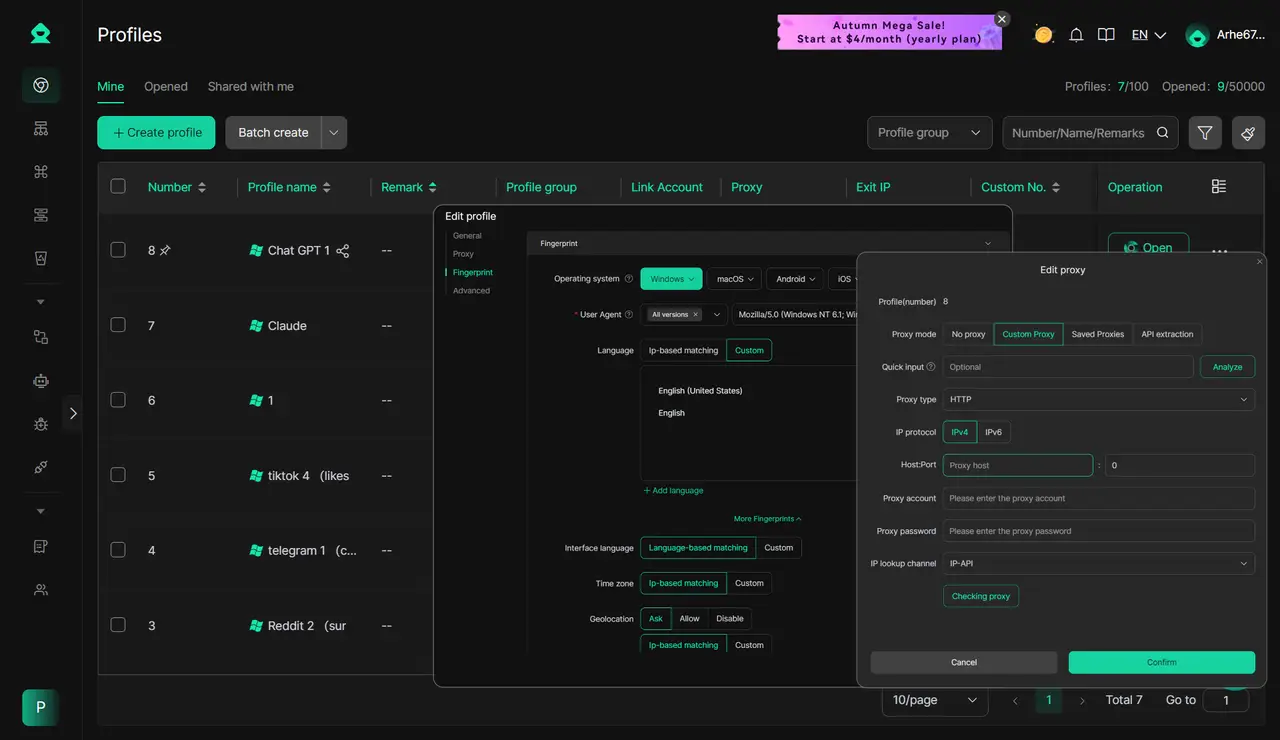
- Profile Fingerprint Modification: DICloak lets you modify fingerprints, cookies, and other device details. This way, every shared login appears to come from the same trusted device. It greatly reduces the chance of CapCut detecting unusual activity or marking the account as suspicious.
- IP Masking: By setting up a proxy, all team members can log in through the same stable IP address. This avoids login errors caused by different IPs and also makes it possible to access and share CapCut smoothly, even in regions where restrictions apply.
Data Security for Shared Accounts
DICloak offers strong security:
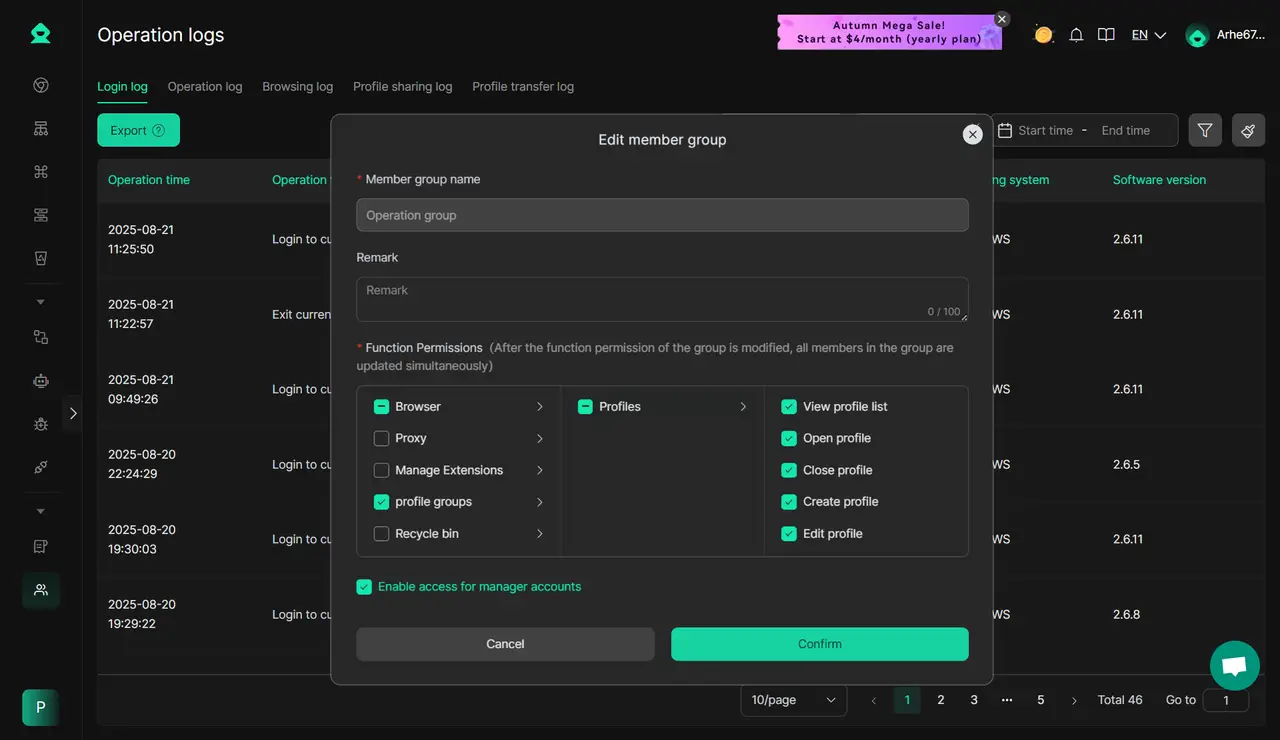
- Admin Permission Control lets owners give access only to trusted members.
- Operation Log Monitoring shows exactly who logged in and what they did.
- Encrypted Sensitive Data keeps passwords hidden from regular members.
FAQs About How to use CapCut
The safe way is to use the free version or an eligible free trial, not a cracked copy or shared login. In 2026, CapCut offers a 7-day Pro trial for eligible new users in supported regions, but access depends on location, account history, and app version. If trial access does not appear on your account, the practical option is to keep using the standard free tools or upgrade through CapCut’s normal plans.
Is CapCut Free to Use in 2026?
Yes. CapCut still has a free version in 2026, and it covers the basics many creators need, such as trimming, filters, transitions, and audio editing. The main difference is that some advanced AI tools, premium assets, higher-end export options, and extra cloud features sit behind paid access. For many simple social videos, the free version is enough.
How to Access CapCut's Latest Features?
The simplest way is to keep the app updated and sign in on the platform you use most. New features usually show up first through newer app versions, and some tools depend on region, device support, or whether you are on mobile, web, or desktop. A good example is export and template support: some options vary by platform, and high-resolution export can depend on device limits too.
What Are the System Requirements for CapCut?
For mobile phones, you generally need iOS 13.0 or later, or Android 8.0 or later. On the web, performance is much better on a desktop or laptop with a stable connection, and heavier tasks like 4K export work better on stronger hardware. If your device is older, some Pro features, high-resolution exports, or heavier projects may not run well even if the app installs.
How to Get Support for CapCut Issues?
The fastest place to start is the CapCut Help Center. That is where you can check troubleshooting steps for export problems, app crashes, version issues, internet errors, and feature limits. If a problem still does not clear, the smartest next steps are to update the app, free storage, test a smaller project, and then use the support links inside CapCut’s help pages.
Conclusion
Learning how to use CapCut is easier when you keep the process simple. Focus on clean cuts, clear text, the right format, and export settings that match your platform. Once you understand these basics, CapCut becomes much easier to use on both phone and computer. If you want better results in 2026, the smartest way is to build a simple workflow and improve step by step.
 Web Proxy Tools
 Free Tools
 Cookie Plugin
 UA Generator
 MAC Address Generator
 IP Generator
 IP Address List
 2FA Code Generator
 World Clock
 Anonymous Check
 WebRTC Leak Test
 UUID Generator
 Free Web Proxy Site
 Proxy Checker
 FB Ad Checker
 AI Web Scraping
 Free SMM Tools
 Twitter Shadowban Checker
 Instagram Name Checker
 UTM Generator
 Username Generator
 AI Hashtag Generator
 LinkedIn Headline Generator
 Social Media Image Resizer