Imagine being able to manage your messages, stay connected with friends, and handle customer inquiries—all from your computer, without having to pick up your phone. That’s exactly what LINE Web offers. It brings the convenience of LINE’s messaging platform to your browser, allowing you to use all the features you love on your phone, but on a bigger screen. Whether you’re at work or home, LINE Web makes it easier to chat, share, and connect with just a few clicks.
For businesses, LINE Web is a game-changer. Imagine running your customer support through a web interface, responding to messages instantly, and keeping everything organized—all while avoiding the hassle of switching between devices. Many businesses already use LINE Web login to handle customer communication more efficiently, saving time and improving response times. With simple steps like scanning a QR code or logging in with your email, getting started on LINE Web is fast and easy.
In this guide, we’ll show you how to set up and make the most of LINE Web for both personal use and business operations. By the end, you’ll understand why LINE Web is a must-have tool for staying connected and improving your daily workflows.
What is LINE Web?
LINE Web is a version of the popular messaging app LINE that works directly in your web browser. It allows users to access their LINE account on a computer without needing the mobile app. With LINE Web, you can send messages, make voice and video calls, and even use custom emojis and stickers—all from your computer. This makes it easy to stay connected whether you're working at home or in the office.
LINE is developed by LY Corporation and is much more than just a messaging app. Besides texting, it offers voice and video calls, entertainment services, financial tech, and gaming features. LINE is similar to China’s WeChat and South Korea’s KakaoTalk, providing a wide range of services in one platform.
To use LINE Web, simply log in with your email or scan a QR code from your mobile app. For businesses, LINE Web is a useful tool to manage customer communication and send updates or promotions directly from the browser. Many small businesses use LINE Web to improve their customer service and save time.
In short, LINE Web brings the convenience of LINE to your computer, making it easier to stay connected and manage both personal and business conversations.

Features of LINE Web
LINE Web brings the convenience of LINE’s popular messaging service to your computer. It allows you to manage your messages and conversations from a larger screen, making it easier to communicate for both personal and business purposes. Whether you're chatting with friends, sharing files, or handling customer support, LINE Web offers many features that make communication smooth and efficient.
Key Functionalities of LINE Web
LINE Web offers several key features that enhance the user experience. After LINE Web login, users can send and receive messages, participate in group chats, and share images and stickers directly in their browser. The ability to access these features from a computer makes managing communications much easier, especially for businesses handling customer service or team collaboration. For instance, a local coffee shop in Tokyo uses LINE Web to reply to customer orders quickly and efficiently. The large screen and fast typing make a big difference in managing multiple conversations.
LINE Web also offers functionalities like multi-account login, which allows users to manage different accounts simultaneously without needing to log out. This is particularly useful for businesses that operate multiple LINE accounts for customer service, marketing, or sales. Additionally, LINE Web enables chat customization, where users can choose different themes or set notifications for specific chats, making the experience more personalized and organized.
Comparing LINE Web with the LINE Mobile App
While both LINE Web and the LINE mobile app provide essential messaging features, there are some key differences between the two. The LINE mobile app allows for a richer experience with features such as voice and video calls, which are fully supported on mobile devices. It also works offline for basic messaging, ensuring that users can stay connected even without an internet connection. The app also provides access to services like LINE Pay, LINE Music, and LINE Doctor, which enhance its versatility.
On the other hand, LINE Web works best for quick and efficient communication, particularly when users need to type or manage multiple chats at once. However, it does not fully support video and voice calls like the mobile app does. Additionally, LINE Web requires an active internet connection and is not as mobile-friendly as the app. The mobile app is best for on-the-go communication, while LINE Web excels at providing a larger, more comfortable workspace for business users or those who spend long hours at a desk.
Despite these differences, both platforms share the same core benefits, including free communication, expressive messaging with stickers and emoticons, and cross-platform availability, allowing users to access LINE from various devices. For businesses, LINE Web can be especially useful for managing multiple accounts and responding to customers in real-time, while the mobile app is perfect for staying connected anywhere, anytime.
In summary, LINE Web is an ideal solution for those who need quick, efficient communication on a larger screen, while the LINE mobile app remains the go-to choice for full functionality and portability. Depending on your needs, both platforms complement each other to provide a complete communication tool.
How to Login to LINE Web
Before you can log in to LINE Web, you must first create a LINE account on your mobile device. This process is essential, as you cannot create a new LINE account directly on your PC. Below, I will walk you through the steps to register for LINE and then how to log in to LINE Web using the account you've set up.
Preconditions for LINE Web Login
To get started with LINE Web login, you need to meet some important prerequisites:
- Mobile Registration: You must create a LINE account on your smartphone or iPad. LINE does not support account creation directly on the PC. If you haven't registered on your mobile device, you won’t be able to sign in to LINE Web.
- LINE App Installation: If you haven't done so yet, you need to download the LINE app on your mobile device:
- For Android: Visit the Google Play Store and download the app.
- For iOS: Visit the App Store and download the app.
- System Requirements: As of July 24, 2024, LINE no longer supports 32-bit Windows. To enjoy new features, you need to have 64-bit Windows. Ensure that your system meets these requirements to update and access new features.
Steps to Register for LINE
If you are setting up LINE for the first time, follow these simple steps to register:
Step 1: Download the LINE App
Start by downloading the LINE app on your mobile device. Open Google Play (for Android) or the App Store (for iOS) to install it.
Step 2: Open the App and Sign Up
Once the app is installed, open it, and tap the Sign Up button on the welcome screen to begin the registration process.
Step 3: Enter Your Phone Number
Next, you’ll be asked to enter your phone number. Be sure to select the correct dialing code for your region.
Step 4: Enter Verification Code
You will receive a verification code via SMS. Enter this code into the app to verify your phone number. If you don't receive the code, tap "Resend Code" to try again. You might also need to complete a CAPTCHA to prove you're not a robot.
Step 5: Create a New Account
If your phone number isn’t linked to any LINE account, you’ll see a message saying “This looks like a new phone number.” Click Create New Account. Then, you can set up your profile picture and display name.
Step 6: Create a Password
Create a secure password with at least one letter, one number, and four other characters. This password will protect your account. Make sure it is secure yet easy for you to remember.
Step 7: Set Friend Addition Preferences
Next, set your preferences for adding friends, either automatically from your contacts or by using your LINE ID or phone number. Once you complete this step, your account will sync with your device.
Once the progress bar finishes, your LINE registration is complete.
Step-by-Step Guide to Logging into LINE Web
Once you’ve set up your LINE account on your mobile device, logging into LINE Web is simple and quick. Here’s how to do it:
Method 1: Email and Password Login
- Go to the LINE Web login page in your browser.
- Enter the email address that you registered with the LINE app on your smartphone.
- Type in your password.
- Click Log In.
This method works best if you want a fast and straightforward login experience. It’s ideal for users who prefer to type on a larger screen.
Method 2: QR Code Login
- On the LINE Web login page, select the option to log in using a QR code.
- A QR code will appear on your screen.
- Open the LINE app on your mobile device.
- Go to More > QR Code and scan the code on your computer screen.
- Once the QR code is scanned, tap Log In on your phone to complete the process.
QR code login is often quicker and more secure than using an email and password, as it verifies your identity through your mobile device.
For example, a local shop in Bangkok uses LINE Web login daily. The staff scans the QR code from their phones to log into the system. This method saves them time and helps them handle customer orders and inquiries quickly from their PC.
To successfully use LINE Web, ensure you first create an account on your smartphone and then log in to the web version using either email and password or a quick QR code scan. Once logged in, you can enjoy the convenience of managing messages and customer service from a larger screen.
Setting Up LINE Web for Your Business
Now that you know how to log in to LINE Web, let’s talk about how to set it up for your business. Setting up LINE Web includes creating a business account and connecting LINE Web chat to your website. This lets you talk to customers easily from your site and keep conversations going after they click to message you.
Creating a LINE Business Account
To use LINE Web for business, you first need a LINE Official Account. This is a special type of LINE account made for companies and brands. It works like a personal LINE account, but with extra business tools like auto-response messages and multiple staff logins. Many businesses use this feature to reply quickly to customers and keep support organized. For example, a local clothing store in Tokyo created a LINE Official Account and saw customer questions drop from hours to minutes thanks to faster replies.
Here is a simple guide to creating your LINE Official Account:
- Go to the LINE Official Account website.
- Sign in with your LINE account email and password.
- Choose “Create a new LINE Official Account.”
- Fill in your business name, category, and contact info.
- Click “Submit” and confirm your account in the LINE Official Account Manager.
Once your LINE Official Account is ready, you can use it to send messages, broadcast updates, and reply to customers. Some businesses also enable the Messaging API so they can connect chat tools or bots.
Integrating LINE Web with Your Website
After creating your business account, you can add LINE Web chat to your site. This allows visitors to your website to start a conversation with you directly on the webpage, without having to leave the page or switch to another app. A LINE chat widget works like a chat box on your site, but messages go straight to your LINE Official Account.
Here’s how to set up the LINE Web chat widget step by step:
- Log in to your LINE Official Account Manager.
- Go to Settings > Growth Widgets.
- Select Add Widget, then choose LINE Web chat.
- Enter your website URL and pick the account you want to use.
- Customize the widget text and colors so it matches your site.
- Click Generate Widget and copy the code provided.
- Paste this code into the HTML of your website pages where you want the chat to appear.
For example, a small online café in Bangkok added the LINE Web chat to its homepage. When visitors clicked the chat box, they were directed to a LINE conversation with the shop. This helped the café answer questions in real time and boost online orders.
Technical Best Practices
- Place the widget where visitors can easily see it, such as the bottom right corner of your homepage.
- Test the chat on mobile and desktop to ensure it displays well.
- Use simple welcome messages so visitors feel comfortable starting a chat.
If your site uses WordPress or other platforms, there are tools and plugins that let you add the widget without needing a developer. Some third‑party services also let you customize the LINE chat widget with different designs.
In short, setting up LINE Web for your business helps you connect with your audience every time they visit your site. After LINE Web login and setup, you can use LINE to answer questions, share deals, and build customer relationships more easily than ever.
Troubleshooting Common Issues with LINE Web
Even after you set up LINE Web and complete LINE Web login, you might face some small problems. These can make it hard to use the service right away. Don’t worry — many issues are simple to fix. Below we explain common problems and how to solve them so you can get back to chatting smoothly.
Addressing Login Problems
One common issue users face is trouble logging in to LINE Web. For example, the QR code might not scan, or the webpage may show an error like “400” when trying to sign in. These issues are often caused by browser data or unstable connections.
1. QR Code Won’t Scan
If the QR code doesn’t scan, it might be blurry or expired. Try these steps:
- Refresh the LINE Web login page to get a new QR code.
- Clean your phone camera lens and hold steady.
- Make sure your phone and computer are on a stable internet connection.
These tips helped many users fix their login issues quickly.
2. Page Shows Error Code (like “400”)
This often happens when your browser cache or cookies interfere with the login page. Try this:
- Clear your browser cache and cookies.
- Try a different browser.
- Switch from public Wi‑Fi to a private network.
Many people find this solves most login problems.
3. Account Locked or Unable to Login
If you try the wrong login details many times in a row, LINE may temporarily lock your account. Wait 10–15 minutes and try again. If you still can’t log in, reset your password through the LINE mobile app and retry LINE Web login.
Browser Compatibility Issues
LINE Web works best on modern browsers, but sometimes compatibility issues can block performance. Here are ways to avoid trouble.
1. Update Your Browser
Make sure you use the newest version of Chrome, Firefox, Edge, or Safari. Older browsers may not load the LINE Web login page or features properly. Updating often fixes many display and login problems.
2. Clear Cache and Cookies
Too much old data in your browser can stop pages from loading correctly. Clearing cache and cookies gives you a “fresh start,” especially if you see a blank screen or strange errors during LINE Web login.
3. Try Incognito or Private Mode
Sometimes browser extensions like ad blockers or privacy tools interfere with LINE Web. Open a private browser window and try LINE Web login there — this often solves hidden issues.
4. Avoid Private Browser in Certain Cases
On some browsers like Safari, private mode may block login features. If LINE Web doesn’t work in private mode, switch to normal browsing and try again.
A small online store in Seoul could not log in to LINE Web because their Chrome cache was full. They cleared the cache and retried LINE Web login — and were able to chat with customers again in minutes. Another user found that switching from Safari private mode to normal mode fixed login problems instantly.
Best Practices for Using LINE Web
Now that you know how to fix common LINE Web problems, let’s look at ways to get better results with it. Good practices help you talk to customers more clearly, build trust, and grow your business. Below are helpful tips from real business use cases and expert sources.
Effective Communication Strategies
Good communication makes customers feel valued and heard. When you use LINE Web for business chat, try to keep your messages clear and friendly. Don’t send long walls of text. Short answers are easier for people to read on phones and computers.
Use features like broadcast messages and stickers to make your chat more engaging. Many businesses send regular updates about deals, new products, and store news through their LINE Official Account. This helps customers stay updated and feel connected to the brand. For example, a boutique in Bangkok uses weekly broadcast messages to announce new items and special sales. Customers often respond quickly and share the messages with friends.
Many companies also use rich messages (images with text and buttons) to make their content more eye‑catching. Rich messages can show product pictures, prices, and call‑to‑action buttons all in one place. This kind of content often gets more customer interaction than plain text.
Enhancing User Experience on LINE Web
A good user experience helps customers enjoy using your service and come back again. Here are some simple ways to improve how people interact with LINE Web:
- Use auto‑reply messages for common questions such as store hours or shipping times. This makes your business look fast and helpful.
- Send welcome messages when someone starts a chat. A simple “Hi! Thanks for contacting us” helps set the right tone and encourages interaction.
- Organize chats using labels like “Orders” or “Support.” This helps your team reply faster.
These practices help your business feel professional and responsive, which builds trust with customers.
Many brands also add QR codes and click‑to‑chat links on their website and social media. Scanning a QR code directly opens LINE Web login or chat, making it easy for users to contact you without waiting.
Use an Antidetect Browser like DICloak with LINE Web
When using LINE Web for multiple business accounts or marketing tasks, security and privacy can become important. An antidetect browser like DICloak helps you manage multiple LINE sessions without conflicts and reduces tracking risks. With DICloak, you can open separate browser profiles for different accounts, so chats, cookies, and logins stay isolated. This makes LINE Web login smoother when you handle many clients or brands at once.
Users who manage many LINE accounts often report fewer login errors and fewer cross‑account mix‑ups when using profile isolation tools. These tools help protect business data and make switching between LINE accounts faster and safer.
Why choose DICloak Antidetect Browsers for your business?
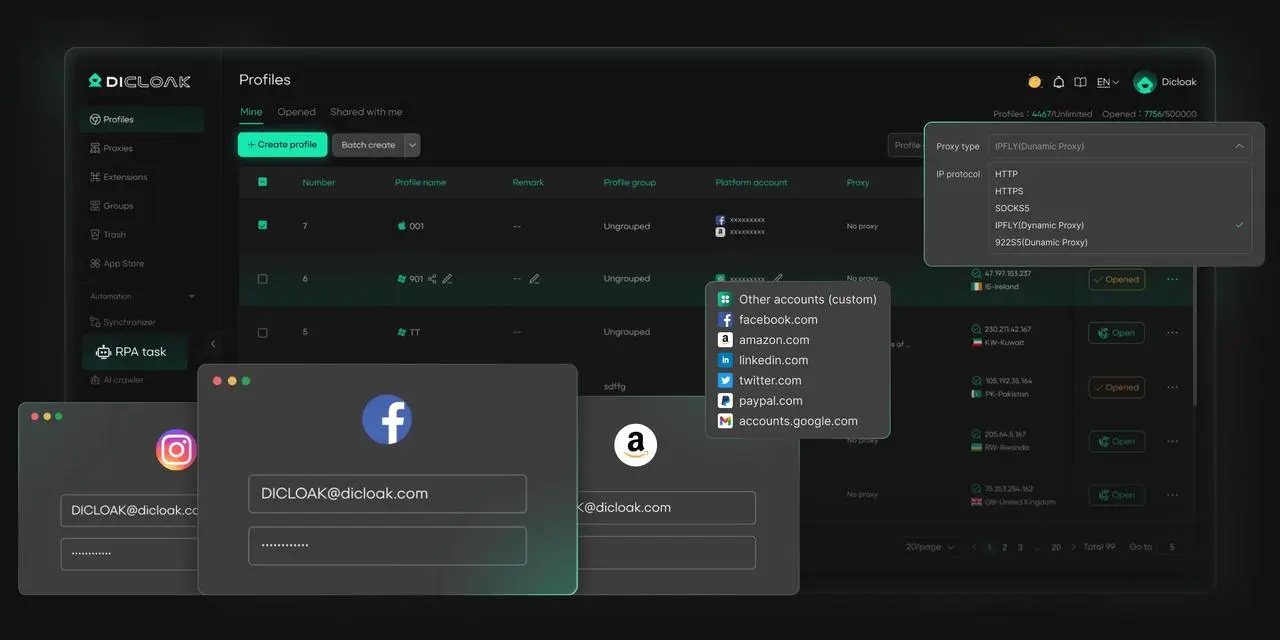
⚡The DICloak Antidetect Browser has become a global favorite for its unparalleled ability to efficiently and securely manage multiple accounts. Designed for professionals in social media management and more, DICloak offers powerful features like RPA automation, bulk operations, and a synchronizer. Additionally, it allows you to customize fingerprints and integrate proxies for each profile, ensuring top-level security and operational efficiency. It’s the ultimate tool for seamless, secure, and scalable operations.
What Makes DICloak Stand Out?
✅ Manage 1,000+ Accounts on One Device:
Stop wasting money on extra hardware! DICloak allows you to manage multiple accounts on a single device, cutting costs and boosting efficiency.
✅ Guaranteed Account Safety, No Ban Risks:
Every account gets its own isolated browser profile with custom fingerprints and IPs, drastically reducing the risk of bans. Your accounts, your control!
✅ Flexible Proxy Configuration for Maximum Performance:
Seamlessly integrate with all major proxy protocols (HTTP/HTTPS, SOCKS5) and manage your proxy pool with bulk operations. No more struggling with IP management—DICloak has you covered.
✅ Streamlined Team Collaboration for Better Results:
Easily manage your team with advanced tools like profile sharing, permission settings, data isolation, and operation logs. Your team works smarter, not harder.
✅ Automate the Grind with RPA:
DICloak's built-in RPA saves you hours of manual work. Automate repetitive tasks, streamline workflows, and focus on what really matters—growing your business.
✅ Powerful Bulk Tools to Scale Your Operations:
Create, import, and launch multiple browser profiles in one click. DICloak makes scaling your business as easy as it gets.
✅ Compatible with All Major Operating Systems:
Based on the Chrome core, DICloak supports simulating Windows, Mac, iOS, Android, and Linux operating systems. No matter what platform you need, DICloak has you covered.
🔗 Ready to Get Started?
Visit the DICloak website to explore more details and choose the plan that’s right for you. Start for free today and experience the power of secure, efficient, and scalable multi-account management!
Conclusion
LINE Web allows users to access their LINE account and manage messages, calls, and chats directly through a web browser, making communication easier on a larger screen. To use LINE Web, you first need to set up an account on your mobile device, as account creation is not available on PC. Once set up, logging in is simple through email and password or by scanning a QR code with the mobile app.
For businesses, LINE Web offers great features like multi-account login and chat customization, making it easier to handle customer support and inquiries. You can also integrate LINE Web chat into your website, allowing visitors to start a conversation without leaving the page.
Common issues such as login problems or browser compatibility can be fixed easily with a few troubleshooting steps like clearing your browser cache or updating your browser. For businesses, LINE Web enhances communication with auto-reply messages, real-time support, and rich content like stickers. Using an antidetect browser like DICloak with LINE Web can help keep your accounts secure and organized.
In conclusion, LINE Web is an effective tool for businesses to manage communication, engage with customers, and streamline support through its easy integration and useful features.
Frequently Asked Questions about LINE Web
What is LINE Web and how does it work?
LINE Web is a browser-based version of the popular LINE messaging app. It allows users to access their LINE account and communicate with others through a web browser, providing the convenience of managing messages, sending texts, and handling customer support directly from a computer screen. Unlike the mobile app, LINE Web offers an easy way to manage conversations in a larger, more organized workspace.
How do I log in to LINE Web?
To log in to LINE Web, you need to first have a LINE account created on your mobile device. Once your account is set up, visit the LINE Web login page, where you can log in using your registered email and password or by scanning a QR code using the LINE mobile app. After logging in, you'll be able to send messages, manage chats, and interact with customers directly from your browser.
Can I use multiple accounts on LINE Web?
Yes, LINE Web allows users to manage multiple accounts. This feature is especially helpful for businesses that want to handle customer service, marketing, or different business profiles all in one browser. By using the multi-account login feature on LINE Web, businesses can easily switch between accounts without needing to log out and log in repeatedly.
What are the advantages of using LINE Web over the mobile app?
LINE Web provides several advantages over the mobile app, especially for businesses. It offers a larger screen and faster typing experience, making it easier to manage multiple conversations at once. It also allows businesses to use LINE Web chat on websites, offering real-time communication with customers. While the mobile app is better for voice and video calls on the go, LINE Web is ideal for business users who spend long hours working at a desk.
How can I integrate LINE Web with my website for customer support?
To integrate LINE Web with your website, you can use the LINE Web chat widget. This allows visitors to your website to start a conversation with you directly from the webpage. You simply need to log in to your LINE Official Account, go to the settings, and generate the widget code. Then, embed the code into your website’s HTML. This integration helps businesses manage real-time customer support through LINE Web efficiently.
 Web Proxy Tools
 Free Tools
 Cookie Plugin
 UA Generator
 MAC Address Generator
 IP Generator
 IP Address List
 2FA Code Generator
 World Clock
 Anonymous Check
 WebRTC Leak Test
 UUID Generator
 Free Web Proxy Site
 Proxy Checker
 FB Ad Checker
 AI Web Scraping
 Free SMM Tools
 Twitter Shadowban Checker
 Instagram Name Checker
 UTM Generator
 Username Generator
 AI Hashtag Generator
 LinkedIn Headline Generator
 Social Media Image Resizer