Open your school WiFi, type instagram.com. "This site is blocked." Try a different browser, same result. Switch to mobile data and it works, but your data plan has limits. Or a different scenario: your Instagram account suddenly gets action blocked. Likes, comments, follows all restricted with "Try Again Later" on every tap. You wait 48 hours and nothing changes.
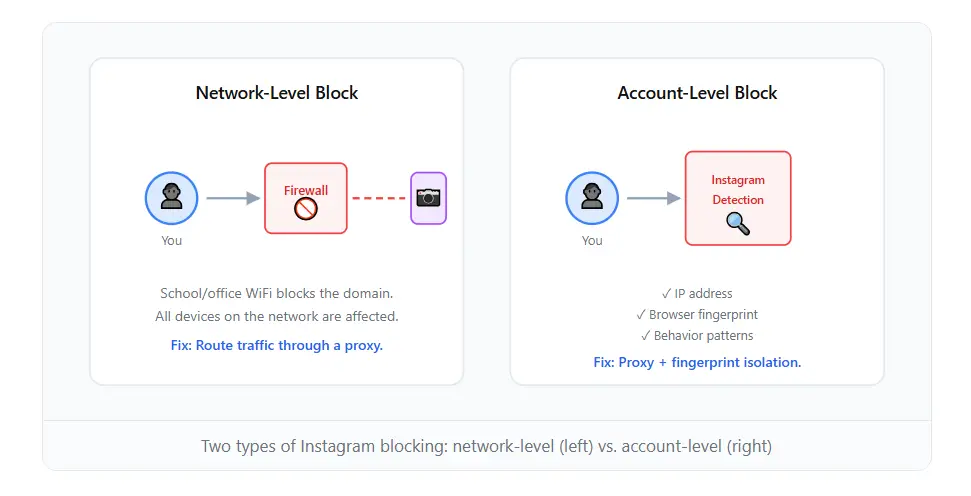
These two problems look different, but they share the same root cause: your connection is being identified and restricted. Network firewalls block Instagram by filtering IPs and domains. Instagram's own platform blocks accounts by reading IP addresses, device fingerprints, and behavior patterns.
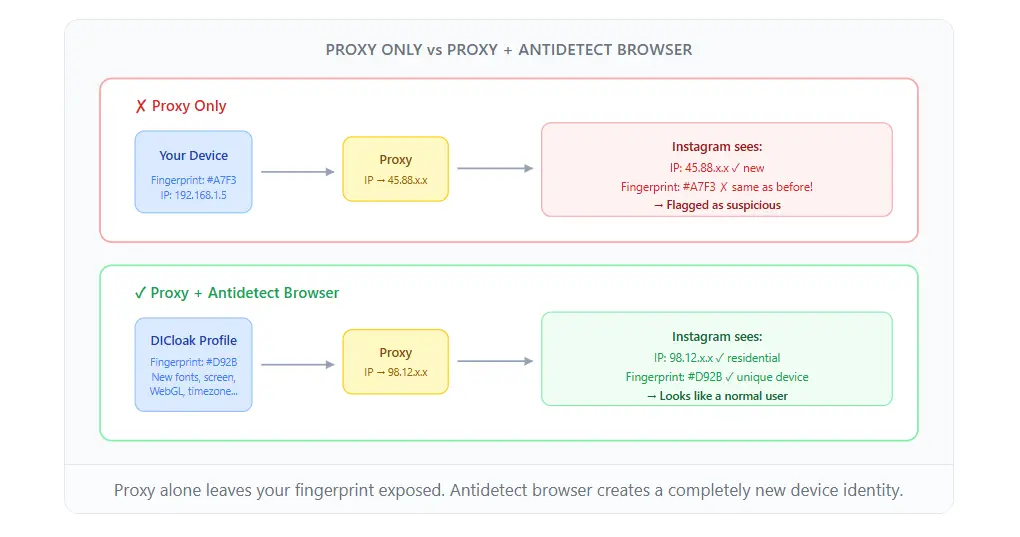
Switching to a new IP only solves half the problem. Instagram's anti-abuse system doesn't just check your IP. It reads your browser fingerprint: screen resolution, language settings, timezone, WebGL rendering, installed fonts, and dozens of other parameters. If you change your IP but your fingerprint stays the same, Instagram knows you're still the same person on the same device.
Why Instagram Gets Blocked
Network-level blocking. Schools, workplaces, and public WiFi networks use firewalls or DNS filtering to block social media domains. When you type instagram.com, the request hits a firewall rule that drops the connection. Every device on that network gets the same result. It's not personal, just a blanket restriction applied to all users on that network.
Account-level blocking. Instagram's own system flags accounts for suspicious behavior. Rapid follow/unfollow cycles, too many likes in a short window, logging in from an IP that doesn't match your usual location, or connecting through a browser fingerprint that looks automated. The result: "Action Blocked" warnings or a full suspension. Instagram's detection checks browser fingerprint parameters (screen resolution, installed fonts, WebGL hash, timezone, language headers) and correlates them across sessions.
A basic proxy solves the first problem. It routes your traffic through a different IP, bypassing the firewall. But it doesn't solve the second. Your browser fingerprint stays identical. Instagram sees the same device connecting from a new IP and treats it as suspicious.
Method 1: Web Proxy (Quick Fix)
Web proxies are the simplest option. You visit a proxy website, enter instagram.com, and it loads Instagram through its own server. Your school or office firewall sees traffic going to the proxy site, not to Instagram, so it doesn't block the request.
Pros:
- No software to install
- Works in any browser
- Usually free
Cons:
- Slow, because every image and video routes through a third-party server
- Many proxy sites are already blocked by firewalls (network admins know about them)
- No HTTPS on some proxies, meaning your login credentials travel unencrypted
- Instagram's mobile features (Stories, Reels, DMs) often break
- Your browser fingerprint is still exposed to Instagram
Web proxies work for a quick check of your feed. They don't work for daily use or for resolving account-level blocks.
Method 2: Proxy Configuration in Your Browser
A step up from web proxies is configuring an HTTP or SOCKS5 proxy directly in your browser settings. You purchase or obtain a proxy address (IP:port), enter it in your browser's network settings, and all traffic routes through that proxy.
This is more reliable than a web proxy because you're using Instagram's actual website, not a stripped-down version. HTTPS works normally. Stories, Reels, and DMs function as expected.
The problem remains the same: your browser fingerprint doesn't change. Instagram can see the same Canvas hash, WebGL renderer, screen dimensions, and font list. If your account was flagged before, connecting through a new IP with the same fingerprint doesn't reset the flag. It can actually make things worse. Instagram interprets the IP change + same fingerprint as an attempt to evade detection.
Residential proxies (IPs from real ISPs, not data centers) reduce the risk of IP-based detection. But the fingerprint issue persists regardless of proxy quality.
Method 3: Antidetect Browser + Proxy (Lasting Solution)
This is where the approach changes. Instead of just masking your IP, you also create a separate browser profile with its own unique fingerprint.
An antidetect browser creates isolated browser profiles. Each profile has its own:
- Screen resolution and color depth
- WebGL and Canvas rendering hash
- Installed fonts list
- Timezone and language settings
- User-Agent string
- Hardware concurrency (CPU core count reported to websites)
- Device memory value
- Platform string
When Instagram reads the fingerprint of this profile, it sees a completely different device. Combined with a proxy (different IP), Instagram has no way to connect this session to your original blocked connection or flagged account.
This is the difference between "hiding your identity" and "being a different person." A proxy hides your address. An antidetect browser gives you a different identity.
DICloak: Setting It Up for Instagram
DICloak is an antidetect browser that handles fingerprint generation and proxy management in a single interface. Here's how to set it up for unblocked Instagram access:
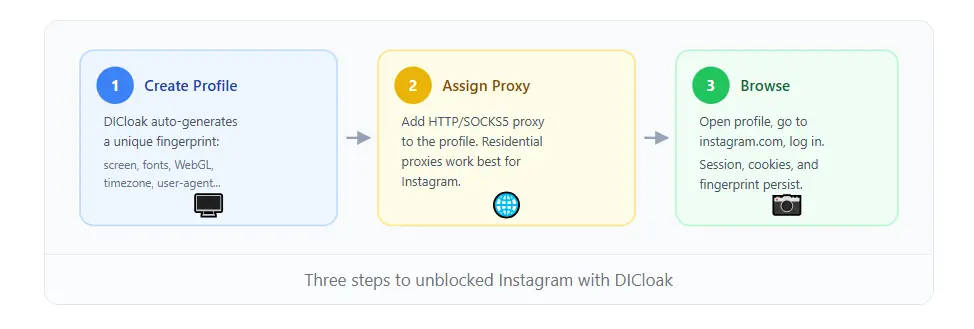
Step 1: Create a browser profile
Open DICloak and create a new environment (browser profile). DICloak auto-generates a complete fingerprint (screen size, WebGL hash, fonts, timezone, and all other parameters). You don't need to configure each parameter manually.
Step 2: Assign a proxy
In the profile settings, add your proxy. DICloak supports HTTP, HTTPS, and SOCKS5 proxies. For Instagram, residential proxies deliver the best results because Instagram is more likely to flag data center IPs.
| Proxy Type |
Detection Risk |
Speed |
Cost |
| Data center |
High (Instagram flags these IPs frequently) |
Fast |
$1-3/mo |
| Residential |
Low (looks like a normal home connection) |
Medium |
$5-15/mo |
| Mobile/4G |
Lowest (matches how most users access Instagram) |
Varies |
$15-30/mo |
Step 3: Open the profile and use Instagram
Launch the profile. A Chromium browser opens with the proxy active and all fingerprint parameters set. Navigate to instagram.com, log in, and use it normally.
Each profile maintains its own cookies, local storage, and session data. When you close the profile and reopen it later, your Instagram session is still logged in. No need to re-authenticate every time.
If you manage multiple profiles, DICloak's Local API lets you automate the process:
# List all profiles
curl -s "http://127.0.0.1:52140/openapi/v1/env/list" \
  -H "X-API-KEY: your_api_key"

# Open a specific profile
curl -X PATCH "http://127.0.0.1:52140/openapi/v1/env/{id}/open" \
  -H "X-API-KEY: your_api_key"

# Response includes a debug_port for browser automation
# {"code": 0, "data": {"debug_port": 49866, "pid": "11946"}}
Why This Works Better Than a Proxy Alone
To understand why fingerprint isolation matters, consider what Instagram checks when you connect:
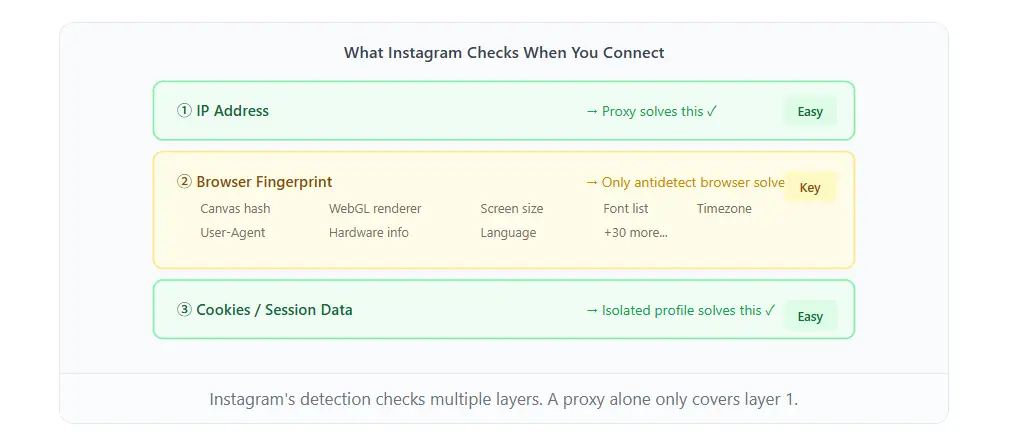
A proxy only checks the first box. An antidetect browser with a proxy checks the first three. The fourth, behavior patterns, is on you. Don't like 200 posts in 10 minutes. Don't follow 100 accounts in an hour. Instagram's rate limits exist regardless of how clean your fingerprint is.
Avoiding Action Blocks After Unblocking
Getting access to Instagram is step one. Staying unblocked requires following Instagram's implicit rules:
- Warm up new sessions gradually. Don't log in and immediately start liking, commenting, and following at full speed. Browse your feed for a few minutes first. Instagram monitors the velocity of actions on new sessions.
- Keep consistent login patterns. If your profile uses a US residential proxy, don't switch to a European one the next day. Instagram tracks location consistency.
- Respect rate limits. Approximate safe thresholds per hour (as of February 2026, based on community testing):
| Action |
Safe Limit / Hour |
Aggressive (Risk of Block) |
| Likes |
30-40 |
80+ |
| Comments |
10-15 |
30+ |
| Follows |
15-20 |
40+ |
| Unfollows |
15-20 |
40+ |
| DMs |
10-15 |
30+ |
These numbers vary by account age and standing. Older accounts with established history get more leeway. New accounts should stay at the lower end.
- Use one profile per account. Don't log into multiple Instagram accounts from the same browser profile, even with an antidetect browser. Each account should have its own dedicated profile with its own proxy and fingerprint.
Comparison: Proxy vs. Antidetect Browser
|
Web Proxy |
Browser Proxy |
Antidetect Browser + Proxy |
| Bypasses network firewall |
Yes |
Yes |
Yes |
| Resolves account action blocks |
No |
Rarely |
Yes |
| Browser fingerprint isolated |
No |
No |
Yes |
| Instagram features fully functional |
Partial |
Yes |
Yes |
| Cookies persist between sessions |
No |
Yes (shared) |
Yes (isolated per profile) |
| Setup difficulty |
None |
Low |
Medium |
| Cost |
Free |
Proxy cost only |
DICloak free tier + proxy cost |
For network-level blocks only (school/work WiFi), a browser-configured proxy is sufficient. For account-level blocks, or if you want to stay unblocked long-term without repeated flags, an antidetect browser is the reliable path.
Quick Start Checklist
- Download DICloak (free tier available)
- Create a new browser profile (fingerprint auto-generates)
- Add a residential proxy to the profile (providers like Smartproxy, Bright Data, or IPRoyal offer residential plans starting at ~$5/month)
- Open the profile and navigate to instagram.com
- Log in and browse normally, start slow and build up activity gradually
- Keep the same profile for the same Instagram account every time
The profile stores your session, cookies, and fingerprint. Next time you open it, Instagram sees the same "device" returning from the same "location." No flags, no blocks, no "Try Again Later."
Proxies give you a new address. An antidetect browser gives you a new identity. For Instagram, you need both. The proxy gets you past the network firewall; the fingerprint isolation keeps Instagram from flagging you once you're in.
 Web Proxy Tools
 Free Tools
 Cookie Plugin
 UA Generator
 MAC Address Generator
 IP Generator
 IP Address List
 2FA Code Generator
 World Clock
 Anonymous Check
 WebRTC Leak Test
 UUID Generator
 Free Web Proxy Site
 Proxy Checker
 FB Ad Checker
 AI Web Scraping
 Free SMM Tools
 Twitter Shadowban Checker
 Instagram Name Checker
 UTM Generator
 Username Generator
 AI Hashtag Generator
 LinkedIn Headline Generator
 Social Media Image Resizer