You set up a proxy to run Facebook, thinking it hides your real IP, then a video call or embedded widget triggers WebRTC, and suddenly your actual address leaks to the site or third parties. This is the classic webrtc leak when using facebook with a proxy problem. You do everything right with your proxy, but the browser’s real-time communication layer bypasses it, exposing details you meant to keep private.
Most people assume that just routing Facebook through a proxy is enough, but that’s not the whole story. WebRTC uses its own channels and can reveal your real network info even if your proxy is solid. Even users who carefully check their Facebook activity logs or regularly clear cookies can miss this leak. The risk isn’t just technical, if Facebook’s systems or outside trackers spot mismatched IPs, your session may get flagged, restricted, or forcibly logged out.
The real fix isn’t a generic browser setting or a one-click extension. Preventing webrtc ip leak facebook proxy issues means controlling both browser-level fingerprint signals and making sure WebRTC traffic never exposes your real address. That means understanding which settings matter, how browser profiles play a role, and what actually works for Facebook’s detection layer. Miss one detail, and the leak comes back the next time you start a call or load a widget.
Start by checking which browser settings actually control WebRTC leaks and what to look for before you trust your proxy setup.
Why WebRTC Leaks Matter When Using Facebook with a Proxy
If you use a proxy to hide your IP while browsing Facebook, WebRTC can still leak your real address, even when the proxy appears to work. This risk isn’t limited to tech users; anyone running multiple accounts or managing privacy needs to know what WebRTC does behind the scenes and why Facebook treats mismatched IPs like a red flag.
How WebRTC Reveals Real IP Addresses
WebRTC is built for real-time communication. It quietly connects devices for video and audio calls, but it can bypass your proxy if not configured right.
- The protocol asks your browser for all available IPs, including private and local addresses.
- These IPs can be exposed to any website running WebRTC scripts, sometimes even without you starting a call.
- Facebook and other platforms use scripts that trigger WebRTC, pulling your real IP alongside your proxy IP.
Why Facebook Is Sensitive to IP Consistency
Facebook checks for IP consistency throughout every session, not just at login. If your account logs in through a proxy, but WebRTC leaks your real address, the platform sees two different IPs, one from HTTP requests and another from WebRTC traffic. This mismatch is a classic sign of account masking or automation. Even if your proxy is stable, a single WebRTC leak can trigger Facebook’s internal risk controls. That usually means your session gets flagged for review, logged out, or pushed through extra verification steps. For operators who manage several accounts, this risk isn’t just a nuisance, it can lead to restrictions, forced re-authentication, or even account bans. Missing WebRTC configuration is the fastest way to get flagged when running Facebook through a proxy. Some users notice the issue only after a sudden logout or failed verification, but the real cause is often buried in how browsers handle WebRTC.
If you want to prevent a facebook webrtc leak with proxy, the next thing to check is which browser settings and network conditions actually cause the leak. The most common triggers are hidden in browser fingerprint settings and how WebRTC interacts with your proxy.
What Causes WebRTC Leak When Browsing Facebook with a Proxy
WebRTC leak happens because most browsers send real IP addresses through direct connections, bypassing the proxy, whenever Facebook or another site loads a widget, call, or media element that uses WebRTC. It’s not enough to set up a proxy, unless you control the browser’s WebRTC behavior, Facebook can see your home IP even if your proxy is active.
Browser Settings and WebRTC Defaults
Browsers don’t block WebRTC by default, and most users skip the settings that matter. Here’s what catches people out:
- Chrome, Edge, and Firefox usually let WebRTC reveal your real IP unless you change advanced settings or install extensions.
- Proxies don’t touch WebRTC traffic unless the browser is set to route it through the proxy. That’s why leaks happen even with “proxy fully active.”
- Facebook uses embedded video calls, group chats, and widgets that quietly trigger WebRTC, sometimes before you even click anything.
Proxy Limitations in Preventing WebRTC Leaks
A proxy routes your main browser traffic, but WebRTC is built to create direct peer-to-peer connections for real-time audio or video. That means WebRTC often sends your device’s real IP to Facebook, even while you think the proxy is masking everything. Most proxy setups ignore WebRTC unless you specifically block or reroute it at the browser profile level.
Here’s where things break down: If you just set a proxy in your browser or system settings, but leave WebRTC untouched, the leak appears the moment Facebook loads anything that uses WebRTC, like Messenger video calls or certain site widgets. The browser exposes your real IP to Facebook’s servers or third-party trackers, which can trigger account restrictions or session mismatches. Some users install a browser extension to “disable WebRTC,” but that only works if it covers every fingerprinting method and doesn’t get disabled by browser updates. The main mistake is trusting the proxy to handle it alone, WebRTC is outside its control unless you configure browser-level settings.
If you want to check for leaks before your next Facebook session, look for browser settings that block, substitute, or reroute WebRTC traffic, not just basic proxy configuration. The next section walks through how to check if your real IP is leaking via WebRTC on Facebook.
How to Check If Your Facebook Session Is Leaking Real IP via WebRTC
You don’t need to guess if your real IP is leaking when using Facebook with a proxy. The fastest way is to run a WebRTC leak test yourself, then check your Facebook security logs for unexpected IP activity. Here’s how to do both , if you spot your real address showing up, your browser proxy isn’t covering WebRTC traffic.
Testing WebRTC Leak with Online Tools
- Open your browser and set your proxy as you would for Facebook.
- Go to a trusted WebRTC leak test site, such as browserleaks.com/webrtc or ipleak.net.
- Run the test , look for any IP address that matches your real network, not your proxy. If you see your home or office IP listed, your browser session is leaking.
- Repeat the test after changing WebRTC settings or disabling extensions. Sometimes, browser updates reset these controls, so always retest after any change.
The key is this: if your real IP shows up during the test, Facebook’s scripts and trackers can access it just as easily.
Checking Facebook Account Activity for IP Mismatch
- Log into Facebook and visit “Settings & Privacy” → “Security and Login.”
- Check the “Where You’re Logged In” section for location and IP info.
- Compare these IP addresses to your proxy. If any session shows your actual home or office IP, your proxy isn’t masking WebRTC traffic.
- Look for warning messages or an unexpected logout. These flags often point to an IP mismatch , if you notice them after testing for leaks, your session likely triggered a review.
If you spot unexplained IPs or see login alerts, you’re at risk. That’s usually the sign to review your setup before you keep using Facebook with sensitive accounts.
Common Mistakes That Lead to WebRTC Leaks on Facebook
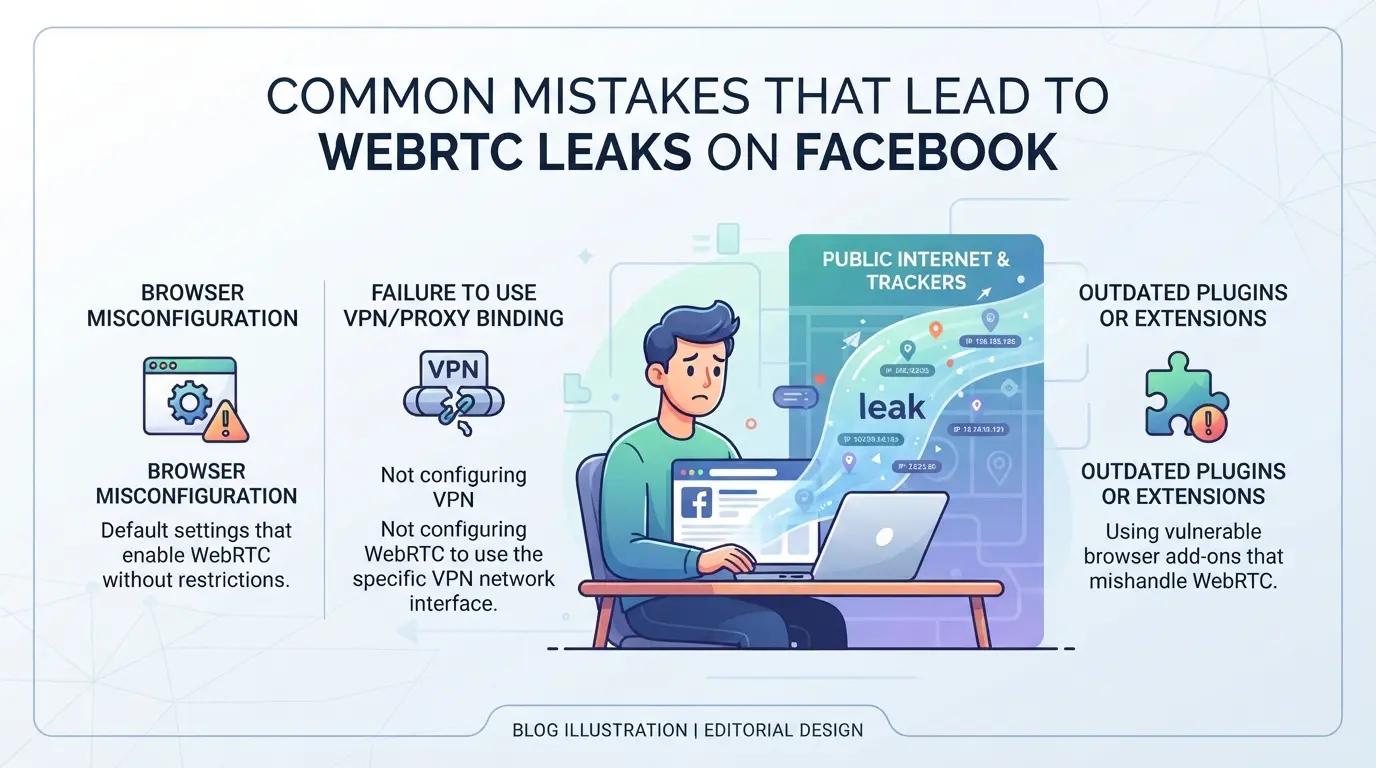
Most leaks happen because users miss one key browser setting or trust a proxy without checking how WebRTC handles IP traffic. Even a “secure” setup can fail if you overlook these mistakes.
Leaving WebRTC Enabled in the Browser
Default browser settings leave WebRTC active, which lets real IP addresses slip through, even with a proxy. Disabling WebRTC is the direct fix: use browser settings or trusted extensions to block WebRTC completely. If you skip this, Facebook can spot a mismatch in seconds.
Using Shared Browsers or Sessions
- Always create a separate profile for each Facebook account.
- Never reuse sessions across accounts; this contaminates cookies and IP history.
- Clear browser cache and cookies before switching profiles.
Proxy Misconfiguration and Quality Issues
A slow or mismatched proxy can break your IP masking, making leaks much more likely. Even the right proxy type won’t help if it’s unreliable or set up wrong.
- Check if your proxy supports WebRTC masking, HTTP and SOCKS handle it differently.
- Test proxy speed before logging into Facebook; dropped connections trigger fallback to real IP.
- Review proxy logs for errors or timeouts after each Facebook login.
Missing just one of these checks means your real IP could leak the next time a Facebook widget loads , which leads straight into safer prevention tactics.
Safer Ways to Prevent WebRTC Leaks When Using Facebook with a Proxy
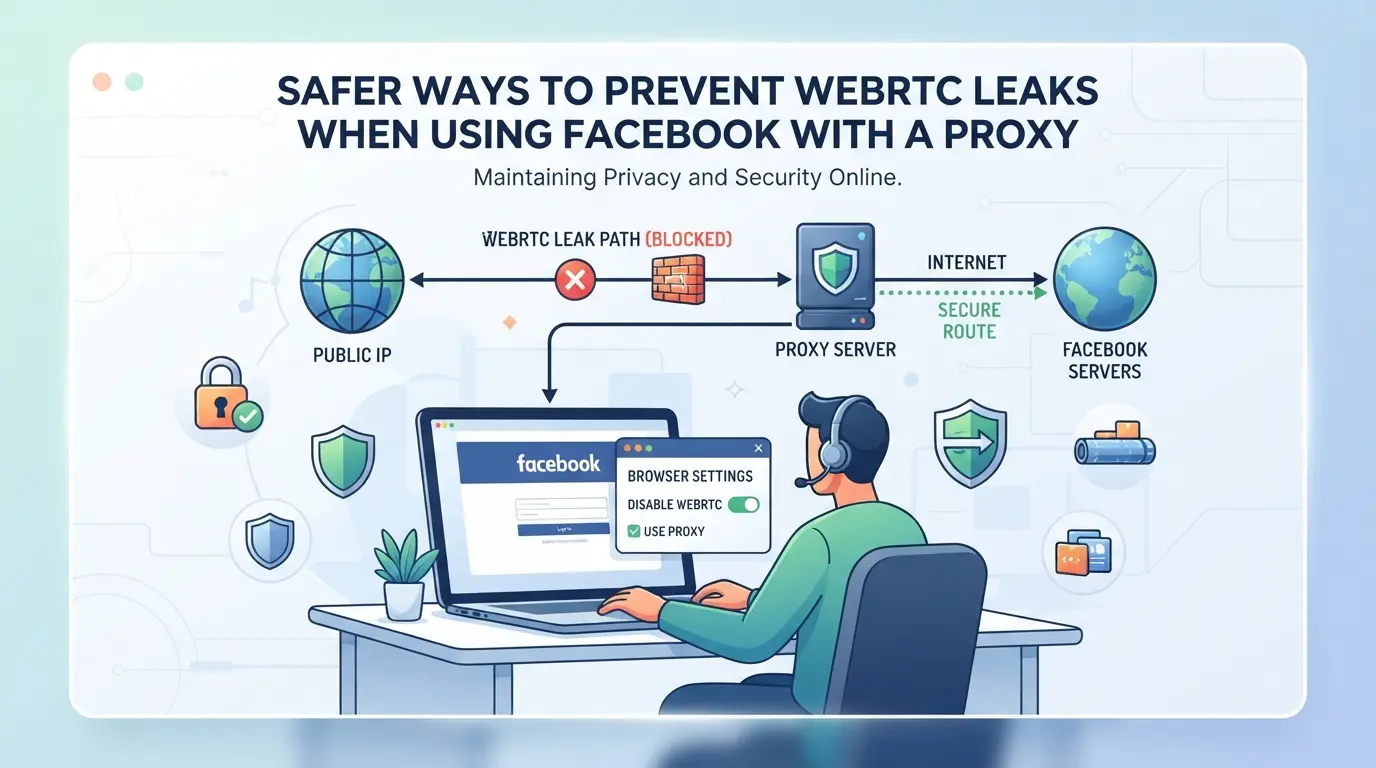
Stopping WebRTC leaks isn’t just about flipping a browser toggle. If you want to keep your Facebook account safe when using a proxy, you need to block the leak at the browser layer, keep each account in its own environment, and match your proxy setup to the account’s region, otherwise, Facebook can still spot mismatches and flag you.
Disabling WebRTC in Popular Browsers
- Chrome: Install a WebRTC blocker extension like "WebRTC Leak Prevent." After setup, check your settings, if you miss a required permission, Chrome may still leak your real IP during calls or widget loads.
- Firefox: Open
about:config, search for media.peerconnection.enabled, and set it to false. This disables WebRTC at the browser engine level. If you forget this step, Firefox can expose your IP even with a proxy.
- Edge: Use Chrome-compatible extensions or set up via flags. Always test with a leak checker, Edge updates can reset your setting without warning.
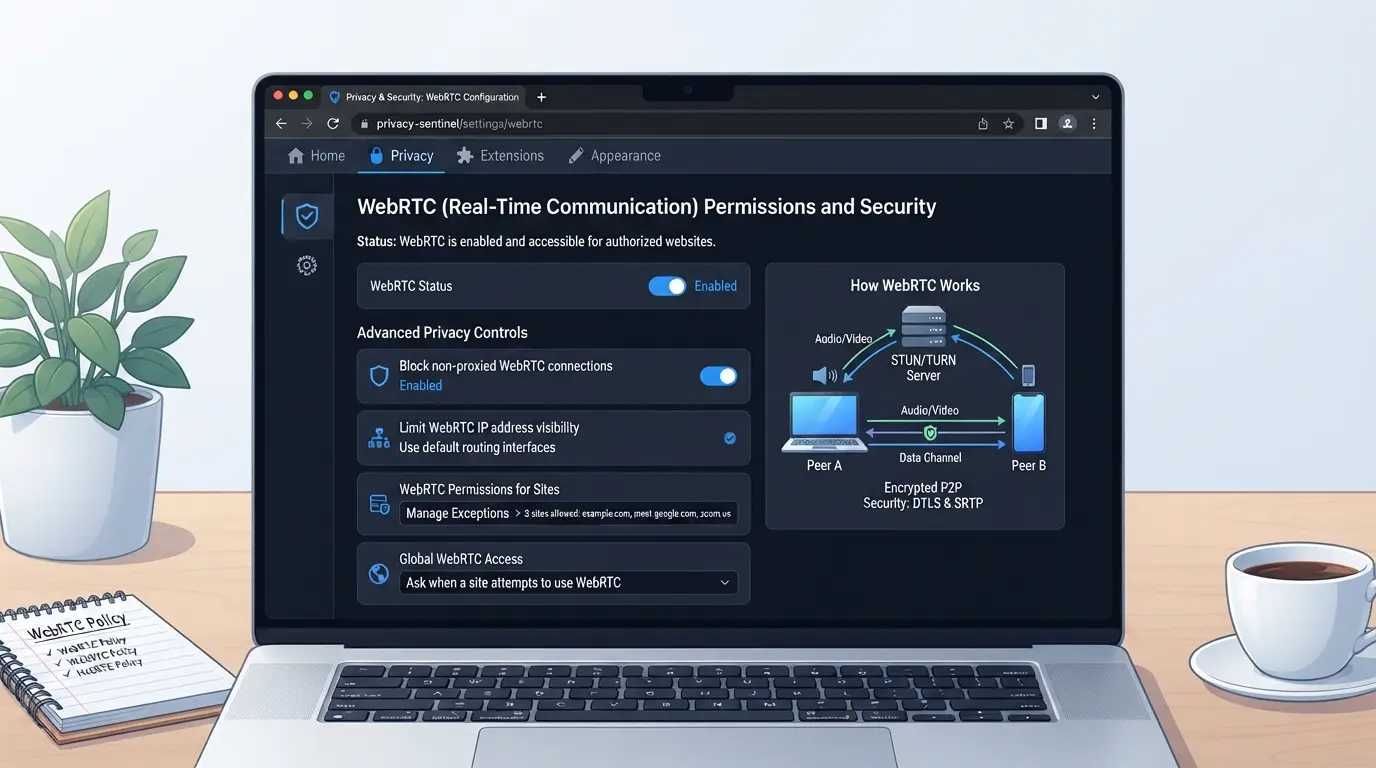
Failing to disable WebRTC means all other proxy steps are wasted. Facebook’s detection scripts or embedded widgets can trigger leaks, especially during Messenger calls or when loading interactive content.
Using Separate Browser Profiles for Each Facebook Account
- Create a unique browser profile for every Facebook account. This prevents cross-session leaks, if you share profiles, Facebook can link accounts via cached WebRTC data.
- Set up profile isolation in your browser tool. If you use a shared session, WebRTC fingerprinting can connect accounts even with different proxies.
- Clear cache and cookies between sessions. If you skip this, leftover data can cause inconsistent fingerprint signals, making Facebook more likely to flag your accounts.
Keeping profiles separate is the single best move, mixing sessions is what usually triggers a chain reaction of restrictions.
Configuring Proxies Consistently with Account Location
- Pick a proxy matching your account’s region and set your browser’s time zone to the same area. If your IP says "France" but your browser shows "US Pacific Time," Facebook’s risk engine notices fast.
- Use consistent geolocation and language settings. If you forget, auto-detected mismatches will stack up, raising flags on every login.
- Test the proxy’s stability before real usage. Unstable proxies can drop connections mid-session, causing Facebook to see a sudden IP change, which often leads to forced logouts or security checks.
If your proxy setup doesn’t match your account’s original location, Facebook will treat the session as suspicious. These mismatches are what usually trigger extra verification steps, even if you’ve blocked WebRTC leaks.
Getting every layer right is the only way to keep your accounts safe. Next, see how dedicated browser profile tools make multi-account management less risky and more reliable.
Once you’ve fixed the browser settings that control WebRTC leaks, the next challenge is keeping each Facebook account session truly separate, especially when proxies are in play. For operators or teams running more than one Facebook account, a single browser or shared fingerprint often leaves traces that can trip platform checks, even if the proxy looks fine on paper. The practical answer is using a setup where every account has its own browser profile and network settings. DICloak supports this multi-account workflow by letting you isolate browser profiles and configure key fingerprint and network signals per account. This not only reduces account overlap, it keeps each session’s browser identity and connection details under your control.
Creating Isolated Browser Profiles and Configuring Fingerprints
Operators can create a separate browser profile in DICloak for each Facebook account. Each profile stores its own settings, operating system, user agent, time zone, geolocation, and WebRTC behavior among others, so no browser storage or fingerprint signal gets shared between sessions. For example, you might set the WebRTC setting to “disabled” or “substituted” to avoid revealing your real IP, while matching other signals to your proxy region. The scope here is limited to browser settings and profile control; it does not affect how Facebook itself handles your account.

Assigning User-Owned Proxies to Each Profile
After setting up profile isolation, operators can assign their own proxy to each browser profile. This keeps the network connection consistent and separate for every Facebook session. Proxy details, including type, host, port, and authentication, are saved per profile. You can test each connection and check the detected IP, country, and time zone before opening a session. DICloak does not supply proxies; quality and compliance are up to the operator.

This setup covers the browser and connection layer, but certain Facebook actions can still trigger risk even with these controls in place.
When Facebook Account Risk Is Highest Despite Using a Proxy
Platform Detection Beyond IP: Fingerprints, Cookies, and Device IDs
Even with a proxy, Facebook can link accounts by matching device fingerprints, cookies, and browser signals. If your browser profile, language, or hardware details are inconsistent, the platform may flag your session regardless of the proxy. Clearing cookies or switching proxies alone won’t stop account linkage, fingerprint mismatches often trigger extra review.
Risky Behaviors: Rapid Switching, Shared Devices, and Inconsistent Profiles
Jumping between accounts, using the same device for multiple logins, or mixing browser profiles is a recipe for trouble.
- Facebook can spot rapid account switching and inconsistent environments, leading to restrictions or forced verification.
- Safer move: keep each account on a dedicated, properly isolated browser profile with consistent fingerprint and proxy settings.
If you plan to run multiple workflows, slow down and double-check your environment before logging in. Even a single slip, like starting a video call without WebRTC control, can expose your real IP and undo all proxy protections. Next, check the full review list before using Facebook with a proxy in 2026.
Checklist: What to Review Before Using Facebook with a Proxy in 2026
Browser and WebRTC Settings
If you want to prevent a webrtc leak when using facebook with a proxy, disable WebRTC in your browser and use separate browser profiles for each account. These two steps tackle most hidden IP exposure.
Proxy Consistency and Quality
- Confirm proxy IP matches the account’s usual login region
- Check the proxy for stable connection and low latency
- Test the proxy with Facebook to verify consistent session behavior
Account Activity and Security Logs
- Review recent login history for mismatched locations
- Check security logs for unexpected device or IP alerts
- Look for any flagged activity that signals Facebook detected a leak
Frequently Asked Questions About webrtc leak when using facebook with a proxy
Can WebRTC leak my real IP even if I'm using a proxy for Facebook?
Yes, WebRTC can expose your real IP address, even when you use a proxy with Facebook. WebRTC uses direct connections for video and audio, which can bypass proxy settings. This means your real IP may be visible to websites, including Facebook, unless WebRTC is disabled or managed through browser settings.
How do I disable WebRTC in Chrome or Firefox to prevent leaks?
To prevent WebRTC leaks, you can disable it in Chrome by installing extensions such as "WebRTC Leak Prevent." In Firefox, go to about:config and set "media.peerconnection.enabled" to false. These steps block WebRTC from leaking your IP while using Facebook with a proxy.
Does using a proxy guarantee my Facebook account won't be restricted?
Using a proxy can help hide your IP address, but it does not guarantee your Facebook account is safe from restrictions. Facebook checks for unusual activity, login patterns, and browser fingerprints. If these signals look suspicious, your account may still be flagged or restricted, even with a proxy.
What is the safest way to manage multiple Facebook accounts without leaks?
The safest way is to use separate browser profiles for each account, make sure proxies are set up and consistent, and disable WebRTC. This prevents accidental cross-account leaks and hides your real IP from Facebook. Avoid using the same device, cookies, or browser fingerprint for different accounts.
Can DICloak prevent WebRTC leaks for Facebook accounts?
DICloak helps with browser profile isolation and fingerprint management. However, users must correctly set WebRTC handling and proxy settings within DICloak to prevent leaks. If WebRTC is not disabled or configured, your real IP could still be exposed while using Facebook accounts.
Taking steps to disable WebRTC in your browser or switching to privacy-focused tools can help protect your real IP address when browsing sensitive sites. If maintaining anonymity is essential for your online activity, consider solutions specifically designed to prevent these leaks alongside your proxy. Try DICloak For Free
 Web Proxy Tools
 Free Tools
 Cookie Plugin
 UA Generator
 MAC Address Generator
 IP Generator
 IP Address List
 2FA Code Generator
 World Clock
 Anonymous Check
 WebRTC Leak Test
 UUID Generator
 Free Web Proxy Site
 Proxy Checker
 FB Ad Checker
 AI Web Scraping
 Free SMM Tools
 Twitter Shadowban Checker
 Instagram Name Checker
 UTM Generator
 Username Generator
 AI Hashtag Generator
 LinkedIn Headline Generator
 Social Media Image Resizer