Why Do Facebook Sessions Keep Logging Out?
It can be annoying to open Facebook and find that you need to sign in again. This is even more frustrating when you use Facebook every day for work. In many cases, the problem is not your password. Cookies, browser settings, extensions, or Facebook security checks may affect how long a login session stays active.
To keep Facebook sessions logged in, it helps to understand what your browser saves after you sign in. It is also important to know what can remove or change that data. Once you know where the problem comes from, you can avoid making unnecessary changes to your browser.

Common Reasons Facebook Login Sessions Expire
One common reason is deleted browser data. Websites use cookies and other site data to remember parts of your visit. If you remove that data, a website may no longer recognize the same saved session. This is why clearing browser data can sometimes lead to another Facebook login.
For example, imagine that you manage a Facebook Page from Chrome during the week. Everything works normally until you clear all browsing data on Friday. If you select cookies and site data, Facebook may ask you to sign in again the next time you open it. Google also explains that deleting cookies can sign users out of sites that remember them.
Browser cleanup tools may cause a similar problem. Some privacy extensions, security programs, and cleanup apps can remove cookies automatically. If Facebook keeps logging you out after you close your browser, check whether one of these tools is clearing site data in the background.
However, not every logout is caused by your browser. Facebook may sometimes ask you to sign in again or complete a security check. This may happen when Facebook wants to confirm account access. Browser settings cannot control these platform-side security decisions, so an unexpected logout does not always mean something is wrong with your browser.
How Cookies and Browser Settings Affect Facebook Sessions
Cookies play an important role in many website sessions. They can help a website remember information after you close a tab or restart your browser. If the browser keeps the needed site data, you may be able to return to Facebook without entering your login details again.
Your browser settings decide how this data is handled. For example, some browsers can be set to delete cookies and other site data every time they close. Microsoft notes that this type of setting can sign users out of websites. If Facebook works during the day but asks you to log in again every morning, this setting is worth checking.
It is also useful to know the difference between cookies and cache. Cached files usually store parts of a page, such as images and other resources, so the page can load faster. Cookies and other site data are more closely connected with saved website information and sessions.
This difference matters when you troubleshoot Facebook. If a page looks broken or an image does not update, clearing cached files may help. You do not always need to delete all cookies at the same time. Removing them may also remove the Facebook login session you wanted to keep.
For people who use several Facebook accounts, keeping browser data organized becomes even more important. One practical way to do this is to give each account its own browser profile instead of putting every session in one browser space.
How Browser Profiles Help Keep Facebook Sessions Logged In
A browser profile works like a separate workspace inside your browser. Each profile can keep its own browsing information and settings. This makes profiles useful when you want to keep Facebook sessions logged in for personal, business, or client work without mixing everything together.
Chrome, for example, lets users create separate profiles for different people or purposes. Google recommends profiles as a way to separate work and personal accounts. Firefox also supports profiles that keep different sets of browsing data apart.
How Separate Browser Profiles Store Facebook Login Sessions
Imagine you use Facebook personally but also manage social media for a small store. If both activities happen in the same browser profile, you need to pay more attention to which account or Page is active. Your browsing history, saved passwords, cookies, and other website data also live in the same browser space.
A simpler setup is to create two profiles called Personal and Store. You use Facebook for personal tasks only inside the Personal profile and do store-related work inside the Store profile. When you return the next day, you open the browser profile that belongs to the work you want to continue.
For someone who handles more accounts, the same idea can scale further. A freelance social media manager may have browser profiles called Personal, Client A, and Client B. Clear names make it easier to choose the right workspace before posting, replying to comments, or changing Page settings.
This setup does not guarantee that Facebook will keep every session active forever. Facebook can still require a new login or security check when needed. The value of a browser profile is that it keeps each browser profile organized instead of putting all accounts in the same place.
If you often move between accounts, you can also read this guide on how to switch between multiple Facebook accounts without logging out. It covers account switching in more detail and explains where separate browser profiles fit into the process.
Why Separate Cookies and Browser Data Matter
The main reason separate profiles help is that browser data stays separated. Cookies, history, saved settings, and other site data in one profile do not need to be mixed with the data in another profile. This creates a clearer workspace for each Facebook login session.
Consider an agency worker who manages three client workspaces. Client A and Client C stay logged in, but Client B suddenly starts asking for a login every morning. If all three accounts use separate browser profiles, the worker can start by checking the Client B profile. There is no reason to change the browser settings or clear cookies for every other client.
Separate profiles can also reduce simple human mistakes. When many Facebook accounts are open in the same browser profile, it can be easy to forget which account is active. With clearly named profiles, workers have another way to check where they are before they publish a post or reply to a customer.
This does not mean standard browser profiles solve every account management problem. They mainly separate local browsing environments. People who need stronger profile isolation or team workflows can also use a dedicated browser profile tool. DICloak, for example, lets users create independent browser profiles with separate browser settings and other profile data.
The important point is not to make Facebook think a session can never change. The goal is to keep each account in a clear browser workspace and reduce avoidable problems caused by mixed or deleted browser data.
How to Keep Multiple Facebook Accounts Logged In
Once each Facebook account has its own browser space, daily account management becomes easier. You do not need to sign one account out every time you want to work on another. You can open the browser profile linked to the account you need and continue from there.
This approach is most useful for people who have legitimate access to several Facebook workspaces. That may include freelancers, agencies, small business owners, and teams that manage different Pages or client projects. The setup still needs to follow Facebook's account and access rules.
Create a Separate Browser Profile for Each Facebook Account
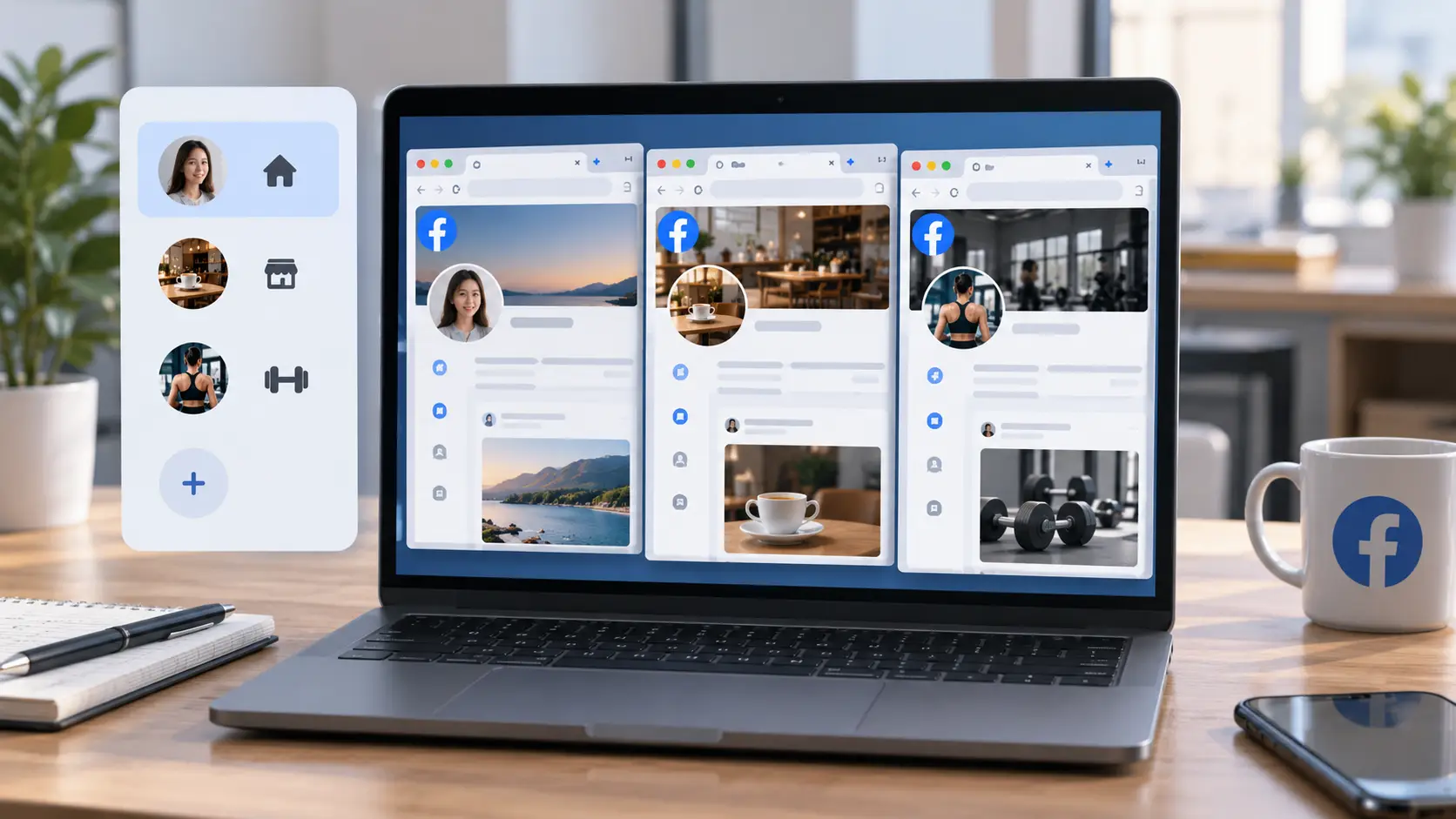
A simple starting point is to create one browser profile for each important Facebook login environment. Use names that tell you exactly what each profile is for. A social media manager, for example, might use Personal Facebook, Coffee Shop, and Fitness Client.
After creating the profiles, sign in to the correct Facebook workspace inside each one. Try to return to the same profile each time you work on that account. This keeps your routine consistent and makes it easier to find the right browser profile later.
Clear profile names become more helpful as the number of accounts grows. Imagine a freelancer handling five clients. Without clear separation, they may have several Facebook tabs open and need to check which account is active before every task. With named browser profiles, they can open the workspace that matches the client before starting work.
For teams managing more accounts, DICloak has a more detailed guide on how to manage multiple Facebook accounts with separate browser profiles. Its browser profiles can keep independent cookies, session data, browser settings, and other profile information.
Using separate profiles is mainly about keeping account environments organized. It does not give permission to create accounts that break Facebook's rules, and it cannot bypass security checks from Meta.
Avoid Clearing Cookies and Login Data
Creating separate browser profiles only helps if you keep the session data inside them. Be careful when using Delete browsing data, privacy extensions, or automatic cleanup tools. If they remove the cookies used by Facebook, you may need to sign in again.
For example, suppose your Client A profile has stayed logged in for three weeks. You notice that the browser is using more storage, so you delete all cookies, cache, and site data from that profile. The next time you open Facebook, the login is gone. In this case, the logout is a normal result of deleting the stored data.
You also do not need to clear every type of data when something small goes wrong. If Facebook is loading an old image or part of the page looks broken, you can start by checking cached files. If the problem is related to a login, then cookies and site data may be more relevant.
The same care applies to automatic cleanup tools. If Facebook keeps logging you out at the same time each day or every time you close your browser, review your browser and extension settings. A tool may be deleting site data without you noticing.
This does not mean cookies should never be cleared. Old or damaged site data can sometimes cause website problems, and clearing it can be a useful troubleshooting step. The key is to understand that doing so may also end an active session.
Keep Personal and Business Facebook Accounts Separate
Separating personal and business Facebook use helps with more than login sessions. It also makes everyday work easier to understand. Your personal bookmarks, browsing history, saved passwords, and settings do not need to sit in the same browser profile as your client or company work.
For example, a freelancer may check personal Facebook during lunch and manage a client's Facebook Page in the afternoon. With one browser profile, both activities happen in the same workspace. With separate Personal and Work profiles, the freelancer has a clearer boundary between the two.
This also helps when several business projects are involved. An agency can name browser profiles by client or project instead of keeping dozens of Facebook tabs open in one browser. When a worker needs the restaurant client, they open that profile. When the task is finished, they close it and move to the next workspace.
Teams should also use Facebook's own Page access features when they are available. Giving authorized team members the right Page access is usually more appropriate than passing the same password between several people. Browser profiles can help organize multiple Facebook sessions, but they do not replace Facebook's own permission system.
Even with a careful setup, a Facebook session can still end. If that happens repeatedly, the next step is to check whether the cause comes from cookies, privacy settings, extensions, or one specific browser profile.
What to Do When Facebook Keeps Logging You Out
If Facebook keeps logging you out, changing every browser setting at once is rarely helpful. You may fix the problem, but you will not know what caused it. You could also remove useful login data from accounts that were working normally.
A better approach is to check one area at a time. Start with cookies, cache, and privacy settings. If they look normal, move on to extensions and the browser profile itself.
Check Cookies, Cache, and Privacy Settings
First, check whether your browser is deleting Facebook cookies automatically. Look at privacy settings that clear site data when the browser closes. Also review security or cleanup programs that may remove browser data on a schedule.
The timing of the logout can give you a useful clue. Suppose Facebook stays logged in all afternoon, but you need to enter your password again after restarting the browser the next morning. That pattern points more toward browser data being removed than a random page-loading issue.
Next, remember that cache and cookies have different jobs. Cached files mainly help website content load faster. Cookies and site data can play a role in keeping a website session available. Clearing one type of data does not have the same effect as clearing the other.
If Facebook displays an old page or does not load an image correctly, clearing cached files may be enough to test the problem. If you delete cookies too, you may also end the saved Facebook login session. Start with the smallest change that matches the problem.
Privacy settings are also worth reviewing. Strict settings can affect how websites save or use data. This does not mean you should turn off useful privacy protections. Instead, check whether a recent settings change matches the time your Facebook logout problems started.
If several Facebook profiles are affected at the same time, a browser-wide setting is more likely to deserve attention. If only one profile has the issue, focus on that profile first.
Check Extensions and Browser Profile Issues
Extensions can also affect how websites work. Privacy tools, cookie managers, ad blockers, script blockers, and security extensions may change site behavior. Most extensions do not cause login problems, but they are worth checking when the issue begins after a new extension is installed or updated.
Suppose your personal Facebook profile works normally, but the account inside your Work profile logs out several times a week. The Work profile has several extensions that your Personal profile does not use. Instead of deleting the whole profile, disable the most relevant extensions one at a time and test Facebook again.
You can also compare different browser profiles. If Client A and Client C stay logged in while Client B keeps losing its session, the problem may be limited to Client B's environment. Check its cookie settings, extensions, privacy rules, and stored Facebook data before changing anything in the other profiles.
A fresh browser profile can also be useful as a test. Sign in to the same Facebook account there and see whether the problem continues. If the new profile works normally, something in the old profile may be involved, such as an extension, stored data, or a custom setting.
Do not delete the old profile immediately. Browser profiles may contain useful bookmarks, saved passwords, browsing history, and other settings. Keep it until you understand what needs to be changed or copied.
Finally, remember that browser troubleshooting has limits. Facebook may still ask you to sign in again or complete an account security check. No browser setting can guarantee that a Facebook session will stay active forever.
The practical goal is to remove avoidable browser problems and keep each account in a stable, well-organized workspace. For people who manage many Facebook accounts or share work with a team, isolated browser profiles can make that setup easier to maintain.
How DICloak Helps Keep Facebook Sessions Logged In
The steps above can solve many common Facebook session problems. However, normal browser profiles may become harder to manage when you work with many accounts or share tasks with a team. You need to remember which profile belongs to each account, keep its browser data separate, and make sure another team member can continue the work without rebuilding the setup.
DICloak takes the same browser-profile idea further. It lets users create independent browser Profiles and manage them from one place. Each Facebook account can have its own browser profile, while teams can control who is allowed to use each Profile. This can make it easier to keep Facebook sessions logged in and organized during normal account management.
Keep Each Facebook Account in an Isolated Browser Profile
With DICloak, you can create a dedicated Profile for each Facebook account. A Profile can keep its own cookies, browser settings, account information, and other stored browser data. DICloak also allows cookies to be added to a Profile and provides settings for controlling how local browser data is stored or cleared.
For example, imagine that an agency manages Facebook work for a clothing store, a local restaurant, and a fitness brand. Instead of signing these accounts in and out of the same browser, the agency can create three Profiles:
- Clothing Store
- Restaurant
- Fitness Brand
Each account stays in its assigned Profile. When the manager needs to work on the restaurant account, they open the Restaurant Profile rather than changing the login inside another browser profile. This keeps the browser data for different Facebook sessions from being mixed together.
DICloak also lets users control whether local data such as cookies, Local Storage, IndexedDB, history, and cached files are cleared when a Profile opens. If keeping a Facebook login session is important, users should review these settings carefully rather than automatically clearing the data the session may depend on.
This setup cannot guarantee that Facebook will never ask for another login or security check. Meta still controls its own account security. The purpose of an isolated Profile is to give each authorized Facebook account a consistent browser workspace and reduce avoidable session problems caused by mixing browser data.

Manage Multiple Facebook Sessions with Separate Profiles
The value of isolated Profiles becomes clearer as the number of accounts grows. Managing two Facebook accounts in a regular browser may be simple. Managing ten or twenty client workspaces is different. Finding the right session, checking which account is active, and troubleshooting one problem without affecting the others can take more time.
With DICloak, users can name Profiles and place them into Profile Groups. For example, an agency could create groups for E-commerce Clients, Local Businesses, and Internal Accounts. The team can then find the correct Facebook workspace without searching through a long list of unrelated browser sessions. DICloak also allows Profile Groups to be assigned to specific team members.
This separation is useful when one Facebook account has a problem. Suppose nine client Profiles remain logged in but one account suddenly asks for a new login. The manager can inspect that single Profile's cookies, settings, extensions, and stored data instead of changing every Facebook environment.
DICloak also supports Multiple Sessions, which allows an enabled Profile to be opened in more than one session when the workflow requires it. The feature can be controlled globally or for a specific Profile. This is more useful for team workflows than repeatedly creating new browser setups for the same account.
For a more detailed setup, you can read the DICloak guide on managing multiple Facebook accounts.
Share Facebook Profiles with Team Members Without Repeated Logins
Repeated logins become especially inconvenient when several people work on the same authorized account. One person may set up the Facebook session correctly, but another team member then needs the same browser profile on another device. Passing a password back and forth also creates an unnecessary security risk.
DICloak's Profile sharing and Data Sync features are designed for this type of workflow. Data Sync can synchronize selected browser data, including cookies, account passwords, bookmarks, Local Storage, IndexedDB, and extension data. DICloak notes that cookie sync can include session information such as website login status.
For example, a social media manager may prepare a Facebook Profile and sign in to the account. After the Profile data is synced, an authorized team member can open the assigned Profile and use the synchronized browser data instead of building a new browser profile from the beginning. DICloak's documentation also confirms that shared Profiles can sync selected cloud data for other team members.
Admins can also control who receives access. DICloak supports member roles, Member Groups, Profile Groups, and permissions for specific Profiles. A manager can therefore give a worker access to the Facebook Profiles needed for their job without giving them every Profile in the team.
This is particularly useful when a team member changes shifts or another person needs to continue a task. Instead of asking for the Facebook password and starting a new session each time, the team can work from an authorized shared Profile with the required synced data.
There is still one important rule. Team members should only access Facebook accounts and Pages they are authorized to manage, and Facebook's own Page roles and access controls should be used where they apply. DICloak helps organize browser profiles and multiple Facebook sessions, but it does not replace Meta's account permissions or security rules.
For teams that regularly move Facebook work between members, DICloak Profile Sharing explains how to share individual or multiple Profiles and manage sharing permissions in more detail.

FAQs About Keeping Facebook Sessions Logged In
Q1: How can I keep Facebook sessions logged in on my browser?
To keep Facebook sessions logged in, avoid deleting Facebook cookies and site data. You can also use a separate browser profile for each account so its login data stays in the same browser profile.
Q2: Why can’t I keep Facebook sessions logged in after closing my browser?
Your browser may be clearing cookies or site data when it closes. Privacy extensions and cleanup tools can also remove login data. Check these settings if Facebook asks you to sign in again after every restart.
Q3: Can browser profiles help keep multiple Facebook sessions logged in?
Yes. Separate browser profiles can store different cookies, settings, and login data for each Facebook account. This makes it easier to keep multiple Facebook sessions logged in without signing one account out to use another.
Q4: Does clearing cookies affect how long Facebook sessions stay logged in?
Yes. Cookies can help Facebook recognize an existing browser session. If you delete Facebook cookies, you may need to log in again. Clearing cache alone does not always have the same effect.
Q5: Can DICloak help keep Facebook sessions logged in for multiple accounts?
DICloak lets users place each Facebook account in a separate browser Profile with its own cookies, session data, and browser settings. This can make multiple Facebook sessions easier to organize and share with authorized team members, but Facebook can still request a new login or security check when needed.
 Web Proxy Tools
 Free Tools
 Cookie Plugin
 UA Generator
 MAC Address Generator
 IP Generator
 IP Address List
 2FA Code Generator
 World Clock
 Anonymous Check
 WebRTC Leak Test
 UUID Generator
 Free Web Proxy Site
 Proxy Checker
 FB Ad Checker
 AI Web Scraping
 Free SMM Tools
 Twitter Shadowban Checker
 Instagram Name Checker
 UTM Generator
 Username Generator
 AI Hashtag Generator
 LinkedIn Headline Generator
 Social Media Image Resizer