Running into the ChatGPT image limit can feel frustrating fast. One moment you are testing ideas, fixing small details, and trying to get the image just right. The next moment, the tool stops and your workflow breaks. That is why so many users are now asking how to get past ChatGPT image limit without wasting time, losing progress, or risking their account.
The good news is that the best solution is not always buying the biggest plan or chasing risky shortcuts. In many cases, the real difference comes from understanding how the limit works, why it gets used up so quickly, and how to make each image request count. In this guide, you will learn what triggers the cap, how resets usually work, what mistakes waste image capacity, and what safe steps can help you keep creating more smoothly in 2026.
What Is the ChatGPT Image Limit in 2026?
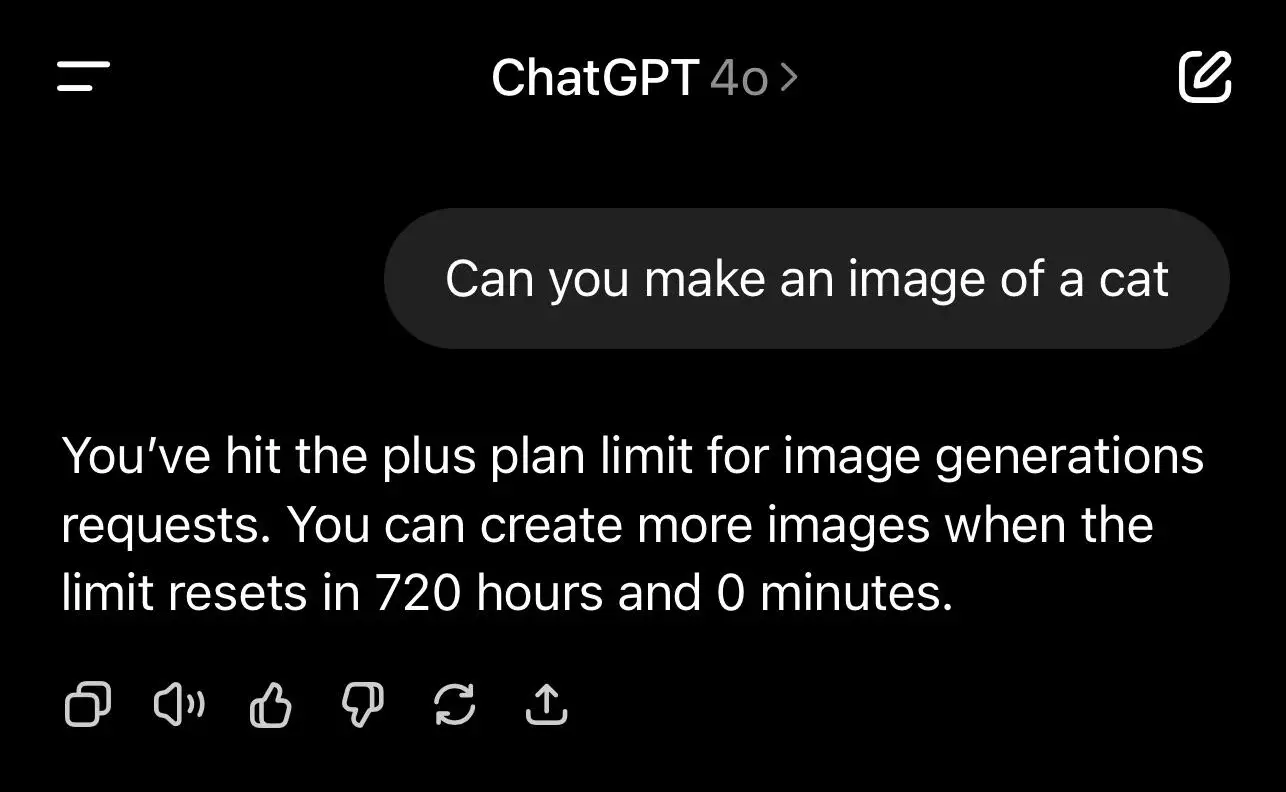
If you want to know how to get past ChatGPT image limit, you first need to understand what the limit looks like in 2026. Some numbers are clear. ChatGPT Plus costs $20 per month, and ChatGPT Pro costs $200 per month. OpenAI says Plus includes expanded and faster image creation, while Pro includes unlimited and faster image creation, though Pro still has abuse guardrails.
For users who want a working estimate, repeated third-party reports suggest that Free users often get about 2 to 3 images in 24 hours, while Plus users usually get about 40 to 50 image generations in a rolling 3-hour window. Under good timing, that can mean roughly 160 to 200 images in a day on Plus. These numbers are widely reported, but they should be treated as practical estimates, not fixed public guarantees.
What usually triggers the image generation cap?
Most users do not hit the limit because of one image. They hit it because one task turns into many retries. For example, a product ad image may need one try for color, another for text, and another for layout. That can use several image actions very quickly.
Editing also matters. ChatGPT can create and edit images, so repeated edits can use up your image capacity faster than expected. The limit is not only about how many final images you keep. It is also about how many image actions you use during the process.
How do image limits reset in ChatGPT?
This is where many users get confused. Based on repeated reporting, the Free tier is often described as a rolling 24-hour window, which means the timer starts from your first image, not from midnight. If your first image is at 2:30 PM, the limit may not fully reset until about 2:30 PM the next day.
For Plus users, the most common estimate is 40 to 50 images per rolling 3 hours. That means each image action takes up a slot, and that slot comes back about 3 hours later. This is why users who spread out their image requests often get more total output than users who use everything in one short session.
OpenAI also says image generation can take up to 2 minutes, especially for more complex prompts. So when people ask how long does it take ChatGPT to make an image, the best answer is that simple requests may be faster, but 2 minutes is a safe upper estimate.
How are limits different on Free, Plus, and Pro?
The main difference is how much image work each plan can support. Free is best for light use, such as a quick mockup or one social media image. Plus is a much better fit for regular creators who need more room to test and revise. That is why many users ask how many images can I generate with ChatGPT Plus. A common working answer is about 50 images per rolling 3-hour window, or about 200 per day if usage is spaced well.
Pro is built for much heavier use. OpenAI describes it as offering unlimited and faster image creation, with abuse guardrails. Current help guidance also notes that Pro users can generate up to 4 images at a time in the current image flow.
So the simple takeaway is this: Free is easy to hit, Plus gives much more room, and Pro is best for heavy image work. Once you understand that, the next step in how to get past ChatGPT image limit becomes easier: use your image requests more carefully, time them better, and choose the plan that matches your workload.
Why Do Some Users Hit the Limit So Fast?
After learning the basic limits, many users still wonder why they run out so quickly. In real use, the problem is usually not just “too many images.” One image task often includes several actions, such as generating, editing, retrying, or rewriting the prompt. OpenAI also says image generation can take up to 2 minutes, especially for more complex requests. That longer wait can make users resend prompts too early and waste more image actions.
Another reason this feels confusing is that not every failed image request is caused by the cap itself. Sometimes the issue comes from a blocked prompt, a temporary technical problem, or a request that is too complex. So if you are trying to understand how to get past ChatGPT image limit, it helps to know that a failed result does not always mean your image quota is gone.
How complex image requests can lead to more failed attempts
A complex prompt may sound efficient, but it often leads to more retries. For example, a user may ask for a luxury perfume ad with text, dramatic lighting, a detailed background, and a realistic hand holding the bottle. That single prompt asks the model to do many things at once. If one part looks wrong, the user usually tries again. Then again. One image idea can quickly turn into four or five generations.
This is one reason people search for how to get past ChatGPT image limit even when they feel they have not created much. The real issue is often not the number of projects. It is the number of retries inside one project. Complex prompts can also take longer to process, which matters when people ask how long does it take ChatGPT to make an image. Simple prompts may finish faster, but harder prompts are more likely to slow down and trigger extra retries.
Why retries and small prompt changes can burn through credits
Many users do not lose image capacity through huge creative sessions. They lose it through small changes repeated many times. They ask for “make it brighter,” then “remove the text,” then “make it more realistic,” then “change the angle.” Each request feels small, but together they can use a large part of the image window.
This matters even more on Plus. Based on repeated third-party reporting, how many images can I generate with ChatGPT Plus is often estimated at about 40 to 50 image generations in a rolling 3-hour window. That sounds like a lot at first, but it feels much smaller when one thumbnail, one product image, or one ad banner takes 8 or 10 tries to get right.
For example, a small business owner may create one sale banner. The first image has the wrong color. The second fixes the color but makes the text hard to read. The third removes the text, but the product shape looks wrong. The fourth looks better, but now a square version is needed for Instagram. In just a few minutes, one banner can use four or five image actions.
What many users get wrong about reset times and unused credits
The biggest misunderstanding is simple: many people think the limit resets at midnight, or that unused room carries over. That is usually not how rolling limits work. OpenAI explains that ChatGPT tools can have separate rate limits, and users need to wait for access to return after hitting a limit.
This is why users often feel confused. Someone may create several images late at night, then come back the next morning expecting a full reset. But if some of that earlier activity is still inside the active window, the tool may still feel restricted. That is why timing matters almost as much as plan level.
Another mistake is assuming unused image room builds into a bigger pool later. There is no strong public evidence that normal ChatGPT image allowance rolls over like that. So the better lesson is not just “buy a bigger plan.” The smarter lesson is to waste fewer image actions. Once you understand that, how to get past ChatGPT image limit becomes much easier: write simpler prompts, wait before retrying, avoid unnecessary edits, and track your reset window more carefully.
Safe Ways to Get More Image Capacity in ChatGPT
Most users do not need a trick. They need a better workflow. If you want to learn how to get past ChatGPT image limit, the safest way is to waste fewer image actions and choose the right level of access for your real workload. That usually means better timing, a better plan, and sometimes a better subscription.
Timing your image requests around reset windows
Timing is one of the easiest ways to make your image capacity feel larger. If you use all your image requests in one short burst, the tool may feel tight for hours. If you spread them out, the same plan often works better.
For example, if you need several images for a blog post or client project, do not start with random tests. Start when your image window is fresh and your ideas are ready. This is one of the simplest ways to improve how to get past ChatGPT image limit without doing anything risky.
Timing also matters because image generation is not always instant. OpenAI says image creation can take up to 2 minutes. So when people ask, how long does it take ChatGPT to make an image, the best answer is that simple prompts may be faster, but more complex ones can take longer. Waiting for the result is often smarter than sending another version too early.
Upgrading from Free to Plus or Pro when you need more output
Sometimes the cleanest answer is using the right plan. OpenAI says Plus includes expanded and faster image creation, while Pro includes unlimited and faster image creation with abuse guardrails. That makes Plus the first practical upgrade for regular creators, while Pro fits users who need much heavier image use.
This is also why people ask, how many images can I generate with ChatGPT Plus. OpenAI does not give one fixed public number for every session, but the basic picture is clear: Free is limited, Plus gives more room, and Pro is built for heavier use. If you keep hitting the cap during real work, your workload may simply be bigger than the Free plan can handle.
OpenAI also says that if a Free user upgrades after hitting a limit, the usage rates reset after moving to a paid plan. So in some cases, upgrading is not only a long-term choice. It is also the fastest safe way to get back to work.
Planning your generations before you start
Good planning can save as many image actions as a better subscription. Many users open ChatGPT first and think later. That usually leads to wasted retries. A better method is to define the image before you generate it. Decide on the subject, style, background, format, and whether you need text before sending the first prompt.
For example, do not start with “make me a cool ad image.” Start with something clearer, such as: “Create a square skincare product ad on a clean white background, with soft shadows, no text, and a premium minimal style.” A prompt like that gives the model a cleaner target and usually leads to fewer retries.
It also helps to do your thinking in text first. Use normal chat to refine the concept before switching to image generation. That keeps your image actions focused on output instead of brainstorming. In the end, one of the smartest answers to how to get past ChatGPT image limit is simple: use better timing, write clearer prompts, and stop wasting generations on work that could have been planned first.
What Not to Do When You Hit the ChatGPT Image Limit
After learning the safe ways to get more image capacity, it also helps to know what not to do. If you are trying to figure out how to get past ChatGPT image limit, the worst choice is using risky tools that may hurt your account more than they help. OpenAI says accounts can be suspended for breaking its Terms or trying to bypass restrictions, so quick fixes are not always worth the risk.
Why unofficial extensions and scripts can put your account at risk
Unofficial browser extensions and scripts often promise extra access or easier image use. The problem is that they can also break normal ChatGPT functions. OpenAI’s help guidance says browser extensions, privacy tools, and similar add-ons can interfere with login and regular use. So if the image tool starts acting strangely, the issue may come from the extension, not the image limit itself.
How third-party tools may expose your prompts or account data
Third-party tools can also create a privacy problem. If you paste prompts, client ideas, or product details into an outside tool, you may not know how that data is stored or reused. OpenAI’s agreements make clear that third-party services follow their own terms, not just OpenAI’s. That means a “free helper” tool could turn a small image-limit problem into a much bigger data problem.
When aggressive workarounds can lead to restrictions
The biggest mistake is trying to force your way around the limit with aggressive workarounds. OpenAI says accounts can be restricted or deactivated for things like sharing access in unsafe ways or circumventing security and usage controls. So even if a trick seems faster, it can cost much more later. If you are asking how many images can I generate with ChatGPT Plus or how long does it take ChatGPT to make an image, the safer answer is still the same: use the proper plan, wait for resets, and avoid suspicious tools.
How to Use Fewer Credits and Get Better Images
After learning what not to do, the next step is more useful: get better images with fewer attempts. This is one of the smartest parts of how to get past ChatGPT image limit. In many cases, the real problem is not the plan. The real problem is wasted generations. OpenAI says ChatGPT Images can follow detailed instructions, edit images, add text, and even support transparent backgrounds. It also says image creation may take up to 2 minutes, especially for more complex requests. That is why clearer prompts can save both time and credits.
Writing clearer prompts so you need fewer retries
A clear prompt usually works much better than a vague one. Many users start with something like, “make a cool product ad.” That often leads to weak results and extra retries because the model has to guess too many details.
For example, instead of saying, “Make a nice ad for my skincare serum,” a better prompt would be: “Create a square skincare ad with one glass serum bottle on a clean white background, soft shadows, no text, and a premium minimal style.” That kind of prompt gives ChatGPT a clearer target, which often means fewer retries. If you want to improve how to get past ChatGPT image limit, this is one of the easiest changes you can make.
Clear prompts also help with speed. When users ask, how long does it take ChatGPT to make an image, OpenAI says it may take up to 2 minutes. A messy prompt can make the process feel even slower because it often leads to another round.
Testing prompt variations in text before generating images
Another simple way to save credits is to test your ideas in text first. Before generating an image, ask ChatGPT to give you a few prompt versions. You can ask for one dramatic version, one minimal version, and one brighter version, then choose the best one before using an image slot.
This matters even more for paid users. Many people ask, how many images can I generate with ChatGPT Plus. Even if Plus gives you more room, that room can still disappear fast if you waste it on weak first drafts.
Building a simple prompt workflow for consistent results
The best habit is to use the same simple workflow every time. Decide the goal, list the key details, choose the format, and then generate the image. This helps you stay consistent and reduces random retries.
For example, a coffee brand might plan one Instagram image like this: square product ad, one coffee bag, light beige background, warm realistic style, no text, soft daylight. That structure gives ChatGPT a clearer visual map and makes later edits easier.
In the end, one of the best ways to improve how to get past ChatGPT image limit is not just getting more capacity. It is getting more good images from the same capacity.
When It Makes Sense to Use Another Image Tool
At some point, the question is not just how to get past ChatGPT image limit. The real question is whether ChatGPT is still the right tool for the job. If you have already improved your prompts and timing but still run into limits often, your workload may be bigger than the ChatGPT app is designed to handle.
Platforms that offer higher image volume or API-based usage
The clearest option for higher-volume work is the OpenAI API. It is built for image generation and editing at a larger scale, with more control over size, quality, and format. That makes it a better fit for teams, apps, and repeat production work than the normal ChatGPT interface.
Other tools can also make sense when you need more output or a different workflow. Midjourney is often used for stylized creative work. Adobe Firefly fits users who already work inside Adobe’s design tools. Ideogram is another option for users who want a dedicated image platform with subscription or API access.
Comparing ChatGPT with other image generation options
Not every image tool works the same way. Some are better for fast idea work. Others are better for style, scale, or automation. A quick comparison makes it easier to see when ChatGPT is enough and when another option may fit better.
| Tool |
Best For |
Strength |
Limitation |
| ChatGPT |
Prompting and refinement |
Simple all-in-one flow |
Image limits |
| Midjourney |
Stylized art |
Strong visual style |
Less chat-based |
| Adobe Firefly |
Adobe users |
Smooth Adobe workflow |
Best inside Adobe stack |
| Ideogram |
Dedicated image work |
Focused image platform |
Less flexible for planning |
| API tools |
Batch production |
Scale and automation |
More setup needed |
In simple terms, ChatGPT is strongest when you want to think, write, and generate in one place. If the job needs more volume, more automation, or a more specific visual style, another tool may be a better fit.
Can You Use More Than One ChatGPT Account?
After looking at other tools, some users ask a different question: can you use more than one ChatGPT account? The careful answer is yes, separate accounts can make sense, but they should be used for clear and legitimate purposes, not to dodge limits in an abusive way. OpenAI’s Terms say users may not share account credentials freely or circumvent rate limits and restrictions.
In real use, separate accounts are most useful when they serve different needs, such as one personal account and one work account, or one ChatGPT account and one API workflow. That kind of setup can keep projects cleaner and reduce mistakes, like mixing personal chats with client files. But better organization does not replace the need for the right plan. If the real issue is steady, high-volume image work, the better answer may be Plus, Pro, or the API, not a confusing mess of extra accounts.
So yes, multiple accounts can help with organization. They should not become a way to force around limits. If you are trying to improve how to get past ChatGPT image limit, the smarter goal is to keep your workflow clean and choose a setup that actually matches your workload.
Managing Multiple Accounts More Cleanly with DICloak
When image work starts to spread across client tasks, testing, team use, and daily production, the real problem is not only how to get past ChatGPT image limit. The real problem is how to keep multiple accounts clean, stable, and easy to manage. In that case, a more structured browser setup can make the workflow much easier to control.
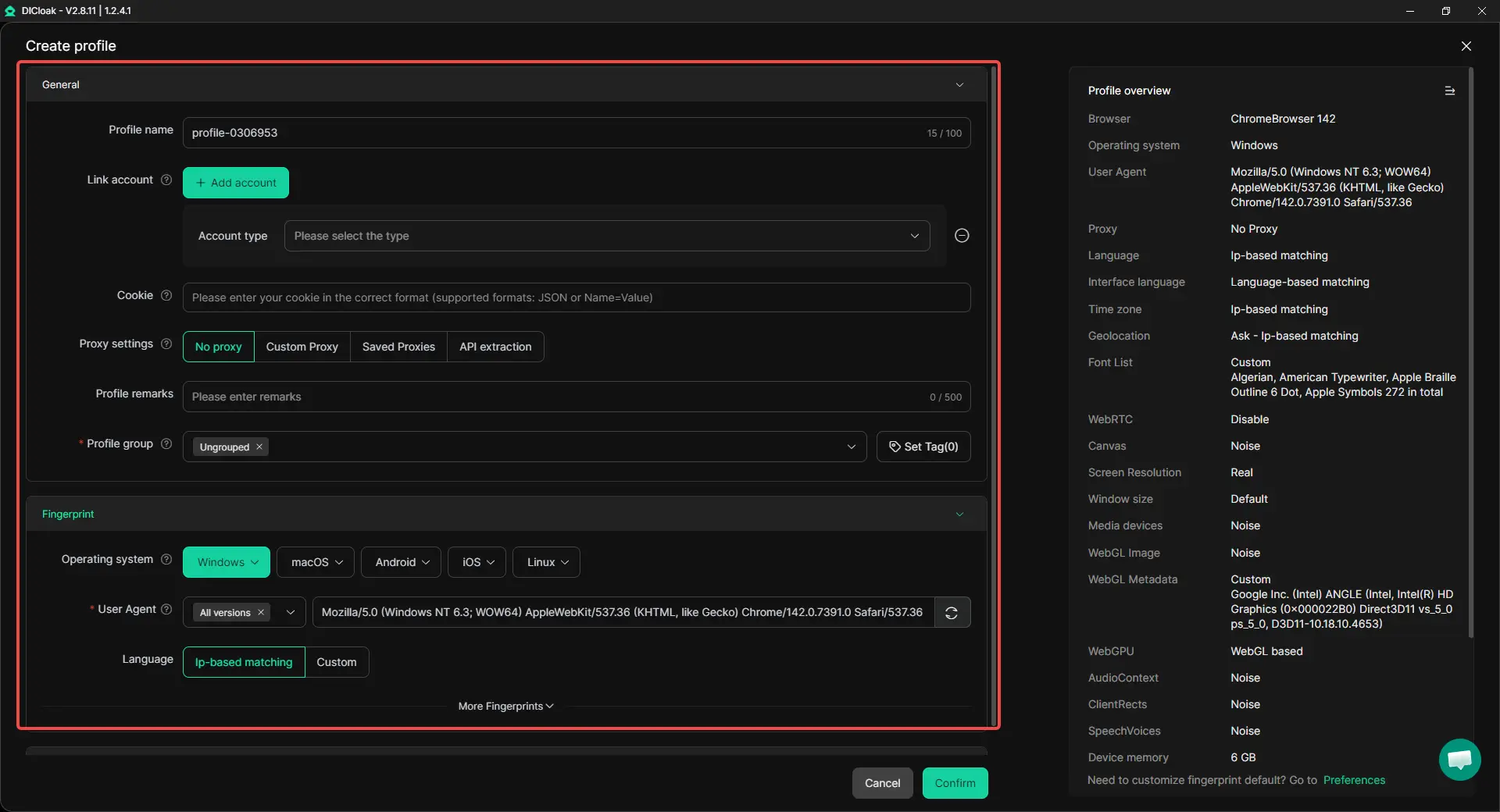
Using separate browser profiles to keep accounts organized
A practical way to reduce confusion is to place each account inside its own browser profile. This keeps cookies, fingerprints, and session data separate instead of mixing everything in one browser. That helps when one account is used for personal tasks, another for client image generation, and another for testing prompts or layouts.
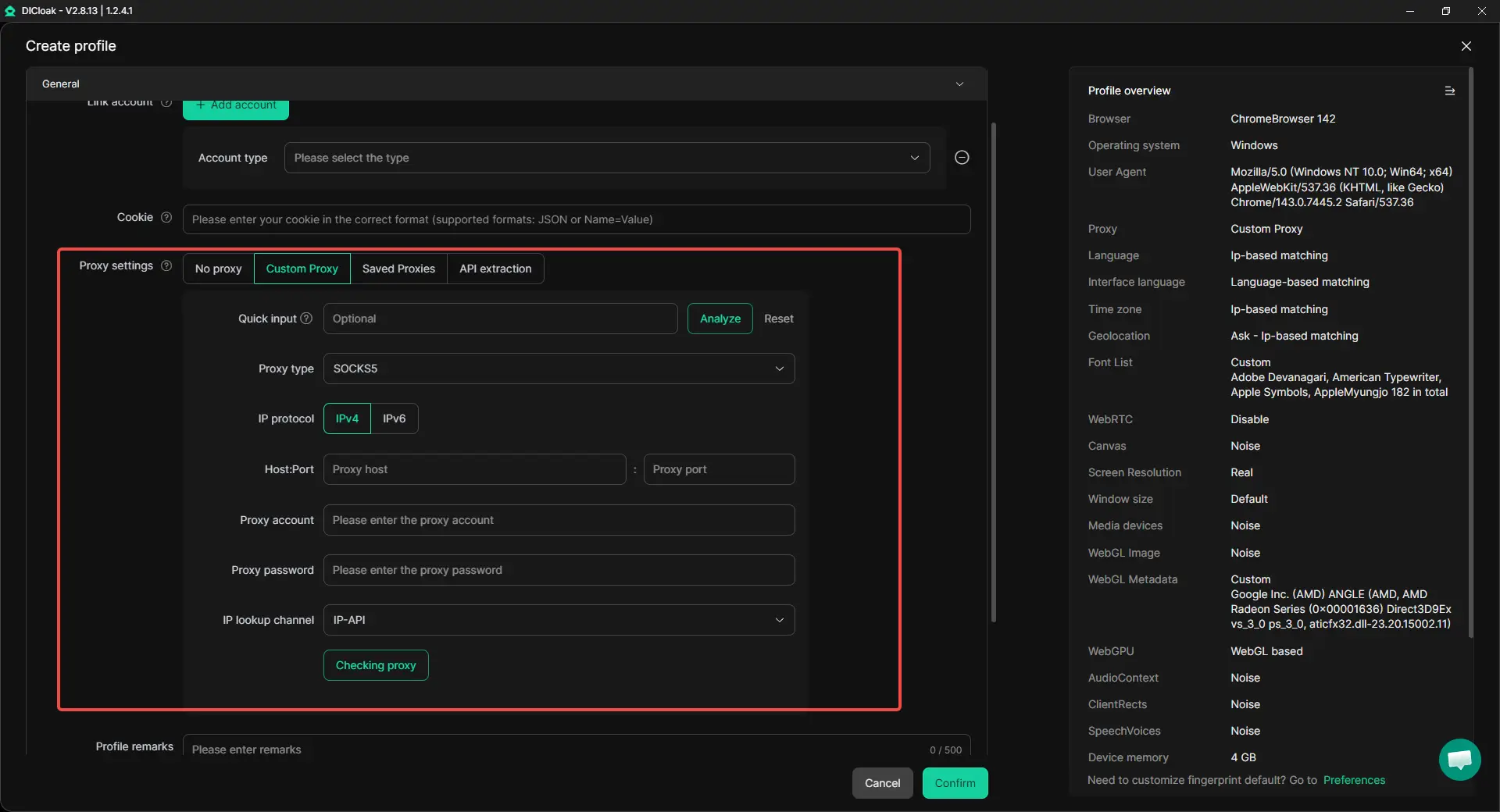
Matching each profile with its own proxy setup
Some workflows also need each account to run in a different network environment. In that case, users can assign a separate proxy to each browser profile and keep that setup fixed. This creates clearer separation between accounts and makes the workflow more stable and easier to manage.
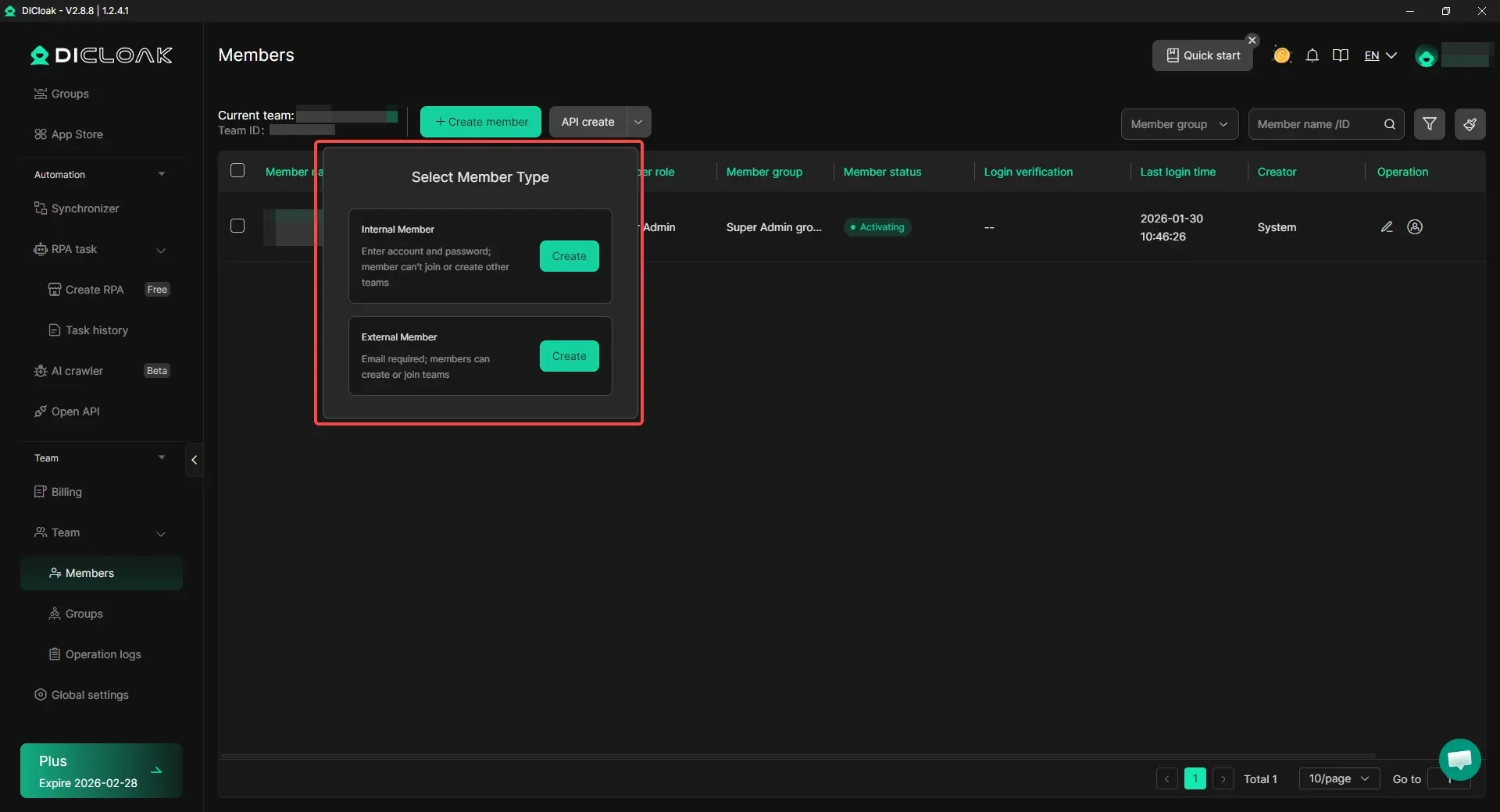
When several people need to use the same ChatGPT account, the bigger issue is how to keep access stable, organized, and limited to the right people. A shared browser profile can create one more consistent working environment, while permission-based access helps protect other accounts and browser setups. Synced login status, multi-open access, and profile sharing can also make team use smoother.
In short, once the workflow grows beyond simple personal use, better account structure matters almost as much as image capacity. A stable browser profile, a fixed proxy setup, and clearer team access can make ChatGPT account use much easier to manage.
FAQ
How to get past ChatGPT image limit without breaking any rules?
Use your image requests more carefully, wait for reset windows, improve your prompts, and upgrade to Plus or Pro if you need more output.
How to get past ChatGPT image limit if I run out too fast?
The problem is often too many retries, unclear prompts, or poor timing. Clearer prompts and better planning can help a lot.
Does ChatGPT Plus help with how to get past ChatGPT image limit?
Yes. Plus gives more image capacity than Free, so it is often the first practical upgrade for regular image work.
Can multiple accounts help with how to get past ChatGPT image limit?
Separate accounts may help with organization, but they should not be used to bypass platform restrictions. A cleaner setup is safer than a messy one.
What is the best long-term way to get past ChatGPT image limit for business use?
Usually it is a mix of better prompt planning, the right subscription, and a cleaner workflow. For heavier use, an API-based setup may make more sense.
Conclusion
If you want to understand how to get past ChatGPT image limit, the best answer is usually not a shortcut. In 2026, it is more useful to understand how the limit works, why it gets used up so fast, and how to make each image request count. Clearer prompts, better timing, fewer retries, and the right plan can often improve results more than people expect.
The article also makes one thing clear: risky tools are rarely worth it. Unofficial extensions, scripts, and random third-party services can create bigger problems by exposing data or triggering restrictions. For heavier workflows, a better option may be another image tool, an API-based setup, or a cleaner multi-account system. In the end, the smartest way to get past the ChatGPT image limit is to waste fewer generations and use a setup that matches your real workload.
 Web Proxy Tools
 Free Tools
 Cookie Plugin
 UA Generator
 MAC Address Generator
 IP Generator
 IP Address List
 2FA Code Generator
 World Clock
 Anonymous Check
 WebRTC Leak Test
 UUID Generator
 Free Web Proxy Site
 Proxy Checker
 FB Ad Checker
 AI Web Scraping
 Free SMM Tools
 Twitter Shadowban Checker
 Instagram Name Checker
 UTM Generator
 Username Generator
 AI Hashtag Generator
 LinkedIn Headline Generator
 Social Media Image Resizer