You try to log in to Instagram, but nothing happens, maybe the screen freezes, maybe you see a login error, or maybe you get stuck in a loop asking for more verification. The app says your password is wrong, but you know it’s right. Sometimes you get a warning that “instagram login not working” or an unexpected two-factor prompt that won’t accept your code. If you’re running multiple accounts, these issues stack up fast, especially when Instagram suddenly decides to flag your device or asks for endless resets.
The real headache isn’t just the error message. It’s not knowing whether the problem sits on your side (password, device, cookies, browser fingerprint), or if Instagram itself is having trouble. Most guides tell you to reset your password or clear the cache, but that skips the harder cases, like session mismatches, shadow restrictions, or login loops from device fingerprint conflicts. If you just keep retrying, you can trigger more security checks or even lock yourself out for 24 hours.
What actually works depends on spotting where the login fails. Sometimes the fix is as simple as switching browsers, but you might need to dig deeper, especially if you use automation tools, run accounts for clients, or switch devices often. instagram login issue is rarely about just one thing. Real fixes mean knowing which step breaks and what Instagram sees behind the scenes.
Here’s how to check, step by step, before you get stuck in another loop.
What Causes Instagram Login Issues in 2026?
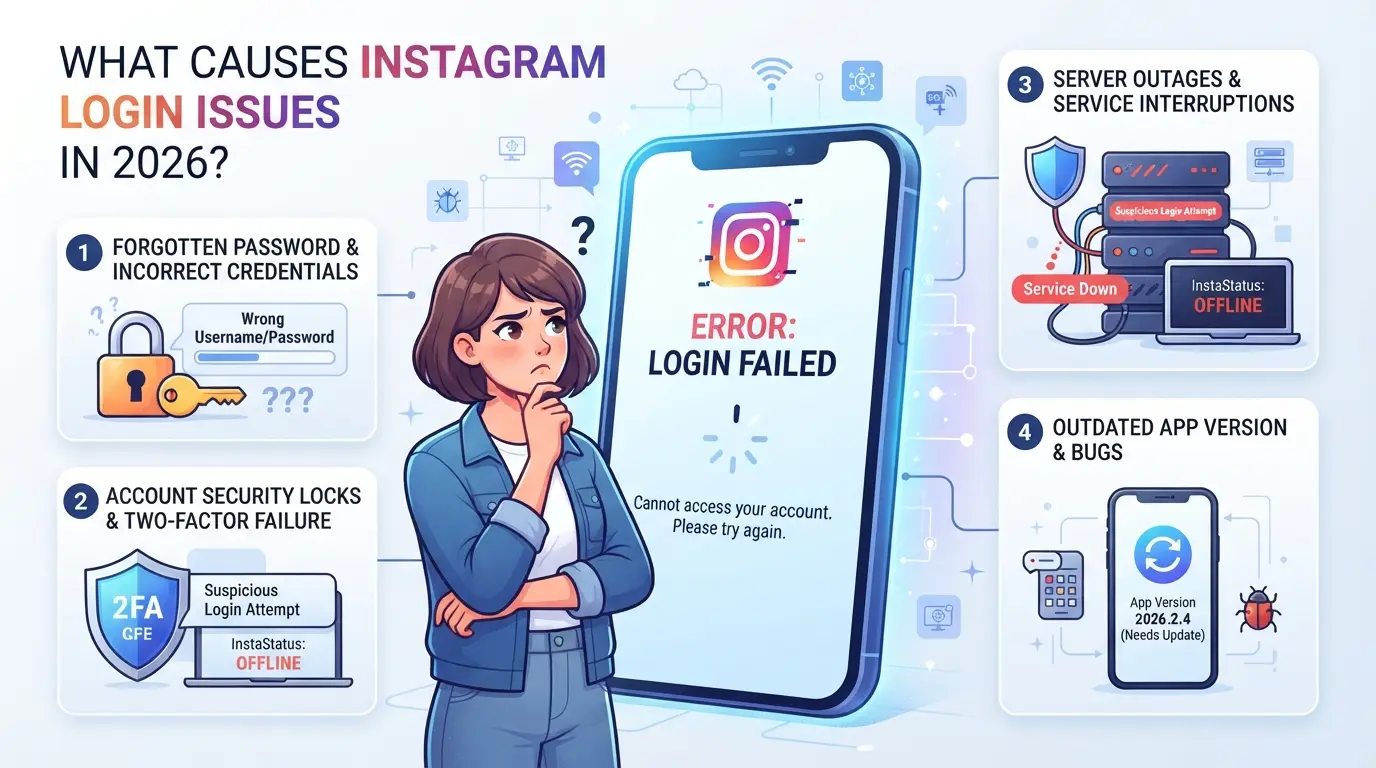
Most login failures in 2026 come down to four main problem types: wrong credentials, security checks, device or network problems, and account restrictions. If you keep seeing errors or get stuck in a loop, the real cause is rarely obvious from the first error message, Instagram often hides details, so you need to look past surface hints.
Password and Username Mistakes
Simple typos still account for a big share of login errors. Case sensitivity catches people off guard, "instaFan" is not the same as "Instafan." Forgotten credentials trigger reset flows, but if you reuse an old password or mix up accounts, you can get stuck in a forced verification loop.
Account Security and Verification Triggers
Security checks are much stricter now. Two-factor authentication (2FA) can break if your device loses sync with the code generator. For instance, if you changed phones and didn't update your 2FA app, Instagram rejects your code, even if it's technically correct. Suspicious login attempts, like accessing from a new country or a browser you never used, often prompt extra verification. If you try too many times in a short period, Instagram flags your account for review and may lock you out for 24 hours. If you see repeated requests for phone or email confirmation, the system suspects you’re not the original owner, this is where most users get frustrated and give up.
Device, App, and Network Problems
Outdated app versions or buggy browser builds can throw you into a login loop. Imagine trying to log in from a tablet with an old Instagram app, sometimes you get a blank screen or endless loading, not a clear error. Network restrictions, like using public Wi-Fi with shared IP addresses, can trigger security blocks. If you switch between mobile data and Wi-Fi too quickly, Instagram sometimes reads this as a bot-like pattern and holds your login for manual review.
Account Restrictions and Suspensions
Three quick checks to spot restriction-related login issues:
- If your account is temporarily locked, you’ll see a “Try again later” message and won’t be able to request a reset for up to 24 hours.
- Permanent bans show as “Account disabled” or “No longer exists” errors; these are rarely reversed, even with appeal.
- If you’re getting generic login errors after using automation or third-party tools, a shadow restriction may be in place, wait 48 hours and try a clean login from a fresh device.
Once you know which problem bucket you’re in, it’s easier to decide what to check next. The quick checklist in the next section helps you narrow down the real cause before you waste time on random fixes.
How to Diagnose Your Instagram Login Problem: Quick Checklist
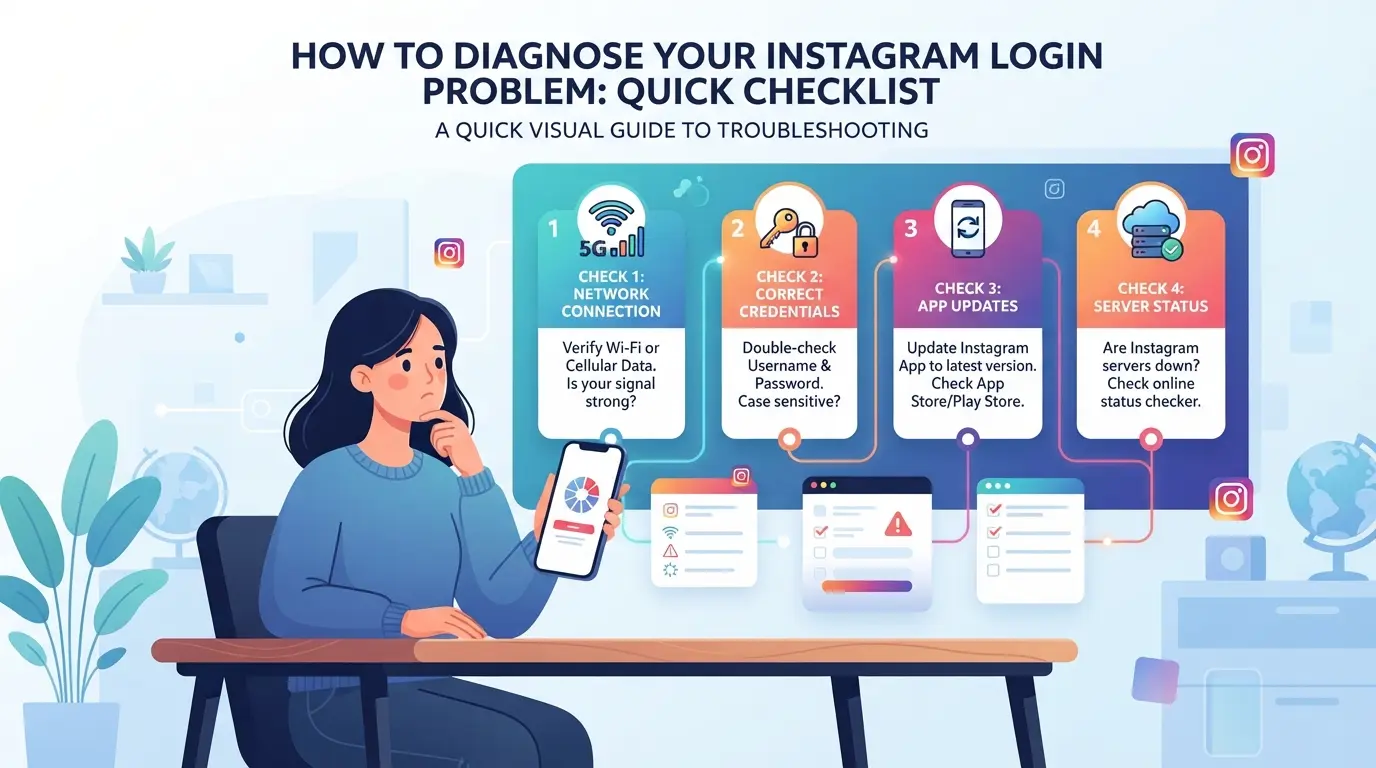
Pinpointing where your login fails is faster than guessing fixes. A quick diagnosis stops you from getting locked out by repeated mistakes or unnecessary resets. Use this checklist to spot the real cause, so you can match the fix to the actual problem instead of going in circles.
Check for Error Messages and Codes
Instagram’s error messages in 2026 are more specific than before. If you see “Your password was changed,” it means a real account change, don’t keep trying the old password. “We detected suspicious activity” usually means a location or device mismatch, especially after using new proxies or devices. The “Try again later” message signals a temporary lock; repeating the login too often can extend the cooldown. Write down any code shown, it often points to device, network, or timing issues.
Test Login on Different Devices and Networks
- Switch from Wi-Fi to mobile data, or vice versa, to rule out blocked IPs.
- Try logging in from a different phone, tablet, or desktop browser.
- Use a browser’s incognito/private mode to avoid cached session problems.
Review Recent Account Activity
Check your email or Instagram notifications for alerts about new logins, password changes, or security warnings. If you spot activity in a city you haven’t visited, someone else may have access, or Instagram may have flagged your account for review.
Check for App or Browser Updates
Outdated apps or browsers often break logins, especially after Instagram updates security checks. Even a one-version lag can cause silent failures or endless loading screens.
- Update the Instagram app to the latest version in your device’s app store.
- Check your browser for updates, then restart it.
- If using automation tools, make sure their browser base matches current Chrome or Firefox releases.
If you skip these update steps, you might waste an hour troubleshooting only to find Instagram dropped support for your current version last week. That’s one of the most common dead ends, users chase account errors when the real issue is stale software.
Now that you’ve matched your login failure with a specific cause, you’ll save time applying the right fix instead of trying everything at random. Next, walk through the step-by-step solutions for each major Instagram login error.
Step-by-Step Fixes for the Most Common Instagram Login Issues
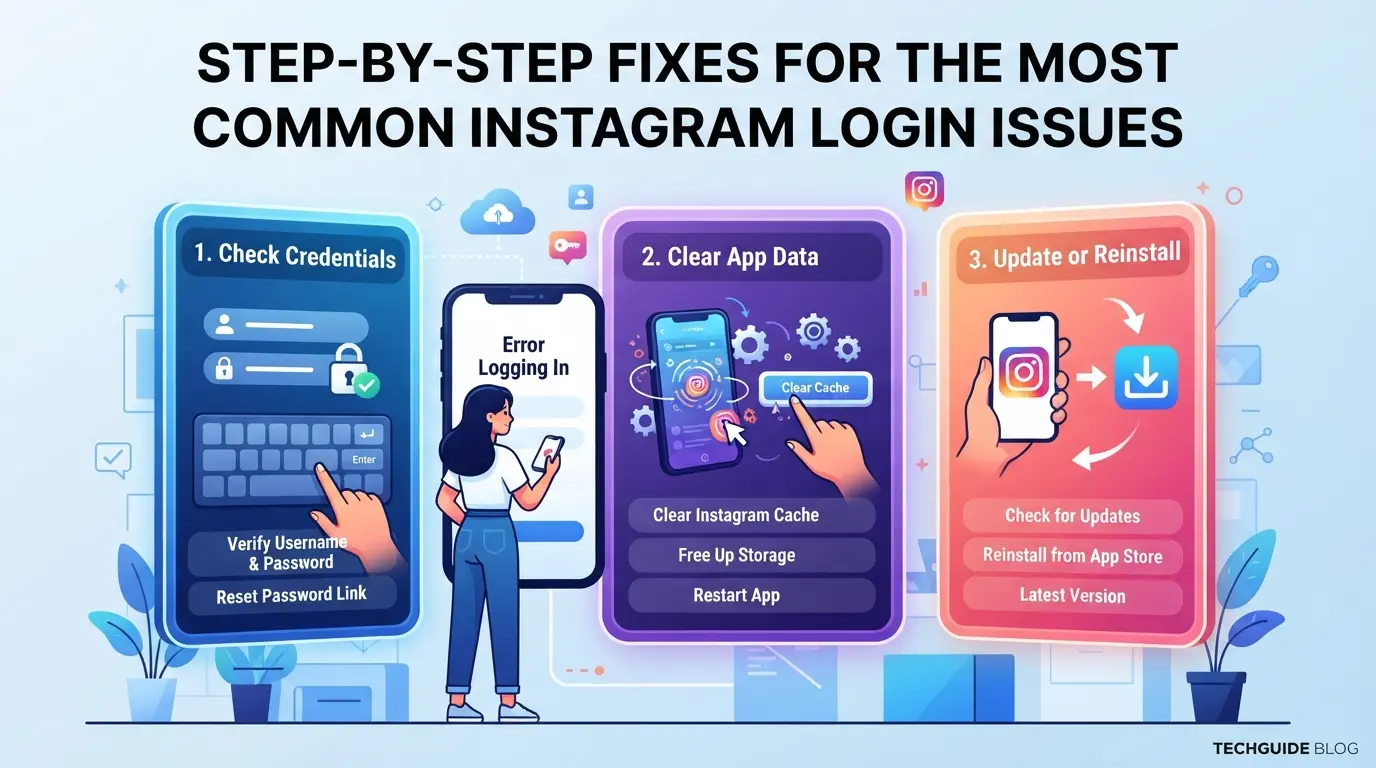
You’ve narrowed down where your login fails, now you need to get back in without making things worse. Skip the generic advice and use these targeted steps to handle each type of Instagram login problem. If one fix fails, don’t just retry the same step; move to the next approach before Instagram locks you out for trying too many times.
Resetting Your Password Safely
- Start the reset with the “Forgot password?” link on Instagram’s login page, use a browser, not the app, if the app isn’t loading.
- Choose email, SMS, or a backup code (if you set that up). If you don’t get the reset link in 2 minutes, check your spam folder, missed emails are a common reason the process stalls.
- Make sure the reset page is on instagram.com, not a lookalike. Phishing pages often appear during peak login issues.
- After resetting, log in from the same device and network you used before. A new IP or device can trigger extra security checks.
Solving Two-Factor Authentication Problems
- If you’ve lost access to your authentication app, select “Can’t access your authentication app?” at the 2FA prompt. Instagram will offer backup codes only if you saved them earlier.
- For SMS codes not arriving, switch to cellular data instead of WiFi, some WiFi providers block short-code texts.
- If you still can’t receive any codes, use the “Need more help?” link. You’ll be guided to identity verification options, like sending a selfie video.
- Enter codes carefully, three failed attempts can trigger a longer lockout.
Unlocking Temporarily Locked Accounts
- When you see a “Your account has been temporarily locked” message, hit the “Continue” button to start the identity check.
- Follow any on-screen request to verify your phone or email. If you’re asked for a selfie video, record it in a well-lit area, unclear images can cause delays.
- After submitting, wait up to 48 hours. Accounts locked on weekends often take longer to review.
- If there’s no response after 48 hours, retry the process using a different device or browser, sometimes the UI glitch is device-specific.
Fixing Device, App, or Browser Issues
- Clear the Instagram app cache (Android: Settings > Apps > Instagram > Storage > Clear Cache; iOS: delete and reinstall the app, the only way to clear cache on iPhones).
- In your desktop browser, clear cookies for instagram.com specifically, don’t wipe all cookies, or you’ll lose other saved logins.
- Update the Instagram app from the official app store. Outdated versions often fail to connect after server updates.
- If login still fails, try using a different device or network. Sometimes Instagram blocks logins from flagged IP ranges, and a fresh device sidesteps this.
If you still can’t get past the login screen, the problem may not be with your device or password at all, security triggers or history flags are often the real blocker. That’s where understanding Instagram’s risk factors becomes essential.
Why Instagram Sometimes Blocks Logins: Risk Factors and Prevention
Instagram blocks logins when it sees unusual patterns, like strange locations, repeated failures, or signs of bot activity. If you keep hitting login errors, you risk getting locked out for hours or flagged for review. The fastest way to avoid restrictions is to change only one variable at a time and wait before retrying.
Unusual Login Locations and Devices
Logging in from a new city or device can trigger security checks. If your device fingerprint, IP, or browser suddenly changes, Instagram often sends a verification code or blocks access. Stick to the same device and network whenever possible, this makes your activity look normal.
Rapid or Repeated Login Attempts
Trying to log in over and over, even if you’re just fixing a typo, can trip temporary blocks.
- Accounts can get locked for 24-48 hours with too many failed attempts.
- Instead of guessing passwords, reset once and wait 15 minutes before the next try.
Automated Tools and Suspicious Activity
Automation tools that mimic logins or mass actions often trip Instagram’s anti-bot filters. If a tool triggers abnormal requests (like logging in every few seconds), the system flags your account. Use automation only with proper delays and rotate devices or proxies to avoid detection, otherwise, you risk permanent restrictions.
Trying to run several Instagram accounts on one device is asking for trouble if you don’t separate sessions and IPs, shared logins often trigger security checks or locks.
Why Separate Browser Profiles Matter for Instagram
If you use the same browser profile for all accounts, Instagram can link them through shared cookies, device fingerprints, or session data. Isolating each account in its own browser profile breaks this chain and lowers the chance of mass restriction.
How Proxies Help Avoid Location-Based Login Problems
Assigning a unique proxy to every account gives each one a distinct IP address and location. This prevents Instagram from flagging all your accounts as coming from the same device or place. Choose proxy services that let you pick stable, city-level IPs, not just random rotating addresses.
Best Practices for Multi-Account Instagram Management
- Rotate account activity, don’t log into all profiles at once.
- Never use the same device fingerprint for two accounts.
- Track which proxy and profile pair each account uses to avoid overlap.
Setting Up Isolated Browser Profiles and Proxies for Instagram Accounts in DICloak
If you manage multiple Instagram accounts, especially for marketing or team workflows, keeping sessions clean and separated is what stops most login errors from piling up. After learning why profile isolation and proxies matter, here’s how operators use DICloak to set up both for safer account access.
Creating Separate Browser Profiles and Configuring Fingerprints
Operators can create a dedicated browser profile for each Instagram account in DICloak, storing session data, cookies, and browser settings apart from other profiles. Fingerprint configuration lets you set device signals like operating system, time zone, language, screen resolution, and WebRTC, matching the expected environment for each account. Keeping every profile isolated prevents browser storage overlap and reduces the risk of triggering instagram login issue warnings tied to device conflicts. DICloak’s scope is limited to browser-profile access; it does not change anything inside your Instagram account.

Adding and Testing Proxies for Each Profile
Operators assign their own proxy to each DICloak profile, specifying details like host, port, username, and password. Before logging into Instagram, you can run a proxy test to confirm connectivity, check the exit IP, and see the reported country and time zone. This step matters most when login errors come from IP mismatches or repeated logins from the same network, using a proxy per profile helps keep sessions consistent, but the quality and location are up to you. DICloak does not sell or supply proxies.

If login issues keep coming back even after this setup, it’s time to check if your Instagram account needs support or recovery.
When to Contact Instagram Support or Consider Account Recovery
If your instagram login issue keeps coming back after you’ve tried all browser fixes, proxy changes, and device resets, it’s time to escalate. Most users waste hours retrying, the moment you hit repeated login errors or locked sessions, switching to the official support route prevents longer lockouts.
How to Reach Instagram Support
- Use the Instagram Help Center or the in-app “Need more help?” link
- Have your username, device info, and screenshots ready
- Report the exact error message, don’t just say “can’t log in”
Account Recovery and Appeal Process
Start identity verification by following Instagram’s recovery prompts. If your account is flagged, expect a code sent to your email or phone. Appeals take 24-72 hours, weekend requests often wait longer. If the recovery fails twice, move to manual support.
Pro Tips to Prevent Future Instagram Login Issues
Don’t wait for another instagram login issue to lock you out, set up these simple habits now to keep your account accessible, even if something goes wrong.
Keep Recovery Information Updated
Backup emails and phone numbers let you reset your password if you’re locked out. Check your Instagram settings twice a year and update any old info as soon as you change numbers or email addresses.
Monitor Account Activity Regularly
- Check login activity for unknown devices weekly
- Enable login alerts in Instagram security settings
- Change your password right away if you spot a device you don’t recognize
Avoid Risky Third-Party Apps and Automation
Granting access to unknown apps can cause login errors or security flags. Stick to official Instagram tools unless you’re certain a third-party is safe.
- Revoke access to apps you no longer use
- Read reviews before connecting any new tool
- Never share your password with automation services
Frequently Asked Questions About instagram login issue
Why does Instagram say my password is wrong even after resetting?
Instagram might show a wrong password error after reset due to a delay in updating your password across devices. Sometimes, browser or app cache keeps old login info, causing issues. If the problem continues, your account could be compromised. Clear your cache, wait ten minutes, and try again. If you still can’t log in, contact Instagram support.
What should I do if I never receive the Instagram login code?
If you don’t get a login code, check your spam or junk folder for email, and make sure your phone has good signal for SMS. Sometimes, SMS delivery can be delayed or blocked. If codes still don’t arrive, use the “Need more help?” option in Instagram’s login screen to try account recovery alternatives.
Can using proxies help with instagram login issue?
Proxies may help if Instagram login not working is caused by location or IP bans. For example, logging in from a different country can trigger errors. Using a trusted proxy can bypass this, but set it up carefully to avoid security risks. Always use reputable proxy providers and avoid sharing your credentials.
How many Instagram accounts can I safely manage on one device?
Instagram allows up to five accounts per app on one device. Managing more can risk linking accounts and may trigger login errors. To keep profiles separate, log in with different sessions or use app cloning tools. Avoid mixing personal and business accounts to protect privacy and avoid instagram login error messages.
Is it safe to use third-party apps to fix Instagram login problems?
Using third-party apps to fix login problems can be risky. Many apps may steal your info or violate Instagram’s terms. Always use Instagram’s official support channels for recovery. Trusted tools that help manage accounts or sessions are safer, but never share your password with unknown apps. Stick with official solutions for security.
If your access remains blocked after troubleshooting, considering a secure tool to protect your credentials is a wise move. Taking proactive steps can help safeguard your account and simplify future logins. Try DICloak For Free
 Web Proxy Tools
 Free Tools
 Cookie Plugin
 UA Generator
 MAC Address Generator
 IP Generator
 IP Address List
 2FA Code Generator
 World Clock
 Anonymous Check
 WebRTC Leak Test
 UUID Generator
 Free Web Proxy Site
 Proxy Checker
 FB Ad Checker
 AI Web Scraping
 Free SMM Tools
 Twitter Shadowban Checker
 Instagram Name Checker
 UTM Generator
 Username Generator
 AI Hashtag Generator
 LinkedIn Headline Generator
 Social Media Image Resizer