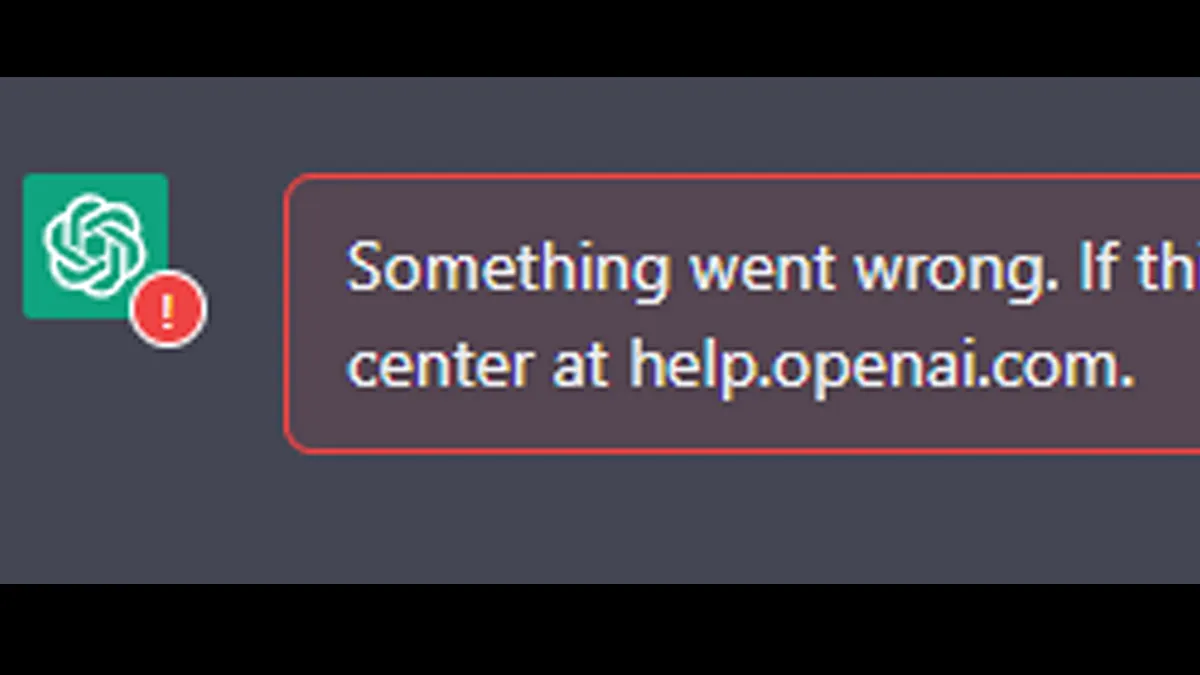
If you’ve ever encountered the "ChatGPT Something Went Wrong" error, you’re not alone. It can happen to anyone using the platform. This error usually appears when ChatGPT can't function properly due to various reasons. Understanding the different messages you might see and what causes the issue can help you resolve it quickly.
Understanding the "ChatGPT Something Went Wrong" Error
Common Error Messages
When you see the "Something Went Wrong" error, it could appear in a few different ways. Common messages that users encounter include:
- “Something went wrong. Please try again later.” This is the most frequent error message, indicating a temporary issue.
- “Unable to process your request at the moment.” This message usually appears when the system is overwhelmed with traffic or if there's a server issue.
- “ChatGPT is currently unavailable.” If the platform is down, you might see this message, signaling a more widespread issue with the service.
These messages generally point to different types of problems, but the underlying cause remains the same: something is preventing ChatGPT from functioning properly.
Causes of the Error
The "ChatGPT Something Went Wrong" error can occur for several reasons. Here are some of the most common causes:
1. Server Issues
ChatGPT relies on servers to process requests. If these servers are experiencing high traffic or technical difficulties, you may encounter the "Something Went Wrong" error. This can happen during peak times when many users are accessing the platform, or if there is an unexpected outage or maintenance.
For example, a widespread outage that affected many users might be the result of server overload or bugs in the system. If you check OpenAI's status page, you might see that the servers are temporarily down or facing performance issues.
2. Network Instability
Network problems on your end can also trigger the "ChatGPT Something Went Wrong" error. A weak or intermittent internet connection can disrupt communication between your device and the servers. This is especially true if you're on a slow or unstable Wi-Fi network.
For instance, if you are using public Wi-Fi, the connection might not be strong enough to maintain a stable link with the ChatGPT servers, causing errors in communication.
3. User Account Problems
In some cases, issues related to your user account may lead to this error. If there’s a problem with your account credentials or if you’re logged in on multiple devices, the platform may struggle to verify your identity, causing the error.
For example, if you're using a free account and have hit the usage limit for the day, you may encounter this error. Similarly, logging in from multiple locations at once can cause authentication issues.
Immediate Troubleshooting Steps
Now that you know the possible causes behind the "ChatGPT Something Went Wrong" error, let’s look at the immediate steps you can take to fix it. Whether it’s a minor glitch or something more serious, there are a few quick solutions that often work.
Basic Fixes
- Refresh the Page or App Sometimes, the easiest fix is the most effective. Simply refreshing the page or restarting the app can resolve temporary issues. If you're using ChatGPT in a browser, press Ctrl + R (or Cmd + R on Mac) to reload the page. If you're using the app, close and reopen it.
- Check Your Internet Connectivity A weak or intermittent internet connection can often be the cause of the error. Make sure your Wi-Fi or mobile data is stable. If you’re connected to a slow or unstable network, try switching to a different one. For example, if you're on Wi-Fi, switching to mobile data may improve the connection.
- Clear Your Browser Cache and Cookies Old data stored in your browser might be causing the error. Clearing your cache and cookies can give you a fresh start. In Google Chrome, go to Settings > Privacy and Security > Clear Browsing Data and select Cookies and other site data and Cached images and files.
- Try Incognito Mode Sometimes, browser extensions or settings interfere with web pages. Try opening an Incognito Window (or Private Browsing in other browsers) to disable extensions. If the error disappears, it’s likely a browser extension causing the issue.
Advanced Solutions
If the basic fixes don’t resolve the error, try these advanced steps.
- Switch to a Different Browser or Device If you're still facing the error, switching to a different browser or device can help. For instance, if you’re using Chrome, try Firefox, Safari, or Edge. Sometimes, the problem is specific to one browser, and changing it can quickly fix the issue.
- Log Out and Back Into Your Account If there’s an issue with your account, logging out and logging back in might solve the problem. This can refresh your account connection and clear any temporary glitches. Simply sign out of your OpenAI account and sign back in to reset your session.
- Use a Different Network Connection If your network is causing the error, try switching to a different Wi-Fi network or use mobile data. A more stable connection can help you avoid errors when trying to use ChatGPT. For example, if you're using public Wi-Fi, which can be slow or overloaded, switching to a private connection might resolve the issue.
By following these troubleshooting steps, you can often fix the "ChatGPT Something Went Wrong" error quickly. Whether it’s a simple network issue or a deeper account problem, these methods can help you get back to using ChatGPT without hassle.
Checking Server and Network Status
If you’ve gone through the basic fixes and advanced solutions but are still seeing the "ChatGPT Something Went Wrong" error, it may be time to check the status of the servers or your network. Issues with the server or network can be behind errors, and resolving them could quickly get you back on track.
Server Status Checks
Sometimes, the issue isn’t on your end, but rather with the servers that host ChatGPT. OpenAI’s servers can experience outages or maintenance periods, which may prevent ChatGPT from working properly.
How to check OpenAI’s server status:
- OpenAI provides a status page where you can check if there are any ongoing issues. Visit OpenAI Status to view the current system status.
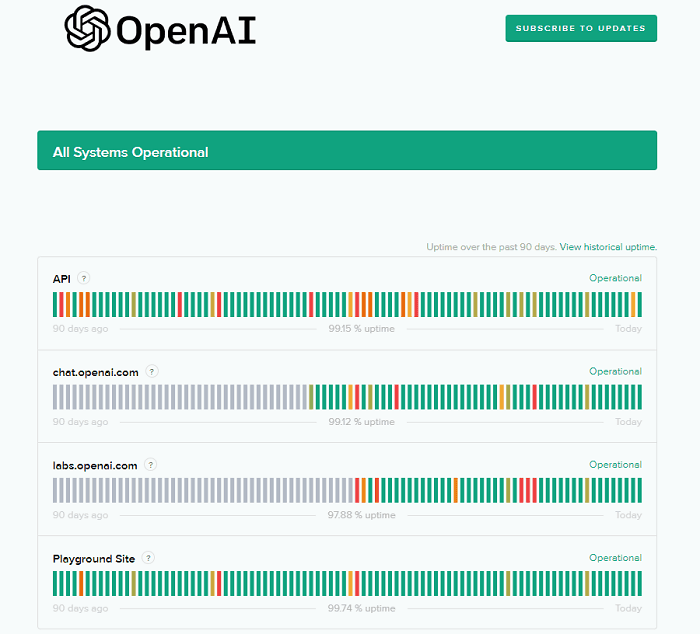
- If the status page indicates a server issue, this is likely why you’re seeing the "ChatGPT Something Went Wrong" error. In this case, the best course of action is to wait until OpenAI resolves the issue.
- You can also follow OpenAI’s official Twitter account or community forums to stay updated on the latest status and any service disruptions.
When server issues occur, they are usually temporary, and once OpenAI resolves them, you should be able to access ChatGPT without any further issues.
Network Recommendations
Even if the server is working fine, network problems can also trigger the "ChatGPT Something Went Wrong" error. Network instability or restrictions from your firewall can block your connection to ChatGPT, causing interruptions.
Adjusting firewall settings: If you’re using a firewall, it might be blocking the connection to OpenAI's servers. Check your firewall settings and ensure that it is not preventing ChatGPT from working.
- Windows users: Go to Control Panel > System and Security > Windows Defender Firewall and select Allow an app or feature through Windows Defender Firewall. Ensure that your browser or app is allowed to communicate.
- Mac users: Go to System Preferences > Security & Privacy > Firewall and make sure your browser or app has access.
Allowing specific domains for better access: Some network restrictions, like those found in schools or workplaces, might block certain domains needed for ChatGPT. Allowing specific domains or IP addresses in your network settings can help.
By ensuring that your network and firewall settings are properly configured, you can avoid interruptions that might trigger the "ChatGPT Something Went Wrong" error.
These steps help identify whether server issues or network restrictions are the source of your problem. By following these suggestions, you can ensure a smooth connection to ChatGPT and minimize errors.
Preventative Measures to Avoid Future Errors
To prevent the "ChatGPT Something Went Wrong" error from happening again, adopting a few simple habits can help. While some errors are unavoidable, these easy steps can make your experience smoother.
Best Practices for Using ChatGPT
1.Clarify and Specify Your Questions
Vague or broad questions can confuse ChatGPT and lead to errors. Be clear and specific with your requests.
Example: Instead of asking, "Tell me about history," ask "Can you give me a brief overview of World War II?"
2.Simplify Your Language and Structure
Avoid using overly complex language. Simple, clear sentences help ChatGPT understand and respond better.
Example: Instead of saying, "Could you assist me with the error I encountered?", say, "How do I fix the 'Something Went Wrong' error?"
3.Regularly Update Browsers and Apps
Keep your browser or app updated to avoid compatibility issues. Updated software ensures smoother interactions with ChatGPT.
Example: Check for updates in your browser settings or app store regularly.
By following these simple practices, you can reduce the chance of encountering errors and enjoy a smoother ChatGPT experience.
Seeking Support for Unresolved Issues
If you’ve tried troubleshooting the "ChatGPT Something Went Wrong" error with no success, it might be time to seek additional help. There are a few ways to get support directly from OpenAI, as well as other resources that can provide answers to your questions.
Contacting OpenAI Support
If you're still facing issues, reaching out to OpenAI support is your next step. OpenAI has a dedicated support team that can help you resolve any problems related to the "ChatGPT Something Went Wrong" error.
How to reach out for help:
- Visit the OpenAI Help Center: Go to OpenAI Help Center where you can find troubleshooting guides, FAQs, and contact information.
- Submit a support ticket: If you can’t find a solution in the help center, you can submit a support ticket directly from the website. Provide a detailed description of the issue you’re facing, including what you’ve already tried to fix it.
- Community forums: OpenAI also has forums where users discuss common issues and share solutions. This can be a helpful place to find advice from other users who have faced similar problems.
To further enhance your experience and security when using ChatGPT, it’s important to ensure your account is protected from potential threats or interruptions. One way to safeguard your account is by using tools like DICloak, a reliable antidetect browser that helps maintain your privacy and security online. By preventing tracking and masking your digital footprint, DICloak reduce the chances of unexpected errors, such as account issues or access restrictions, that could interfere with your use of ChatGPT.
Why Choose DICloak Antidetect Browsers for Your Business?
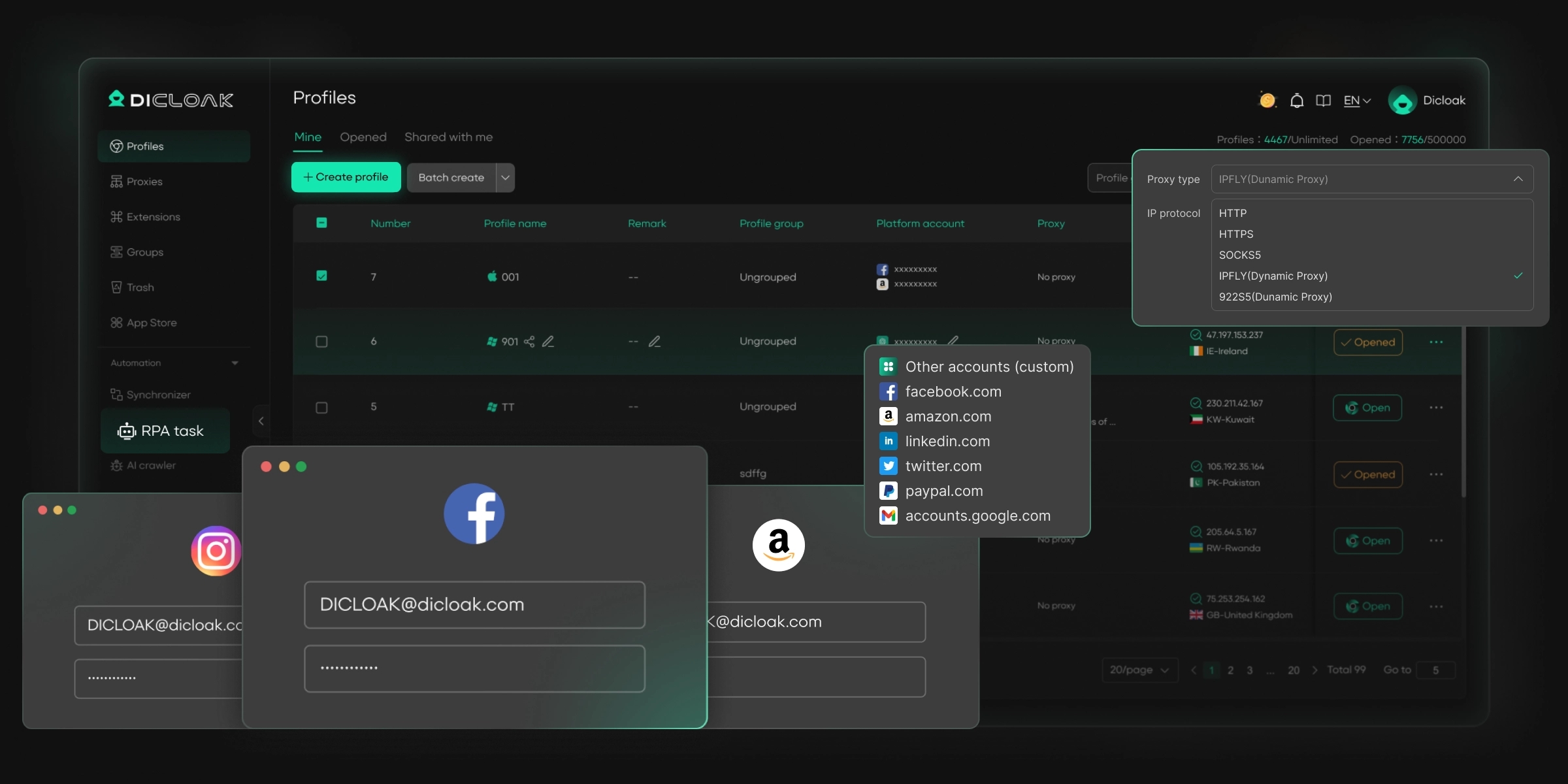
⚡The DICloak Antidetect Browser has become a global favorite for its unparalleled ability to efficiently and securely manage multiple accounts. Designed for professionals in social media management, and more, DICloak offers powerful features like RPA automation, bulk operations, and a synchronizer. Additionally, it allows you to customize fingerprints and integrate proxies for each profile, ensuring top-level security and operational efficiency. It’s the ultimate tool for seamless, secure, and scalable operations.
What Makes DICloak Stand Out?
✅ Manage 1,000+ Accounts on One Device: Stop wasting money on extra hardware! DICloak allows you to manage multiple accounts on a single device, cutting costs and boosting efficiency.
✅ Guaranteed Account Safety, No Ban Risks: Every account gets its own isolated browser profile with custom fingerprints and IPs, drastically reducing the risk of bans. Your accounts, your control!
✅ Flexible Proxy Configuration for Maximum Performance: Seamlessly integrate with all major proxy protocols (HTTP/HTTPS, SOCKS5) and manage your proxy pool with bulk operations. No more struggling with IP management—DICloak has you covered.
✅ Streamlined Team Collaboration for Better Results: Easily manage your team with advanced tools like profile sharing, permission settings, data isolation, and operation logs. Your team works smarter, not harder.
✅ Automate the Grind with RPA: DICloak's built-in RPA saves you hours of manual work. Automate repetitive tasks, streamline workflows, and focus on what really matters—growing your business.
✅ Powerful Bulk Tools to Scale Your Operations: Create, import, and launch multiple browser profiles in one click. DICloak makes scaling your business as easy as it gets.
✅ Compatible with All Major Operating Systems: Based on the Chrome core, DICloak supports simulating Windows, Mac, iOS, Android, and Linux operating systems. No matter what platform you need, DICloak has you covered.
🔗 Ready to Get Started?
Visit the DICloak website to explore more details and choose the plan that’s right for you. Start for free today and experience the power of secure, efficient, and scalable multi-account management!
FAQs
1.Why does the "Something Went Wrong" error keep happening?
This can happen due to temporary server issues, network instability, or issues with your account. If it’s persistent, checking OpenAI's server status page can help.
2.How can I prevent the error from happening again?
Following best practices, like clarifying your prompts and ensuring your network is stable, can reduce the chances of this error occurring in the future.
3.What should I do if I see this error on a specific device or browser?
If the error only appears on certain devices or browsers, troubleshooting your browser settings, clearing cache, and ensuring that your software is updated can resolve the issue.
If these resources don’t solve your problem, contacting OpenAI support will be the best next step.
By reaching out to support or checking the FAQs, you’ll have the best chance of resolving any lingering issues with the "ChatGPT Something Went Wrong" error. With the right resources, you can quickly get back to using ChatGPT without further disruptions.
Conclusion
The "ChatGPT Something Went Wrong" error can happen due to server issues, network problems, or account glitches. Understanding the causes helps you fix it faster. Simple steps like refreshing the page, checking your internet, clearing cache, or trying a different browser often work. If the problem continues, logging out and back in, switching networks, or contacting OpenAI support can help. Keeping your browser and app updated also reduces future errors. By following these steps, you can minimize disruptions and enjoy a smoother ChatGPT experience.
 Web Proxy Tools
 Free Tools
 Cookie Plugin
 UA Generator
 MAC Address Generator
 IP Generator
 IP Address List
 2FA Code Generator
 World Clock
 Anonymous Check
 WebRTC Leak Test
 UUID Generator
 Free Web Proxy Site
 Proxy Checker
 FB Ad Checker
 AI Web Scraping
 Free SMM Tools
 Twitter Shadowban Checker
 Instagram Name Checker
 UTM Generator
 Username Generator
 AI Hashtag Generator
 LinkedIn Headline Generator
 Social Media Image Resizer