Choosing the best proxy for an antidetect browser is not as simple as picking residential IPs or choosing the provider with the largest pool. A proxy can connect successfully and still be a poor fit if its IP changes during login, returns the wrong region, or becomes too expensive when several Profiles load images and videos.
Even “sticky session” can mean very different things across providers. Decodo supports custom residential sessions of up to 24 hours, while IPRoyal allows users to set residential sticky sessions for up to seven days. Both providers also warn that a residential IP may change earlier if the device supplying it goes offline. This guide explains how to match proxy types to your daily tasks, compare session and location rules, configure a proxy in DICloak, and test it before adding it to more Profiles.
Is the Best Proxy for an Antidetect Browser Always Residential?
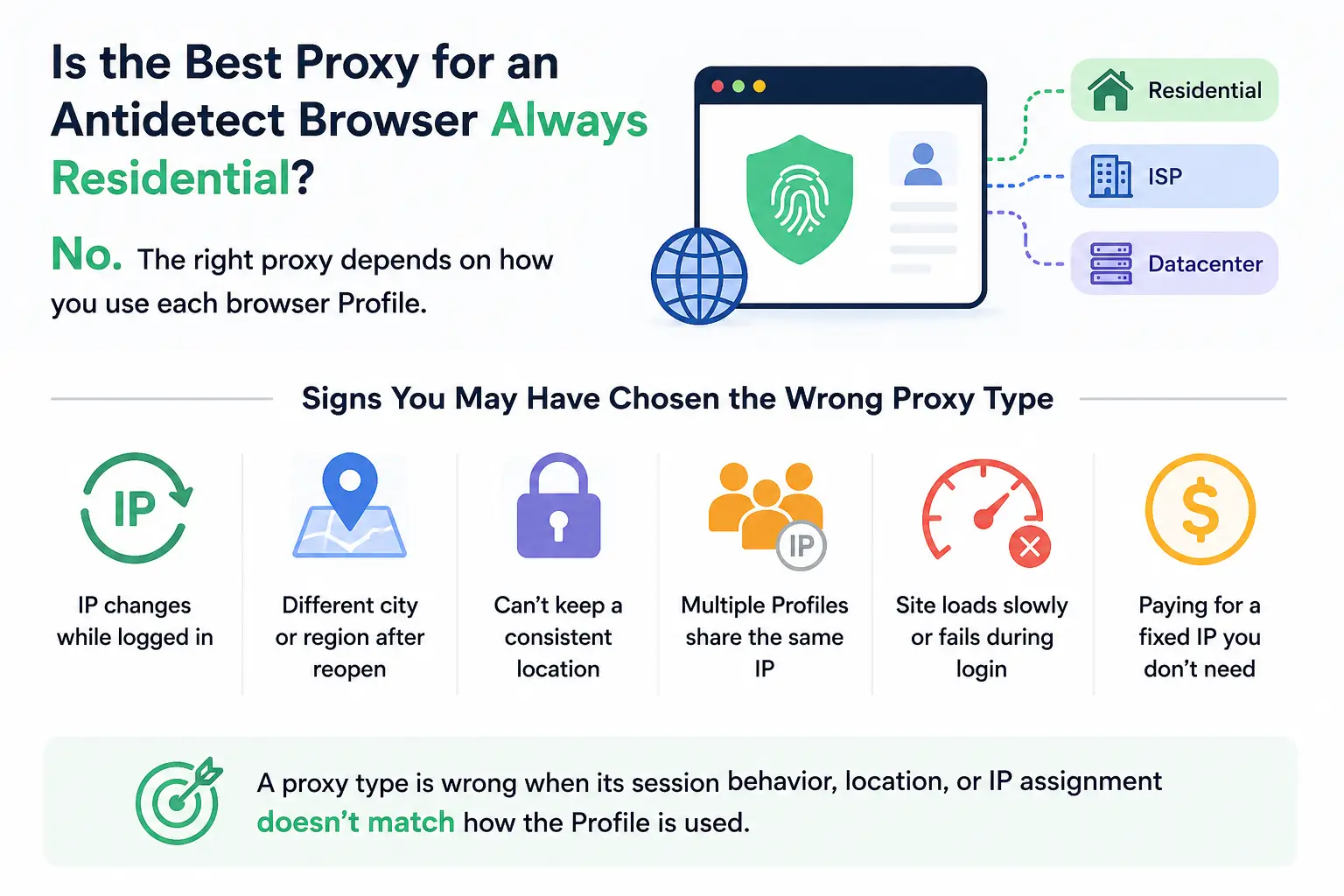
No. Residential proxies are a common choice, but they are not automatically the best proxy for every antidetect browser Profile. The right choice depends on how long the Profile stays active, whether its IP must remain stable, and what the Profile is used for.
You may have chosen the wrong proxy type when:
- The IP changes while an account is still logged in.
- The Profile opens in a different city or region after a restart.
- A long-term account cannot keep a consistent network location.
- Several Profiles accidentally use the same IP.
- The proxy connects, but the target website loads slowly or fails during login.
- You pay for a fixed IP even though the task only needs a short regional check.
A proxy type is wrong when its session behavior, location, or IP assignment does not match how the browser Profile is actually used. The problem is not always proxy quality. Sometimes the proxy is simply designed for a different task.
What Type of Proxy Should You Use With an Antidetect Browser?
The best proxy for an antidetect browser depends on how the Profile will be used. Short regional checks need flexibility, while long-term accounts usually need a more predictable IP.
Rotating and Sticky Residential Proxies
Rotating residential proxies change IPs based on time, requests, or provider rules. They can work well for regional content checks, ad verification, local search research, and short website tests where the same IP does not need to stay active for long.
Sticky residential proxies hold one IP for a limited session. They are more suitable when a Profile needs to browse or complete a task without changing IP halfway through. However, a sticky session is not the same as a permanent IP. Check how long the session lasts and whether reopening the Profile returns the same address.
For logged-in accounts, frequent rotation is usually a poor fit. An IP that changes during an active session can make the connection less consistent.
Static Residential and ISP Proxies
Static residential and ISP proxies are usually a better fit when the same Profile needs a predictable IP over a long period. Common examples include social media accounts, e-commerce stores, advertising dashboards, client accounts, and Profiles opened again each day.
Provider labels can be confusing. Some companies use “ISP proxy” and “static residential proxy” for similar products, while others separate them. Look at the actual network type, whether the IP stays fixed, and how the plan is billed instead of choosing by product name alone.
Mobile and Datacenter Proxies
Mobile proxies use IPs linked to mobile carrier networks. They make the most sense when the workflow has a clear mobile-network need, such as mobile location testing or work tied to cloud phones and mobile devices. They should not be treated as the default choice for every important account.
Datacenter proxies are often faster and easier to budget for. They can be practical for development checks, public page access, short tests, and other tasks that do not depend on a long-term account identity. They are not automatically unsuitable, but they should be tested on the actual target website before wider use.
| Proxy type |
Best fit |
Main strength |
Main limitation |
| Rotating residential |
Regional checks, research, short tests |
Easy access to changing locations |
IP may change too often for logged-in sessions |
| Sticky residential |
Short sessions that need one stable IP |
Keeps the same IP for a limited period |
The IP may change after the session ends |
| Static residential or ISP |
Long-term accounts and daily Profile use |
Predictable IP over time |
May cost more than short-term options |
| Mobile |
Mobile-network testing and mobile workflows |
Uses carrier-based network addresses |
Often unnecessary for general browser tasks |
| Datacenter |
Development, public pages, and low-sensitivity tests |
Fast and cost-efficient |
May not suit every account-based website |
Knowing the proxy types is only the first step. You still need a consistent way to compare session rules, location options, costs, and provider terms.
What Should You Compare Before Choosing a Proxy Type?
Compare the proxy’s session rules, location control, real cost, protocol support, and replacement terms. A large IP pool means little if the proxy cannot keep the right IP, location, or connection for your browser Profile.
Required Session Length and IP Stability
Start with how long the Profile needs to keep the same IP. A Profile used for a quick regional check has different needs from a store or client account opened every day.
Do not stop at a provider’s “sticky sessions supported” claim. Check the actual session rules:
- How long can one IP stay active?
- Does the timer reset when the proxy is used?
- What happens after the Profile is closed?
- Will reopening the Profile return the same IP?
- What happens when the sticky session expires?
- Can a fixed IP be replaced if it stops working?
A sticky session lasting a few hours may be enough for research. It may not be enough for a long-term account that needs the same network location each day.
Location Accuracy and Profile Consistency
Choose the level of location control the task actually needs. Country targeting may be enough for general content checks, while local campaigns, store operations, or regional testing may need a more predictable state or city.
Compare whether the provider supports:
- Country targeting
- State or region targeting
- City targeting
- ISP or mobile carrier targeting
The proxy location should also make sense with the Profile’s timezone, browser language, and geolocation settings. Different IP databases may show nearby cities for the same address, so small differences are normal. Clear conflicts between the country, region, and timezone matter more.
Real Cost, Protocols, and Replacement Rules
The cheapest price per GB is not always the lowest cost per Profile. Video, images, uploads, and long browsing sessions can use much more traffic than simple page checks. For traffic-based plans, estimate the monthly cost with: Estimated monthly cost = active Profiles × average monthly traffic per Profile × price per GB
For fixed proxies, compare the monthly IP cost for every long-term Profile. Also check minimum order size, unused traffic rules, and whether you must pay for a full month. Technical support matters as well. Confirm that the provider supports the protocol and login method required by your antidetect browser:
- HTTP, HTTPS, or SOCKS5
- Username and password authentication
- IP whitelist authentication
- Proxy replacement rules
- Refund or trial terms
- Support for failed or incorrectly located IPs
The best plan is not the one with the longest feature list. It is the one whose session rules, location options, and pricing match how your Profiles will actually run.
| What to compare |
Question to ask |
Why it matters |
| Session length |
How long will one IP remain active? |
Short sessions may not fit daily account use |
| IP stability |
Will the Profile keep the same IP after reopening? |
Long-term Profiles need predictable connections |
| Location control |
Can I target the country, region, or city I need? |
Different tasks need different location accuracy |
| Pricing model |
Am I paying by traffic or by IP? |
The cheaper plan depends on actual Profile use |
| Protocol support |
Does it support the protocol my browser accepts? |
A good proxy is useless if it cannot be configured |
| Replacement terms |
What happens when an IP fails or changes? |
Clear replacement rules reduce downtime |
| Support quality |
Can support investigate a specific IP issue? |
Generic replies do not solve real connection problems |
Once these requirements are clear, you can match them to a proxy type and shortlist providers using the same standards.
How to Choose the Best Proxy for an Antidetect Browser
The best proxy for an antidetect browser should fit the work done inside one specific Profile. Start with the account, store, campaign, or project you need to manage, then choose a proxy type and provider that can support that exact workflow.
Start With the Profile, Not the Proxy Provider
Many users compare proxy brands before they know what the Profile needs. This often leads to paying for the wrong plan or choosing a proxy that looks good on paper but does not work well in daily use.
Before comparing providers, record the basic needs of each Profile:
- What account, store, client, or project will it hold?
- Which country or region should it use?
- How often will the Profile be opened?
- How long should the IP stay the same?
- Will the work include videos, images, uploads, or large files?
- Will one person or several team members use it?
For example, an e-commerce store opened every day needs a stable location and a predictable IP. A Profile used to check local search results for ten minutes may need flexible locations instead. These two tasks should not use the same buying logic.
The first decision is not which proxy brand to buy. It is what the Profile must be able to do without creating extra work.
Match the Proxy Type to the Actual Task
Once the Profile needs are clear, match them to a suitable proxy category. Use the table as a starting point, then confirm the exact session and location rules with the provider.
| daily work |
Proxy type to consider |
What matters most |
| A store, social account, or client account opened every day |
Static residential or ISP |
Stable IP and predictable location |
| Ad verification, local search checks, or short regional research |
Sticky or rotating residential |
Flexible location targeting |
| A task that needs a mobile carrier network |
Mobile |
Carrier and location options |
| Public pages, development checks, or low-sensitivity testing |
Datacenter may be enough |
Speed and lower cost |
These are not fixed rules. A sticky residential proxy may work for a logged-in task if the session lasts long enough. A datacenter proxy may also be suitable when the target website loads normally and the task does not depend on a long-term account identity.
The wrong category usually reveals itself during normal work. The IP may rotate before the task is finished, the location may change after reopening the Profile, or the traffic cost may become too high once videos and images start loading.
Compare Providers Through the Work You Actually Do
A proxy provider may look great on a pricing page, but the real test is how it performs inside your daily workflow. Instead of comparing only IP numbers or prices, test the same task with a few providers and see which one fits your Profiles better.
- Managing long-term accounts: If a Profile is used for an e-commerce store, social media account, or client project, focus on IP stability and location consistency. Open and close the Profile several times to see whether the connection stays predictable. Also check whether daily tasks like browsing, uploading files, or managing dashboards work smoothly.
- Running regional checks or ad verification: If you mainly check local search results, ads, or website content in different regions, test how accurately the proxy reaches your target locations. In this case, flexible location options may matter more than keeping the same IP for weeks.
- Handling media-heavy workflows: If your Profiles regularly load videos, images, or large pages, check real traffic usage instead of only looking at the listed price per GB. A cheaper plan may cost more if multiple Profiles consume large amounts of data every day.
- Working with a team: If several people use the same set of Profiles, check whether the provider makes it easy to manage IP assignments and replace failed connections. Clear support and replacement rules become more important as the number of Profiles grows.
Once you know what the Profile needs, test a few providers in the same way you plan to use them. Choose the one that stays stable, reaches the right location, and fits your budget. Then add the proxy to the Profile and check the setup again inside the browser.
After getting the proxy details from your provider, add them in DICloak, test the connection, and assign the proxy to the correct Profile.
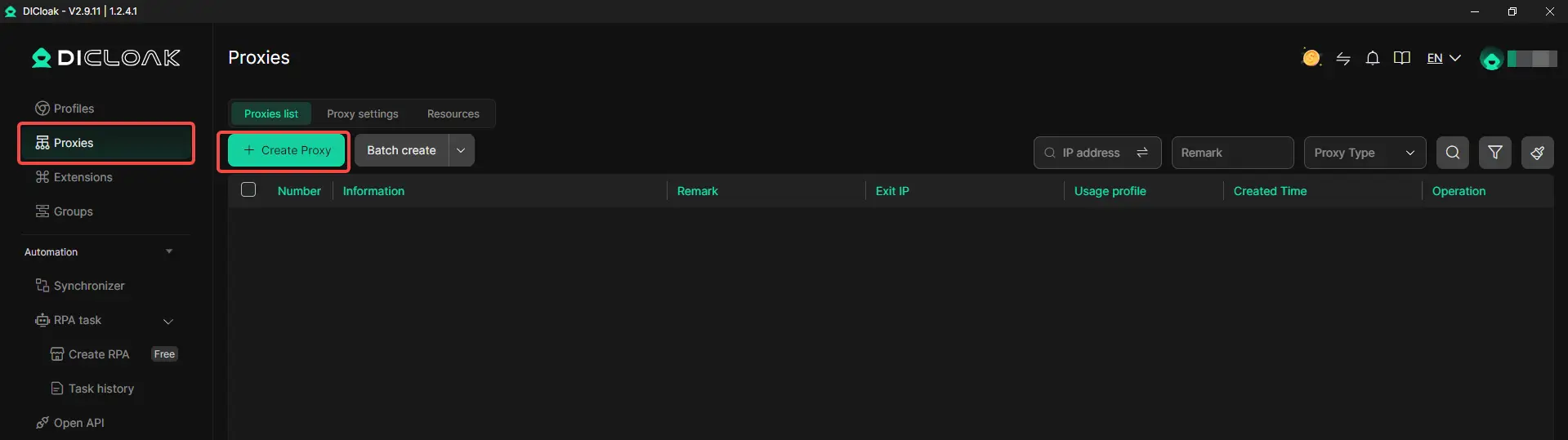
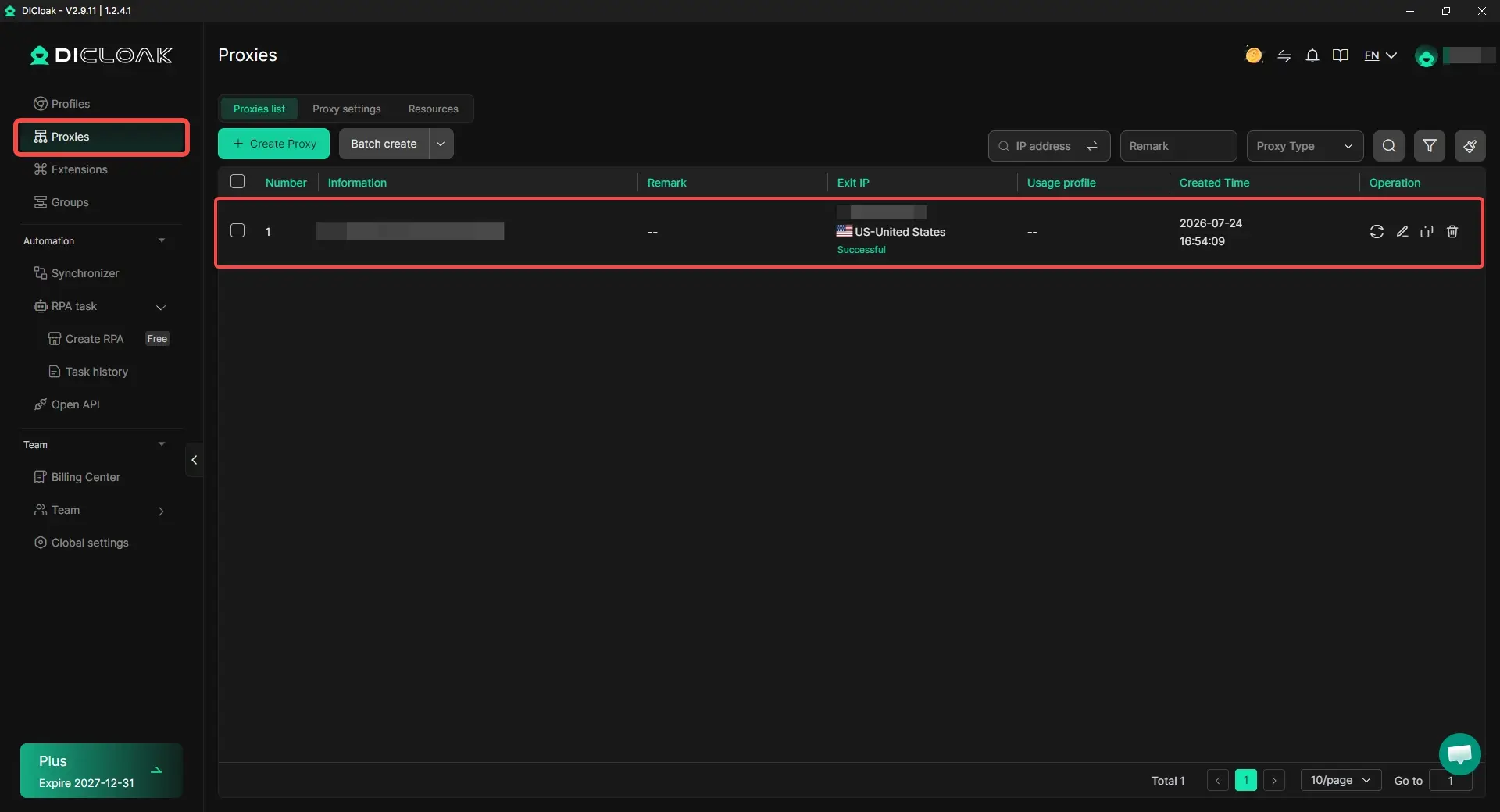
Log in and select Proxies from the left navigation bar. Click Create Proxy to add a new connection.
2. Choose How to Add the Proxy
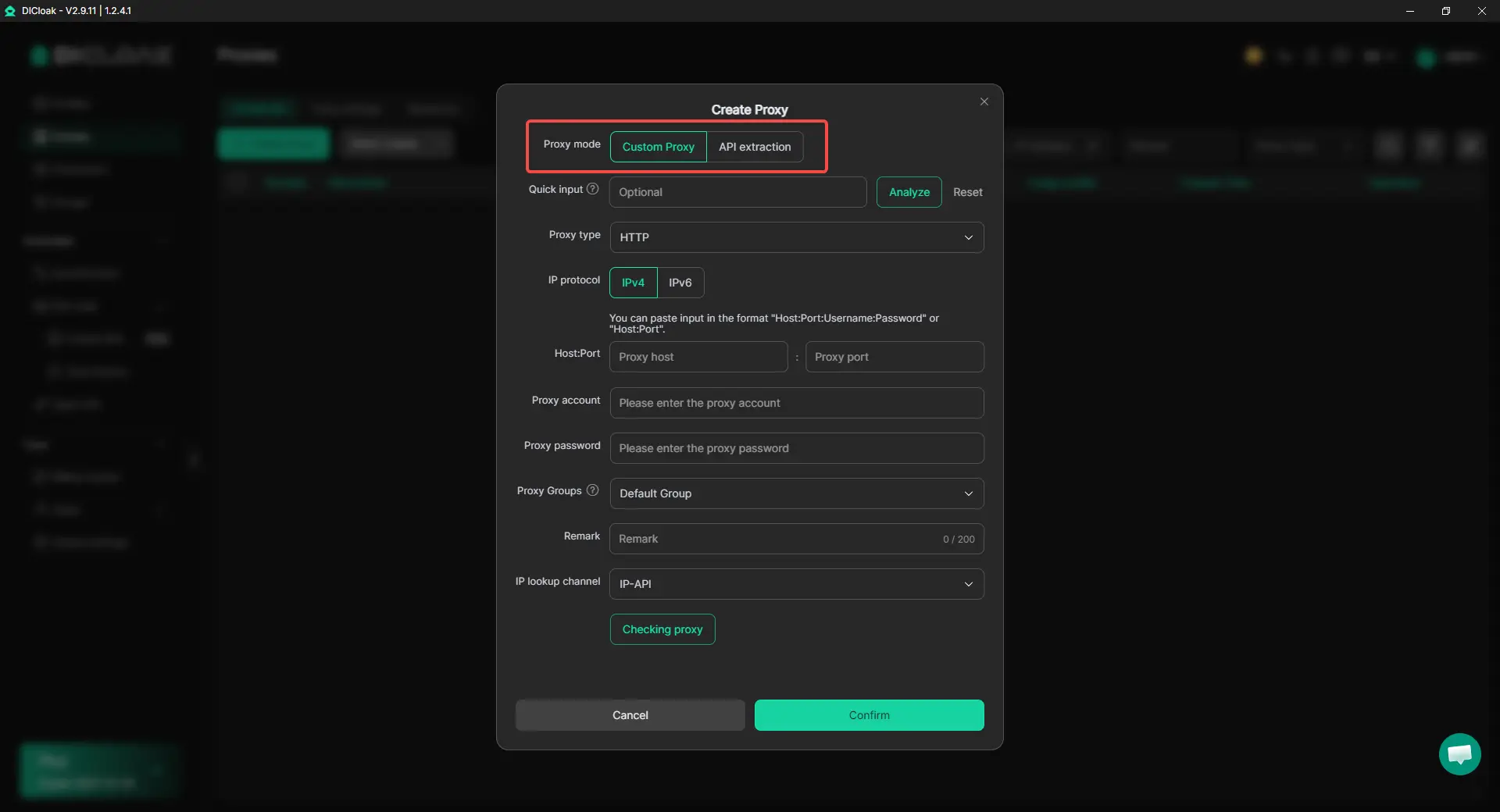
Two setup methods are available:
- Custom Proxy: Enter the proxy details provided by your supplier.
- API Extraction: Paste the extraction URL provided by the proxy service.
Custom Proxy is usually better for fixed residential, ISP, mobile, or datacenter proxies. API Extraction is useful when the provider generates IPs through a link.
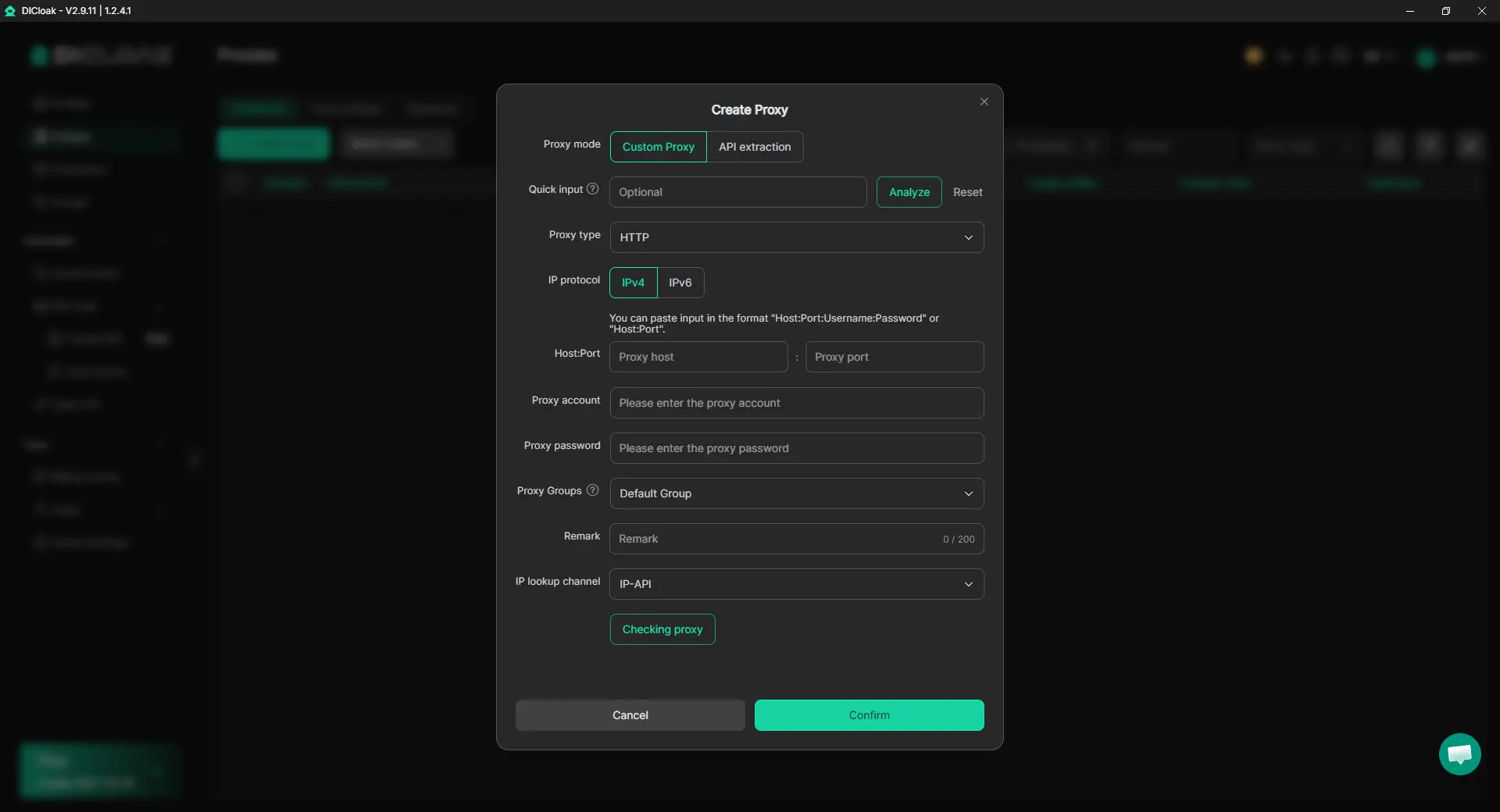
3. Enter Proxy Information
Select the proxy type, then enter:
- Proxy host
- Proxy port
- Username
- Password
- Remarks
HTTP, HTTPS, SOCKS5, and several dynamic proxy options are supported. Use Remarks to record the provider, region, client, or renewal date.
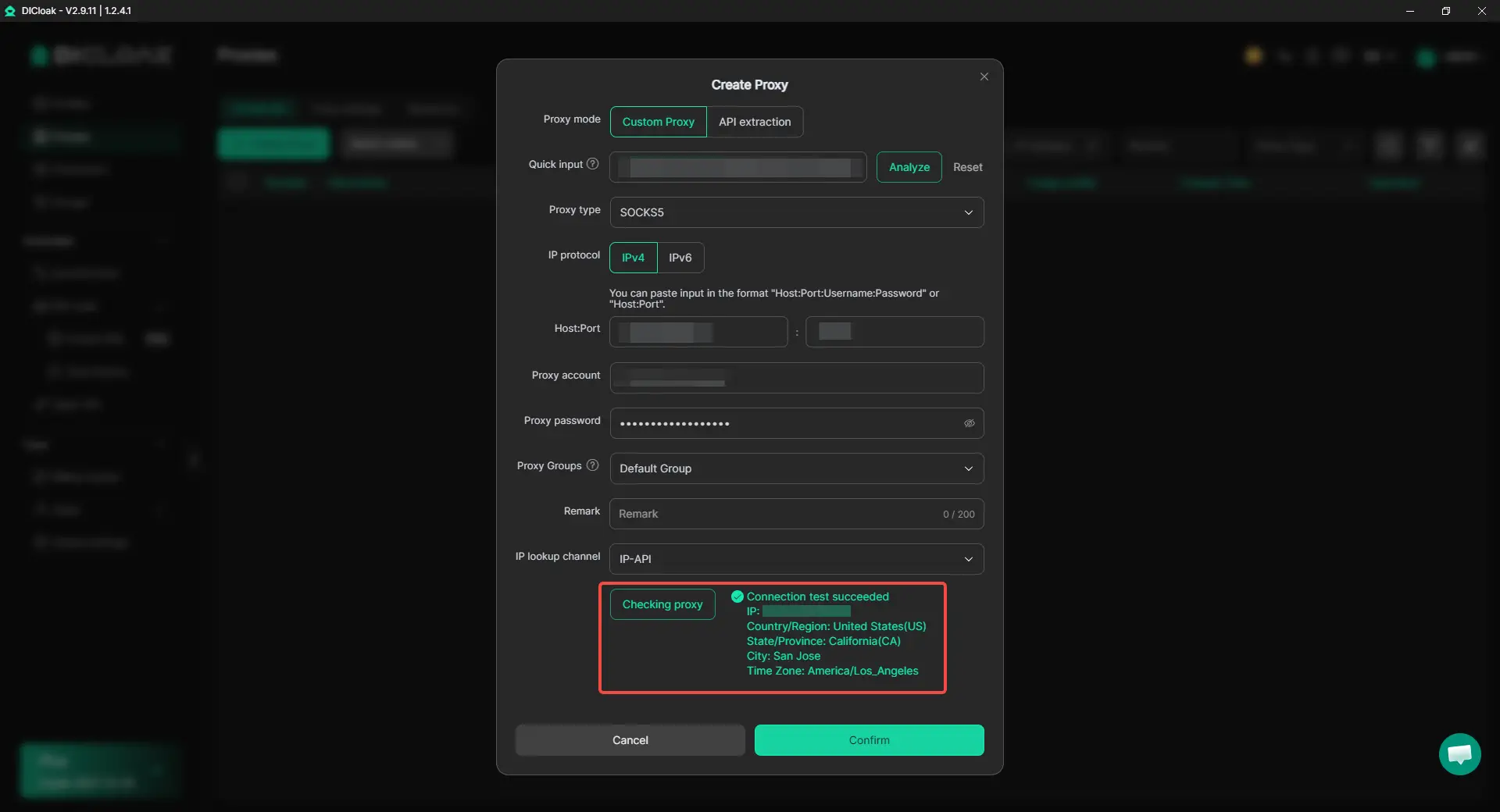
4. Check the Connection
Click Checking Proxy after entering the details. If the test fails, review the host, port, username, and password. Also confirm that the proxy is active and has not expired.
A successful connection test only shows that the proxy can connect. Its location, speed, and session stability should still be checked inside the Profile.
5. Save and Manage the Proxy
Click Confirm to save the proxy. From the Proxies page, you can see later:
- Test the connection
- Edit the details
- Copy the proxy information
- Delete the proxy
Keeping proxies in one list makes it easier to update or replace them when needed.
6. Assign the Proxy to a Profile
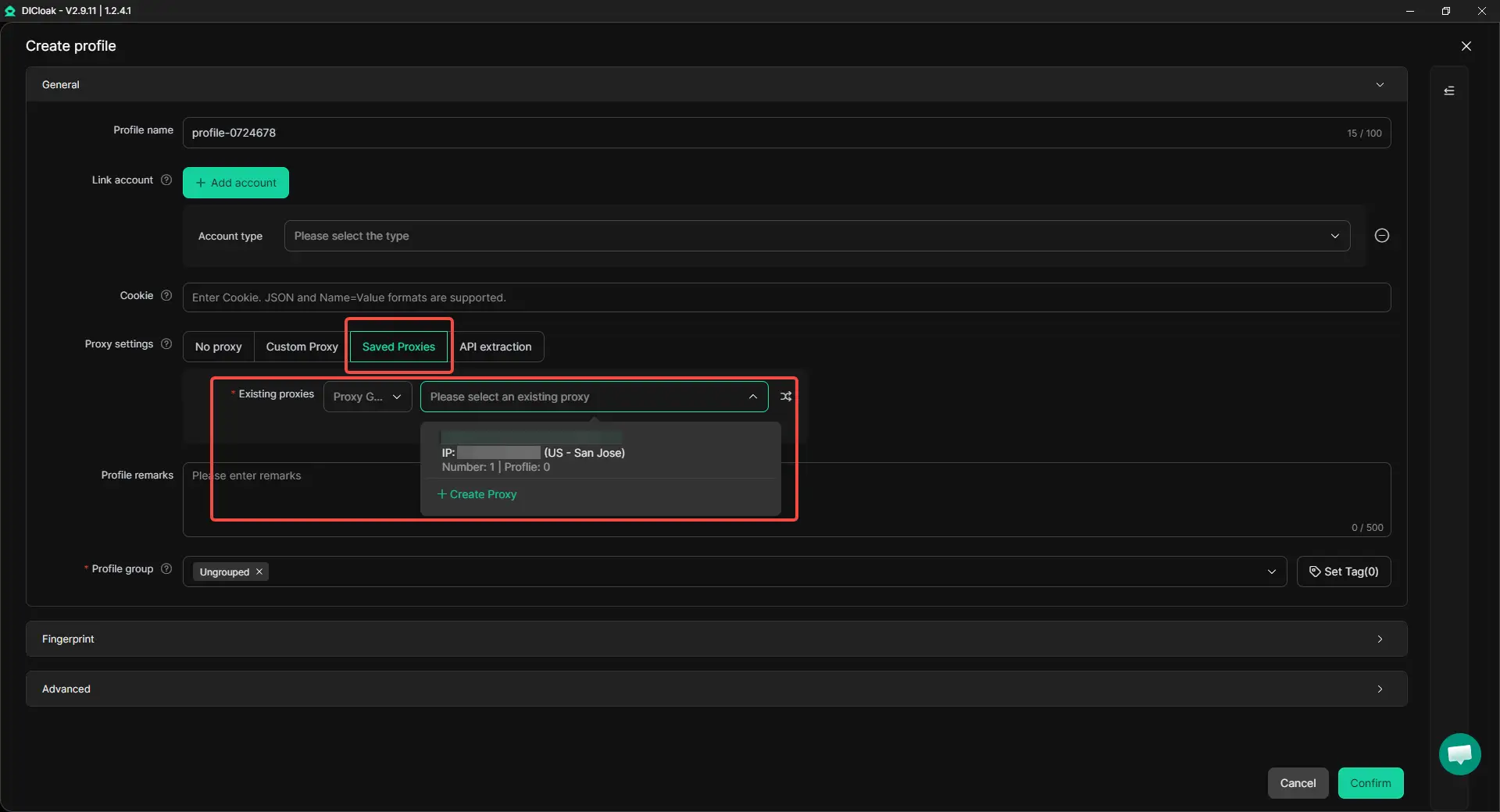
Open Profiles, then create a new Profile or edit an existing one. In the proxy settings, choose Saved Proxies and select the proxy you added. Proxy settings can also be updated in batches. When unused proxies are given priority during random assignment, it becomes easier to reduce accidental reuse across many Profiles.
The same proxy can be assigned to several Profiles, but separate assignments are usually clearer for unrelated accounts or projects. After assigning the proxy, open the Profile and check the visible IP, location, and target website again.
How Can You Test a Proxy Before Scaling It Across Profiles?
Test the proxy inside the actual browser Profile and on the website you plan to use. A successful connection check only proves that the proxy can connect, not that it will stay stable during daily work.
Check the IP, Location, and Network Type
Open the Profile and check the visible IP before logging in or starting the task. Confirm that the country and general region match what you purchased.
The first test should cover the visible IP address, country, approximate region, ASN or network type, DNS results, and WebRTC results when relevant. Different tools may show nearby cities for the same IP, so small location differences are not always a problem. Clear conflicts matter more. For example, a US proxy should not appear in another country or show location details that clearly conflict with the Profile settings.
Reopen the Profile and Test Session Stability
One successful connection test is not enough for a Profile that will be used every day. The proxy should behave in a predictable way after the Profile is closed and reopened.
- Record the first visible IP.
- Browse normally for a short session.
- Close the Profile.
- Reopen it and check the IP again.
- Repeat the test after leaving the Profile idle.
- Confirm what happens after the sticky session ends.
For a long-term store, social account, or client Profile, repeat this process across several sessions. If the IP or region changes earlier than expected, the proxy may not fit that account.
Use the Target Website Before Buying More
An IP checker cannot show whether the proxy works well with the website you actually need. Open the same pages and complete the same actions that will be part of your daily work.
Make sure the website loads fully, login works normally, and images and scripts appear without repeated errors. Test uploads or downloads when they are part of the task. You should also watch for connection drops, slow page responses, and changes after reopening the Profile.
For an e-commerce store, test product pages, order panels, and file uploads. For social media work, test login, media loading, and normal browsing. For regional research, confirm that the website displays the expected local content.
Start with a small number of Profiles. Add more only after the proxy stays stable during the tasks your team will perform each day.
Frequently Asked Questions About the Best Proxy for an Antidetect Browser
Does Every Antidetect Browser Profile Need a Different Proxy?
Separate Profiles should normally use separate IP assignments when they belong to different accounts, clients, stores, or projects. You do not need a separate account with the proxy provider for every Profile. One proxy plan may offer different ports, credentials, fixed IPs, or session IDs that can be assigned separately. The main goal is to prevent unrelated Profiles from sharing the same network identity by mistake.
Is a Static IP Better Than a Sticky Session?
A static IP is usually better for a Profile that must return to the same network location over days or weeks. A sticky session keeps one IP only for a limited period, so it may be enough for short research, ad checks, or a single login session. Before choosing, confirm how long the sticky session lasts and whether the same IP returns after the Profile is closed and reopened.
Is SOCKS5 Better Than HTTP for an Antidetect Browser?
SOCKS5 is not automatically better than HTTP or HTTPS. The best protocol is the one supported by both your proxy provider and your antidetect browser, and which works reliably on the target website. With an antidetect browser like DICloak, you can enter the protocol, host, port, username, and password supplied by the provider, then test the connection before assigning it to a Profile.
How Many Proxies Do I Need for Multiple Browser Profiles?
The number of proxies depends on how many Profiles need independent network identities at the same time. Ten unrelated long-term accounts may need ten separate IP assignments, while short research Profiles may use different sessions from the same rotating proxy plan. Count active Profiles, not just total Profiles, and check whether the provider may return the same IP to different sessions.
When Should I Replace a Proxy in an Antidetect Browser?
Replace or investigate a proxy when it stops connecting, returns an unexpected country, changes IP earlier than promised, becomes too slow for normal work, or repeatedly fails on the target website. Do not replace it only because one login attempt fails. First check the credentials, expiry date, Profile settings, and website status so you do not mistake another problem for a bad proxy.
Conclusion
The best proxy for an antidetect browser is not always residential, mobile, or the most expensive option. It is the one that matches how each Profile will be used, including session length, location needs, IP stability, traffic, and budget. Long-term accounts may need a fixed IP, while short regional checks may work better with sticky or rotating residential proxies.
After choosing a proxy, configure it in an antidetect browser like DICloak, assign it to the correct Profile, and test it on the target website before scaling. The best proxy for an antidetect browser is the one that stays stable, reaches the right location, and supports the actual work done inside the Profile.
 Web Proxy Tools
 Free Tools
 Cookie Plugin
 UA Generator
 MAC Address Generator
 IP Generator
 IP Address List
 2FA Code Generator
 World Clock
 Anonymous Check
 WebRTC Leak Test
 UUID Generator
 Free Web Proxy Site
 Proxy Checker
 FB Ad Checker
 AI Web Scraping
 Free SMM Tools
 Twitter Shadowban Checker
 Instagram Name Checker
 UTM Generator
 Username Generator
 AI Hashtag Generator
 LinkedIn Headline Generator
 Social Media Image Resizer