Trying to figure out how to cancel chatgpt subscription usually starts with a simple goal: you want to stop paying for ChatGPT Plus or end your premium account before the next charge hits. But the actual cancellation process can trip you up if you expect a single button or quick refund, especially if your payment is handled through a third-party gateway or you activated ChatGPT Plus on mobile.
One common mistake is assuming your ChatGPT paid plan will end right after you click “Cancel.” In practice, most platforms keep your premium features active until the billing cycle finishes. If you miss the timing by just a day, you might get charged for another month, and refunds aren’t automatic. Some users also forget to check for linked payment methods or app store subscriptions, which can keep the plan running even after you think you’ve canceled.
The real friction is in the details, knowing where to find the cancel option, what to expect after clicking it, and how to confirm your account is actually back to free status. If you skip the confirmation step, you risk getting billed again or losing access unexpectedly. This guide covers the exact steps for desktop and mobile, plus what to watch for if you use ChatGPT with a third-party payment provider or through the app store.
Start by checking your current plan status and payment route, most errors happen before the cancellation page even loads.
What to Check Before Cancelling Your ChatGPT Subscription
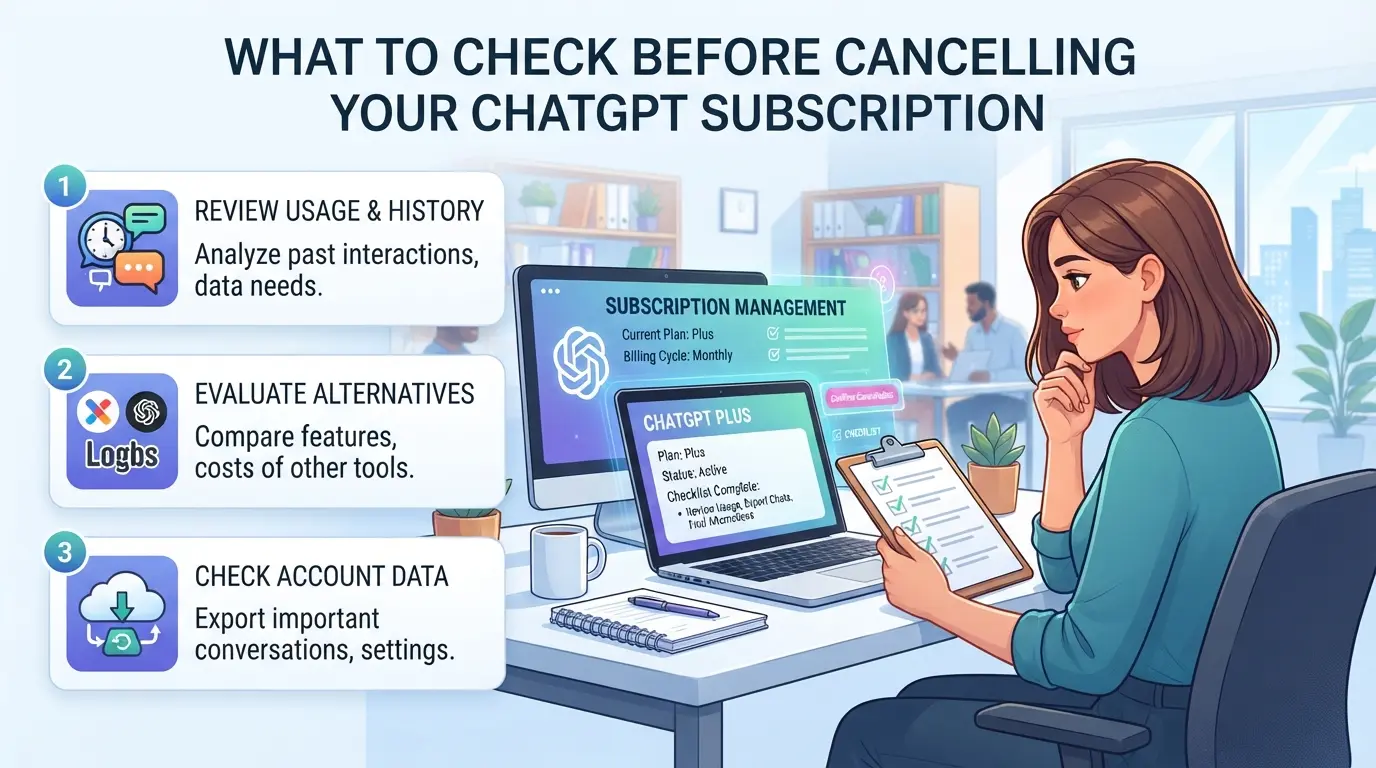
Before starting the cancellation process, review your account details, billing status, and any shared workflows. Missing just one step can mean losing chat history, triggering another payment, or disrupting team access. The main risks aren’t obvious until you click “cancel”, so check these points first.
Will you lose access to saved chats or custom settings?
ChatGPT doesn’t erase your chat history immediately after you cancel, but you lose access to premium features right away. If you have custom settings, GPTs, or important saved chats, export or copy them before ending your subscription. Once your account downgrades, some options vanish from the menu, and restoring them later isn’t possible.
Are there pending charges or renewal dates to watch?
- Check your next renewal date, cancel at least 24 hours before to avoid the next charge.
- Confirm pending payments; if you cancel mid-cycle, refunds rarely happen.
- Review which payment method is linked (App Store, Google Play, or direct card), each has its own cancellation rules.
Is your account shared with others or linked to team workflows?
If your ChatGPT account is used by multiple people or tied into a team setup, cancelling can break workflows or lock out collaborators. Notify your group before making changes. Skipping this step causes unexpected disruptions and lost work.
- Check if anyone else uses your account or relies on shared access.
- Notify collaborators about upcoming changes so they can move chats or settings.
- Review any integrations (like Zapier or Slack) that might stop working after downgrade.
Getting these details right makes the cancellation process smoother and avoids the most common mistakes. The next step is understanding why cancellation sometimes fails or gets delayed, those friction points can catch even careful users.
Why Some ChatGPT Subscription Cancellations Fail or Get Delayed
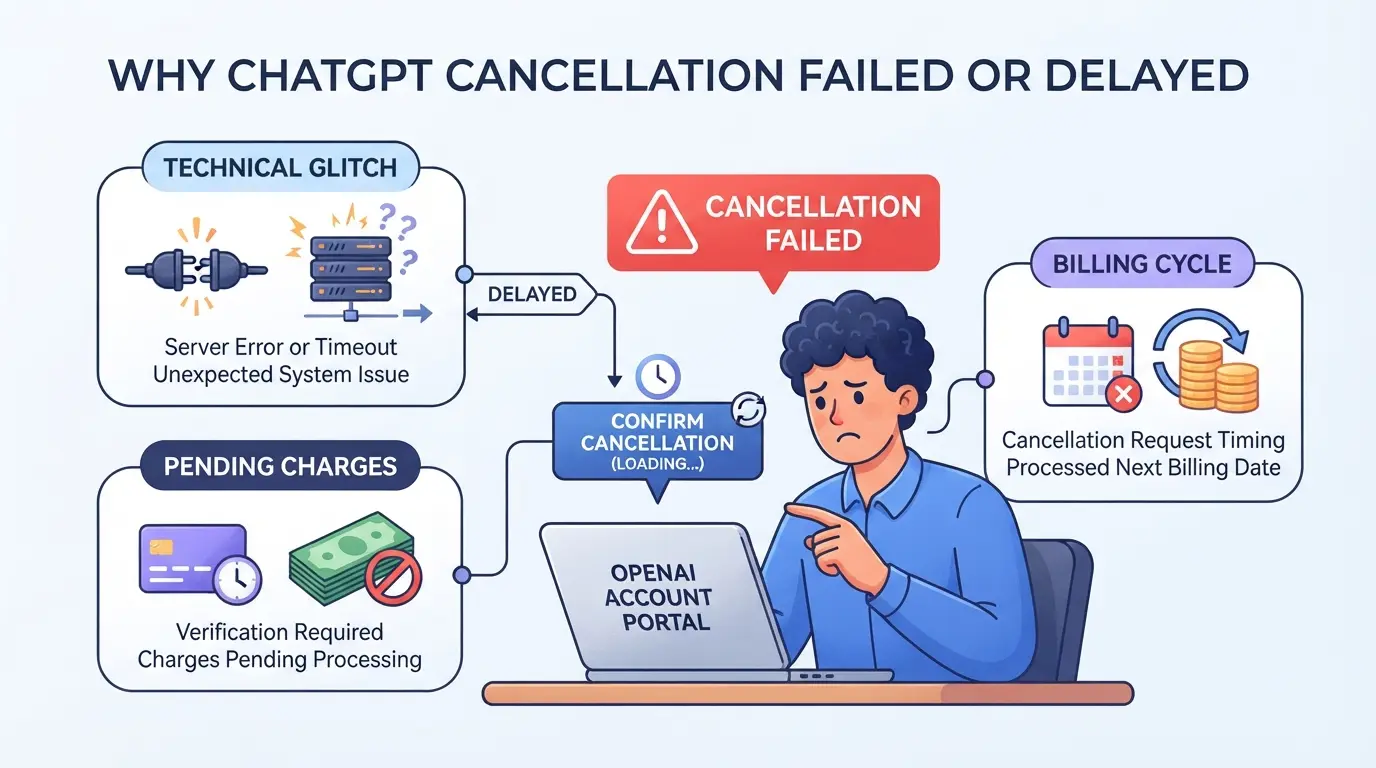
Many users follow the right steps but still find their ChatGPT subscription isn’t canceled right away, usually because of a payment or account issue hiding beneath the surface.
Payment issues or expired cards
If your card is expired or a recent payment failed, cancellation requests can get blocked or just hang in processing. Update your card first, then try to cancel, otherwise, you might stay stuck on the paid plan and keep getting billed.
Subscription managed via Apple, Google, or third-party platforms
Canceling from the wrong dashboard creates confusion and delays.
- If you bought ChatGPT Plus through Apple or Google, canceling on the OpenAI site won’t work, your subscription keeps running.
- Always check your billing provider in account settings and cancel from the platform where you first subscribed.
Account access problems or lost credentials
Locked out of your account? You can’t cancel until you regain access. Use the "Forgot password" link or contact support to reset your login before trying again. If you skip this, the paid plan keeps auto-renewing until you’re back in.
How to Cancel Your ChatGPT Subscription (Web, iOS, Android)
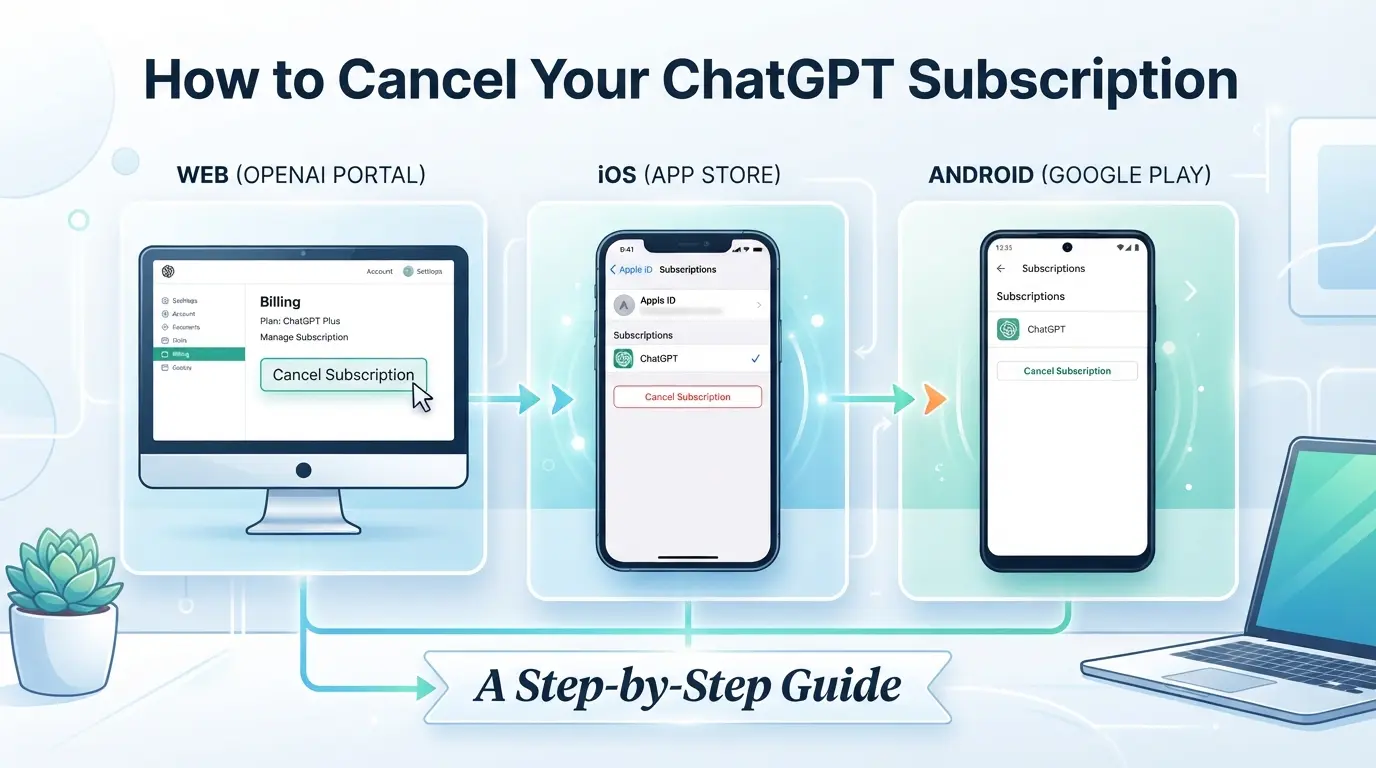
Canceling your ChatGPT paid plan is straightforward once you know where to look, most users get stuck at the confirmation step or forget to check which platform handles their billing. Follow the exact steps for your device to avoid lingering charges or unexpected access loss.
Cancelling via the ChatGPT website
- Log in to your ChatGPT account on chat.openai.com.
- Click your name or icon in the bottom left, then select "Settings."
- Under the "Plans" or "Subscription" tab, find "Manage Subscription" and click it.
- Select "Cancel Plan" and follow the prompts. Wait for the confirmation message, if you don't see it, your cancellation may not have gone through.
Always check for a downgrade notice in your account dashboard, missing this step is the top reason users get billed again.
Cancelling through the iOS App Store
- Open your iPhone's Settings app, tap your Apple ID at the top, then select "Subscriptions."
- Find "ChatGPT" in the list and tap it.
- Hit "Cancel Subscription." If the button is greyed out, your plan may already be inactive or handled through another payment method.
- Apple sends a cancellation email, if you don't get one, recheck your subscriptions or contact Apple Support.
Cancelling via Google Play on Android
- Open Google Play, tap your profile icon, and go to "Payments & Subscriptions."
- Tap "Subscriptions," then locate "ChatGPT."
- Tap "Cancel Subscription," confirm your choice, and check for a confirmation email.
- If you can't find ChatGPT in your subscriptions, check if you signed up through the web or another payment provider, Android app billing only applies if you subscribed in-app.
Completing the right cancellation flow for your platform ensures you avoid extra charges and keep your account status clear. Next, you'll want to know what changes after your plan ends, how access, billing, and data are affected.
What Happens After You Cancel: Access, Billing, and Data
You won’t lose your ChatGPT features right away after cancellation, access usually stays active until the end of your billing period. The main changes happen once your paid cycle finishes: your account drops to free status, premium features disappear, and future charges stop. Here’s what to expect next.
Do you lose access immediately or at the end of the billing cycle?
After you cancel ChatGPT Plus, your access sticks around until your current paid period ends. Most users see a “Scheduled Downgrade” notice in their account settings, this confirms the exact date your Plus features will expire. If you paid through an app store, check that platform for your downgrade timing.
Will you get a refund or partial credit?
ChatGPT subscriptions rarely give refunds for unused time. If you cancel mid-cycle, you keep access but don’t get money back. OpenAI’s policy is clear: you pay for each full billing period, and partial credits aren’t standard. Some app stores (like Apple or Google Play) let you request a refund if there’s a billing mistake, submit a ticket or use their support portal for faster response.
What happens to your saved chats and account data?
- Your chat history stays after cancellation, no auto-delete.
- Account data (like prompts or settings) remains unless you request deletion.
- To export or erase your data, use the “Data Controls” tab in your ChatGPT account, download before deletion, since this step is permanent.
If your downgrade fails, you might get locked out of premium features before the billing cycle ends. The next section covers what to check and fix if your cancellation doesn’t go through.
How to Troubleshoot Common ChatGPT Cancellation Problems
If you run into errors or the cancel option seems missing, fix the issue right away, otherwise, your paid plan may keep charging. Skip the guesswork and check each spot where cancellation can fail.
Missing the 'Cancel Subscription' button
You might not see the cancel button if you’re logged into the wrong account, using a browser with blocked scripts, or if your plan is managed through the app store. Always check you’re on the correct account and look for payment links in your profile settings. If the button still isn’t there, switch browsers or clear cache. If nothing works, escalate to OpenAI or your app store’s support.
Getting 'Something Went Wrong' or other errors
- Refresh and retry in a private browser window.
- Check for outstanding payments or pending transactions.
- Use the ChatGPT help page for direct support links.
Contacting OpenAI or app store support
Briefly explain your issue, include screenshots, and confirm your account email.
- Use OpenAI’s in-app support or help.openai.com.
- For mobile, go through Apple or Google support.
- Attach error details and your billing info.
Using DICloak for Safer Team Access to Shared ChatGPT Accounts
Teams that share a ChatGPT account face two main risks: credentials leaking between members, and inconsistent logins triggering platform security checks. If you’re planning to cancel a ChatGPT subscription but still need shared access, like handling account transitions, billing, or reviewing usage before switching tools, the right browser-profile workflow can cut down on trouble. DICloak doesn’t cancel subscriptions, but it gives admins control over how team members access platform accounts so you don’t end up with rogue logins or exposed passwords.
Keep Shared Account Access Consistent with Unified IP and Fingerprint
When multiple people need to use the same ChatGPT account, admins can create one DICloak browser profile with a configured fingerprint and proxy. Every authorized member works inside that same environment, so the account sees consistent browser and network signals. This means all sessions run through the same user-provided proxy, not a random local IP or device. The key detail: every team member must use the shared profile and proxy, otherwise, login records and device checks get messy, leading to conflicts or lockouts. Platform rules still apply, but this setup keeps the technical side clean. 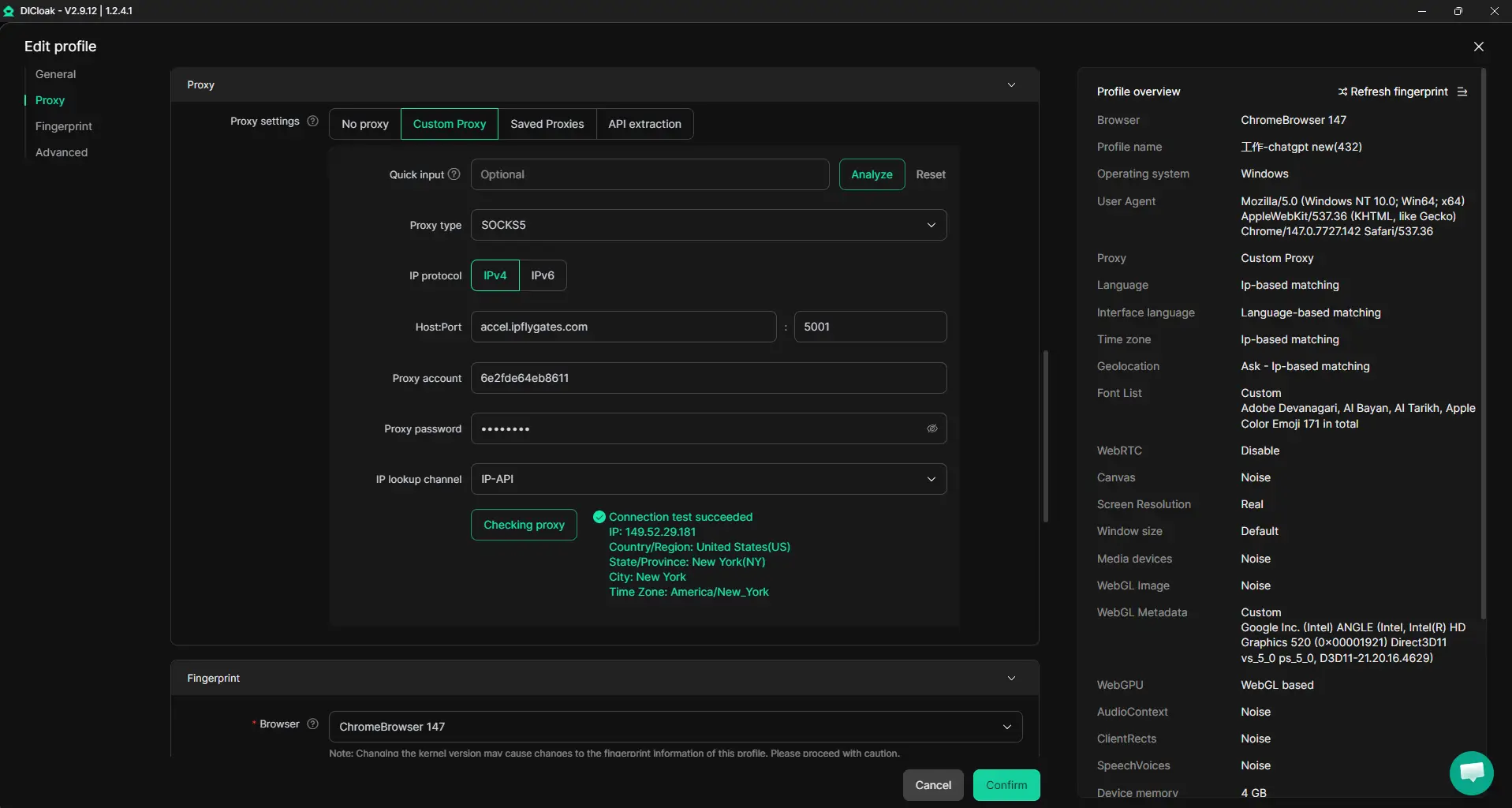
Browser-Profile Access Controls for Shared Account Workflows
Even a well-shared profile can get risky if members can see or copy saved passwords or cookies. Admins can use DICloak security settings to block password prompts, restrict cookie viewing, and disable developer tools in the shared profile. This makes it harder for anyone to grab sensitive info or change extensions that might expose account credentials. Cookie Encryption is available as a Share+ add-on, but for most teams, password and cookie protection plus extension controls will cover the main risks. The scope is limited to browser-profile access; it does not change the connected SaaS tool. 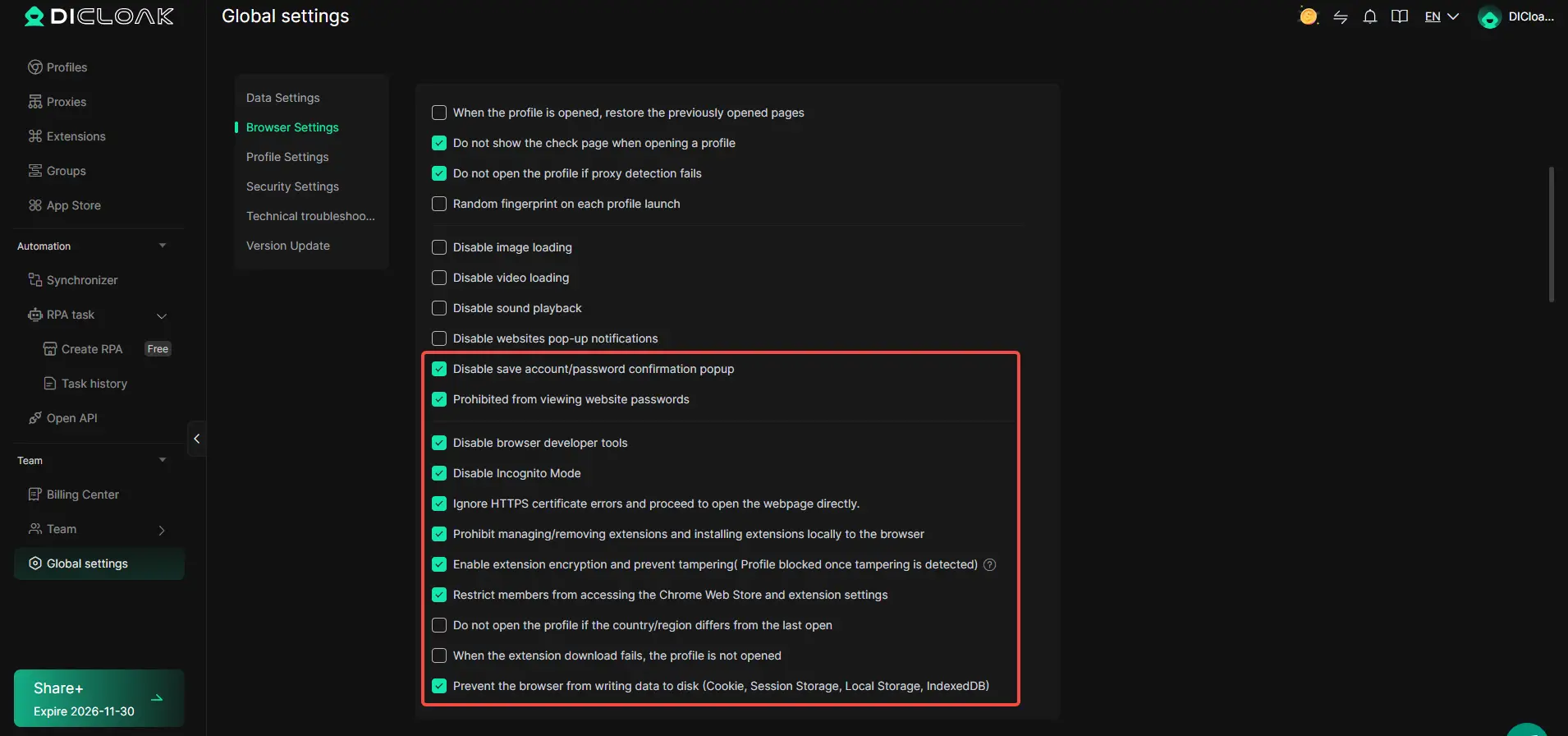
Team Permissions for Assigned Browser Profiles
Not every team member needs full control. Admins can set up member groups in DICloak, assign only the actions or profiles required for each role, and limit which fields show up in the Profiles list. A least-privilege setup means regular members can open profiles to do their work, but can’t see or change sensitive data. These permission controls apply inside DICloak, actual platform permissions still need to be managed in ChatGPT or the SaaS itself. 
If your team is preparing to switch AI tools or manage account handoff after cancellation, these steps make sure access stays controlled. The next section covers what to look for in alternative platforms before you commit.
Alternatives to ChatGPT: What to Consider Before Switching
Most people searching how to cancel ChatGPT subscription already have a replacement in mind, but which tool you pick next makes a bigger difference than the cancellation itself. Before you switch, focus on which features fit your real use case: speed, prompt length, coding support, file uploads, or team sharing.
Top ChatGPT alternatives in 2026 (free and paid)
| Tool |
Free Tier? |
Paid Plan (2026) |
Standout Features |
| Gemini Advanced |
Yes |
$20/mo |
Google Docs, Gmail, file upload |
| Claude 3 Opus |
Yes\\\\\\\\\\\\\\\* |
$25/mo |
Long context, PDF, API access |
| Microsoft Copilot |
Yes |
$30/mo (Pro) |
Office 365, Teams, web search |
*Claude 3's free tier is limited by usage caps.
Gemini is strongest for Google users wanting full integration. Claude 3 leads on context size, if you work with long documents, it’s the easiest to push past ChatGPT’s limits. Copilot is tied into Microsoft’s suite, but paid features matter most if your workflow is already built on Office.
What to check before migrating your data or workflow
Not every tool makes it easy to move your old prompts or files. Before switching, verify how each service handles data export, privacy options, and shared workspaces. Missing import/export means you’ll spend hours rebuilding your history by hand, check this detail before you commit.
Best Practices for Managing Multiple Platform Accounts After Cancelling
Separate personal and team accounts
Keep work and personal logins totally separate, mixing them is the fastest way to lose track of which account has what access or billing. Use unique email addresses and browser profiles for each.
Use secure browsers and proxies for each account
- Assign a different browser profile to every account you manage.
- Route each profile through a separate proxy to cut cross-account leaks.
- Store profile logins and proxy details in a password manager, not a sticky note.
Review access logs and permissions regularly
Checking logins monthly helps spot weird activity before it spirals. If you see sessions from new devices, change passwords right away.
- Check account access logs for new locations.
- Remove old team members from shared accounts.
- Tighten permissions after every staff change.
Frequently Asked Questions About how to cancel chatgpt subscription
Can I pause my ChatGPT subscription instead of cancelling?
No, OpenAI does not offer a pause option for ChatGPT Plus subscriptions. If you want to stop using the paid plan, you must cancel it entirely. After cancelling, you can still use the free version. If you want to upgrade again later, you’ll need to re-subscribe and set up payment again.
Will cancelling ChatGPT affect my OpenAI account or API access?
Cancelling your ChatGPT Plus or paid plan only stops the premium features for ChatGPT. Your main OpenAI account stays active, and you can still use other OpenAI services like the API. The cancellation does not remove your access to free ChatGPT or other OpenAI products.
How do I know if my cancellation was successful?
After cancelling, OpenAI sends you a confirmation email. You can also check your subscription status in your account settings. If your paid plan says “canceled” or if you no longer see billing information, the cancellation worked. You should keep the confirmation email for your records.
Can I reactivate my ChatGPT subscription later?
Yes, you can reactivate your ChatGPT Plus subscription at any time. Just log in to your account and restart the paid plan. There are no penalties or waiting periods. However, you will need to re-enter payment details if your previous information has expired.
What should I do if I was charged after cancelling?
If you were charged after cancelling, first check your account to confirm the cancellation date. If the charge happened after your cancellation, contact OpenAI support with your account details and proof of cancellation. They can review your case and help process a refund if you’re eligible.
After completing your cancellation, consider evaluating your current needs and exploring alternative tools that align with your workflow. Taking a moment to review your subscription settings can help you avoid unexpected charges in the future. Try DICloak For Free
 Web Proxy Tools
 Free Tools
 Cookie Plugin
 UA Generator
 MAC Address Generator
 IP Generator
 IP Address List
 2FA Code Generator
 World Clock
 Anonymous Check
 WebRTC Leak Test
 UUID Generator
 Free Web Proxy Site
 Proxy Checker
 FB Ad Checker
 AI Web Scraping
 Free SMM Tools
 Twitter Shadowban Checker
 Instagram Name Checker
 UTM Generator
 Username Generator
 AI Hashtag Generator
 LinkedIn Headline Generator
 Social Media Image Resizer