When tagging a photo on Instagram, the app can attach your exact location, even without clearly notifying you. However, in 2024, more than 60% of Instagram users in Brazil did not know that posts could deliver the precise address automatically, according to TechTudo. This has already caused situations in which people have had their house identified by strangers or companies, just because the GPS was activated in the app. Those who work with digital marketing or manage third-party profiles feel this risk even more: each access made from another location can raise suspicion and even lock the account.
Many people try to solve it by deleting the location manually, but forget that Instagram location tracking can also happen in stories, automatic tagging, and even behind the scenes of the app. Therefore, learning how to disable instagram location is not just about hiding the point on the map. It is to ensure that your photos do not reveal where you are, that your routine is not tracked and that third parties are not able to map your accesses. By following the right step-by-step, you can disable Instagram location in your phone's permissions, block automatic sharing and review hidden settings that the app hides in the settings, including for those who use business accounts or manage multiple profiles.
Here's how to remove any location tracking on Instagram, avoid exposure, and truly maintain your privacy.
Why does Instagram track your location and when can it affect your privacy?
Instagram doesn't ask for your location just to tag places in posts. The app collects data from where you are to suggest content, show more targeted ads, and activate functions such as stories with location or automatic tagging in photos. Even when you don't select a location, the app can pull information from your phone's GPS or the data recorded in the images. This tracking almost always happens in the background, with no clear warning on the screen. Therefore, knowing how to disable instagram location makes a real difference for those who want to control their privacy.
Top ways Instagram collects location
Instagram uses two main methods to figure out where you are. The most common is to access the device's GPS , that is, use the location that your cell phone already collects for maps and other applications. If you don't disable this permission in the device's settings, Instagram can access your exact position whenever the app is open.
Another way is through the metadata of photos and videos. Many people don't realize it, but the cell phone camera saves date, time and even geographic coordinates information in each file. When you upload a photo to Instagram, the app can read that data even if you don't manually mark the location. Just deleting the visible markup doesn't solve it, metadata is still there, ready to be used. Therefore, those who want to hide Instagram location also need to think about how the images are treated before uploading.
Cases where tracking can expose sensitive information
In everyday situations, location tracking by Instagram can open serious breaches. If you always post stories from home or work, someone can easily map out your daily routine. Automatic tagging or distraction when uploading photos can give away the address without realizing it. When traveling, sharing photos in real time shows you when you're away from home, making it easier to get scammed or unexposed
The biggest risk is to believe that just unchecking the location solves it, in practice, traces are in permissions, metadata and non-obvious histories. Those looking to remove location tracking Instagram need to review app settings, system permissions and even delete sensitive data from images before posting.
How to Turn Off Instagram Location on Android: Steps to Eliminate Tracking
Turning off access to Instagram's location on Android goes beyond taking the "check-in" from the feed. If you don't change the app's permissions, the app can continue to use GPS data to mark places in stories, suggest locations, or even feed the algorithm with your routine. The path to actually removing location tracking from Instagram starts with adjusting the system's own permissions.
Adjusting app permissions
To block Instagram from accessing your location, open your Android settings and search for "Apps" or "Apps." Find Instagram in the list, tap "Permissions," and select "Location." Here, choose "Deny" or "Never". With this change, the app stops accessing your device's location data. This goes for any Instagram feature, stories, publications, lives or messages.
When denying this permission, the button to mark location in posts and stories still appears, but becomes inactive or forces the user to fill it in manually. No automatic tracking via GPS will be done. For those who manage business accounts or need to post from different locations, it is worth remembering that this change affects all profiles logged into the device.
The effect is immediate: after denying it, Instagram can no longer capture your position in real time. If, by chance, the app asks for permission again, check if it is updating through Google Play or if it has been installed through external sources, alternative versions may try to circumvent this block.
Alternatives to hide location in posts
Even with the permissions blocked, some points still require attention. Always review if you have mistakenly tagged any locations before posting a photo or video. To remove location manually, tap the place name above the image on the edit screen and select "Remove Location."
Stories and reels also call for care. When using location stickers, the app can suggest the last accessed location, even without active permission. Avoid accepting automatic suggestions. For those looking for total privacy, combine the adjustment of permissions with a routine of checking before posting, this closes the door for Instagram to expose where you are without realizing it.
How to Turn Off Instagram Location on iPhone: Practical Guide for iOS Users
When looking for how to disable instagram location on iPhone, many people think only of blocking the app's access to GPS. But Instagram can track your position in other ways, such as photo metadata or permissions granted without realizing it. To really hide Instagram location and avoid unnecessary exposure, the adjustment needs to be made both in the iOS settings and when posting content.
Disabling location permissions in the iOS menu
The most direct control is to block Instagram's access to location by the system. On iPhone, you do it like this:
- Open "Settings".
- Scroll to "Instagram."
- Tap "Location".
You'll see three options:
| Option |
What it does |
| Never |
It blocks Instagram's access to location entirely. |
| While using |
Allows access only when the app is open on the screen. |
| Always ask |
iOS asks for your decision every time Instagram tries to access it. |
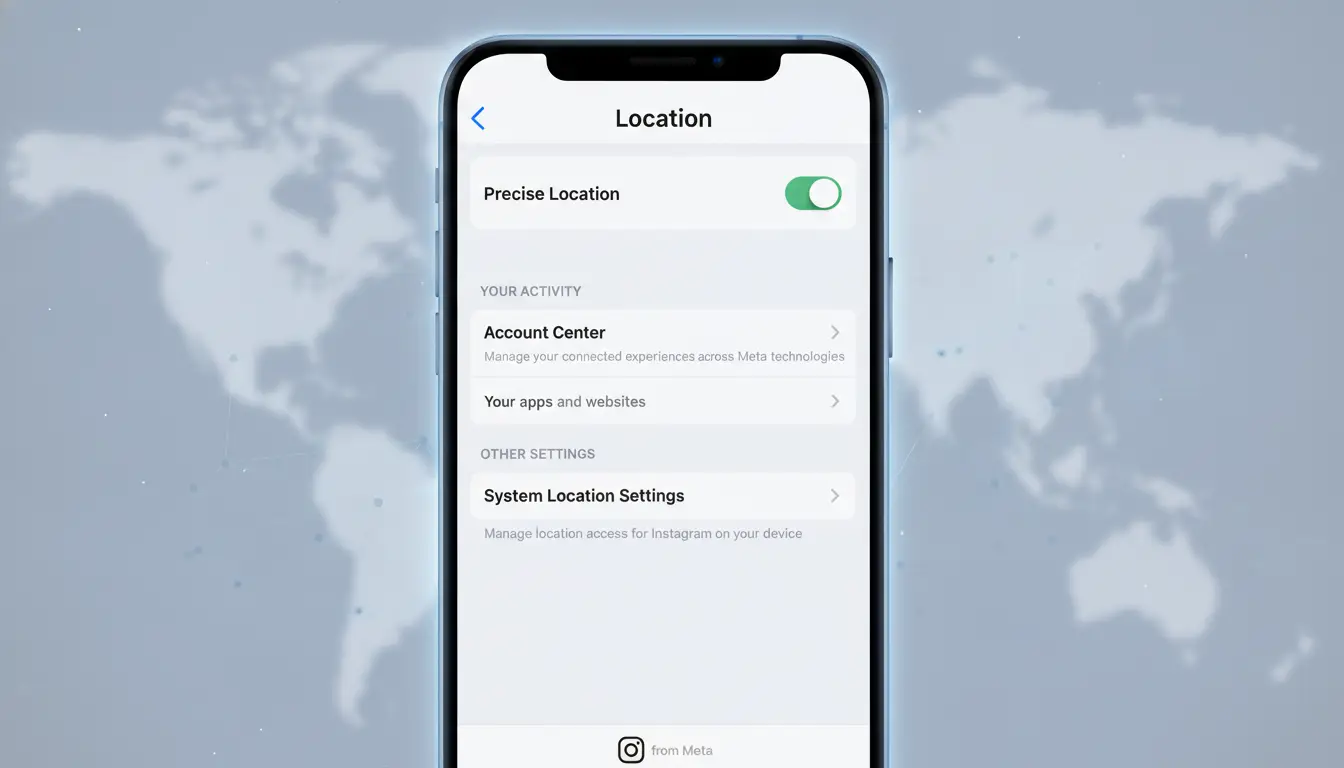
For those who want to remove Instagram location tracking for real, the "Never" option is the only one that prevents the app from taking GPS data in any situation. "While using" can be useful if you want to mark places, but there's always a risk of forgetting and accidentally sharing it. "Always ask" forces a manual check, but not every user remembers to review each access.
The privacy setting applies to both personal and business accounts. And it's worth remembering: even with "Never" active, Instagram may try to infer your location from other data, such as Wi-Fi networks or posting activity.
Eliminating location traces in photos and videos
Blocking GPS doesn't solve everything. Photos taken by the iPhone usually keep metadata with information about where they were taken. Before posting, the ideal is to clear this data. Editing apps, such as iOS's own Photos or third-party tools, allow you to remove location data before uploading.
When creating stories, pay attention to the location button. If you enable it without realizing it, Instagram can attach the location to the content, even if the iOS permission is disabled. Therefore, reviewing each story before publishing reduces the risk of exposure.
The most critical point is not to rely only on the system settings: just blocking the GPS does not eliminate all location traces.
Common mistakes when disabling Instagram location and how to avoid failures in the process
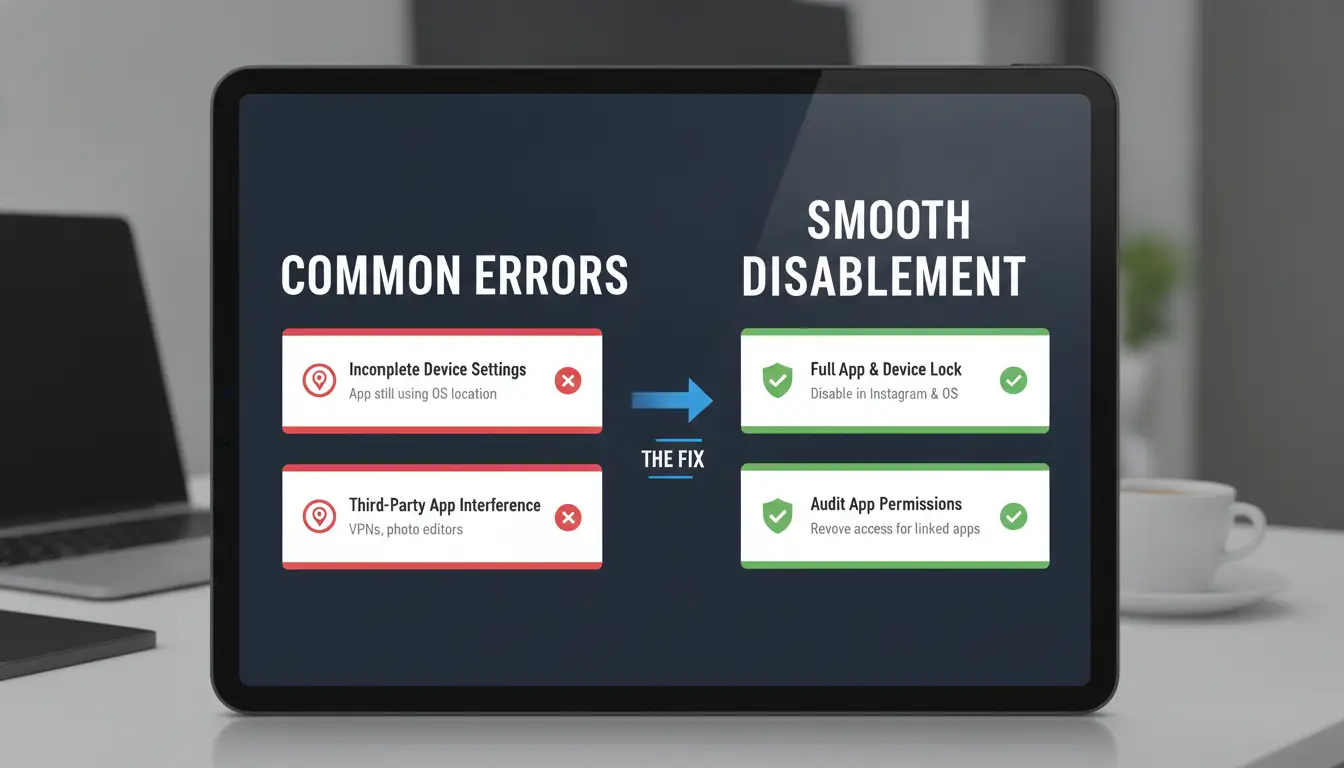
Turning off location on Instagram seems simple, but the system gives several loopholes. Many people follow tutorials on how to disable instagram location and believe that it is invisible, but in practice tracking continues through other paths. Understanding where the process fails avoids exposure for nothing.
Permissions not synced between devices
When disabling location on Instagram through the mobile app, this adjustment does not apply to the computer browser. If you log in through the website, Instagram can still access location data from the browser. Those who change devices also suffer: permissions return to default, so it's worth reviewing everything whenever you change your phone or reinstall the app. It's not enough to hide Instagram location in one place, you need to check each device.
Auto-publish with location enabled without realizing it
A common pitfall is to post stories or reels thinking that the location is disabled, but the app still marks the location because the permission has not been blocked in the system settings. Before publishing, it is worth checking that Instagram has not regained the permission on its own after updates. Always review "Location" in your phone's permissions before posting so you don't accidentally hand over data.
Third-party apps that can access your location through Instagram
Even if you disable everything in the app, apps connected to your account can pull location from behind. Go to Instagram settings, go to "Apps and websites" and remove access to services you no longer use. To remove external Instagram location tracking, block permissions of these apps in the operating system itself, only then the block is complete.
How to protect your location when using Instagram on multiple devices or with multiple accounts (DICloak and proxies)
Risks of location exposure in shared access or team
Switching devices or sharing Instagram access with others increases the risk of leaking location information. When someone accesses your account from a different device, Instagram registers the new IP, and can link that to a city or region. If you use the account on different phones and computers, IP changes leave traces. Another point: syncing photos through Google Photos or iCloud can attach GPS data without you realizing it. This is even true for stories or posts made by team members. Without reviewing everything, anyone who has access can end up exposing the location of the profile unintentionally.
How Proxies Help Mask IP and Make Tracking Less Accurate
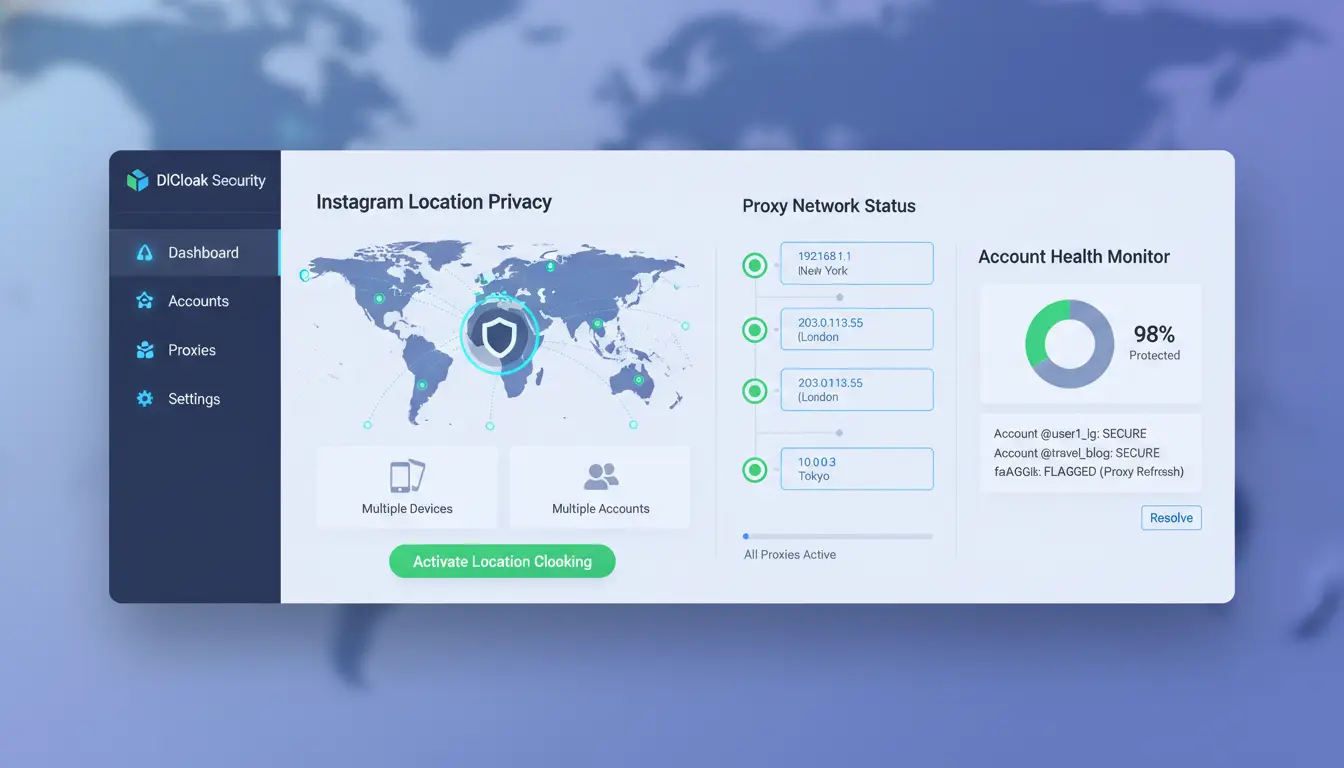
When you set up proxies, each account accesses Instagram from a different IP address. This reduces the chance of Instagram piecing together your movements and deducing where you really are. It is common to use a dedicated proxy for each profile, especially for those who manage influencers or campaigns. Proxies also prevent Instagram from blocking simultaneous login access in different cities. It only makes sense to invest in this when the goal is really to hide Instagram location, prevent tracking, and separate operations in a secure way.
How DICloak allows you to isolate profiles, mask location, and facilitate secure collaborations
With DICloak, each Instagram account gets a separate browser and can use its own proxy. This way, your actual location doesn't show up for Instagram or other team members. The system allows you to create isolated profiles, divide accesses and record who did what. The most important step is to never operate multiple accounts in the same browser without isolation. This way, you can remove Instagram location tracking for real.
When can disabling location impact Instagram features or functionality?
Limitations on local filters, trends, and recommendations
By disabling Instagram location, you lose easy access to story filters that depend on where you are. Functions such as marking nearby locations in posts or stories no longer work, which reduces the reach for those looking for local engagement. Instagram also shows fewer regional trends and content suggestions become less relevant, as the algorithm no longer uses geolocation data to personalize recommendations.
Impact on businesses, stores, and influencers
For those who use Instagram for sales, physical store promotion or local partnerships, disabling location can cut the target audience. The platform stops displaying its content to people close to you, and ads lose delivery accuracy. If the business depends on customers in the region, hiding Instagram location can decrease results. One way out is to reinforce your digital presence using other segmentation strategies.
How to adjust strategies without sharing location
Even without activating location, you can still maintain range. Using geolocated hashtags (e.g., #sp, #ipanema) helps you appear in regional searches. Another option is to create content that explicitly cites local landmarks, compensating for the absence of auto-tagging. For those who manage multiple profiles or access from multiple devices, tools such as DICloak allow you to create isolated profiles, each with its own proxy and separate digital fingerprint. Thus, you can remove tracking location Instagram even in team operations, preventing Instagram from cross-referencing data and identifying the real source of accesses.
How to safely re-enable Instagram location if you need to resume functions
Reactivating Instagram's location does not mean giving up your privacy. The secret is to release only when it is really necessary, controlling how and when the app accesses your data. This goes for those who have done the entire process of how to disable instagram location and want to resume a one-off function, without running the risk of tracking or leakage.
Steps to re-enable permission in settings
- Android: Open "Settings" on the device, go to "Apps" or "Apps", choose "Instagram" and select "Permissions". Tap "Location" and check "Allow only while using the app". This prevents Instagram from accessing your position in the background.
- iPhone: Go to "Settings", scroll to "Instagram", tap "Location" and select "While using the app". If you want even more control, use the "Ask next time" option.
How to limit the use of location only during specific tasks
If your idea is just to post a story with a location or tag a place, activate the permission temporarily. Once the post is done, go back and block access. Many phones offer automatic deactivation after a certain time, so you don't forget the tracking turned on. This tactic reduces the chance of exposure without having to remember all the time.
App monitoring and synchronization so you don't leak data
Once you've re-enabled, make sure other apps connected to Instagram aren't asking for location access either. Enable misuse notifications, if the system offers it, to receive alerts if something strange happens. The biggest mistake is forgetting third-party apps synced, because they can keep tracking even with Instagram's location turned off.
Extra tips to maintain your privacy: routines, habits and support tools
Regular review of permissions and updates
Make it a habit to review Instagram permissions on your phone once a month. Go to the device's settings, search for the app and check if the location is really disabled. Whenever Instagram asks for a new authorization, stop and evaluate if it makes sense. Updating the app reduces security flaws that can open loopholes for location leaks.
Best practices when sharing photos, stories, and reels
Avoid tagging locations at public or real-time events. Leave it to post when it has already left the place. Before you post photos, clear the metadata (information hidden in the image file) using simple editing apps. This way, you prevent details such as address or capture time from being exposed, even unintentionally.
External tools for data security and anonymization
Whether you manage multiple accounts or seek extra anonymity, proxies help separate access and make it difficult to track. In higher risk scenarios, an antidetect browser like DICloak creates isolated profiles , useful for those who need to hide Instagram location and control where each access appears. The secret is to create a routine and not relax in the revisions.
Frequently Asked Questions
Do I need to turn off Instagram location to prevent tracking?
Disabling Instagram location is recommended if you want to prevent the app from recording where you are, especially when traveling or sensitive locations. If you prefer, you can just deny access to the app's location in your phone's settings. Other options include using Instagram in the browser or limiting posts with a marked location.
If I turn off location, can Instagram still identify my position?
Even when you turn off Instagram's location, the app can estimate where you are using IP, Wi-Fi connections, and photo data. To hide Instagram location completely, use private networks (proxy), avoid marking locations and limit app permissions. This makes it difficult for Instagram to track your position through indirect methods.
Can Instagram ask for location only when posting stories or reels?
Yes, Instagram can request location access only when you try to tag a place in stories or reels. You can allow location use only at that time, using the "Allow only while in use" option in the settings. Thus, you have more control over when and how to disable Instagram location.
How do proxies and antidetect browsers help protect location on Instagram?
Proxies mask your IP address, making it difficult for Instagram to track your real location. Antidetect browsers also change their fingerprint, useful for those who use multiple accounts or devices. These measures help remove tracking location Instagram, especially if you share devices or access from public networks.
Is it possible to disable location for just one account, or is it necessary for all accounts?
Instagram's location settings are applied on a per-device basis, not on a per-account basis. That is, when you disable Instagram location on a cell phone, it applies to all accounts used there. It is not possible to hide Instagram location only for one account if they are all on the same device.
Disabling Instagram location is a simple and effective measure to protect your privacy and control the information you share online. By following the steps indicated, you ensure more security to your profile and avoid inadvertently sharing sensitive data. Try DICloak for free
 Web Proxy Tools
 Free Tools
 Cookie Plugin
 UA Generator
 MAC Address Generator
 IP Generator
 IP Address List
 2FA Code Generator
 World Clock
 Anonymous Check
 WebRTC Leak Test
 UUID Generator
 Free Web Proxy Site
 Proxy Checker
 FB Ad Checker
 AI Web Scraping
 Free SMM Tools
 Twitter Shadowban Checker
 Instagram Name Checker
 UTM Generator
 Username Generator
 AI Hashtag Generator
 LinkedIn Headline Generator
 Social Media Image Resizer