Can one QuillBot account really work for a whole team? That question often comes up when writers, editors, or freelancers all need the same tool, but the team does not want to keep buying separate subscriptions or passing login details around.
In 2026, there is more than one way to share QuillBot with your team, and each setup works better for a different kind of workflow. This guide compares QuillBot's own team option, separate accounts, and browser Profile sharing, so you can choose the setup that fits how your team actually works.
Why Do Teams Want to Share QuillBot?
Teams usually want to share QuillBot because several people are involved in the same writing workflow. The main goals are to make access easier, reduce repeated setup, and avoid passing login details around. Common reasons teams look for a way to share QuillBot include:
- Several people need to edit the same content. Writers, editors, and SEO specialists may all use QuillBot at different stages.
- Teams want simpler access. Repeatedly asking one account owner for login help can slow down remote work.
- Cost matters. Small teams often want to know whether every occasional contributor really needs their own paid access.
For example, an agency may have three writers but only one editor who regularly uses QuillBot for final revisions. In that case, not every person involved in the content workflow necessarily needs direct QuillBot access. The right setup depends on how many people actually need to use QuillBot, not simply how many people are on the team. That becomes important when comparing QuillBot's pricing and team options.
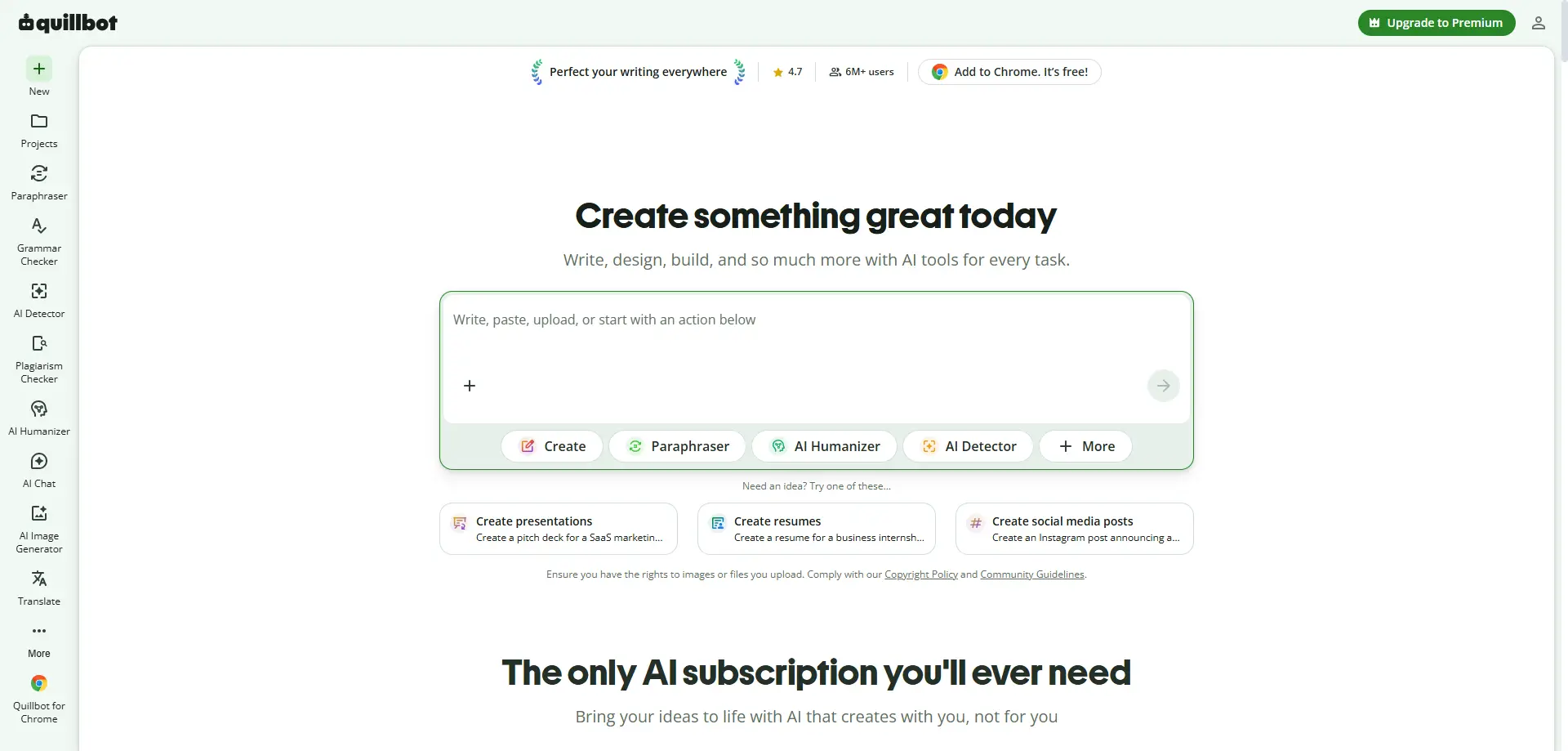
How Much Does QuillBot Cost in 2026?
QuillBot offers three main plans in 2026: Free, Premium, and Team Plan. The Free plan costs $0 per month, while Premium costs $19.95 per month. Team Plan pricing is listed separately and is designed for organizations that need Premium features with team management.
| Plan |
Price |
Best For |
| Free |
$0/month |
Light or occasional use |
| Premium |
$19.95/month |
One person who uses QuillBot regularly |
| Team Plan |
See Team Plan pricing |
Teams that need Premium features with centralized management |
The Team Plan includes everything in Premium plus team-focused features such as team usage metrics, a user management dashboard, centralized billing, data control, and priority account support. For a small team, the main question is how many people actually need to use QuillBot themselves. If only one editor uses QuillBot while other writers send drafts, one Premium plan may be enough. If several people need regular access, the Team Plan becomes more relevant.
What Are the Ways to Share QuillBot With Your Team?
There are three practical ways to give a team access to QuillBot: use the official Team Plan, let each person manage a separate account, or organize authorized access through an antidetect browser. The best choice depends on how often each person uses QuillBot and how much access control the team needs.
1. Use a QuillBot Team Plan for Regular Users
A QuillBot Team Plan is the clearest option when several people need Premium features on a regular basis. Each team member gets their own access, while the organization can manage users and billing in one place.
This works well for an in-house content team where writers and editors use QuillBot every week. Instead of passing one login around, each regular user works through their own team access. For teams with several frequent users, the native Team Plan is usually the simplest setup to manage.
2. Let Each Person Use a Separate QuillBot Account
Separate accounts can make sense when team members work independently and do not need centralized management. For example, freelance writers may already have their own QuillBot accounts and use them across different clients.
The trade-off is more admin work. Payments, access, and account ownership stay with each person, which can become harder to track as the team grows. Separate accounts are simple for independent workers, but less convenient for a company that wants one clear way to manage access.
3. Use an Antidetect Browser With Your Team
An antidetect browser like DICloak can help when a team needs to share access to a QuillBot account or keep QuillBot inside a shared browser workflow. Instead of sending login details back and forth, the account can stay signed in inside a dedicated browser profile that authorized teammates can access when needed.
This is especially useful when QuillBot is used together with a CMS, email, project tools, or other SaaS accounts. Separate browser profiles help keep each workspace organized, while profile sharing and team permissions make it easier to control who can access the QuillBot workspace. For teams that need both QuillBot access and a more organized browser profile, an antidetect browser adds a more flexible way to manage the shared workflow.
The real decision is whether your team needs QuillBot access, independent accounts, or a managed browser workspace. Once that is clear, choosing the right setup becomes much easier.
Why Choose DICloak for a More Flexible QuillBot Team Setup?
For teams that need to share access to a QuillBot workspace, an antidetect browser like DICloak can make the setup easier to organize. Instead of repeatedly sharing login details or setting up the same browser Profile on different devices, teams can manage access through a dedicated Profile.
- Keep QuillBot in a separate browser Profile. This helps keep one project or client workspace separate from other SaaS accounts, so teams do not mix QuillBot, CMS, email, and other tools in the same Profile.
- Share the Profile without setting it up again. With profile sharing, an authorized teammate can open the assigned Profile and continue working without recreating the same setup on another device.
- Control who can access each Profile. Team permissions make it easier to assign a QuillBot Profile to the right writer, editor, or freelancer, and change that access when a project or role changes.
For teams that already use QuillBot as part of a wider content workflow, the main value is not just sharing access, but making each browser Profile easier to organize, assign, and manage.
How to Use DICloak for a QuillBot Team Workflow
If your team needs to keep working from the same QuillBot browser Profile, you can save the signed-in session in one dedicated Profile and share that Profile with selected teammates. This keeps the setup in one place and makes handoffs easier when writers or editors take turns working on the same project.
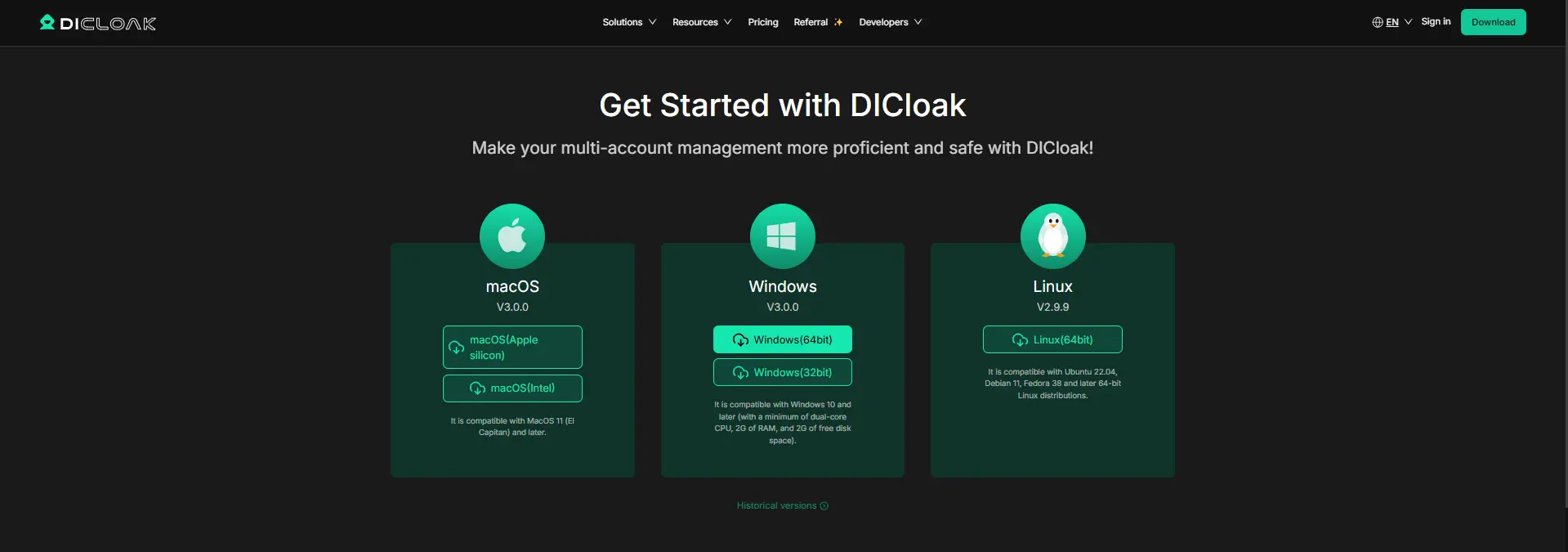
Step 1: Install DICloak and Choose a Team Plan
Download DICloak, create an account, and install the desktop app. Then choose a plan based on how many teammates need access and how many browser Profiles your team plans to manage.
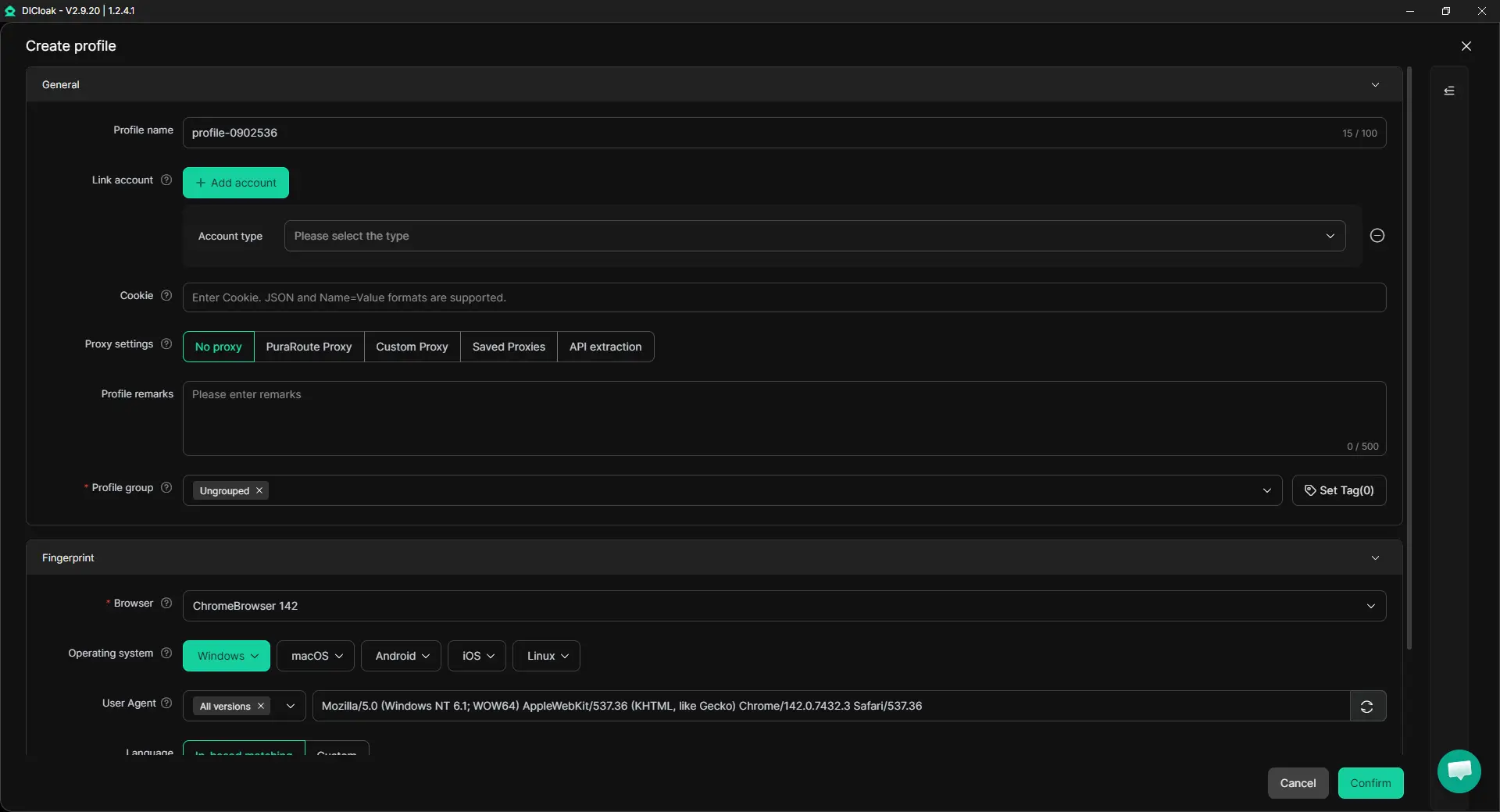
Step 2: Create a Dedicated Browser Profile for QuillBot
Create one browser Profile for the QuillBot workflow your team needs to use. The Profile keeps its cookies, login session, and browser settings together, while Multiple Sessions can support authorized teammates who need to work with the same Profile and Hide Password can reduce the need to expose saved login credentials. If the account already uses a specific proxy as part of its normal setup, that proxy can also be configured for the Profile.
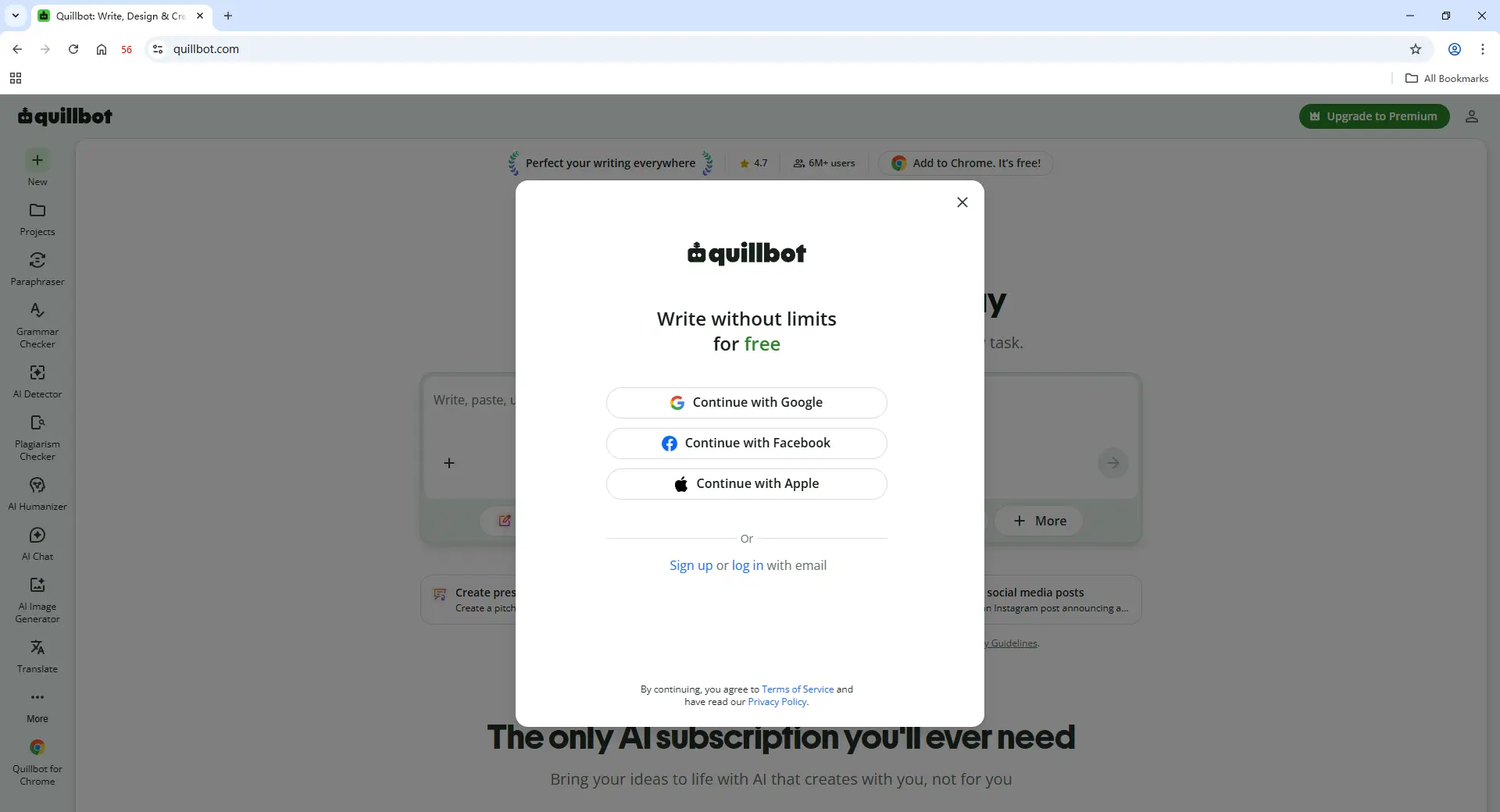
Step 3: Sign In to QuillBot
Open the new Profile and sign in to the QuillBot account or seat used for that workflow. Once the login session is saved in the Profile, the same Profile can be reopened later without rebuilding the setup each time work moves from one teammate to another.
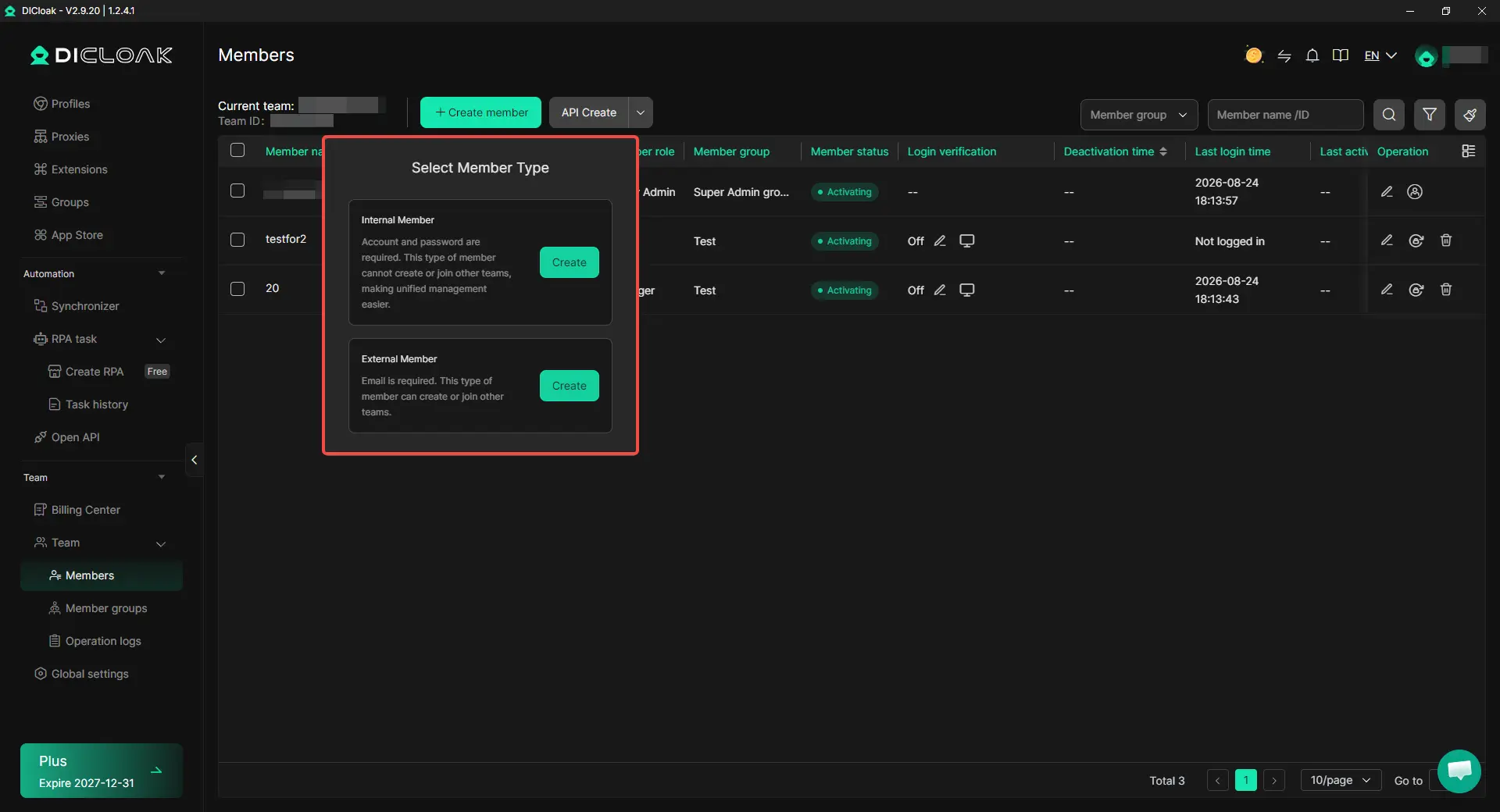
Step 4: Add Team Members and Share the Profile
Invite only the teammates who need access, then assign the QuillBot Profile using profile sharing and team permissions. For example, a content agency could give two editors access to one client Profile while keeping other client Profiles available only to their assigned teams. Access can also be changed or removed when a freelancer leaves or someone moves to another project.
Step 5: Open the Shared Profile and Continue Working
After access is assigned, the teammate can open the shared Profile from their own DICloak account and continue working from the existing QuillBot Profile. The main value is keeping the QuillBot browser Profile reusable while controlling which teammates can open it, instead of rebuilding the same setup whenever work changes hands.

Frequently Asked Questions About Sharing QuillBot With Your Team
1. Can two people use the same QuillBot Premium account at the same time?
If two or more people need QuillBot often, the Team Plan is the clearer option because each member gets their own access. If QuillBot is part of a wider authorized browser workflow, using an antidetect browser like DICloak can help organize the browser Profile and control which teammate can open it.
2. Does every team member need QuillBot Premium?
No. A team may have several people involved in content production without every person needing direct QuillBot access. For example, writers may send drafts to one editor who uses QuillBot for final rewriting and grammar checks. The number of paid users should be based on who actually needs to work inside QuillBot regularly, not simply the total size of the content team.
3. What is the best way to share QuillBot with a small remote team?
For a small remote team, the best setup depends on how often each person actually uses QuillBot. If several people need regular Premium access, a Team Plan is the clearest option. If only one or two people use QuillBot while others mainly review drafts or handle related tools, the team may not need paid access for everyone. For broader browser-based workflows, an antidetect browser like DICloak can also help organize shared browser Profiles and control which teammates can access them.
4. Can a remote team use QuillBot without sending passwords to everyone?
Yes, but the best method depends on the type of access the team needs. For regular QuillBot users, separate Team Plan access is the simplest native option. If a remote team also needs to hand off an authorized browser workspace that includes QuillBot and other SaaS tools, using DICloak Antidetect Browser can help keep the work in a dedicated browser Profile and use profile sharing and team permissions instead of repeatedly rebuilding the setup for each teammate.
5. What should you do when a freelancer or employee no longer needs QuillBot access?
Remove their access as soon as the project or role ends rather than leaving old access active. For QuillBot Team Plan users, this means updating the team membership; for a wider browser-based workflow, access to the related browser Profile can also be changed or removed using team permissions with DICloak. A useful team-sharing setup should make offboarding as easy as onboarding, because access needs often change before the tools themselves do.
Conclusion
Sharing QuillBot with a team works best when the setup matches how many people actually need to use it. One regular user may only need Premium, while teams with several frequent users may prefer QuillBot's Team Plan. Separate accounts also work for independent writers, while an antidetect browser can help when QuillBot is part of a wider browser-based workflow that needs shared Profiles, clear access control, and easier handoffs between teammates.
For teams managing several SaaS tools or client workspaces, using an antidetect browser like DICloak can make QuillBot access easier to organize through separate browser Profiles, profile sharing, and team permissions. The best way to share QuillBot with your team is to match the access method to the real workflow: use native team access for regular QuillBot users, and use browser Profile management when the team also needs a more flexible way to organize and share its working setup.
 Web Proxy Tools
 Free Tools
 Cookie Plugin
 UA Generator
 MAC Address Generator
 IP Generator
 IP Address List
 2FA Code Generator
 World Clock
 Anonymous Check
 WebRTC Leak Test
 UUID Generator
 Free Web Proxy Site
 Proxy Checker
 FB Ad Checker
 AI Web Scraping
 Free SMM Tools
 Twitter Shadowban Checker
 Instagram Name Checker
 UTM Generator
 Username Generator
 AI Hashtag Generator
 LinkedIn Headline Generator
 Social Media Image Resizer