You enter your phone number, hit submit, and get hit with an error: this phone number cannot be used for verification. It’s not rare, across Google, Microsoft, and Telegram, users see “phone number verification failed” or “cannot use phone number for account verification” more than any other onboarding issue. Sometimes the number was used before, sometimes it’s flagged, and sometimes the platform just won’t say why.
For developers and teams, this blocks new account creation and resets. You might think using a fresh SIM or another online number solves it, but restrictions have become much tighter. Google’s support page lists strict rules: reused numbers, VoIP numbers, and some country codes get rejected by default. Even numbers that worked fine last month can suddenly get locked out after a few tries. Teams running bulk signups or managing multiple accounts hit this wall even faster, especially when all activity comes from similar devices or IPs.
The real fix isn’t just swapping numbers. You need to know why your number is blocked, what triggers the platform’s risk filters, and which workarounds actually last. This guide breaks down the main causes, shows real ways to check if a number will pass, and gives step-by-step fixes that protect your account from getting flagged again. Here’s what to check before you try another number.
What Does 'This Phone Number Cannot Be Used for Verification' Actually Mean?
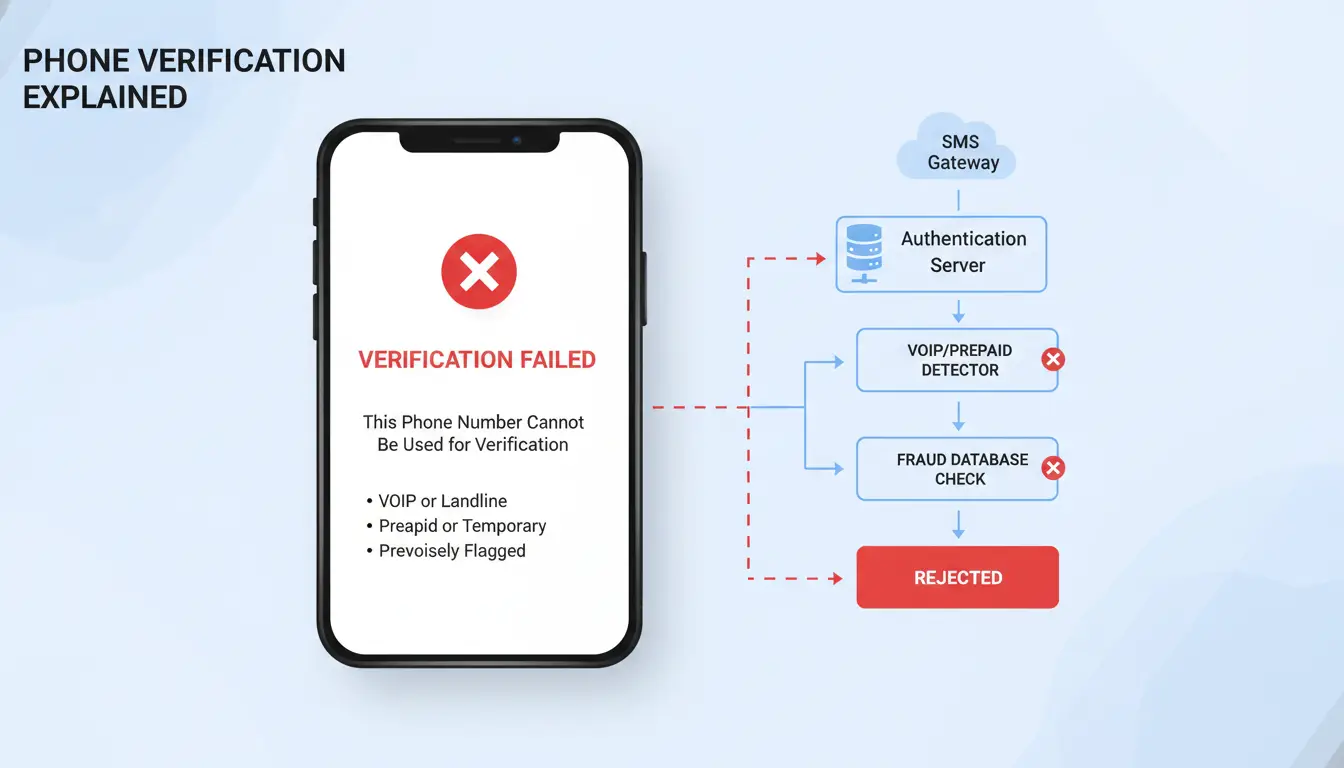
Getting hit with the error “this phone number cannot be used for verification” usually means the platform’s security system has flagged your number as risky or non-compliant. It’s not a random bug, there’s logic behind it. Most platforms use phone verification to weed out fake accounts, stop spam, and make sure each user is a real person. But not all numbers are treated equally. Some get blocked before you even finish typing.
How Platforms Use Phone Numbers for Account Security
Phone numbers act as a gatekeeper. When you sign up or recover an account, the platform checks your number against internal and third-party databases. Numbers tied to mass registrations, online phone services (like VoIP), or flagged regions often trigger a block. For example, Google rejects numbers that have been used too many times or that look like disposable services. Facebook, Twitter, and Telegram run similar checks on the backend. If you see “phone number verification failed,” it often means your number matches a known risk pattern, maybe it was used on several accounts already, or it comes from a blocklisted provider.
Common Error Messages and What They Signal
The message isn’t always worded the same way, but the meaning rarely changes. You might see:
- “Cannot use phone number for account verification”
- “Phone number not accepted for verification”
- “This phone number cannot be used for verification”
Sometimes, there’s an error code or advice to “try another number.” What’s really happening? The platform’s filters are blocking numbers that seem risky, either because they’ve been abused by bots, belong to banned services, or have triggered too many failed attempts. Even a real phone number can get caught if someone else used it before or if it came from a carrier with a bad reputation.
The core issue isn’t the number itself, but how the system sees its history and trust level. If you keep running into these blocks, changing numbers won’t help unless you understand what triggers the filters. For more details on accepted number types, check Microsoft’s guide or Telegram’s support.
Why Your Phone Number Gets Rejected for Verification
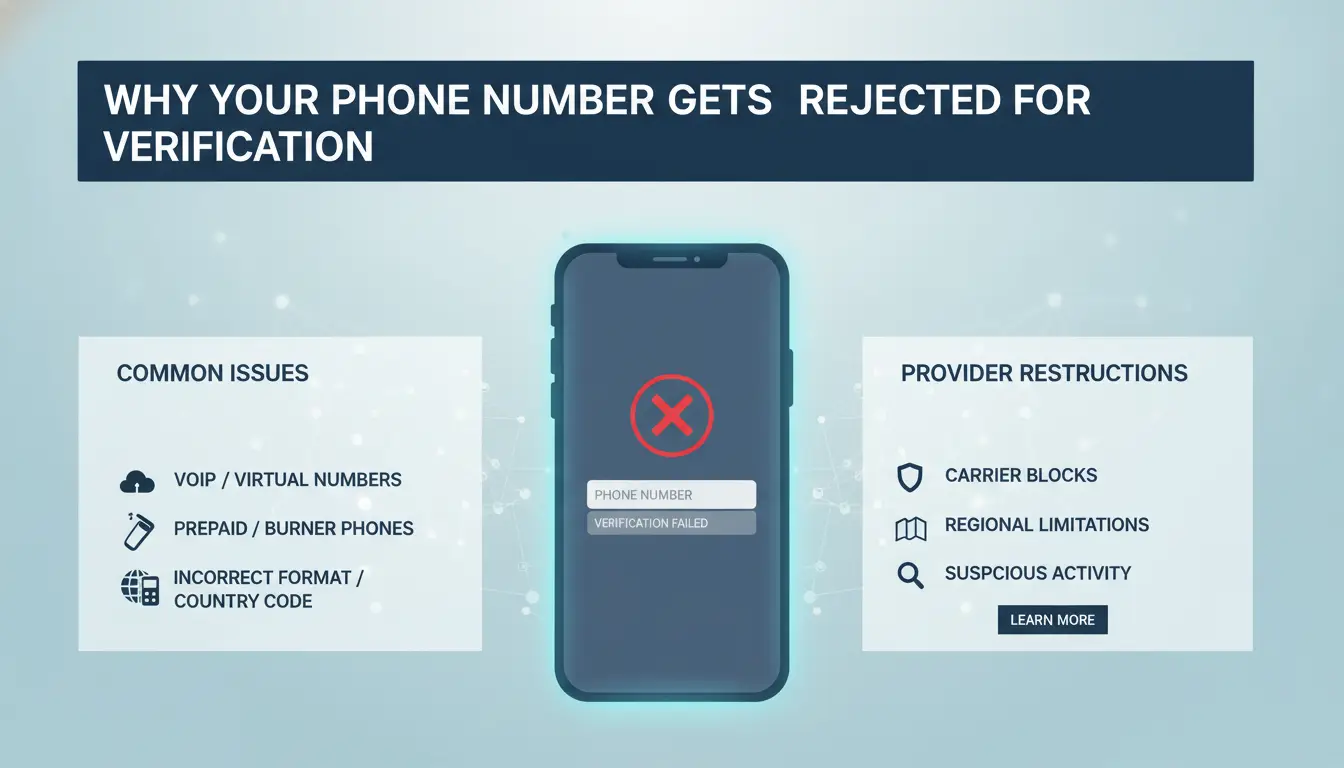
Getting the “this phone number cannot be used for verification” message is usually not random. Most platforms flag numbers that look risky in their system. If your phone number verification failed, the block can come from how the number was used before, the type of number, or even the country code. Fixing the issue means spotting which rule you tripped, not just trying new numbers until one works.
Frequent Causes: Used Numbers, Virtual Numbers, and Region Restrictions
The most common tripwire is reusing a number that was already used for another account. Platforms like Google and Facebook link numbers to user profiles. When a number shows up too many times, or gets linked to banned accounts, it goes on a blocklist. Even if you buy a “clean” phone number, you may find it’s already flagged. That’s why “cannot use phone number for account verification” errors are so common with reused or recycled numbers.
Virtual numbers, such as those from online SMS services, are another red flag. Platforms use algorithms to spot number blocks tied to VoIP providers or mass-registration tools. If you see “phone number not accepted for verification,” there’s a good chance the system spotted a pattern. Numbers from certain regions get hit harder, especially if those countries are often linked to spam or bulk signups.
Platform Rules: What Makes a Number 'Valid' or 'Invalid'
It’s not just about the number being “real.” Most services have a list of approved countries and carriers. If your number comes from a restricted country or a smaller carrier, the platform may block it without warning. Some regions can’t be used for verification at all, Twitter and Google both exclude specific country codes. Carriers linked to spam or fraud get flagged, too.
Blacklist rules matter just as much. Numbers tied to repeated failed verifications, reported abuse, or accounts that get banned will be blocked for new signups. Platforms update these lists constantly, so a number that worked last week might stop working today. The real risk is using a number whose history you can’t check, one old ban can block your new account before you even start.
How to Fix 'This Phone Number Cannot Be Used for Verification' Step by Step
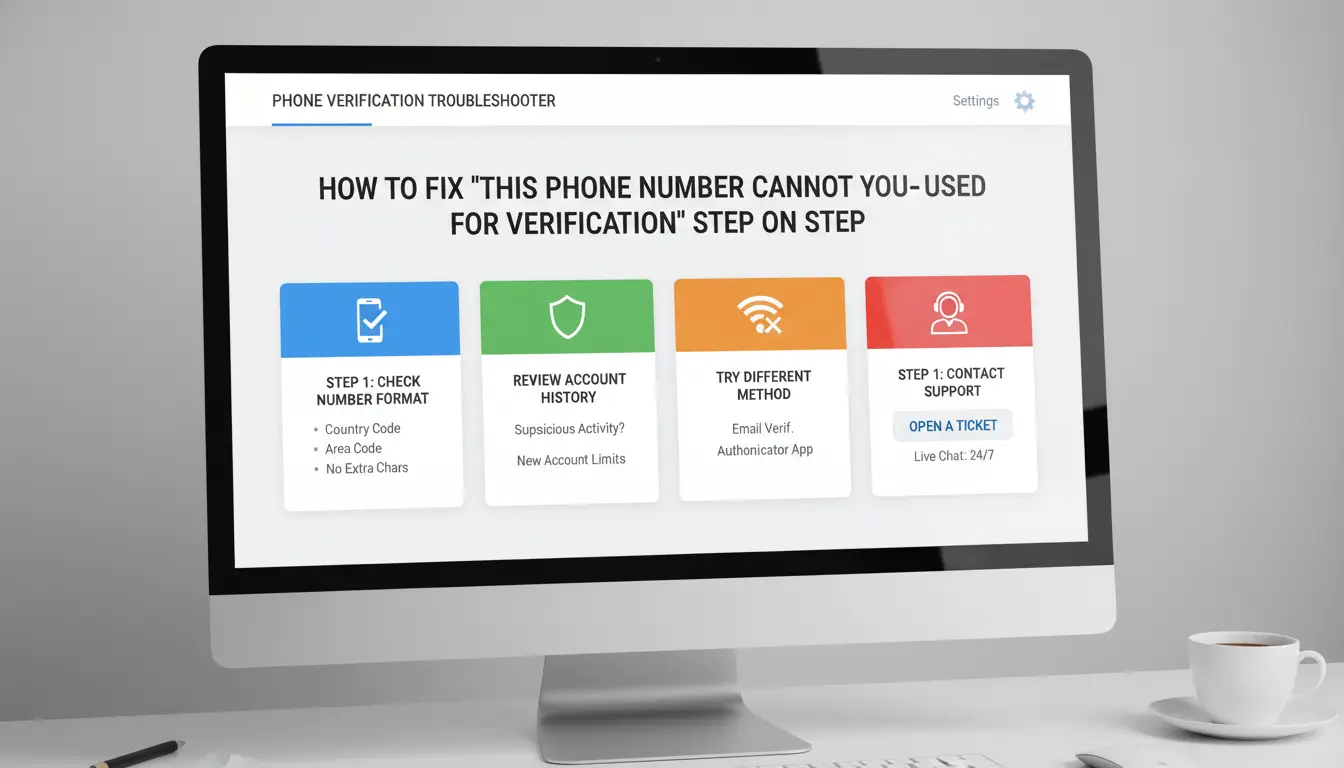
Getting the "this phone number cannot be used for verification" error isn’t random. Platforms like Google and Telegram block numbers for clear reasons: reused numbers, risky IPs, or device fingerprints that look suspicious. Fixing this isn’t just about swapping SIMs. You need to check how your setup triggers risk filters and use workarounds that actually stick.
Check Your Network and Device Settings First
A common cause of phone number verification failed is a network that's flagged for spam or too many similar attempts. If your device or Wi-Fi has been used for multiple signups, or your IP keeps changing, the platform sees it as risky. Start by switching to a mobile data connection instead of shared Wi-Fi. Clear your browser cache and cookies, and restart your phone or computer. Make sure your device isn’t linked to past failed attempts, some services track device fingerprints, so using a fresh device or browser profile can help. For teams or users handling multiple accounts, tools like DICloak let you create isolated browser profiles with dedicated proxies, which reduces the risk of being flagged for number reuse or device overlap. The most critical step is to avoid repeating failed attempts on the same network or device, since that locks out numbers faster than anything else.
Try Alternative Verification Methods Safely
Some platforms let you use email or backup codes if your phone number not accepted for verification. Check your account’s security settings for these options. If you have a backup email or recovery code, use it for verification instead of risking more blocked numbers. Avoid third-party SMS services that promise cheap codes, these numbers are often banned or recycled, and using them can trigger permanent account restrictions. Google’s security page explains that only real, unused numbers from your country work reliably. Stick to numbers that aren’t listed elsewhere online. If you’re locked out, wait 24–48 hours before retrying with a new number and a clean device setup. This gives risk filters time to reset, making it less likely you’ll get "cannot use phone number for account verification" again.
What to Avoid: Common Mistakes That Trigger Phone Number Verification Errors
Platforms like Google, Telegram, and WhatsApp all flag risky behaviors that lead to the dreaded message: "this phone number cannot be used for verification." Most users trip up on the same patterns, some without realizing it. Before you try a new number, check these mistakes that cause repeat failures.
Reusing Numbers Across Multiple Accounts
Recycling the same number for more than one account almost always backfires. Most platforms use automated checks to spot duplicates. If a number has already been used, even once, it often gets marked as "cannot use phone number for account verification" on the next try. Google states on their help page that reused numbers are restricted by default.
Teams managing bulk signups or multi-account setups run into this immediately. A number might work for the first account, but any attempt after that often triggers a block. Even if you try with a slight delay, these systems remember old attempts.
To avoid this, keep a clear record of which numbers have been used for which accounts. Don’t rely on memory or guesswork. If you’re handling multiple accounts, build a simple spreadsheet or use a safe profile management tool that logs this info. Missing this step often leads to "phone number verification failed" errors on every new signup.
Using Numbers from Untrusted Sources
Buying cheap numbers online or grabbing them from public lists is a quick way to get flagged. Platforms know that mass-sold numbers or VoIP lines get reused by spammers. As a result, these numbers are often blacklisted before you even try.
Detection methods have improved. Services now track number ranges and source networks. If your number is part of a batch sold to many people, expect a "phone number not accepted for verification" message. The risk isn’t just about price, it’s about the reputation of the number source.
If you need to handle many accounts, get numbers from official carriers or reputable virtual SIM providers with a clear track record. Numbers that look too cheap or come without clear ownership history almost always cause trouble.
How to Manage Multiple Accounts Without Phone Verification Issues
Trying to create or manage several accounts on platforms like Google or Telegram often triggers messages like “this phone number cannot be used for verification.” It’s not just about bad luck, platforms track much more than the number itself. If you run into repeated “phone number verification failed” errors, the real problem usually comes from hidden links between accounts. Here’s how to spot those risks and set up a safer workflow.
Why Account Linking Happens and How to Prevent It
Account linking happens when websites spot patterns that connect multiple accounts to the same person or team. It’s not just about the phone number. Sites look at your device fingerprint (details about your browser and hardware), IP address, cookies, and even your typing style. That’s why using a new phone number does not always solve “cannot use phone number for account verification” errors.
To avoid these triggers, separate each account as much as possible. Use different browsers or, better, isolated browser profiles. Change your IP for every account using a reliable proxy, not public WiFi or “free” proxy lists, which are usually flagged. Always clear cookies and history between sessions. For teams, don’t let everyone log in from the same device or office network.
The most common mistake is reusing the same setup for all accounts, this almost always gets flagged. A simple workflow diagram can help: assign each account a unique browser profile, proxy, and phone number, and never cross-use them.
You can use DICloak to create separate browser profiles. Each profile has its own fingerprint, and you can set a different proxy for each account. This means the system sees every account as a unique user, not just a copy.
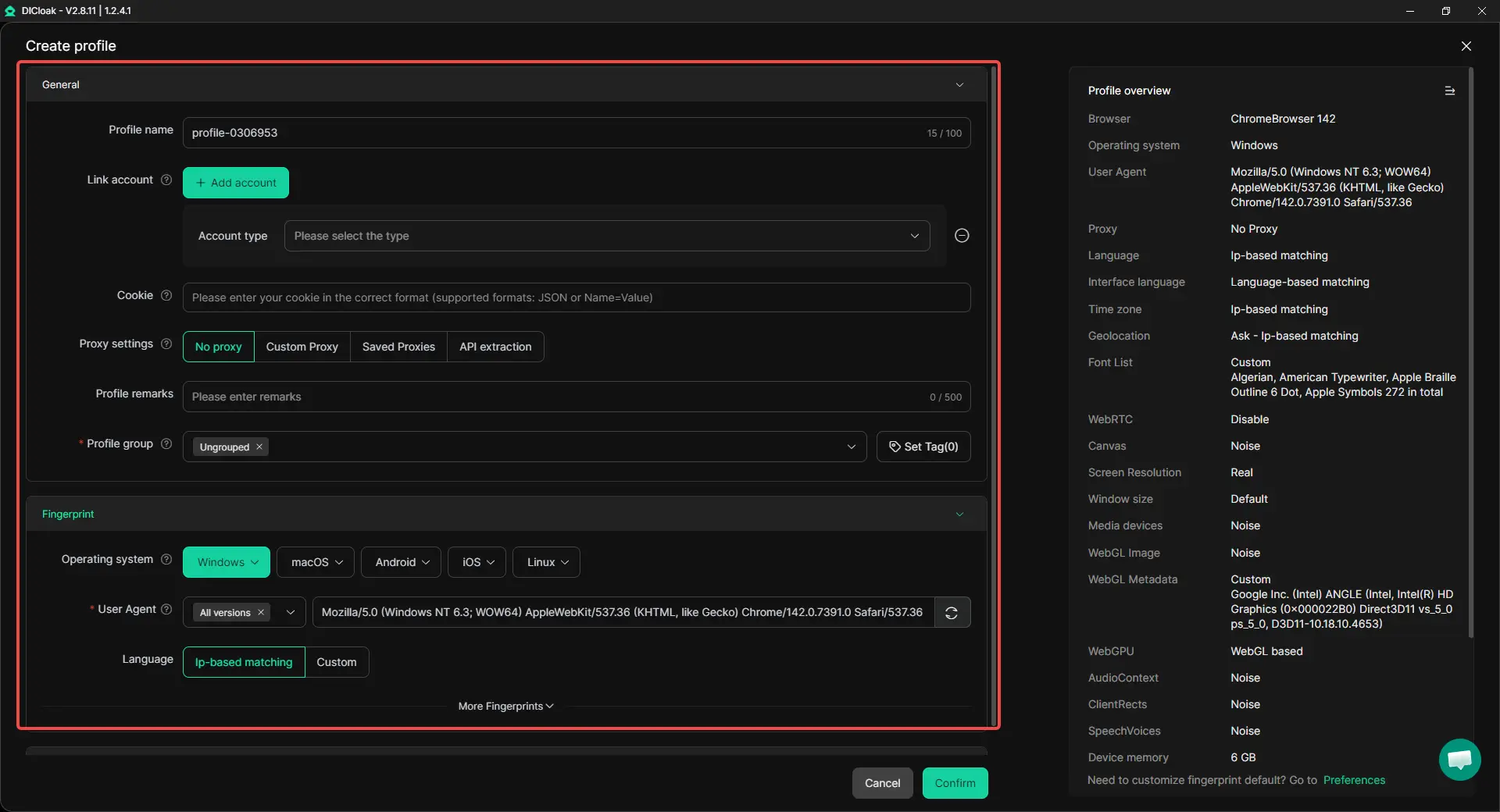
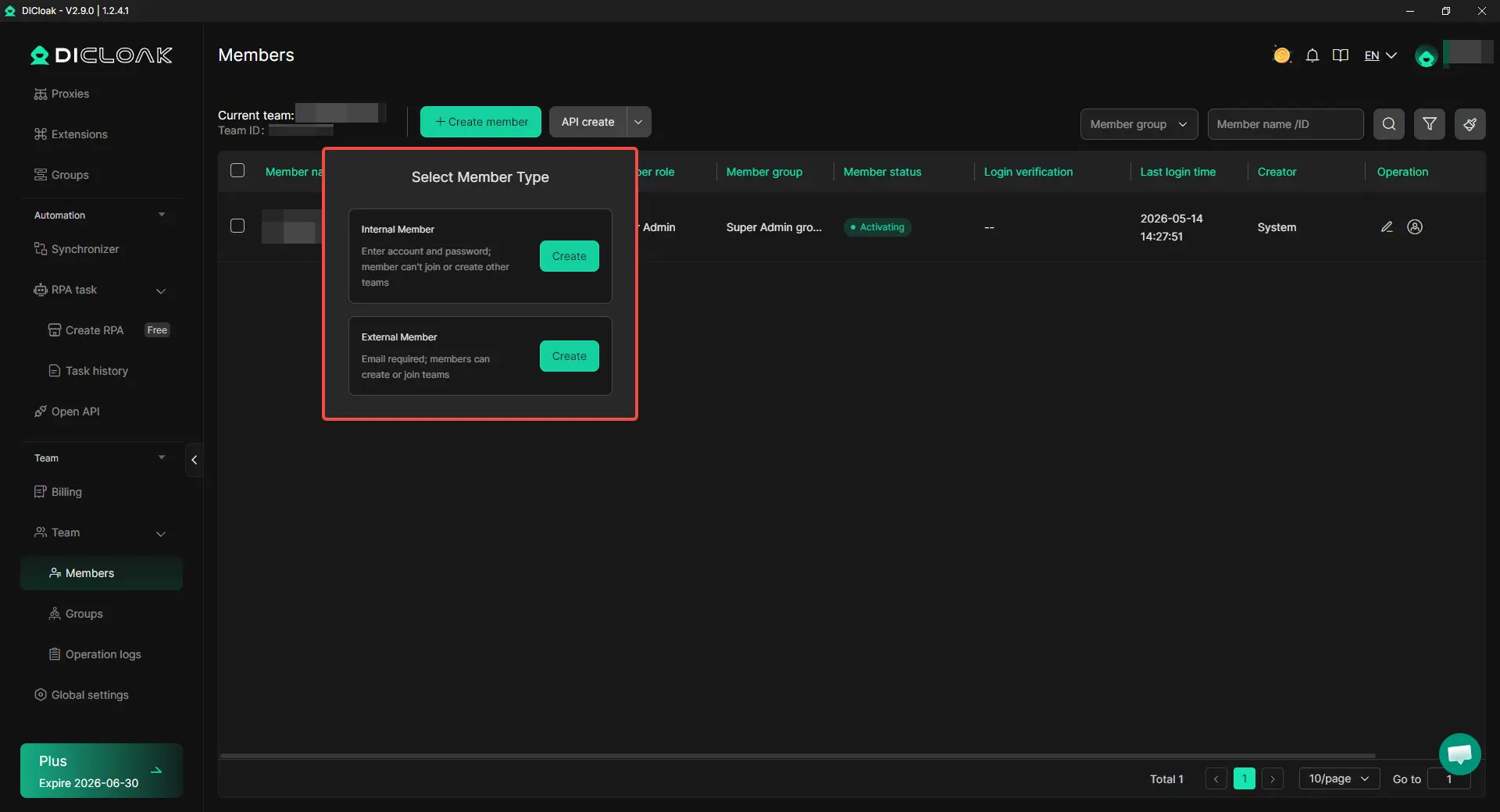
DICloak also supports bulk actions and team permissions. With profile sharing and operation logs, you can track who did what, cutting down on “phone number not accepted for verification” issues caused by accidental overlap. Teams running social media or ad campaigns often use tools like DICloak to avoid bans when scaling up accounts, as shown on the DICloak features page.
When to Use a Different Phone Number, and How to Choose One That Works
Running into “this phone number cannot be used for verification” is common, especially if you reuse numbers, pick random online sources, or work with bulk social media accounts. Not every phone number will pass, carriers, region, and history all play a part. Here’s how to avoid getting stuck by phone number verification failed messages and pick a number that won’t get rejected.
Criteria for a 'Safe' Phone Number
Numbers from major carriers and local regions tend to work better. Avoid VoIP lines and numbers that have been used for Google, Twitter, or Telegram verification before. A reused or blacklisted number is the fastest route to “cannot use phone number for account verification.” Always check if the number’s history shows prior bans or suspicious activity.
Testing Numbers Before Verification Attempts
Before you try, look up if the number is clean using carrier tools or by sending a test code. If you see “phone number not accepted for verification,” don’t keep retrying on the same device or browser profile, it increases the ban risk. You can use tools like DICloak to isolate each account in its own browser profile, swap proxies, and mask fingerprints. This setup keeps accounts and numbers separate, lowering the chance of getting flagged for reuse or linked bans. For teams or anyone running multiple verifications, DICloak’s automation helps avoid mistakes and keeps your workflow smooth.
How Platform Policies Change, and What to Watch for Next Time
Recent Changes in Phone Verification Policies
Platforms like Google, Facebook, and Telegram keep changing their phone verification rules to fight fake accounts and spam. You might notice that a number that used to work gets rejected with “this phone number cannot be used for verification” or “phone number verification failed.” That’s not a glitch, platforms adjust their risk filters often. For example, Google blocks reused numbers, VoIP numbers, and even some prepaid SIMs. Telegram sometimes bans whole country codes for months at a time if they spot abuse.
Tracking these changes means checking official help sites and user forums. But policy updates aren’t always announced. Some platforms test new filters on a small group, so you might be among the first to hit “cannot use phone number for account verification” errors. Teams running bulk signups see these shifts faster, especially if they use the same devices or IP addresses. Watching trusted Reddit threads and Telegram communities can help you spot new restrictions early.
Preparing for Future Verification Challenges
Relying on luck or swapping SIM cards isn’t enough. Platforms now connect more signals, device fingerprints, login patterns, and previous bans. If you only focus on the number, you’ll keep seeing “phone number not accepted for verification” messages.
Building a safer workflow means spreading risk and not repeating patterns. For example, always clear device fingerprints between account actions. Using a tool like DICloak helps here: you can set up independent browser profiles, each with its own proxy and fingerprint, so platforms can’t link your accounts easily. For teams, DICloak also lets you share profiles safely and track changes with operation logs.
The most important habit is to test small before scaling up. Try new numbers and devices one at a time, watch for new errors, and document what works. If you notice even one “this phone number cannot be used for verification” block, pause and update your process before risking more accounts. That way, you stay ahead of new rules instead of scrambling after a lockout.
Frequently Asked Questions
Can I use a virtual phone number for verification?
Most sites do not accept virtual numbers for account verification. Many platforms detect and block services like Google Voice or online SMS numbers. They do this to stop spam and fake accounts. If you see "this phone number cannot be used for verification," try a real mobile number or contact support for help.
Why does my phone number work on one platform but not another?
Each site has its own rules for phone number verification. Some only accept numbers from certain countries or carriers. If your phone number is not accepted for verification on one site but works on another, it’s likely due to region or carrier restrictions set by the platform.
Is it safe to buy phone numbers online for verification?
Buying numbers online for phone number verification failed attempts is risky. Many purchased numbers are recycled or flagged as suspicious. Platforms can detect and ban accounts using these numbers. You might lose access to your account or have your number blacklisted.
How many accounts can I verify with one phone number?
Most platforms limit one phone number per account. Reusing a number for multiple accounts may trigger security alerts. If you cannot use your phone number for account verification, it may already be linked elsewhere. Using unique numbers helps keep your accounts safe.
What should I do if all my numbers are rejected?
If "this phone number cannot be used for verification" errors happen with every number, check for typos first. Some sites let you use email, two-factor apps, or customer support for verification. Always use real, personal numbers to avoid issues and keep your account secure.
Understanding why your phone number cannot be used for verification helps avoid frustration and ensures smoother access to online services. Whether the issue stems from carrier restrictions or platform policies, exploring secure alternatives can resolve verification challenges efficiently. Try DICloak For Free
 Web Proxy Tools
 Free Tools
 Cookie Plugin
 UA Generator
 MAC Address Generator
 IP Generator
 IP Address List
 2FA Code Generator
 World Clock
 Anonymous Check
 WebRTC Leak Test
 UUID Generator
 Free Web Proxy Site
 Proxy Checker
 FB Ad Checker
 AI Web Scraping
 Free SMM Tools
 Twitter Shadowban Checker
 Instagram Name Checker
 UTM Generator
 Username Generator
 AI Hashtag Generator
 LinkedIn Headline Generator
 Social Media Image Resizer