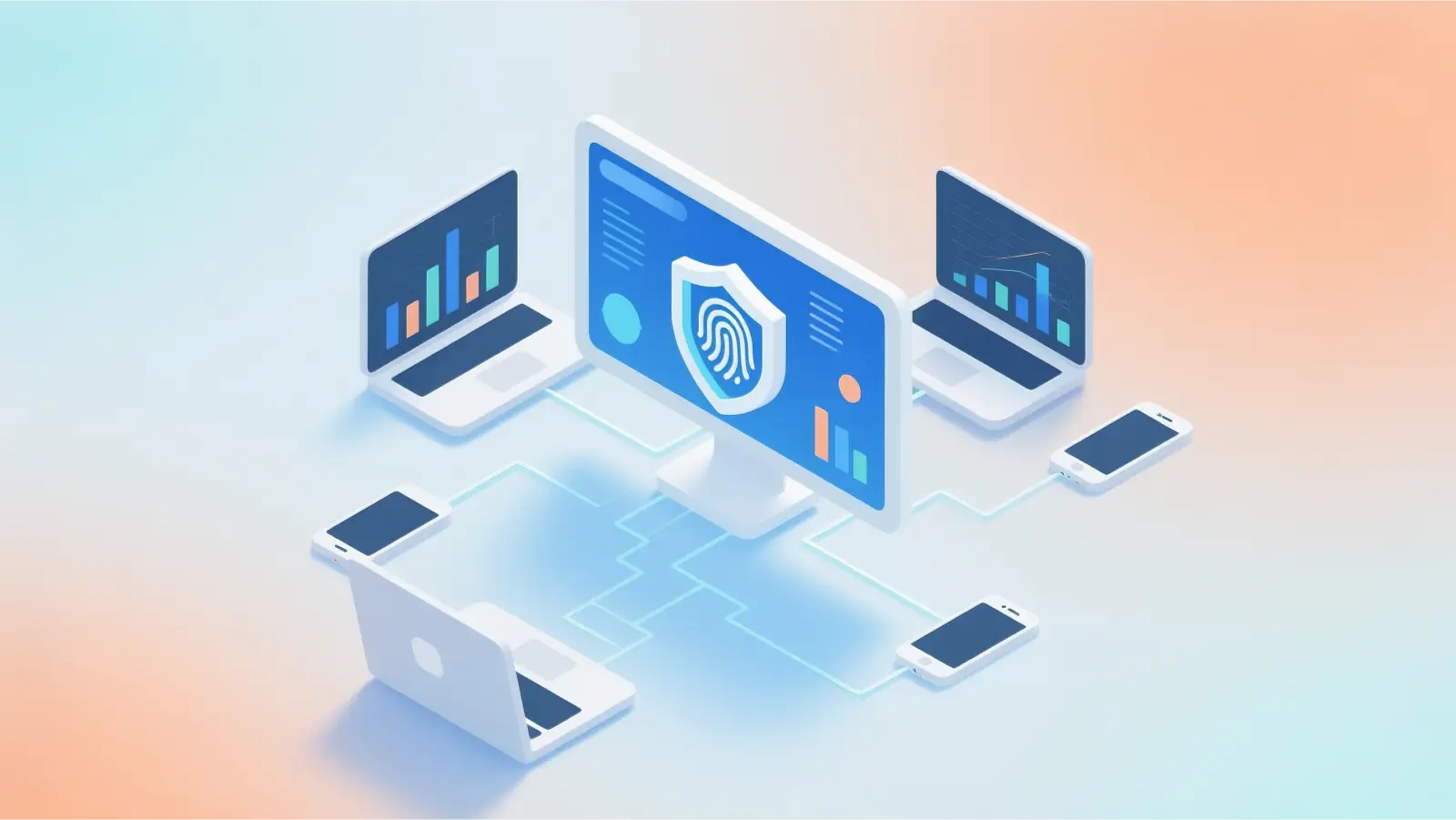
The internet today is more complex than ever. Every time you open a website, your browser shares small pieces of information about your device, such as your operating system, screen size, and browser settings. These details can be combined to create a unique browser fingerprint, which allows websites to track users across different sessions. At the same time, many people need safer ways to open unknown links, test websites, or manage multiple online accounts without exposing their main device.
This is where a virtual browser becomes useful. Instead of running directly on your computer, a virtual browser operates in a separate environment, often in the cloud or inside a virtual machine. This separation allows users to browse the internet with more control over privacy, security, and session isolation. For individuals, it can provide a safer way to explore unfamiliar websites. For businesses and developers, it offers powerful tools for testing, research, and multi-account management.
In this guide, we will explain what a virtual browser is, how it works, and why it is becoming an important tool for modern internet use. You will also learn about the main benefits, real-world use cases, common limitations, and some of the best virtual browser platforms available today.
Understanding Virtual Browsers
Before exploring the benefits and real-world uses, it is important to understand what a virtual browser actually is and how it functions. Many people first hear the term when researching online privacy, security testing, or multi-account management. In simple terms, a virtual browser changes where and how web pages are processed. Instead of running directly on your personal device, the browsing activity happens in a separate environment. This separation improves control over security, data exposure, and browser identity.
Definition of a Virtual Browser
A virtual browser is a web-browsing environment that runs separately from your local device. In other words, the browser session operates outside your computer’s operating system and hardware. The main idea behind a virtual browser is separation.
In a normal browsing setup, websites can access several pieces of information from your system. These include your operating system, installed fonts, screen resolution, language settings, and other technical signals. Websites combine these signals to create what is called a browser fingerprint. This fingerprint can help platforms identify and track users across sessions.
A virtual browser breaks this connection. Because the browsing session runs in an isolated environment, the website does not see the real characteristics of your device. Instead, it interacts with the virtual environment that hosts the browser session. That environment may have its own system settings, cookies, and network configuration. As a result, the information visible to the website does not reflect your actual computer.
For example, digital marketing agencies often manage many social media accounts at once. If all accounts are accessed through the same traditional browser, platforms may link them together through shared cookies or device fingerprints. By using a virtual browser, each session can run in an isolated profile with different system attributes and cookie storage. This helps reduce the risk of accounts being connected to the same device.
Many platforms provide access through a cloud interface, while others require a virtual browser download to run the environment locally. In both cases, the goal is the same: create a browsing session that operates independently from your real device.
How Virtual Browsers Work
A virtual browser works by moving the browsing process away from your physical computer. When you open a webpage, the request is handled by a remote or isolated system instead of your device. That system loads the website, executes scripts, processes cookies, and then sends the rendered page back to your screen.
You can think of it as a browser within a browser. Your device acts like a display terminal, while the actual browsing activity happens on another machine dedicated to the session. That remote machine handles tasks such as web requests, JavaScript execution, and storage of browsing data.
There are generally two common ways a virtual browser profile can run:
1. Cloud-based virtual browsers In this model, the browser runs on a remote server in the cloud. When you visit a website, the server loads and processes the page. Your device only receives the visual output. Because the scripts run on the remote server, any malicious code stays in that environment instead of reaching your system. Security teams often use this approach to safely open unknown or suspicious links.
2. Virtual machine browsers Another approach uses virtualization technology. A virtual machine can run a complete operating system inside another system. For example, a Mac computer can run a virtual Windows system using software such as VMware or VirtualBox. The browser runs inside that separate operating system, creating deeper isolation. Even if a website tries to access system data, it only interacts with the virtual machine rather than the host computer.
In both cases, the browsing environment can have its own cookies, IP address, and system configuration. Many tools allow users to launch multiple sessions at once after a virtual browser download or through a web dashboard. Each session behaves like a separate computer with its own browser identity.
A real example appears in cybersecurity research. Analysts often study suspicious websites that may contain malware. Instead of opening those sites on their work computer, they launch a virtual browser session. If the site contains harmful scripts, the damage stays inside the isolated environment and disappears when the session ends.

Differences Between Virtual Browsers and Traditional Browsers
Understanding the difference between a virtual browser and a traditional browser helps explain why this technology is becoming more popular. Both allow users to access websites, but they operate in very different ways.
In a traditional browser such as Chrome, Safari, or Firefox, the browser runs directly on your computer. Every webpage loads and executes code on your local device. Because of this setup, websites can read certain system characteristics and build a consistent browser fingerprint. Cookies and session data are also stored locally, which means different accounts may still share the same environment.
A virtual browser changes this structure. Instead of running locally, the browser operates in a separate environment such as a cloud server or virtual machine. The website interacts with that environment rather than your real device. This separation helps protect system data and makes it easier to isolate sessions.
The differences can be summarized in the following comparison:
| Feature |
Traditional Browser |
Virtual Browser |
| Execution environment |
Runs directly on the user’s device |
Runs in an isolated local or cloud environment |
| Device exposure |
Exposes real OS, hardware, and system data |
Shields real device data from websites |
| Browser fingerprinting |
Highly consistent and easily trackable |
Fingerprint can be isolated or modified |
| Cookie management |
Shared across sessions and profiles |
Fully isolated per session or profile |
| IP address control |
Limited without proxies |
Often supports proxy integration |
| Account management |
Risky for multiple accounts |
Designed for safer multi-account use |
| Privacy level |
Low to moderate |
Moderate to high depending on setup |
| Performance |
Native speed |
May introduce slight latency |
| Setup complexity |
Simple and familiar |
Requires configuration and management |
| Typical use cases |
Everyday browsing |
Privacy research, testing, automation, and account isolation |
For instance, an e-commerce team that operates several online stores might need separate browser profiles for each account. Using a traditional browser could cause the accounts to share the same cookies and device fingerprint. With a virtual browser, each store can run in its own isolated session, reducing the chance of accounts being linked.
Today, many professionals rely on either cloud platforms or a virtual browser download to create these isolated environments quickly. Understanding these differences helps explain why virtual browsers are increasingly used in cybersecurity, software testing, automation workflows, and multi-account operations.
Key Benefits of Using a Virtual Browser
Now that we understand how a virtual browser works and how it differs from a traditional browser, let’s focus on the practical value. Its biggest advantage is isolation: your browsing session runs in a separate environment, not directly on your real device. This separation helps improve privacy, reduce security risks, and support controlled access for sensitive work.
Enhanced Privacy and Anonymity
A virtual browser helps reduce how much of your real device information is exposed to websites. Instead of seeing your local computer details, sites mainly see the virtual environment’s configuration.
It also keeps cookies, trackers, and history inside the session. When the session ends, data can be cleared, so browsing traces don’t remain on your device. For example, researchers or journalists can separate sensitive browsing from personal activity.
Web Browsing Security Features
Modern websites run scripts, ads, and third-party resources that may carry risk. With a virtual browser, those elements execute inside a sandboxed environment rather than your local system, lowering the chance of direct device impact. Many companies use this to open untrusted links more safely in daily workflows.
Compliance and Control
For industries with strict security rules (finance, healthcare, government), virtual browsing adds control. Organizations can monitor sessions, limit downloads, and reduce the chance of sensitive data being stored locally. This supports internal security policies while still allowing employees to access external sites and files.
Protection Against Malware and Phishing
Virtual browsing can help contain threats like malware and phishing attempts. If a malicious page tries to execute harmful behavior, it’s confined to the isolated session. Security teams often use virtual sessions to inspect suspicious sites, then reset the environment after testing.
These benefits explain why virtual browsers are increasingly used for privacy-focused browsing, safer link handling, and controlled access in professional environments.
Use Cases for Virtual Browsers
A virtual browser is useful because it separates your browsing session from your real device. That isolation makes it practical for both personal safety and business workflows. Here are the most common use cases.
- Secure Web Browsing for Individuals: If you often open unknown links from emails, forums, or downloads, a virtual browser reduces risk. Suspicious scripts and files run inside the isolated session, not directly on your computer. Once you close the session, it can reset and remove leftover data.
- Multi-Account Management for Businesses: Teams that manage multiple accounts (ads, social media, marketplaces) use virtual browsers to keep sessions separate. Each account can run with its own cookies and browsing data, which helps reduce accidental overlap and makes switching faster and cleaner.
- Testing and Development for Web Applications: Developers and QA teams use virtual environments to test websites under different conditions (browser types, device settings, system configurations). Instead of relying on many physical devices, they can launch multiple test sessions to reproduce bugs and check compatibility.
- E-commerce and Social Media Marketing: Sellers and marketing teams often run many stores and social profiles at once. A virtual browser helps organize these workflows by keeping each store or client profile isolated, so teams can publish, monitor, and manage campaigns without mixing sessions.
Overall, virtual browsers are both a security layer and a productivity tool—useful for safe browsing, controlled testing, and structured multi-account operations.
Common Limitations of Virtual Browsers
As we have seen, a virtual browser can improve privacy, security, and account management. However, like any technology, it also has some limitations. Understanding these drawbacks helps users set realistic expectations before using a virtual browsing environment. In many cases, these limitations are small and manageable, but they are still important to consider when choosing a platform or installing a virtual browser download.
Performance and Network Latency
One common limitation of a virtual browser is performance. When the browser session runs on a remote server, every action must travel through the network. This means the page request goes from your device to the remote server, and then the rendered page is sent back to your screen.
Because of this process, users may sometimes notice slight latency, especially when loading media-heavy websites or complex web applications. For example, a website with large images, videos, or interactive tools may feel a little slower in a virtual browser compared with a traditional browser running directly on a local computer.
That said, this gap has become much smaller in recent years. Faster internet speeds and modern cloud infrastructure have improved the performance of virtual browsing environments. Many users find that the difference is barely noticeable during normal tasks such as reading websites, managing accounts, or checking dashboards. When selecting a service or installing a virtual browser download, it is often helpful to test the platform with your typical browsing activities to evaluate its speed.
Limited Hardware Access
Another limitation of a virtual browser is restricted access to local hardware resources. Since the browsing session runs in an isolated environment, it may not have direct access to your computer’s physical components.
For instance, certain features that depend on graphics processing units (GPUs), external USB devices, or local storage systems may not function fully in some virtual browser profiles. Advanced web applications that rely on hardware acceleration—such as browser-based video editing tools or high-performance graphics applications—may perform differently inside a virtual environment.
Developers sometimes encounter this limitation during testing. For example, if a web application relies heavily on GPU acceleration, testing it inside a remote virtual browser may not reflect the exact performance users experience on their local machines. In these cases, developers may combine virtual browser testing with traditional device testing to ensure accurate results.
Incomplete Fingerprint Protection
A virtual browser can help reduce tracking, but not all tools provide the same level of fingerprint protection. Some free or basic platforms still expose stable browser identifiers. This can create a false sense of anonymity if users assume their identity is fully hidden.
Browser fingerprinting relies on multiple signals such as system configuration, installed fonts, language settings, and browser behavior. If these signals remain consistent across sessions, websites may still link browsing activities together.
For example, a marketer managing several accounts might believe that simply using a virtual browser is enough to avoid tracking. However, if the platform does not properly isolate fingerprints between sessions, the accounts could still appear related to the same environment.
Because of this, users should evaluate the features of a virtual browser download carefully. Platforms designed for professional use often include stronger fingerprint isolation and session management tools.
Data Usage and Bandwidth Costs
Cloud-based virtual browsers may also use more data than traditional browsing. Since the browsing session runs remotely, the system must transmit both the user’s commands and the visual output of the webpage.
This means that when you scroll, click links, or load images, the information travels between your device and the remote server. Over time, this process can increase bandwidth usage, especially if the session includes high-resolution graphics or streaming content.
For example, a user who spends several hours watching video content through a cloud-based virtual browser may consume more data compared with watching the same videos directly through a local browser. This can be important for users with limited internet plans or metered connections.
Despite this limitation, many users still prefer the security benefits of a virtual browser for sensitive tasks. Installing a virtual browser download or using a cloud platform can provide stronger isolation and protection, even if it slightly increases data usage.
Understanding these limitations helps users choose the right situations for using a virtual browser. While the technology offers strong privacy and security advantages, factors such as latency, hardware access, fingerprint management, and data usage should be considered when deciding how and when to use virtual browsing environments.
Comparing the Best Virtual Browsers
After understanding the advantages and limitations of a virtual browser, the next step is choosing the right platform. Today, several tools offer virtual browsing environments for privacy, testing, and account management. Each tool focuses on different use cases. Some are built for multi-account operations, while others focus on website testing or cloud automation.
Before installing a virtual browser download, it is helpful to compare the features, usability, and pricing of different platforms. Below is an overview of several widely used virtual browser tools and what they offer.
Overview of Top Virtual Browsers
Today, many platforms provide virtual browser environments. Some focus on privacy and multi-account management, while others focus on testing and development. Understanding the strengths and weaknesses of each tool can help users choose the right solution before installing a virtual browser download. Below is an overview of several widely used virtual browser tools, along with their main advantages and limitations.
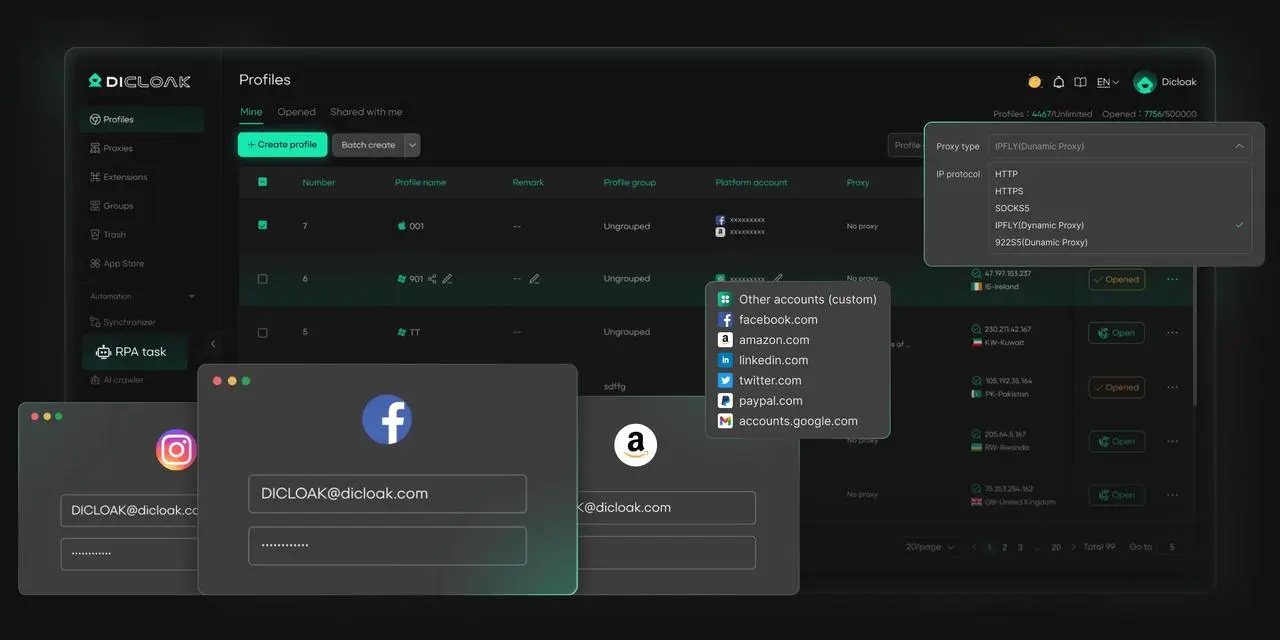
DICloak is an anti-detect browser designed for multi-account workflows. While it isn’t a virtual browser, it offers some virtual-browser-like capabilities—most notably, isolated browser profiles that keep cookies, sessions, and local data separated so accounts don’t easily mix. For pricing, DICloak provides plan options such as Free, Base, Plus, and Share+, making it easy to start with a lightweight setup and scale up as your team or workload grows.
Pros
- Strong profile isolation with unique browser fingerprints for each session.
- Supports custom proxy configuration, so teams can bind a dedicated proxy(HTTP/HTTPS/SOCKS5) to each browser profile for better account separation.
- Has a Free plan, so you can test the workflow first and upgrade later. Paid options include Base, Plus, and Share+, which are designed for heavier multi-profile usage and collaboration, making it easier to scale as your profile count and team needs grow.
Cons
- Currently supports Windows and macOS only.
GoLogin is a well-known anti-detect browser for managing multiple accounts. While it isn’t a virtual browser, it offers some virtual-browser-like capabilities through isolated profiles and controlled browsing environments. It focuses on fingerprint and session protection, and highlights defenses such as Canvas/WebGL masking and controls related to IP/DNS/WebRTC as part of its feature set.
For example, an agency managing client accounts across social platforms can keep each client in a separate profile—with separate cookies and fingerprint settings—so day-to-day logins stay organized and don’t easily overlap.
Pros
- Emphasis on fingerprint and privacy controls (Canvas/WebGL, IP/DNS/WebRTC, session/history protection).
- Offers a Free option (with limited profiles) and a paid plan ladder, so you can start light.
- Offers REST API options for teams that want automation or integration.
Cons
- Costs can rise as you need more profiles or higher usage tiers, which is common with multi-profile virtual browser tools.
- If you run many sessions at once, you may need a stronger computer (for local apps) or a better network (for cloud sync), or you may feel performance strain (this varies by workload)
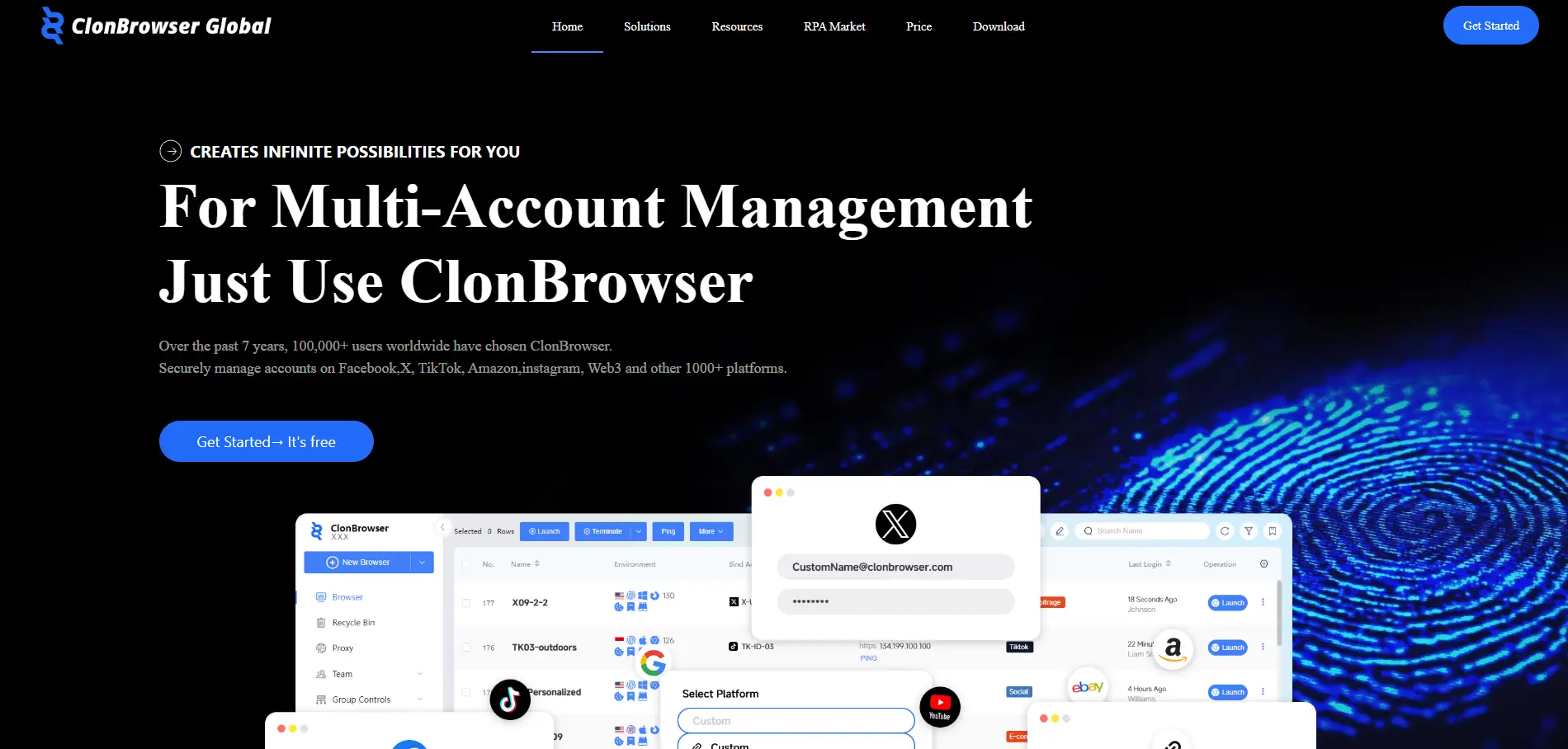
ClonBrowser
ClonBrowser is another anti-detect browser built for multi-account management. While it isn’t a virtual browser, it includes some virtual-browser-like features related to managing isolated profiles and coordinating work across them. It has capabilities such as a “group control synchronizer” and RPA automation.
This type of feature set is useful when a team needs consistent actions across many profiles. For example, a store operations team might open 20 profiles to run the same routine checks in each one. A synchronizer-style control can reduce repetitive clicking and keep the workflow more efficient.
Pros
- Mentions team collaboration and flexible permission settings, which helps when multiple people share the same workspace.
- Lists “group control synchronizer” and RPA automation features, which can help with repetitive tasks across profiles.
- Offers cross-device data sync and bulk extension management (useful when you manage many profiles).
Cons
- Like other multi-account virtual browser tools, you will often need extra budget for proxies, depending on your traffic and risk level.
- If you only need simple browsing or basic privacy, the feature set may feel “too much” compared to lightweight options.
BrowserStack
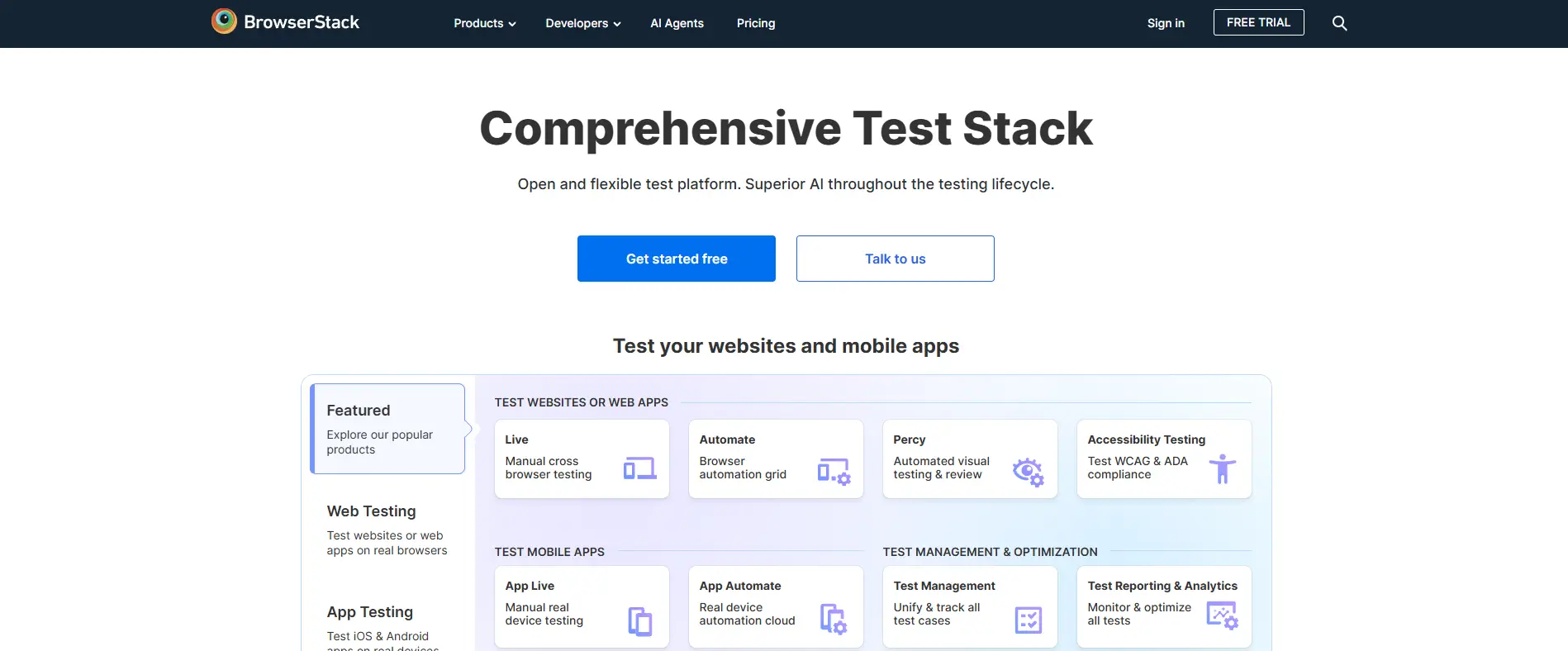
BrowserStack is a different type of solution compared with anti-detect browsers. While it provides virtual browser profiles, its primary focus is cross-browser testing across real devices and operating systems, rather than identity isolation for multi-account workflows. Its pricing also highlights enterprise features such as SSO, access control, and IP whitelisting.
For instance, a QA tester needs to confirm a checkout flow works on Safari, Chrome, and mobile browsers. BrowserStack helps them run those checks without buying many devices.
Pros
- Strong fit for cross-browser testing and QA work, especially for teams that need many browser/device combinations.
- Offers enterprise-friendly controls (SSO, access control, IP whitelisting) for larger orgs.
- Clear product line for manual testing (“Live”) and automation testing (“Automate”), so teams can match the tool to the workflow.
Cons
- Not built for multi-account identity isolation in the same way as an antidetect virtual browser. It is a testing platform first.
- Pricing can add up for teams, especially for automation and parallel testing at scale.
By comparing these tools, users can better understand which virtual browser fits their needs. Some platforms focus on privacy and account isolation, while others focus on testing and development environments. Before choosing a platform or installing a virtual browser download, it is helpful to evaluate how each tool supports your specific workflow and online tasks.
Key Features to Look For in a Virtual Browser
Choosing the right virtual browser depends on your needs. Some people want strong privacy features, while others need tools for development or multi-account management. When evaluating different platforms, several key factors can help guide your decision.
User Interface and Ease of Use
The first factor to consider is usability. A good virtual browser should make it easy to create and manage browser sessions. The interface should clearly show available profiles, session controls, and configuration settings.
For example, a marketing team managing many accounts may need to switch between dozens of browser profiles every day. If the interface is confusing or slow, it can reduce productivity. Platforms with simple dashboards and profile management tools make it easier to organize work.
Before installing a virtual browser download, it is helpful to check whether the platform provides tutorials, onboarding guides, or demo versions that allow users to test the interface.
Pricing and Subscription Models
Pricing is another important consideration when selecting a virtual browser. Some tools offer free plans with limited features, while others provide subscription tiers based on the number of browser profiles or cloud sessions.
For instance, individual users who only need a few sessions may find free or entry-level plans sufficient. On the other hand, businesses managing dozens of accounts or running automated testing environments may require larger plans with advanced features.
Understanding the pricing model before installing a virtual browser download helps avoid unexpected costs as your usage grows.
Customer Support and Resources
Reliable customer support is also important when using a virtual browser platform. Since these tools often involve configuration and technical settings, users may occasionally need assistance.
Strong platforms usually provide support resources such as knowledge bases, tutorials, community forums, and direct support channels. These resources help users solve problems quickly and learn how to use the software more effectively.
For example, a developer testing complex web applications may encounter configuration issues while setting up a cloud browser profile. Access to clear documentation or responsive support can save significant time during troubleshooting.
Choosing the right virtual browser ultimately depends on how you plan to use it. By comparing platforms and evaluating key features such as usability, pricing, and support, users can find a solution that fits their workflow before committing to a virtual browser download.
Conclusion
A virtual browser is a browsing environment that runs separately from your real device, often in the cloud or inside a virtual machine. This separation helps limit what websites can learn about your computer, which can reduce tracking based on browser fingerprints. It also keeps cookies, session data, and risky scripts inside the virtual session instead of on your local system.
Because of that isolation, a virtual browser is useful for safer web browsing, opening suspicious links, and lowering risk from malware and phishing pages. Businesses also use virtual browsers for multi-account work, since each profile can keep its own cookies and browsing history. Developers and QA teams rely on virtual browser profiles to test websites across different browsers and devices without needing many physical machines.
At the same time, virtual browsers have trade-offs. Cloud sessions can feel slightly slower, some tools have limited hardware access, and privacy depends on how well the tool isolates fingerprints. Choosing the right platform comes down to your use case, ease of use, pricing, and support. When used correctly, a virtual browser offers a practical way to browse and work online with more control and less risk.
FAQs About Virtual Browsers
What is a virtual browser and how is it different from a normal browser?
A virtual browser runs in an isolated environment instead of directly on your device. This environment may be hosted in the cloud or inside a virtual machine. When you open a website, the page loads in that remote environment instead of your computer. A normal browser runs locally on your device and directly uses your system resources.
Is using a virtual browser safe for everyday browsing?
Yes, a virtual browser can improve safety for everyday browsing. Because the browsing session runs in a separate environment, malicious scripts or suspicious downloads stay inside that virtual session. When the session ends, the environment can be reset, which helps remove potential threats.
Why do businesses use a virtual browser for multiple accounts?
Many businesses use a virtual browser to manage multiple accounts safely. Each browser profile can run in its own isolated environment with separate cookies and system settings. This helps reduce the risk of accounts from being linked together when managing advertising accounts, social media pages, or online stores.
Do I need to install software to use a virtual browser?
Not always. Some services provide a virtual browser through a cloud dashboard that works directly in your existing browser. Other platforms offer a virtual browser download, which installs the software on your computer so you can create and manage multiple browser profiles locally.
Can a virtual browser completely hide my identity online?
A virtual browser can improve privacy by separating your browsing session from your real device. However, it does not guarantee complete anonymity. If you log into personal accounts or share personal information, websites may still identify you. Using strong security habits together with a virtual browser is the best approach.
 Web Proxy Tools
 Free Tools
 Cookie Plugin
 UA Generator
 MAC Address Generator
 IP Generator
 IP Address List
 2FA Code Generator
 World Clock
 Anonymous Check
 WebRTC Leak Test
 UUID Generator
 Free Web Proxy Site
 Proxy Checker
 FB Ad Checker
 AI Web Scraping
 Free SMM Tools
 Twitter Shadowban Checker
 Instagram Name Checker
 UTM Generator
 Username Generator
 AI Hashtag Generator
 LinkedIn Headline Generator
 Social Media Image Resizer