Why Is TikTok Login Not Working with Proxy?
If TikTok login is not working with proxy, the proxy is only one possible cause. The problem may come from the proxy connection, the TikTok account, the browser session, or an extra security check. The fastest way to fix it is to find out which part is failing before you start changing passwords, IPs, or browser settings.
TikTok’s current troubleshooting guide recommends checking your internet connection first. It also suggests switching between Wi-Fi and mobile data to see whether the connection is causing the problem. TikTok may also ask you to review an unfamiliar device as part of its account security system.
This gives you a useful starting point. If TikTok works normally on your phone but stops working as soon as you enable a proxy on your computer, the proxy or its browser configuration deserves attention first. If the account fails everywhere, even on a normal home or mobile connection, the problem is more likely related to the account itself.
Common TikTok Proxy Login Errors and What They Mean
A TikTok proxy login problem does not always show the same error. The message you see can give you a clue about where to look.
A simple “login failed” message is not enough to prove that the proxy is blocked. It can also appear when the password is wrong, the session is broken, or TikTok wants an extra login check. Before replacing the proxy, try the same login on a trusted connection.
A network error points more strongly toward the connection. The proxy server may be offline, too slow, or set up with the wrong host, port, username, or password. TikTok itself recommends testing a different network when connection problems happen.
For example, imagine you can open Google and other websites through a proxy, but TikTok takes a long time to load and then returns a network error. The proxy is technically connected, but that does not mean the connection to TikTok is stable. High delay, dropped connections, or poor routing can still break the login request.
A verification request needs a different response. Do not keep changing the proxy every time TikTok asks for a code. TikTok supports security checks such as 2-step verification and trusted-device review. Its account safety guidance says unfamiliar devices may need to be reviewed.
You may also see a message related to suspicious activity or an unfamiliar login. Treat this as an account security issue first, not as proof that TikTok has “detected your proxy.” TikTok does not publicly explain every signal used in its login security system. What it does confirm is that device security and unfamiliar-device checks are part of account protection.
A different case is when the TikTok login page does not load at all. If the page works as soon as you turn the proxy off, check the proxy connection before touching the account. A password reset will not fix a proxy that cannot load TikTok correctly.
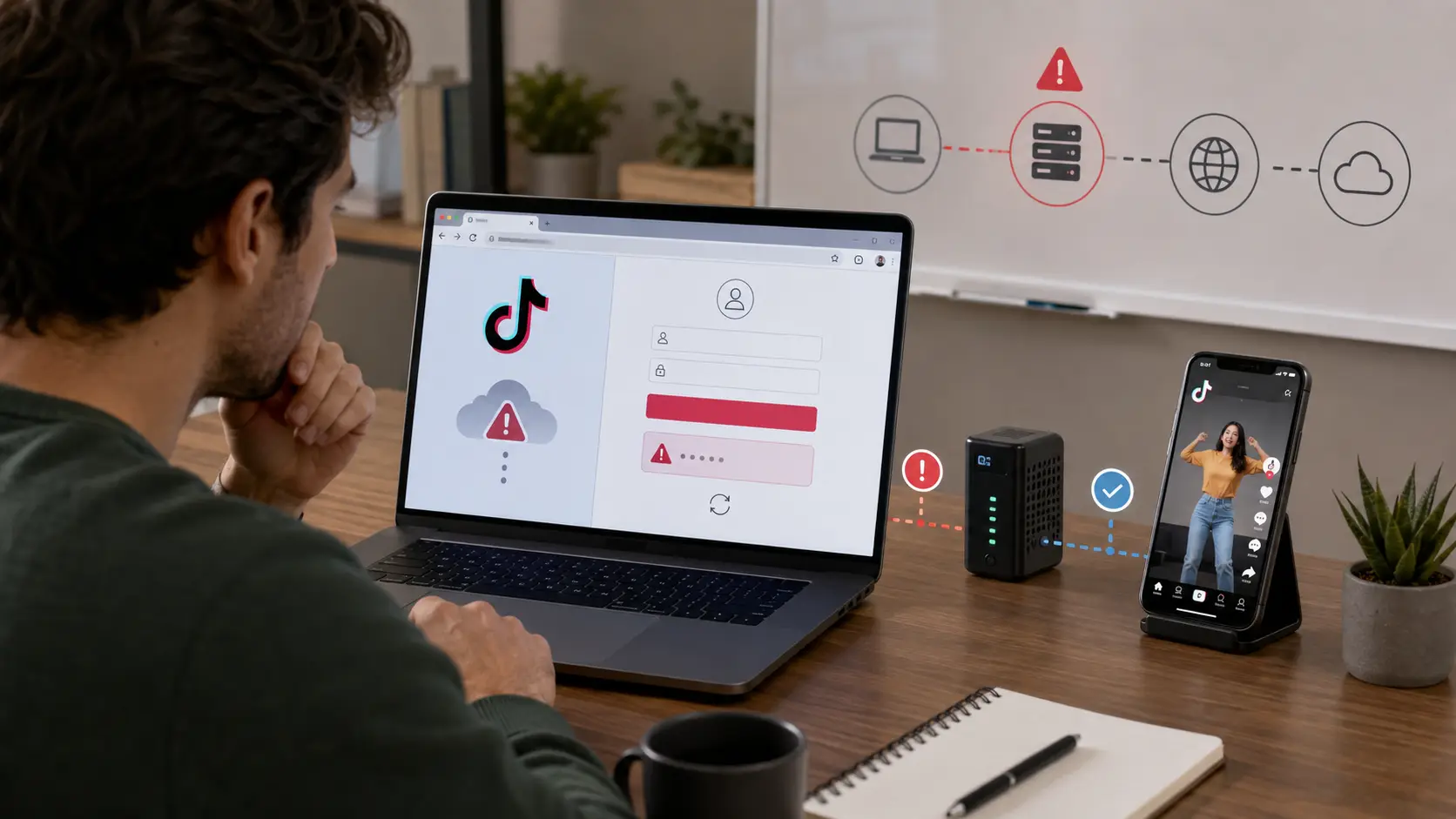
How Proxy IP, Location, and Connection Quality Affect TikTok Login
A proxy changes the network path between your device and TikTok. More importantly, it changes the public IP address that TikTok sees.
TikTok confirms that it can use network and device information, including your IP address, SIM card region, and system settings, to estimate location. This means a large location change can create an inconsistent setup.
For example, say an account is normally used from the United States. The phone has a US SIM, and its past activity comes from US networks. You then try to log in from a browser using a proxy that appears to be in Germany. The proxy does not automatically mean the login will fail. However, the location signals are now less consistent than before.
This is why changing from one country to another again and again is not a good troubleshooting method. If the first proxy fails, switching through five different countries may make it harder to understand the real cause.
The IP itself also matters. On the wider web, security systems can use IP reputation and anonymous-IP lists to decide whether traffic needs to be blocked or challenged. AWS, for example, documents IP reputation and anonymous IP lists as standard tools used by web applications to filter risky traffic. This does not mean TikTok uses the same lists, since TikTok does not publish its exact proxy-detection rules. It does show why two working proxy IPs may not be treated the same way by online services.
Connection quality is often even more important than people think. A proxy can show “connected” while still having high latency or unstable routing. Login requests may time out, verification pages may fail to load, or the session may stop halfway through.
As a practical example, suppose a TikTok account logs in normally through your home internet. You then enable a proxy and the login page needs 20 seconds to load. After entering the password, you get a network error. In this case, start with connection quality and proxy configuration. There is no reason to assume the account has been restricted yet.
How to Tell Whether the Proxy Is Actually Causing the Login Problem
The easiest way to diagnose TikTok login not working with proxy is to change only one thing at a time.
Start with the same device, same browser, and same TikTok account. Turn the proxy off and test the login through a trusted connection.
If TikTok works without the proxy but fails again when the same proxy is enabled, you now have a strong sign that the issue is somewhere in the proxy path or its configuration.
If TikTok fails both with and without the proxy, stop replacing proxies. Check the account, password, verification request, app status, or browser session instead. TikTok provides account security checks and an account status feature that can help identify account-related issues.
There is one more useful test. Try the proxy with a fresh browser session, but do not keep repeating login attempts. If TikTok loads normally yet the old browser session fails, old cookies or session data may be part of the problem. If TikTok itself will not load through the proxy, the connection should be checked first.
The key is to avoid random changes. Do not replace the password, proxy, browser, device, and location all at once. If you change everything together and the login suddenly works, you still will not know what fixed it.
A better diagnostic process is simple: test the account first, test the connection second, then check the browser session. Once you know which layer is causing the failure, the next fix becomes much easier.
How to Fix TikTok Login Not Working with Proxy
Once you know the proxy may be involved, the next step is to test the problem in a fixed order. This matters because random changes can hide the real cause. If you change the proxy, browser, password, and device at the same time, you may get TikTok working again but still not know what caused the login error.
For TikTok login not working with proxy, a better approach is to start with the proxy connection, then test TikTok without it, and only then move to cookies, browser settings, or account verification. TikTok’s own troubleshooting guide follows a similar basic idea: check the connection, restart the app or device, use the latest app version, and clear cache when needed.
Step 1: Check Whether the Proxy Is Working Correctly
Start with the proxy itself. Before you troubleshoot TikTok, make sure the proxy can actually connect.
Check the proxy host, port, username, and password. One wrong character is enough to stop the connection. If your proxy provider gave you an address such as:proxy.example.com:8000 make sure 8000 is entered as the port and not added to the hostname field by mistake.
Next, check the public IP address after the proxy is enabled. The IP should change to the proxy IP you expected. Also check the country or region. If you selected a US proxy but the IP lookup shows France, the proxy may be routed through a different location than expected.
This matters because TikTok says it can use network and device information, including IP address and system settings, to estimate a user’s location. A proxy location that is very different from your normal setup can therefore create a different location signal.
Connection quality matters too. Open a few normal websites through the proxy. If pages load very slowly, stop halfway, or fail at random, fix that problem before testing TikTok again.
For example, suppose TikTok shows a network error after you enter your password. At the same time, other websites take 15 seconds to load through the proxy. That points more strongly to an unstable proxy connection than to a TikTok account problem.
Do not keep sending login requests through a connection that is clearly failing. First confirm that the proxy can load websites normally and hold a stable connection.
Step 2: Test TikTok Without the Proxy
After confirming the proxy settings, turn the proxy off and test the same TikTok account on the same device or browser.
This is one of the most useful checks when TikTok login is not working with proxy because it separates a proxy problem from an account problem.
There are two common results.
TikTok works without the proxy. This is a strong sign that the proxy connection or proxy configuration needs more attention. Go back and check the IP, region, authentication details, and connection quality.
TikTok still does not work without the proxy. The proxy is probably not the main issue. You may be dealing with a password problem, an account verification request, an app issue, or another login error.
TikTok itself recommends switching between Wi-Fi and mobile data when troubleshooting connection problems. This is useful for the same reason: it helps show whether the network is part of the problem.
Here is a simple example. A user tries to log in through a proxy and gets “Login failed.” They turn the proxy off and connect through their normal home Wi-Fi. The same login fails again. In that case, buying another proxy is unlikely to solve the problem. The account or login process needs to be checked next.
This small test can save a lot of wasted time.
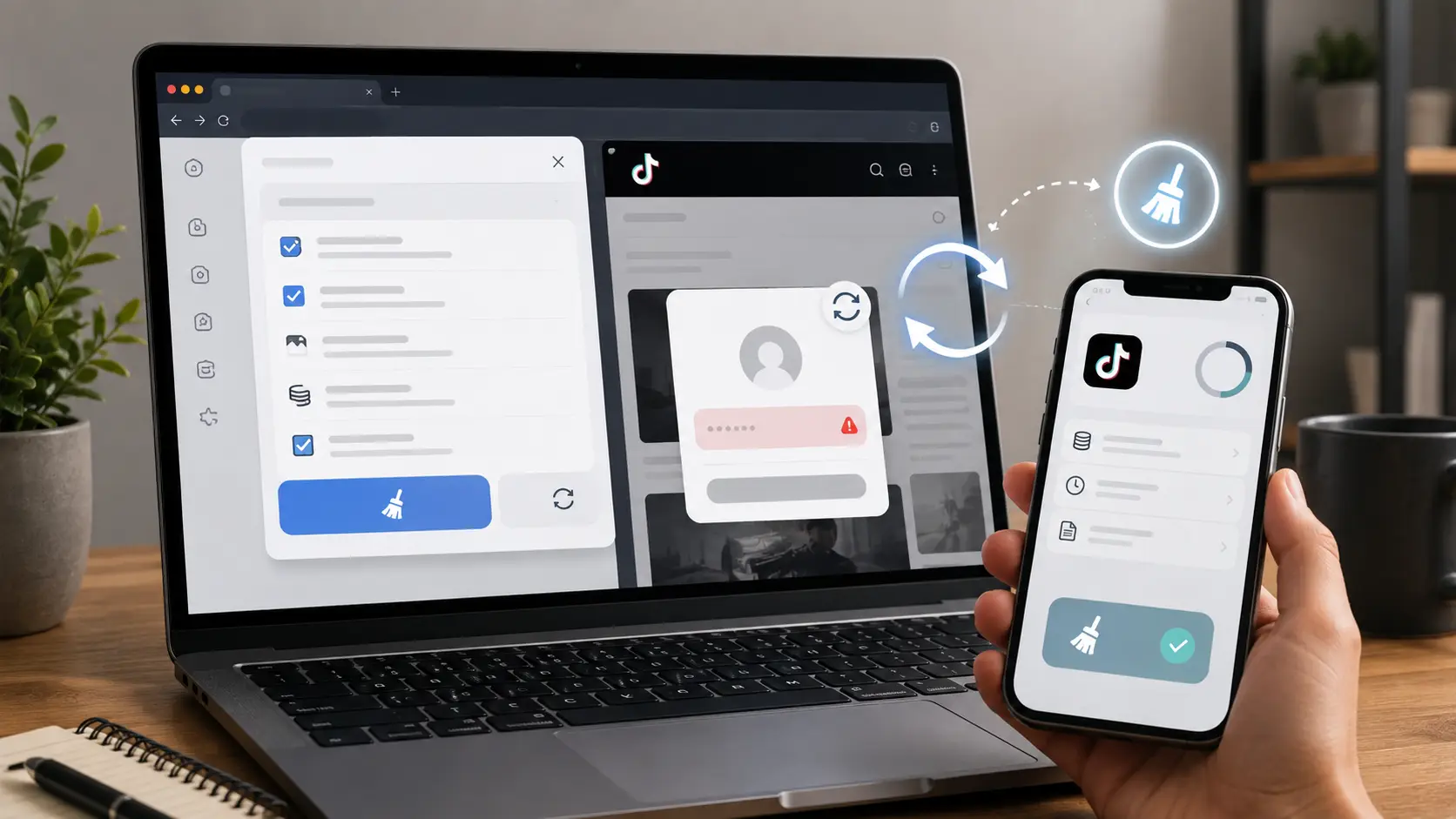
Step 3: Clear TikTok Cookies and Cache When Needed
If the proxy works and the account also works on another connection, the next place to check is the saved browser or app data.
TikTok officially recommends clearing its cache as one of the first troubleshooting steps when the app is not working correctly. In the TikTok app, you can go to Profile > Menu > Settings and privacy > Free up space, then clear the cache.
In a browser, old cookies can also keep an old login session active. If you recently changed the network setup and TikTok keeps returning to the same broken login page, clearing TikTok-specific cookies can be a useful test.
However, do not treat “clear all cookies” as the answer to every TikTok proxy login issue.
Cookies may contain useful login session data. Clearing them can sign you out and force you to verify the account again. If TikTok is already working normally, there is little reason to keep deleting them.
Use this step when there is a clear reason. For example:
You first logged into TikTok through one network. Later, you changed the proxy setup. The browser keeps showing an old error page or repeatedly redirects you back to login. Testing with a clean TikTok session can help show whether old session data is part of the problem.
A good rule is simple: clear cache or cookies to test a broken session, not as a daily routine.
Step 4: Keep the Proxy and Browser Environment Consistent
If you finally get TikTok login working, stop changing the setup without a reason.
This is especially important during troubleshooting. If you test one IP, then another country, then a different browser, and then a new device within a few minutes, you create more variables instead of removing them.
A more useful setup is:
- use one working proxy while you test;
- keep the same proxy region;
- use the same browser Profile;
- avoid clearing cookies after every session;
- change only one setting when something breaks.
This does not mean one IP can never change. Networks change in normal use. The point is to make your own troubleshooting predictable.
Consider two users.
User A has a TikTok login error and tries seven different proxies from four countries in 20 minutes.
User B keeps the same browser and account, tests one proxy, turns it off once to compare the result, then checks the session data.
User B has a much better chance of finding the actual cause because each test answers one clear question.
Consistency becomes even more important if you manage several TikTok accounts. If you cannot remember which proxy, browser session, or market belongs to each account, it becomes easy to create your own login problems through simple configuration mistakes.
Step 5: Check TikTok Verification or Account Security Prompts
If TikTok still fails on a normal connection, or if it asks for a code or security check, stop treating the issue as only a proxy problem.
TikTok provides a Security checkup where users can review security settings, verify contact details, turn on 2-step verification, and manage trusted devices. TikTok also recommends reviewing devices you do not recognize.
If you see a verification prompt, complete the steps TikTok provides instead of repeatedly restarting the login.
For example, you may enter the correct password but TikTok asks you to confirm the login through your email or phone. In that case, changing the proxy will not remove the need for verification. Complete the security check first.
If you are unsure whether the account itself has a problem, TikTok also provides Account check. It can show warning signs when certain account features have an issue.
If you forgot the password, TikTok supports password recovery through the phone number or email linked to the account. For login problems that still cannot be solved, users can also go to Settings and privacy > Report a problem to request further help.
At this stage, the goal is no longer to find a “better proxy.” It is to separate a TikTok proxy login issue from a real account security or login problem. Once that distinction is clear, you can fix the right problem instead of cycling through new IP addresses and hoping one works.
Which Proxy Type Works Best for TikTok Login?
Once your settings are correct, the next question is often about the proxy itself. There is no single proxy type that guarantees a successful TikTok login. TikTok does not publish an official list saying that residential, mobile, or datacenter proxies are preferred. In practice, the better choice is the one that gives you a stable connection, the expected location, and as few unexpected IP changes as possible.
This matters because an IP address can carry location information. Modern web services can use IP geolocation to estimate a visitor's country or city. Cloudflare, for example, provides websites with country and location data based on the visitor's IP address.
Residential vs. Mobile vs. Datacenter Proxies for TikTok
A residential proxy uses an IP associated with an internet service provider and a residential network. These proxies are often chosen when a user wants a connection that behaves more like a normal home internet connection. The trade-off is usually cost. Residential options tend to cost more than basic datacenter proxies.
A mobile proxy routes traffic through a mobile network. It can make sense when your workflow specifically needs a mobile-network connection. However, it is often one of the more expensive options. Speed can also depend on the carrier and network quality.
A datacenter proxy comes from server or hosting infrastructure rather than a normal home or mobile network. It is often fast and less expensive. However, hosting-provider IP ranges can be easier for web security systems to classify. For example, AWS WAF maintains a separate list for IP addresses from hosting and cloud providers, as well as lists for some anonymous proxy services. This does not prove that TikTok treats those IPs in the same way, but it shows why the source of an IP can matter to online services.
For a normal TikTok login, I would not choose a proxy based only on the label "residential" or "mobile." First ask four practical questions:
- Does it connect every time?
- Does the IP show the correct country?
- Is the connection fast enough to load TikTok normally?
- Can you keep the same setup when you return to the account?
A stable datacenter proxy can be more useful than a poor residential proxy that disconnects every few minutes. The quality of the connection still matters.
Why Free and Unreliable Proxies Often Cause TikTok Login Problems
A free proxy can look attractive when you only need to test one login. The problem is that you often know very little about the connection.
The IP may be heavily shared. The location may be different from what the service claims. The server may disappear without warning. Speed can also change from one minute to the next.
Some web security systems maintain lists of temporary proxies, hosting-provider networks, and other anonymous IP sources. AWS WAF, for example, provides rules specifically designed to identify some proxy, VPN, Tor, and hosting-provider traffic. Again, this does not tell us TikTok's internal rules, but it shows why an overused public proxy may work differently from a normal private connection.
There is also a practical security issue. You are sending your traffic through a server operated by someone else. If you do not know who controls that server or how it is managed, it is not a good place to send sensitive login traffic.
For testing TikTok login not working with proxy, use a proxy provider that gives you clear connection details, a known region, and a way to check whether the proxy is online. A cheap connection is not really cheap if you spend an hour trying to understand random login failures.
What If TikTok Login Still Does Not Work After Changing the Proxy?
At this point, you have already checked the connection, tested without the proxy, reviewed your browser session, and tried a reliable setup.
If TikTok still refuses to log in, stop treating the problem as only a proxy issue. The account itself may need attention.
This is where TikTok's own security and recovery tools become more useful than another IP change.
Test the Same Account on Another Trusted Network or Device
Use a device and connection that you already trust.
For example, try your normal phone on home Wi-Fi or mobile data.
The result tells you a lot.
If the account works: The problem is likely still related to your computer, browser, or proxy setup.
If the account also fails there: Move your attention to the account itself.
Keep this test simple. Do not install new tools or change ten settings. The goal is only to answer one question:
Can this account still log in normally somewhere else?
Check Whether TikTok Is Asking for Account Verification
TikTok provides a Security Checkup where users can review security settings, trusted devices, contact details, and 2-step verification.
If TikTok asks for a verification code, device confirmation, or another security step, complete that process instead of trying to remove it by changing proxies.
You should also review devices connected to the account. TikTok's security tools are designed to help users check account access and remove devices they do not recognize.
This is an important distinction.
A proxy can cause a network problem. It cannot replace an account verification step that TikTok is asking you to complete.
Stop Repeated Login Attempts and Use TikTok Account Recovery When Necessary
If the login keeps failing, avoid turning troubleshooting into endless guessing.
Do not cycle through ten proxies and enter the password again and again. Instead, confirm that your credentials are correct and use TikTok's official recovery process if needed.
TikTok currently allows users who cannot log in to select Forgot password? and reset access through the phone number or email linked to the account.
For example, if the account fails on your normal phone, home Wi-Fi, and proxy browser, the proxy has stopped being the main suspect.
At that point, password recovery or account verification is a better next step.
When to Contact TikTok Support
Contact TikTok when you have already ruled out the simple connection problems and still cannot access the account.
TikTok provides an in-app Report a problem process for issues that cannot be solved through the normal troubleshooting steps.
You can also check Account check to see whether TikTok reports a problem with specific account features. TikTok shows a checkmark when no issue is found and a warning sign when there is a problem.
When you report the issue, keep your description specific.
Instead of:
TikTok doesn't work.
Say something like:
The account logs in successfully on my phone, but the browser login fails after verification. I tested another trusted network and the issue remains.
Clear information makes troubleshooting easier.
How to Prevent TikTok Proxy Login Problems When Managing Multiple Accounts
Managing several TikTok accounts creates another challenge. Even when every proxy works, it becomes easy to attach the wrong connection or open the wrong browser session.
The goal here is not to keep changing the browser identity. It is the opposite: create a clear, stable setup that you can recognize and reuse.
Keep One Stable Browser Profile for Each TikTok Account
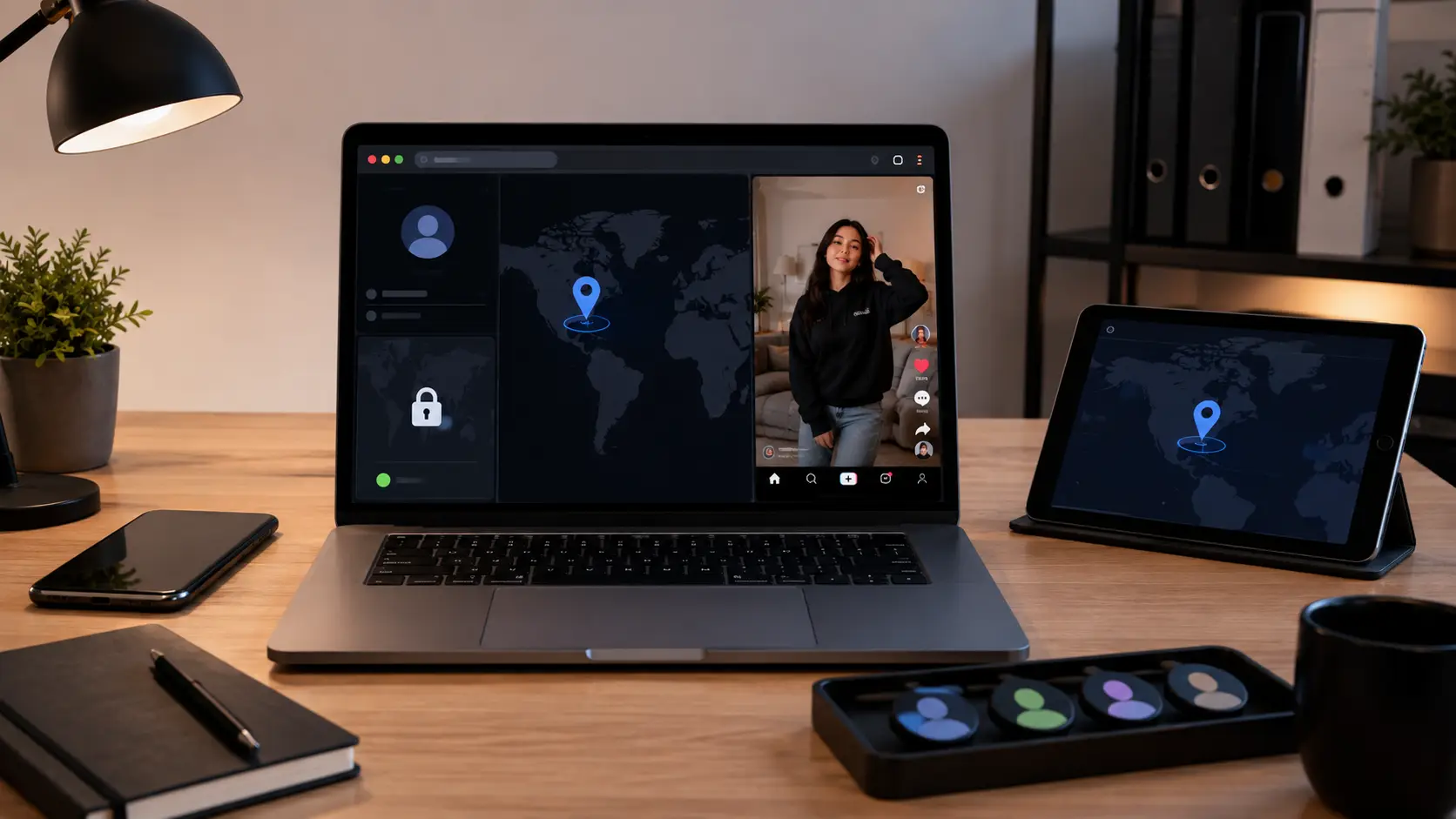
A separate browser Profile gives each TikTok account its own saved workspace. Instead of signing one account out and another account into the same browser every day, you can keep each account in a dedicated Profile with a clear name, such as TikTok_US_Beauty or TikTok_UK_ClientA.
DICloak can keep cookies, proxy settings, remarks, and other browser data inside each Profile. This makes it easier to return to the same account setup later without rebuilding it from scratch.
It also makes troubleshooting much simpler. If one account has a login problem, you already know which Profile, proxy, and saved session belong to it, so you can check that setup without affecting the others.
Keep Proxy, Cookies, and Login Sessions Consistent
Once a setup works, record it.
You should be able to answer:
- Which proxy belongs to this TikTok Profile?
- Which region is the proxy in?
- Is the account already logged in?
- Has the proxy recently changed?
This makes troubleshooting much faster.
Imagine you have ten TikTok accounts and three people working on them. Without a clear system, someone may replace a proxy without telling the rest of the team. The next person opens the account and sees a login problem with no idea what changed.
That is often an operational mistake, not a complicated TikTok problem.

Label Profiles by Account, Market, or Project to Avoid Mix-Ups
Use clear Profile names instead of generic labels like “Profile 1” or “New Profile.” Including the platform, region, project, and account number—such as TikTok_US_ClientA_01—makes Profiles much easier to organize and find later.
If you run several projects, grouping them also helps.
DICloak currently supports Profile names, remarks, and Profile groups for this type of organization.
This sounds simple, but it solves a common multi-account problem: opening the wrong account with the wrong settings.
How DICloak Helps Manage TikTok Accounts With Proxies
DICloak does not fix a TikTok account that has forgotten its password or needs official verification. It also does not turn a bad proxy into a good one.
Its value in this workflow is different.
DICloak helps keep the browser Profile, proxy, cookies, session data, and account organization in one place. That becomes useful when TikTok login is not working with proxy because you have fewer settings scattered across different tools.
Keep Browser Settings Consistent Across Login Sessions
DICloak Profiles also store browser-related settings and session data. Users can configure items such as language, time zone, geolocation settings, browser version, and other Profile options.
For TikTok troubleshooting, the useful idea is consistency, not constant randomization.
Once an account works with a Profile, avoid changing settings without a reason.
If you change the proxy, time zone, language, cookies, and browser configuration at the same time, you make the next login problem much harder to diagnose.
A better workflow is to keep the working Profile stable and change one item only when there is a clear reason.
Manage Multiple TikTok Profiles With Groups, Notes, and Team Access
Profiles become even more useful when several people manage TikTok accounts together. DICloak lets teams organize Profiles into groups, add remarks, and assign specific Profile groups to different members. This means each person only needs to work with the accounts related to their role.
For example, a team could place all U.S. TikTok accounts in one Profile group and Brazil accounts in another. A member responsible for the U.S. project can then be given access to that group instead of the entire account list.
This keeps the workspace easier to navigate and reduces simple mistakes, such as opening or editing an unrelated account.

Use Automation Only After the Login Setup Is Stable
Automation should come last.
Do not use automation to hide a login problem. First make sure the Profile opens correctly, the proxy is working, and the TikTok session is stable.
After that, automation can help with repetitive browser tasks.
DICloak currently provides a Synchronizer that can repeat selected window actions across opened Profiles. It also offers RPA options and a Local Open API that can open Profiles and connect them with tools such as Playwright or Puppeteer.
For example, if you manage several working Profiles, automation may help with repetitive internal workflow steps. But if one Profile already has a broken proxy or failed login, automating it simply repeats the same problem faster.
That is why the order matters:
Get the proxy working.
Get the TikTok login working.
Keep the Profile stable.
Then automate only the repetitive parts that actually need automation.
FAQs About TikTok Login Not Working with Proxy
Q1: Why is TikTok login not working with proxy even when the proxy connects?
If TikTok login is not working with proxy even though the proxy shows as connected, the problem may be connection quality, incorrect proxy settings, old browser data, or an account security check. A proxy can connect but still have high delay or unstable routing. TikTok recommends checking your internet connection and testing another network when login or loading problems appear.
A useful test is to open TikTok without the proxy on the same device. If the account works normally, check the proxy IP, location, port, and authentication details before changing your TikTok password.
Q2: Why is TikTok login not working with proxy but works without it?
When TikTok login is not working with proxy but works on your normal Wi-Fi or mobile connection, the proxy path is the first thing to investigate. The proxy may be slow, offline, configured incorrectly, or showing a location you did not expect.
TikTok states that it can use information such as your IP address, SIM region, and device settings to estimate location. This means a proxy changes one of the location signals available to TikTok.
For example, if the account works on your normal US connection but fails only when a proxy is enabled, keep the same browser and account while testing the proxy. Changing several settings at once makes the real cause harder to find.
Q3: Can changing the proxy fix TikTok login not working with proxy?
Sometimes, but changing the proxy should not be your first response every time TikTok login is not working with proxy. First confirm that the current proxy is actually causing the problem.
Test TikTok once without the proxy. If the login still fails, another proxy may not help because the issue could be the password, account verification, browser session, or TikTok itself. TikTok provides security checkup, trusted-device review, and account recovery tools for account-related login problems.
If the account works without the proxy, then testing another reliable proxy can help identify whether the original connection is the problem.
Q4: Should I clear cookies if TikTok login is not working with proxy?
Clearing cookies or cache can help when TikTok login is not working with proxy because an old or broken browser session may be involved. TikTok officially recommends clearing cache as one of its basic troubleshooting steps.
However, do not clear cookies after every login. Cookies may contain useful session data, and deleting them can sign you out or require another verification step. Clear TikTok-specific browser data when you have a clear reason, such as repeated redirects, an old login error, or a session that no longer loads correctly.
Q5: What should I do if TikTok login is not working with proxy after trying all the fixes?
If TikTok login is not working with proxy after you have checked the proxy, tested a normal network, and reviewed the browser session, test the account on a trusted device or connection.
If the account fails there too, focus on the TikTok account rather than the proxy. Check for verification requests, review trusted devices, confirm your email or phone access, and use TikTok's password recovery tools when needed. TikTok also provides Account Check and its Report a Problem feature for issues that remain unresolved.
At this point, repeatedly switching IPs is unlikely to tell you much. The better next step is to determine whether TikTok is asking you to verify or recover the account.
 Web Proxy Tools
 Free Tools
 Cookie Plugin
 UA Generator
 MAC Address Generator
 IP Generator
 IP Address List
 2FA Code Generator
 World Clock
 Anonymous Check
 WebRTC Leak Test
 UUID Generator
 Free Web Proxy Site
 Proxy Checker
 FB Ad Checker
 AI Web Scraping
 Free SMM Tools
 Twitter Shadowban Checker
 Instagram Name Checker
 UTM Generator
 Username Generator
 AI Hashtag Generator
 LinkedIn Headline Generator
 Social Media Image Resizer