If your Telegram login is not working with a proxy, the problem is not always your Telegram account.
A proxy changes the route your connection takes before it reaches Telegram. If the proxy server is slow, offline, blocked, or set up with the wrong information, Telegram may stay on “Connecting” or fail before you can finish the login.
There is also an important difference between a connection problem and a login problem.
If Telegram cannot reach its servers, the proxy may be the cause. But if Telegram already loads the verification screen and asks for a code or two-step verification password, the connection is working. At that point, changing the proxy may not solve the login issue.
A good first test is simple. Turn the proxy off and open Telegram again. If Telegram works normally, you know where to start looking.
Why Is Telegram Login Not Working with a Proxy?
A Telegram login not working with a proxy usually comes down to one of three things: the proxy information is wrong, the proxy server is unreliable, or the network you are using cannot connect to it properly.
These problems can look very similar inside Telegram. That is why it is useful to check them one at a time instead of changing everything at once.

Incorrect Telegram Proxy Settings
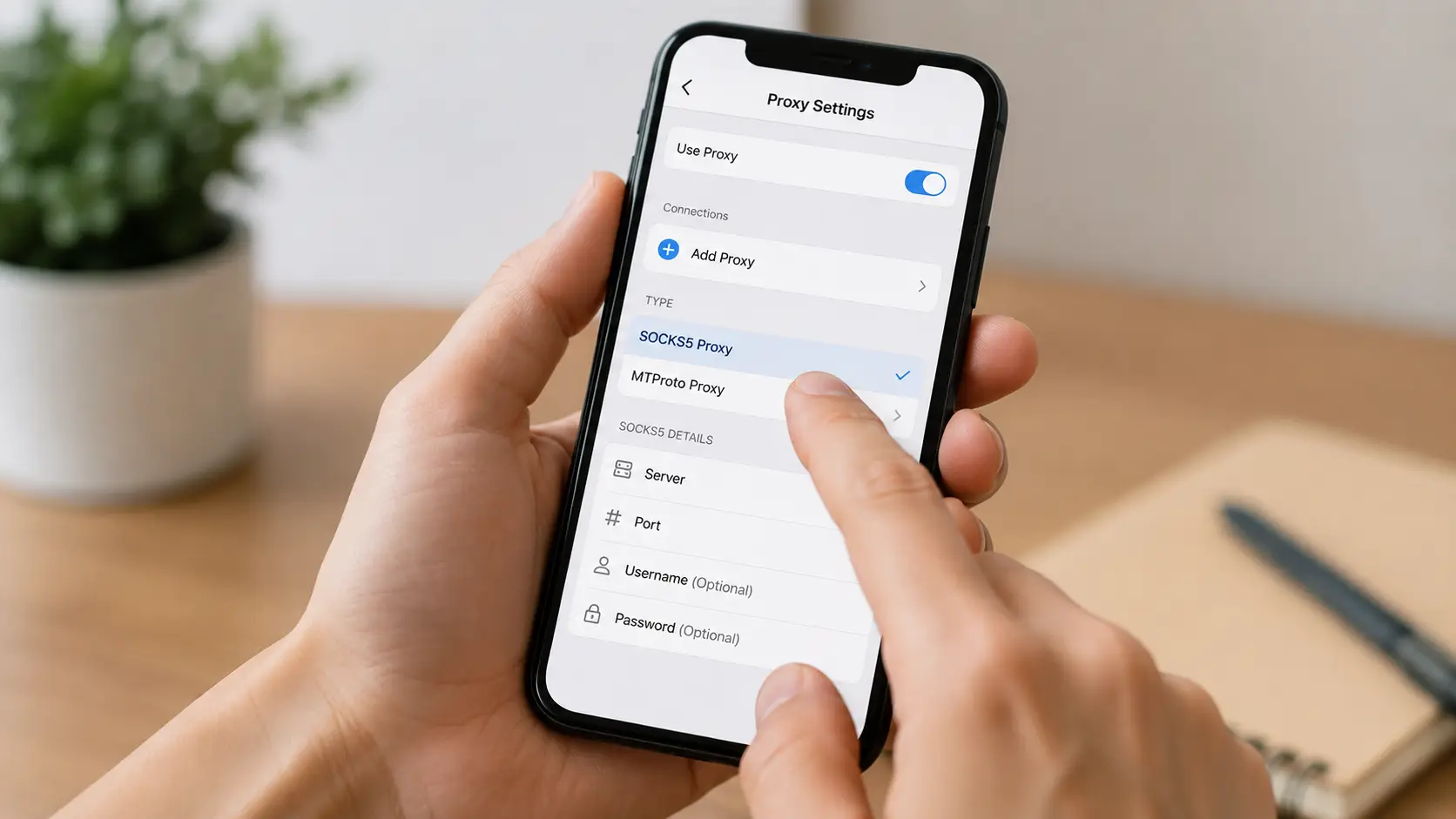
Start with the proxy information you entered. For a SOCKS5 proxy, you normally need the server address and port. Some proxy services also require a username and password. An MTProto proxy works differently because it uses a server, port, and secret.
A small mistake in any of these fields can stop Telegram from connecting. For example, your provider may give you:
proxy.example.com:1080:user01:password01
Here, proxy.example.com is the server, 1080 is the port, and the last two values are the username and password. If you paste the full string into the server field, Telegram will not be able to use it correctly. A wrong port can cause the same problem.
Passwords can also create trouble. Copying a password from a message may add an extra space without you noticing, so the details look correct even though the proxy still fails. If the proxy worked before and suddenly stopped, check whether the provider changed the password, disabled the old server, or updated the connection details.
It is also worth checking the proxy type. SOCKS5 login details should not be entered as an MTProto secret. Before looking for a more complex explanation, compare every field with the latest information from your proxy source.
Unstable or Unavailable Proxy Servers
Sometimes the settings are completely correct, but the server itself is the problem. A proxy can be online without being reliable. It may be overloaded because too many people are using it, respond slowly during busy hours, or go offline for short periods before coming back.
This can create confusing behavior in Telegram. For example, Telegram may connect for a few seconds and show your chats, but new messages take a long time to load. A moment later, the app may return to “Connecting.” The proxy is not fully offline, but the connection is still too unstable for normal use.
Public proxies can have this problem more often because many users may share the same server. Paid proxies can also have temporary issues, so paying for a proxy does not mean you should skip connection testing.
The easiest test is to disable the proxy for a moment and open Telegram again. If Telegram works normally without it, turn the proxy back on. If the app immediately becomes slow or gets stuck on “Connecting,” the proxy deserves more attention. At this point, changing your Telegram password or reinstalling the app is unlikely to help because the connection should be checked first.
Network Restrictions Affecting Telegram Proxy Connections
The proxy may be healthy, but your current network can still prevent it from working. Office networks, schools, hotels, public Wi-Fi, and some internet providers may restrict certain ports or types of connections. This is why the same proxy can work on one network and fail on another.
Imagine you are using Telegram on a laptop at a hotel. Your SOCKS5 proxy keeps failing, even after you check the settings several times. You then connect the laptop through your phone's mobile hotspot without changing the Telegram account or proxy settings, and Telegram connects normally.
In that case, the proxy was not necessarily broken. The hotel network was the variable. You can use the same method on a phone by switching from Wi-Fi to mobile data or trying another trusted Wi-Fi network.
Try to change only one thing at a time when testing. If you change both the network and the proxy at once, you lose the chance to identify which one actually caused the problem.
How to Configure a Proxy for Telegram Login
Before troubleshooting deeper problems, make sure the proxy is set up in the correct place. Telegram has built-in proxy settings on its mobile and desktop apps, so you do not need a separate browser extension or a system-wide proxy just to use Telegram's own proxy feature.
The menu location differs slightly between Android, iPhone, Windows, and macOS, but the information you need is mostly the same. You still need the correct proxy type, server, port, and any required credentials.
How to Set Up a Telegram Proxy on Mobile
On Android, open:
Settings > Data and Storage > Proxy Settings
On iPhone or iPad, go to:
Settings > Data and Storage > Proxy
From there, add a new proxy and choose the correct type. If you are using SOCKS5, enter the server and port, then add the username and password if the proxy requires authentication. For MTProto, enter the server, port, and secret.
Save the settings and enable the proxy. When Telegram connects successfully through a proxy, you should see a shield icon near the top of the chat list. That small detail gives you a quick way to check whether Telegram is using the proxy.
For example, suppose you add a new SOCKS5 proxy but Telegram stays on “Connecting” and never shows a working connection. Go back to the settings and check the address, port, username, and password again. If the proxy connects but chats take a long time to load, the settings may be correct while the server itself is slow.
Telegram can also save more than one proxy. This is useful if you already have several trusted servers available, but saving many proxies does not solve a bad connection by itself. It is still better to understand why one server keeps failing instead of simply switching between them.
How to Set Up a Telegram Proxy on Desktop
Telegram Desktop also lets you configure a proxy inside the app. Go to:
Settings > Advanced > Connection Type
Then open the proxy settings and enter the required information. On the macOS Telegram app, the proxy option can be found under:
Settings > Data and Storage > Use Proxy
Once the proxy is enabled, check whether Telegram reconnects. Desktop makes this comparison fairly easy because you can disable the proxy and test your normal connection without changing the rest of the setup.
For example, suppose Telegram Desktop stays on “Connecting” after you add a new proxy. You disable proxy use, and your chats appear immediately. That tells you Telegram itself can reach the service, so the next step is to check the proxy rather than reinstall the desktop app.
If several saved proxies all fail, test another network. If only one proxy fails while the others work, focus on that server instead of changing unrelated Telegram settings.
SOCKS5 vs. MTProto Proxy for Telegram
Telegram supports both SOCKS5 and MTProto, but they are designed differently. A SOCKS5 proxy is a general proxy type and is not limited to Telegram. Other apps can also support SOCKS5 connections. For Telegram, it normally needs a server and port, while a username and password may also be required.
An MTProto proxy is designed for Telegram traffic. Instead of using a normal username and password, it uses a secret together with the server and port.
For most users, choosing between the two does not need to be complicated. If you already have a stable Telegram SOCKS5 proxy, there is no reason to replace it just because MTProto is made for Telegram. The reverse is also true. If a trusted MTProto proxy connects quickly and stays stable, it can be a good choice.
The protocol name matters less than the actual connection quality. A poorly maintained MTProto server can still perform worse than a reliable SOCKS5 server. In practice, the better choice is the proxy that works consistently on your network and comes from a source you trust.
How to Fix Telegram Proxy Not Working
If your Telegram proxy is not working, troubleshooting is easier when you follow a simple order. Start by checking whether the proxy itself works. Then compare Telegram with and without the proxy. If the problem is still unclear, test another network or another known-working proxy.
This approach helps you narrow down the cause instead of changing several settings at once and hoping something works.
Check Whether Your Telegram Proxy Is Working
Do not assume a proxy works just because you have a valid IP address and port. A proxy can be online but still be too slow or unstable for Telegram.
If your proxy provider has a built-in checker, start there. You can also open an IP-checking website through the proxy to confirm that the expected IP appears. At the same time, watch the connection speed and make sure the username and password are still accepted if authentication is required.
It is worth testing more than once. An unstable proxy may work on the first request and fail on the next few. For example, an IP checker may show the expected proxy IP at first, but the second reload takes 20 seconds and the third request times out. In that case, the proxy exists, but the connection is not stable enough for normal use.
Telegram needs a connection that stays active while messages, login requests, and account data are exchanged. A proxy that keeps dropping can therefore create more obvious problems in Telegram than on a simple website.
After testing the proxy, disable it and open Telegram again. If Telegram works normally without the proxy, the problem is likely related to the proxy itself, its configuration, or the route between your network and that proxy server.
Fix Telegram Stuck on “Connecting” with a Proxy
Seeing Telegram stuck on “Connecting” is one of the clearest signs of a proxy connection problem. Start by turning the proxy off. If Telegram connects normally, return to the proxy settings and check the server, port, username and password, or MTProto secret.
If the details are correct, try another proxy that you already know works. For example, imagine Proxy A leaves Telegram on “Connecting,” while Proxy B works on the same phone, Wi-Fi network, and Telegram account. Since the only thing you changed was the proxy, Proxy A is the strongest suspect.
The result is different if both proxies fail. In that case, switch from Wi-Fi to mobile data and test again. If both proxies start working, the original network is more likely to be causing the issue.
Testing one variable at a time makes this much easier. If you change the proxy, network, and Telegram settings together, you may fix the problem without ever knowing what actually caused it.
What to Do If Telegram Works Without the Proxy
If Telegram works immediately after you disable the proxy, do not start changing your account information. Your Telegram account can already connect through the normal network, so the proxy connection should be checked first.
Confirm that the proxy server still responds and that the credentials have not expired. Then try the same proxy on another network if possible. If it fails everywhere, the proxy itself is probably the problem. If it works on another network, your original Wi-Fi or local connection deserves more attention.
There is also a different situation that can look like a proxy problem at first. Telegram may connect successfully and reach the login verification stage. You enter your phone number, and Telegram asks for a login code or a two-step verification password.
At that point, Telegram has already reached its servers through the proxy. If the code is wrong, does not arrive where you expected, or you do not know the two-step verification password, changing proxies may not help.
Telegram may send the login code to another device where the account is already signed in. Two-step verification can also require an additional password. The useful question here is simple: Is Telegram failing to connect, or is it failing after the connection has already been made?
That distinction can save you from changing a working proxy for a problem that actually belongs to the login process.
When Should You Change Your Telegram Proxy?
You should change a proxy when there is a clear sign that it is no longer reliable. If the server stops responding, the credentials expire, or the connection drops every few minutes, replacing it makes sense.
Comparison testing is useful here as well. Suppose Telegram works normally through Proxy B but fails through Proxy A on the same phone and Wi-Fi network. There is little reason to keep troubleshooting the Telegram account because the proxy is the main variable that changed.
Speed also matters. A proxy may technically stay online but still be too slow for regular use. If chats take 20 or 30 seconds to load through one proxy but appear almost immediately through another, the first server may simply be performing poorly.
What you usually do not need is constant proxy rotation. If the current proxy is stable and Telegram works normally, changing it every day only adds more variables to the setup. When something later goes wrong, it becomes harder to tell whether the cause is Telegram, the network, or the latest proxy.
For regular use, a stable and predictable connection is usually easier to manage.
What Are the Risks of Using a Proxy for Telegram?
A proxy sits between your device and Telegram, so the server you choose matters. The main question is not only whether Telegram can connect. You also need to think about privacy, reliability, and how much you know about the person or company running the proxy.
This becomes especially important with free and public proxies, where ownership and server quality may be difficult to verify.
Risks of Free and Public Telegram Proxies
Free and public proxies are easy to find, but that does not mean they are all equally trustworthy. You may not know who operates the server, how many users share it, or how long the proxy will remain available.
That creates both privacy and reliability concerns. Telegram advises users to choose proxies from sources they trust. With MTProto, the proxy operator cannot simply read your Telegram messages because the traffic remains encrypted, but that does not mean the operator sees nothing.
A proxy server can still receive connection information such as the IP address connecting to it and the time of the connection. The operator can also know that the server is being used for Telegram traffic.
Imagine you find a public Telegram proxy in an online group. It connects immediately and seems to work well, but there is no clear information about who owns the server or how connection data is handled. A successful connection does not answer those questions.
For a quick test, some users may be comfortable with that uncertainty. For regular use, especially with important accounts, a proxy from a known and trusted source gives you more control over the setup.
Public proxies can also become unreliable when too many people use the same server. A proxy may work well in the morning and become extremely slow later in the day because hundreds of users are sharing the same resources. When that happens, the privacy question quickly becomes a connection problem too, because Telegram may start loading slowly or returning to “Connecting.”

How an Unstable Proxy Can Affect Telegram Login
An unstable proxy does not always fail completely. Sometimes it works for a short time and then drops, which can make the problem look like a Telegram login error. Telegram may open normally and let you enter your phone number, but the next request takes too long and the connection disappears. You try again, get a little further, and then Telegram returns to “Connecting.”
The same issue can continue after login. Chats may refresh slowly, images may stop loading, and voice messages or other media may fail until the proxy reconnects. If this keeps happening, compare Telegram with and without the proxy. If the login process becomes smooth as soon as you disable the proxy, the unstable connection is a more likely cause than the account itself.
However, not every problem at the login screen comes from the proxy. If Telegram has already connected and asks for a verification code, the connection has reached Telegram successfully. You may need to check another device where the account is already signed in, confirm the phone number format, or enter a two-step verification password if it is enabled.
The proxy only controls how your device reaches Telegram. It does not replace Telegram’s normal login checks. So when Telegram login is not working with a proxy, check whether the proxy is correct, stable, and reachable first. Once Telegram connects normally, treat any remaining verification problem as a separate login issue.
How to Manage Multiple Telegram Web Accounts with Proxies Using DICloak
Fixing a broken proxy is usually enough when you use only one Telegram account. Managing several Telegram Web accounts with proxies is different because you also need to keep each account’s proxy, cookies, and login session organized. If several team members use those accounts, the setup can become even harder to manage.
This is where an antidetect browser can be useful. With DICloak, you can create a separate browser Profile for each Telegram Web account. Each Profile keeps its own browser settings, cookies, cache, session data, and proxy configuration, so you do not need to keep signing in and out of several accounts in one normal browser.
For example, one Profile can stay logged into a customer support account while another Profile keeps a business account open. When you return to a Profile later, you can continue from the browser session already stored there. This makes it easier to manage several Telegram Web accounts without mixing their browser data.
Keep in mind that this setup is for Telegram Web in the browser. It does not replace the SOCKS5 or MTProto proxy settings inside the Telegram mobile or desktop apps.
Assign a Proxy to Each Telegram Browser Profile
When several Telegram Web accounts use proxies, it can be easy to forget which proxy belongs to which account. A cleaner setup is to keep one proxy configuration with the browser Profile that uses it.
For example, you could keep a customer support Telegram account in one Profile and a business account in another. Each Profile can use the proxy chosen for that account, so you do not need to change the browser proxy every time you switch between them.
With DICloak, you can add your own proxy when creating or editing a Profile. You can also save proxies first and assign them later from the Profile list. If you manage many Profiles, proxy groups and batch assignment can reduce repeated setup.
A simple structure might look like this:
Telegram Account A → Profile A → Proxy A
Telegram Account B → Profile B → Proxy B
This also fits the troubleshooting advice from earlier in the guide. Once you find a proxy that works reliably, you can keep that connection attached to the same Profile instead of changing it again and again. If one proxy later becomes slow or stops working, you can test or replace that connection without changing the setup of the other Telegram accounts.
DICloak does not provide the proxy connection itself, so you still need to get a proxy from your own provider and add it to the browser Profile. A Profile can also run without a proxy, in which case it uses the computer’s normal network connection.
Before opening Telegram Web, test the proxy first. If the server is offline, very slow, or using expired credentials, putting it inside a separate Profile will not fix the connection. The browser Profile helps organize the account, session, and proxy setup, but the proxy itself still needs to work properly.

Keep Telegram Web Login Sessions Separate
Proxy assignment is only one part of multi-account management. You also need to keep the login sessions themselves organized. A normal browser stores cookies, cache, and other website data, so managing several Telegram Web accounts in the same browser can quickly lead to repeated account switching, private windows, or confusion about which session belongs to which account.
With DICloak, each browser Profile keeps its own browser data and login session. One Profile can stay logged into a customer support Telegram account, while another keeps a partner account open and a third is used for a separate project. Instead of signing out of one account before opening the next, the team can simply open the Profile linked to the account they need and return to the session already stored there.
For example, a support team managing three Telegram accounts can keep customer chats, partner communication, and project messages in three separate Profiles. This makes it easier to keep cookies, sessions, and proxy settings organized without mixing the browser data used by different accounts.
This separation does not remove Telegram's normal login checks. If Telegram asks for a verification code or a two-step verification password, you still need to complete that process normally. The benefit is mainly operational: once the accounts are set up, each Telegram Web session stays easier to identify and return to during daily work.
If two authorized team members need to open the same browser Profile at the same time, DICloak also provides a Multiple sessions option. It can be enabled through Global Settings or for a specific Profile. There is no need to enable it for every account, though. For many teams, keeping one person in a Profile at a time is simpler and easier to manage.

Share Telegram Browser Profiles with Team Members
Team access is often where managing several Telegram Web accounts becomes messy. A common approach is to send account information to another person and ask them to rebuild the setup on their own computer. They may need to add the proxy again, log into Telegram again, and recreate the browser session, which adds unnecessary work when the same accounts are used every day.
With DICloak, you can organize browser Profiles into Profile Groups and give selected team members access only to the groups they need. For example, a support agent may only need access to Profiles used for customer chats, while a manager may need access to all support Profiles. Another team can work with a completely different Profile Group without seeing the Profiles that are not part of its role.
DICloak also provides Member Groups for controlling what different team roles can do inside the workspace. This means Profile access and functional permissions can be managed separately. A team member can have access to the Telegram Web Profiles needed for daily work without automatically receiving broader permissions across the whole workspace.
This structure is especially useful when Telegram Web account management is part of regular team work. You can first make sure each proxy works, keep each Telegram Web account in its own browser Profile, and then give team members access only to the Profiles they actually need.
DICloak does not replace a working Telegram proxy or Telegram's own login checks. Its role starts after the connection is working, when you need a clearer way to organize multiple Telegram Web accounts, proxies, login sessions, and team access in one place.
FAQs About Telegram Login Not Working with a Proxy
Q1: Why is my Telegram login not working with a proxy?
If your Telegram login is not working with a proxy, first check the proxy server, port, and login details. The proxy may also be offline, too slow, or blocked by your current network. Turn the proxy off and test Telegram again. If Telegram works normally without it, the proxy connection is likely the problem.
Q2: Why is Telegram stuck on “Connecting” when I use a proxy?
Telegram may stay on “Connecting” when the proxy server cannot reach Telegram or the connection is unstable. Wrong proxy settings can cause the same problem. Check the server address, port, credentials, and proxy type. You can also try the same proxy on another network to see whether Wi-Fi or local network restrictions are involved.
Q3: Why does my Telegram proxy work on other apps but not for Telegram login?
A proxy that works in a browser or another app may still fail with Telegram login. Telegram supports specific proxy types, including SOCKS5 and MTProto. Make sure you selected the correct type and entered the required details correctly. Network restrictions may also affect Telegram traffic differently from normal web traffic.
Q4: Should I change my proxy if Telegram login is not working?
Do not change the proxy immediately. First disable it and check whether Telegram works without it. Then test the proxy connection and confirm the settings. If Telegram works with another proxy on the same device and network, replacing the original proxy makes sense. If the current proxy is stable, there is usually no reason to change it often.
Q5: Can I manage multiple Telegram Web accounts with separate proxies?
Yes. If you manage several authorized Telegram Web accounts, you can keep each account in a separate browser Profile and assign a different proxy to each Profile. For example, you can use DICloak to separate Telegram Web cookies, login sessions, and proxy settings. This makes multiple accounts easier to organize, but it does not fix a proxy that is already offline or incorrectly configured.
 Web Proxy Tools
 Free Tools
 Cookie Plugin
 UA Generator
 MAC Address Generator
 IP Generator
 IP Address List
 2FA Code Generator
 World Clock
 Anonymous Check
 WebRTC Leak Test
 UUID Generator
 Free Web Proxy Site
 Proxy Checker
 FB Ad Checker
 AI Web Scraping
 Free SMM Tools
 Twitter Shadowban Checker
 Instagram Name Checker
 UTM Generator
 Username Generator
 AI Hashtag Generator
 LinkedIn Headline Generator
 Social Media Image Resizer