Your IP address can expose more than you expect—such as your approximate location and your Internet Service Provider (ISP), along with other connection signals websites use to identify your traffic. If you want a clearer view of what sites can see from your network side, Whoer is a convenient tool for checking your IP details and basic connection information.
In this guide, we’ll explore how Whoer works, what its key features are, and how to use it to check your IP address and browser signals. We’ll also explain why these checks matter in modern cybersecurity workflows, how fingerprinting technologies can create account linkage risks, and how tools like DICloak help you manage multiple accounts through isolated browser profiles. By the end, you’ll have a clearer understanding of how to monitor your network identity and reduce common security risks online.
What is Whoer?
Whoer is an online diagnostic tool that analyzes the network and browser signals your device exposes when connecting to the internet. It helps users check key details such as their IP address, Internet Service Provider (ISP), approximate geographic location, DNS routing, and WebRTC status. In addition to basic IP lookup, Whoer also provides tools like an Anonymity Score, DNS Leak Test, and Ping test, which help evaluate whether a connection appears consistent and stable from a network perspective. These checks are commonly used to understand how a device’s connection looks to websites and security systems.
Checking an IP address with Whoer can help you in a few clear ways:
- See your online “footprint”: View the key network details websites can detect, such as your IP, ISP, and approximate location.
- Spot possible leakage risks on public Wi-Fi: Identify warning signs that your connection may be exposing more information than expected.
- Verify whether your VPN/proxy is working: Confirm that the IP and connection signals shown match the protection tool you are using.
- Improve privacy and security awareness: Use the results as a quick baseline check to understand how your connection appears to different sites.
This makes Whoer useful for individuals, remote workers, and teams that frequently work on shared or public networks.
Key Features of Whoer
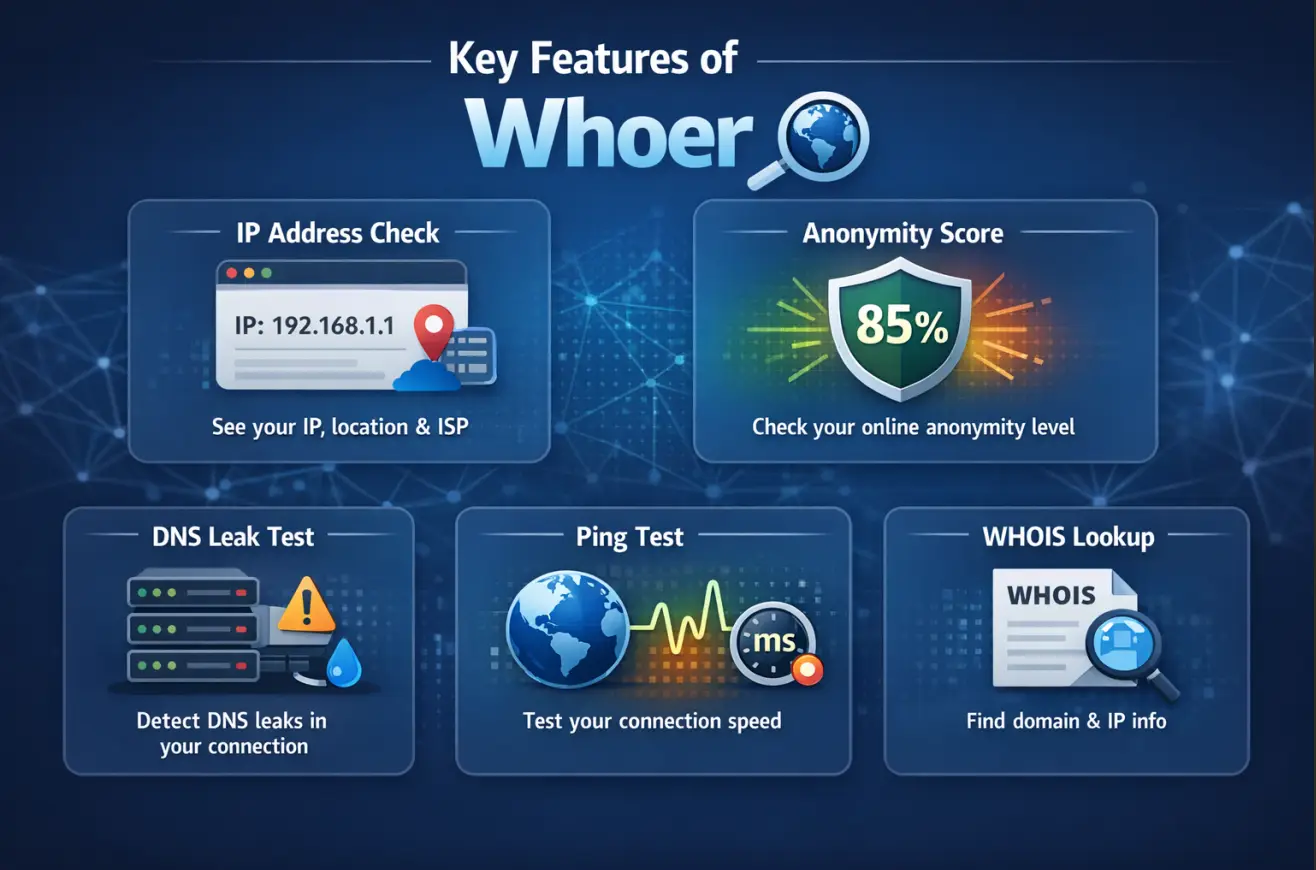
Whoer provides several simple tools that help users understand how their internet connection appears to websites and online services.
- IP Address Check Instantly displays your public IP address along with basic details such as location, ISP, and IP type.
- Anonymity Score Provides an estimate of how consistent your network and browser signals appear, helping identify possible configuration mismatches.
- DNS Leak Test Shows which DNS servers are resolving your requests, helping detect whether your connection is leaking DNS information.
- Ping Test Measures connection latency and response time from different locations to evaluate network stability.
- WHOIS Lookup Allows you to view registration and ownership details associated with a domain or IP address.
How to use Whoer to check IP address and browser fingerprint
Step 1: Go to Whoer.net
Open Whoer.net in your browser. The page will automatically show your current IP address and basic connection details.
Step 2: Review the key results Focus on these fields:
- IP address
- Location (country/city)
- ISP
- IP type (IPv4/IPv6)
- Anonymity score (if shown)
Step 3: Run extra checks if needed (optional) If you want a deeper check, open the DNS Leak Test and Ping sections on Whoer and review the results.
If you have other problems, you can refer to our previous article about common issues with Whoer.
The Role of a Whoer IP address in Modern Cybersecurity Workflows
In professional digital operations—specifically traffic arbitrage, account farming, affiliate marketing, and particIPating in crypto airdrops—verifying network identity is a critical security requirement. An IP address serves as a primary digital "footprint" that reveals data points exposed to server-side heuristics, including geographic location (country/city), Internet Service Provider (ISP), and connection type.
For a Senior Cybersecurity Analyst, a Whoer IP address check acts as a diagnostic baseline. It identifies the data points platforms use to calculate the "entropy" of a user’s profile. If a profile stands out with a unique or inconsistent fingerprint, it is flagged by security filters. By utilizing Whoer to identify these network identifiers before beginning operations, professionals can significantly reduce the risk of account flagging and take full control of their digital identity.
How the Whoer IP address Anonymity Score Works?
Whoer summarizes your setup into an Anonymity Score. You can treat it as a “consistency check” between two things:
- What your IP claims (country/city, ISP/ASN, IP type)
- What your browser/device reveals (time zone, language, geolocation, WebRTC, DNS behavior)
A 100% score usually means your signals look internally consistent for that location. When the score drops, it often means one or more signals don’t match the IP.
Example of a common mismatch:
- IP location: Germany
- System time zone: UTC+5
- Browser language: en-IN
- Result: Whoer flags this because normal Germany traffic rarely looks like that combination.
For multi-account management, this matters because security systems often treat these inconsistencies as risk signals and may increase the account’s risk score accordingly. Even if one mismatch doesn’t cause an instant block, it increases the chance of:
- extra verification (SMS/email checkpoints)
- suspicious login alerts
- account clustering (multiple accounts “looking like the same operator”)
What to fix first:
- Time zone ↔ IP country
- Language/locale ↔ target region
- Geolocation permission behavior ↔ IP location
- WebRTC IP exposure
- DNS routing consistency
How to Reduce DNS and WebRTC Leakage Risks?
Two of the fastest ways to lose points in a Whoer IP address check are DNS leaks and WebRTC leaks mentioned above, because they expose network identity signals that contradict your proxy/IP.
DNS leaks: what they are and why Whoer flags them
A DNS leak happens when your browser’s DNS requests are resolved by a resolver tied to your real network (or an unexpected region), instead of following the proxy’s network path. That can reveal:
- a resolver location that doesn’t match your IP country
- an ISP/resolver brand that contradicts your proxy type
How to validate: Use Whoer’s DNS Leak Test and look for DNS resolvers that are:
- in the same country/region as your proxy IP (or at least consistent with it)
- not obviously tied to your real ISP/location
Practical tips:
- Use a proxy setup that forces DNS through the proxy (or a resolver aligned to the proxy region).
- Keep DNS behavior consistent per account profile (don’t let one account resolve via Germany today and US tomorrow unless that account’s story changes).
WebRTC leaks: the silent local IP exposure
WebRTC can reveal local/private IPs (and sometimes public-facing IP hints) to websites. Even with a high-quality proxy, WebRTC can betray that:
- you’re on an internal LAN range
- your real network fingerprint doesn’t align with the proxy
What clean looks like: In a Whoer IP address check, WebRTC results should not expose anything that conflicts with the proxy identity. Ideally:
- no unexpected local/public IP exposure
- no alternate network path signals
Practical tips:
- Disable WebRTC where possible, or
- Prevent local IP exposure and ensure any visible IP aligns with the proxy’s public IP.
Common Vulnerabilities Detected by a Whoer IP address Scan
A Whoer IP address scan gives you a fast snapshot of the network signals that platforms and security systems often review first:
- Country / City (location consistency)
- ISP / ASN (whether the network looks like a real consumer or a data center route)
- IP type (IPv4 / IPv6)
- Blacklist status (whether the IP has a known bad history)
For baseline infrastructure testing, you can also use two Whoer utilities to catch practical issues early:
- Ping test: helps you confirm latency and stability before you scale traffic-heavy work (for example, dashboards, multi-login workflows, or automation that depends on reliable response times).
- WHOIS lookup: useful when you’re validating domains tied to your infrastructure (ownership, registration details, and whether anything looks suspicious or inconsistent with your operational setup).
How Canvas and Hardware Fingerprinting Actually Creates Link Risk
A clean IP is only the outer layer. Many platforms also compare device-level signals that stay stable even when your IP changes. One of the most common examples is canvas fingerprinting.
Here’s the basic idea:
- A website asks your browser to render a tiny, invisible graphic on a canvas.
- Small differences in GPU behavior, drivers, fonts, and rendering math can produce a slightly different result.
- That result becomes a fingerprint-like identifier that can help platforms recognize the same device over time.
For multi-account workflows, the risk is multiple accounts sharing the same device signature. With DICloak, each profile maintains its own fingerprint configuration, reducing the chance that multiple accounts share identical browser characteristics. In practical terms, this helps you:
- keep profiles separated
- reduce accidental cross-account similarity
- maintain a setup where each profile looks consistent within itself (which is what most risk engines expect)
How to Hide Fingerprints With DICloak?
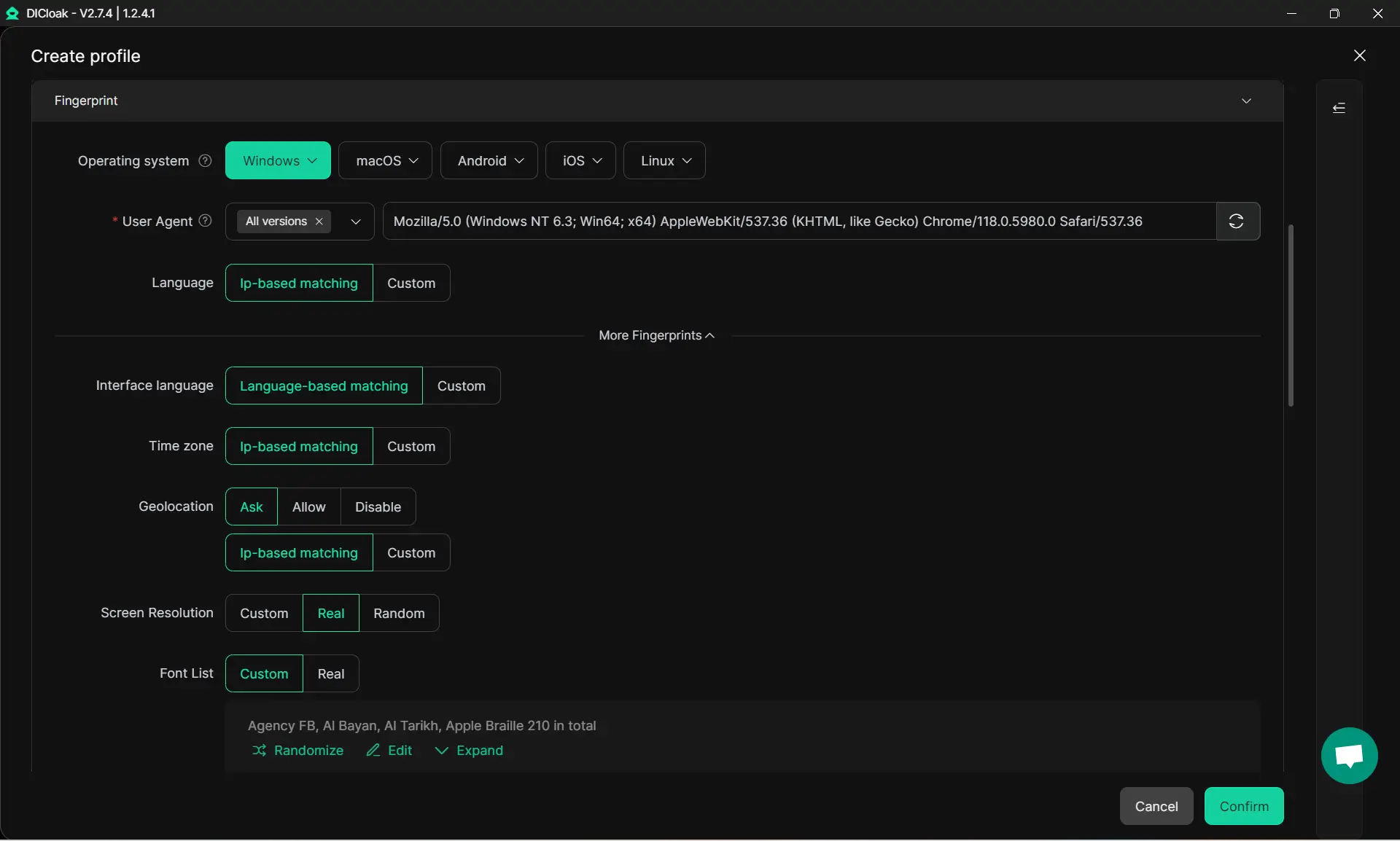
If you run many accounts on one computer, the real risk is not just your IP. With DICloak, you can solve this by letting you operate each account inside an isolated browser profile, while still managing everything from one workspace. Many platforms evaluate browser signals to determine whether a device profile remains consistent over time. These signals can include User-Agent, language, time zone, and other browser-level attributes.
With DICloak, you can configure each browser profile independently. This allows every account to maintain its own profile settings, helping prevent different accounts from sharing identical browser characteristics. This is particularly useful when managing different account groups that require different configurations, such as separate regions or device types.
How to Tackle Multi-Account Workflows With DICloak Profiles
Using Synchronizer for Multi-Window Operations
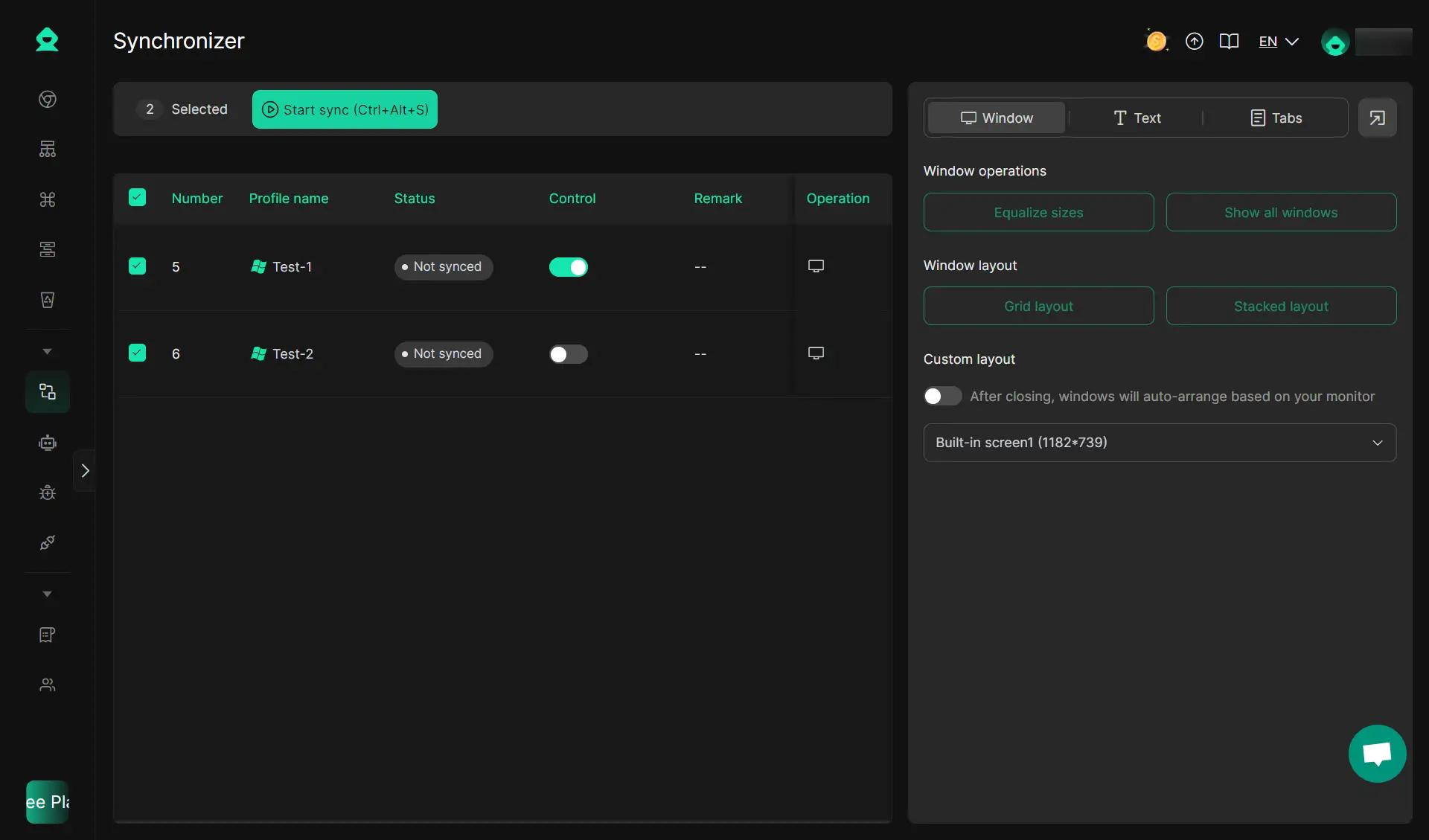
When managing many accounts, repeating the same workflow manually across dozens or hundreds of profiles quickly becomes inefficient. You can use DICloak’s Synchronizer to help you mirror actions from a main window to multiple other profile windows.
This feature helps streamline tasks such as:
- performing identical setup steps across many accounts
- opening the same pages across multiple profiles
- navigating similar workflows simultaneously
Automation via RPA for Repetitive Identity Tasks
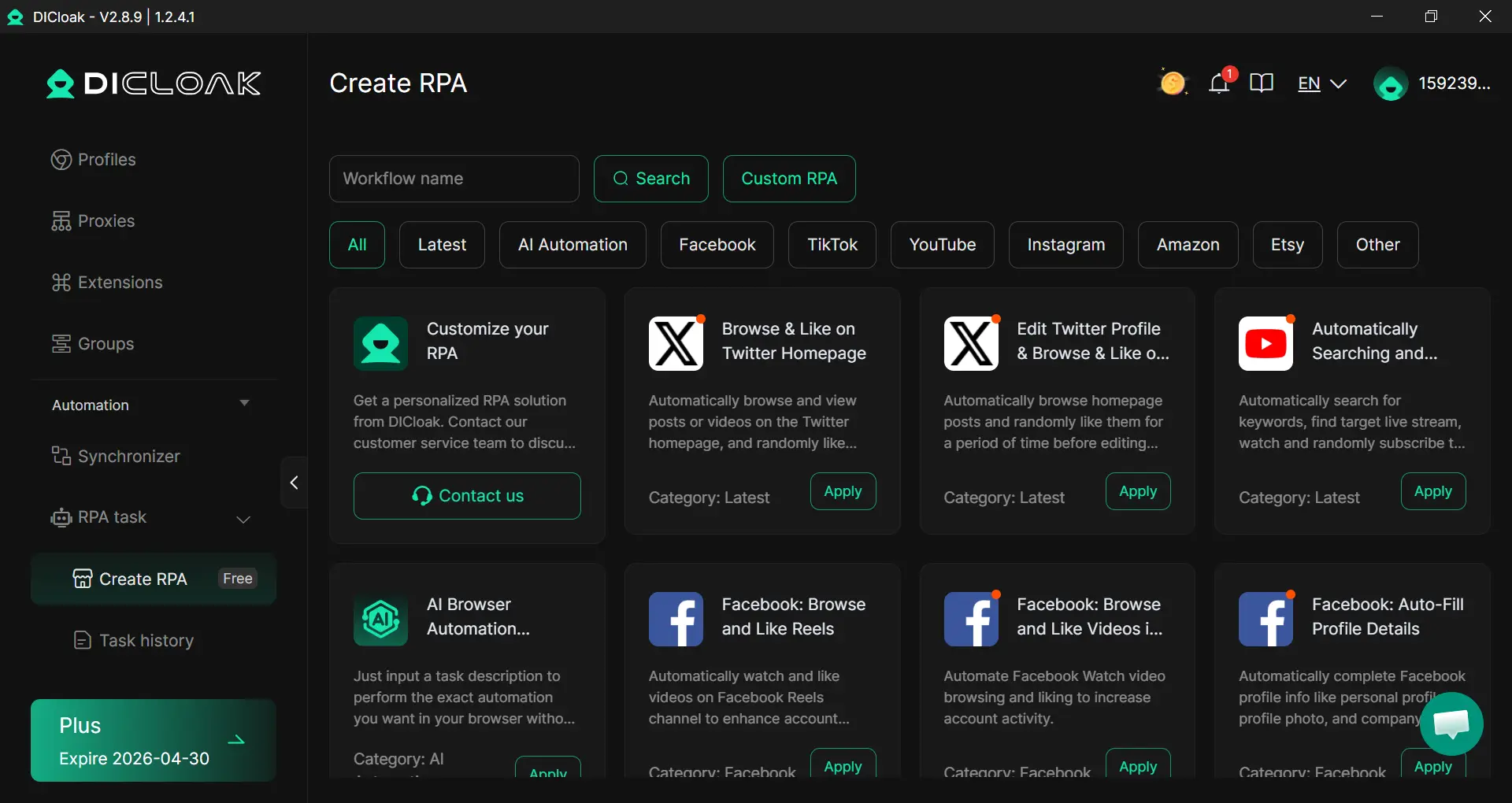
For longer workflows, DICloak also includes RPA (Robotic Process Automation) to help automate repetitive profile tasks. Depending on the workflow, you can configure automation to perform actions such as:
- opening predefined websites within profiles
- running repeated navigation steps
- executing routine account setup actions
Comparative Analysis: Standard Network Isolation vs. DICloak Framework
| Feature |
Standard Methods |
DICloak Framework |
| Account Limit |
Limited by hardware RAM/CPU |
100+ accounts on one device |
| Fingerprint Control |
Shared/Default browser hashes |
Isolated fingerprints |
| Proxy Management |
Manual entry per session |
Bulk creation and management (user-provided proxy) |
| Team Operations |
Manual password sharing |
Advanced permission settings and logs |
| Efficiency |
Manual workflows |
Built-in RPA & Synchronizer |
Objective Analysis: Pros and Cons of DICloak
Pros:
- Reduces the need for multiple physical devices in large multi-account setups.
- Provides configurable browser profiles that can emulate different device.
- Facilitates rapid scaling through bulk profile creation and the Synchronizer tool.
- Chrome-core system ensures compatibility with most modern web heuristics.
Cons:
- Paid plans may be needed for advanced workflows such as RPA automation and higher-volume team or profile management.
- Setup has a learning curve if you want a cleaner, more consistent configuration across many profiles.
FAQs About Whoer IP address and Identity Security
How do I check my IP details?
Visit Whoer.net. The system will automatically detect and display your IP, ISP, geographical location, and current anonymity score. You should also check the "DNS Leak Test" and "Ping" tabs for a full infrastructure assessment.
What is the difference between IP protection and browser fingerprinting?
An IP address is your network-layer identifier. Browser fingerprinting is a more complex, application-layer method used to track you based on unique hardware hashes, canvas rendering, and software configurations.
Can I manage multiple accounts for free?
Free plan is available to test 5 profiles in DICloak, but professional scaling (100+ accounts) requires a paid plan to support the necessary server and database infrastructure.
Is network isolation enough to prevent bans?
While network isolation is a foundational requirement, account longevity also depends on operational behavior and the alignment of system metadata. Isolation mitigates the risk of "linked bans" where one account failure leads to the loss of an entire farm.
Is Whoer safe to use?
Yes, Whoer is generally safe to use for basic IP and connection diagnostics. The tool simply analyzes the network and browser signals your device already exposes when visiting a website, such as your IP address, ISP, and approximate location. It does not require account registration to run.
 Web Proxy Tools
 Free Tools
 Cookie Plugin
 UA Generator
 MAC Address Generator
 IP Generator
 IP Address List
 2FA Code Generator
 World Clock
 Anonymous Check
 WebRTC Leak Test
 UUID Generator
 Free Web Proxy Site
 Proxy Checker
 FB Ad Checker
 AI Web Scraping
 Free SMM Tools
 Twitter Shadowban Checker
 Instagram Name Checker
 UTM Generator
 Username Generator
 AI Hashtag Generator
 LinkedIn Headline Generator
 Social Media Image Resizer