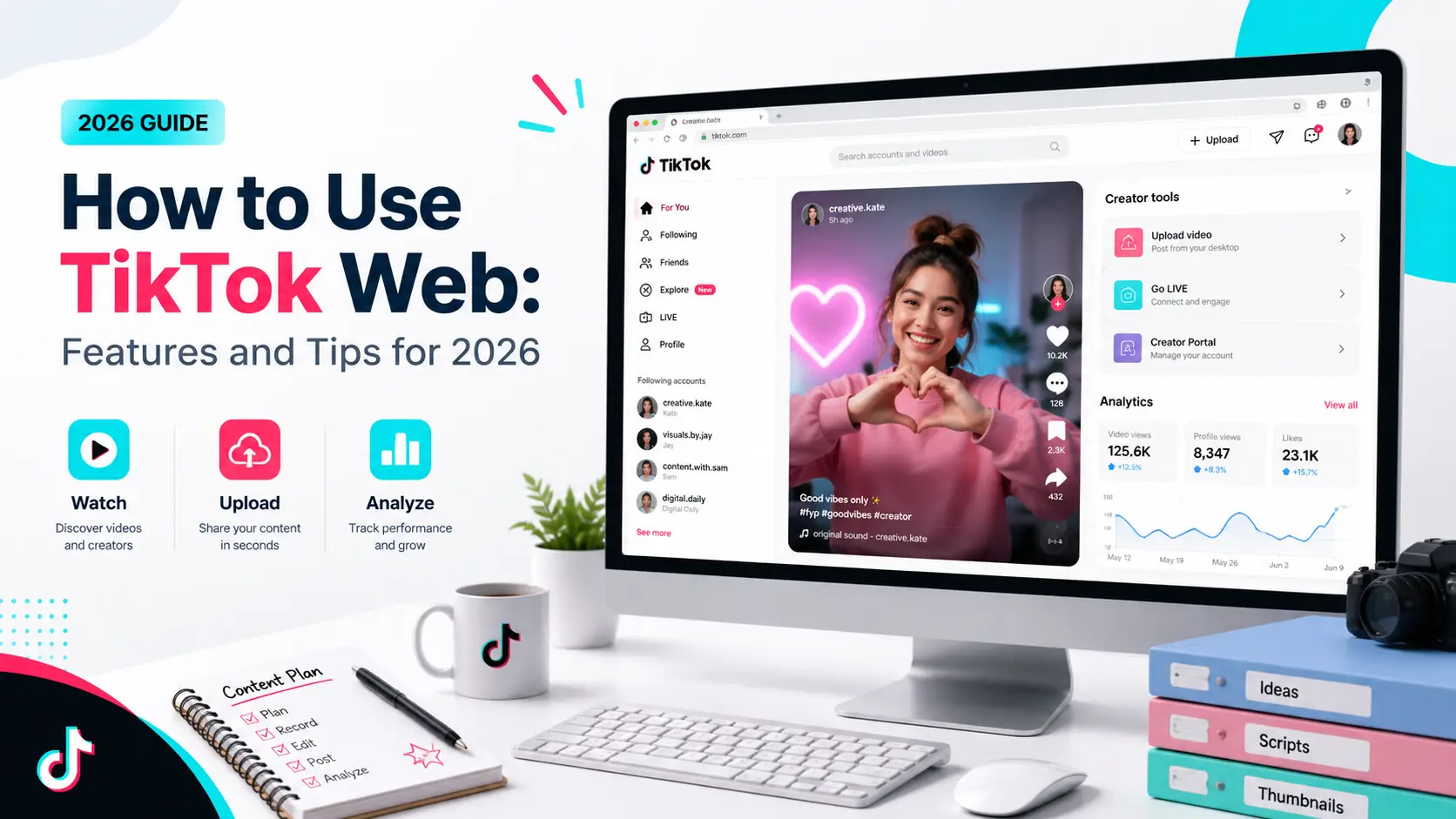
TikTok is not only for mobile users anymore. With TikTok Web, you can watch videos, log in to your account, upload content, and check creator tools from a browser. TikTok also says its Studio tools are available on both the mobile app and web browser, which makes desktop use more useful for creators and teams.
For example, a creator may use the app to record quick clips, but use tik tok web on a laptop to upload a finished video, review analytics, or manage content with a larger screen. TikTok’s Help Center also includes web-related upload and analytics support, so the browser version is now part of many normal creator workflows.
This guide will show you how to use TikTok Web in 2026, what features it supports, when it works better than the app, and how to fix common browser issues. You will also learn simple tips for login safety, privacy, multiple accounts, and smoother TikTok Web account management.
Why Use TikTok Web Instead of the Mobile App?
After you know what TikTok Web can do, the next question is simple: why use it when the mobile app already exists? The answer depends on your work style. The app is still best for quick recording, fast scrolling, and mobile-first editing. But the TikTok web version can be easier when you need a larger screen, a keyboard, or a desktop workflow.
What features are available on TikTok Web?
TikTok Web lets users watch videos, search content, log in, upload videos, and use creator tools from a browser. TikTok also notes that TikTok Studio tools are available through the mobile app and web browser, and creators can use TikTok Studio on desktop for tools such as uploading, editing, posting, and analytics.
For example, a creator may finish a video in CapCut or Premiere Pro on a laptop. Instead of moving the file back to a phone, they can use TikTok desktop to upload the video, write the caption with a full keyboard, check details, and manage the post from one place. This is one reason many creators choose to use TikTok on browser for final publishing work.
How does TikTok Web compare in usability to the app?
The TikTok Web vs app choice depends on the task. The app feels faster for recording, using effects, adding sounds, and browsing on the go. It is built for mobile behavior. You can open it, scroll, record, and post quickly.
TikTok on PC feels better for tasks that need focus. A larger screen helps when you review videos, check comments, compare content ideas, or look at analytics. TikTok says Studio includes reporting and analytics features to help creators understand performance, which makes desktop use helpful for planning content.
When is TikTok Web more convenient than the app?
A TikTok browser workflow is useful when you already work on a computer. For example, a social media manager may keep product photos, video files, caption drafts, and campaign notes on a laptop. In that case, using TikTok Web can save time because the whole workflow stays on one device.
It can also be a good TikTok mobile app alternative for simple tasks. You may want to watch videos without installing the app, check a creator page from a shared work computer, or upload a polished video from desktop. The main point is not that TikTok Web replaces the app. It gives creators, sellers, and marketers another way to manage TikTok with more space and control.
How to Sign Up and Log In on TikTok Web
Once you decide to use TikTok on a browser, the next step is account access. The process is simple, but it is worth doing carefully. A safe TikTok Web login helps protect your account, especially if you use TikTok on a laptop, work computer, or shared device.
What are the steps to create a TikTok account on the web?
To create TikTok account online, go to the official TikTok website and open the sign-up or login area. TikTok lets users sign up or log in with options like phone, email, username, or connected accounts, depending on what is available in your region. TikTok’s Help Center also keeps a full section for login and troubleshooting topics, including password reset, email and phone number issues, and account recovery.
For example, a small business owner may create a TikTok web account from a laptop because product photos, video files, and caption notes are already saved there. This makes the setup easier than moving files between phone and desktop.
How to log in securely on TikTok Web?
For TikTok login on browser, use the official TikTok login page only. Avoid login links from random emails, social messages, or third-party sites. A secure TikTok login starts with a strong password and a trusted browser.
If you use a shared computer, do not save your password in the browser. Log out when you finish. Also clear the session if the device is not yours. This matters for creators and social media teams because one saved login can expose drafts, messages, analytics, and account settings.
What to do if you forget your TikTok Web password?
If you forget your password, use TikTok’s official TikTok password reset page or the reset option in the login flow. TikTok says that if you joined with another social media account, you may need to reset the password through that platform instead.
A common TikTok web login problem happens when users try the wrong email or phone number. For example, a creator may have signed up with Google, but later tries to reset the password with an email login. If the reset does not work, check which method you used when creating the account first. This small step can save a lot of time.
Advanced Features on TikTok Web You Should Know

After you sign in, TikTok Web becomes more than a place to watch videos. It can also help creators upload content, check performance, and manage posting work on a larger screen. This is useful when your videos, captions, and campaign notes are already on your computer.
How to upload videos directly from TikTok Web?
One of the most useful TikTok Web features is desktop uploading. You can use TikTok Web upload from your browser to post a video without moving the file to your phone first. TikTok’s Help Center notes that when you upload a video on a web browser, the full video is uploaded. If you want to change the video length, TikTok says you need to upload it in the app instead.
For example, a creator may edit a product review on a laptop, save the final file, and then upload videos on TikTok Web. This is easier than sending the video to a phone, checking the file again, and uploading from the app. A TikTok desktop upload flow is also helpful for teams that keep content files in folders or cloud drives.
Can you edit videos on TikTok Web?
You can do some publishing work from the web, but the TikTok web video editor is not the same as the full mobile app editing flow. TikTok says creator tools are available on the mobile app and web browser, while the TikTok Studio app offers a more complete experience for creators.
This means TikTok Web is better for finished videos. For example, a brand may edit the video in CapCut, Premiere Pro, or another tool first. Then the team can use TikTok Web to upload the final version, write the caption, choose basic post settings, and manage the post on desktop. For heavy edits, effects, sounds, or fast mobile-style changes, the app is still usually better.
What analytics tools are available on TikTok Web?
Creators can also use web tools to review performance. TikTok Studio supports creator tools in the app and web browser, with features such as uploading, managing posts, and viewing analytics. TikTok also says analytics can be accessed from the Upload area through the sidebar menu.
This makes TikTok Web analytics useful for planning. For example, a social media manager can open the TikTok analytics dashboard on a laptop, compare recent videos, check which topics brought more views, and then update the next content plan. If you need to manage TikTok content on desktop, TikTok Web can make this work feel more organized than doing everything on a small phone screen.
How TikTok Web Works on Different Devices
After learning the main creator tools, it helps to know how TikTok Web feels on each device. The web version can work well on a computer, but the experience may change by screen size, browser version, and whether the device is private or shared.
Is TikTok Web optimized for tablets and laptops?
TikTok Web on laptop is usually the most useful desktop setup. A laptop gives you a bigger screen, a keyboard, and easy access to saved video files. This is helpful for creators who edit videos on desktop software, then upload and manage posts through TikTok Studio on the web. TikTok says Studio tools are available through the web browser, with features such as post management and analytics.
TikTok Web on tablet can also work, but it may feel different from the app. A tablet browser gives you more screen space than a phone, but some actions may still feel smoother in the mobile app. For example, watching videos may feel fine on a tablet browser, while recording, editing, and using effects may still be easier in the app.
Can you use TikTok Web on older browsers?
You can use TikTok Web on browser, but TikTok Web compatibility depends on the browser and device. TikTok Web often works best on updated browsers because video playback, login pages, uploads, and creator tools need modern web support.
If you try TikTok Web on older browsers, you may see loading errors, login problems, or videos that do not play well. A simple fix is to update the browser, try another browser, or clear old site data. Browser cache can store old files, and clearing it often helps reset how a site loads.
Try updating your browser first. Then open TikTok Web in a clean tab and test the upload page again. If it still freezes, try another updated browser to see if the issue is browser-related.
What to check before using TikTok Web on shared devices?
Using TikTok Web on shared device needs extra care. A school computer, office PC, library computer, or shared family laptop may save cookies, passwords, and login sessions. This can expose your TikTok account if you forget to log out.
Before using TikTok on a shared device, check three things. First, use the official TikTok site. Second, avoid saving your password in the browser. Third, log out when you finish. TikTok’s own business help content explains that browsers use cookies to remember login information and preferences, so shared devices should be treated carefully. (TikTok For Business)
For most creators, the best TikTok desktop experience comes from a personal laptop or trusted work computer. It gives you more control over files, logins, browser settings, and privacy.
Managing Multiple Accounts on TikTok Web
After testing TikTok Web on different devices, many creators ask the next practical question: can you manage more than one account from a browser? The answer depends on how you use those accounts. TikTok allows people to set up multiple accounts for authentic creative expression, but its rules warn against spam, impersonation, fake engagement, or using accounts to avoid enforcement.
Can you switch accounts easily on TikTok Web?
TikTok account switching is usually easier in the mobile app than on the web. The app is built for fast switching between profiles. On a browser, users often need to log out and log back in, use another browser profile, or use a separate workspace for each account.
For example, a creator may use one account for personal videos and another for a small shop. If they want to use multiple TikTok accounts on web, opening both in the same browser can get messy. Cookies, saved login sessions, and browser history may overlap. For basic use, one account in one browser is simple. For serious TikTok account management, separate browser spaces are cleaner.
What are the risks of managing multiple accounts?
The main risk is not just having more than one account. The risk is using them in a way that looks spammy, misleading, or hard to trust. TikTok’s guidelines say users may create multiple accounts for authentic expression, but they should not use accounts for deception, spam, fake engagement, bulk automation, or to get around enforcement. (TikTok)
For example, a brand may run one account for product demos and another for customer stories. That is a normal TikTok multi account use case. But if both accounts post the same video many times, comment on each other, or push the same link in a spam-like way, the behavior can look risky. This is why TikTok Web multiple accounts should be managed with clear roles, real content, and steady posting habits.
How to keep your accounts secure while using TikTok Web?
Good TikTok account security starts with simple habits. Use a strong password. Add a phone number and email as backup login methods. TikTok also recommends 2-Step Verification to add extra protection when logging in from an unfamiliar device.
If you manage several accounts, use separate TikTok browser profiles instead of mixing every login in one browser. This helps keep cookies, sessions, and saved data apart. For example, a social media team can keep one browser profile for a brand account, another for a creator account, and another for testing content ideas. This makes daily work easier and lowers the chance of logging into the wrong account or posting from the wrong profile.
Privacy Concerns When Using TikTok Web
After managing more than one account, privacy becomes the next thing to check. TikTok Web privacy is not only about what you post. It also includes your login session, browser cookies, device data, account settings, and how much personal information your account shares with others.
What data does TikTok Web collect from users?
TikTok’s Privacy Policy says it may collect information you provide, content you create, usage data, device information, location-related data, cookies, and information from partners. It also says users may control some cookie-related data through browser settings. This makes TikTok data collection important to understand when you use TikTok from a browser.
For example, if you watch videos, search topics, upload content, or log in from a desktop browser, TikTok may use that activity to support recommendations, safety, ads, and account features. This does not mean every user faces the same risk. But it does mean TikTok browser privacy matters, especially for creators, marketers, and teams that use TikTok Web often.
How to adjust privacy settings on TikTok Web?
Your TikTok privacy settings help control who can see your account and interact with your content. TikTok’s Help Center includes privacy controls for public or private accounts, comments, direct messages, Duet, Stitch, downloads, suggested accounts, activity status, profile view history, and related settings.
A simple example is a creator who uses TikTok Web to upload business content but does not want every video to allow downloads or comments. Before posting, they should review TikTok account privacy and post-level settings. They can also check TikTok data settings, such as ad and off-TikTok data controls, from TikTok’s account and privacy area.
What are the risks of using TikTok Web in public spaces?
The biggest TikTok shared device risks come from saved sessions, saved passwords, cookies, and browser history. TikTok’s business help content explains that browsers use cookies to remember login information and preferences. It also notes that clearing cookies and cache can reset sessions, improve site function, and remove stored third-party data.
So if you use TikTok on public computer, do not save your password. Log out when you finish. Avoid uploading private drafts or checking sensitive account settings on a library, school, hotel, or shared office device. For better TikTok Web security, use a trusted device, keep your browser updated, and clear TikTok site data if you used a device that other people can access.
Common Issues with TikTok Web and How to Fix Them
After checking privacy and shared-device risks, it is also useful to know how to handle common browser problems. TikTok Web not working does not always mean your account is broken. In many cases, the issue comes from the browser, cache, cookies, connection, or a temporary TikTok service problem.
Why can’t TikTok Web load on your browser?
If TikTok Web not loading appears as a blank page, slow page, or repeated TikTok Web error, start with the simple checks first. Test your internet connection. Then open TikTok Web in a clean tab. If the page still fails, update your browser and try again.
A common TikTok browser issue is old cache or broken cookies. TikTok’s business help page explains that browsers use cookies to remember login information and preferences. It also notes that clearing cookies and cache can reset sessions and help with site function. This is why a TikTok web cache problem can sometimes cause loading or login loops. (TikTok For Business)
How to resolve playback issues on TikTok Web?
If you see TikTok Web playback issues, the problem may be your connection, browser, extensions, or saved site data. For example, if the homepage loads but the video player stays black, the browser may be blocking scripts, autoplay, or media files.
Try a simple order. Refresh the page first. Then test another video. If the TikTok video not playing on browser problem continues, clear TikTok site data, update your browser, and turn off extensions that block ads, scripts, or trackers for a short test. If videos work after that, one extension or old browser data was likely causing the issue.
What to do if TikTok Web keeps logging you out?
If TikTok Web keeps logging out, cookies are often part of the problem. Cookies help sites remember login sessions, so blocked or cleared cookies can force repeated logins. This can happen on public computers, strict privacy settings, or browsers that clear site data when closed.
For a personal device, allow TikTok site cookies, avoid clearing site data too often, and keep your browser updated. For a shared device, it is safer to log out on purpose and not save your password. If the issue continues after basic fixes, use TikTok’s official “Report a problem” flow and include details like your device, browser, screenshots, and what steps you already tried. TikTok’s Help Center explains that users can report a problem and ask for more help if suggested steps do not solve the issue.
To fix TikTok Web problems, use this simple order: check the connection, refresh the page, update the browser, clear TikTok cache and cookies, test extensions, then report the issue if it still happens. This keeps troubleshooting simple and avoids changing too many settings at once.
Enhance TikTok Web Account Management with DICloak
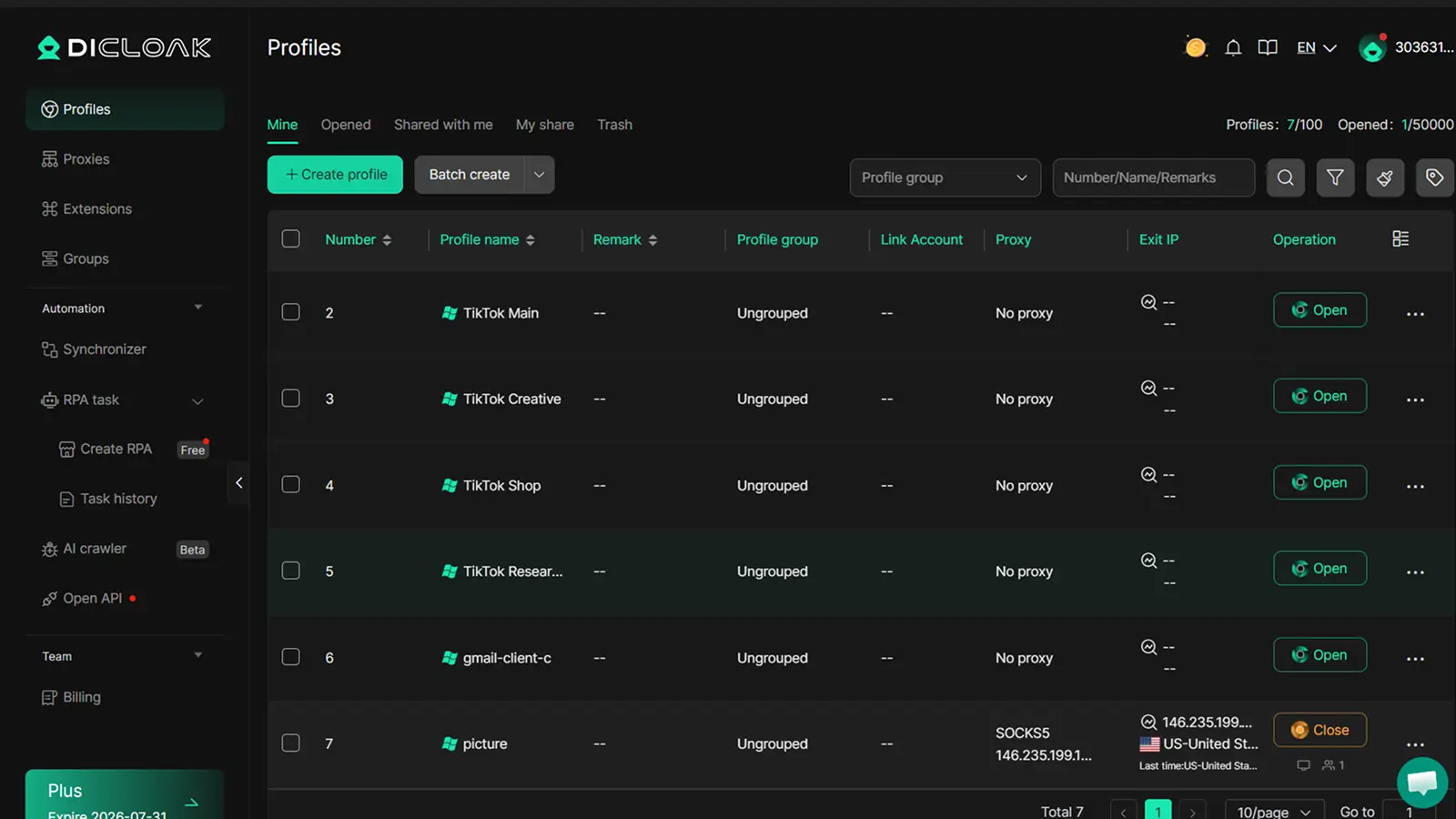
After using TikTok Web for uploads, analytics, and daily account work, some creators may need a cleaner way to separate different accounts. This is where DICloak can fit naturally. Users can create separate browser profiles for TikTok accounts, so each profile keeps its own cookies, login status, fingerprint settings, and custom proxy configuration.
How DICloak Simplifies Managing Multiple TikTok Accounts
You can use one DICloak profile for each TikTok account. One profile may handle brand uploads, another may check comments, and another may be used for competitor research. This helps reduce account mix-ups when working on TikTok Web.
Using DICloak to Secure TikTok Web Profiles on Shared Devices
For teams, account sharing is easier when members do not need raw passwords. With assigned browser profiles, team members can access the TikTok Web profiles they need while the account owner keeps access more controlled.
Benefits of Custom Proxy Settings and Light Automation for TikTok Web Users
Users can configure custom proxy settings for different profiles to keep account environments more consistent. For simple repeated work, tools like Synchronizer or RPA can help open pages, organize research, or repeat basic steps across selected profiles. These tools should support real content work, not replace natural account behavior.
Frequently Asked Questions
Is Tik Tok Web free to use?
Yes, Tik Tok Web is free to use. You can open TikTok in a browser, watch videos, search content, and log in to your account without paying. Some creator or business tools may need an account login, but basic TikTok Web access is free.
Can you watch live streams on Tik Tok Web?
Yes, you can watch some TikTok live streams on Tik Tok Web. The web version is useful when you want a larger screen or do not want to use your phone. However, some live features may work better in the mobile app, especially actions linked to mobile controls or app-only tools.
Why is Tik Tok Web slower than the app?
Tik Tok Web may feel slower because it depends on your browser, internet speed, device performance, cache, and extensions. For example, if your browser has too many open tabs or old site data, videos may load slowly. You can try updating your browser, clearing TikTok site data, and closing extra tabs.
How do you report issues on Tik Tok Web?
If Tik Tok Web is not loading, keeps logging you out, or has playback issues, you can use TikTok’s official report feature. Add clear details, such as your device type, browser, screenshots, and what you tried before reporting. This helps TikTok understand the problem faster.
Can you download videos from Tik Tok Web
Some videos on Tik Tok Web may show a download option, but it depends on the creator’s settings and TikTok’s rules in your region. If there is no download button, the creator may have turned downloads off. Always respect creator rights and avoid using third-party download tools that may be unsafe or against platform rules.
Managing TikTok Web accounts well requires more than logging in from a browser. You need clean profile separation, stable login habits, and a workflow that keeps accounts, sessions, and team access organized. With DICloak, users can create separate browser profiles for different TikTok accounts, use custom proxy settings, and handle repeated tasks with tools like Synchronizer and RPA. Try DICloak For free
 Web Proxy Tools
 Free Tools
 Cookie Plugin
 UA Generator
 MAC Address Generator
 IP Generator
 IP Address List
 2FA Code Generator
 World Clock
 Anonymous Check
 WebRTC Leak Test
 UUID Generator
 Free Web Proxy Site
 Proxy Checker
 FB Ad Checker
 AI Web Scraping
 Free SMM Tools
 Twitter Shadowban Checker
 Instagram Name Checker
 UTM Generator
 Username Generator
 AI Hashtag Generator
 LinkedIn Headline Generator
 Social Media Image Resizer