What Is Pinterest and How Does It Work?
Pinterest is a visual discovery platform where people search for ideas, save useful content, plan projects, and discover products.
If you are learning how to use Pinterest, the basic process is simple: find an idea, save it as a Pin, organize it on a Board, and return to it later. Pinterest also learns from your activity and recommends related content.
Pins, Boards, and Profiles
A Pin is a piece of visual content, usually an image or video with a title, description, and sometimes a link. Users can save Pins or click them to learn more.
A Board is used to organize Pins by topic. For example:
- Small Bedroom Ideas
- Easy Dinner Recipes
- Travel Inspiration
Boards can be public, private, or shared with collaborators.
Your Pinterest Profile brings your Pins and Boards together. For businesses, it can also work like a visual storefront that helps people discover products, services, or content.
How Pinterest Search and Recommendations Work
Pinterest works partly like a search engine. Users search for topics such as “small kitchen ideas” or “easy meal prep,” and Pinterest shows relevant Pins and Boards.
This is important for anyone learning how to use Pinterest for marketing because users often search with a clear goal or problem in mind. A useful Pin can appear in search even if the user does not follow the account.
Pinterest also personalizes the Home feed based on searches, saved Pins, Boards, followed accounts, and other activity.
For marketers, this means clear keywords, useful images, and well-organized Boards can help content stay discoverable over time.
How Is Pinterest Different from Other Social Media Platforms?
Pinterest is more focused on discovery and planning than social interaction.
On platforms like Instagram or TikTok, users often follow people and react to recent posts. On Pinterest, users are more likely to search for ideas they want to use later, such as recipes, outfits, home decor, travel plans, or products.
That difference in intent matters.
Pinterest is less about posting updates for followers and more about helping people find ideas they are already looking for.
How to Set Up and Use a Pinterest Account
Pinterest offers both personal and business accounts.
A personal account is best for saving ideas, following interests, and organizing personal Boards.
A Pinterest business account is better if you want to promote a website, brand, product, or service. It includes tools such as Pinterest Analytics, ads, and audience insights.
A simple rule is:
- Choose a personal account for hobbies and personal planning.
- Choose a business account for traffic, leads, sales, or brand growth.
You can also convert a personal account into a business account later without losing your existing Pins or followers.
How to Create a Pinterest Account
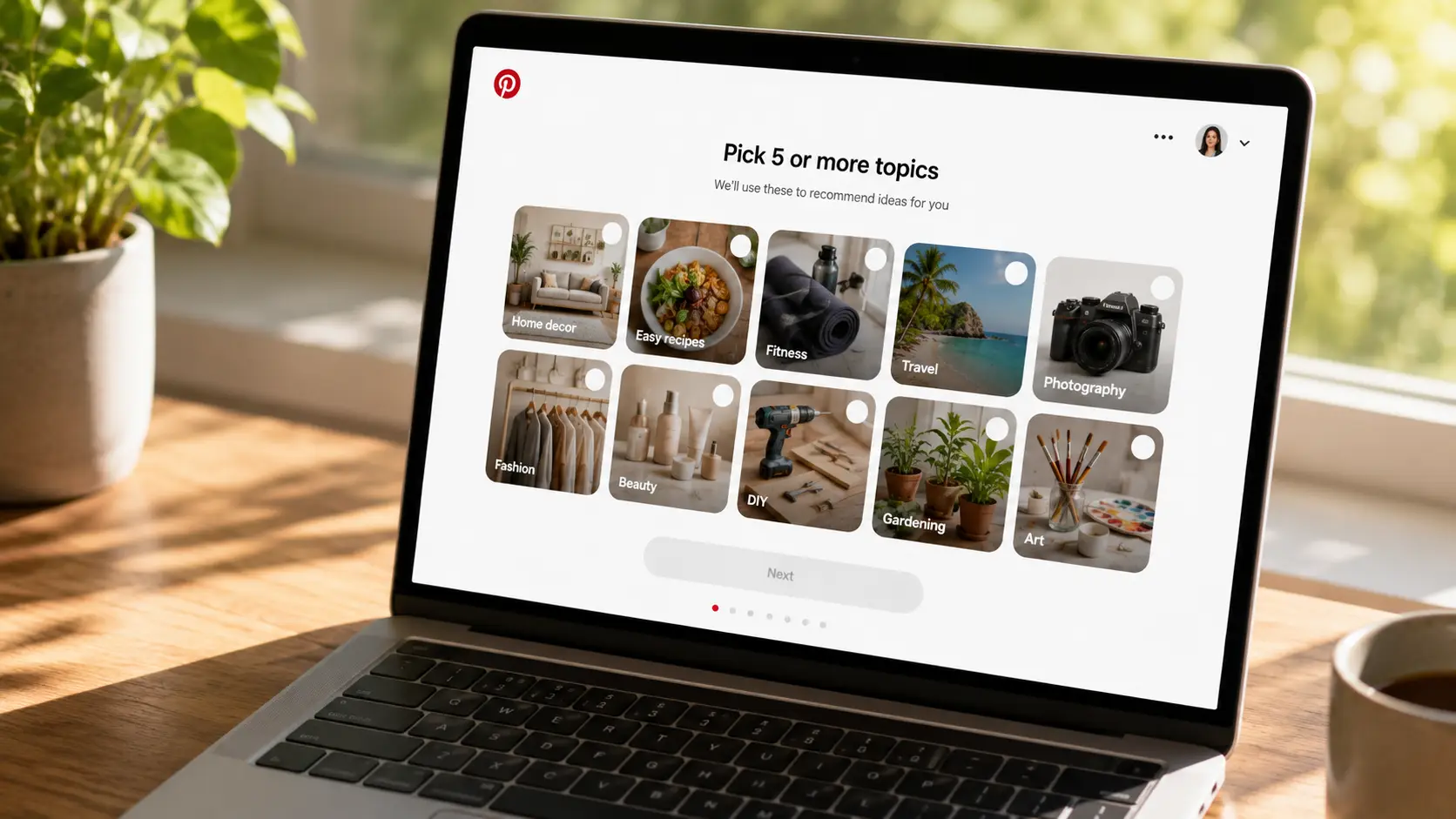
To create a personal account, sign up with your email, password, age, country or region, and a few interests. Pinterest uses those interests to personalize your first Home feed.
For a business account, you can either create a new account or convert an existing personal account.
If you already have useful Pins and followers, converting may be easier. If you want to keep personal and business activity separate, creating a new business account is usually the better choice.
How to Optimize Your Pinterest Profile
Creating an account is only the first step. Your profile should also make it clear who you are and what people can expect from your content.
Start with your profile name.
For a personal account, this may simply be your real name. For a business account, use the business or brand name people are likely to recognize.
Next, write a short bio. Pinterest currently allows up to 500 characters in the profile bio. The goal is not to fill every character. A clear sentence is usually more useful than a long description.
For example, this is vague:
Sharing ideas, inspiration, and things we love.
This is more useful:
Easy home office ideas, small-space organization tips, and affordable desk setup inspiration.
The second version tells both users and Pinterest what the account is about.
Your profile photo should also be easy to recognize. A creator may use a clear headshot. A business should usually use a simple brand logo that still looks readable at a small size.
Business users can also add a profile cover image. Pinterest recommends a horizontal image with a 16:9 aspect ratio and a minimum size of 800 × 450 pixels.
Then look at your Boards.
If your profile is about healthy cooking, Boards with names such as Easy Breakfast Recipes, High-Protein Lunch Ideas, and Healthy Meal Prep are much clearer than names such as Food Stuff or Things to Try.
Clear Board names help people understand your profile quickly. They also make your content easier to organize as you publish more Pins.
For a business, profile optimization should always match the main goal. If you sell handmade jewelry, your profile should not look like a random collection of unrelated interests. Your name, bio, Boards, and Pins should all point in the same direction.
That does not mean every Pin needs to promote a product. It means the profile should feel consistent.
A strong Pinterest profile answers three questions quickly:
Who is this account for?
What type of content will it share?
Why should someone save or follow this content?
Getting those basics right makes the next part of learning how to use Pinterest much easier, because every Pin and Board you create will have a clear place in the account.
How to Create, Save, and Organize Pins on Pinterest
Once your Pinterest account is ready, Pins and Boards become the tools you will use most. A Pin holds an idea or piece of content. A Board gives that Pin a place to live. Learning how to use both together keeps your account useful instead of turning it into a large collection of random images.
This also matters if you use Pinterest for business. A clear Pin can help someone discover your content, while a well-organized Board makes it easier for them to explore related ideas on your profile.
How to Create and Save Pins
There are two basic actions beginners should understand: creating your own Pins and saving Pins you discover.
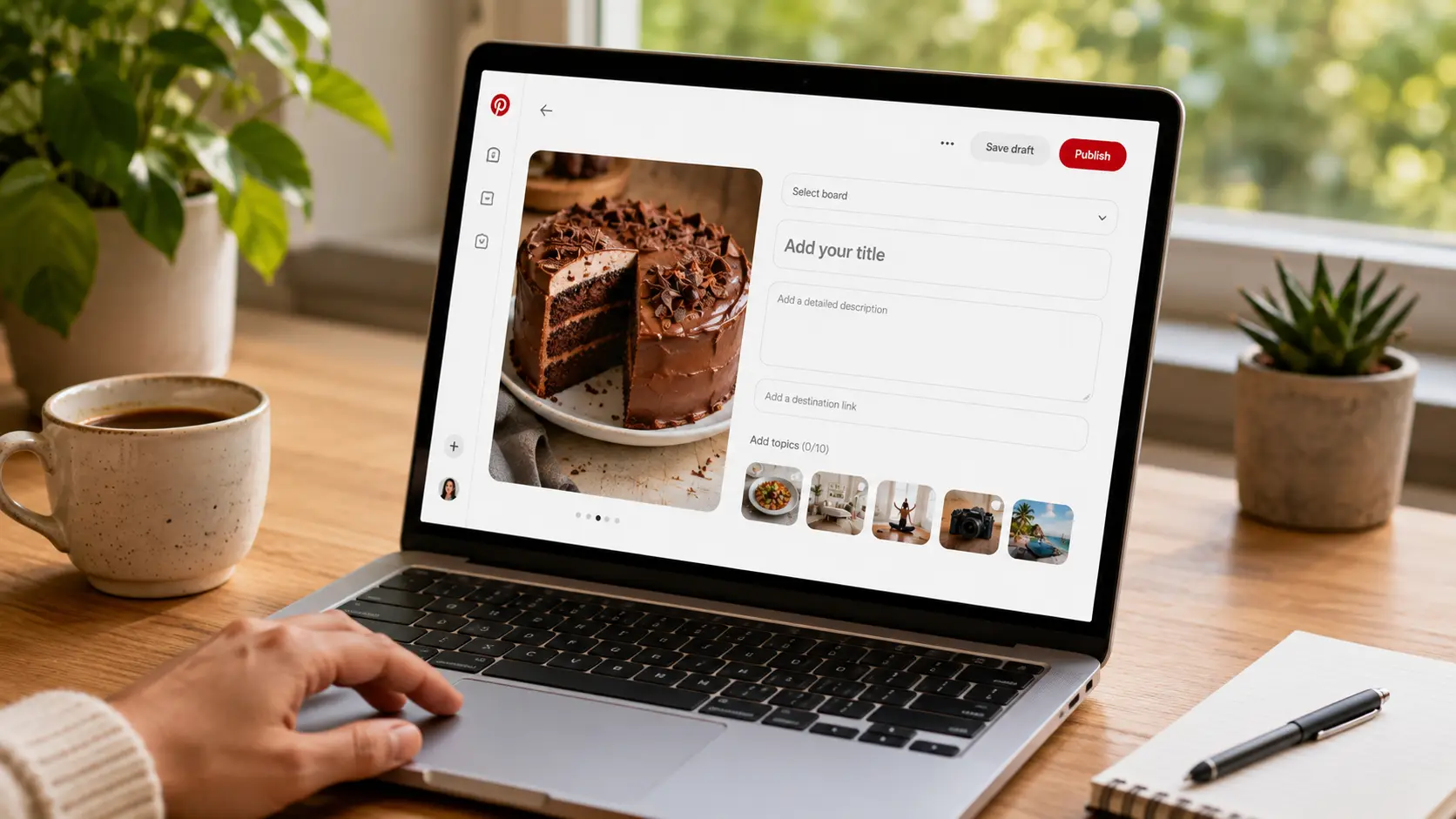
To create a Pin, select the option to create a new Pin and upload an image or video. You can then add a title, description, destination link, and Board. Pinterest also lets you tag up to 10 related topics. Business accounts can schedule a Pin up to 30 days in advance.
The destination link is especially important for businesses. It gives people somewhere to go after they become interested in the Pin.
For example, imagine you run a small baking blog and publish a guide called “Easy Chocolate Cake for Beginners.” Instead of simply uploading a photo of the cake, you could create a Pin with:
Title: Easy Chocolate Cake Recipe for Beginners Description: A simple chocolate cake recipe made with basic ingredients. Great for birthdays or an easy weekend dessert. Link: Your full chocolate cake recipe
The Pin gives the user a quick idea of what they will get. The link lets them continue to the full recipe.
You can also save content you discover while browsing Pinterest. Open a Pin, select Save, and choose the Board where you want to keep it. You can create a new Board at the same time if none of your existing Boards fit.
Pinterest also supports saving content from other websites. You can create a Pin from a website URL or use the Pinterest Save Extension in a browser.
This can be useful when researching a project. If you are planning a home office, for example, you might save a desk from one store, a lighting idea from a design blog, and a color palette from another website. Pinterest lets you bring those ideas together instead of keeping dozens of browser tabs open.
One practical rule helps here: save a Pin because it belongs somewhere, not just because it looks good. Choosing the right Board when you save it will make your Pinterest account much easier to use later.
How to Create and Organize Pinterest Boards
Boards are collections used to organize your Pins. You can create a Board directly from your account or while saving a Pin. Pinterest currently supports public, private, and group Boards.
Start by creating Boards around clear topics.
If you are using Pinterest to plan a trip to Japan, for example, you could create:
- Tokyo Food
- Kyoto Hotels
- Japan Travel Tips
- Places to Visit in Osaka
That is much more useful than saving everything to one Board called Japan.
The same idea applies to a business account. A skincare brand could use Boards such as Dry Skin Tips, Morning Skincare Routine, and Sensitive Skin Care. Each Board serves a clear purpose and gives visitors an easy way to explore related Pins.
Do not create too many Boards before you have content for them, though. Ten empty Boards are less useful than three focused Boards with relevant Pins.
When a Board becomes large, you can divide it into sections. Pinterest allows you to create sections and move existing Pins into them.
For example, a Board called Small Apartment Ideas might eventually contain sections for:
Living Room Bedroom Kitchen Storage
Pinterest also lets you reorder Pins and sections, so you can adjust the structure as your collection grows.
Think of a Board as a folder and sections as smaller folders inside it. You do not need a complex system on day one. Add more structure only when it makes your Pins easier to find.
How to Write Pin Titles and Descriptions
A strong image may catch someone's eye, but the text around the Pin helps explain what the content is actually about.
When you create a Pin, Pinterest provides fields for a title and description. You can also add related topics to help connect the Pin with similar ideas.
The best approach is to write for people first while using clear words that describe the content.
Suppose you publish a Pin about organizing a small bedroom.
A title like:
My Favorite Room Tips
does not tell a new viewer very much.
A clearer title would be:
7 Small Bedroom Storage Ideas for More Space
Now the user immediately knows what the Pin offers.
The description can add useful context:
Need more storage in a small bedroom? These seven ideas use under-bed space, wall shelves, and simple organizers to help keep a small room tidy.
Notice that phrases such as small bedroom, storage ideas, and small room appear naturally. There is no need to repeat the same keyword again and again.
This is important when learning how to use Pinterest for discovery. Pinterest users often search with specific needs. A person may search for “small balcony garden ideas,” “summer wedding guest dress,” or “easy high-protein breakfast.” Clear titles and descriptions help make the topic of your Pin easier to understand.
Avoid descriptions that are just a string of keywords, such as:
bedroom ideas, bedroom decor, small bedroom, room ideas, bedroom storage, small room
That may contain relevant terms, but it is not useful writing. A natural description that explains the value of the Pin is better for the reader.
For business Pins, also make sure the promise in the Pin matches the destination page. If a Pin says “10 Beginner Yoga Exercises,” the link should take the user to that content, not to an unrelated homepage.
How to Share Pins and Boards
Saving content is useful when you are collecting ideas for yourself. Sharing becomes useful when another person needs to see or work with those ideas.
Pinterest lets you send Pins, Boards, and Profiles to other people on Pinterest. Depending on the device and feature, you can also copy a link or share content through other apps and social networks. For example, imagine you and a friend are planning a wedding. Instead of sending 20 separate screenshots, you could create a Wedding Decoration Ideas Board and share it with them.
If you want both people to contribute, a group Board is more useful. The Board owner can invite collaborators, and invited members can add and organize Pins.
This also works in professional settings. A small marketing team could use a shared Board to collect campaign inspiration. A designer could add visual examples, a content manager could add competitor ideas, and other team members could review everything in one place.
The key is to choose the right action for the situation. Save when you want to keep an idea. Share when someone only needs to see it. Use a group Board when several people need to build and organize the collection together.
How to Use Pinterest for Business and Marketing
Pinterest becomes much more useful when you stop treating it like a place to simply post pictures. People often come to Pinterest while looking for ideas, products, and solutions. Pinterest says the number one reason people use its platform is to find new products and brands. That creates an opportunity for businesses. A useful Pin can introduce someone to your brand while they are already researching what to buy or do. You do not need a huge follower count first. The more important goal is to create content that matches what your target audience is looking for.
How to Use Pinterest to Promote Products and Content
The first step is to use a Pinterest business account. It is free and gives you access to tools such as Analytics and advertising. Pinterest also recommends creating Pins with images or videos that show your ideas and products.
But promoting a product does not mean every Pin should look like an ad.
Imagine you sell home office furniture. You could create a Pin that simply says:
Buy Our Office Desk
That may work for someone who already knows your brand. But it gives a new Pinterest user little reason to save or explore the Pin.
A more useful approach could be:
7 Small Home Office Ideas for Limited Spaces
The Pin could show one of your desks inside a small home office. The destination page could then explain the setup and link to the products used in it.
The product is still being promoted. The difference is that the content first answers a real need.
The same approach works for blogs and other content businesses. A food blogger can turn a recipe into several Pins. A fitness site can create Pins around workout guides. An online store can create seasonal gift guides, styling ideas, or product comparisons.
For example, instead of creating five Pins that all say Shop Summer Dresses, a fashion store could target several different needs:
- Summer Wedding Guest Dresses
- Casual Summer Dresses for Vacation
- Lightweight Dresses for Hot Weather
- Summer Work Outfit Ideas
Each Pin can lead to a relevant category, product, or guide.
This is an important part of learning how to use Pinterest for business: start with what the user wants to discover, then connect that interest to your product or content.
How to Use Pinterest Analytics
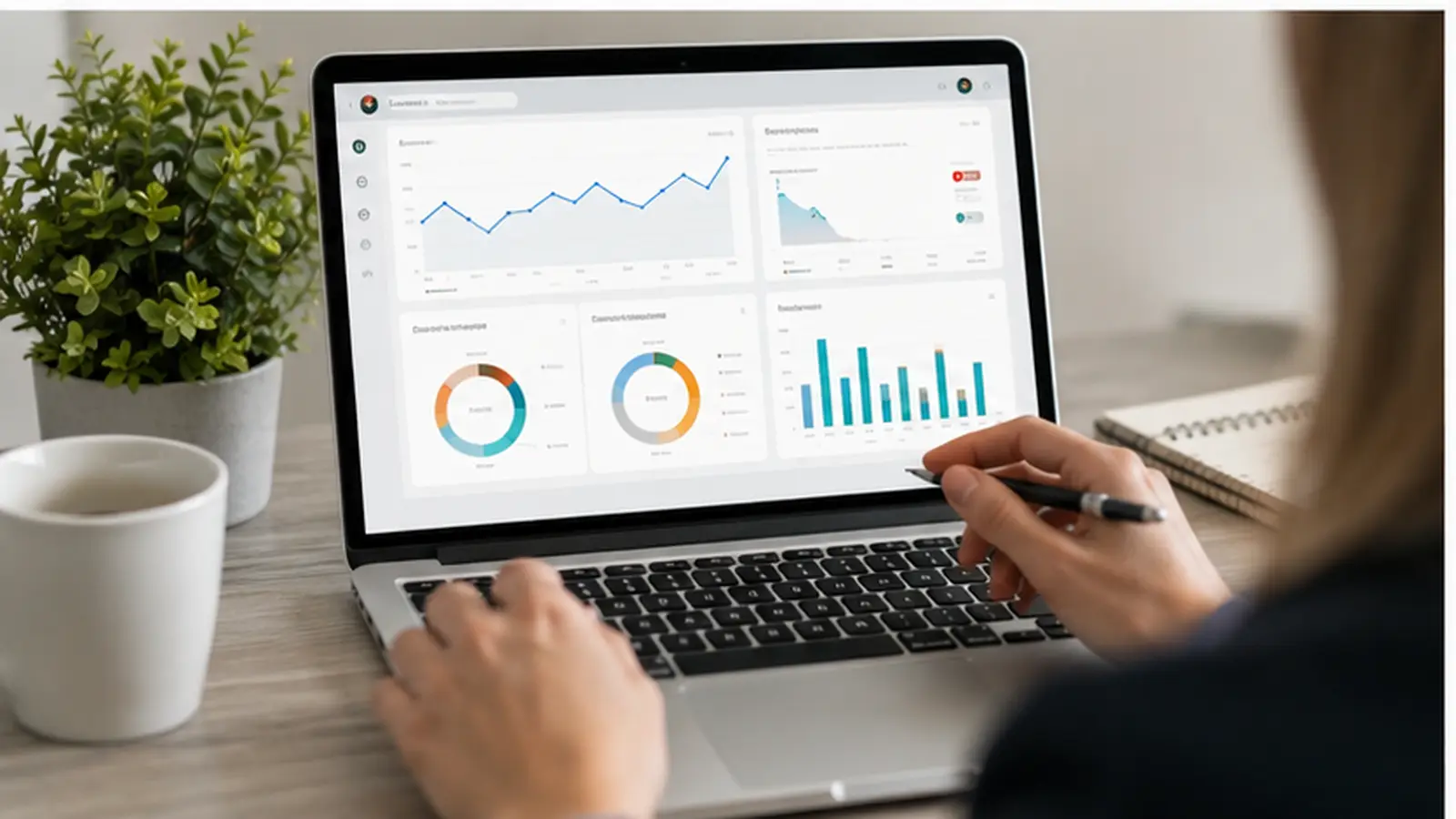
Once you start publishing, guessing which Pins work is not enough. Pinterest Analytics can show what people actually do with your content.
Pinterest currently provides core metrics including impressions, saves, Pin clicks, follows, and outbound clicks. Video Pins also have metrics such as video views and watch time.
Each metric answers a different question.
Impressions show how often your Pins appeared on screen.
Saves show how often people saved a Pin to a Board.
Pin clicks show how often people opened a Pin for a closer look.
Outbound clicks show actions that send people from Pinterest to the destination linked to the Pin.
Do not judge every Pin only by impressions.
Imagine two Pins promoting articles on your website.
Pin A gets 20,000 impressions but very few outbound clicks.
Pin B gets 8,000 impressions but sends hundreds of visitors to your website.
If your goal is website traffic, Pin B may be more valuable even though it reached fewer people.
The same logic applies to saves. A Pin that gets many saves may be useful or inspiring, but that does not automatically mean it is driving traffic.
Pinterest Analytics also lets you review your top Pins and Boards and sort them using metrics such as impressions, engagements, Pin clicks, outbound clicks, and saves.
Use this data to look for patterns rather than chasing one successful Pin.
For example, if your small bedroom storage Pins consistently receive more saves and outbound clicks than your general home decor Pins, that is useful information. You could create more content around storage, small spaces, and organization instead of continuing to post broad decor content.
How to Manage Multiple Pinterest Accounts with DICloak
Once you start using Pinterest for business, managing one account is usually simple. The workflow becomes harder when you manage several brands, stores, or client accounts at the same time. You need to keep logins, cookies, account settings, team access, and daily tasks organized without mixing one Pinterest account with another.
This is where an antidetect browser like DICloak can be useful. Instead of opening every Pinterest account in the same normal browser, you can create a separate browser Profile for each account. DICloak also supports proxy configuration, team permissions, and RPA automation, which makes it a practical option for agencies, social media teams, and businesses that need to manage multiple social media accounts from one place.
Use Separate Browser Profiles for Different Pinterest Accounts
The most useful feature for Pinterest management is browser Profile isolation.
With DICloak, each Pinterest account can run inside its own Profile. The Profile keeps its own browser data and settings instead of mixing them with other accounts. DICloak's materials describe this approach as using isolated browser Profiles with separate fingerprints for multi-account social media management.
For example, imagine a small agency manages Pinterest for three clients:
- a home decor store
- a travel blog
- a skincare brand
Instead of signing in and out of all three accounts in the same Chrome window, the team can create Pinterest – Home Decor, Pinterest – Travel, and Pinterest – Skincare as separate Profiles.
When a team member opens the travel Profile, the cookies and session data for the skincare account do not need to be loaded into that same Profile. This makes it easier to know which account you are working on and reduces simple mistakes such as publishing a Pin to the wrong client account.
For teams managing many Pinterest accounts, Profiles can also be placed into groups and assigned to specific members. DICloak currently supports Profile Groups for organizing browser Profiles and controlling which members can access them.

Configure Proxies for Pinterest Profiles
DICloak also allows you to configure a proxy for each browser Profile.
Current proxy settings include No Proxy, Custom Proxy, Saved Proxies, and API extraction. Custom proxy configurations support common options such as HTTP, HTTPS, and SOCKS5 connections. DICloak itself does not provide the proxy network service, so the proxy still needs to come from the user or a third-party provider.
This can be useful when a business needs separate network configurations for different Pinterest workspaces.
For example, an agency may have one Profile for a US client and another for a UK client. The team can assign the appropriate user-provided proxy to each Profile and keep that configuration attached to the Profile rather than manually changing it before every session.
A simple setup might look like this:
Pinterest Client A → Profile A → Proxy A Pinterest Client B → Profile B → Proxy B Pinterest Client C → Profile C → Proxy C
The important point is consistency. You do not need to keep changing network settings every time someone opens an account. The proxy configuration stays with the corresponding Profile, while the account's cookies and browser settings stay in that Profile as well. DICloak's current documentation also notes that Profiles can work without a proxy, although Profiles using “No Proxy” will use the device's local network IP.

Share Pinterest Profiles with Team Members
Multi-account Pinterest management often becomes a team problem rather than a browser problem.
A content manager may prepare Pins. A designer may check creative assets. Another team member may review Boards or monitor performance. Giving everyone the same password is rarely the cleanest way to organize that workflow.
DICloak supports Profile sharing, member roles, Profile Groups, and permission controls for team collaboration. The supplied DICloak feature documentation also highlights profile sharing, permission settings, data isolation, and operation logs as core team-management functions.
For example, a Pinterest agency could create separate Profile Groups for:
Client A Accounts Client B Accounts Internal Brand Accounts
The admin can then give each member access only to the Profile Groups needed for their work. Current DICloak documentation supports assigning Profile Groups to team members and setting functional permissions that control which parts of the software members can see or use.
This becomes especially useful when freelancers or temporary team members are involved. Instead of giving someone access to every Pinterest Profile, the team can assign only the Profiles related to that person's work.
For teams that genuinely need two members to use the same Profile at the same time, DICloak also offers a Multiple sessions setting that can be enabled globally or for an individual Profile. It is better treated as an optional collaboration feature rather than something every Pinterest account needs.

Automate Repetitive Pinterest Tasks with RPA
Pinterest marketing can involve a lot of repetitive browser work. A team may need to open the same pages, move through the same workflow, collect information, or repeat routine actions across many Profiles.
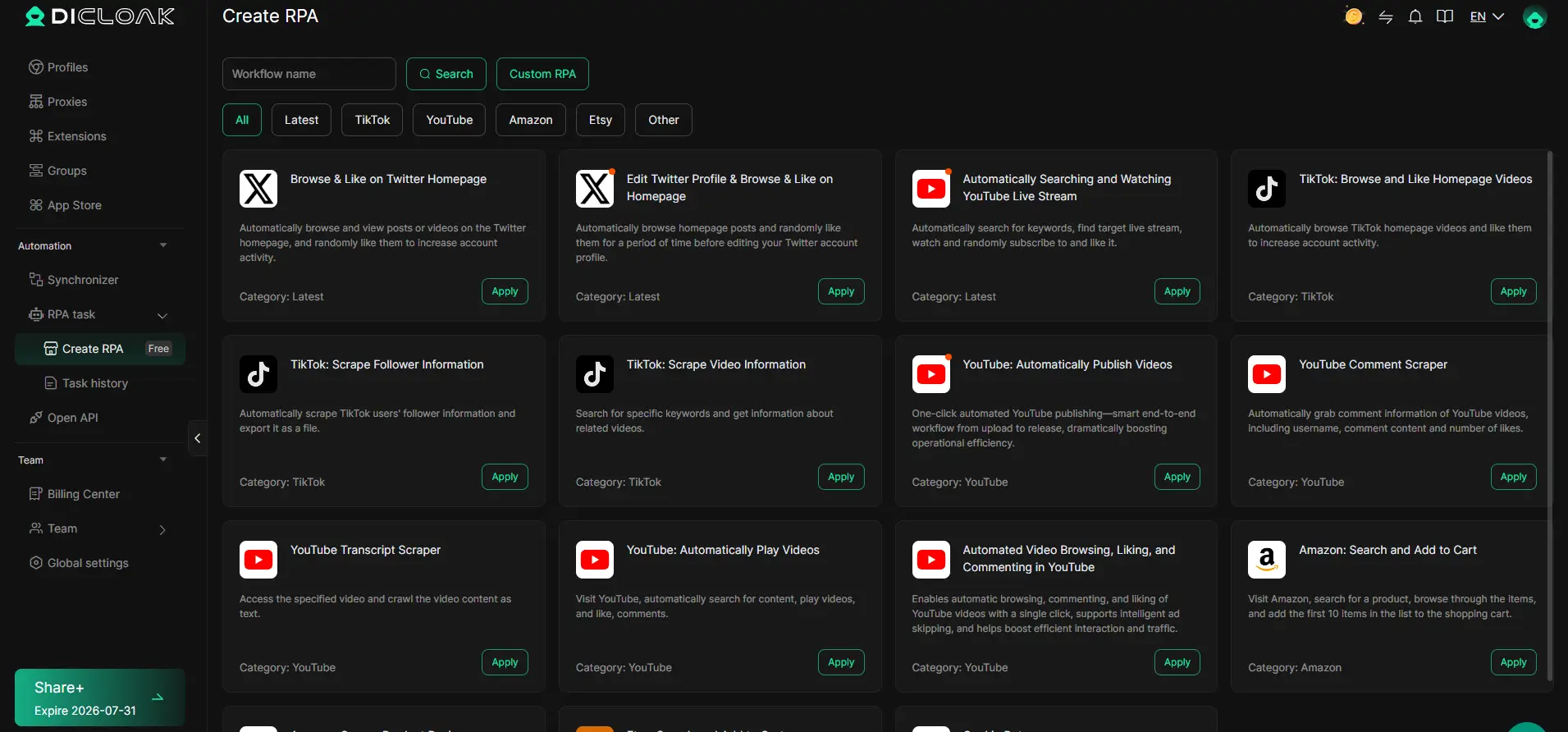
DICloak includes RPA automation for these repetitive browser tasks. Its social media marketing materials position RPA and automation as tools for reducing manual work when operating multiple accounts.
For example, imagine a team manages 20 Pinterest business Profiles. Opening each Profile and moving through the same internal workflow one by one can take a large part of the day. An RPA workflow can handle supported repetitive steps automatically, leaving the marketer more time for work that still needs human judgment, such as:
- choosing the right keyword for a Pin
- checking whether an image fits the target audience
- reviewing Pinterest Analytics
- deciding which topic should be published next
This distinction matters. Automation is most useful for predictable, repeatable work. Content strategy should still be based on audience intent and real performance data.
DICloak's broader feature set also includes bulk operations and a Multi-Window Synchronizer for workflows that involve several Profiles.
For someone learning how to use Pinterest, these tools are not necessary when managing a single personal account. But once a business or agency has several Pinterest accounts, the problem changes. The challenge is no longer just creating good Pins. It is keeping each account organized, giving the right people the right access, and reducing repetitive work. In that situation, DICloak provides one workspace for separate Pinterest Profiles, user-configured proxies, team access, and browser automation, making larger Pinterest workflows easier to manage.
Frequently Asked Questions About How to Use Pinterest
If you are new to Pinterest, a few questions usually come up once you start creating Pins or using the platform for business. These quick answers cover the most common points beginners need to know.
Is Pinterest Free to Use?
Yes. Pinterest is free for personal users, and Pinterest business accounts are also free to create. A business account adds tools such as Pinterest Analytics, Business Hub, and advertising features. You only pay if you choose to run Pinterest Ads.
For most beginners, you can learn how to use Pinterest, create Boards, save Pins, and publish your own content without paying anything.
How Do Beginners Use Pinterest?
Beginners usually start by creating an account, choosing topics they like, searching for ideas, and saving useful Pins to Boards. Pinterest describes itself as a visual discovery engine where users find ideas and organize them into Boards.
A simple beginner workflow looks like this:
Search for an idea → open useful Pins → save them to a Board → create your own Pins when you have content to share.
For example, if you are planning a home office, you might search for desk setups, save your favorite ideas to a Home Office Ideas Board, and later create Pins from your own setup.
How Do I Get More Views on Pinterest?
Start with clear topics that match what people are actually searching for. Use specific keywords in your Pin titles and descriptions, organize Pins into relevant Boards, and use images or videos that clearly show what the content offers.
If you have a business account, Pinterest Analytics can show which Pins receive the most impressions, saves, clicks, and outbound traffic. This helps you find topics and formats that already work with your audience.
For example, if Pins about small bedroom storage ideas regularly perform better than broad home decor Pins, that is a good signal to create more content around small-space organization.
Can I Use Pinterest for Business?
Yes. Pinterest offers free business accounts specifically for brands, creators, retailers, and marketers. Business accounts include Analytics and advertising tools that are not available with standard personal accounts.
Pinterest can be used to promote products, blog posts, services, recipes, guides, videos, and other content. The key is to create Pins around what your target customer wants to discover rather than turning every Pin into a direct sales message.
For example, a furniture store may get more value from a Pin titled “7 Small Home Office Ideas” than one that only says “Buy Our Desk.”
Can I Manage Multiple Pinterest Accounts?
Yes. Pinterest allows users to create additional accounts, and its Business Manager can help businesses move between different business accounts, profiles, and ad accounts they own or have permission to access.
If you manage many Pinterest accounts for different brands or clients, an antidetect browser such as DICloak can provide another layer of organization. Each account can use a separate browser Profile with its own browser data and settings. Teams can also assign Profiles to members, configure user-provided proxies, and use automation tools for repetitive workflows. DICloak's social media management materials specifically highlight isolated Profiles, multi-account management, and automation for these scenarios.
For one personal Pinterest account, this setup is usually unnecessary. It becomes more useful when an agency, marketing team, or business needs to keep several Pinterest accounts and workflows clearly separated.
 Web Proxy Tools
 Free Tools
 Cookie Plugin
 UA Generator
 MAC Address Generator
 IP Generator
 IP Address List
 2FA Code Generator
 World Clock
 Anonymous Check
 WebRTC Leak Test
 UUID Generator
 Free Web Proxy Site
 Proxy Checker
 FB Ad Checker
 AI Web Scraping
 Free SMM Tools
 Twitter Shadowban Checker
 Instagram Name Checker
 UTM Generator
 Username Generator
 AI Hashtag Generator
 LinkedIn Headline Generator
 Social Media Image Resizer