What Is Facebook Professional Mode?
Facebook Professional Mode is a setting that adds creator and public-audience tools to a personal Facebook profile. It is designed for people who want to grow beyond their existing friend network without creating a separate Facebook Page. When you turn on Professional Mode on Facebook, your profile can use more professional tools for followers, content performance, and audience growth while still remaining a personal profile.
This makes Professional Mode useful for creators, freelancers, public figures, and other people who already use their personal profile to share public content. For people managing several creator or client accounts, a more structured social media marketing workflow can also help keep different account environments organized. It does not mean every post has to become public. Facebook still lets you choose the audience for many types of content, and privacy settings can be adjusted under the Audience and visibility section.
Key Features of Facebook Professional Mode
One of the biggest changes is the stronger focus on followers. People can follow a professional-mode profile and see its public updates without becoming Facebook friends. Facebook also allows people with Professional Mode enabled to invite others to follow their profile, which can make audience growth easier than relying only on friend requests.
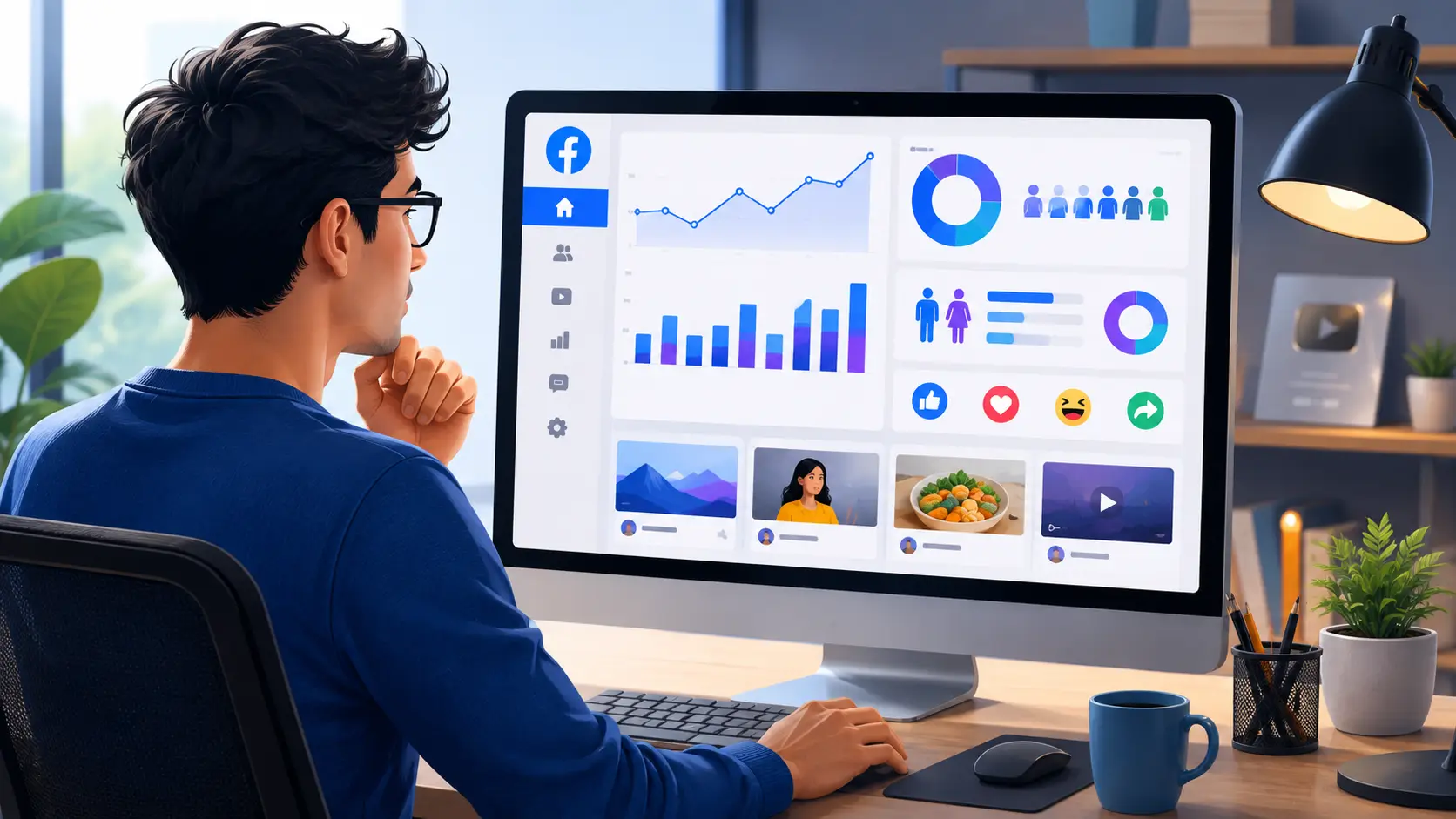
You also gain access to the Professional Dashboard, where Facebook provides creator-focused tools and performance data. For example, creators can use post insights to understand how their content is performing. This can help answer practical questions such as which posts are getting more reach or engagement and whether certain content formats are working better than others. For creators who manage content across several accounts or platforms, having a clear social media marketing workflow can also make daily account management easier.
Some features depend on the size and status of the profile. For example, Meta currently allows profiles with Professional Mode and more than 10,000 followers to use Channels, a public one-way messaging feature for updates, polls, and other follower content. This is a good example of how Professional Mode can unlock more creator tools as an audience grows.
Professional Mode can also connect a profile to Meta's wider creator ecosystem. A professional creator profile may be eligible for features such as Meta Verified, depending on location, account activity, identity requirements, and other eligibility rules. However, turning on Professional Mode does not automatically make a profile verified or eligible for every monetization feature.
For example, imagine a fitness coach who already has 3,000 Facebook friends and regularly posts workout videos. Creating a separate Page would mean building another audience from the beginning. By choosing to turn on Professional Mode on Facebook, the coach can continue using the same profile while giving new viewers the option to follow public posts and using professional insights to track content performance.
Privacy still needs attention. Facebook lets users control settings for posts, stories, reels, followers, public content, profile details, and tagging. A creator can therefore publish a workout Reel to the public while keeping a family photo limited to friends. Professional Mode expands the tools around the profile, but it does not remove the need to choose the right audience for each type of content.
Who Should Use Professional Mode?
Facebook Professional Mode makes the most sense for people who want their personal identity to be part of their public content. This can include independent creators, coaches, artists, consultants, journalists, streamers, and small business owners who are already known by their own name.
For example, a freelance photographer may already use a personal profile to share finished shoots and behind-the-scenes posts. Professional Mode allows that person to grow a follower audience without asking every interested viewer to become a friend. The photographer can still use the same profile for personal connections while publishing selected posts to a wider audience.
It can also work well for people who are starting to build an audience and do not yet need a separate business presence. A local chef sharing recipes, a gaming creator posting clips, or a consultant publishing industry tips may find a professional profile simpler because they do not have to manage both a personal account and a Page from the beginning.
Professional Mode is less suitable when the Facebook presence represents a company rather than one person. A business that needs several people to manage its presence, run formal brand operations, or keep the brand separate from an employee's personal identity may be better served by a Facebook Page. Teams that manage several creator or client profiles may also need a more structured way to manage multiple Facebook accounts without mixing different browser sessions and workspaces.
So before learning how to turn on Professional Mode on Facebook, it helps to decide what you actually want to grow. If people are following you and your personal expertise, Professional Mode is often a natural fit. If they are following a company, store, or organization, a Facebook Page may make more sense.
How to Turn On Professional Mode on Facebook
Once you decide that Professional Mode fits your goals, turning it on is usually quick. The option is built into your personal profile, so you do not need to create a new Facebook Page or a second account. The exact menu can look slightly different depending on your device and Facebook app version, but the basic path is similar on mobile and desktop.
If your goal is to turn on Professional Mode on Facebook for creator tools, public followers, or performance insights, start from your main profile. After activation, Facebook may also guide you through a few setup choices, such as your default audience and profile details.
How to Enable Professional Mode on Mobile
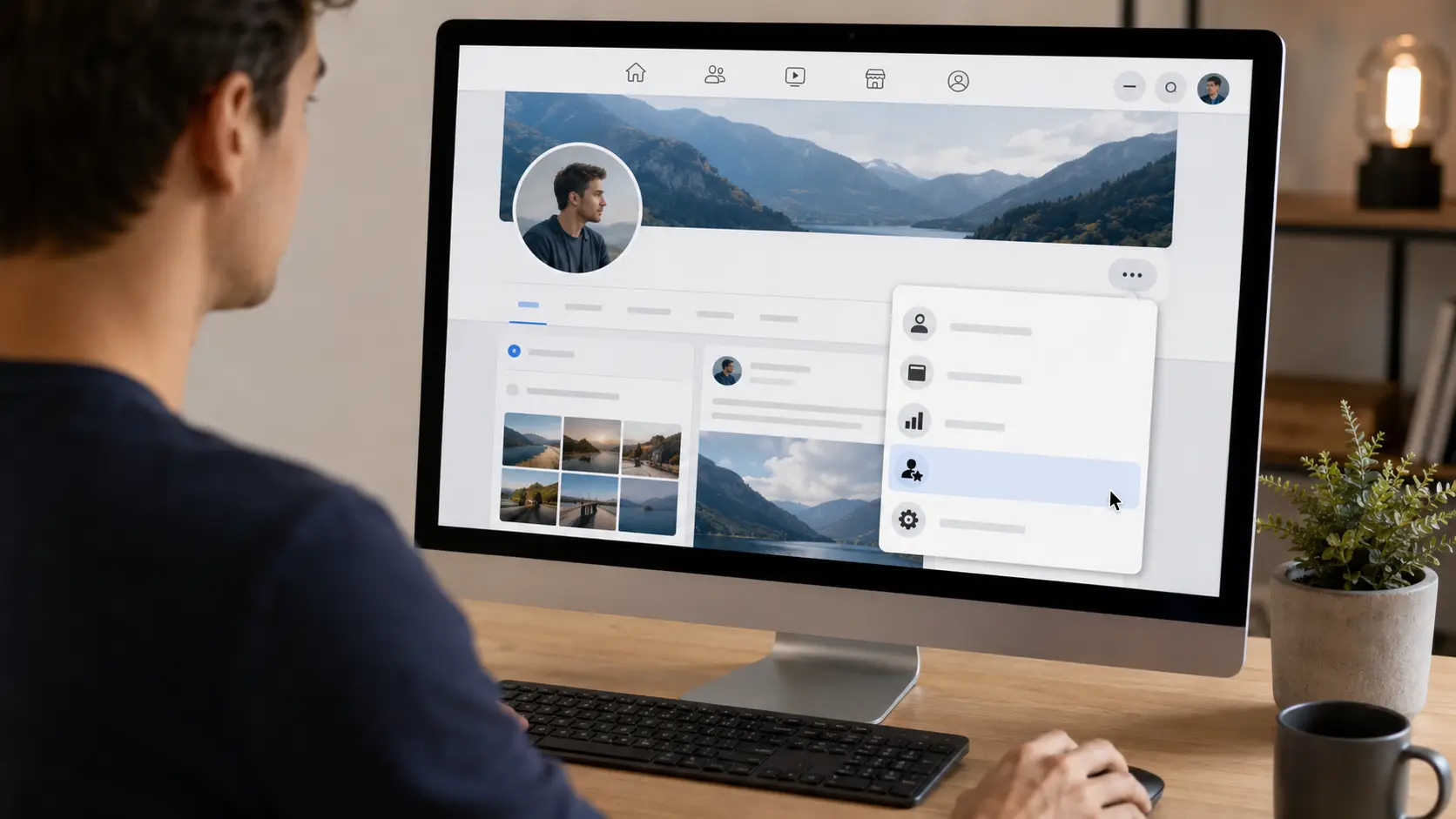
On iPhone or Android, open the Facebook app and go to your personal profile. Tap the three-dot menu near the Edit profile button. Then scroll through the profile options and select Turn on professional mode. Facebook will show a short explanation of the feature. Tap Turn on to confirm.
The basic mobile steps are:
- Open the Facebook app.
- Go to your personal profile.
- Tap the three-dot menu under your profile details.
- Select Turn on professional mode.
- Review the information Facebook shows.
- Tap Turn on to activate it.
After this, Facebook may show an onboarding screen with extra setup options. Depending on your account, you may be asked to review your public audience, add profile details, or open the Professional Dashboard. Some screens can vary because Facebook regularly tests and updates its mobile interface.
For example, imagine a fitness creator who has been posting workout videos from a normal personal profile. After enabling Professional Mode, that person can keep using the same profile instead of moving all content to a new Page. The next step would be to check which posts are public and make sure followers can see the content meant for a wider audience. Creators who manage content across several platforms can also use a more organized social media marketing workflow to keep different account tasks easier to manage.
If the option does not appear where expected, do not assume your account has a problem right away. Facebook sometimes changes menu positions between app versions. Updating the Facebook app and reopening your profile is a simple first check. The next section of this article will cover missing Professional Mode options in more detail.
How to Turn On Professional Mode on Desktop
The desktop process is very similar. Log in to Facebook in a web browser and open your personal profile. Look for the three-dot menu near the buttons below your cover photo. Select Turn on professional mode, then follow the confirmation screens. Current Facebook profile layouts still place Professional Mode controls in this profile menu.
A typical desktop path is:
- Sign in to Facebook.
- Open your personal profile.
- Click the three-dot menu below or near your cover photo.
- Choose Turn on professional mode.
- Review the feature information.
- Confirm the change.
Desktop can be easier if you want to review several settings right after activation because more of the profile is visible at once. For example, a consultant who uses Facebook to share public industry posts may turn on Professional Mode from a laptop, then immediately review the profile bio, public posts, followers, and privacy settings from the same screen.
If you already see Professional Dashboard on your profile, Professional Mode may already be active. In that case, there is no need to turn it on again. You can open the dashboard and start reviewing the available creator tools instead.
What to Set Up After Turning It On
After you enable Professional Mode on Facebook, do not stop at the activation screen. A few settings are worth checking before you start publishing more public content.
First, review your audience settings. Professional Mode is designed to help people reach followers beyond their Facebook friends, but that does not mean every post must be public. Facebook still lets you control audiences for posts, stories, Reels, followers, profile details, and tagging from the Audience and visibility section in Settings.
For example, a creator may want public Reels and industry posts to reach new followers while keeping family photos visible only to friends. That mix is possible. The important part is checking the audience before publishing instead of assuming Professional Mode changed every privacy setting in the same way.
Next, open the Professional Dashboard and look at the tools available on your account. This area is where Facebook surfaces professional features and content performance data. Post insights can help you see which content gets more attention, which is more useful than guessing based only on likes.
You should also review your profile itself. Make sure your bio, profile photo, cover image, and public information match the audience you want to attract. If people discover one of your public posts and visit your profile, they should quickly understand what kind of content you publish.
Follower settings matter as well. Professional Mode is built around allowing people to follow public updates without becoming friends. Facebook also lets Professional Mode users invite friends to follow their profile, which can help when you are first building a public audience.
A simple example is a freelance designer who turns on Professional Mode after several posts start getting shared outside their friend group. Instead of changing everything at once, the designer could first update the bio, make portfolio posts public, keep personal posts limited to friends, and use Professional Dashboard insights to see which design posts bring in the most new followers.
If that creator later needs to work with several client or creator accounts, keeping each account in its own browser Profile can make different sessions easier to organize. For larger workflows, you can also read the guide on managing multiple Facebook accounts before moving into team-based account management.
That setup gives you a much better starting point than simply turning the feature on and leaving the rest unchanged. Once Professional Mode is active and your profile is organized, the next issue is usually easier to spot: what to do when the Professional Mode option is missing or some features do not appear.
Why Is Facebook Professional Mode Not Showing?
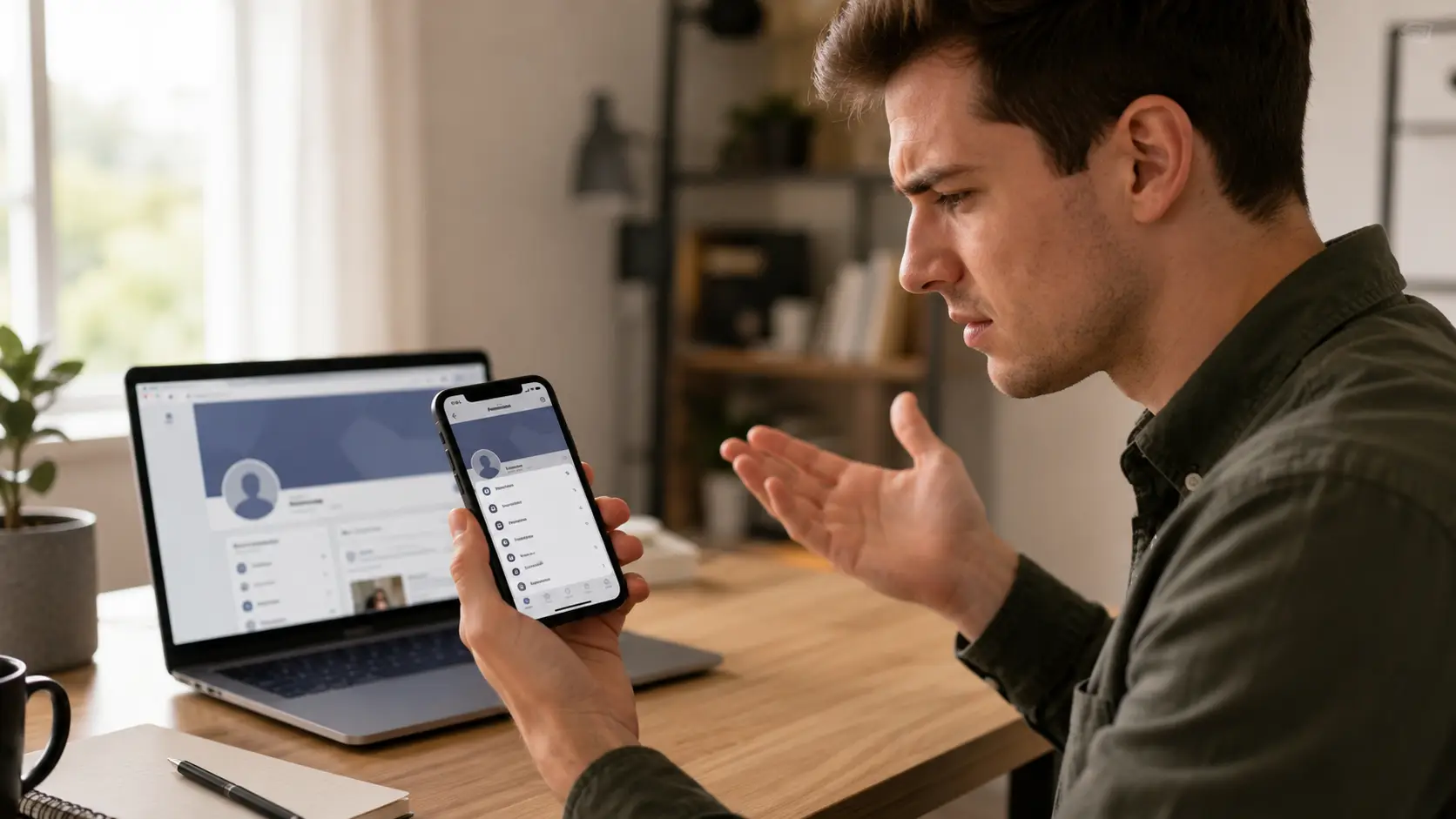
If you are trying to turn on Professional Mode on Facebook but the option is missing, the cause is not always obvious. Sometimes the problem is simple, such as using an old app version or checking the wrong profile. In other cases, the feature may not be available for that profile yet, or the account may need attention before professional tools appear.
It is also important to separate two problems. One is when the Facebook Professional Mode option does not appear at all. The other is when Professional Mode is already active but certain tools, such as insights or creator features, are missing. These situations can have different causes.
Common Reasons the Option Is Missing
One of the first things to check is whether you are viewing a personal Facebook profile. Professional Mode is designed for profiles, while Facebook Pages use their own professional tools and Page access system. If you switched into a Page and then looked for Turn on professional mode, you may not see the option because you are already using a different type of professional presence. Meta continues to treat Pages and professional profiles as separate experiences.
Profile type can matter in other ways too. Meta notes that some Facebook settings and features change depending on the type of profile being used. Facebook also supports additional personal profiles under one account, and Meta has historically limited some features on those additional profiles. Because feature availability can change over time, checking your main profile is a useful step when Facebook Professional Mode is not showing where expected.
An outdated Facebook app can also create a more basic problem: the menu you are looking for may not match the current interface. Meta recommends getting the latest Facebook app through your device's app store. If a guide shows Turn on professional mode under the three-dot profile menu but your screen looks different, updating the app should be one of the first things you try.
Account status can matter as well. Facebook may temporarily limit account access when it detects a security issue or requires an extra security check. For people who manage several Facebook profiles, keeping each account in a separate browser Profile can also make it easier to keep sessions and account environments organized. This does not solve a Facebook restriction, but it can reduce confusion when several accounts are being handled from the same device.
For example, suppose a creator follows a tutorial on how to enable Professional Mode on Facebook, but the menu is missing on the mobile app. On desktop, the creator notices that they were actually switched into a business Page instead of their personal profile. After switching back to the correct profile, the expected profile controls become easier to find. In this case, nothing was wrong with the account itself.
Another creator may see a different situation. The correct personal profile is open, but the mobile app has not been updated for months. The menu may look different from current instructions. Updating the app and checking the profile again is a more useful first step than repeatedly turning settings on and off.
How to Fix Professional Mode Not Working
Start with the simplest checks. Open your main personal profile and look at the menu below the cover photo again. If you are using the Facebook app, update it through Google Play or the App Store, close the app, and sign in again. You can also check Facebook from a desktop browser to see whether the Professional Mode option appears there.
If Facebook Professional Mode is not showing on one device but appears on another, the issue is more likely related to the app or interface than to your profile eligibility. For example, if the option appears on desktop but not on an older Android app, updating or reinstalling the mobile app may solve the problem without changing anything on the account.
If Professional Mode is already active but a specific feature is missing, check whether that feature has its own requirement. Not every professional tool becomes available immediately after you turn on Professional Mode on Facebook. For example, Meta currently requires a professional-mode profile to have more than 10,000 followers before it can use Channels. Other creator and monetization tools may also have separate eligibility conditions.
This means a missing feature does not always mean Professional Mode has failed. A profile with 800 followers may have Professional Dashboard and follower tools but still not qualify for a feature that requires a much larger audience. Checking the requirement for the specific tool is more useful than turning Professional Mode off and back on.
You should also review your account if Facebook recently asked for a security check, identity confirmation, or another account action. Complete those steps first and wait for any temporary restriction period to end. If you manage several client or creator accounts, a more organized social media marketing workflow can help keep different account sessions and workspaces separate.
If the option is still missing after you have checked the profile type, updated the app, tried desktop, and resolved any account issue, the feature may simply not be available on that profile at that moment. Facebook changes interfaces and rolls out creator features over time, so two accounts may not always display the same menu at the same time.
At that point, avoid repeatedly changing unrelated privacy or profile settings just to make the option appear. Keep the app updated, check the profile menu again later, and use Facebook's Help and Support tools if the problem continues. If you regularly work with several Facebook accounts, DICloak also provides a guide on managing multiple Facebook accounts with separate browser profiles and account workspaces.
Facebook Professional Mode vs. Facebook Page
After you turn on Professional Mode on Facebook, your personal profile starts to offer some tools that were once more closely tied to Pages. That can make the choice between Professional Mode and a Facebook Page confusing. Both can help you reach followers, view insights, and build a public presence, but they are designed for different types of users.
The simplest way to think about it is this: Professional Mode works best when you are the brand, while a Facebook Page usually makes more sense when the account represents a business, organization, or team.
When Professional Mode Is Better
Professional Mode is often the better choice for individual creators who already have an active personal profile. Meta says Professional Mode lets people become creators using the profile they already have. This means you can keep your existing friends and personal identity while also gaining tools for followers, insights, audience growth, and some monetization features.
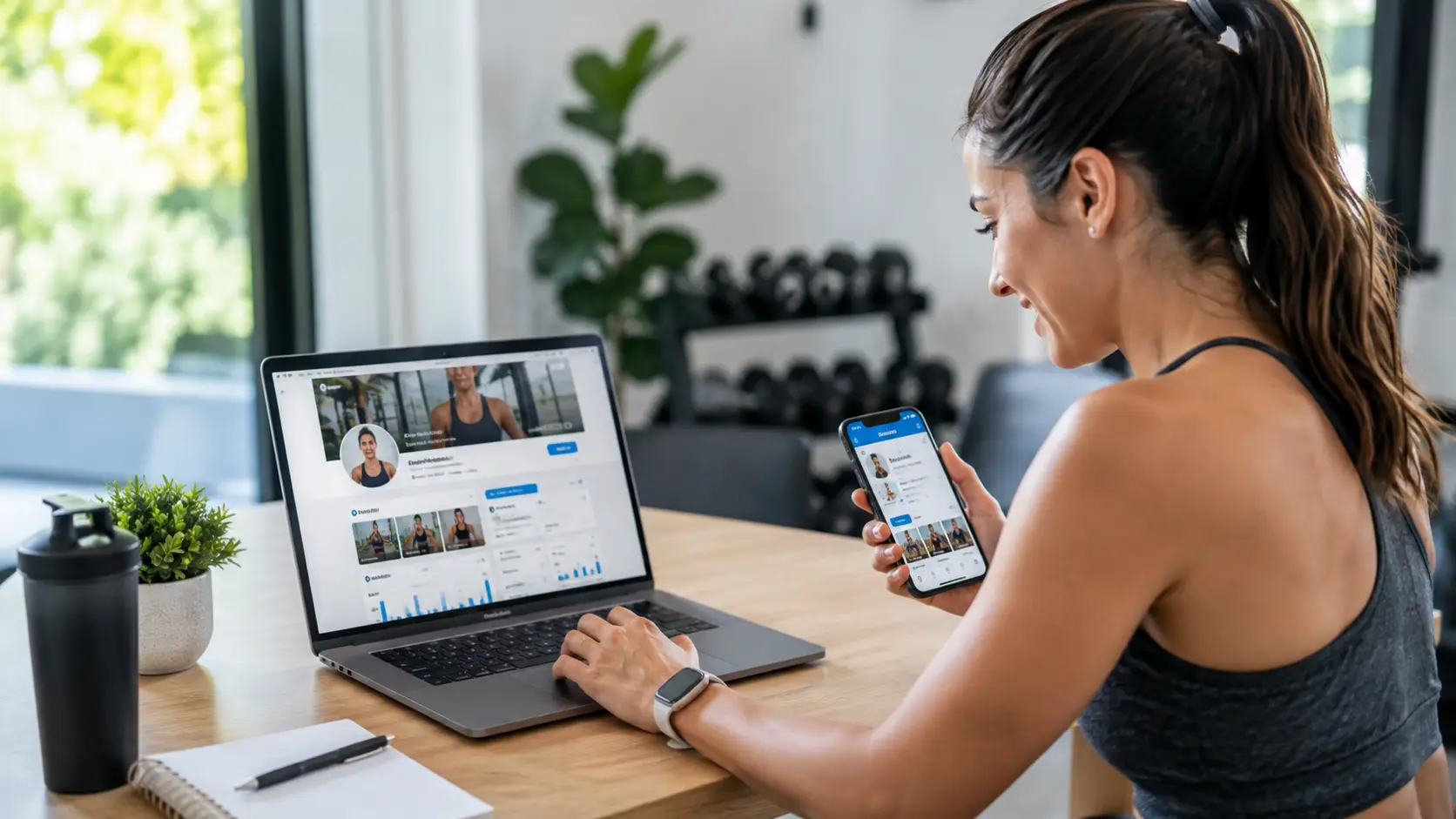
For example, imagine a fitness coach who has used the same Facebook profile for years. The profile already has friends, past clients, and people who regularly engage with workout posts. Instead of starting a new Page with zero followers, the coach can enable Professional Mode on Facebook and build a public audience from the profile that people already know.
Professional Mode also works well when your name and personality are central to the content. A photographer, consultant, streamer, writer, or educator may want people to follow them as a person rather than follow a separate company name. Facebook allows people to follow public content from a professional-mode profile without becoming friends, and creators can invite friends to follow the profile.
You still keep control over personal privacy. Facebook lets users adjust who can see posts, stories, Reels, profile details, followers, and other content. This means a creator can publish business tips publicly while keeping family updates limited to friends.
Professional Mode can also be simpler for a solo creator because there is only one profile to manage. There is no need to switch between a personal account and a separate Page every time you want to publish content or respond to followers.
When a Facebook Page Makes More Sense
A Facebook Page is usually a better fit when the Facebook presence belongs to a company, store, organization, or larger team instead of one person. Pages are designed around public brand management and include controls for giving other people different levels of access.
For example, imagine a local restaurant with a social media manager, an advertising specialist, and a customer support employee. Building the restaurant's entire Facebook presence around the owner's personal profile would make daily work harder. A Page allows the business to give approved people access while keeping the brand separate from one employee's personal Facebook identity.
This becomes even more important when several people need different permissions. Meta allows someone with full control of a Page to add, edit, or remove other people's access. Page management can also support different levels of control for tasks such as content, messages, ads, and insights.
Pages can therefore be easier to manage when staff members change. If one employee leaves, their Page access can be removed without rebuilding the business presence or transferring a personal profile.
The difference is less about which option has more creator features. Facebook has brought several professional tools to both Pages and Professional Mode profiles. For example, Professional Dashboard is available to creators using both types of presence, and Channels can be available to eligible Pages and Professional Mode profiles with more than 10,000 followers.
The real difference is ownership and workflow. If people follow you because of your personal expertise, content, or public identity, Facebook Professional Mode is usually the simpler choice. If people are following a business or organization that needs several people to manage it, a Facebook Page gives you a cleaner structure for long-term management.
How to Manage Multiple Facebook Professional Mode Accounts with DICloak
Professional Mode works well for individual creators, but managing several professional profiles can become harder as the number of accounts grows. An agency may work with several creators at once. A marketing team may also need different people to handle content, reporting, or daily account tasks. In these cases, the main challenge is keeping each Facebook workspace organized without constantly signing in and out of the same browser.
For authorized business or client accounts, you can use DICloak to create separate browser Profiles, assign those Profiles to team members, and automate suitable browser tasks. If you are new to the platform, the DICloak Getting Started Guide explains the basic Profile setup and workspace structure. This does not change Facebook's rules or Professional Mode requirements. It simply gives teams a more structured way to manage multiple account workspaces.
Keep Facebook Accounts in Separate Browser Profiles
Using one normal browser for many Facebook accounts can quickly become confusing. Cookies, saved sessions, open tabs, and account details may all sit in the same place. This makes it easier to post from the wrong account or waste time checking which account is currently active.
You can create a separate browser Profile in DICloak for each Facebook account you are authorized to manage. Each Profile can keep its own cookies, session data, browser settings, and fingerprint configuration. You can also give each Profile a clear name based on the creator, client, or project.
For example, an agency may manage Professional Mode profiles for five creators. Instead of signing in and out of Facebook throughout the day, the agency can create Profiles such as “Creator A Facebook” and “Creator B Facebook.” Opening the correct Profile brings the team back to the saved workspace for that account.
If a workflow also requires separate network settings, you can configure a proxy for each browser Profile. DICloak supports different proxy protocols and lets you check the proxy before opening the Profile. This can make it easier to keep each workspace organized around a defined network setup.
You can also organize Profiles into groups. A team handling several clients might create one Profile Group for each client or project. This becomes especially useful as the account list grows because team members can find the right workspace without searching through every Profile.

Manage Team Access to Different Profiles
Separate browser Profiles become more useful when several people work on the same project. A content editor may only need access to two Facebook Profiles, while a manager may need access to every client workspace. Giving everyone the same level of access is usually unnecessary.
You can use Member Groups and Profile Groups to control this more carefully. Profile Groups decide which browser Profiles a member can access, while Member Groups control what that person is allowed to do. For example, you can let someone open assigned Profiles without giving them permission to create, edit, clone, or manage every Profile in the workspace.
For a detailed setup, you can follow DICloak's guide on setting member permissions and assigning browser Profiles.
Imagine an agency managing Facebook Professional Mode accounts for three creators. The video editor only works with Creator A and Creator B, while the account manager handles all three. You can assign the editor only the Profile Groups for those first two creators, then give the manager broader access. Access times can also be set when contractors or part-time staff should only use certain Profile Groups during defined periods.
This structure is easier to maintain as the team changes. If a contractor finishes a project, you can remove or update that person's access without rebuilding the browser profile or passing the account details to someone new.

Automate Repetitive Multi-Account Tasks
Managing several Facebook Professional Mode profiles can also create repetitive browser work. Teams may need to open the same pages, enter similar information, check account pages, or repeat the same internal workflow across several Profiles.
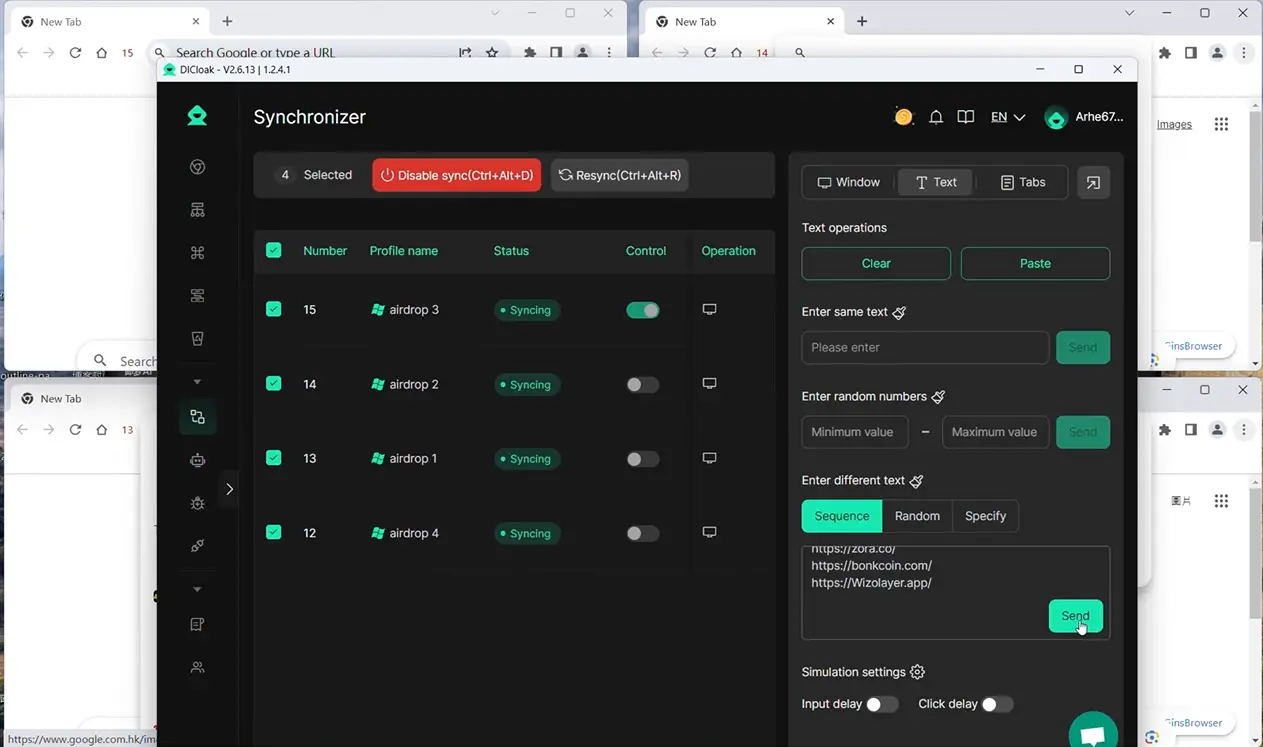
For tasks that follow the same steps, you can use DICloak's Synchronizer to control several open Profile windows from one main window. Actions such as clicks, scrolling, and text input can be synchronized across selected windows when appropriate.
You can also use RPA for workflows that need a more structured sequence of actions. For more customized processes, the Custom RPA guide explains how to build or import workflows and run them across selected browser Profiles.
For example, a social media team may follow the same internal checklist every morning across several client workspaces. Instead of manually repeating every browser step from the beginning, the team can automate suitable parts of that workflow and spend more time reviewing content, checking performance, and planning the next post.
Automation should still support responsible Facebook management rather than replace it. Actions related to engagement, content quality, account recovery, and platform compliance still need human judgment.
For teams managing several Facebook Professional Mode accounts, the workflow becomes much clearer: keep each account in its own browser Profile, give each team member access only to the Profiles they need, and automate repetitive browser tasks where it makes sense.
FAQs About Turning On Professional Mode on Facebook
Before you turn on Professional Mode on Facebook, it is normal to have questions about privacy, cost, business use, and what happens if you change your mind later. The answers below cover some of the most common concerns without repeating the setup steps explained earlier.
Can You Deactivate Professional Mode After Turning It On?
Yes. Professional Mode is reversible. If you no longer want to use the creator tools, you can open your Facebook profile, select the three-dot menu, choose Turn off professional mode, and confirm the change. Your profile then returns to the standard personal profile experience.
Turning it off does not mean deleting your Facebook account. Your existing posts, photos, and friends remain on the profile, but you can lose access to Professional Mode features such as detailed insights and some monetization tools. This makes it possible to test the feature without creating a completely new Facebook presence.
Will Your Friends Notice Changes to Your Profile?
Turning on Professional Mode does not normally send your friends a special notification announcing the change. However, people who visit your profile may notice some differences. For example, your profile can place more emphasis on followers and public content, and people can follow your public updates without sending a friend request.
Your existing friendships do not disappear when you turn on Professional Mode on Facebook. You can also continue choosing who sees individual posts. For example, a creator could share a business update publicly while keeping a birthday photo visible only to friends.
Is Professional Mode Free to Use?
Yes. There is no separate subscription fee just to enable Facebook Professional Mode on an eligible profile. Meta introduced it as a way for people to access creator tools, audience insights, growth features, and monetization opportunities from the Facebook profile they already use.
Some features around Professional Mode can still involve money. For example, Meta allows Professional Mode creators to boost eligible Reels with paid advertising, so choosing to promote content can create an advertising cost. Turning Professional Mode on by itself, however, does not require a paid plan.
Can You Use Professional Mode for Business Purposes?
Yes, especially when the business is closely connected to one person. Freelancers, consultants, coaches, artists, creators, and other independent professionals can use Professional Mode to publish public content, build followers, review insights, and develop a professional presence from their personal profile. Meta describes Professional Mode as a way to become a creator using the Facebook profile you already have.
For example, a freelance photographer could enable Professional Mode on Facebook and use the profile to share portfolio work, behind-the-scenes posts, and photography tips. However, a company with several employees may still be better served by a Facebook Page. Pages provide a separate business identity and are designed to support different levels of access for people managing the business.
Does Professional Mode Affect How Your Profile Appears in Search Results?
Professional Mode is designed to make it easier for creators to build a public audience, but there is no clear Meta statement that simply turning it on gives your profile a higher ranking in Facebook Search. It is better not to treat Professional Mode as an automatic SEO boost.
What Meta does confirm is that Professional Mode profiles can receive extra discovery opportunities. For example, eligible creators may appear in Creators to Follow recommendations in Feed, and a Follow button may appear beside their name when they comment on public posts. These features can help more people discover and follow the profile.
In practice, public content, audience response, and how actively you use Facebook are likely to matter more than the switch alone. Turning on Professional Mode gives you tools and discovery options, but it does not guarantee that your profile will appear higher whenever someone searches Facebook.
 Web Proxy Tools
 Free Tools
 Cookie Plugin
 UA Generator
 MAC Address Generator
 IP Generator
 IP Address List
 2FA Code Generator
 World Clock
 Anonymous Check
 WebRTC Leak Test
 UUID Generator
 Free Web Proxy Site
 Proxy Checker
 FB Ad Checker
 AI Web Scraping
 Free SMM Tools
 Twitter Shadowban Checker
 Instagram Name Checker
 UTM Generator
 Username Generator
 AI Hashtag Generator
 LinkedIn Headline Generator
 Social Media Image Resizer