Logging into a bought LinkedIn account isn’t as simple as plugging in the new credentials. Buyers often run into instant login challenges, blocks, or even permanent restrictions, sometimes before they’ve changed a single profile detail. The drive to move fast, especially after paying for an aged or fully set-up account, can actually make it easier for LinkedIn’s security systems to flag the new session.
The real risk isn’t just losing access or wasting money. What catches most people off guard is how LinkedIn tracks device fingerprints, location, and IP jump patterns. Even with a clean account, missing a single step during the first login, like using an untrusted IP or skipping fingerprint isolation, can lock you out for good. Getting the balance right between speed and safety is where most new buyers slip up.
If you want to safely login into bought Linkedin accounts, you need more than just the right password. The key is to match the account’s past login behavior closely enough that LinkedIn doesn’t see your access as suspicious. That means thinking about device emulation, proxy location, browser profile, and handling cookies with care. Skipping these details often leads to account review requests or outright bans, even if the account was “fresh” when delivered.
Before you risk your new asset, start by understanding what triggers LinkedIn’s login alarms.
What Makes Logging into Bought LinkedIn Accounts Risky in 2026?
Logging into a bought LinkedIn account is risky because LinkedIn’s security systems expect every account to keep a consistent login pattern, same device type, browser, IP region, and behavior. Sudden changes, even if you have the correct password, usually trigger extra checks or outright blocks. Many buyers lose access within minutes simply by logging in the “normal” way from their own laptop or phone.
How LinkedIn Detects Unusual Login Activity
LinkedIn doesn’t just look for stolen passwords. Their system cross-checks several factors, even on the very first login:
- Device fingerprinting: LinkedIn profiles your browser, operating system, screen size, and plugins. A sudden switch from a Windows laptop to a Mac, or mobile to desktop, stands out.
- IP and location inconsistencies: LinkedIn tracks login city, ISP, and IP reputation. Logging in from a new country or using a flagged proxy usually triggers review.
- Behavioral analysis: Patterns like fast navigation, opening settings too quickly, or skipping normal reading habits can look automated or suspicious.
If you miss one of these, like using a fresh browser or random mobile hotspot, LinkedIn often doesn’t give you a second chance.
What Happens When LinkedIn Flags a Login
When LinkedIn detects something off, the system can react in several ways. The mildest is a verification prompt: you might get asked to confirm your identity by email, phone, or answer old security questions. If the contact info wasn’t updated correctly during transfer, you’re stuck, the seller’s details are still tied to the recovery process. Sometimes, LinkedIn adds a temporary restriction: the account gets locked for 24-72 hours while they “review suspicious activity.” This isn’t just a waiting game, if you try to appeal or log in again from another device, LinkedIn may escalate to a permanent ban.
One common edge case: you log in from a matching IP but forget to import the old browser cookies. The login succeeds, but LinkedIn immediately spots the device as “new” and flags it. Even if you pass the first check, later actions (like changing the profile or messaging many contacts) can trigger another review. Accounts bought in bulk or those with past automation history are at even higher risk, LinkedIn sometimes links shared fingerprint traits or similar IPs across accounts and mass-restricts them in a single wave.
The biggest practical takeaway: if LinkedIn’s risk engine sees too much change at once, your bought account can go from “active” to unrecoverable in under five minutes.
Start by mapping out exactly what’s different about your setup before attempting a login. The next step is to check the account’s previous environment and history, so you don’t walk into a ban you could have avoided.
What to Check Before Logging into a Bought LinkedIn Account
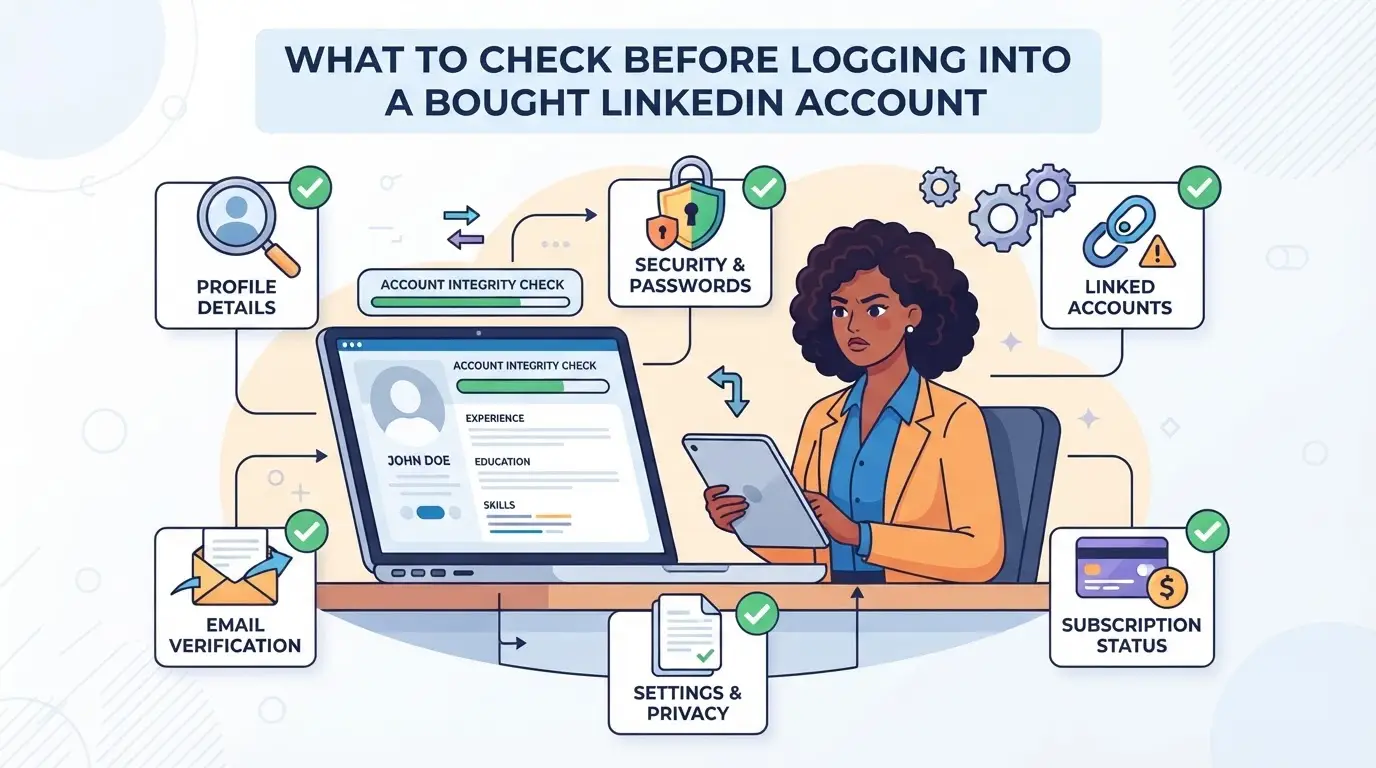
You can wreck a bought LinkedIn account just by logging in from the wrong setup or skipping basic checks. The safest approach is to treat your first login as an account handover, not just a password test, you need to know exactly what you’re walking into and match its history as closely as possible.
Verifying Account Age, Activity, and Origin
Older, well-used accounts almost always survive login checks better than brand-new or dormant ones. Before you try access, check the account’s registration date and last active session. If the origin country, language, or profile region doesn’t match your planned login location, you’re much more likely to trigger LinkedIn’s risk review. Even a simple mismatch, like logging in from a country the account has never seen, can prompt a lockout or security challenge.
Checking Email, Phone, and Recovery Options
- Make sure the email address is under your control and not shared with the seller.
- Check that the phone number on the account is active and ready for SMS or call verification.
- Update recovery info if possible, accounts with recycled or generic contact details are a red flag for LinkedIn.
Preparing a Clean, Consistent Login Environment
If you log in from a device or browser that doesn’t match the account’s history, LinkedIn often flags the session for review. Using a contaminated browser with leftover cookies or an IP that’s tied to flagged accounts can land you in the restriction queue. For most buyers, this is where things go wrong, trying to save time by using their normal device or a random proxy.
- Set up a fresh browser profile with no old LinkedIn cookies or autofill data.
- Choose an IP location and timezone that matches the account’s previous logins, avoid sudden jumps across regions.
- Avoid devices with a history of LinkedIn bans or access issues; a clean environment is the single biggest factor in passing the first login.
Missing just one of these checks means LinkedIn may spot your login as suspicious, even if everything else looks right. For the next step, you’ll need to handle the actual login sequence carefully, getting past triggers and responding to any security prompts in real time.
Step-by-Step: How to Safely Login into a Bought LinkedIn Account for the First Time
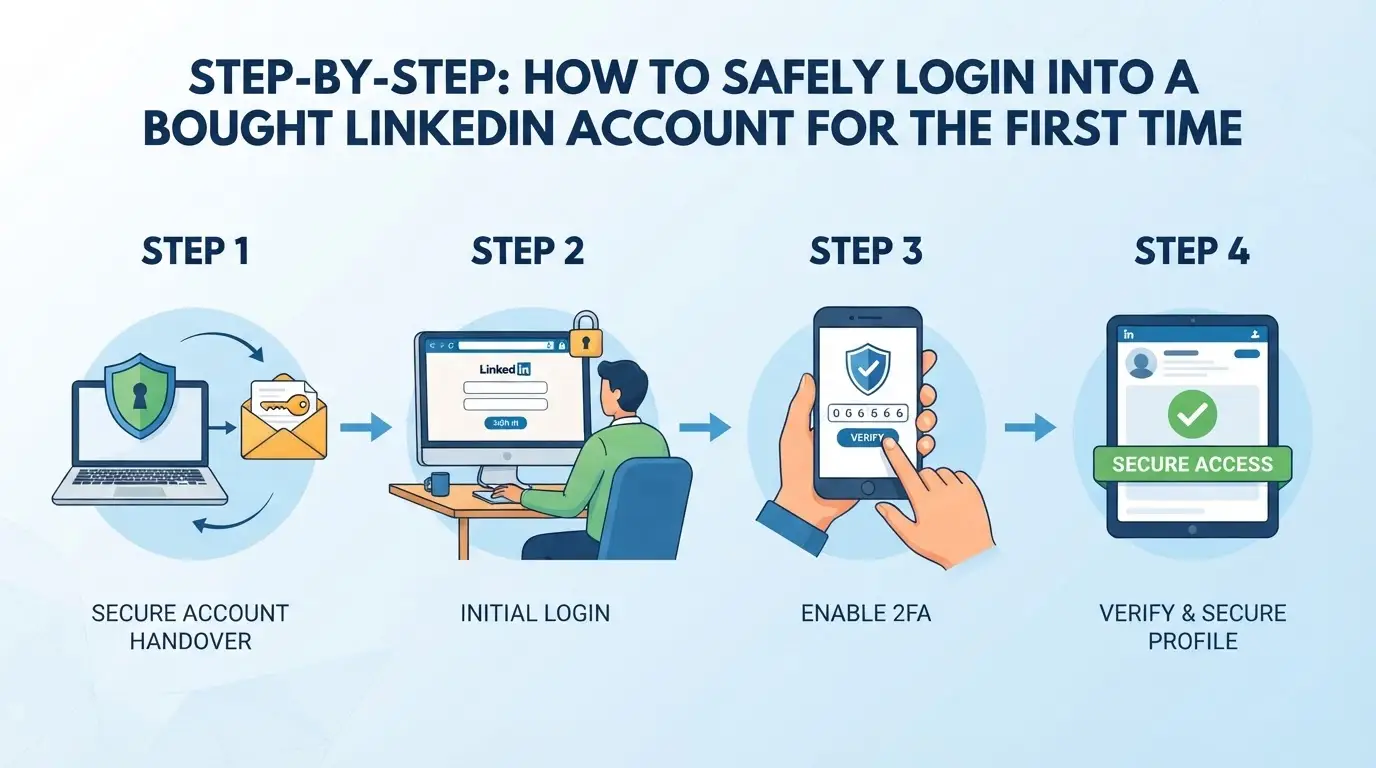 Rushing straight into a newly bought LinkedIn account often backfires, one small slip can trigger restrictions or even get the account locked. If you want the account to survive, you need a careful process that mimics its past usage and avoids LinkedIn’s automated alarms.
Setting Up a Fresh Browser Profile
- Create a brand-new browser profile before touching the account. This keeps old cookies, plugins, and web history from leaking signals that might link your bought account to others you control.
- Use a browser that lets you easily isolate sessions and manage fingerprints. For example, multi-profile tools or hardened portable browsers work better than Chrome’s basic guest mode.
- Never reuse a profile that has logged into other LinkedIn or social accounts. Cross-account contamination often happens here, LinkedIn can spot reused device IDs or shared storage and quietly flag the account.
Matching IP Location and Device Fingerprint
- Match your proxy’s country and city to the account’s historical login when possible. If the seller logged in from Paris, logging in from Singapore is a red flag.
- Align your device details with what LinkedIn expects. That means using the same type of browser (Chrome, Firefox, etc.), operating system, and even timezone.
- Avoid “clean” datacenter proxies for first access. Residential or mobile proxies that fit the account’s history are much less likely to trigger review screens.
First Login: Slow, Manual, and Minimal Actions
- Log in manually, never use automation on the first try. Bots or scripts can trip LinkedIn’s anti-abuse systems, especially if timing is too fast or mouse movement is unnatural.
- Let the page fully load, and don’t click around right away. Give LinkedIn a chance to finish background checks; actions in the first 30 seconds are heavily monitored.
- Avoid updating the profile, sending messages, or accepting invites. The safest approach is to only confirm access and then log out, wait at least 12-24 hours before any edits.
Handling Verification Challenges or Suspicious Prompts
- If LinkedIn asks for email or phone confirmation, use the recovery data provided by the seller, don’t guess or skip.
- If you see unusual prompts (captcha, “Verify your identity,” or a forced password reset), stop. Forcing ahead can burn the account fast.
- If the recovery method fails or you get stuck, pause and contact the seller for support instead of retrying. Too many failed attempts in a row usually trigger a temporary or permanent lock.
Miss a step here, and the next session could get flagged. Next, see the common mistakes that cause new accounts to get restricted or banned even after a “successful” login.
Common Mistakes That Get Bought LinkedIn Accounts Restricted or Banned
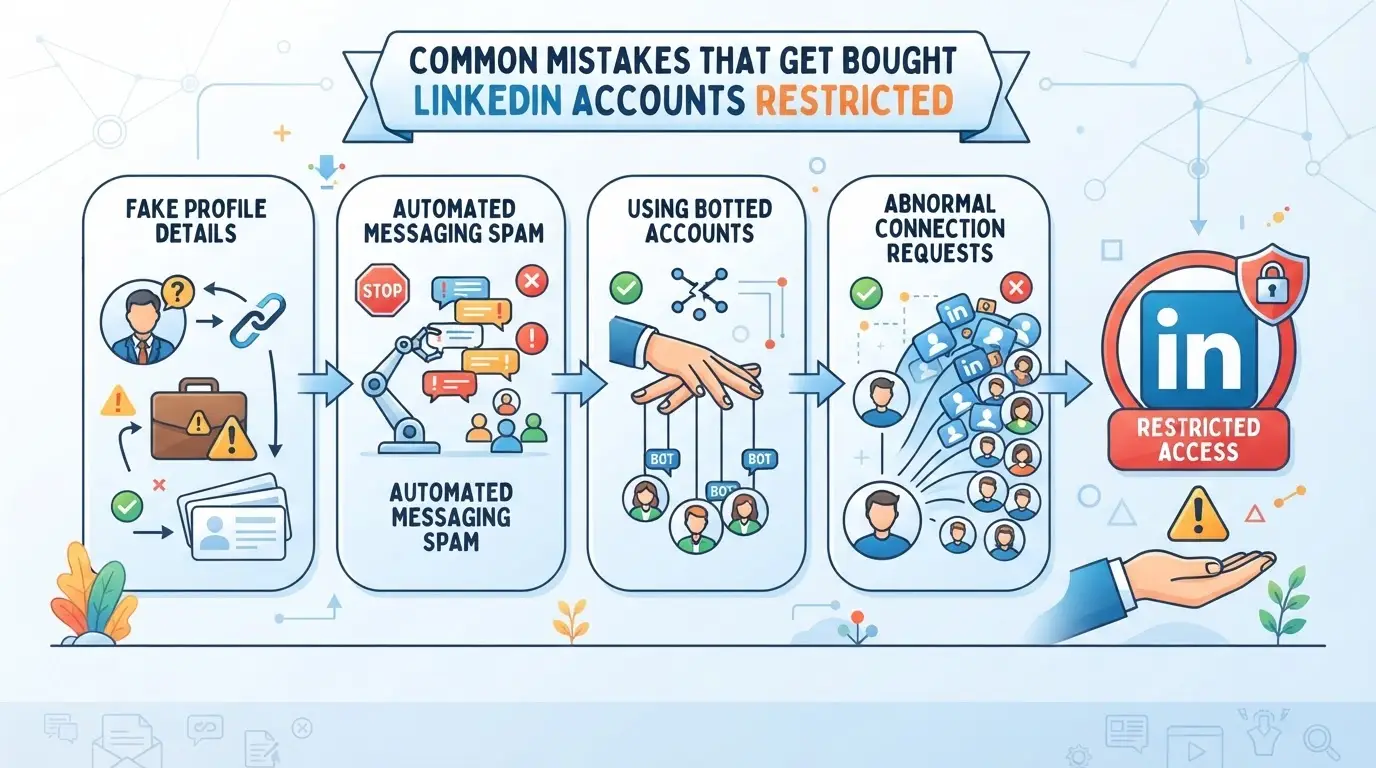
Most accounts get flagged when buyers rush the login process or skip basic security checks. The fastest way to lose access is to make changes that don’t match the account’s past patterns. If you want to avoid LinkedIn bans when logging into purchased accounts, pay attention to these common mistakes.
Logging in from Multiple Devices or Locations Too Quickly
LinkedIn tracks how often and where each account logs in. If you access your new account from different cities or devices within hours, the system often asks for ID or triggers a ban. Wait 24-48 hours between major environment changes. One location at a time beats getting locked out.
Changing Profile Details or Passwords Immediately
Updating passwords or profile info right after the first login nearly always triggers LinkedIn’s risk systems.
- What can go wrong: Immediate edits often lead to forced logouts, verification requests, or permanent bans.
- The safer move: Wait 2-3 days of normal browsing before making sensitive changes. This lets LinkedIn see “regular” activity first.
Using Contaminated Browsers or Leaked Cookies
Reusing a browser that still has old LinkedIn cookies or history can link your bought account to other flagged profiles. Always start with a clean, isolated browser and never import cookies from unknown sources. Mixing sessions is the easiest way to get all linked accounts banned, sometimes instantly.
Next, see how using isolated browser profiles and custom fingerprints can further reduce risk.
Using DICloak to Set Up Isolated Profiles and Fingerprints for LinkedIn Account Management
Once you know how easy it is to trigger LinkedIn’s risk checks, the next move is building a setup that keeps every bought account’s environment separate. For anyone managing more than one LinkedIn login, especially after purchase, letting browser sessions or device signals overlap can get accounts linked or flagged for review. DICloak gives operators the specific controls to create isolated browser profiles and configure key fingerprint signals for each LinkedIn account. This keeps account workflows organized and reduces the risk that LinkedIn sees connections between sessions.
Creating Separate Browser Profiles for Each LinkedIn Account
Managing multiple LinkedIn accounts safely means never letting browser storage, cookies, or device signals cross between accounts. Operators can create a new browser profile in DICloak for each LinkedIn account, storing sessions, cookies, and settings in separate spaces. Inside each profile, you can configure a set of fingerprint signals, such as User Agent, system language, time zone, screen resolution, and WebRTC handling, to better match the conditions the account “expects.” For example, if an account was always accessed from a German Windows device, you can set the profile’s OS, language, and timezone to similar values. The scope here is limited to browser profile setup; it does not change account status or guarantee platform acceptance.

Assigning a User-Provided Proxy to Match Account Origin
After setting up profile isolation and fingerprints, the next risk is logging in from an IP address that looks out of place. Operators can enter their own proxy credentials in the DICloak profile, test the connection, and assign the proxy before any login. This means that every LinkedIn account can have its session tied to a proxy that matches its known country or region. The built-in proxy check shows the detected exit IP and region, so you can confirm before logging in. Proxy quality, rotation, and compliance remain your responsibility, DICloak only stores and applies the settings per profile.

Once separate profiles and proxies are set, the next thing people get wrong is when and how to change account details safely. That’s what the next section covers.
When to Change Account Details, Passwords, or Recovery Info Safely
Jumping to change a LinkedIn account’s password or recovery info right after buying it is where most bans start. Timing and order matter, move too fast, and LinkedIn’s systems treat you as a hijacker, not the new owner.
Waiting Periods Before Making Major Changes
- Log in and do nothing but browse for 24-48 hours. Sudden edits right after takeover often trigger security reviews.
- Watch for normal account activity: no alerts, no forced logouts, and access to all features.
- If you see a warning or get logged out, stop, any change now increases your lockout risk.
Step-by-Step: Updating Details Without Triggering Flags
- Change recovery email or phone first, not both at once. This helps avoid multi-factor challenges that flag ownership changes.
- Wait one full day, then update the password. If LinkedIn asks for extra verification, back out, retry in 12 hours.
- After both changes, check for new alerts. If everything works, you can update the rest as needed.
Careful timing here is what lets you move on to managing multiple LinkedIn accounts without getting them linked or banned.
How to Manage Multiple Bought LinkedIn Accounts Without Getting Them Linked or Banned
Even if you’ve nailed the handover and updated login details, running several bought LinkedIn accounts on one device puts all of them at risk. The platform watches for patterns, shared fingerprints, reused cookies, similar login geography, that tie accounts together fast. Here’s how to keep each account isolated and reduce the chance of cross-contamination that leads to bans.
Keeping Sessions and Profiles Strictly Separate
Mixing accounts in the same browser or device triggers LinkedIn’s detection systems. To keep each login safe:
- Always use a dedicated browser profile or container for each LinkedIn account, never reuse one.
- Label every profile with the matching account email or ID so you never mix them up during daily work.
- Store each set of cookies, local storage, and session data separately; do not import or export cookies between accounts.
Team Access and Permission Control
Sharing access among a team gets tricky, one slip can link every account at once. The most common mistake is letting two people log in from different locations or, worse, on devices with shared fingerprints. For example, if an assistant logs in from their laptop, then a manager opens the same account minutes later on another machine, LinkedIn might flag both logins as suspicious and freeze them for review. The safest way is to set up controlled access: assign each teammate a fixed device and profile, and enforce a rule, no cross-login, no device swapping. If someone needs backup access, clone the environment settings and hand over the whole isolated profile, not just the password. Cutting corners here often means losing more than one account when LinkedIn connects the dots.
Frequently Asked Questions About safely login into bought Linkedin accounts
Is it legal to buy and use LinkedIn accounts in my country?
Laws about buying and using LinkedIn accounts can be different in each country. Check your local rules first. Also, LinkedIn’s terms of service often ban account sales or sharing. Using purchased accounts could risk bans or legal issues if you break these rules. Always review both your country’s laws and LinkedIn’s policies before you start.
Can I use the same device for multiple bought LinkedIn accounts if I use separate browser profiles?
Yes, you can, but each browser profile must be fully isolated. That means no shared cookies, extensions, or login sessions. Use tools that let you create separate browser profiles. This helps keep your accounts safe from being linked together by LinkedIn’s security checks.
What should I do if LinkedIn asks for phone or email verification on first login?
Only complete verification if you control the phone number or email tied to the account. If you don’t, do not proceed. Contact the seller right away and ask for help. Forcing verification without access to the recovery channel can lock you out or flag the account for review.
How many bought LinkedIn accounts can I safely manage at once?
The number depends on your setup. With good profile isolation and high-quality proxies, some users handle 5–10 accounts safely. Managing more increases the risk of LinkedIn linking or banning accounts. Always keep separate browser profiles and avoid logging in from one IP address.
Is using an antidetect browser enough to guarantee my LinkedIn accounts won’t get banned?
No, using an antidetect browser alone is not enough. You must also use consistent IP addresses, unique browser fingerprints, and avoid patterns LinkedIn sees as risky. Even with these tools, there is always some risk to safely login into bought Linkedin accounts. Careful habits and regular monitoring help reduce problems.
Take the time to set up solid security measures and use reliable tools that can help mask your digital footprint before accessing any new account. By prioritizing privacy and following best practices, you can minimize risks and maintain control over your online presence. Try DICloak For Free
 Web Proxy Tools
 Free Tools
 Cookie Plugin
 UA Generator
 MAC Address Generator
 IP Generator
 IP Address List
 2FA Code Generator
 World Clock
 Anonymous Check
 WebRTC Leak Test
 UUID Generator
 Free Web Proxy Site
 Proxy Checker
 FB Ad Checker
 AI Web Scraping
 Free SMM Tools
 Twitter Shadowban Checker
 Instagram Name Checker
 UTM Generator
 Username Generator
 AI Hashtag Generator
 LinkedIn Headline Generator
 Social Media Image Resizer