You set up your accounts, double-check your proxies, and run a quick test, then fail the Iphey fingerprint check even though everything looks fine on your end. If you’re moving accounts across devices or sharing them with your team, this “invisible” block can kill your workflow with no warning or error message. The hardest part? Most tools that claim to bypass Iphey browser fingerprint detection either leave obvious traces or trigger flags as soon as you switch to a new profile or rotate an IP.
It’s tempting to focus on IP changes or cookie cleanup, but that’s not where most people get caught. The real risk comes from subtle mismatches in hardware signals, browser settings, and fingerprint entropy, details that are easy to overlook but easy for Iphey to spot.
Passing the Iphey fingerprint test isn’t just about using more proxies or clearing your browser data. You need to control how your browser presents itself at every layer: canvas, WebGL, audio stack, fonts, and even small things like timezone and screen size. Tools like DICloak let you set up isolated browser profiles with custom fingerprints and independent proxy settings, but simple missteps, like reusing a profile or failing to reset device signals, can still burn your session.
If your goal is to Pass the Iphey Browser Fingerprint Check without getting flagged or linked, you’ll need more than a plug-and-play antidetect tool. Here’s what actually works (and where most workflows break) before you even log in.
What Does the Iphey Browser Fingerprint Check Actually Test?
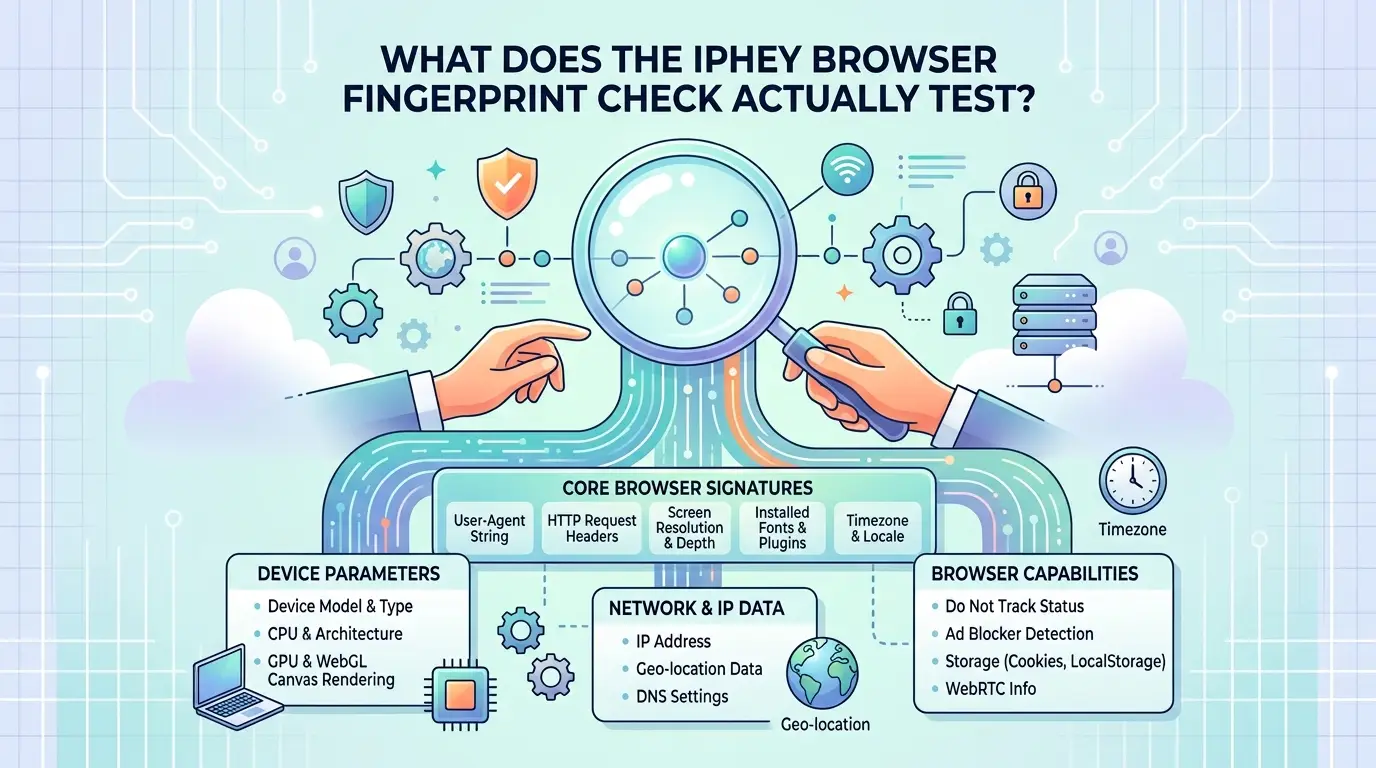
Iphey doesn’t just look for obvious red flags. It builds a detailed profile from your browser and device, then compares it to what’s expected for the account or session. If you want to pass the Iphey fingerprint test, you need to understand which signals matter most and why even tiny mismatches can trigger restrictions.
Key Parameters Iphey Detects
Iphey checks more than your IP address. It probes dozens of browser and device signals that together form a unique fingerprint. Here’s what gets scanned every time:
| Parameter Type |
Examples Checked |
| Device & OS |
User agent, platform, hardware model |
| Network Identifiers |
IP, timezone, language, geolocation |
| Browser Features |
Canvas, WebGL, fonts, plugins, cookies |
Most users skip over things like font lists or hardware details, but Iphey doesn’t. The system checks for consistency across all these layers, so if your timezone says Berlin but your device model is an old iPhone from Seoul, the mismatch stands out.
Why These Parameters Reveal Your Identity
The real challenge isn’t just hiding one signal. Iphey combines dozens of parameters into a single fingerprint that’s hard to fake. Every detail, screen size, audio stack, installed fonts, feeds into a model that flags unusual setups. If any part feels off, you risk instant detection.
For example, even if you use a proxy and mask your IP, a canvas hash or WebGL fingerprint that matches your last failed attempt can link sessions. Fonts are trickier: browser profiles often inherit the host system’s font stack, so using the same rare font twice can burn multiple accounts. The tradeoff is clear, the more you change, the more you risk creating a setup that looks fake; but the less you change, the easier it is for Iphey to connect your new session to old ones. Most users don’t realize that even tiny mismatches, like a language setting that doesn’t match geolocation, or a plugin list that’s too clean, are enough to trigger a manual review or outright ban.
Edge cases show up fast. If you reuse a browser profile, Iphey can spot old cookies or session tokens. If you rely on basic antidetect tools and skip device resets, the fingerprint stays partly tied to your real device. That’s why passing the Iphey fingerprint test means paying attention to every layer, not just the obvious ones.
Understanding how Iphey builds its fingerprint makes it clearer why standard setups fail so often, the detection isn’t surface-level, and mistakes add up fast. Next: why most setups get flagged even when users think they’ve covered their tracks.
Why Most Setups Fail the Iphey Fingerprint Test (and Get Flagged)
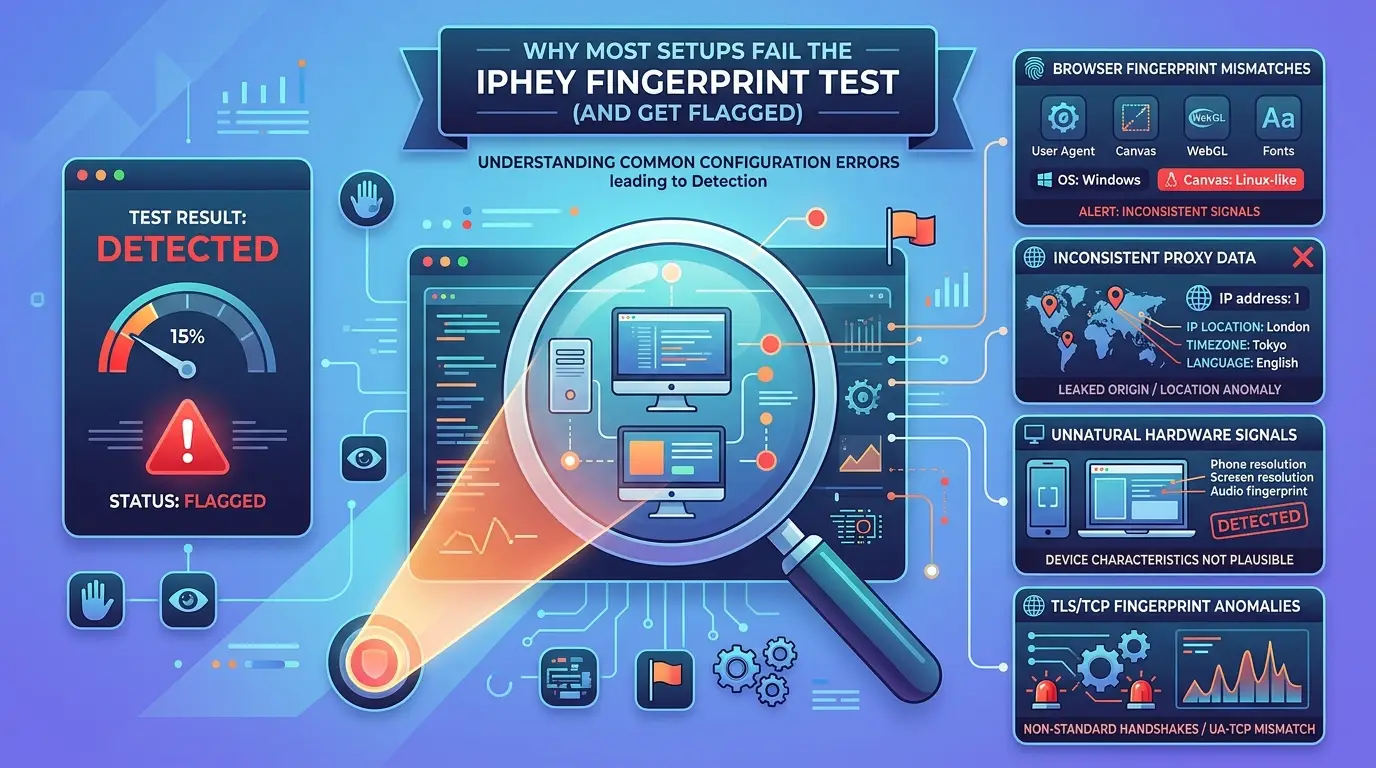
Most users get flagged by Iphey not because their proxy is weak, but because their browser setup leaks details that don’t add up, one mismatch is enough to trigger a manual review or instant block. Even with the right tools, missing just one parameter or forgetting to isolate your setup can ruin everything.
Typical Red Flags Iphey Detects
- Your IP says you’re in France, but your browser’s timezone is set to Shanghai.
- The browser language is English, but your OS locale is Russian.
- All your fonts, screen size, or WebGL settings match a default Chrome install, Iphey sees thousands of identical prints every day.
- You load with rare plugins, unexpected device memory, or extensions that leave unique traces.
- An extension that “hides” your fingerprint just adds a rare parameter, making you stick out even more.
How Small Details Cause Big Problems
It only takes one detail out of place to fail the Iphey fingerprint test. For example, you might set up a strong proxy and an antidetect browser, but if your canvas fingerprint matches a known emulator or your audio stack doesn’t match your OS, Iphey will spot it. Real users show a messy but believable set of signals, slight mismatches, not perfect clones, and never all default.
A common trap is copying someone else’s “safe” browser profile. If that profile’s timezone and IP don’t match, or it comes with pre-installed fonts from a different country, you look fake. Another mistake is running multiple sessions from the same device without resetting hardware IDs or clearing unique session artifacts. Iphey’s detection logic chains clues: maybe your proxy is solid, but your screen resolution is never seen with that OS version, or your WebGL fingerprint matches a known farmed batch.
The single biggest reason setups fail is not lack of tools, but missing the small stuff, like letting your browser extension list or hardware concurrency reveal you’re not a real user. It’s not about being perfect; it’s about not making mistakes that only bots or careless operators make. Every extra detail you leak gets added to a risk score. When too many odd points stack up, you get flagged, even if your proxy and main fingerprint look fine.
If you want to avoid these traps, you’ll need to check every parameter before trying the Iphey check. The next section covers what to prepare so you don’t repeat these common failures.
What to Prepare Before Trying to Pass the Iphey Check
If you rush into the Iphey fingerprint test with a random proxy or a reused browser profile, you’ll get flagged before you even start. Passing means setting up every layer so your device looks “real”, not just hidden. That calls for careful prep, not guesswork.
Checklist: Settings and Tools to Review
- Pick a proxy that matches your target location (residential or mobile work best, datacenter proxies usually fail)
- Set your browser’s timezone, language, and geolocation to match your proxy IP
- Start with a fresh browser profile, no saved logins, no extensions, no autofill
- Double-check your screen resolution and device type (Windows, Mac, Android, etc.) to match typical users
- Make sure WebGL, canvas, audio, and font fingerprints aren’t reused between profiles
- Turn off “do not track” and disable any privacy extensions
- Check that cookies and local storage are empty before you launch
A rushed setup means you’ll miss something simple, like a mismatched timezone, or a font list that doesn’t fit your device. One mismatch is all it takes for Iphey to flag your session as suspicious.
Common Preparation Mistakes
Most failures come from two places: old data left in reused profiles, or a fingerprint mismatch you didn’t spot. Clearing cookies and cache is basic, but forgetting to reset WebGL or canvas fingerprints is what usually burns people, Iphey compares these details across tests, and a recycled setup gets linked fast.
If you aren’t sure you’ve covered every setting, stop and double-check before moving on to the actual test.
Step-by-Step: How to Pass the Iphey Browser Fingerprint Check in 2026
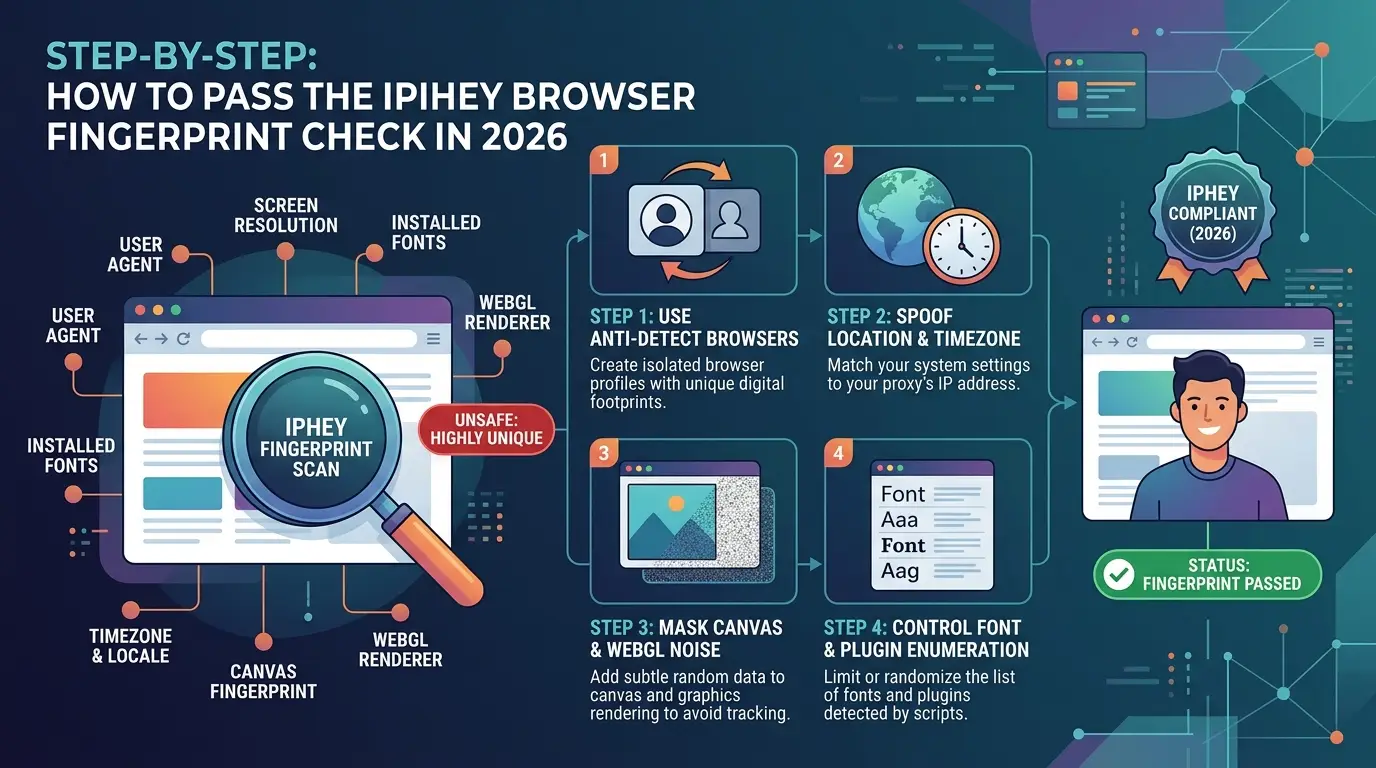
If you want to pass the Iphey fingerprint test in 2026, the method is clear: isolate every browser profile, align all location signals, and check for leaks before you even touch an account. Skipping any step means you risk instant detection and flagged sessions.
Step 1: Start with a Fresh, Isolated Browser Profile
Each account should run in a profile that never touches other accounts or sessions. Isolation matters because Iphey tracks residual data, like cookies or local storage, that link activity. If you reuse a profile, even after a factory reset, old device signals can stick around. Always create a new, clean profile for each test.
Step 2: Configure Proxy and Match Location Data
Set up a proxy that matches your target country or region. This isn’t just about IP. You also need to match timezone, browser language, and geolocation to your proxy’s location. If your proxy is in Berlin, but your browser says you’re in Tokyo, Iphey’s system will flag the session as abnormal. Most failures here come from mismatched timezones or default language settings you forgot to change.
Step 3: Adjust Browser Fingerprint Parameters
Fine-tune the browser’s user agent string so it matches the operating system and device you want to simulate. Set screen resolution to standard values, custom sizes stick out. Next, randomize or mask graphics signals like canvas and WebGL. This is where most antidetect tools fail: too many random settings look fake, but default settings get you flagged as reused. Strike a balance by using common but not default fingerprints. Don’t forget to check the font list and audio stack, Iphey sometimes flags rare combinations.
Step 4: Test and Iterate on Iphey
Open the Iphey test page and check the report for any “unusual” or “duplicate” warnings. If you get flagged, don’t just reset, change one parameter at a time, starting with timezone or canvas, then rerun the test. If you keep failing, try switching proxies or rebuilding the profile from scratch. Most people get stuck here by changing too much at once and losing track of what triggered the flag.
Once you’ve passed, you’re ready to handle account actions, but the next risk is what happens when you run more accounts or add team members. That’s a different problem, handled in the next section.
How to Reduce Risk When Managing Multiple Accounts or Team Operations
Passing the Iphey fingerprint test once is simple, keeping a whole team or bulk setup safe, session after session, is where things fall apart. Most bans and linkages happen after the first login, not before. That’s because teams and agencies trip detection in ways solo users often miss.
Why Multi-Account Setups Get Flagged
Running several accounts from one device or office creates obvious patterns. Reusing browser fingerprints, copy-pasting profiles, or letting multiple people operate from the same machine, even with different proxies, leaves signals Iphey can spot: identical canvas hashes, shared WebGL data, or timezones that never change. Team workflows often leak identity through shared downloads, synced extensions, or accidental login overlaps. Even one missed setting can tie your accounts together for good.
Best Practices for Teams and Agencies
To avoid a chain reaction, give every user a unique, isolated browser profile, never clone a setup. Assign a separate proxy per account, and rotate IPs only when needed to avoid suspicious location jumps. Keep a change log: note which member handled which profile, and document all proxy swaps. For agencies, set up clear permission rules so only trusted staff can access high-value accounts. If someone leaves your team, change all recovery info right away. The biggest mistake is letting “just this once” shortcuts pile up, one careless session can link dozens of accounts and get them all flagged. Done right, this discipline makes it much harder for Iphey to connect the dots.
Lock in these habits now. The next section covers how a tool like DICloak can automate much of this process and reduce human error.
How DICloak Helps You Pass the Iphey Browser Fingerprint Check (and Scale Safely)
DICloak’s Key Features for Fingerprint Management
You can set up unique, isolated browser profiles, each with its own custom fingerprint, timezone, and proxy, so Iphey’s test sees every account as a different real device. Batch operations let you build or reset hundreds of profiles in minutes.
Scaling Multi-Account Operations Without Getting Flagged
Running many accounts or a team? DICloak’s profiles, permission control, and audit logs stop accidental overlap. With built-in RPA, you can automate logins and rotate profiles safely, so you don’t have to touch risky steps by hand.
How to Test and Troubleshoot Your Setup on Iphey
Passing the Iphey fingerprint test isn’t a one-and-done deal, if you want to avoid bans, you have to keep testing every time you change your setup. Each tweak can shift what Iphey sees, so you need a process that catches leaks before they get you flagged.
Running a Test on Iphey: What to Look For
Start by running your browser profile through the Iphey test page. The report shows three main things: how unique your fingerprint looks, which parameters stand out, and whether any signals leak real device info. If you see a warning like "canvas hash matches known device," that means your spoofing isn’t working. Check the risk score, if it’s above 60%, you’re exposed. Focus on red or orange flags for canvas, WebGL, audio, or timezone. These are the usual leak points.
Here’s a quick checklist:
- Open the Iphey fingerprint test page.
- Review uniqueness score and flagged parameters.
- Note which signals triggered a warning.
- Screenshot your results for tracking changes.
Troubleshooting Common Issues
When you see a flagged parameter, don’t just toggle random settings. The fastest fix is usually to rebuild your browser profile from scratch, instead of tweaking a broken one. Change device emulation, proxy, and fingerprint settings together, if you only fix one, leaks often stick around. For example, if WebGL is flagged, switch both the GPU emulation and screen resolution. If canvas keeps failing, clear cookies and restart with a fresh user agent.
If you keep seeing the same warnings, try a full profile reset and test again. Only move forward when all risk signals turn green or yellow. If you’re using DICloak, use the bulk profile creation tool to generate multiple clean profiles and re-run the test. This saves hours compared to manual fixes. End each round by logging changes and results, so you don’t repeat mistakes next time.
Ready for the next step? Passing Iphey isn’t the end, other detection traps still lurk, and you’ll need to know what to watch in 2026.
When Passing Iphey Isn’t Enough: Other Risks to Watch in 2026
Passing the Iphey fingerprint test stops easy detection, but it doesn’t cover everything. Behavior signals and network traces still trip bans or link accounts, even with perfect fingerprints. Here’s what to watch next.
Beyond Fingerprinting: Behavioral and Network Risks
- Unusual activity patterns, like logging in at odd hours, using scripts, or rapid switching between accounts, can trigger manual reviews.
- Account linking often happens through leftover cookies, reused device IDs, or logging in from the same browser session. Even if you bypass Iphey browser fingerprint checks, careless habits can expose you.
- Split sessions across devices and always clear session data after each login. If you share accounts, make sure profiles and proxies don’t overlap.
Frequently Asked Questions About Pass the Iphey Browser Fingerprint Check
Is passing the Iphey browser fingerprint check legal in 2026?
Legality depends on how and where you use it. Passing the Iphey browser fingerprint check for fraud, bot activity, or bypassing site security is often illegal. Using it for privacy or testing might be allowed. Always check your country’s laws and site terms before trying to bypass Iphey browser fingerprint systems.
Can I pass Iphey with just a proxy?
No, a proxy alone won't bypass Iphey browser fingerprint detection. Iphey checks your browser’s fingerprint, like user agent, canvas, WebGL, and timezone. If these don’t match what Iphey expects, you'll get flagged. You need both a proxy and a fingerprint that looks real and matches your target environment.
How often should I retest my setup on Iphey?
Retest your configuration after any major browser update, system change, or before using new accounts. Even small updates can change fingerprint details and cause Iphey to detect you. Regular checks help you stay undetected and adjust settings if your fingerprint becomes unique or suspicious.
Does using an antidetect browser guarantee I’ll pass Iphey?
No tool can guarantee you’ll pass the Iphey browser fingerprint check every time. Antidetect browsers help, but they need the right setup. Misconfigured parameters or reused fingerprints can still get flagged. Always test your setup with Iphey’s fingerprint test before important use to catch problems early.
What should I do if Iphey says my fingerprint is still unique?
If your fingerprint is unique, change details like canvas rendering, WebGL hash, or user agent string. Try different timezones and fonts. Retest after each change using Iphey’s fingerprint test. The goal is to blend in with many users, not stand out with unique settings.
Now that you understand how browser fingerprint checks can impact your online privacy, it makes sense to experiment with solutions that help you navigate these challenges. Consider testing tools designed to improve anonymity and bypass fingerprinting detection, so you can make more informed decisions about protecting your digital identity. Try DICloak For Free
 Web Proxy Tools
 Free Tools
 Cookie Plugin
 UA Generator
 MAC Address Generator
 IP Generator
 IP Address List
 2FA Code Generator
 World Clock
 Anonymous Check
 WebRTC Leak Test
 UUID Generator
 Free Web Proxy Site
 Proxy Checker
 FB Ad Checker
 AI Web Scraping
 Free SMM Tools
 Twitter Shadowban Checker
 Instagram Name Checker
 UTM Generator
 Username Generator
 AI Hashtag Generator
 LinkedIn Headline Generator
 Social Media Image Resizer