Threads has quickly become an important platform for brands, creators, and communities looking to build new audiences. Since launching in 2023, Threads has continued to grow rapidly, reaching 500 million monthly active users according to Meta, creating new opportunities for businesses that want to manage multiple brand profiles, customer accounts, and content channels.
However, managing multiple Threads accounts is not as simple as switching between profiles. When multiple accounts share the same browser data, saved sessions, or operating environment, it becomes harder to keep account management organized and maintain a consistent workflow. In this guide, you will learn why multiple Threads accounts can become connected, how to manage and switch between accounts, and how businesses and teams can create a more organized workflow for managing multiple Threads accounts in 2026.
Can You Have Multiple Threads Accounts in 2026?
Yes, you can have multiple Threads profiles. Meta provides an official way to add and switch between them, so managing more than one profile is not automatically a policy violation. This is useful for a creator who separates personal and brand content, a company with regional profiles, or an agency working with several clients.
However, a Threads profile is not a fully independent account. You create it by signing in with an Instagram or Facebook account, and each eligible Instagram or Facebook account can create one Threads profile. This means the Threads profile and the account behind it should be treated as one account asset, with the same owner, recovery access, and login responsibilities.
For example, if an agency manages five client Threads profiles, it is also managing the five Instagram or Facebook accounts connected to them. Separating only the Threads pages while mixing the related login sessions, recovery emails, or team access does not create a clear operational boundary.
How Do You Add and Switch Between Multiple Threads Accounts?
You can add several Threads profiles inside the mobile app and switch between them without signing out each time. The built-in switcher is convenient for a few accounts, but it changes the active profile rather than creating a separate workspace for each one.
Add Another Threads Profile From the Profile Tab
This is the fastest method on iPhone or Android:
- Open the Threads app.
- Press and hold the profile icon at the bottom of the screen.
- Tap Add profile.
- Log in with the Instagram account connected to the Threads profile you want to add.
- Complete the profile setup if that Instagram account does not already have a Threads profile.
Threads announced the long-press shortcut as an official way to add and switch between profiles on mobile.
Add a Profile Through the Settings Menu
You can also add an account from the main menu:
- Open Threads and go to your profile.
- Tap the menu icon in the top-right corner.
- Select Switch profiles.
- Tap Add profile.
- Choose Log in with another Instagram account and enter the correct login details.
Before adding a client or brand account, check which Instagram account you are using. Threads profiles remain tied to the Instagram account behind them, so choosing the wrong login can create the wrong profile or place the wrong account inside your working list.
Switch Between Saved Threads Profiles
After the profiles have been added:
- Press and hold the profile icon.
- Select the profile you want to use.
- Check the username and profile image before posting, replying, or changing settings.
That last check may feel unnecessary when you manage two personal accounts. It becomes much more useful when one profile belongs to a client and another belongs to your own brand. Fast switching reduces login work, but it also makes wrong-account posts easier when profile names or images look similar.
The Threads profile switcher solves repeated logins, but it does not give each account its own device, browser session, network setup, or team workspace. All saved profiles are still being accessed through the same app on the same phone.
For a person managing a few related profiles, this may be enough. Once several clients, regions, or team members are involved, the more important question is why those accounts can still overlap even when their logins are different.
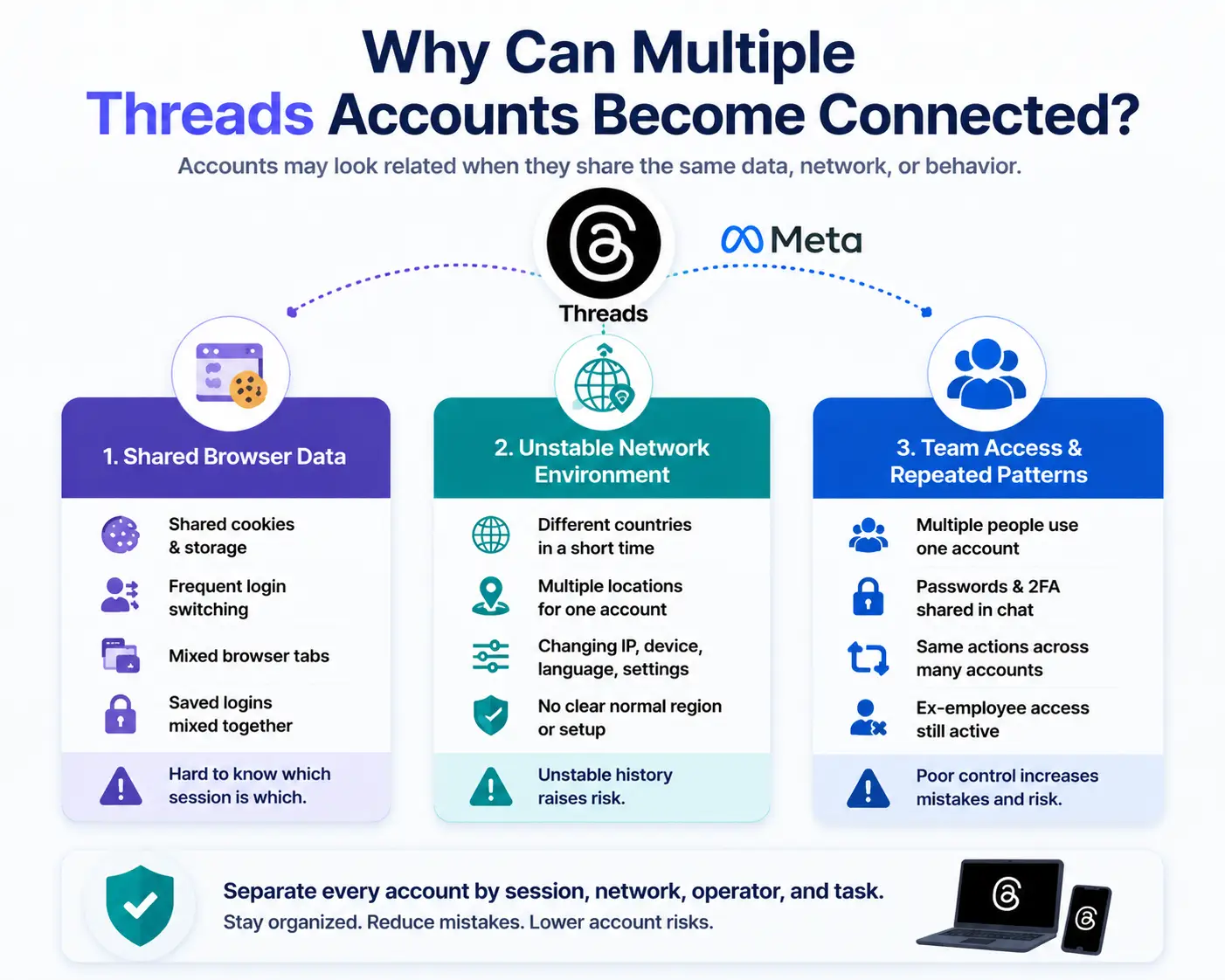
Why Can Multiple Threads Accounts Become Connected?
Multiple Threads accounts may appear related when they repeatedly share the same browser data, network environment, device setup, or operating patterns. Meta does not publish its full account-linking system, so no single signal proves that accounts have been connected.
Shared Login Sessions and Browser Data
Using different usernames does not create separate browser profiles. When several Threads accounts are opened in the same browser profile, they may share the same working space and browser data.
Common sources of overlap include:
- Shared cookies and local storage: Several accounts are saved in the same browser profile.
- Frequent login and logout: Team members keep replacing one active session with another.
- Mixed browser tabs: A reply or post may be sent from the wrong account.
- Saved credentials: Personal, brand, and client logins may become mixed in one browser.
For most teams, the first problem is not an immediate account restriction. It is losing control over which session belongs to which account.
Reused or Unstable Network Environments
An IP address is only one signal. Several real users in the same office may share one public IP, so using the same Wi-Fi does not automatically mean the accounts are being used improperly.
The larger concern is an unstable login history. For example, one account may appear in different countries within a short time because a proxy keeps changing regions. The same account may also be opened by team members in several locations, while multiple client accounts share one network setup with no clear assignment. Changing the IP, browser, language, and device settings at the same time can make the account environment even less consistent.
Stable account use matters more than constantly changing the IP. Each account should have a clear normal region and a consistent working environment.
Team Access and Repeated Operating Patterns
Technical separation does not help much when team access is poorly managed. Problems often begin when several people use the same account at the same time, passwords and 2FA codes are passed through chat, or nobody knows who posted, replied, or changed a setting.
The risk becomes greater when staff repeat the same actions across many accounts or when former employees still have access. Several accounts may also publish or engage in the same pattern at the same time. Similar activity is not always unusual. Regional brand accounts may need to share the same announcement. The real issue is repeated activity without a clear business reason, account owner, or review process.
Multiple Threads accounts are not separated in practice when the team cannot match each account with its own session, network setup, operator, and task. These overlaps do not prove that Meta has linked the accounts, but they make mistakes, login problems, and account restrictions harder to identify and contain.
What Are the Risks and Warning Signs of Account Overlap?
Account overlap does not always cause an immediate restriction. Problems often appear gradually, especially when several accounts keep using the same sessions, unstable login environments, or unclear team workflows.
- Temporary action limits: Posting, replying, following, or other actions may become unavailable for a period. However, a temporary limit alone does not prove that several accounts have been linked.
- Repeated security checks: An account may ask for a new login, password, or 2FA code. These checks can become more common when the account is opened from changing devices, locations, or browser sessions.
- Unexpected session loss: Team members may be logged out, lose a saved session, or need to rebuild access. This creates delays and makes it harder to know which login change caused the problem.
- Loss of account access: Serious or repeated policy violations can lead to longer restrictions or account removal. The exact cause should always be checked through the official notice rather than assumed from one symptom.
- Similar problems across shared workflows: If several accounts use the same poorly managed setup, other accounts may face similar login or access problems. This does not mean one restriction automatically spreads to every account. It means the same workflow weakness remains in place.
A drop in reach is not reliable proof of account linking. Content quality, timing, audience interest, and normal distribution changes can all affect visibility. The main risk of account overlap is that one problem becomes harder to identify, contain, and fix because the team cannot clearly separate each account’s session, environment, and operator.
Should You Manage Multiple Threads Accounts on Mobile or the Web?
The Threads mobile app is usually enough for a few related accounts under one owner. Web access is easier to organize for client work, but using several accounts in one normal browser still does not create separate account environments.
Mobile App Management
The mobile app offers the fastest way to add and switch between saved Threads profiles. It works well for personal accounts or a small group of brand profiles that belong to the same owner.
Advantages:
- Fast profile switching: You can move between saved profiles without logging in again each time.
- Easy daily engagement: Mobile is convenient for checking notifications, replying, and posting while away from a desk.
- Simple setup: You do not need to create or maintain separate browser profiles.
Limitations:
- All profiles stay inside one app: The switcher changes the active account, but it does not create a separate workspace for each profile.
- Wrong-account posts are easier: Similar profile names and images can cause mistakes during fast switching.
- Limited team control: It is difficult to assign one client account to one employee without sharing the phone, password, or login process.
- The device and network remain shared: Accounts used through the same phone may continue to use the same device environment and, when connected to the same Wi-Fi, the same network exit.
Some teams use a separate phone for each high-value account, but this becomes expensive and difficult to manage as the account number grows. Mobile works best when one person manages a few accounts that are already related. It becomes harder to control when different clients, regions, or team members are involved.
Web Browser Management
Threads web gives creators and businesses more space for writing, reviewing posts, checking activity, and organizing feeds. Its web experience can also display multiple feeds, profiles, searches, saved posts, and activity in separate columns.
Advantages:
- Clearer account windows: Different accounts can be opened in separate browser windows or profiles.
- Better desktop workflow: Typing, reviewing content, and checking several workspaces is easier on a larger screen.
- More useful for teams: Browser profiles can be named by client, region, or account purpose.
- Sessions can stay saved: Each browser profile can keep its own login instead of requiring constant logout and login.
Limitations:
- Normal tabs do not create isolation: Several Threads accounts opened in one Chrome profile can still share browser storage and saved login data.
- Incognito is temporary: It does not provide a stable workspace for an account that must remain logged in every day.
- Chrome profiles require manual control: Teams still need to manage network settings, profile access, and account ownership separately.
- The same network may still be reused: Separate browser windows do not automatically give each account a different connection.
Web access improves organization, but the real separation comes from using a dedicated browser profile for each account, not from opening more tabs.
For agencies or remote teams, a standard mobile switcher or regular browser may no longer be enough. When each client account needs its own saved session, proxy configuration, and controlled team access, separate antidetect browser profiles provide a more structured workflow.
| Management method |
Best for |
Main advantage |
Main limitation |
| Threads mobile switcher |
A few related accounts under one owner |
Fast switching and mobile-first access |
All accounts remain inside one app and device |
| Standard web browser |
Occasional desktop use |
Easier typing and a larger workspace |
Sessions may overlap in the same browser profile |
| Chrome browser profiles |
A small number of long-term accounts |
Separate cookies and saved logins |
Proxy settings and team access still need manual control |
| Antidetect browser profiles |
Client accounts, regional accounts, and teams |
Separate workspaces with clearer session control |
Requires profile setup and separate proxy planning |
| Dedicated phones |
Mobile-only or high-value workflows |
Strong physical separation between accounts |
Expensive and difficult to scale |
How to Manage Multiple Threads Accounts With DICloak
Managing multiple Threads accounts requires separate browser profiles to keep each account’s session, cookies, and settings independent. With DICloak, you can create dedicated browser profiles for each Threads account and share them with your team when needed.
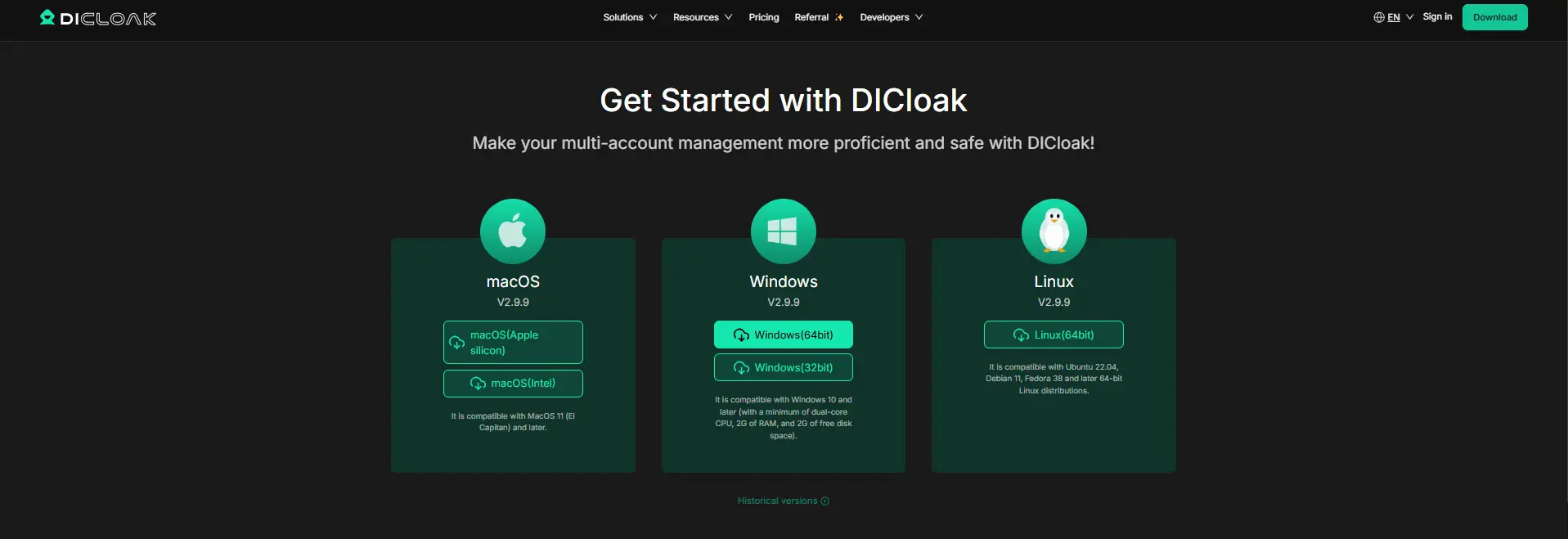
Step 1: Download and Install DICloak
Visit the official DICloak website, register an account, and download the DICloak application. After installation, open DICloak and log in.
Step 2: Choose a DICloak Plan
To share Threads profiles with your team, you need to subscribe to DICloak. Choose a plan based on your team size and account management needs. The Base Plan works well for small teams, while larger teams can choose plans with more member access and collaboration features.
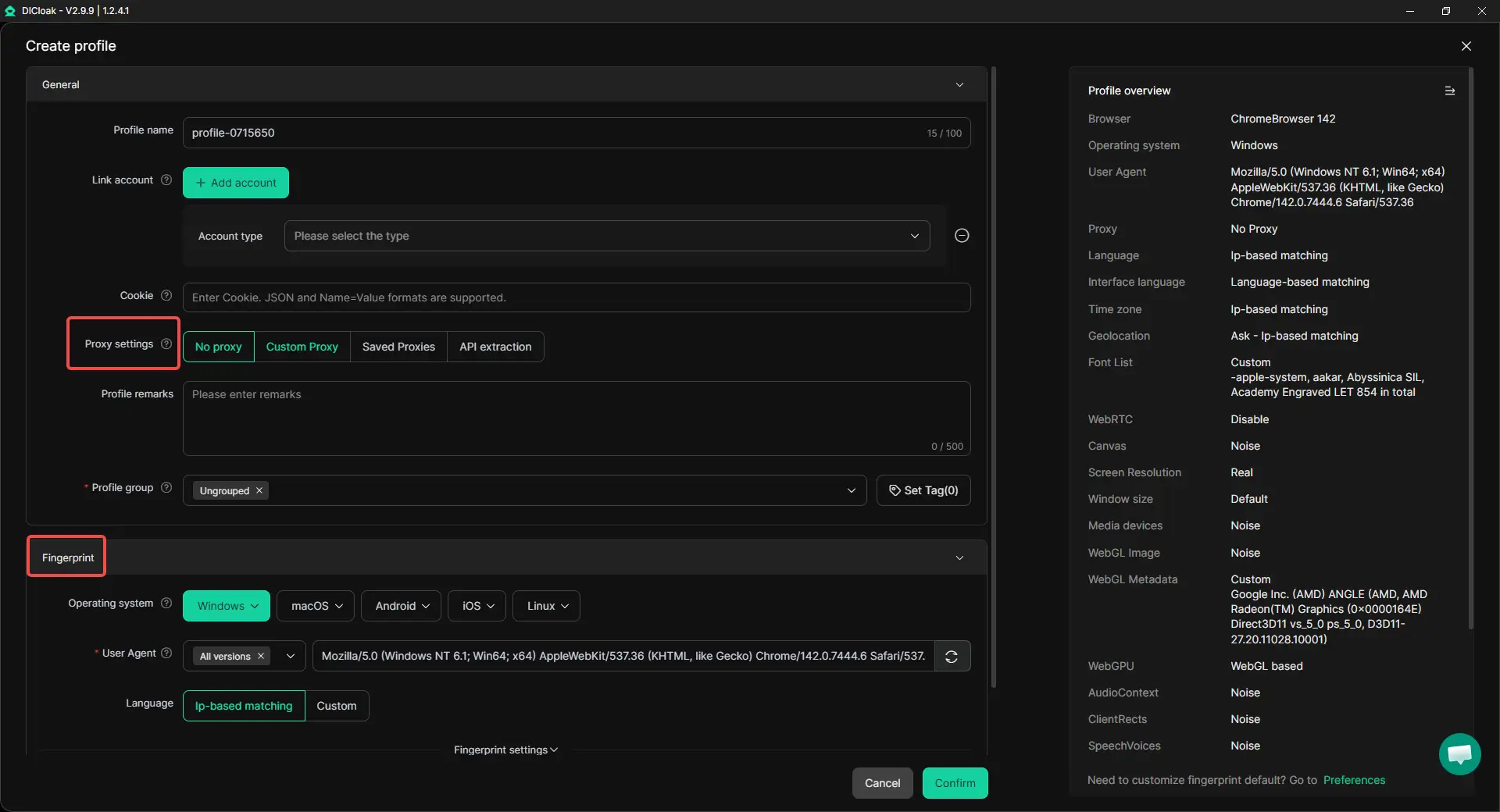
Step 3: Create Browser Profiles for Threads Accounts
Go to Profiles and click Create Profile to create a new browser profile. If you need to set up multiple Threads accounts at once, use Batch Create to create multiple profiles together. Each profile works as an independent browser workspace, keeping its own cookies, sessions, and account data.

Step 4: Configure Proxy and Fingerprint Settings
After creating a profile, configure the proxy and browser fingerprint settings for the account environment. You can adjust these settings during profile creation or edit them later from the profile list.
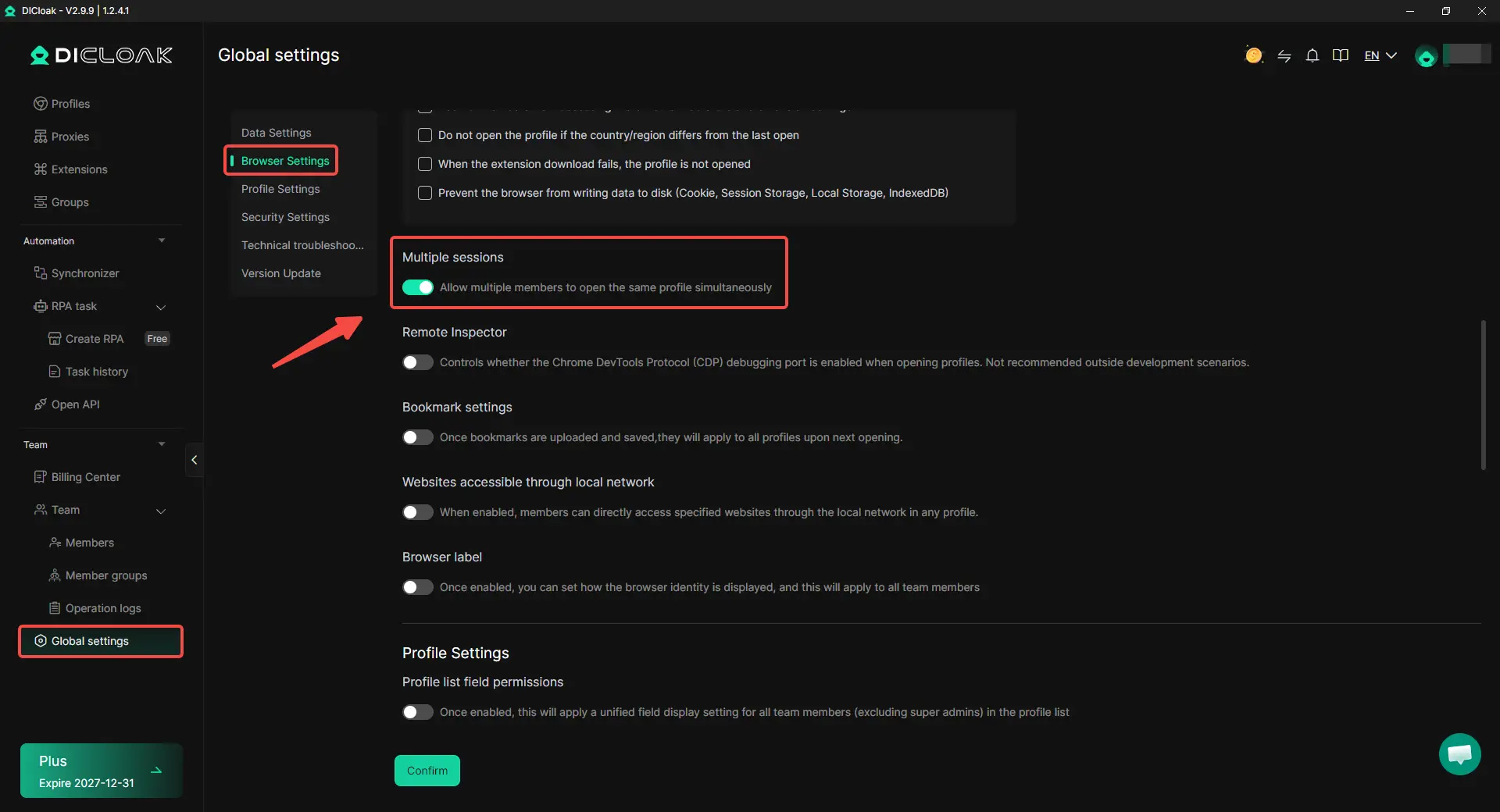
Step 5: Enable Multiple Sessions (Optional)
If multiple team members need to access the same profile, enable Multiple Sessions. To enable Multiple Sessions, open Global Settings, select Multi-open mode, and choose Allow. This allows multiple users to open the same profile at the same time.
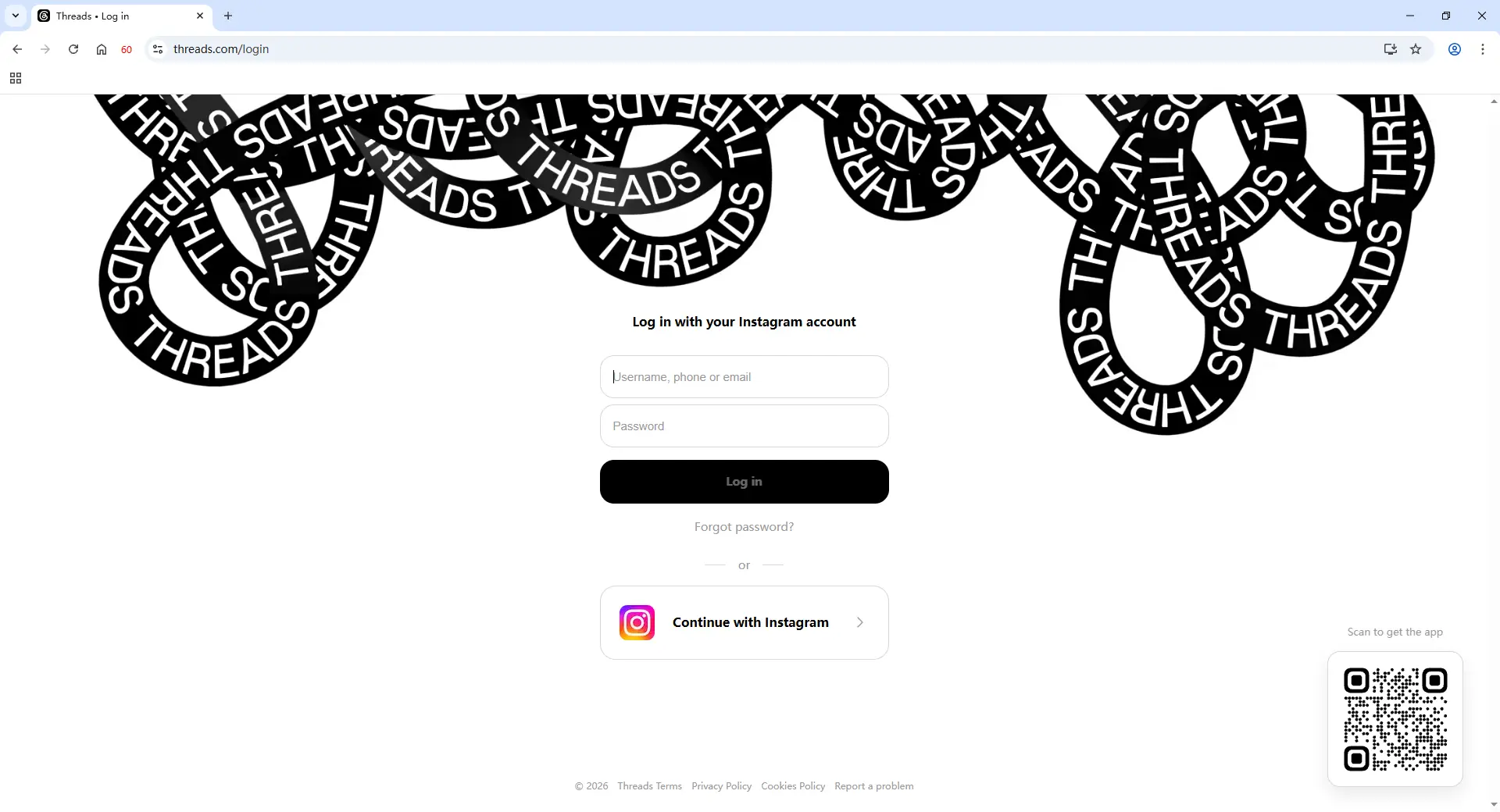
Step 6: Log In to Threads
Open the profile you created and visit Threads. Log in with the connected Instagram or Facebook account. The account session will be saved inside this dedicated browser profile for future access.
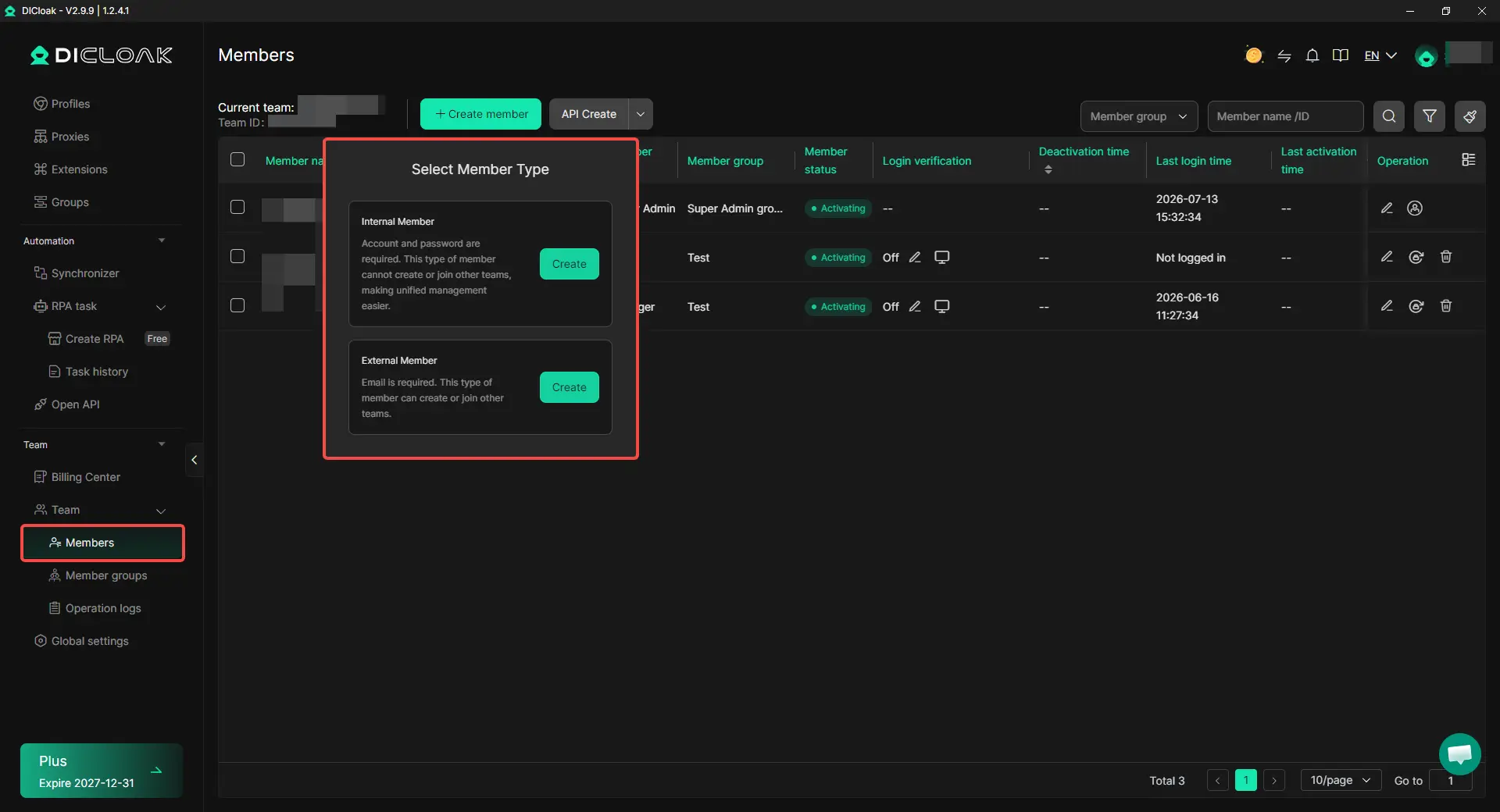
Step 7: Share the Profile With Your Team
Go to Team → Members and invite team members to your DICloak workspace. Assign the required profile access so each member can open the correct Threads account environment.
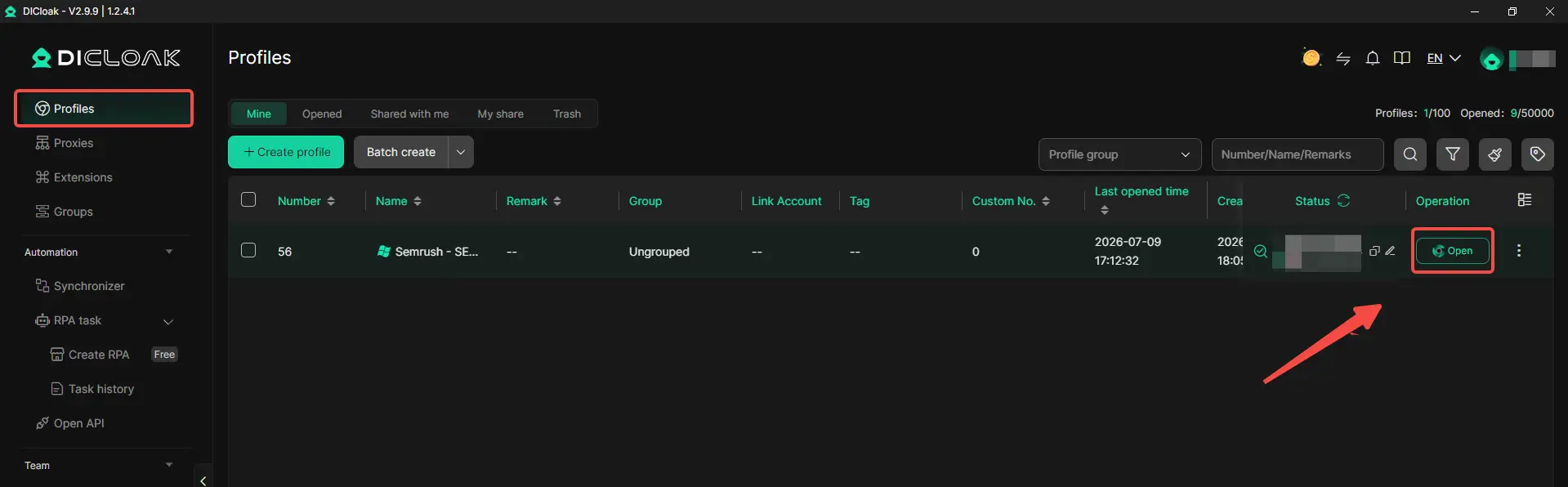
Step 8: Access the Shared Threads Account
After accepting the invitation, team members can open the shared profile from their own DICloak application. They can access the Threads account through the same configured browser profile without setting up the profile again.
Advanced Controls for Managing Multiple Threads Accounts With DICloak
After setting up multiple Threads profiles, you can use additional controls with DICloak to manage team access and protect account information during collaboration.
- Hide Password: With DICloak’s built-in password manager, team members can access a shared Threads profile without seeing the actual login password. This helps account owners keep login credentials private while allowing others to complete assigned tasks.
- Restrict Profile Permissions: With team permission controls, administrators can decide which members can access specific profiles and limit unnecessary changes to account settings or configurations.
- Manage Browser Extensions and Access: With profile-level controls, administrators can manage browser extensions and related access settings to keep each Threads workspace consistent.
- Hide Sensitive Information: With the Web Element Hider feature, users can hide specific webpage elements, such as account settings or private information, when sharing a browser profile with teammates.
- Review Operation Records: With team activity records, administrators can review profile-related actions and better manage workflows when multiple members handle different Threads accounts.
These advanced controls help teams manage multiple Threads accounts with better access control, privacy protection, and collaboration efficiency.
Frequently Asked Questions About Managing Multiple Threads Accounts
1. Can I have multiple Threads accounts in 2026?
Yes. Users can manage multiple Threads accounts for different brands, businesses, or personal purposes. When managing several accounts, using separate browser profiles can help keep sessions, cookies, and account settings organized. Tools like DICloak Antidetect Browser can help create dedicated browser profiles for different Threads accounts.
2. How can I switch between multiple Threads accounts?
You can switch between saved Threads profiles through the Threads app or website. For users managing many accounts, switching between browser profiles can provide a more organized workflow. With DICloak, each Threads account can be managed through its own browser profile with separate sessions and settings.
3. Why do multiple Threads accounts become linked?
Multiple Threads accounts can become connected when they share browser sessions, cookies, login environments, or similar operating patterns. Using separate browser workspaces, such as profiles created with DICloak Antidetect Browser, can help keep different account environments organized and reduce session confusion.
4. Should I manage multiple Threads accounts on mobile or desktop?
Mobile apps work well for users managing a few accounts, while desktop workflows are usually more suitable for teams and businesses. With DICloak, teams can manage multiple browser profiles, share account workspaces, and collaborate more efficiently from desktop environments.
5. When should I use an antidetect browser for Threads accounts?
An antidetect browser is useful when you need to manage multiple Threads accounts with separate browser profiles, organized access, and team collaboration. An antidetect browser like DICloak can help manage account workspaces while keeping sessions and settings separated.
Conclusion
Managing multiple Threads accounts in 2026 requires more than simply switching between profiles. Account organization, separate browser profiles, stable workflows, and controlled team access are important for reducing session confusion and improving efficiency. While no tool can guarantee that accounts will never be connected, using dedicated browser profiles can help keep different account environments organized. For teams and businesses managing multiple Threads accounts, an antidetect browser like DICloak provides a structured way to manage separate profiles, share access, and simplify collaboration.
 Web Proxy Tools
 Free Tools
 Cookie Plugin
 UA Generator
 MAC Address Generator
 IP Generator
 IP Address List
 2FA Code Generator
 World Clock
 Anonymous Check
 WebRTC Leak Test
 UUID Generator
 Free Web Proxy Site
 Proxy Checker
 FB Ad Checker
 AI Web Scraping
 Free SMM Tools
 Twitter Shadowban Checker
 Instagram Name Checker
 UTM Generator
 Username Generator
 AI Hashtag Generator
 LinkedIn Headline Generator
 Social Media Image Resizer