Trying to manage multiple online accounts on one device usually starts out simple, open a few browser tabs, switch between profiles, maybe use a few extra email addresses. But the moment you need to keep account sessions separate, stop cross-contamination, or avoid platform restrictions, those quick fixes break down fast.
Most people think running several accounts from a single device just means logging in and out, or opening an incognito window. In reality, platforms now track much more than usernames and passwords. They look at browser fingerprints, cookies, IP addresses, and even hardware details to spot overlapping use. Relying on basic tab switching or the same browser for each account is a recipe for session leaks and sudden bans.
The real challenge isn’t just getting accounts online, it’s keeping them stable, isolated, and under control. Forgetting to clear cookies, mixing up browser profiles, or using the wrong proxy can get accounts flagged in minutes. Even tools marketed for multi-account management on one device can fall short if you don’t handle permissions, storage, and automation carefully. If you use the same device for work, side projects, and personal accounts, one small slip can connect everything in the background.
If you want to run multiple accounts safely and keep workflows clean, you need a setup built for isolation. Here’s what actually works in practice.
Why Managing Multiple Online Accounts on One Device Gets Risky
Running several online accounts from one device is never just about convenience, platforms are built to spot when someone tries to keep too many sessions apart. If you slip up, the system can link accounts through hidden signals and shut down your workflow overnight. The real risk isn’t losing access to one account; it’s losing every account tied to that device in a single sweep.
How Platforms Detect Multiple Accounts
Most platforms use a mix of signals to catch users who run multiple accounts from the same device. Here’s what triggers detection:
- Device fingerprinting: Platforms collect unique hardware and software details, screen size, OS version, browser type, fonts, and even how you interact with pages. These combine to form a fingerprint that rarely changes unless you isolate each session.
- IP address and network overlap: If two accounts log in from the same IP, especially close together or repeatedly, detection systems flag that as a likely link. Using different proxies for each account is a must, reusing a network is a common mistake.
- Behavioral patterns and login routines: Logging in with identical routines, opening accounts in quick succession, or repeating mouse movements can connect your sessions. Automated scripts that don’t randomize steps are easy targets.
What Happens When Accounts Get Linked
The problem isn’t just getting caught, it’s what happens next. Most platforms don’t give a warning; they impose restrictions or bans without notice. Suppose you manage three business accounts and two personal accounts on the same laptop. One day, a minor slip, a cookie overlap or a reused IP, gets two accounts flagged. By the next morning, all five are either restricted or shadowbanned, and your entire workflow stalls. The ban isn’t just account-level; it can extend to device-wide lockouts, meaning even new accounts won’t survive more than a week.
The hardest part isn’t recovering a single account, it’s rebuilding trust after a device has been flagged. For sellers, marketers, or anyone running multi-account operations, this risk can wipe out months of progress. Sometimes, bans aren’t obvious; you might notice engagement drops or failed logins before the platform sends a formal notice. If your accounts are tied to real business, a sudden loss can mean missed deals, broken chat threads, or reputational damage that’s hard to undo.
What gets overlooked is how fast platforms respond. If you mix up browser profiles or proxies even once, the detection system can connect your accounts within hours. Some platforms run background checks overnight, so a mistake made late in the day won’t show until the next morning. Even if you fix the setup immediately, the system often remembers the link and flags future accounts created on that device.
All these risks stack up. That’s why setting up a clean workflow matters before you start, otherwise, you’re building on shaky ground. Next, it’s time to check what you actually need in place before setting up multiple accounts on one device.
What to Prepare Before Setting Up Multiple Accounts on One Device
Running several accounts from one device goes wrong fast if you skip the groundwork. Before you even start, check your setup for isolation, not just convenience. The difference between a clean workflow and a mess is in the details, most “multi-account management” mistakes happen before logging in. Here’s what actually needs checking.
Checklist for Safe Multi-Account Setup
You don’t need a full guide yet, just cover these basics before moving forward:
- Device and OS compatibility: Make sure your device supports separate browser profiles or containers. Phones and tablets often limit this, so test with a dummy account first. If your OS is outdated, some isolation features won’t work.
- Account separation and data hygiene: Use unique browser profiles for each account. Delete old cookies and cache before adding new accounts, or session leaks will connect them.
- Proxy selection and configuration: Assign a different proxy to each account, not just to each browser. If you use shared proxies, platform logs can still link traffic.
Common Pre-Setup Mistakes to Avoid
Most people rush into multi-account setups and miss small details that cause big problems later. The real issue isn’t the tools, it’s sloppy preparation.
- Reusing emails, phone numbers, or payment info: Platforms track these closely. If two accounts share the same recovery email or phone, both can get flagged.
- Mixing personal and business accounts: Keep work and personal profiles apart. Accidentally crossing them means one restriction can lock out both.
- Skipping proxy or fingerprint isolation: Using the same device fingerprint or IP for multiple accounts is a common trigger for bans.
Pre-Setup Example: What Happens If You Skip Isolation
If you add two accounts using the same browser and don’t clear cookies, both can show up as controlled by one person. Platforms use session and fingerprint data to detect this, even if the accounts have different logins. Once flagged, recovering both accounts usually means waiting out a restriction period, or providing extra proof you’re not the same user.
Getting the basics right makes the difference between a stable multi-account workflow and a string of locked or banned accounts. The next section will walk through the practical workflow to run multiple accounts safely and keep your profiles clean.
How to Safely Manage Multiple Online Accounts on One Device: Step-by-Step Workflow

Getting accounts online is the easy part, keeping them separate and avoiding sudden restrictions takes real attention. If you’re managing more than two accounts, the workflow below cuts out the slip-ups that usually trigger bans or session leaks.
Step 1: Isolate Each Account with Separate Profiles
A single browser session isn’t enough. Isolation means each account gets its own environment:
- Set up a separate browser profile for every account. Tools like Chrome’s built-in profile system work for basics, but real multi-account setups need antidetect browser solutions with custom fingerprint support.
- Assign a unique fingerprint for each profile. That includes user agent, screen size, timezone, and hardware identifiers. If you reuse a fingerprint or leave defaults, platforms can link accounts within hours.
- Store each profile’s data in a dedicated folder or container, never mix storage locations. If you skip this, cookies and autofill data can cross over, causing session blending and fast restrictions.
The biggest mistake is sharing one browser profile across accounts. Even a simple copy-paste between tabs can leak identifiers.
Step 2: Configure Proxies for Each Profile
Running multiple accounts from the same IP is a red flag for most platforms. Here’s how to keep network traces clean:
- Choose a proxy type that matches your risk level. Residential proxies are less likely to get blocked than datacenter proxies, but cost more. Avoid free proxies, they often drop sessions or expose your real IP during handshake failures.
- Assign a unique proxy to each browser profile. Never reuse the same proxy for more than one account. If your proxy provider offers IP rotation, lock each account to a fixed IP for stability.
- Test proxy connectivity before logging in. If a proxy fails or flips IP mid-session, you’ll see login errors or forced re-verification. When this happens, log out immediately and reset cookies before retrying.
| Proxy Type |
Risk Level |
Typical Use |
Price Range |
| Residential Proxy |
Low |
Account ops |
$4-$8/mo per IP |
| Datacenter Proxy |
Medium |
Bulk ops |
$1-$3/mo per IP |
| Free Proxy |
High |
Testing |
$0 |
Caption: Typical proxy types for multi-account management (see Wikipedia: Proxy server for basics)
Step 3: Maintain Data Hygiene and Session Separation
Even with good isolation, the real issue is how you handle cookies, credentials, and session data:
- Clear cookies before switching accounts or profiles. Many platforms track persistent cookies, if you skip this, login attempts can get flagged as suspicious.
- Never save credentials in a shared password manager or browser autofill. Use encrypted vaults or keep each account’s details separate.
- Check for lingering session data after logging out. If you see unexpected autofill or login prompts, the browser is still holding data from another account. Restart the profile or clear storage; otherwise, cross-account links can trigger restrictions.
- Avoid running scripts or automation across profiles unless you can guarantee full separation. Automation tools often share memory or storage behind the scenes, and a single mistake can connect accounts even if everything else looks clean.
If you keep profiles, proxies, and data hygiene tight, you’ll avoid most of the common pitfalls. But even with the right setup, missing one step can lead to instant account restrictions. The next section covers these mistakes, and how to spot them before they cause real trouble.
Common Mistakes That Cause Account Restrictions or Bans
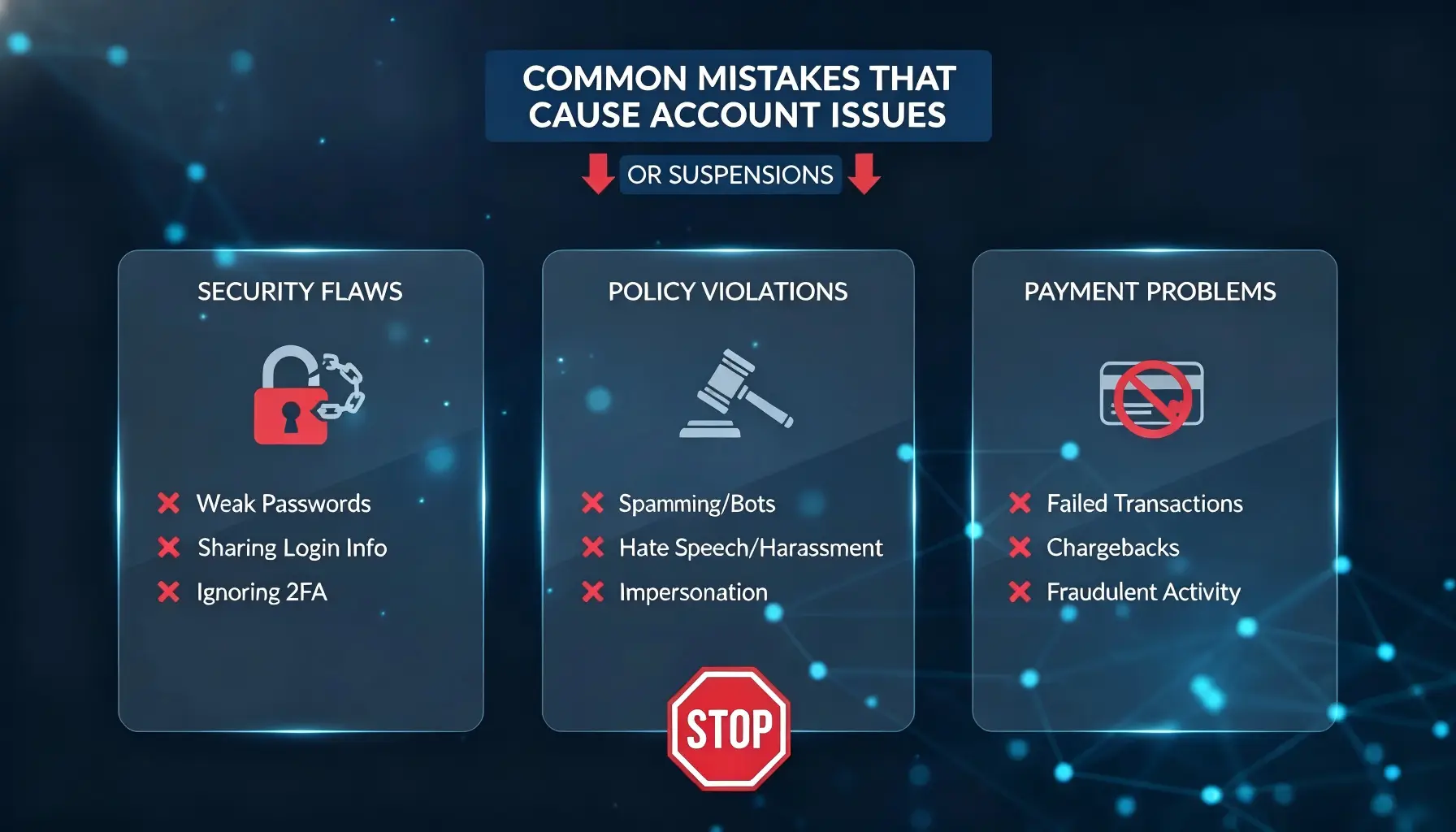
Running multiple accounts on one device can go wrong fast if you slip up on isolation or platform rules. The biggest account bans usually trace back to careless session mixing, bad proxy routines, or ignoring what the platform expects.
Mixing Account Data or Sessions
Sharing cookies, credentials, or device identifiers between accounts creates visible links. Platforms spot this, two accounts showing the same device fingerprint or overlapping session data almost always trigger restriction or review.
Inconsistent Proxy or Fingerprint Use
Messing up proxy rotation or letting browser fingerprints drift can flag accounts for unnatural activity.
- If you forget to switch proxies between accounts, platforms can connect them in seconds.
- The safer move is to set fixed proxies and fingerprints per profile, never rotate mid-session, and double-check before logging in.
Ignoring Platform-Specific Rules
Automated actions that look normal in bulk can be risky in multi-account setups. Overlapping login times or repeating the same behavior too quickly gets flagged as suspicious. Platforms designed for single-user access often use timing patterns to catch bots. If two accounts sign in from the same device within seconds, or run scripted actions outside normal hours, you risk instant bans.
The real problem isn’t just the technical slip, it’s thinking you can get away with shortcuts. Platforms know what genuine activity looks like, so skipping isolation or ignoring login windows almost always ends in trouble.
Staying careful with session data, proxies, and platform rules makes scaling up safer. Next up: how team-based workflows change the game when handling several online accounts from a single device.
Scaling Multi-Account Management: Team Collaboration, Permissions, and Workflow Automation
Getting past solo setups, teams need to manage multiple online accounts on one device without triggering account bans or exposing sensitive data. The real trick is splitting control, if everyone has full access, one mistake can link profiles or wipe logs. Keeping permissions tight and automating routine work cuts down on human error.
Team Access and Permission Control
- Set roles so only admins can change browser profiles or proxies.
- Log every account action, track who did what and when.
- Audit access monthly to spot unexpected permission changes.
Workflow Automation for Multi-Account Tasks
Manual clicks and copy-paste routines get risky once you handle dozens of accounts. Using RPA tools to automate login, posting, or session cleanup lowers the chance of mixing profiles or leaking cookies. Most teams set up bulk synchronizers to update account settings or clear cache across profiles in one go, automation closes gaps that manual processes leave open. If you skip automation, the crew ends up repeating the same steps, which usually leads to missed logouts or forgotten cookie wipes. The fewer manual touches, the safer your accounts stay.
Staying organized at scale means your setup should handle both access control and workflow automation, or small mistakes turn into big leaks.
How DICloak Supports Safe Multi-Account Management on One Device
Managing multiple accounts on one device always runs the risk of session overlap and fingerprint leaks. To keep accounts stable and separated, isolation, proxy control, and team permission settings are what actually make the difference.
Isolated Browser Profiles and Fingerprint Configuration
Creating a unique profile for each account means cookies, storage, and login data stay separated. You can customize browser fingerprints per profile, which cuts down on accidental connections between accounts, this keeps platform detection systems from linking your sessions.
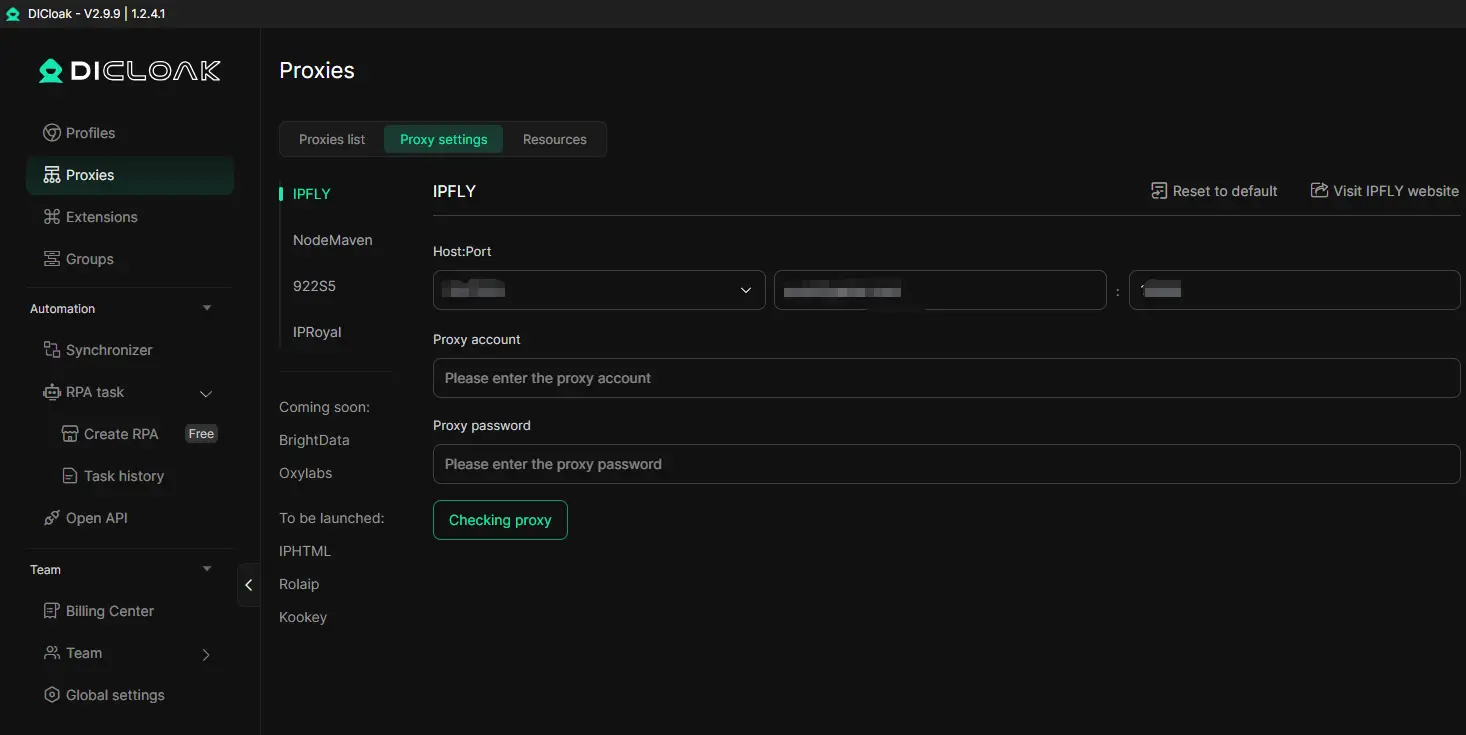
User-Provided Proxy Configuration for Each Profile
Assigning proxies to every profile gives each account a distinct network identity. By managing your proxy pool directly, you can rotate IPs or assign static addresses as needed. If you run several accounts from the same device, setting up a dedicated proxy for each profile is the step that prevents cross-account bans.
Team Collaboration and Permission Control
- Share profiles so team members never need to send raw login details.
- Set per-profile access levels, only trusted users can operate sensitive accounts.
- Audit logs track who accessed, changed, or exported data, supporting compliance checks and quick troubleshooting.
These features mean you can handle several online accounts from a single device with less risk of session exposure or accidental account linkage. Next, long-term stability depends on keeping these isolation strategies consistent and addressing platform changes as they come.
Limits and Practical Tips for Long-Term Multi-Account Management
Running multiple accounts on one device works only if you respect real limits, storage, profile count, and session isolation are the bottlenecks. Teams using DICloak can scale by syncing cloud profiles and migrating setups, but the device’s RAM, storage, and browser limits will still cap performance.
Account and Profile Limits
Most devices hit a wall around 10-30 active browser profiles. Cloud sync and profile migration in DICloak let operators move setups across machines, but local hardware still sets the ceiling.
Maintenance and Security Routines
Regular audits matter, operators should check proxy assignments, update fingerprints, and review operation logs each month. Skipping this step often leads to session cross-linking or detection.
When to Consider Upgrading Tools or Workflows
- Profiles slow down or crash
- Storage or team access limits block new workflows
- Audits reveal repeated fingerprint overlap
DICloak’s features reduce linkage risk, but operators must keep maintenance routines strict, no tool can promise undetectable multi-account use.
Frequently Asked Questions About manage multiple online accounts on one device
Can I manage unlimited accounts on one device safely?
You can handle many accounts on one device, but there are limits. Your device's memory, browser, and internet speed matter. Using isolated browser profiles and unique proxies for each account helps avoid cross-contamination and detection. Overloading your device or skipping isolation increases the risk of bans or account links.
Do I need a proxy for every account?
Using a unique proxy for each account is safer, especially on strict platforms. Shared IPs or repeated patterns can trigger security checks or bans. For social media or e-commerce sites, one proxy per account is best practice. The setup may be less strict for forums or less sensitive platforms.
Is it legal to run multiple accounts on one device?
Running several accounts is legal if you follow local laws and the rules of each platform. Some services ban multi-accounting or require business disclosure. Always read the terms of service and make sure your activities follow platform guidelines to avoid legal or account issues.
How do I avoid account bans when managing several accounts?
Isolate each account using separate browser profiles and proxies, and clear cookies and cache often. Do not copy-paste content or use the same login details. Follow platform rules, avoid automation that breaks terms, and keep each account’s activity looking natural to lower the ban risk.
Can teams share access to multiple accounts securely?
Yes, teams can handle several online accounts from a single device safely with the right tools. Use software that offers permission controls, lets you share profiles without sharing passwords, and keeps logs of actions. These features help prevent mistakes and track changes, making teamwork safer and more organized.
Now that you understand the options for handling several digital identities efficiently, consider which tool aligns best with your daily workflow and privacy needs. Making a thoughtful choice now can simplify your routine and give you greater control over your accounts. Try DICloak For Free
 Web Proxy Tools
 Free Tools
 Cookie Plugin
 UA Generator
 MAC Address Generator
 IP Generator
 IP Address List
 2FA Code Generator
 World Clock
 Anonymous Check
 WebRTC Leak Test
 UUID Generator
 Free Web Proxy Site
 Proxy Checker
 FB Ad Checker
 AI Web Scraping
 Free SMM Tools
 Twitter Shadowban Checker
 Instagram Name Checker
 UTM Generator
 Username Generator
 AI Hashtag Generator
 LinkedIn Headline Generator
 Social Media Image Resizer