A single wrong privacy setting on Facebook can expose your photos, friend list, or posts to the entire internet, even if you think your profile is locked. Real cases like Facebook’s 2024 privacy bug show how easy it is for strangers to scrape profile details, and once your data leaks, it’s almost impossible to pull it back. Most users believe setting their account to “private” hides everything, but default options often leave key information open. If you’re searching for how to make a private profile on facebook, the usual menu clicks and settings aren’t enough, hidden shortcuts, timeline review, and profile visibility tools matter as much as toggling “private.”
This guide shows step-by-step how to close every privacy gap on your Facebook profile, from adjusting post visibility to checking who can see your activity log. You’ll learn which settings actually make your account private, what Facebook’s privacy checkup misses, and how to lock down your profile so only trusted friends can see your updates. If you manage multiple accounts for work or need extra control, tools like DICloak for social media marketing can help keep activity isolated and safe. Ready to make your profile truly private? Here’s how real users are doing it.
What Actually Makes a Facebook Profile Private Today?
Making your profile private on Facebook isn’t just about flipping one switch. What counts as “private” differs from other platforms, and there are real limits, some info always stays public. If you’re searching how to make a private profile on facebook, you need to know what can really be hidden and where privacy stops short.
What 'Private' Means on Facebook vs. Other Platforms
On Facebook, “private” means only your approved friends can see your posts, photos, and most activity. But compared to Instagram or LinkedIn, Facebook keeps more parts of your profile visible no matter what. Instagram lets you hide nearly everything except your username and profile photo, while LinkedIn always shows your name and headline. Use this table to see the difference:
| Platform |
Profile Photo |
Name |
Posts Visible |
Friends/Connections |
Other Details |
| Facebook |
Always Public |
Always Public |
Friends Only |
Usually Hidden |
Some Public |
| Instagram |
Public |
Public |
Followers Only |
Hidden |
Mostly Hidden |
| LinkedIn |
Public |
Public |
Public/Private |
Public/Hidden |
Public |
Caption: Facebook Help Center, Instagram Privacy, LinkedIn Profile Visibility.
Even with every privacy setting locked down, Facebook leaves some parts open.
What Information Can Never Be Fully Hidden
No matter how you adjust settings, your profile picture, cover photo, and name will always show to everyone. Facebook uses these to help people find you and confirm your identity. This is true even if you follow every step for how to make a private profile on facebook. Public info also includes username and sometimes your basic bio. If you need to keep all activity and login details isolated, you can use tools like DICloak for social media marketing to separate accounts safely.
What Are the Main Risks If Your Facebook Profile Isn’t Private?
Leaving your Facebook profile open means anyone can see your posts, photos, and personal details, even people you’ve never met. Before you search for how to make a private profile on Facebook, it’s worth knowing what can go wrong if you skip key privacy steps.
How Strangers and Scammers Exploit Public Profiles
Public profiles are easy targets for scammers and identity thieves. If your birthday, location, or even your friend list is visible, someone could copy your profile and pretend to be you. This is called impersonation. Phishing scams get easier too, attackers can send fake messages that look real because they know details about your life. One careless post can expose you to spam, fake friend requests, or worse, targeted scams that use your real information to trick friends and family. Consumer Reports covers common Facebook scam tactics.
How Public Info Can Affect Work, Family, and Reputation
Employers often check social media during hiring. An open profile means your weekend photos or strong opinions could show up in a background check. Even if your settings seem private, a single public post can slip through. Family safety is at risk too, location tags or photos of kids can make you an easy target for unwanted contact or harassment. Setting boundaries online is as important as in real life. If you’re searching for how to make a private profile on Facebook, protecting work and family is often the real reason.
How to Make Your Facebook Profile Private: The Essential Steps
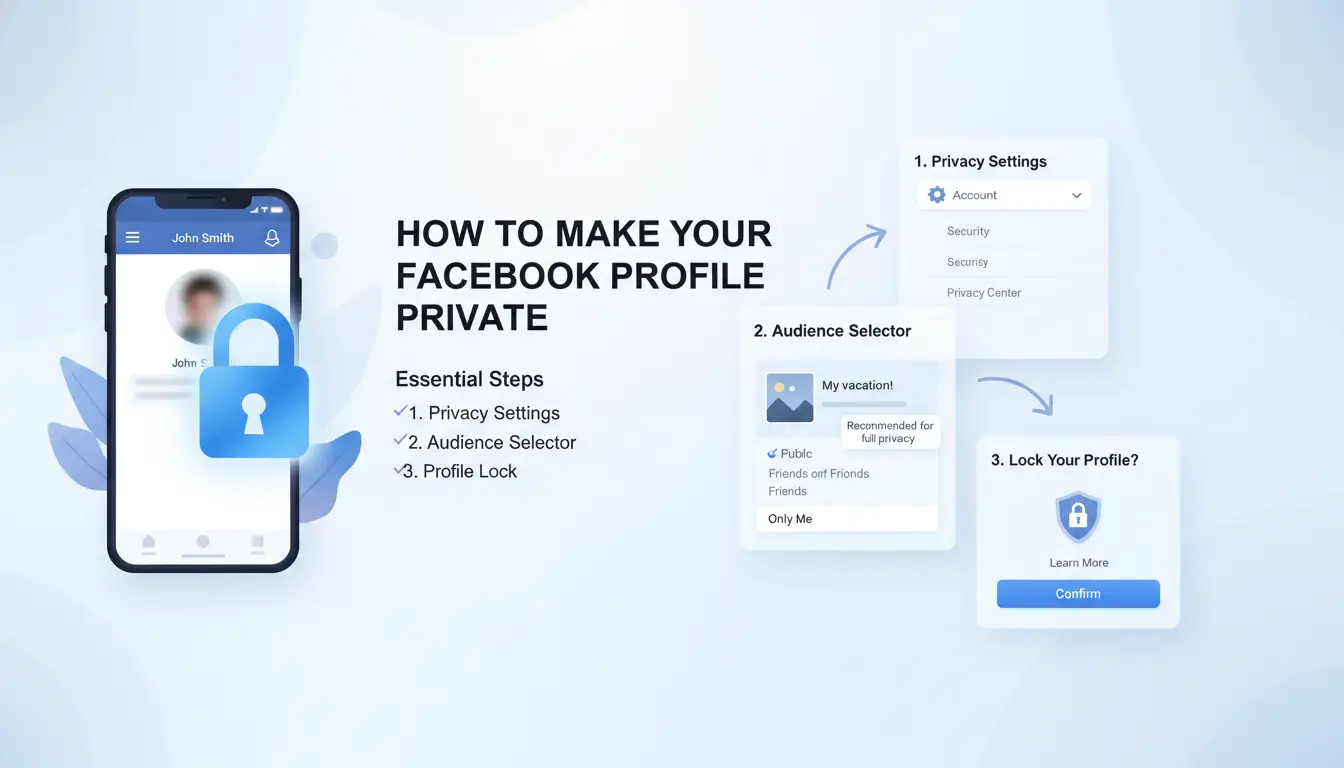
Making your Facebook profile private starts with knowing where to find the right settings. If you just toggle “private,” you’ll miss hidden options that let strangers see your posts or find your profile by email. Here’s how to close every privacy gap.
Step 1: Access and Navigate Facebook Privacy Settings
On desktop, click your profile photo, then “Settings & Privacy,” and choose “Privacy Checkup.” On mobile, tap the three lines, scroll to “Settings & Privacy,” and select “Privacy Shortcuts.” Focus on “Profile Privacy,” “Timeline and Tagging,” and “Search Visibility.” These sections control who sees your posts, who can tag you, and how your profile appears in searches.
Step 2: Limit Who Can See Your Profile and Posts
Set “Who can see your future posts?” to “Friends” or “Only Me.” Review your past posts and bulk-limit them using “Limit Past Posts.” Adjust your profile details so only friends can see your birthday, hometown, and photos. If you share updates for work, use “Custom Audience” to hide posts from coworkers or clients. The most important step, review your activity log and remove anything public.
Step 3: Hide Your Profile from Search and Non-Friends
Turn off “Let search engines outside Facebook link to your profile.” In “How people find and contact you,” set “Who can look you up by email/phone?” to “Friends.” This stops strangers from finding your account using your info. If you need extra isolation for managing multiple accounts, you can use DICloak for social media marketing to keep activity separate.
Which Privacy Settings Are Most Often Missed or Misunderstood?
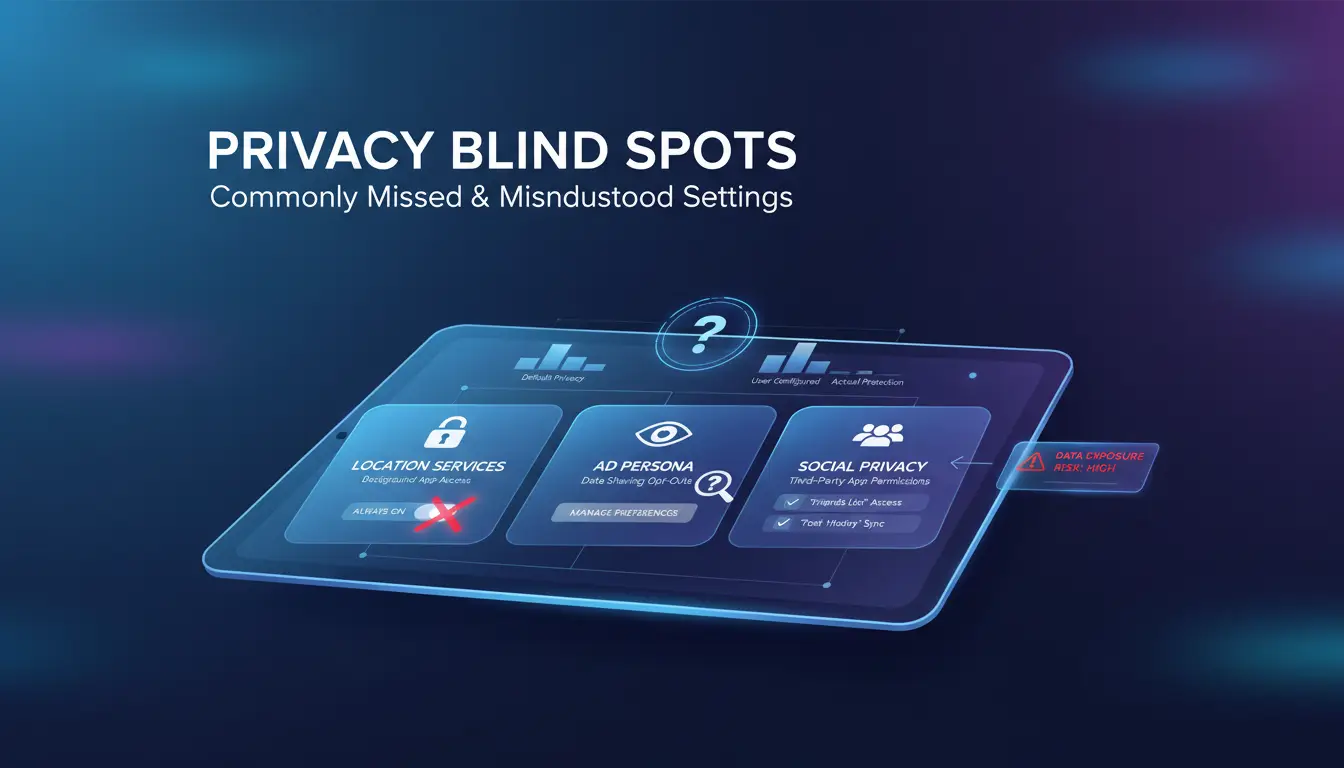
Even if you follow every basic guide on how to make a private profile on facebook, the most common privacy gaps are hidden in menus most users rarely check. Missing just one setting can leave your friends list, old posts, or timeline wide open.
Friends List, Tagging, and Timeline Review
Most people forget to hide their friends list. Go to your profile, click “Friends,” then use “Edit Privacy” to set it to “Only Me.” Tagging is another blind spot, under “Timeline and Tagging” settings, you can control who tags you and who posts on your timeline. Without this, strangers or work contacts can post or tag you without warning.
Past Posts and Photos: Making Old Content Private
Even after you make your profile private, old posts stay visible. Use “Limit Past Posts” to restrict old content to friends. For photo albums, click each album, then adjust privacy to “Only Me” or “Friends.” Many users miss this, leaving years of photos public.
Blocking and Restricting Unwanted Contacts
Blocking is simple: open the user’s profile, click “Block.” The “Restricted” list lets you limit what certain contacts see without unfriending. This is key for hiding updates from coworkers.
How to Keep Your Facebook Profile Private When Using Multiple Devices or Accounts
Risks of Device Sharing and Account Switching
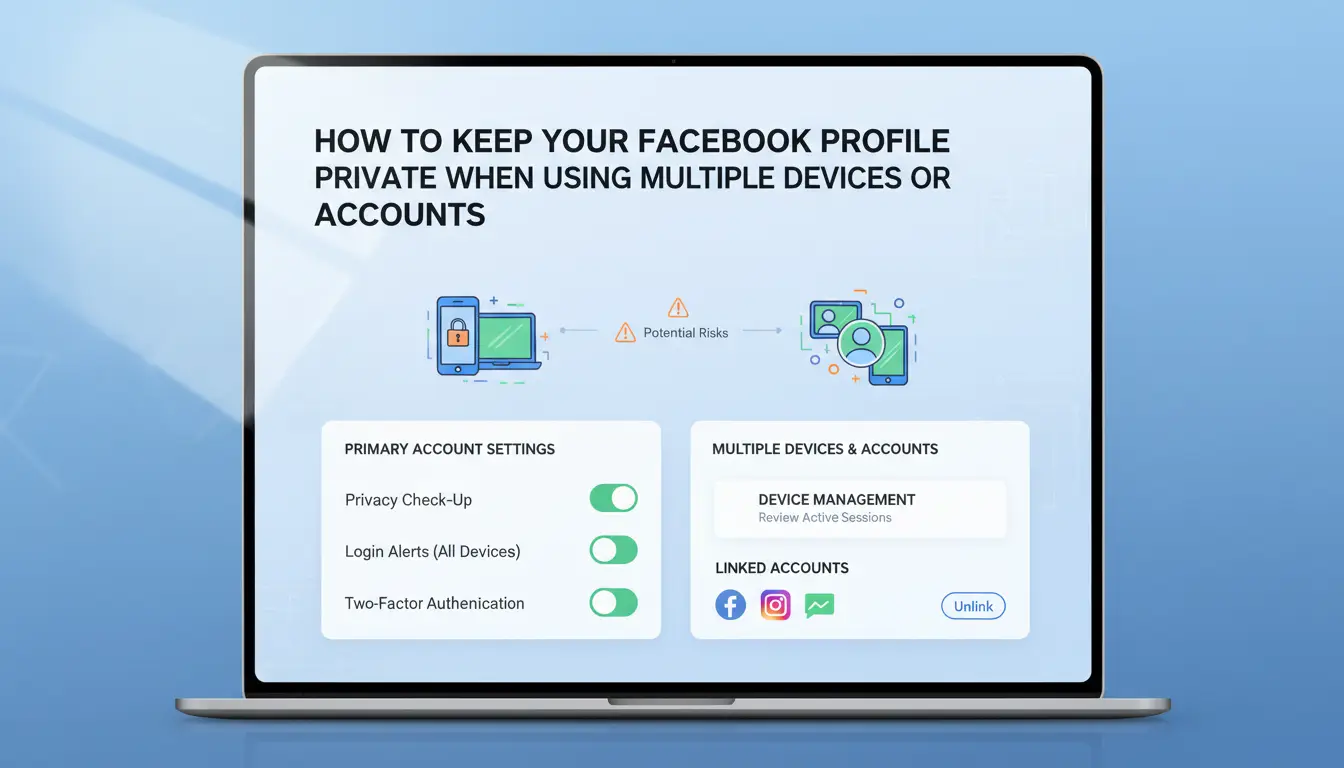
Most privacy leaks on Facebook happen when users share devices or switch between accounts too quickly. Browser cookies and saved logins can link profiles together, even if you think you logged out. If someone else uses your phone or computer, they might see your messages, notifications, or activity log. On shared devices, Facebook sometimes auto-fills email and password fields, making it easier to mix up accounts. Using the same device for several Facebook profiles creates a trail, Facebook tracks browser fingerprints and IP addresses, which can connect your accounts if you’re not careful.
How DICloak Helps Social Media Marketers and Multi-Account Users Stay Private
For people managing multiple accounts, privacy risks stack up. You can use DICloak for social media marketing to create isolated browser profiles for each Facebook account. Every profile gets a unique fingerprint and proxy, so Facebook sees them as separate users. DICloak automates privacy routines, keeping cookies, logins, and activity separate. This setup stops Facebook from linking your accounts together, even if you’re using one device for everything.
Best Practices for Secure Multi-Account Management
Never reuse passwords or emails between Facebook profiles. Each account should have its own login details. It’s easy to forget, but reusing information lets Facebook, and hackers, connect your accounts. Regularly audit which devices and apps have access. Go to Facebook’s security settings and check the active sessions list. Remove anything you don’t recognize. If you’re searching for how to make a private profile on facebook, remember, locking down device access is just as important as changing profile settings.
How to Use Facebook’s Privacy Checkup and Security Tools for Ongoing Protection
Running the Facebook Privacy Checkup
Open Facebook’s menu and pick “Settings & Privacy,” then select “Privacy Checkup.” This tool walks you through who can see your posts, how people find you, and which data you share. It covers post visibility, profile info, and blocking unwanted users. Still, it won’t catch every privacy leak, manual review of your timeline and activity log is a must.
Enabling Two-Factor Authentication and Login Alerts
Go to “Security and Login” to set up two-factor authentication. This adds a code step after your password. Turn on login alerts so Facebook notifies you if someone tries to sign in from a new device. These steps make it harder for anyone else to access your account.
Reviewing Connected Apps and Third-Party Access
Check the “Apps and Websites” section. Remove any apps you don’t use. Old apps can leak your info even if you forgot about them.
Tools like DICloak for social media marketing let you run each Facebook account in a separate, isolated browser profile with unique fingerprints and proxy support. This keeps work and personal accounts private, and stops accidental linking through device data. For social media teams, DICloak’s automation and sharing features help manage many accounts safely, no more mixing up client profiles or leaking private info.
How to Tell If Your Facebook Profile Is Still Visible to Strangers (and What to Do)
When you search for how to make a private profile on facebook, the biggest gap is checking what strangers can actually see. Menu toggles alone rarely close every loophole. The fastest way to spot what’s public is to use Facebook’s hidden “View As” mode.
Viewing Your Profile as a Stranger
Open your profile and click the three dots next to “Edit Profile.” Select “View As.” Now you’ll see exactly what a non-friend sees, photos, posts, bio, and even likes that aren’t locked down. Pay extra attention to cover photos, old timeline posts, and anything tagged with your name. These often slip past privacy settings. If you spot posts or photos you thought were private but show up here, you’ve found a gap.
Fixing Common Privacy Gaps After a Check
Go back to your profile and edit each exposed item. For posts, click the audience icon and select “Friends” or “Only Me.” Change old cover photos by clicking their privacy icon, these are public by default. Review your “About” section and remove any details you don’t want shown. Privacy checks should be repeated after every Facebook update, since settings can change or reset. Make a habit of running “View As” monthly. If you manage multiple profiles or want extra isolation, you can use tools like DICloak for social media marketing to keep activity separate and reduce exposure. Checking with ‘View As’ is the single fastest way to spot what strangers can see and fix gaps for true privacy.
Word count: 258
When You Might Want a Public Profile Instead, and How to Stay Safe
Not everyone searches for how to make a private profile on facebook. Sometimes, keeping parts of your profile open helps you reach new people or build a reputation. The trick is knowing when those trade-offs make sense, and how to avoid common safety mistakes.
When a Public Profile Makes Sense
If you run a business, work as an influencer, or need to show your profile for networking, public visibility can be useful. Business owners often keep their contact info and posts open so customers can reach out. Influencers and public figures rely on discoverability, people need to find and follow them easily. Even for regular users, sharing basic info can help old friends connect or recruiters find your job history.
But a public profile isn’t all-or-nothing. You can open up only what you want people to see. Facebook’s audience controls let you share posts with “Everyone,” “Friends,” or custom lists. Some users keep work details public but lock down family photos with “Friends Only.”
| Profile Type |
Visibility |
Best For |
Key Risks |
| Private Profile |
Friends |
Personal use |
Missed networking chances |
| Public Profile |
Everyone |
Business, influencers |
Data misuse, stalking |
How to Stay Safe with a Public Profile
You don’t need to reveal everything. Limit what you share, never post your home address or daily locations. Use custom friend lists to share sensitive updates only with trusted people. Audience controls on Facebook let you set who sees each post, so you can balance visibility and privacy.
For extra safety, consider managing your accounts with DICloak for social media marketing. It helps keep work profiles isolated from personal ones, reducing cross-account risks. The most important step is to review your settings often, public profiles change fast, and what’s safe now might not be tomorrow.
Frequently Asked Questions
How do I make my Facebook profile completely private?
To learn how to make a private profile on Facebook, go to Settings > Privacy. Set your posts, friend list, and profile info to “Only Me” or “Friends.” While this hides most information, your name and profile picture remain visible. Facebook does not offer full invisibility; some basic details are always public.
Can I hide my Facebook profile from search engines?
Yes. In the Privacy settings, uncheck "Allow search engines outside of Facebook to link to your profile." This removes your profile from Google and Bing. However, people can still find you by name inside Facebook. Learning how to make a private profile on Facebook helps limit what outsiders see.
How do I stop strangers from sending me friend requests?
Open Settings > Privacy > "Who can send you friend requests?" Change it from "Everyone" to "Friends of Friends." This keeps random people from sending requests. If unwanted requests persist, block those users directly so they can’t contact you.
Is it possible to use a proxy to increase Facebook privacy?
Using a proxy masks your IP address, which can help hide your location or let you manage multiple accounts. However, proxies do not change your privacy settings or make your profile private. For true privacy, follow steps on how to make a private profile on Facebook.
What should I do if my profile is still visible after changing privacy settings?
Use Facebook's "View As" tool to check what outsiders see. Double-check all privacy settings, including past posts, photos, and About info. Sometimes, older posts or tagged content need manual updates. Repeat these steps if you find anything public you want hidden.
Adjusting your Facebook privacy settings allows you to control who can see your posts, personal information, and activity, helping you maintain your desired level of privacy online. By following a few straightforward steps, you can ensure your profile remains accessible only to those you trust. Try DICloak For Free
 Web Proxy Tools
 Free Tools
 Cookie Plugin
 UA Generator
 MAC Address Generator
 IP Generator
 IP Address List
 2FA Code Generator
 World Clock
 Anonymous Check
 WebRTC Leak Test
 UUID Generator
 Free Web Proxy Site
 Proxy Checker
 FB Ad Checker
 AI Web Scraping
 Free SMM Tools
 Twitter Shadowban Checker
 Instagram Name Checker
 UTM Generator
 Username Generator
 AI Hashtag Generator
 LinkedIn Headline Generator
 Social Media Image Resizer