What Is the Apple Service Fee on Instagram Boosts?
The Apple service fee on Instagram boosts is an extra charge that may appear when you pay to boost an Instagram post inside the Instagram app on an iPhone or iPad. The fee can equal 30% of your total ad payment before applicable taxes and local fees. This extra amount is kept by Apple, not Instagram or Meta.
This matters because boosting a post is one of the easiest ways to advertise on Instagram. A small business can take an existing Reel, photo, or post, choose an audience and budget, and turn it into an ad in a few steps. However, the device and payment method used to fund the promotion can affect the final cost.
For example, a business may want to put $100 behind a popular Instagram Reel. If the 30% Apple service fee applies, the total payment may rise to about $130 before taxes or other local charges. The extra $30 does not give the ad more reach or increase the Instagram boost budget. It is a separate fee linked to the iOS payment process.

Why the Boost Post Option May Not Appear
If you open Instagram.com and cannot find the Boost Post option, first check the account type. Meta requires a professional account for Instagram promotions. If you are using a personal account, you may need to switch to a Business or Creator account.
For example, a photographer may open a popular post in a browser but see no Boost option. Switching to the iOS app will not fix the issue if the account still lacks access to Instagram's professional advertising tools.
For more advanced campaigns, you can also learn how to use Instagram Ads Manager. It gives advertisers more control over targeting, budgets, placements, and reporting.
Account restrictions can also block promotions. Check the professional dashboard, ad account status, and any notices from Meta. This is especially useful if you manage multiple Instagram accounts, because a problem with one account may not affect the others.
Temporary technical issues are another possibility. If boosting normally works, try refreshing Instagram.com, signing in again, or testing another updated browser before changing major account settings.
Why Your Instagram Post May Not Be Eligible for Boosting
Not every Instagram post can become an ad. The content must also meet Meta's advertising requirements.
Music is a common issue. Some tracks in Instagram's licensed music library are intended for personal use and may not be available for commercial advertising. Meta's Sound Collection offers music that can be used commercially.
For example, a Reel with a popular song may work as an organic post but still be ineligible for boosting. The creator may need to replace the audio with ad-safe music.
Copyright matters too. Using or recording someone else's content does not automatically give you permission to use it in an ad.
Technical elements can also affect eligibility. If one Reel can be boosted but another cannot, compare the audio, effects, format, and other media elements before assuming the whole ad account has a problem.
If Instagram promotions are part of a wider digital marketing strategy, test several creatives instead of relying on one post.
Payment Method and Billing Errors
Using a browser can help avoid Apple's service fee, but you still need a valid payment method for the Instagram boost.
Payments may fail because a card is expired, unsupported, entered incorrectly, or declined by the bank. If a $100 boost fails on Instagram.com, switching back to the iOS app may not help if the payment method itself is the problem.
Check the card number, expiration date, billing information, and available payment methods first. If everything looks correct, contact the bank to see whether the transaction was blocked.
An Instagram boost payment error is different from an Apple service fee problem. The browser route avoids the Apple in-app charge, but it does not guarantee that every payment will be accepted.
When comparing paid channels, include the real amount paid in your calculations. This is useful when comparing Meta Ads vs Google Ads, because extra fees can affect CPA, ROAS, and total campaign cost.
Why an Instagram Boost May Be Rejected
Paying for a boost does not mean it will run immediately. Instagram promotions must still pass Meta's advertising review.
A normal Instagram post may be allowed on the platform but still fail as an ad. Meta can review the text, image, video, product, claims, and landing page.
For example, a skincare post may be acceptable organically but face problems as an ad if it makes a claim that does not meet Meta's advertising rules.
If a promotion is rejected, read Meta's reason before changing the campaign. The issue may come from the creative, offer, destination, or another part of the ad.
You can also use the Meta Ad Library to study how other brands structure active campaigns. It cannot guarantee approval, but it can provide ideas for creatives and messaging.
If you believe the rejection was a mistake, request another review when Meta provides that option. If there is a clear policy issue, fix the content before submitting it again.
Using Instagram.com solves the Apple fee issue, but the boost must still meet normal Meta advertising, payment, and review requirements.
How to Get Better Results After You Boost an Instagram Post
Once your boost starts running, avoiding the Apple fee is only part of the job. You also need to know whether the campaign is reaching the right people and producing useful results.
More reach does not always mean better performance. A post can reach thousands of users but bring few clicks, messages, or sales. Focus on four areas: your goal, audience, budget and duration, and the results you track.
If simple boosts no longer give you enough control, Instagram Ads Manager offers more options for audience targeting, placements, testing, budgets, and reporting.
Apple Service Fee and Total Advertising Cost
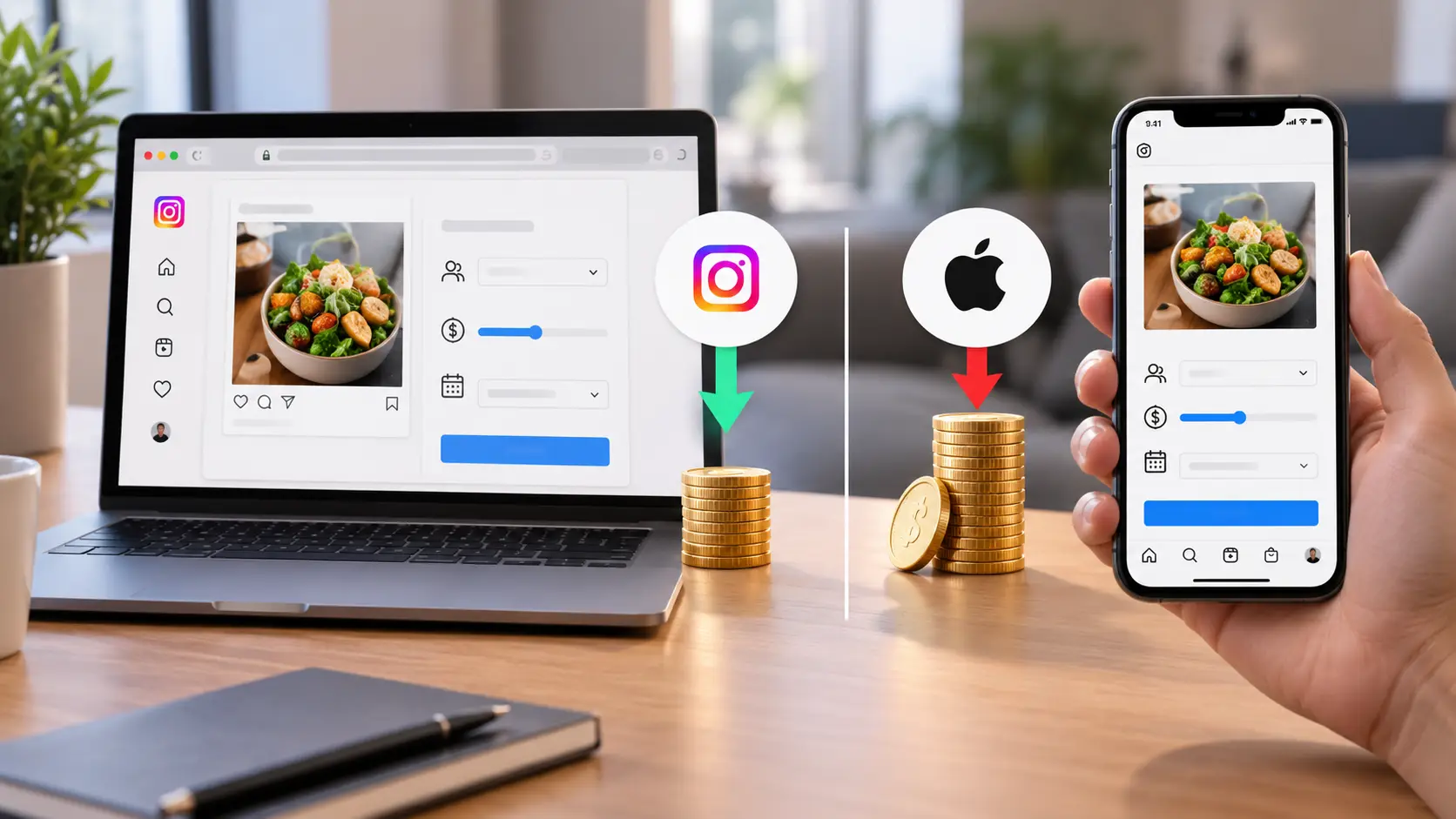
For most advertisers, cost is the biggest difference between an Instagram browser boost vs. iOS app boost. Apple treats social media post boosts purchased inside the same iOS app as digital purchases, so its in-app payment rules can apply.
Under Meta's affected iOS payment flow, Apple may charge a 30% service fee on the advertising payment, excluding applicable taxes. This fee goes to Apple and does not increase your Meta ad budget.
For example, if a business wants to spend $200 boosting a Reel, an affected iOS payment could add $60 in Apple fees. The business may pay about $260 while the promotion still uses only $200 for advertising.
The difference becomes more noticeable with larger budgets. A business spending $1,000 through affected iOS boosts could pay another $300 in fees. Meta therefore recommends using Instagram.com on desktop or mobile web to avoid this extra charge.
Payment and Billing Differences
The second difference is how the boost is funded. Under the affected iOS process, advertisers may need to add prepaid funds before the promotion runs. If those funds are added through the Instagram or Facebook iOS app, Apple's service fee may apply.
Instagram.com gives advertisers another payment route. Meta says prepaid funds can be added through a desktop or mobile browser without the Apple service fee. Those funds can later be used for Instagram boosts.
For example, a social media manager could add $300 through Instagram.com on a laptop, then return to the Instagram app for normal campaign management.
This is why the issue is better understood as a payment-path difference, not a device difference. Using an iPhone does not automatically trigger the fee. You can still open Instagram.com in Safari or another browser and pay through the web.
Always review the final payment amount before confirming a boost, because taxes, currencies, payment methods, and account settings may vary.
Boosting Features Available on Browser vs. the Instagram App
Using Instagram.com does not mean giving up the normal Boost Post features. Meta says advertisers can use the same basic boost features on the web while avoiding the Apple service fee.
You can still promote existing content and choose settings such as your goal, audience, budget, and duration.
For example, a restaurant can boost a Reel about a new lunch menu for seven days through Instagram.com without creating a completely different campaign.
There is one important difference: Instagram Boost is not the same as Meta Ads Manager. Boost Post is designed for simple promotion of existing content, while Ads Manager provides more advanced controls for targeting, campaign structure, placements, and reporting.
So, if your main goal is to boost an Instagram post without Apple fee, Instagram.com is usually the most direct alternative to the iOS app. You keep the normal Boost experience while avoiding the extra Apple payment charge.
Common Problems When You Boost Instagram Posts Without Apple Fee
Using Instagram.com can help you boost Instagram posts without Apple fee, but it does not remove Meta's normal advertising rules.
You may still find that the Boost Post button is missing, a Reel is not eligible, a payment fails, or a promotion is rejected.
These problems are usually separate from the Apple fee. They are more often related to your account type, content, payment setup, or Meta's advertising policies. Identifying the real cause first can make troubleshooting much easier.

Why the Boost Post Option May Not Appear
If you open Instagram.com and cannot find the Boost Post option, start by checking the Instagram account itself. Meta's official instructions for boosting Instagram posts require a professional account. If you are still using a personal account, you may need to switch to a Business or Creator account before you can promote content.
For example, imagine a photographer has used the same personal Instagram account for several years. The photographer opens a popular post in a browser but sees no option to boost it. In this case, changing from the browser to the iOS app will not solve the main problem. The account first needs access to Instagram's professional advertising tools.
If you plan to move beyond simple post boosts, it can also help to understand how to use Instagram Ads Manager effectively. Ads Manager gives advertisers more control over campaign setup, targeting, placements, budgets, and performance tracking than the basic Boost Post tool.
Account or advertising restrictions can also affect access to boosting. If an account has an unresolved advertising issue, Meta may limit the ability to create promotions. It is worth checking the professional dashboard, ad account status, and any notices from Meta before assuming the browser is broken.
This becomes especially important for agencies or marketers that manage multiple Instagram accounts. A restriction on one account does not always mean that every client account or Instagram profile has the same problem, so check the affected account separately.
A temporary technical issue is another possibility. Meta has a dedicated troubleshooting page for Instagram Boost problems, which shows that errors can sometimes come from Instagram itself rather than from the advertiser's setup. If the account normally supports boosting, try signing out and back in, refreshing Instagram.com, or testing another updated browser before making major account changes.
Why Your Instagram Post May Not Be Eligible for Boosting
Seeing the Boost Post button does not mean every Instagram post can become an ad. The content must also meet the requirements for Instagram advertising.
Music is one common example. Meta explains that music in Instagram's licensed music library is generally intended for personal, non-commercial use. Some business accounts and some types of commercial content therefore have limited access to that music. Meta provides its Sound Collection as an alternative for music that can be used commercially, including in ads.
Suppose a creator publishes a Reel with a popular licensed song. The Reel may work normally as an organic Instagram post and may even receive strong engagement. However, that does not automatically mean the same Reel can be used in a paid promotion. If the music rights do not allow commercial advertising use, the creator may need to replace the audio or create a new version with ad-safe music.
Copyright also matters beyond music. Instagram says users should only post content that does not violate another person's intellectual property rights. Simply buying, downloading, or recording someone else's content does not automatically give you permission to use it. This becomes even more important when the content is turned into a paid advertisement.
Some posts can also fail because of their media format or technical setup. If one Reel can be boosted but another cannot, compare the video, audio, effects, and other elements instead of assuming there is a problem with your entire ad account. Meta's Instagram Boost troubleshooting resources include media-related errors among the issues advertisers may encounter.
For advertisers running many creatives, it is useful to treat boosting as part of a wider digital marketing strategy. Instead of depending on one Reel, test different creatives and messages so that one ineligible post does not stop the entire campaign.
How to Get Better Results After You Boost an Instagram Post
Once your boost is approved and starts running, avoiding the Apple fee is only part of the job. The next question is whether your Instagram boost is actually helping you reach the right people and get the action you want.
A larger reach does not always mean a better campaign. A post can reach thousands of people but bring very few website visits, messages, or sales. To get better results after you boost an Instagram post, focus on four things: the promotion goal, audience, budget and duration, and the results you track.
This is where the difference between simply boosting content and running a structured advertising campaign becomes more important. Businesses that advertise regularly may eventually need Instagram Ads Manager for more detailed audience targeting, campaign testing, placements, and reporting. A simple boost can be useful for promoting an existing post, while Ads Manager offers more control when performance becomes the main goal.
Choose a Promotion Goal That Matches Your Objective
Start with one clear reason for running the boost. Instagram asks you to choose a promotion goal because that goal helps guide how the ad is delivered. The exact options shown can vary by account and Meta may update them over time, but common Boost goals have included actions such as getting more profile visits, website visits, or messages.
Do not choose a goal only because it sounds useful. Match it to the next action you want someone to take. If you run an online store and want people to visit a product page, a website-focused goal makes more sense than optimizing mainly for profile visits. If you run a local service business and customers normally ask for prices through Instagram DMs, a message-focused goal may fit better.
For example, imagine a hair salon promotes a Reel showing a new haircut style. The salon wants people to book appointments through direct messages. If the boost is optimized for profile visits, it may bring many people to the profile but very few booking conversations. Choosing a goal connected to messages gives the campaign a clearer job.
This is also why you should decide what success means before spending money. Meta's advertising tools are built around business objectives, and its own Instagram advertising resources recommend choosing an ad goal based on the result the advertiser wants.
Set the Right Audience for Your Instagram Boost
The next step is deciding who should see the promoted post. A good creative shown to the wrong audience can still produce poor results. At the same time, making an audience extremely narrow does not guarantee better performance.
Start with the people who could realistically use your product, service, or content. Location is especially important for local businesses. A restaurant in Chicago usually gains little from paying to reach people hundreds of miles away unless it has another business goal, such as selling products online.
For example, suppose a yoga studio is promoting a free beginner class. A useful audience may include adults who live within a reasonable distance of the studio and have an interest in fitness or wellness. Targeting the entire United States simply because it creates a larger estimated audience would likely waste much of the boost budget.
Instagram may also offer an automatic or suggested audience based on information Meta has about people likely to respond to your content. This can be useful when you do not yet have enough data to define a strong audience yourself. If you already know your main customer group, manual audience choices can give you more control over factors such as location, age, or interests.
The goal is not to create the smallest possible audience. It is to create a relevant Instagram boost audience that is large enough for Meta to deliver the promotion while still matching your real customers.
How DICloak Helps Teams Boost Instagram Posts Through a Browser
Using Instagram.com can help businesses boost Instagram posts without the Apple service fee, as explained in the earlier sections. Meta says advertisers can use Instagram.com from a desktop or mobile browser and access the same basic boost features without paying Apple's 30% service fee.
For one Instagram account, a normal browser may be enough. The workflow becomes more complex when an agency, ecommerce team, or social media department manages many accounts. Different employees may need access to different Instagram accounts, and each account may have its own login session, proxy, cookies, and browser settings.
This is where an antidetect browser such as DICloak can help with the management side of the workflow. Teams can create separate browser Profiles for different Instagram accounts, assign those Profiles to specific members, and change access when responsibilities move to someone else. It does not remove Meta's advertising rules or make a post automatically eligible for boosting. Instead, it gives teams a more organized way to manage browser-based Instagram work.
Keep Different Instagram Accounts in Separate Browser Profiles
A common problem for social media teams is that several Instagram accounts end up being managed from the same normal browser. Employees may sign out of one account, sign into another, clear cookies, or use multiple browser tabs. As the number of accounts grows, it becomes easier to mix up sessions or open the wrong account.
DICloak takes a different approach. A team can create a separate browser Profile for each Instagram account. DICloak's Profile system stores account-related settings such as cookies, proxy information, and browser configurations within the Profile. Its current Profile management tools also let teams organize Profiles into groups.
For example, imagine an agency manages Instagram accounts for a clothing store, a gym, and a restaurant. Instead of logging all three businesses into one browser, the agency could create three Profiles:
Profile A → Clothing Store Instagram Profile B → Gym Instagram Profile C → Restaurant Instagram
When the team needs to boost the restaurant's latest Reel, the employee opens Profile C and goes to Instagram.com. The clothing store and gym sessions remain in their own Profiles.
This separation is especially useful when a team regularly switches between client accounts. Each Profile can keep its own browser data instead of forcing employees to rebuild the account session every time they start work.
It is still important to remember that a browser Profile does not change Instagram's rules. Teams should only manage accounts they are authorized to access and should still follow Meta's advertising, security, and account policies.

Assign Instagram Profiles to Different Team Members
Separate Profiles become more useful when several employees share the workload. Not every team member needs access to every Instagram account.
DICloak allows administrators to organize browser Profiles into Profile Groups and then assign those groups to specific members. Its current team settings also support different roles and functional permissions. For example, Staff members can be limited to authorized Profiles, while administrators can manage broader team settings.
Consider an agency with ten Instagram clients and three social media specialists. One employee handles fashion brands, another handles local businesses, and the third handles ecommerce accounts. The administrator could create Profile Groups based on those responsibilities and give each employee access only to the Profiles needed for their work.
This makes the browser-based Boost workflow easier to control. A team member responsible for Client A can open the assigned Profile, visit Instagram.com, select the post, set the boost details, and complete the normal browser workflow. The employee does not need access to every other client's Instagram environment.
DICloak also provides Member Groups for controlling what different members can do inside the team workspace. Administrators can choose which functional sections and operations are available to each group. DICloak's documentation notes that regular members can, for example, be given only the permissions needed to view and open Profiles.
For larger teams, this can be more practical than giving every employee the same level of control. The person responsible for boosting content may only need to open the correct Profile and work inside Instagram. They may not need permission to change proxy settings, edit other Profiles, or manage the whole team.

Maintain Separate Proxies, Cookies, and Browser Data for Each Account
Team access is only one part of multi-account management. The browser profile also matters when different Instagram accounts are being handled from the same workplace or device.
DICloak Profiles can store separate browser settings and account data. DICloak's documentation shows that a Profile can include cookies, proxy information, platform account information, browser configuration, and fingerprint-related settings.
A proxy can also be configured for an individual Profile. This means a team does not have to make every Profile use the same network setup. DICloak notes that when Profiles are used without proxies, they use the local network IP; separate proxy configurations can be used when network separation between Profiles is needed.
For example, suppose a company manages separate regional Instagram accounts for the United States, Canada, and the United Kingdom. The team could keep each authorized account in its own Profile with its own stored cookies and assigned proxy configuration. When an employee returns to the U.S. account, they open the same Profile instead of starting with a fresh browser session.
This can also reduce simple human errors. Without separate Profiles, one employee might clear browser cookies while troubleshooting Account A and accidentally remove the login session needed for Account B. With separate environments, changes made inside one Profile do not require the team to rebuild every other account session.
Consistency is useful, but it should not be confused with a guarantee against Instagram security checks. Meta can consider many signals when protecting accounts and reviewing activity. DICloak helps teams organize and separate browser profiles; it does not guarantee that Instagram will never request verification, restrict an account, or review unusual activity.
For teams using the browser method specifically to avoid the Apple fee, the workflow can remain simple: open the correct DICloak Profile, visit Instagram.com, and create the boost through the web. The Apple fee benefit comes from Meta's browser payment route, while DICloak helps keep the different account environments organized.

FAQs About Boosting Instagram Posts Without Apple Fee
You do not have to pay Apple's service fee every time you boost an Instagram post. The payment route matters. Meta allows advertisers to use Instagram.com on desktop or mobile web and access Boost features without the 30% Apple service fee. Here are a few common questions about boosting Instagram posts without Apple fee.
Can I Use My Phone’s Browser to Boost Instagram Posts?
Yes. You can use Safari, Chrome, or another mobile browser to boost an Instagram post without Apple fee. For example, on an iPhone, open Instagram.com in Safari or Chrome instead of buying the boost inside the Instagram iOS app.
The key difference is where the payment happens, not which device you use. As long as the boost is completed through the browser-based route, it stays outside the affected iOS in-app purchase flow.
Is Boosting Posts Through a Browser Less Effective Than Using the App?
No. There is no reason to expect a browser boost to perform worse simply because it was created on the web. Meta says Instagram.com provides the same core Boost features while avoiding the Apple service fee.
Results depend much more on the post, audience, goal, budget, and creative. If you boost the same Reel with the same $100 budget and audience, using Instagram.com does not reduce the ad budget or intentionally limit delivery. Focus on results such as reach, clicks, engagement, messages, or conversions.
Are There Any Hidden Fees When Boosting via Instagram.com?
Using Instagram.com avoids the 30% Apple service fee linked to the affected iOS in-app payment process. However, other costs may still apply, such as taxes, currency conversion, or fees from your bank or payment provider.
For example, a $100 browser boost should not have another $30 added as an Apple service charge, although applicable taxes may still appear. Always review the payment summary before submitting the boost so you know what each charge represents.
What Payment Methods Can I Use When Boosting Through a Browser?
Available payment methods depend on your country, currency, ad account, and billing setup. Meta supports common credit and debit cards such as Visa, Mastercard, American Express, Discover, and JCB. PayPal and some local payment methods may also be available in certain countries.
Use the options shown in your Meta advertising account. If a payment fails, check the card expiration date, available balance, and billing details first. You can also try another supported payment method if one is available.
Can I Schedule Boosted Posts Using Instagram’s Browser Version?
Yes, but it helps to separate scheduling a post from scheduling a boost. Meta Business Suite on desktop lets businesses choose a start date and time for a boosted post or Reel and control how long the promotion runs.
For example, a restaurant could publish a Reel on Monday and schedule the paid promotion to start Friday before a weekend event. The exact scheduling options inside Instagram.com can vary, so Meta Business Suite is usually the clearer browser-based option when you need more control over start time and duration.
In short, boosting Instagram posts without Apple fee does not mean giving up mobile access, normal Boost features, common payment methods, or scheduling. The main difference is simply using Meta's browser-based payment route instead of the affected iOS in-app purchase flow.
 Web Proxy Tools
 Free Tools
 Cookie Plugin
 UA Generator
 MAC Address Generator
 IP Generator
 IP Address List
 2FA Code Generator
 World Clock
 Anonymous Check
 WebRTC Leak Test
 UUID Generator
 Free Web Proxy Site
 Proxy Checker
 FB Ad Checker
 AI Web Scraping
 Free SMM Tools
 Twitter Shadowban Checker
 Instagram Name Checker
 UTM Generator
 Username Generator
 AI Hashtag Generator
 LinkedIn Headline Generator
 Social Media Image Resizer