Getting a Claude warning or losing access can feel confusing, especially when Claude is part of your daily work. A freelance writer may be finishing a client brief when a warning appears after testing a risky prompt. A small team may face a different problem when several people use the same personal login or mix client sessions in one browser.
Learning how to avoid getting banned in Claude is not about finding a shortcut. It starts with understanding the rules, using Claude in the right way, and keeping your workspaces organized. Anthropic says a Claude account can be banned or restricted for repeated Usage Policy violations, account creation from unsupported locations, or Terms of Service violations. Its terms also say users must not share account login details with others.
Good Claude account safety means more than avoiding risky prompts. It also means using the right account setup, keeping access private, and separating different work projects. This guide explains the main ban risks, practical prevention steps, what to do after a warning, and how to manage Claude workspaces more carefully.
Why Do Claude Accounts Get Banned?
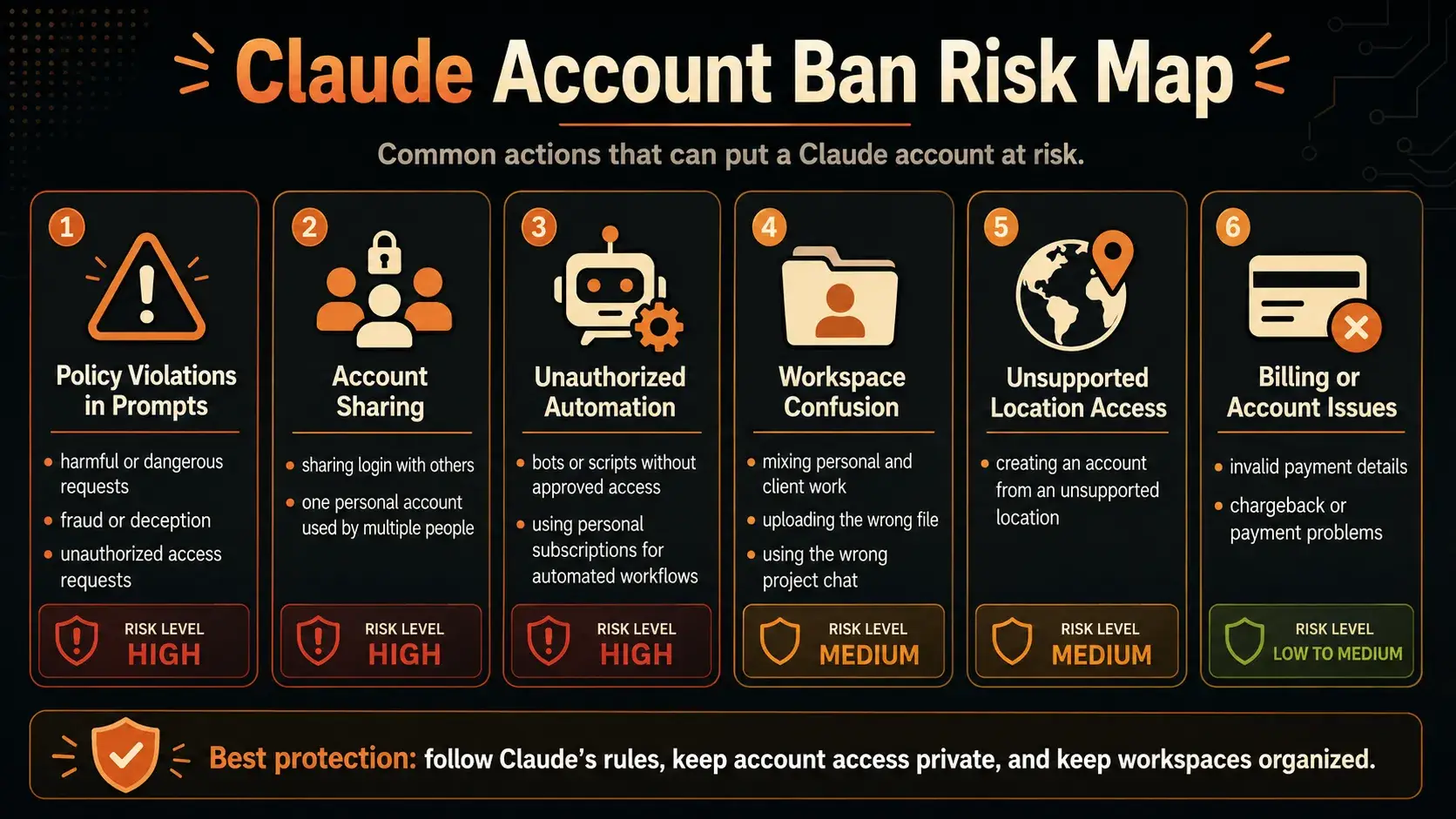
The first step in protecting your Claude account is knowing what can cause trouble. A Claude account banned notice does not always come after one bad prompt. Anthropic can issue a warning, suspend access, or end an account when it finds activity that breaks its rules. Its public guidance points to three broad areas: repeated Usage Policy violations, Terms of Service violations, and creating an account from an unsupported location.
How Claude Uses Monitoring and Safety Reviews
Anthropic does not publish every signal used in an account review. It does say that it uses detections and monitoring to enforce its policies. A Claude account warning can appear when prompts seem to violate the Usage Policy.
For example, a user may keep asking Claude for harmful, deceptive, or unauthorized material after Claude has already refused. One refusal is not the same as a ban. But repeating the same risky request can lead to further action. API users should also review their full workflow, because Anthropic says warnings may relate to ongoing violations across an API account.
User Behaviors That Can Increase Ban Risks
Some Claude account ban reasons are easier to avoid. Anthropic’s terms say users must not share account passwords, API keys, or other credentials. Imagine a three-person content team buying one Pro plan and sending the login in Slack. It may save money at first, but it puts several people’s activity under one personal account.
Anthropic also restricts unapproved bot or script access. Its policies prohibit automated account creation, spam, and using another account to get around a ban. A Claude account suspended notice can also follow repeated policy violations or access from an unsupported location.
Common Account, Access, and Workspace Mistakes
Not every login change means a Claude account disabled decision is coming. Anthropic does not say that one IP change, new device, or browser switch automatically causes a ban. Be careful with anyone who promises a simple technical fix.
Still, messy access can create avoidable problems. A freelancer may leave a client chat open on a shared computer, open the wrong project workspace, or mix personal and client sessions in one browser. These mistakes do not prove a violation. They do make account ownership, data access, and daily work harder to manage. The next section explains how to reduce those risks.
How to Prevent Getting Banned in Claude
Once you know the risk areas, prevention gets simpler. It is about using Claude in a way that follows its rules and keeps your work clear.
Follow Claude’s Rules Before You Test Risky Prompts
To prevent a Claude account ban, start with Claude safety rules before turning an idea into a workflow. This matters when a task could involve harm, deception, unauthorized access, or high-stakes advice. For example, a marketer can ask Claude to improve a product page. Asking it to write fake customer reviews is different. If Claude refuses a request or shows a warning, do not keep changing the wording until it goes through. To avoid Claude suspension, stop, review the policy, and change the task if needed.
Avoid Account Sharing, Abuse, and Repeated Violations
How to avoid getting banned in Claude also means using the right account for the job. Do not pass a personal login around a team chat or let several people use one personal subscription. A four-person content team may think one shared Pro login is easier. In practice, it mixes access, chats, and responsibility under one account.
The same rule applies to automation. A developer building a tool for clients should use approved API access, not route client requests through a Free, Pro, or Max subscription. Keep account details current, protect your password, and act quickly if you notice unauthorized access. These Claude account safety tips are more useful than trying to fix a larger problem later.
Keep Separate Claude Workspaces Organized
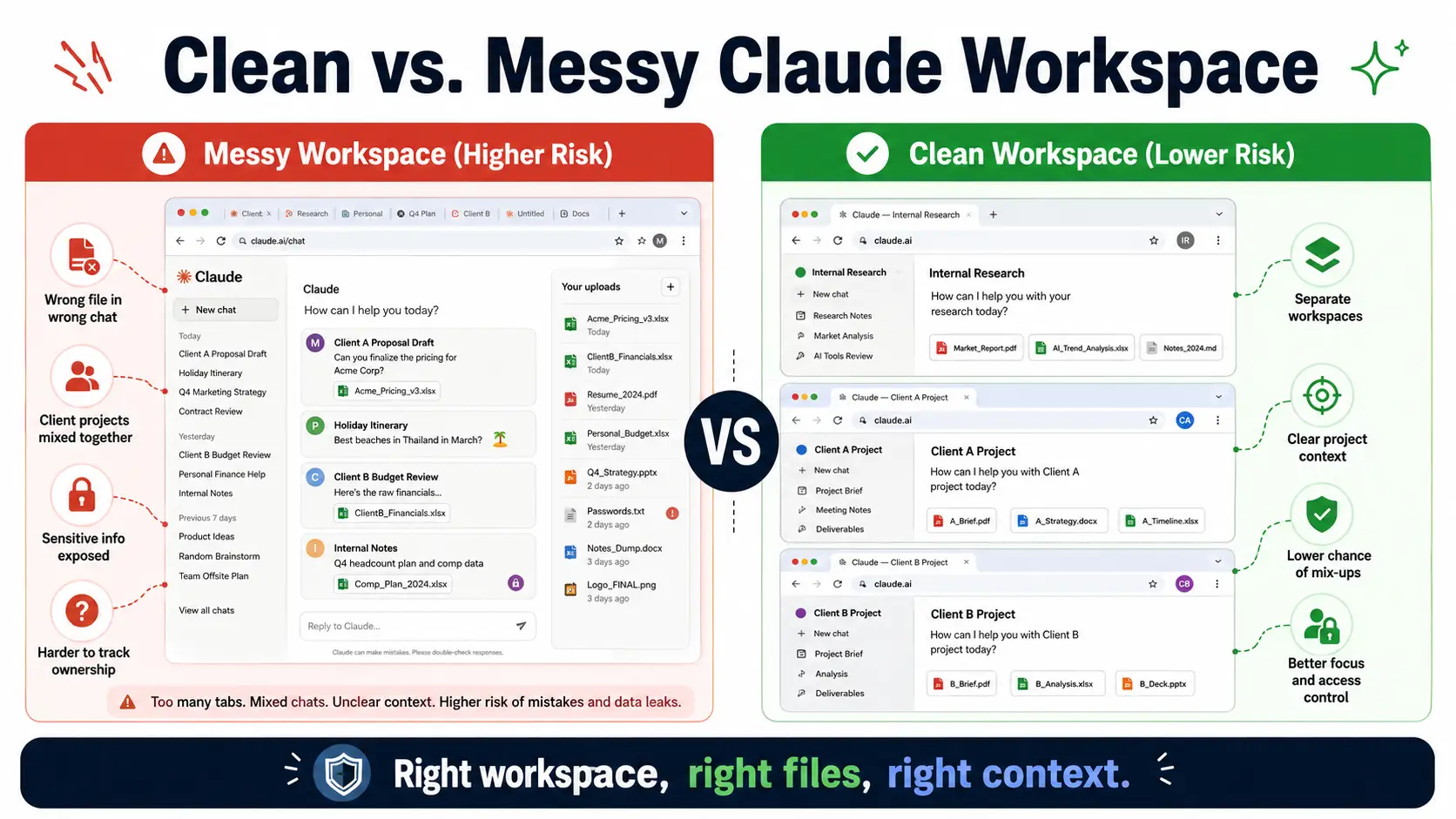
Some mistakes are not policy violations, but they still create confusion. A freelancer may keep personal work, Client A research, and Client B drafts in one browser session. One wrong tab can expose the wrong chat, upload the wrong file, or send a prompt from the wrong workspace.
Use clear project names and keep each workspace separate. Review saved sessions before sharing a screen or handing a device to a teammate. This will not override Claude’s rules, but it can reduce simple access mistakes and make your daily setup easier to manage. The next section looks at a more structured way to separate Claude workspaces when one browser is no longer enough.
How DICloak Helps Keep Claude Workspaces Separate
Following Claude’s rules comes first. But rules do not fix a cluttered browser. A freelancer may manage multiple Claude accounts that are separately authorized for client projects. With everything in one browser, saved sessions, files, bookmarks, and tabs can blur together.
DICloak does not change Claude’s rules or make a personal Claude login shareable. It helps teams create separate Claude workspaces and manage browser access with structure.
Keep Each Claude Workspace in Its Own Browser Profile
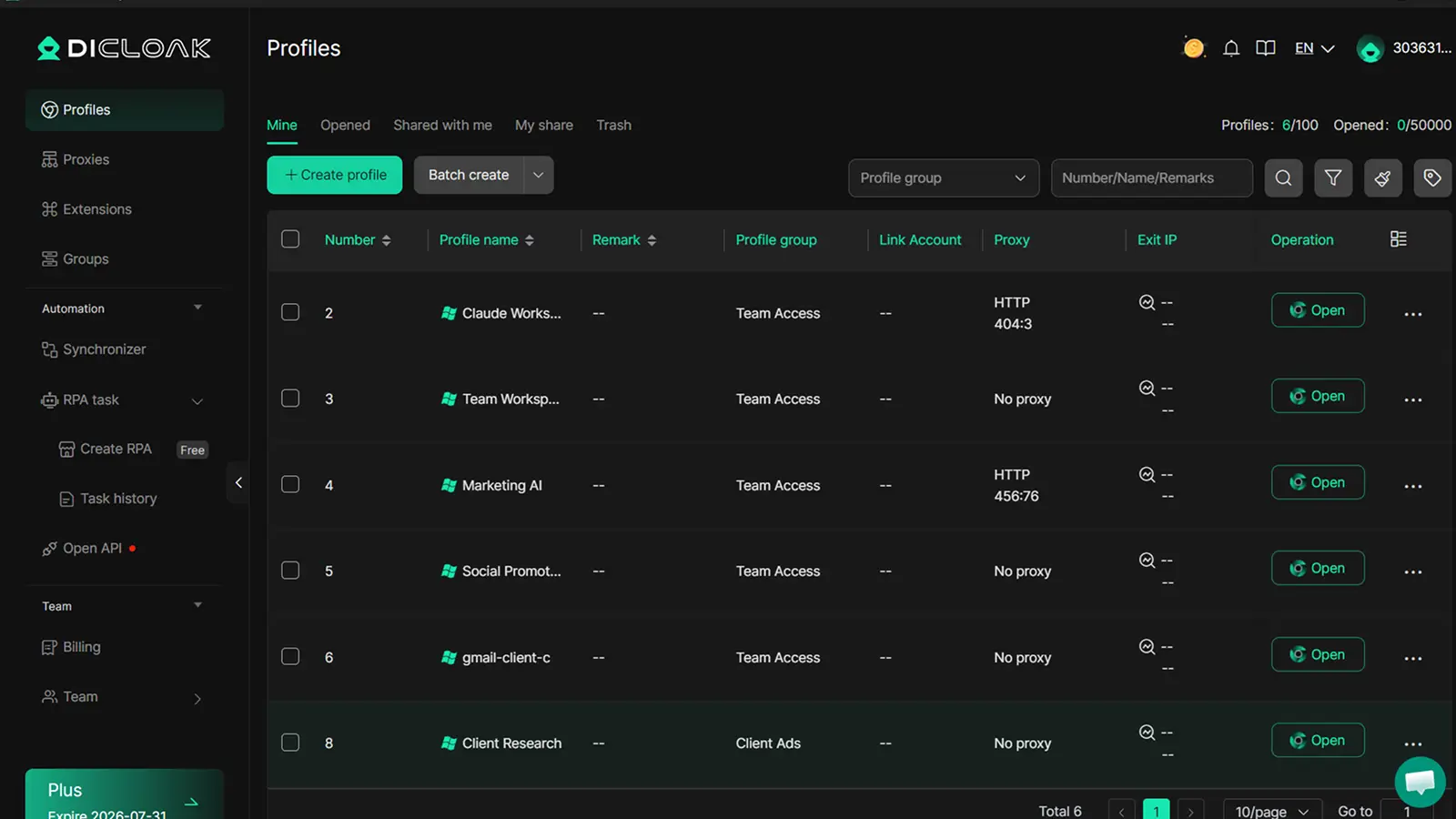
Think of a browser profile as a dedicated desk for one project. A small agency might create one profile for internal planning, one for a client’s Claude workspace, and another for research. Each profile can be named and grouped.
This gives users clearer browser profiles for Claude. Instead of searching through one crowded Chrome window, team members open the profile that matches the task. Related cookies, saved sessions, extensions, bookmarks, and browser settings stay with that workspace. This can reduce errors, such as uploading a Client A file while working in Client B’s tab.
Reduce Browser, Session, and Device Mix-Ups
Using multiple Claude accounts on one device is not a shortcut around platform rules. It is a workspace-management problem. An antidetect browser for Claude should help organize approved workspaces, not bypass restrictions or hide misuse.
DICloak keeps different project environments apart, so an old login or saved page is less likely to appear in the wrong task. For example, a content manager can close the “Client A” profile at the end of the day, then open the “Internal Research” profile next morning without unrelated tabs or sessions.
Control Shared-Device and Team Access More Carefully
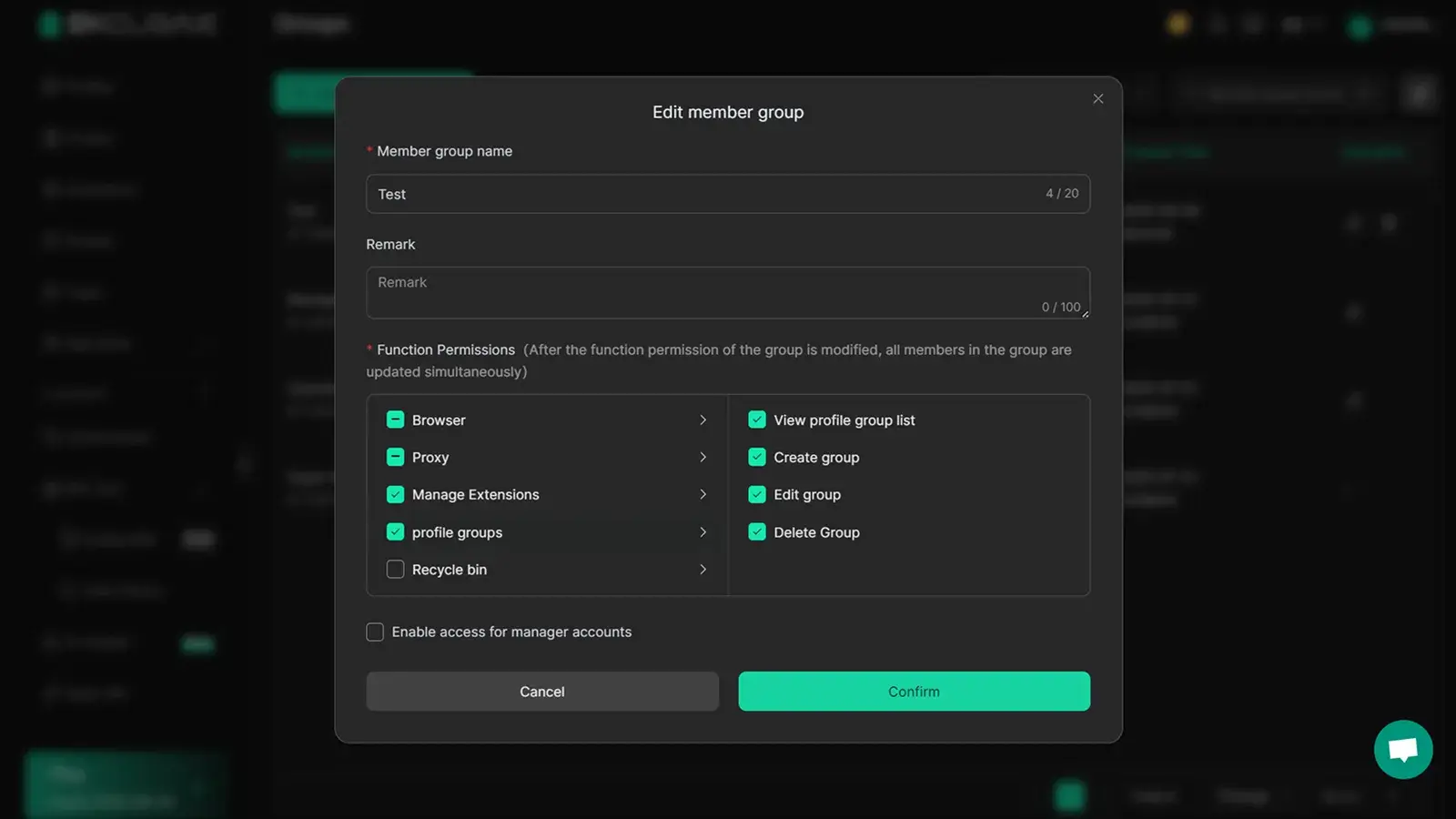
Teams that manage multiple AI accounts also need a clear access plan. DICloak allows an admin to assign profile groups and operation permissions to specific team members. A writer can receive access to one project profile, while a manager keeps access to team settings and activity records.
This is useful on shared devices or in agencies where several people handle different client projects. Members use their own DICloak team access, while admins decide which profiles they can open. Claude access still follows Anthropic’s own account, plan, and permission rules. DICloak organizes the browser workspace around each project; it does not replace those rules.
What to Do If Your Claude Account Gets Banned
Keeping workspaces separate can prevent simple mix-ups. But it cannot reverse a restriction that has already happened. If your Claude account is suspended, do not panic or open a replacement account. Begin with the notice Anthropic sent.
Read the Ban Notice Before Taking Action
A Claude ban notice may say your account was warned, suspended, terminated, or needs verification. These states differ. Read the message closely and save a copy. Note the account email, date, and stated next action.
For example, a writer may lose access after earlier warnings. The first priority is to preserve the notice and review recent use, not to keep retrying the login. If the notice says “suspended” or “terminated,” follow Anthropic’s official appeal route.
Stop Actions That May Make the Situation Worse
When a Claude account is banned, stop the activity that may have caused the issue. Do not resend nearly identical prompts. Do not give the login to a colleague to test. Do not create another account to work around the restriction.
A Claude account restricted for a policy issue needs a clear review. More activity can make the timeline harder to explain. Review the relevant policy and write down the facts before you contact support.
Save Important Account Details and Work Records
Keep the ban email, a screenshot of the notice, your account email, plan details, and a short timeline. These records can make a later appeal easier to explain.
If you still have access before the restriction is final, export key chats and save important files in your normal project system. Individual Claude users can export data from Settings > Privacy on the web app or Claude Desktop. Do not assume an export will be available after access ends. The next section explains how to prepare an appeal.
How to Appeal a Ban on Claude
After saving the notice and account details, the next step is a Claude ban appeal. Anthropic says users who think an account was wrongly suspended or terminated should sign in to the affected account and use the official appeal form. An appeal is not the place to argue, guess, or write a long story. It is your chance to give the review team clear facts.
Prepare a Clear and Honest Appeal
Include the account email, the date you lost access, and the wording from the notice. Then explain how you used Claude and what happened before the restriction. Keep it short and honest.
For example, a freelance editor could explain that Claude was used to revise client copy, that a warning appeared after testing a request, and that the workflow has stopped. Do not claim no rule was broken when you are unsure. If you made a mistake, explain what changed. A clear appeal Claude account ban request is easier to review than a message full of guesses.
Common Appeal Mistakes to Avoid
Do not send several appeals with different explanations. Do not create a new account while waiting. Do not blame a teammate without explaining who had access. Avoid claims such as “my account was hacked” unless you have facts to support them.
It is also better not to ask how to get unbanned from Claude through unofficial channels. Only Anthropic can review a restriction or decide on Claude account reinstatement. Keep your request polite, factual, and tied to the affected account.
What to Expect After You Submit an Appeal
Anthropic does not publish a standard review time. Its Help Center says response times may be longer than normal at times. Submit the Claude appeal form once, watch the email linked to the account, and avoid changing your story after submission. While you wait, keep important work in your normal project system rather than expecting immediate access.
Best Practices for Using Claude Safely in 2026
An appeal helps after a restriction. Better habits make it less likely you will need one again. Claude account safety means protecting your account and keeping work clear.
Keep Your Account and Workspaces Organized
Use a strong, unique password and keep your recovery email current. Do not leave Claude open on a shared computer. Before you share your screen, close chats and files from another project.
For example, an agency writer may move from an internal plan to a client draft during a busy call. Checking the active workspace and open uploads can stop the wrong material from being shown. This is safe Claude usage: small habits that protect access and client information.
Avoid Accidental Policy Violations
Treat a refusal or warning as a reason to pause. Do not keep rewriting the same request to force a different answer. Ask whether the task can become a safe, lawful request instead.
For instance, a security consultant can ask Claude how to protect a company login page. Asking for steps to enter a real third-party account is different. When a request involves harm, fraud, privacy, or unauthorized access, check the Claude Usage Policy before continuing. This is a clear way to avoid Claude policy violations.
Review Claude Rules When Your Work Changes
Policies and features can change. Review Anthropic’s Usage Policy, Consumer Terms, and supported-region information when you add a team member, connect a tool, or start a client workflow.
Keep important work outside one chat. Save final copy, notes, and files in your usual project system. Good Claude account security is a routine.
Frequently Asked Questions About How to Avoid Getting Banned in Claude
How to avoid getting banned in Claude?
The safest approach is to follow Claude’s Usage Policy, keep your account private, and stop when Claude shows a warning. Do not share your login, use unapproved automation, or keep trying to reword a request that Claude already refused. Use Claude only for work that fits its rules and supported access conditions.
Can I create a new Claude account after my old account is banned?
No. Creating or using another account to get around a ban can create a bigger problem. Use the official appeal process with the affected account instead. Explain what happened clearly and wait for Anthropic’s review before taking further action.
Can I share my Claude Pro account with my team?
No. A Claude Pro account is not meant to be passed between coworkers, friends, or family members. Sharing one password can mix chats, files, billing details, and responsibility under one account. Each person should use the right approved access for their own work.
Will changing my IP address or device get my Claude account banned?
Anthropic does not publish a rule saying that one IP change, new device, or browser switch will automatically lead to a ban. Do not rely on technical “fixes” or online promises that claim to make policy violations safe. Focus on compliant use, accurate account details, and clear access control instead.
What should I do if Claude sends a warning or suspends my account?
Pause the activity that caused the warning and review the related policy. If your account is suspended or terminated, save the notice and account details. Then log in with the affected account and submit the official appeal form. Keep the appeal short, honest, and focused on the facts.
Using Claude responsibly starts with following its rules, keeping account access private, and separating workspaces when you handle different projects. DICloak helps organize browser Profiles, manage team access, and reduce session mix-ups around approved workflows. Try DICloak for Free.
 Web Proxy Tools
 Free Tools
 Cookie Plugin
 UA Generator
 MAC Address Generator
 IP Generator
 IP Address List
 2FA Code Generator
 World Clock
 Anonymous Check
 WebRTC Leak Test
 UUID Generator
 Free Web Proxy Site
 Proxy Checker
 FB Ad Checker
 AI Web Scraping
 Free SMM Tools
 Twitter Shadowban Checker
 Instagram Name Checker
 UTM Generator
 Username Generator
 AI Hashtag Generator
 LinkedIn Headline Generator
 Social Media Image Resizer