Choosing between two AI video tools can feel like trying to read between the lines, especially when both promise fast, lifelike avatars, easy edits, and scalable workflows. The real headache comes when you need to decide: should you go with Higgsfield or HeyGen for your team’s video automation in 2026? The specs might look similar, but the actual fit can be much trickier than the surface features suggest.
Most comparison charts gloss over the workflow gaps that show up under real use. Maybe you’re expecting HeyGen’s avatar generation to handle custom branding, but the control isn’t as granular as you thought. Or you’re counting on Higgsfield to support bulk exports, only to hit a cap that slows your rollout. What matters isn’t just the headline features, it’s how these tools hold up when you run them against your actual content pipeline.
Higgsfield vs HeyGen isn’t about chasing the newest AI gimmick. It’s about making sure the tool doesn’t break when you scale, and that you aren’t boxed into a pricing model that eats your margin. If you’re comparing HeyGen vs Higgsfield, the right answer depends on how you handle batch edits, permission management, and output quality in your daily operations. The difference often comes down to the steps that happen between upload and final delivery.
Before you pick, look past the marketing blur and see how these tools perform in the real world. Here’s where the real workflow gaps show up.
What Most People Get Wrong About Higgsfield and HeyGen
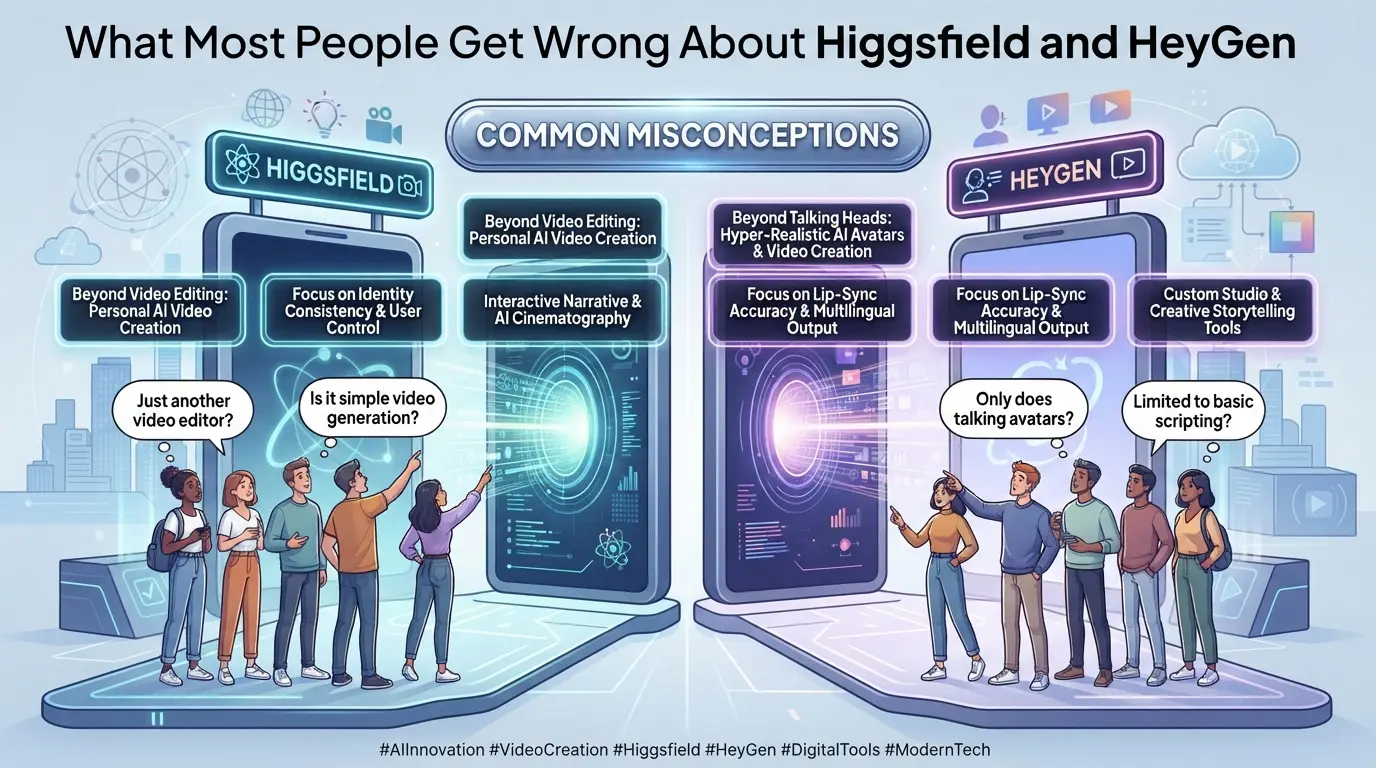
Most buyers lump Higgsfield and HeyGen into the same bucket, assuming both handle AI video, avatars, and creative output in similar ways. That shortcut misses the core difference: Higgsfield isn’t built as a typical avatar generator, while HeyGen doesn’t aim for cinematic or stylized video. If you don’t catch this gap early, you risk picking a tool that breaks your workflow or leaves you stuck during batch production.
Why Higgsfield is not just another avatar video tool
Many confuse Higgsfield with generic avatar platforms, but the tech and use case are not interchangeable. Here’s where that mix-up shows up most:
- Higgsfield’s model is tuned for stylized and cinematic video, not just avatar animation.
- It handles complex scene generation, HeyGen focuses on talking heads and simple edits.
- The confusion usually starts when users expect Higgsfield to support avatar-driven quick edits; it’s not built for that.
HeyGen’s real strengths and what it doesn’t do
HeyGen is designed for fast, scalable avatar video, think onboarding clips, training modules, and quick explainers. If your team needs to crank out dozens of personalized videos, HeyGen’s workflow fits. The platform shines at batch creation, with easy script swaps and voice options. But the tradeoff is obvious the moment you try to go beyond its main lane. For example, if you want cinematic shots or stylized visuals (like animated backgrounds or layered effects), HeyGen simply doesn’t offer that. It’s also limited when you need to handle complex permission setups or multi-user editing at the scene level. Teams that start with HeyGen for fast output often hit a wall when they try to push for high-end visuals or deep customization, at that point, switching platforms means rebuilding templates and retraining staff.
If you treat these tools as interchangeable, you waste time and risk budget overruns. Higgsfield and HeyGen comparison isn’t just about features, it’s about matching the tool to the real-world work your team does, and knowing where their limits show up before you build your workflow around them.
Ready to figure out which fits your day-to-day needs? The next section breaks down how to actually decide which AI video tool fits your workflow.
How to Decide Which AI Video Tool Fits Your Workflow
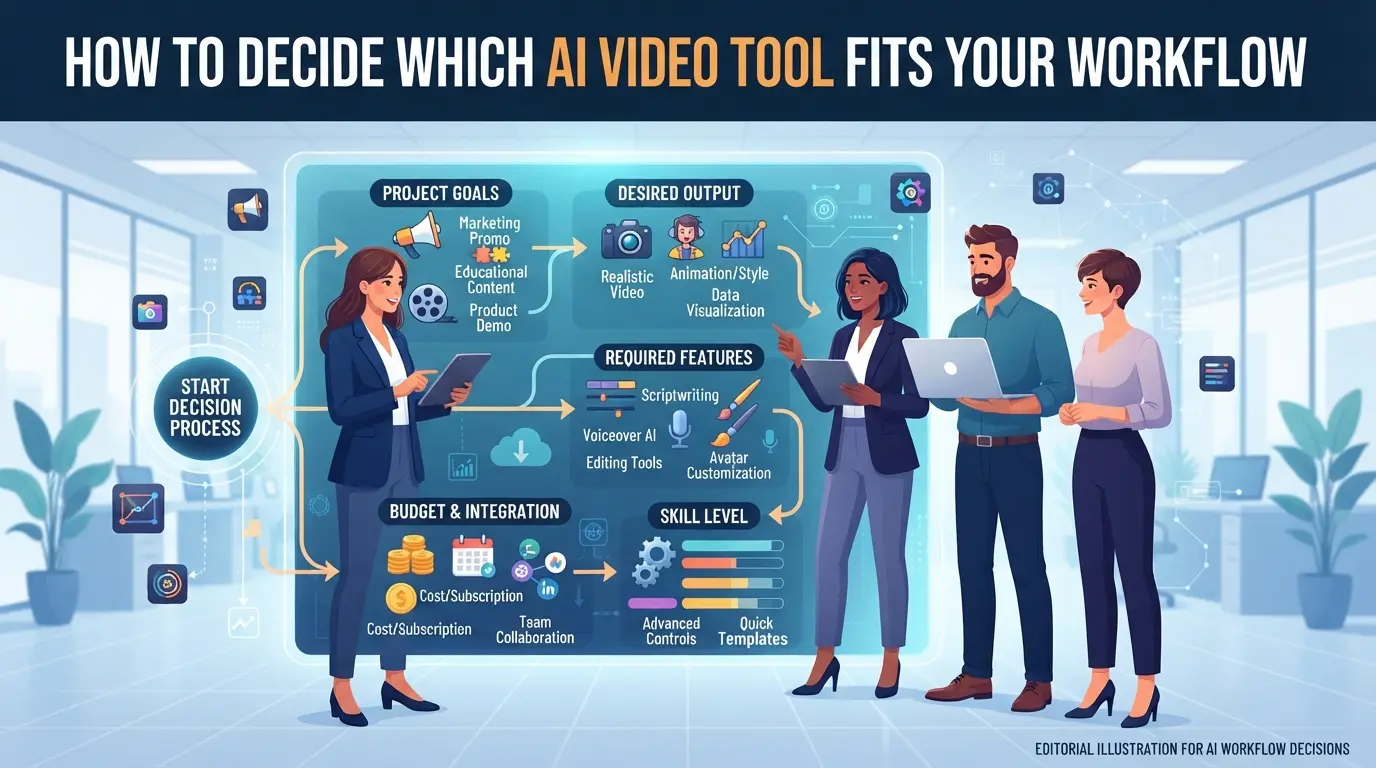
If you’re trying to decide between Higgsfield and HeyGen, forget the hype, what matters is whether you need high-volume avatar content, influencer-style clips, or cinematic edits. The best fit is the one that doesn’t bottleneck your actual delivery steps or force you to redo work during batch edits.
What to clarify before you compare features
The quickest way to avoid expensive mistakes is to write down your core video goals and split features into must-haves and extras. If your team produces daily explainer avatars, you need batch generation and fast permission switching. If you only need a few influencer-brand clips per month, prioritize custom avatar options and flexible output quality settings.
Short answer: The tool that matches your main workflow, batch avatar edits, influencer campaigns, or cinematic content, is the one that keeps your pipeline running smooth and prevents wasted spend.
When to choose cinematic, avatar, or influencer content
Picking the wrong type usually means you lose hours re-editing, or your export fails halfway through a batch. This is where most teams run into bottlenecks.
- Check if your main use case is batch avatar videos, influencer campaigns, or cinematic edits, don’t assume one tool covers all.
- If you need daily batch output, confirm the platform’s bulk export and permission controls before committing.
- For influencer or brand content, test custom avatar creation and see if the tool supports native editing formats.
Typical workflow traps and how to spot them
Tool mismatch isn’t just about missing features, it’s about friction that piles up. For example, HeyGen’s avatar engine speeds up batch content, but stalls when you need deep custom edits. Higgsfield’s cinematic focus is strong for high-fidelity clips, but can choke on bulk avatar requests. Teams hit snags when they chase headline features and ignore day-to-day needs.
| Workflow Goal |
Higgsfield Strength |
HeyGen Strength |
Risk if Wrong Pick |
| Batch Avatar Content |
Weak bulk tools |
Fast avatar batch |
Delivery stalls, manual edits |
| Cinematic Campaigns |
High-fidelity output |
Limited cinematic |
Quality dips, rework cycles |
| Influencer Clips |
Custom avatar options |
Flexible editing |
Format mismatches, export fails |
Table: “Higgsfield and HeyGen comparison for workflow fit” , use case and risk, see above for why the fit matters.
If you skip these checks, you’re almost guaranteed to waste budget or face workflow jams. This is where the next section starts breaking down the feature-level differences, so you can see which tool actually fits your content pipeline.
What Actually Sets Higgsfield and HeyGen Apart in 2026
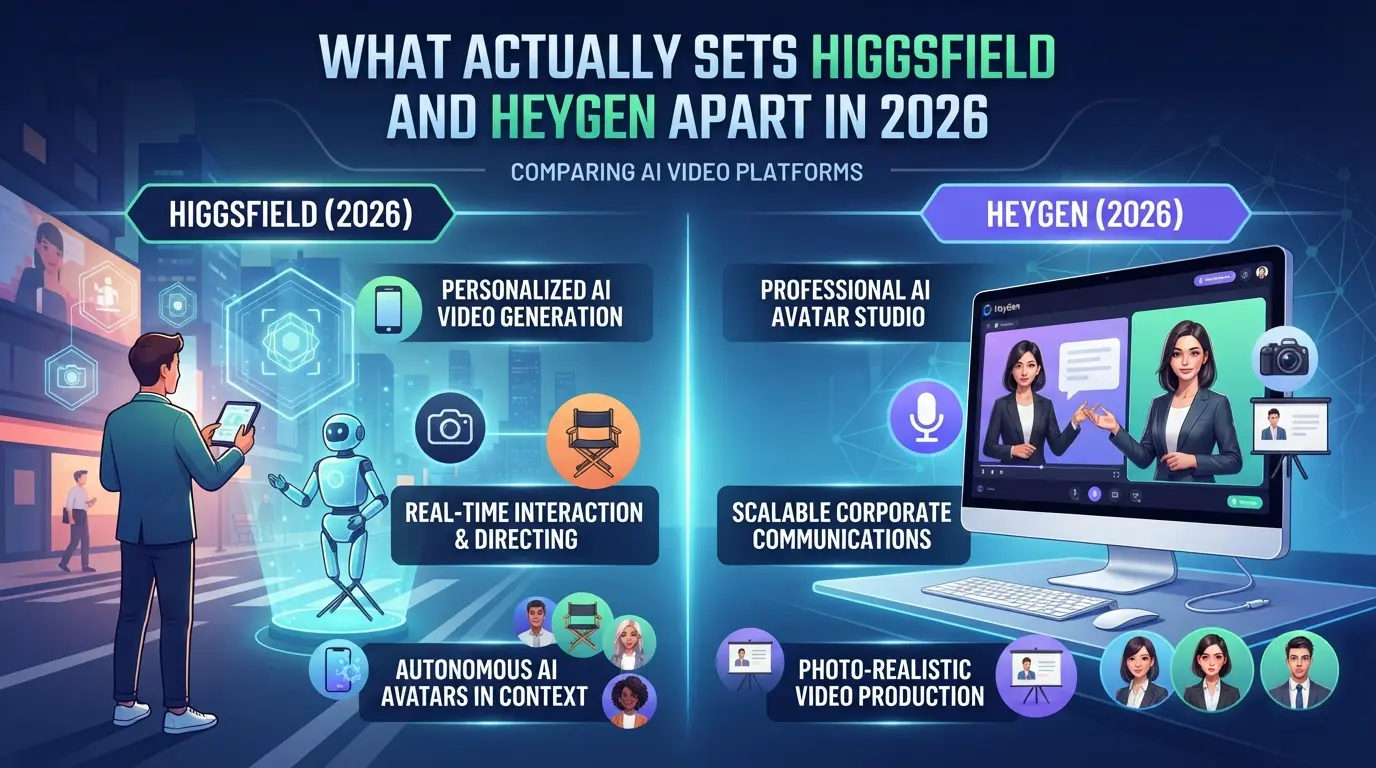
If you’re deciding between Higgsfield and HeyGen, the real gap shows up in how each tool handles complex video requests and team workflows, not just avatar realism or language support. Most people focus on the headline features, but what matters is how these platforms perform with demanding edits, multi-user permissions, and batch video output when the stakes are high.
Side-by-side feature and output comparison
Here’s a direct look at how Higgsfield and HeyGen stack up on the points that actually affect daily operations:
| Feature |
Higgsfield |
HeyGen |
| Avatar realism/customization |
High realism, advanced controls |
Good realism, preset-driven |
| Cinematic/stylized video |
Supports cinematic, stylized modes |
Focus on standard, business styles |
| Voice/lip-sync/language |
Multilingual, strong lip-sync |
Multilingual, decent sync, more accents |
| Team workflow/collab tools |
Role-based permissions, API access |
Shared folders, basic team controls |
If you need flexible avatar tweaks and true cinematic effects, Higgsfield stands out. For routine business videos or fast batch output, HeyGen’s simplicity keeps the process moving.
What each tool is best (and worst) at
Higgsfield handles creative video, film-style edits, custom avatars, and complex permission setups, better than HeyGen. But its workflow can slow down for bulk exports or simple explainer content. HeyGen is faster for high-volume business videos, yet it’s easy to hit its limits if you need anything outside the default templates.
Known limitations and pain points
Higgsfield’s advanced features often mean more steps and higher complexity, expect longer setup times for team access and permission management. HeyGen is easier to start with, but you’ll run into restrictions if you try to push custom avatars or stylized edits beyond its template library. For teams, it’s the collaboration layer where these differences become clear.
That gap in workflow control is what teams need to watch for next, especially when mistakes can lock out whole groups or disrupt your video pipeline.
Risks and Mistakes When Using AI Video Tools for Teams
Teams run into trouble with AI video tools when they treat account-sharing and workflow as afterthoughts. Most issues are preventable, but skipping these checks can turn a simple rollout into a mess. Here’s what actually breaks when you push Higgsfield or HeyGen into a team setup.
Why account-sharing and permissions matter
Improper sharing, like passing login details or using one account for everyone, often triggers bans or leaks sensitive project data. The most common mistake is skipping platform-level permission setup and relying on manual workarounds. If you use shared credentials, you risk losing access or exposing private assets. Assign proper roles and use built-in team features whenever possible.
How workflow confusion leads to wasted time
When teams mix up tool capabilities or skip clear onboarding, hours go to fixing preventable mistakes.
- Editors may try to batch process videos using features that don’t exist, forcing repeated manual edits.
- New team members often get stuck with unclear handoff steps, leading to delays or accidental overwrites.
The safer move is to map out which tool handles which task, don’t assume features exist just because they’re listed for a competitor. If you don’t clarify this upfront, you’ll waste cycles on rework that could have been avoided with a 15-minute internal checklist.
Using DICloak for Secure Team Account Sharing in AI Video Tool Workflows
Teams working with AI video platforms often run into trouble when multiple people need to share a single service account, especially as projects scale or staff changes. After seeing the risks of casual password sharing or switching devices, many teams look for a safer, more organized way to handle access. If your workflow for tools like Higgsfield or HeyGen depends on shared logins, DICloak can give you the structure to manage those accounts with more control and less guesswork. Here’s how the right browser-profile setup addresses the biggest pitfalls of team account sharing.
Keep a Unified IP and Fingerprint for Shared Accounts
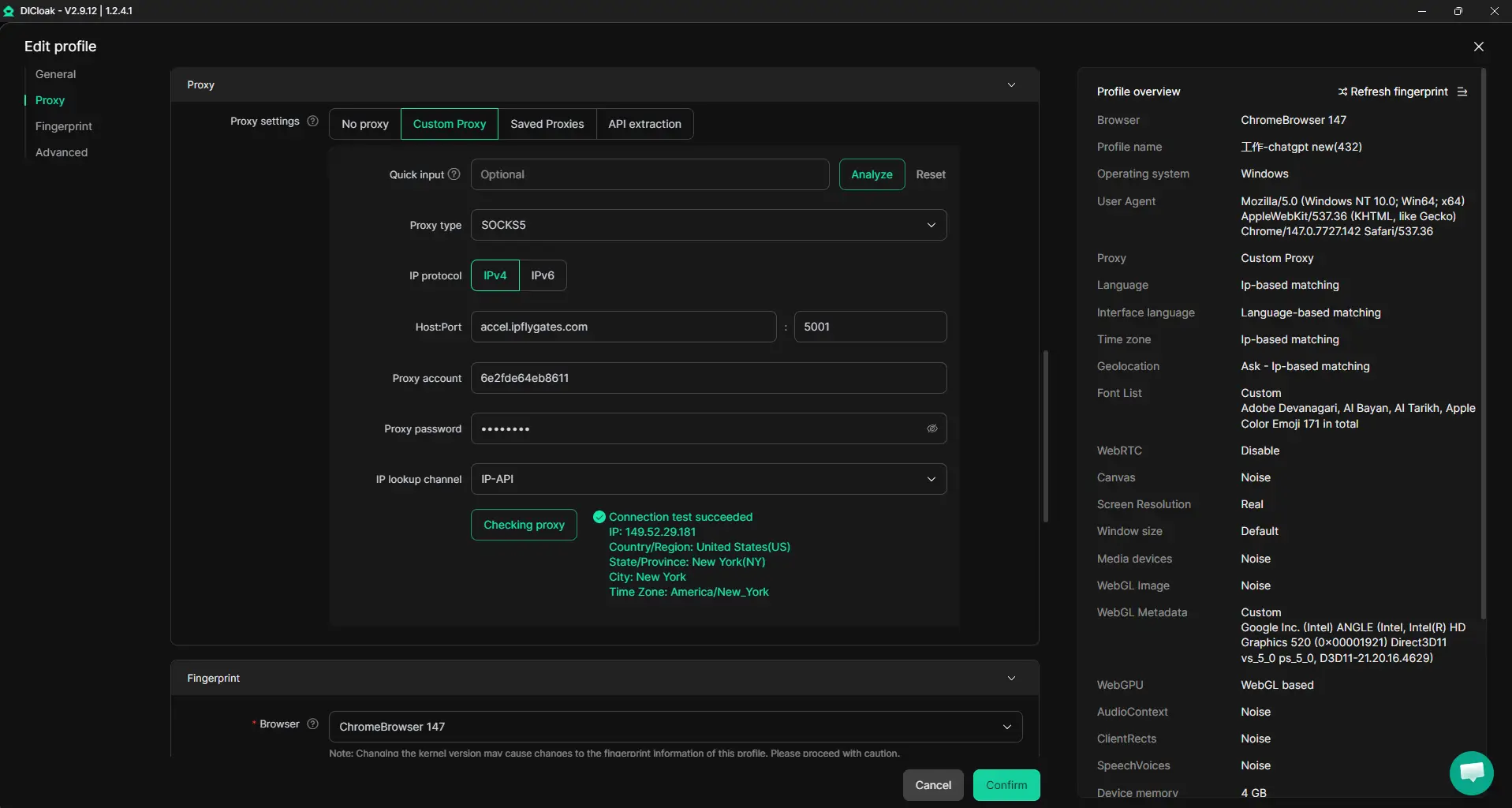
When several people access the same platform account, inconsistent device fingerprints and changing IPs are a top trigger for platform reviews. Admins can cut down on this by creating a shared DICloak browser profile for the AI video tool account, setting its fingerprint and proxy settings once, and sharing that profile with team members. Every member who opens that shared profile uses the same browser profile and network route, so platforms see one consistent access pattern instead of scattered logins from different setups. This only works if all members use that shared profile and the configured proxy, switching profiles or skipping the proxy breaks the chain. The platform may still flag some activity, but a unified setup reduces confusion and manual cleanup.
Browser-Profile Access Controls for Shared Account Workflows
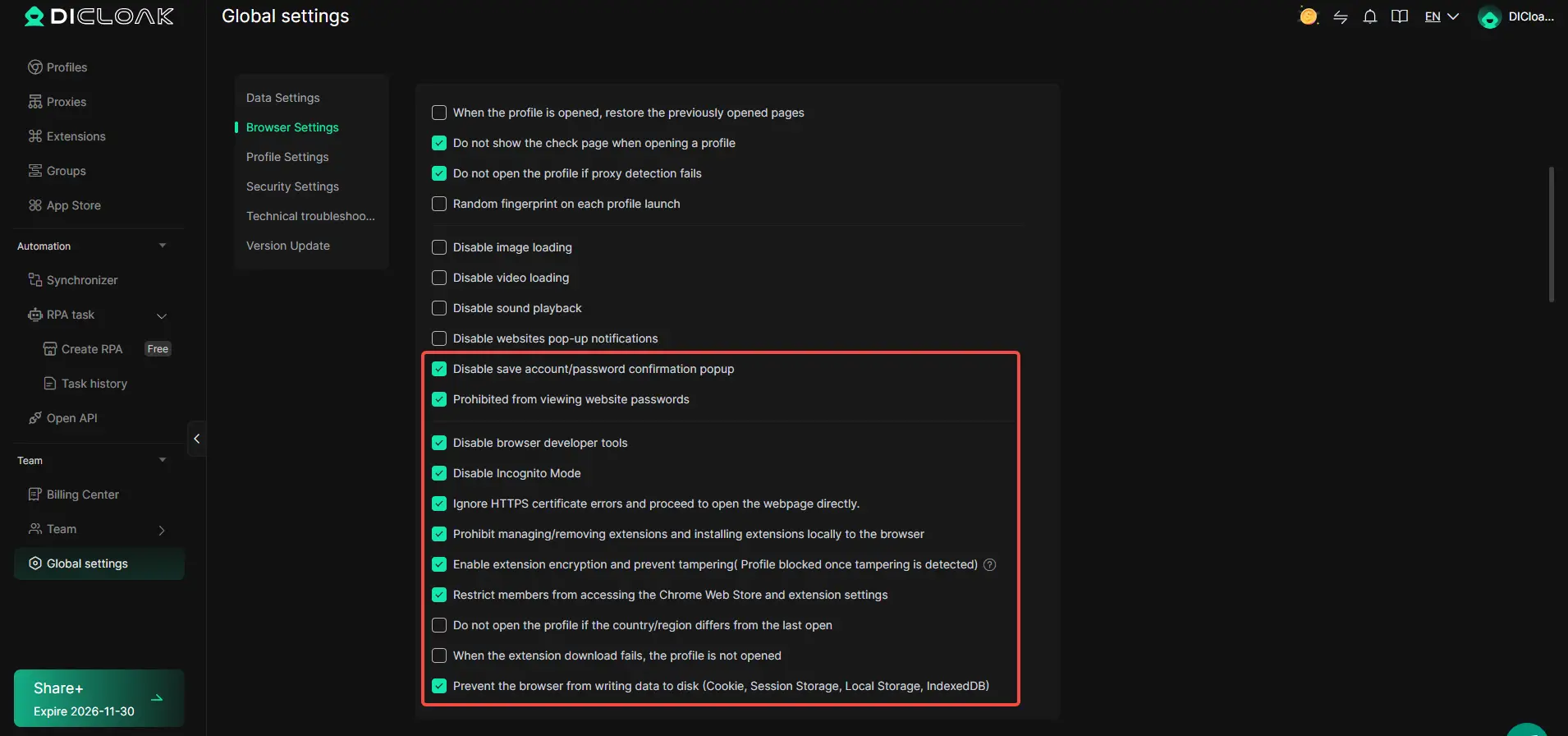
The real pain starts when someone on the team copies a saved password, grabs session cookies, or views sensitive pages that should stay hidden. Before sharing any profile, admins can use DICloak security settings to lock down what members can see or export. Password and cookie access can be restricted, browser developer tools blocked, and even specific page elements hidden to keep credentials and private data from leaking. On supported plans, cookie encryption adds another layer for high-risk accounts. The scope is limited to browser-profile access, these controls do not affect the connected SaaS tool itself.
Team Permissions for Assigned Browser Profiles
Not every staffer needs full access to every profile or function. In DICloak, admins can set up member groups with tailored permissions, limiting which browser profiles and fields each person can reach. For example, video editors might only get access to a single shared AI tool profile, while managers see all profiles and can change settings. This least-privilege model cuts down on accidental changes and keeps the workflow organized. These controls only manage DICloak access, not permissions inside the platform account.

Setting up DICloak this way supports stable team operations, without giving up account control or exposing sensitive data at every handoff. Next, you’ll want to check how these team practices interact with other parts of your AI video tool workflow.
What to Watch Out for When Integrating AI Video Tools Into Your Team’s Workflow
Trying to drop a new video tool into your team’s mix can break more than it fixes if you miss the small stuff, especially file compatibility and team habits.
Common integration hurdles and how to solve them
Most teams hit snags with exports not matching their editing suite or API limits throttling batch jobs. Before rollout, test at least one full project end-to-end, including export and import steps. Skip the generic training, walk staff through real-world tasks using your files and accounts. If one tool lags on a batch export or mangles a format, flag it now before it snowballs.
When to use separate profiles or environments
Juggling multiple brands or clients? Mixing projects in one account risks file overlap and permissions confusion. Set up distinct workspaces from day one.
- Use dedicated logins for each brand or client.
- Create separate folders to isolate drafts and assets.
- Restrict access to only the team members working on each segment.
How Pricing and Value Compare: Higgsfield vs HeyGen in 2026
If you’re deciding between these two, the real difference is what you get at each price point, and how quickly “unlimited” turns into capped or pay-per-use. Teams can get locked into paying extra for features they don’t touch, or hit a wall when batch limits kick in. Here’s how the pricing shakes out for typical users.
Side-by-side pricing and value breakdown
| Plan Tier |
Higgsfield (2026) |
HeyGen (2026) |
| Entry (Individual) |
$29/mo, 20 videos, 1080p, basic |
$24/mo, 15 videos, 1080p, basic |
| Pro (Team) |
$89/mo, 100 videos, API access |
$99/mo, 100 videos, API access |
| Hidden Costs |
Extra $0.50/video after limit |
Extra $0.75/video after limit |
| For solo users, HeyGen’s base plan is cheaper but caps out faster. Higgsfield offers slightly more at the entry tier but bumps the per-video overage. Both push you toward the team plans if you need API or bulk exports, real-world value depends on how often you go past the included quota. |
|
|
How to avoid common pricing mistakes
Most teams lose money by paying for features they never use, check your monthly output before picking a plan. If you need API or bulk actions, ask about developer or group discounts; these often aren’t shown on the public pricing page. Skipping this step means you could pay 25% more every month without realizing.
When a Dedicated Browser Profile or Account-Sharing Tool Makes Sense
Signs you need more than built-in team features
If you’re handling projects for multiple brands, client accounts, or anything that can’t risk cross-contamination, built-in team features usually fall short. Once audit trails, strict permission rules, or independent workspaces become must-haves, relying on the default sharing options starts creating gaps that manual fixes can’t close.
- Switching between brand logins daily
- Needing to prove who did what (audit trail)
- Running sensitive content reviews
- Wanting strict separation between client data
If you feel boxed in by the platform’s native team tools, that’s your signal to look at dedicated browser profiles or account-sharing solutions.
Frequently Asked Questions About Higgsfield vs HeyGen
Is Higgsfield better than HeyGen for making talking-head videos?
HeyGen is usually better for talking-head and avatar videos. Its AI lip-sync and facial animation tools are more advanced for these formats. On the other hand, Higgsfield shines with cinematic, creative, or stylized video content. If you want realistic presenter videos, HeyGen is the stronger choice in the Higgsfield vs HeyGen comparison.
Can I use both Higgsfield and HeyGen in the same workflow?
Yes, you can use both tools together. Many teams create stylized scenes in Higgsfield, then handle talking-heads with HeyGen. Just keep your accounts and browser profiles separate. This helps prevent login issues, keeps your projects organized, and reduces the risk of cross-account security problems.
What are the main risks of sharing AI video tool accounts with my team?
Sharing accounts can lead to bans if platforms detect multiple users. Team members might accidentally leak data or overwrite each other’s work. If you don’t control permissions, someone could change settings or remove access without notice. Always use official team features or shared credential management to limit these risks.
How do I keep my team’s shared accounts safe when using AI video tools?
Keep accounts safe by using unified browser profiles and secure password managers. Control who can access which credentials, and adjust permissions for each team member. Regularly review team access and remove unused accounts. This helps prevent unauthorized changes, data leaks, and accidental lockouts.
Are there hidden costs in Higgsfield or HeyGen pricing for teams?
Yes, both platforms may have hidden costs. Watch for usage limits, such as monthly video credits. Extra seats or users often mean higher charges. Some features, like higher video resolution or advanced editing, might only be in premium tiers. Always check the full pricing details before choosing a plan.
Consider your specific content needs, budget, and desired output quality when making your final selection between these two AI video solutions. Testing both platforms with your own projects can reveal which one aligns best with your workflow and creative goals. Try DICloak For Free
 Web Proxy Tools
 Free Tools
 Cookie Plugin
 UA Generator
 MAC Address Generator
 IP Generator
 IP Address List
 2FA Code Generator
 World Clock
 Anonymous Check
 WebRTC Leak Test
 UUID Generator
 Free Web Proxy Site
 Proxy Checker
 FB Ad Checker
 AI Web Scraping
 Free SMM Tools
 Twitter Shadowban Checker
 Instagram Name Checker
 UTM Generator
 Username Generator
 AI Hashtag Generator
 LinkedIn Headline Generator
 Social Media Image Resizer