You’re not just picking a new inbox, you’re deciding where your conversations, files, and contacts will live for years. Switching from Gmail isn’t as simple as downloading a backup and plugging it into the next service. The real trouble starts when you hit a roadblock like missing migration tools, lost attachments, or contacts that don’t sync cleanly. That’s why so many people search for Gmail Alternatives and end up stuck between “best Gmail alternatives” lists and privacy-focused email providers that sound good until you try importing your old data.
What catches most people off guard isn’t the feature set, it’s the hidden friction. Some secure email services limit integrations or only support basic imports. Others promise privacy but force you to abandon familiar workflows. If you’re moving a team, the risks compound: mail routing, shared labels, and calendar links rarely transfer smoothly.
Before you commit, it pays to map out how your current setup works day-to-day. Look at which features you actually use, and how your contacts, files, and rules are tied to Gmail’s ecosystem. The hardest part isn’t finding a new provider, it’s making sure your transition doesn’t break your daily routine or create new security gaps. The right Gmail alternative isn’t just about privacy or cost, it’s about minimizing disruption while keeping control of your data.
Next, see how the main alternatives compare on migration, privacy, and workflow support.
Why More Users Are Looking for Gmail Alternatives in 2026
People aren’t moving away from Gmail just to save a few dollars or chase the latest feature. The real shift started when long-time users saw how much their daily work depends on Google’s rules, and how little choice they have if something goes wrong. The main reason so many are searching for Gmail alternatives this year is to take back control, over privacy, access, and how their information gets used.
Privacy Concerns and Data Usage
Recent changes in Google’s privacy policy and ongoing data collection have pushed privacy-focused users to look elsewhere. If you’re worried about who can see your messages or how your habits shape your ads, Gmail’s model raises red flags. Quick checklist for spotting privacy pain points:
- Google’s data scans include email content and attachments, not just subject lines.
- Default settings allow cross-service tracking between Gmail, YouTube, and Drive.
- Opt-out controls for ad personalization don’t stop backend profiling or sharing with third-party services.
Account Restrictions and Platform Lock-In
It’s easy to think your Gmail account is safe unless you break a clear rule. The trouble starts when you find your account locked for a “security review” after a login from a new device, or a bulk export triggers a fraud alert. Recovery isn’t just slow, it’s unpredictable. Some users get back in after a quick password reset, while others lose access for days or longer with no clear reason given. If your email is tied to your business, team, or key logins, a sudden lockout can stall your work or even cause lost revenue.
Switching to another provider isn’t simple either. Gmail keeps your contacts, calendar, and files tightly bound in its ecosystem. When you try to export, many settings and filters don’t transfer cleanly. For teams, label structures and shared inboxes often break, forcing hours of manual work to rebuild even basic workflows. If you rely on Google authentication for other services, losing Gmail means losing access to those apps too. The real risk isn’t just data loss, it’s getting stuck with a platform that controls your access, your recovery options, and even your reputation if spam or security blocks hit your domain.
These problems aren’t rare edge cases. They’re the stories behind almost every forum thread where someone asks about secure email services or how to get back into a locked account. People want out before they become another support ticket with no answer.
Ready to dig deeper? The next section covers what you need to check before moving to a new email platform, so you don’t trade one set of problems for another.
What to Check Before Switching to a Gmail Alternative
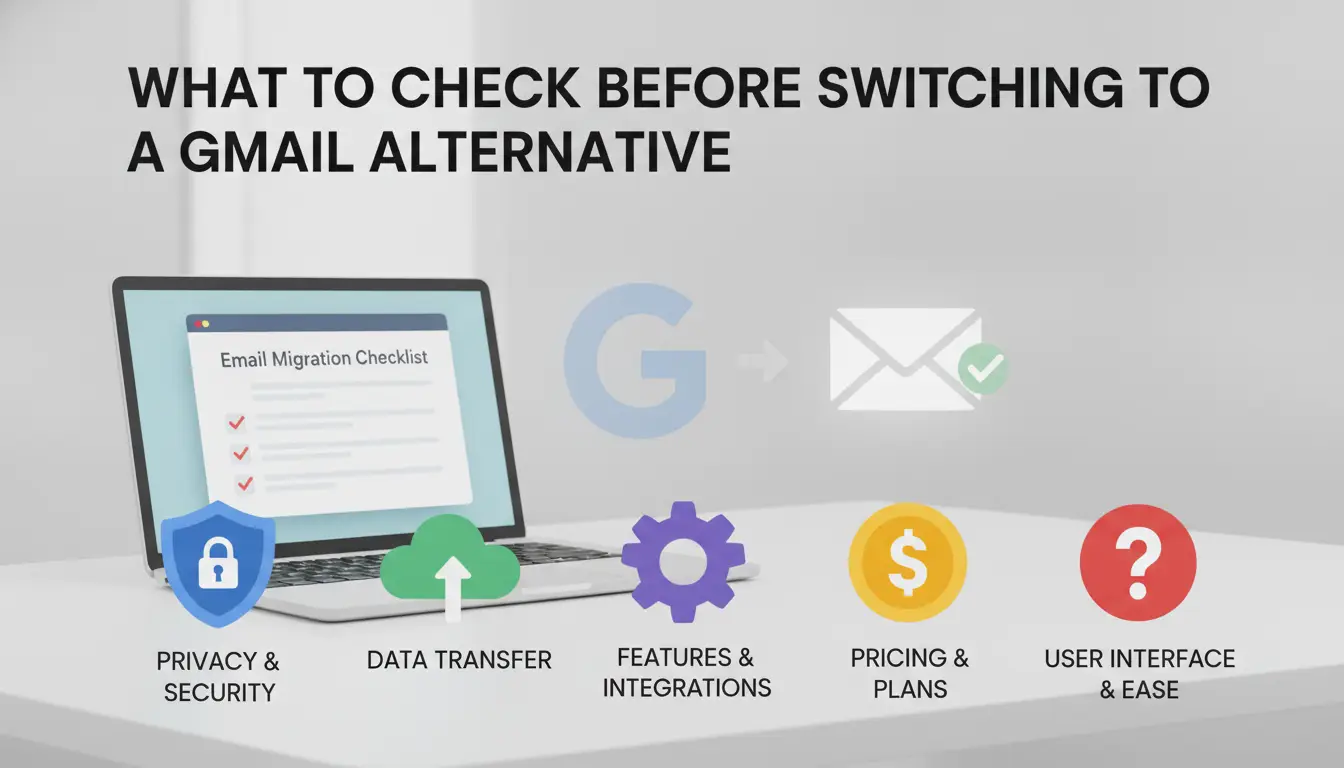
If you’re planning to move away from Gmail, the real challenge isn’t picking a new service, it’s making sure the switch won’t break your daily workflow or expose you to new risks. Missing just one detail (like losing access to old attachments or breaking password resets) can cause headaches that last for weeks. Here’s what you need to check before committing to any new provider.
Data Migration and Compatibility
Can you actually get all your existing emails, contacts, and files out of Gmail, and will the new service accept them? Most services claim “easy import,” but IMAP transfers can stall on folders with thousands of messages, and Google Takeout exports often skip chat logs or calendar invites. If you use filters, labels, or custom rules, check if the new provider converts them. Shared mailboxes and delegated accounts rarely migrate cleanly, test with a small account first. If you can’t restore search or attachments in the new inbox, you’ll spend hours digging through old exports.
Security and Privacy Features
Even privacy-focused email providers vary on how they handle security. Before you move, check:
- Does the service offer end-to-end encryption for both sending and receiving?
- Where will your data be stored, can you pick a country or region?
- Is two-factor authentication (2FA) required for all logins?
If you skip a feature here, you could end up with weaker protection than you had with Gmail. Some providers promise encryption but only support it between users on their own network. Others store backups in countries with surveillance laws you might not accept.
Account Recovery and Support
Losing access to your email, especially after a switch, is a nightmare. Before you hit “migrate,” confirm:
- Can you set up recovery email and phone options before moving?
- Does the provider offer live support or only email tickets?
- How fast are password resets or account unlocks processed?
Test recovery with a low-risk account first. If support takes days to respond, or if resets require paperwork, you may be locked out when you need help most. Backups aren’t just for your old data, some services don’t keep deleted messages, so check their retention policy.
If any of these checks fail, small glitches can turn into lost contacts, broken notifications, or security gaps that are tough to fix after you’re committed. Next, see how the most popular alternatives stack up on features, privacy, and cost.
How Gmail Alternatives Compare: Privacy, Features, and Pricing
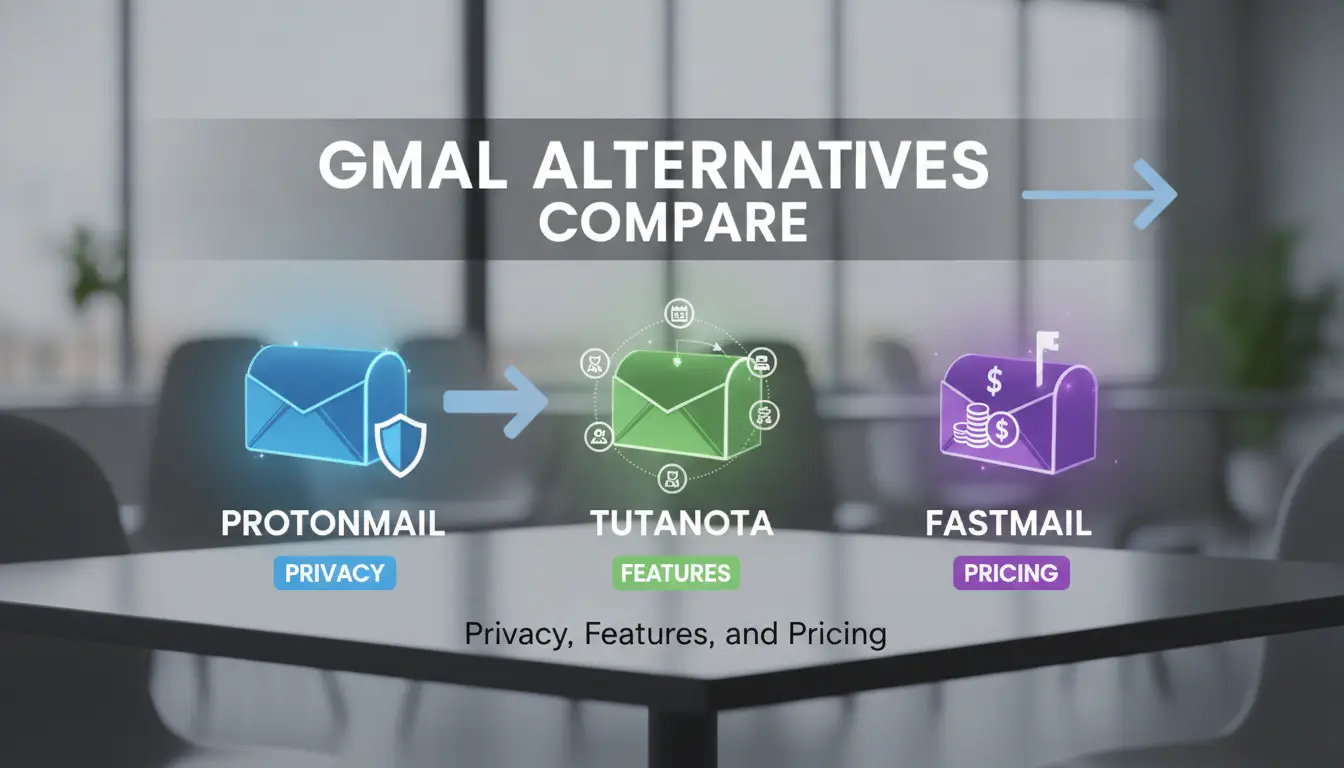
Switching email providers means more than picking a new inbox. You need to see how migration, privacy, and key features measure up side-by-side, especially if you rely on advanced workflows or handle sensitive data. Here’s where the main options stand.
Privacy-Focused Providers
| Provider |
Key Privacy Feature |
Price (per user/month) |
Migration Tools |
| Proton Mail |
End-to-end encryption |
$4.99 |
Import tool, limited filters |
| Tuta |
Zero-access encryption |
$3.99 |
Basic import, no labels |
| Fastmail |
Servers in Australia |
$5 |
Full IMAP import, custom folders |
If privacy is your top concern, Proton Mail and Tuta both avoid ad tracking and keep your inbox off US servers, but you’ll lose some Gmail-specific search and label features.
Business and Team-Oriented Options
Outlook and Zoho Mail match Google’s collaboration tools and integrate calendar and contacts. Mailbird works well for solo users but doesn’t offer advanced admin controls. For teams, Outlook’s tighter Microsoft 365 links mean setup is smoother if you’re already using Excel or Teams.
Free vs Paid Plans: What You Get
Most secure email services cap free accounts at 500MB–1GB, which fills fast if you store attachments or need to keep years of mail. Paid tiers add custom domains and better migration support. Fastmail and Proton Mail both allow trial periods, but you’ll need to pay for full-featured use.
Some features you’re used to, like unlimited filters or deep search, vanish on free plans. If you rely on labels or advanced rules, review the paywall before you move. Skipping this step is the top reason users regret switching.
Common Mistakes and Risks When Switching Email Providers
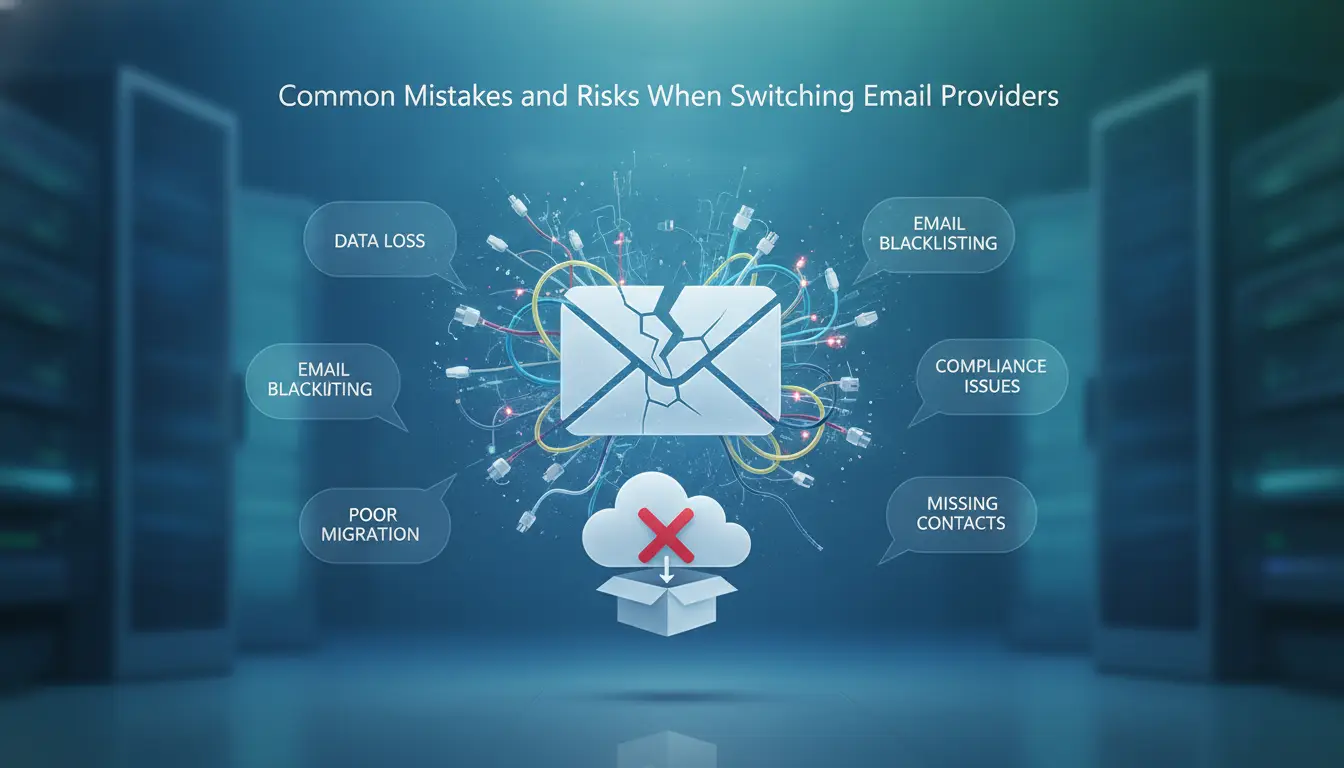
Switching to a new email provider isn’t just about picking a service with better privacy or lower cost. The most common pitfalls are data loss, account detection, and gaps in security. If you don’t plan for these, you’re likely to lose important messages, trigger platform flags, or leave yourself open to account takeover.
Losing Access to Important Emails
Missing emails or attachments can ruin a migration. If you move without a full backup, you risk losing years of conversations, especially files tied to old threads. Always export your inbox and check that attachments transfer with each message. Even a quick spot-check can catch gaps before they become permanent.
Account Linking and Detection Risks
Platforms track how accounts connect, even outside Gmail. If you reuse device fingerprints or keep old cookies, detection systems may link your new account to the old one.
- You might get flagged for suspicious activity or have both accounts restricted.
- The safer move: clear browser profiles, use fresh proxies, and never import settings that tie back to your original Gmail.
Overlooking Security Settings
Skipping two-factor authentication or using weak passwords leaves new accounts exposed. Attackers target fresh mailboxes, knowing users often forget to reset security. Set up two-factor as soon as you create the new account, don’t wait until after migration. A strong password and updated recovery info can block most common attacks.
How Teams and Marketers Can Manage Multiple Email Accounts Safely with DICloak
Switching to Gmail alternatives brings up a real problem: how can teams or marketers handle several email accounts without triggering platform security or getting accounts linked and flagged? The answer is to isolate each account’s activity, browser, IP, and data, so nothing overlaps behind the scenes.
Isolated Browser Profiles for Each Account
- Spin up a unique browser profile for each email account you need to manage. This keeps cookies, saved passwords, and autofill separate, so one login won’t leak traces to another.
- Change the browser fingerprint for each profile. If two accounts share a browser profile, detection systems may spot the overlap and link them.
- Store each profile’s local data in a separate folder or disk location. Accidentally loading an account into the wrong profile can leave session artifacts that trigger security checks.
- Test by logging into two accounts from the same machine (in different profiles). If either account prompts a security warning or forced re-authentication, your profiles aren’t fully isolated.
Proxy Configuration and Account Separation
- Assign a dedicated proxy to each browser profile. This gives every account a unique IP address, so login history and geolocation don’t overlap.
- Rotate your proxy pool for accounts with high activity, but stick with a stable IP for each account’s core login. Frequent IP changes often lead to verification requests or temporary locks.
- Check that the proxy matches the account’s usual login region. If an account created in Germany suddenly connects from Brazil, most secure email services treat it as suspicious.
- After setup, open the account dashboard and look for location or device alerts. If you see “new login detected” warnings, review your proxy assignment, something doesn’t match the account’s past history.
Team Collaboration and Permission Control
- Share browser profiles using encrypted exports or built-in team features, never by sending raw folders or login credentials over chat.
- Assign permissions per team member. Limit who can view, modify, or export each profile to prevent accidental cross-contamination or leaks.
- Enable action logs or audit trails. If something goes wrong (like an account gets locked or flagged), logs show exactly which team member accessed what, and from where.
- Review permissions and logs monthly. Teams change, and stale access is a common cause of accidental leaks.
Set up each layer, profile, proxy, and permissions, before you start moving accounts. This way, when you migrate to a new provider, you’re less likely to trip security systems or lose access mid-transfer.
Step-by-Step Guide: Migrating from Gmail to a New Email Provider
Switching email providers can disrupt your routine unless you follow a clear migration workflow. Here’s how to move your Gmail data to a new email service with minimal risk.
Preparing Your Gmail Account for Migration
- Download your emails and contacts using Google Takeout, this keeps a complete backup in case anything fails later.
- Export your calendar and files from Google Calendar and Drive. Check export formats; .ics for calendars and .zip for files are standard.
- Review filters, rules, and forwarding settings. Save these separately since most providers won’t import them automatically.
Importing Data to Your New Provider
- Check which formats your new provider supports. Most accept .mbox for email and .csv for contacts, but some require manual uploads.
- Start the import process. If you see an error about file size or format, split large files and retry.
- Confirm that all data appears in the new inbox, calendar, and contacts list. If anything is missing, re-import that specific part instead of the whole backup.
Testing and Securing Your New Account
- Send a test email and check that replies land in your new inbox.
- Scan through your imported contacts and calendar events, missing entries usually mean a format mismatch.
- Turn on two-factor authentication and update your recovery options. If your new provider doesn’t support these, consider switching again.
Teams managing multiple accounts face extra risks. Operators can create isolated browser profiles in DICloak for each email account and set up proxies per profile. This reduces fingerprint overlap and linking, the main practical risk when migrating multiple business inboxes. DICloak does not guarantee that every email provider will accept imported sessions or pass platform checks, so always test before scaling up.
When a Gmail Alternative Is Not the Right Fit: What to Consider Before Switching
Switching email providers isn’t always the answer. If your daily workflow depends on Google’s ecosystem, moving can cause more problems than it solves.
Dependence on Google Ecosystem
- Losing Docs, Drive, or Calendar links can break shared workflows.
- Some alternatives don’t support Google authentication for third-party apps.
- Team chat and file sharing often stop syncing after the switch.
Feature Gaps in Alternatives
Most Gmail Alternatives lack tools like smart labels, advanced search, or real-time collaboration. Even privacy-focused email providers often skip bulk mail filters or quick integration with cloud storage. If you rely on these features, switching means extra manual work and retraining your team, so staying with Gmail may save headaches.
Frequently Asked Questions About Gmail Alternatives
Are Gmail alternatives more secure than Gmail?
Some Gmail alternatives offer stronger privacy and security. For example, Proton Mail and Tutanota use end-to-end encryption, so even the provider can't read your emails. Many privacy-focused email providers also store data in countries with strict privacy laws, unlike Gmail, which keeps data in U.S.-based servers and scans emails for ads.
Can I keep my old Gmail emails when switching to an alternative?
Yes, you can move your Gmail emails to a new email provider. Most services let you import messages using IMAP or POP3. You can also download your data with Google Takeout and upload it to your new inbox. Always back up your emails before making changes.
What is the best Gmail alternative for business teams?
Zoho Mail and Fastmail are top choices for business teams. Both offer shared calendars, group chats, and admin controls for managing users. Zoho Mail also includes tools for team collaboration and integrates with other office software, making it great for teamwork and communication.
Do Gmail alternatives support custom domains?
Many Gmail alternatives do support custom domains. Providers like Proton Mail, Fastmail, and Zoho Mail let you use your own domain name for a professional look. Usually, this feature is included in paid plans, not free ones, so check the details before signing up.
How can I avoid account linking when using multiple email providers?
To keep accounts separate, open each email in a different browser profile or use separate browsers. You can also use proxies or proxys for more privacy. Avoid saving passwords in the browser, and always log out after each session to keep accounts from linking together.
It's worth considering which email platform best aligns with your needs for privacy, features, and ease of use. Take a moment to evaluate your priorities and try out a few options to see which service fits smoothly into your workflow. Try DICloak For Free
 Web Proxy Tools
 Free Tools
 Cookie Plugin
 UA Generator
 MAC Address Generator
 IP Generator
 IP Address List
 2FA Code Generator
 World Clock
 Anonymous Check
 WebRTC Leak Test
 UUID Generator
 Free Web Proxy Site
 Proxy Checker
 FB Ad Checker
 AI Web Scraping
 Free SMM Tools
 Twitter Shadowban Checker
 Instagram Name Checker
 UTM Generator
 Username Generator
 AI Hashtag Generator
 LinkedIn Headline Generator
 Social Media Image Resizer